phone HONDA ACCORD 2014 9.G Service Manual
[x] Cancel search | Manufacturer: HONDA, Model Year: 2014, Model line: ACCORD, Model: HONDA ACCORD 2014 9.GPages: 595
Page 325 of 595
324
uuCustomized Features u
Features
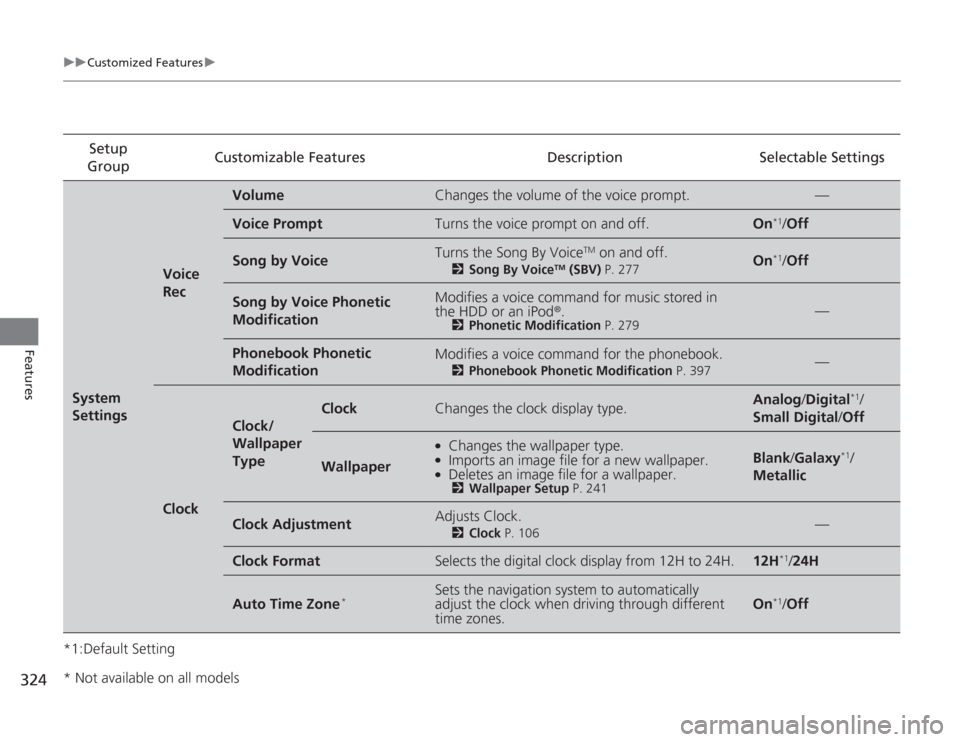
*1:Default SettingSetup
Group Customizable Features Description Selectable SettingsSystem
Settings
Voice
Rec
Volume
Changes the volume of the voice prompt.
—
Voice Prompt
Turns the voice prompt on and off.
On
*1/
Off
Song by Voice
Turns the Song By Voice
TM on and off.
2 Song By Voice
TM (SBV) P. 277
On
*1/Off
Song by Voice Phonetic
Modification
Modifies a voice command for music stored in
the HDD or an iPod ®.
2Phonetic Modification P. 279
—
Phonebook Phonetic
Modification
Modifies a voice command for the phonebook.
2Phonebook Phonetic Modification P. 397
—
Clock
Clock/
Wallpaper
Type
Clock
Changes the clock display type.
Analog/Digital
*1/
Small Digital /Off
Wallpaper
●
Changes the wallpaper type.
●
Imports an image file for a new wallpaper.
●
Deletes an image file for a wallpaper.2 Wallpaper Setup P. 241
Blank/Galaxy
*1/
Metallic
Clock Adjustment
Adjusts Clock.
2 Clock P. 106
—
Clock Format
Selects the digital clock display from 12H to 24H.
12H
*1/24H
Auto Time Zone
*
Sets the navigation system to automatically
adjust the clock when driving through different
time zones.
On
*1/ Off
* Not available on all models
Page 332 of 595
331
uuCustomized Features u
Continued
Features
*1:Default SettingSetup
Group Customizable Features Description Selectable Settings
Audio
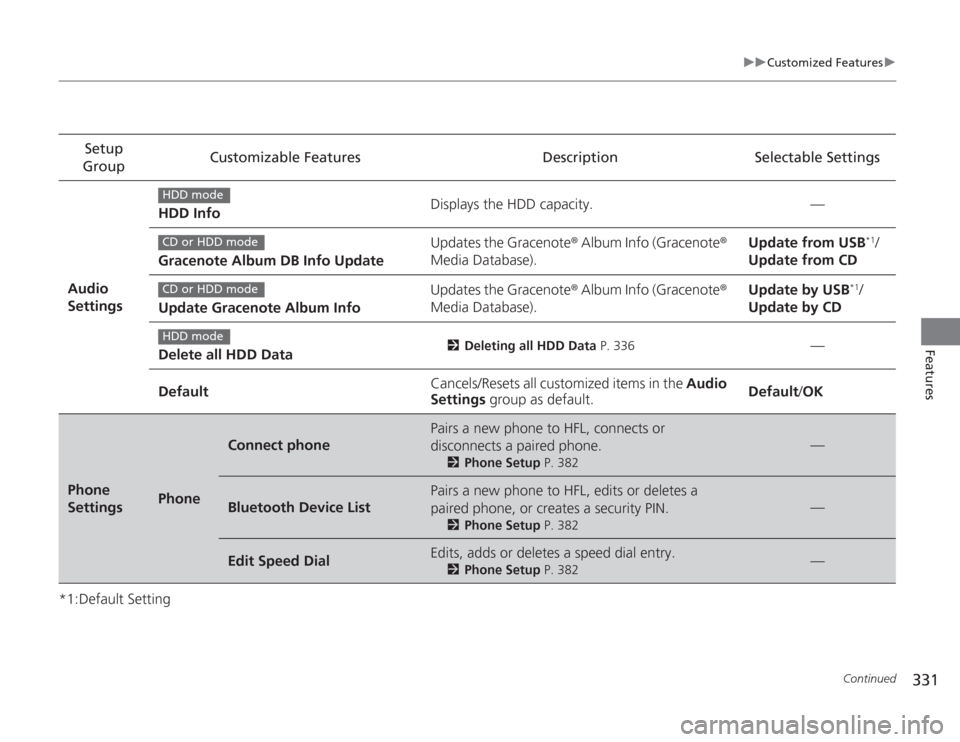
Settings HDD Info
Displays the HDD capacity. —
Gracenote Album DB Info Update Updates the Gracenote
® Album Info (Gracenote ®
Media Database). Update from USB
*1/
Update from CD
Update Gracenote Album Info Updates the Gracenote
® Album Info (Gracenote ®
Media Database). Update by USB
*1/
Update by CD
Delete all HDD Data
2 Deleting all HDD Data P. 336
—
Default Cancels/Resets all customized items in the
Audio
Settings group as default. Default
/OK
Phone
Settings
Phone
Connect phone
Pairs a new phone to HFL, connects or
disconnects a paired phone.
2 Phone Setup P. 382
—
Bluetooth Device List
Pairs a new phone to HFL, edits or deletes a
paired phone, or creates a security PIN.
2Phone Setup P. 382
—
Edit Speed Dial
Edits, adds or deletes a speed dial entry.
2Phone Setup P. 382
—
HDD modeCD or HDD modeCD or HDD modeHDD mode
Page 333 of 595
332
uuCustomized Features u
Features
*1:Default SettingSetup
Group Customizable Features Description Selectable SettingsPhone
Settings
Phone
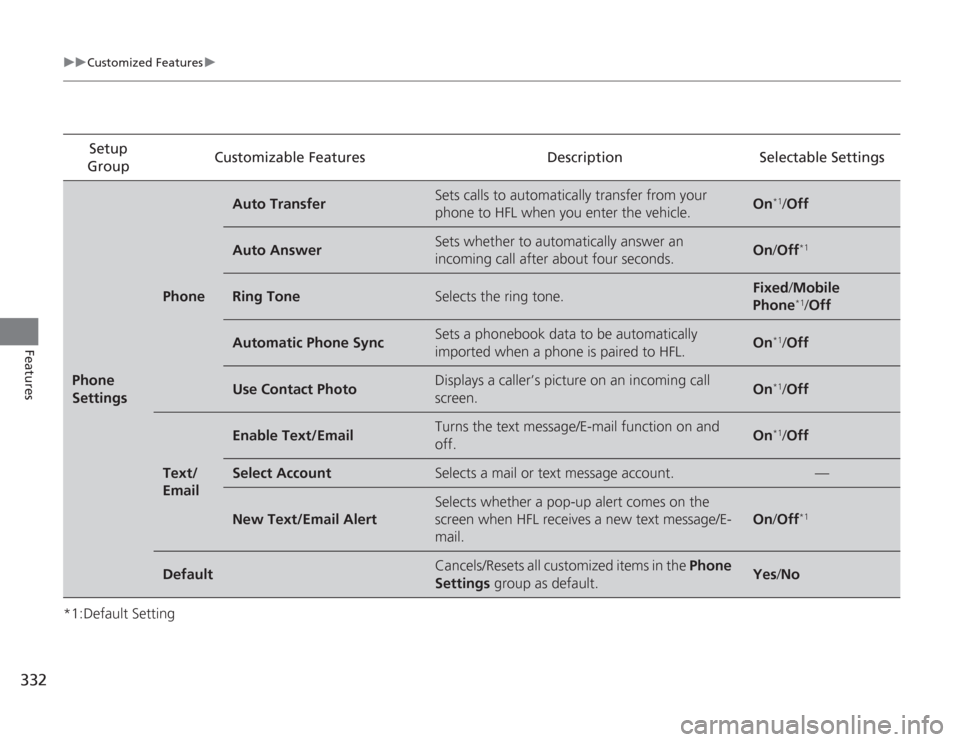
Auto Transfer
Sets calls to automatically transfer from your
phone to HFL when you enter the vehicle.
On
*1/
Off
Auto Answer
Sets whether to automatically answer an
incoming call after about four seconds.
On /Off
*1
Ring Tone
Selects the ring tone.
Fixed /Mobile
Phone
*1/ Off
Automatic Phone Sync
Sets a phonebook data to be automatically
imported when a phone is paired to HFL.
On
*1/Off
Use Contact Photo
Displays a caller’s picture on an incoming call
screen.
On
*1/Off
Text/
Email
Enable Text/Email
Turns the text message/E-mail function on and
off.
On
*1/Off
Select Account
Selects a mail or text message account.
—
New Text/Email Alert
Selects whether a pop-up alert comes on the
screen when HFL receives a new text message/E-
mail.
On /Off
*1
Default
Cancels/Resets all customized items in the Phone
Settings group as default.
Yes/No
Page 335 of 595
334
uuCustomized Features uDefaulting All the Settings
Features
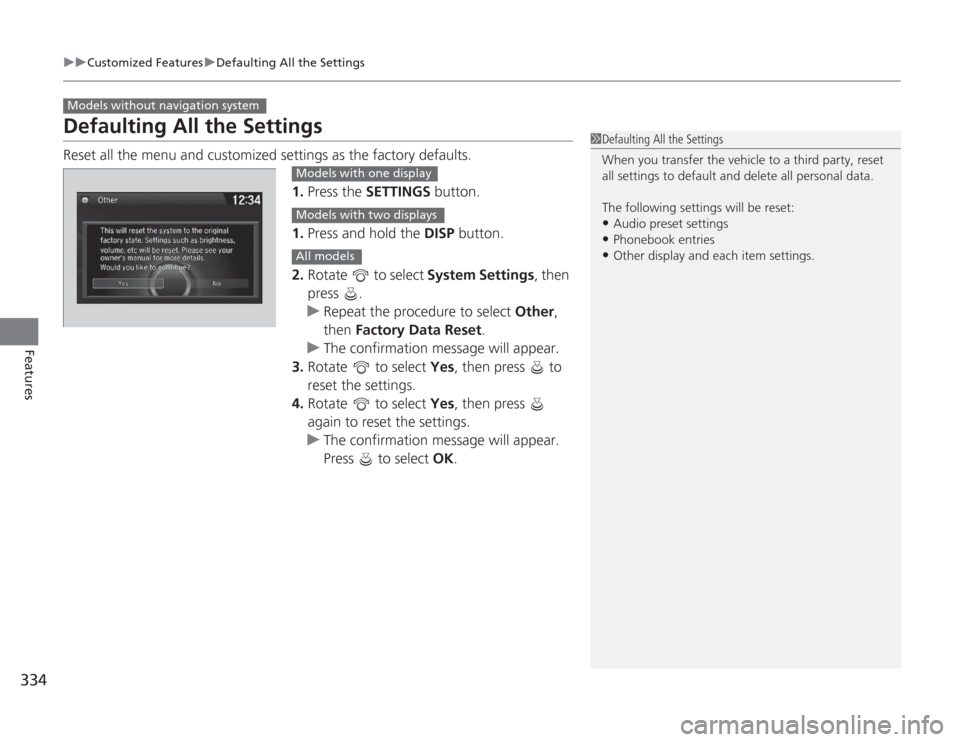
Defaulting All the SettingsReset all the menu and customized settings as the factory defaults.
1.Press the SETTINGS button.
1. Press and hold the DISP button.
2. Rotate to select System Settings, then
press .
u Repeat the procedure to select Other,
then Factory Data Reset .
u The confirmation message will appear.
3. Rotate to select Yes, then press to
reset the settings.
4. Rotate to select Yes, then press
again to reset the settings.
u The confirmation message will appear.
Press to select OK.Models without navigation system
1Defaulting All the Settings
When you transfer the vehicle to a third party, reset
all settings to default and delete all personal data.
The following settings will be reset:•Audio preset settings•Phonebook entries•Other display and each item settings.
Models with one displayModels with two displaysAll models
Page 336 of 595
335
uuCustomized Features uDefaulting All the Settings
Features
Defaulting All the SettingsReset all the menu and customized settings as the factory defaults.
1.Press the SETTINGS button.
2. Rotate to select System Settings, then
press .
3. Move or to select Others.
4. Rotate to select Factory Data Reset ,
then press .
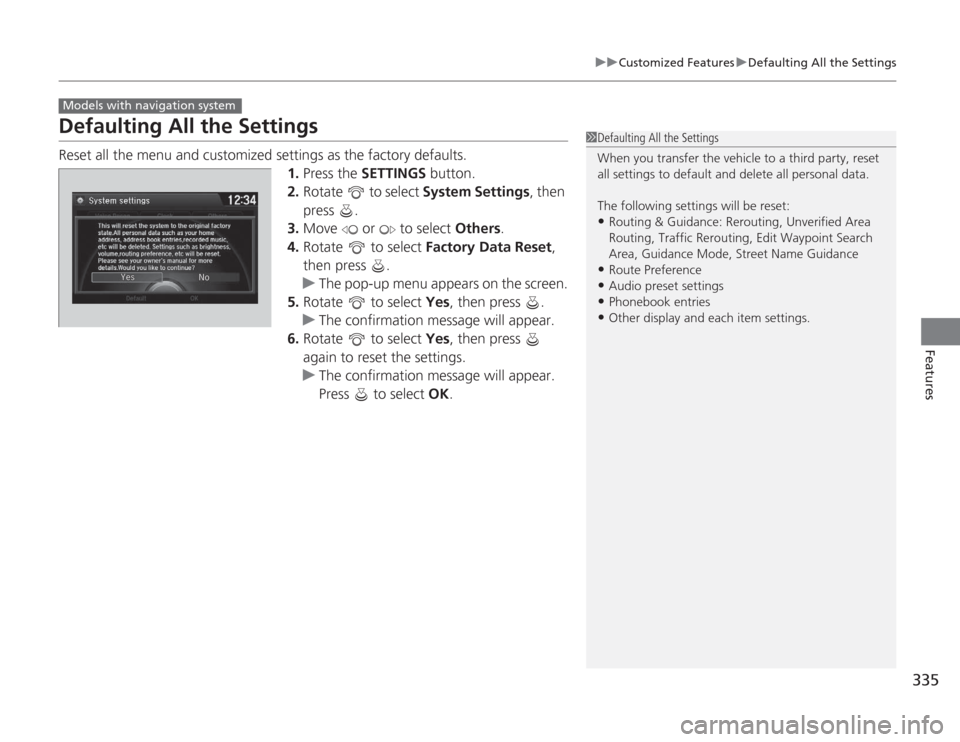
u The pop-up menu appears on the screen.
5. Rotate to select Yes, then press .
u The confirmation message will appear.
6. Rotate to select Yes, then press
again to reset the settings.
u The confirmation message will appear.
Press to select OK.Models with navigation system
1Defaulting All the Settings
When you transfer the vehicle to a third party, reset
all settings to default and delete all personal data.
The following settings will be reset:•Routing & Guidance: Rerouting, Unverified Area
Routing, Traffic Rerouting, Edit Waypoint Search
Area, Guidance Mode, Street Name Guidance•Route Preference•Audio preset settings•Phonebook entries•Other display and each item settings.
Page 340 of 595
339
Continued
Features
Bluetooth® HandsFreeLink ®Bluetooth® HandsFreeLink ® (HFL) allows you to place and receive phone calls using
your vehicle’s audio system, without handling your cell phone.Using HFL
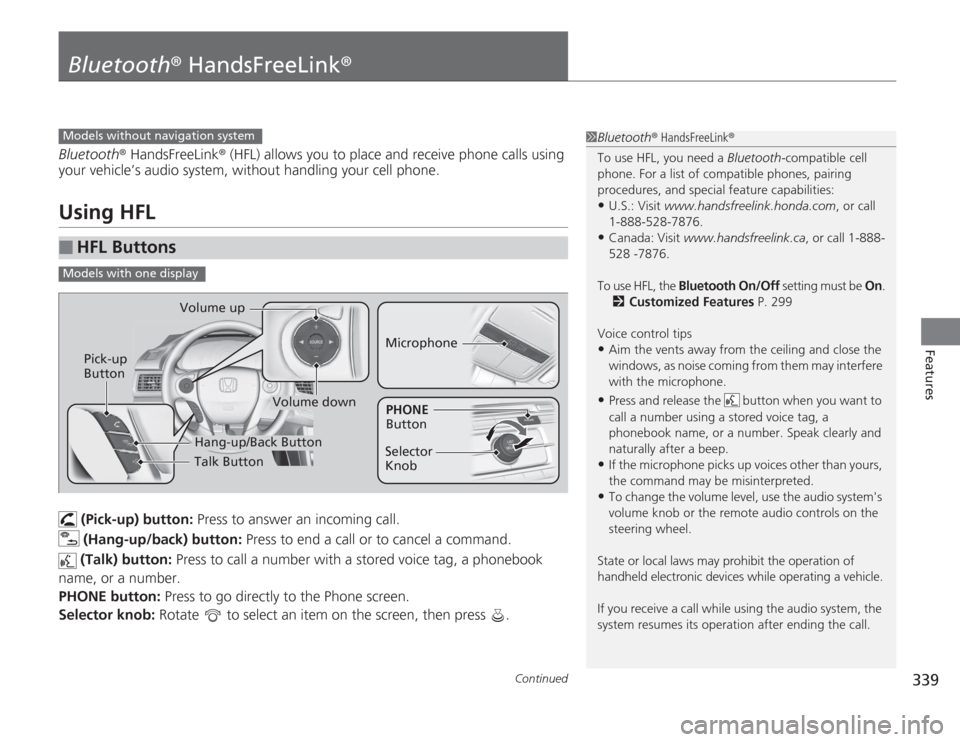
(Pick-up) button: Press to answer an incoming call.
(Hang-up/back) button: Press to end a call or to cancel a command.
(Talk) button: Press to call a number with a stored voice tag, a phonebook
name, or a number.
PHONE button: Press to go directly to the Phone screen.
Selector knob: Rotate to select an item on the screen, then press .
■
HFL Buttons
1Bluetooth ® HandsFreeLink ®
To use HFL, you need a Bluetooth-compatible cell
phone. For a list of compatible phones, pairing
procedures, and special feature capabilities:•U.S.: Visit www.handsfreelink.honda.com , or call
1-888-528-7876.•Canada: Visit www.handsfreelink.ca , or call 1-888-
528 -7876.
To use HFL, the Bluetooth On/Off setting must be On .
2 Customized Features P. 299
Voice control tips•Aim the vents away from the ceiling and close the
windows, as noise coming from them may interfere
with the microphone.•Press and release the button when you want to
call a number using a stored voice tag, a
phonebook name, or a number. Speak clearly and
naturally after a beep.•If the microphone picks up voices other than yours,
the command may be misinterpreted.•To change the volume level, use the audio system's
volume knob or the remote audio controls on the
steering wheel.
State or local laws may prohibit the operation of
handheld electronic devices while operating a vehicle.
If you receive a call while using the audio system, the
system resumes its operation after ending the call.
Models without navigation systemModels with one display
Talk Button
Volume up
MicrophoneHang-up/Back Button
Pick-up
Button
Volume down
Selector
KnobPHONE
Button
Page 341 of 595
uuBluetooth ® HandsFreeLink ®u Using HFL
340Features
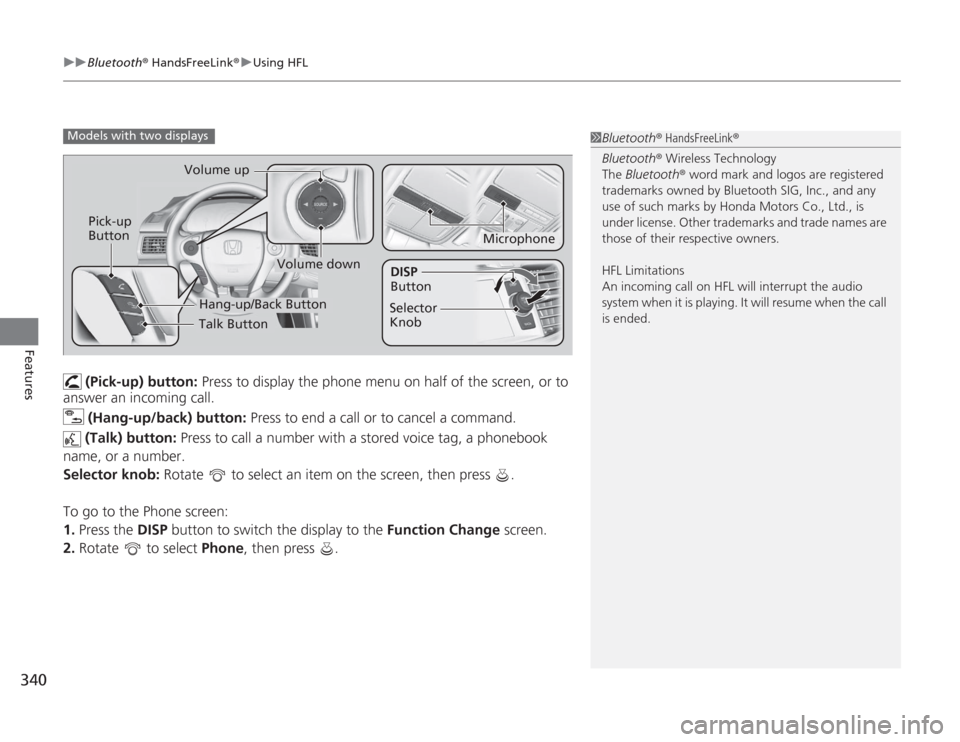
(Pick-up) button: Press to display the phone menu on half of the screen, or to
answer an incoming call.
(Hang-up/back) button: Press to end a call or to cancel a command.
(Talk) button: Press to call a number with a stored voice tag, a phonebook
name, or a number.
Selector knob: Rotate to select an item on the screen, then press .
To go to the Phone screen:
1. Press the DISP button to switch the display to the Function Change screen.
2. Rotate to select Phone, then press .
1Bluetooth ® HandsFreeLink ®
Bluetooth ® Wireless Technology
The Bluetooth ® word mark and logos are registered
trademarks owned by Bluetooth SIG, Inc., and any
use of such marks by Honda Motors Co., Ltd., is
under license. Other trademarks and trade names are
those of their respective owners.
HFL Limitations
An incoming call on HFL will interrupt the audio
system when it is playing. It will resume when the call
is ended.
Models with two displays
Talk Button
Volume up
Microphone
Hang-up/Back Button
Pick-up
Button
Volume down
Selector
Knob
DISP
Button
Page 342 of 595
341
uuBluetooth ® HandsFreeLink ®u Using HFL
Features
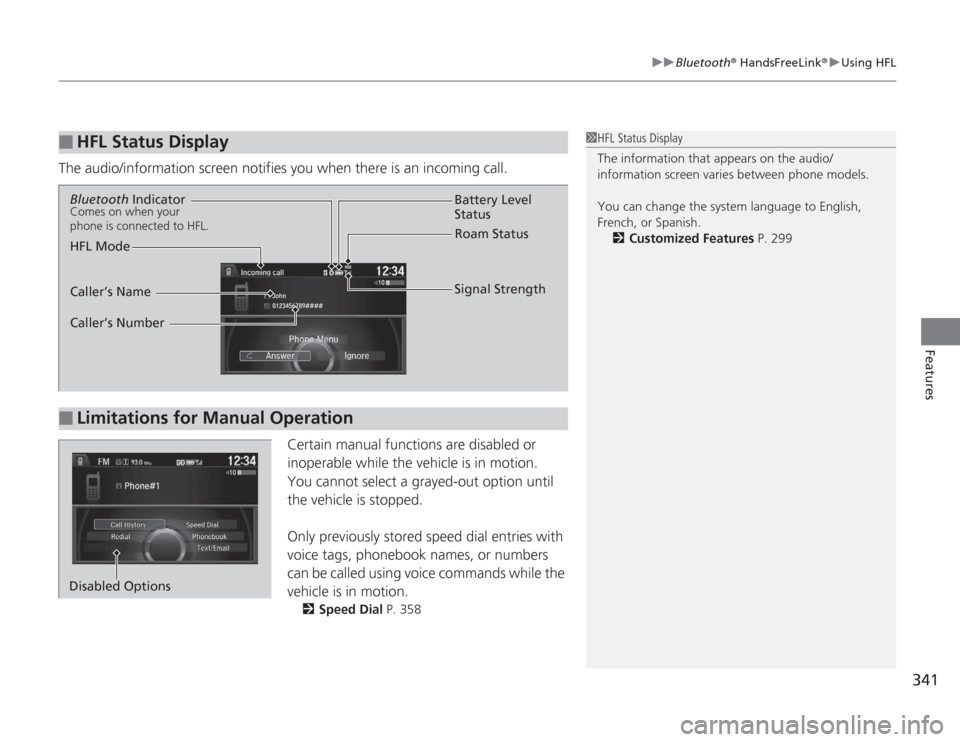
The audio/information screen notifies you when there is an incoming call.
Certain manual functions are disabled or
inoperable while the vehicle is in motion.
You cannot select a grayed-out option until
the vehicle is stopped.
Only previously stored speed dial entries with
voice tags, phonebook names, or numbers
can be called using voice commands while the
vehicle is in motion.
2Speed Dial P. 358
■
HFL Status Display
1HFL Status Display
The information that appears on the audio/
information screen varies between phone models.
You can change the system language to English,
French, or Spanish.
2 Customized Features P. 299
■
Limitations for Manual OperationBluetooth IndicatorComes on when your
phone is connected to HFL.
Signal Strength
HFL Mode Battery Level
Status
Roam Status
Caller’s Name
Caller’s Number
Disabled Options
Page 343 of 595
342
uuBluetooth ® HandsFreeLink ®u HFL Menus
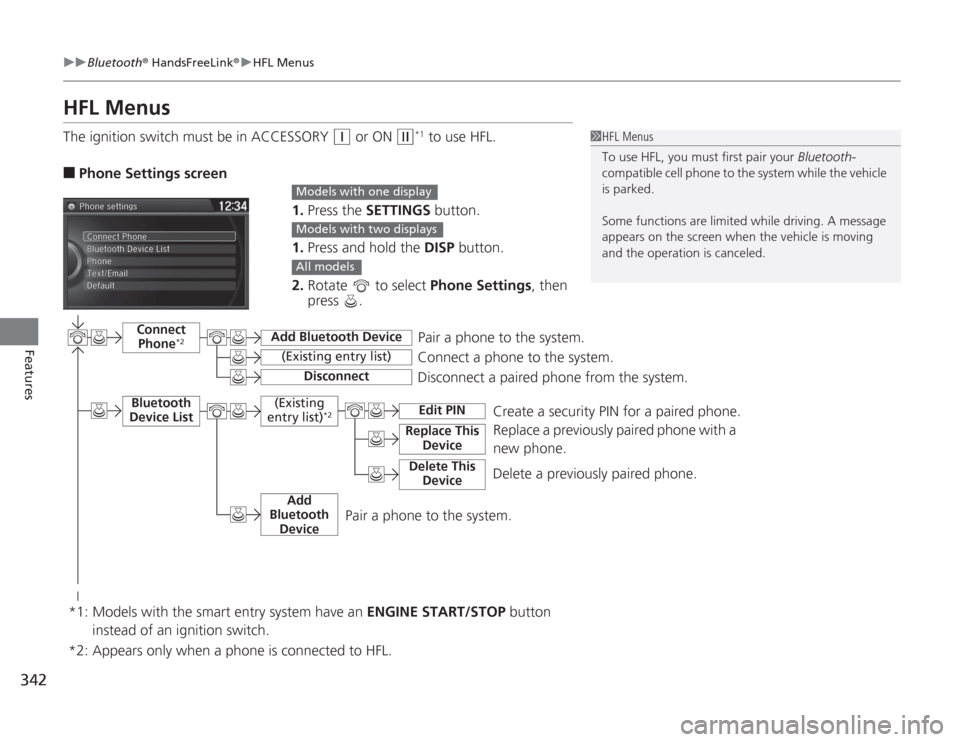
Features
HFL MenusThe ignition switch must be in ACCESSORY
(q
or ON
(w
*1 to use HFL.
■
Phone Settings screen
1.Press the SETTINGS button.
1. Press and hold the DISP button.
2. Rotate to select Phone Settings, then
press .
1 HFL Menus
To use HFL, you must first pair your Bluetooth-
compatible cell phone to the system while the vehicle
is parked.
Some functions are limit ed while driving. A message
appears on the screen when the vehicle is moving
and the operation is canceled.
Models with one displayModels with two displaysAll models
Pair a phone to the system.
Replace a previously paired phone with a
new phone.
Connect Phone
*2
Bluetooth
Device List
Add Bluetooth Device
Edit PIN
(Existing entry list)
Disconnect
Connect a phone to the system.
Disconnect a paired phone from the system.
*1: Models with the smart entry system have an ENGINE START/STOP button
instead of an ignition switch.
(Existing
entry list)
*2
Replace This DeviceDelete This Device
Delete a previously paired phone.Create a security PIN for a paired phone.
Add
Bluetooth Device
*2: Appears only when a phone is connected to HFL.
Pair a phone to the system.
Page 344 of 595
343
uuBluetooth ® HandsFreeLink ®u HFL Menus
Continued
Features
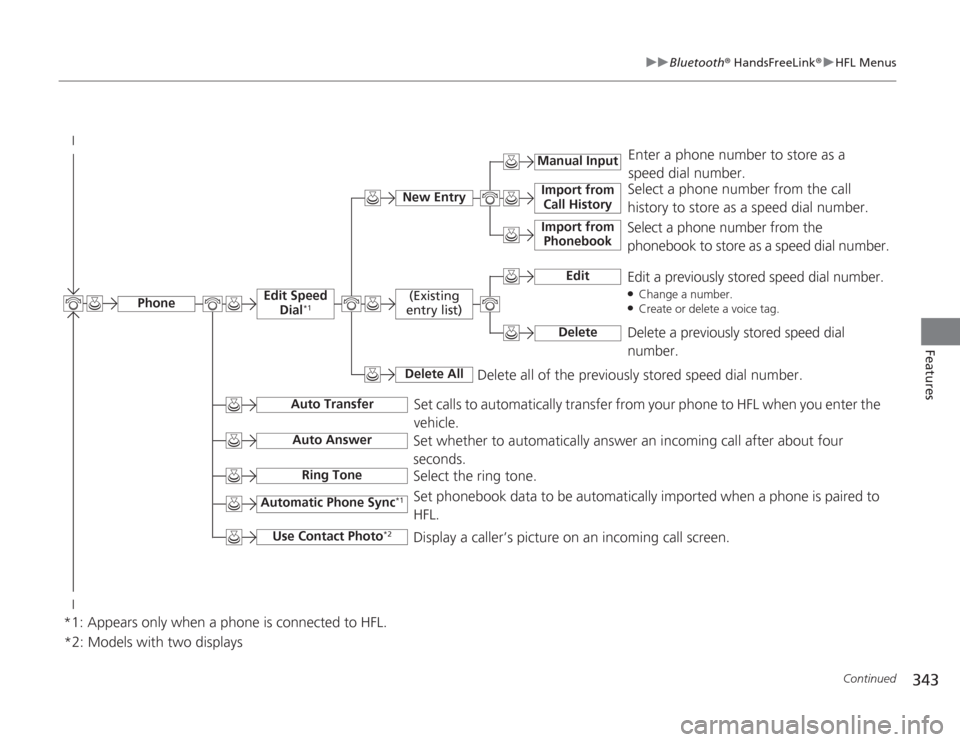
Select a phone number from the call
history to store as a speed dial number.
Manual Input
New Entry
Import from
Call HistoryImport from Phonebook
Enter a phone number to store as a
speed dial number.
Delete all of the previously stored speed dial number.
*2: Models with two displaysSelect a phone number from the
phonebook to store as a speed dial number.
Edit
Edit a previously stored speed dial number.●Change a number.●Create or delete a voice tag.
Delete
Delete a previously stored speed dial
number.
(Existing
entry list)Delete All
Edit Speed Dial
*1
Set calls to automatically transfer from your phone to HFL when you enter the
vehicle.
Auto Transfer
Auto AnswerRing Tone
Set whether to automatically answer an incoming call after about four
seconds.
Select the ring tone.
Automatic Phone Sync
*1
Use Contact Photo
*2
Set phonebook data to be automatically imported when a phone is paired to
HFL.
Display a caller’s picture on an incoming call screen.
Phone
*1: Appears only when a phone is connected to HFL.