lock HONDA ACCORD 2014 9.G Manual Online
[x] Cancel search | Manufacturer: HONDA, Model Year: 2014, Model line: ACCORD, Model: HONDA ACCORD 2014 9.GPages: 595
Page 243 of 595
uuAudio System Basic Operation uAudio/Information Screen
242Features
■
Select wallpaper
1. Press the SETTINGS button.
2. Rotate to select System Settings, then press .
u Repeat the procedure to select Clock/Wallpaper Type.
3. Move to select Wallpaper.
u The screen changes to the wallpaper list.
4. Rotate to select a desired wallpaper.
u The preview is displayed on the left side on the screen.
5. Press .
u The pop-up menu appears on the screen.
6. Rotate to select Set, then press .
u The display will return to the wallpaper list.
■
Delete wallpaper
1. Press the SETTINGS button.
2. Rotate to select System Settings, then press .
u Repeat the procedure to select Clock/Wallpaper Type.
3. Move to select Wallpaper.
u The screen changes to the wallpaper list.
4. Rotate to select a wallpaper that you want to delete, then press .
u The preview is displayed on the left side on the screen.
5. Press .
u The pop-up menu appears on the screen.
6. Rotate to select Delete, then press .
u The confirmation message will appear.
7. Rotate to select Yes, then press to delete completely.
u The display will return to the wallpaper list.
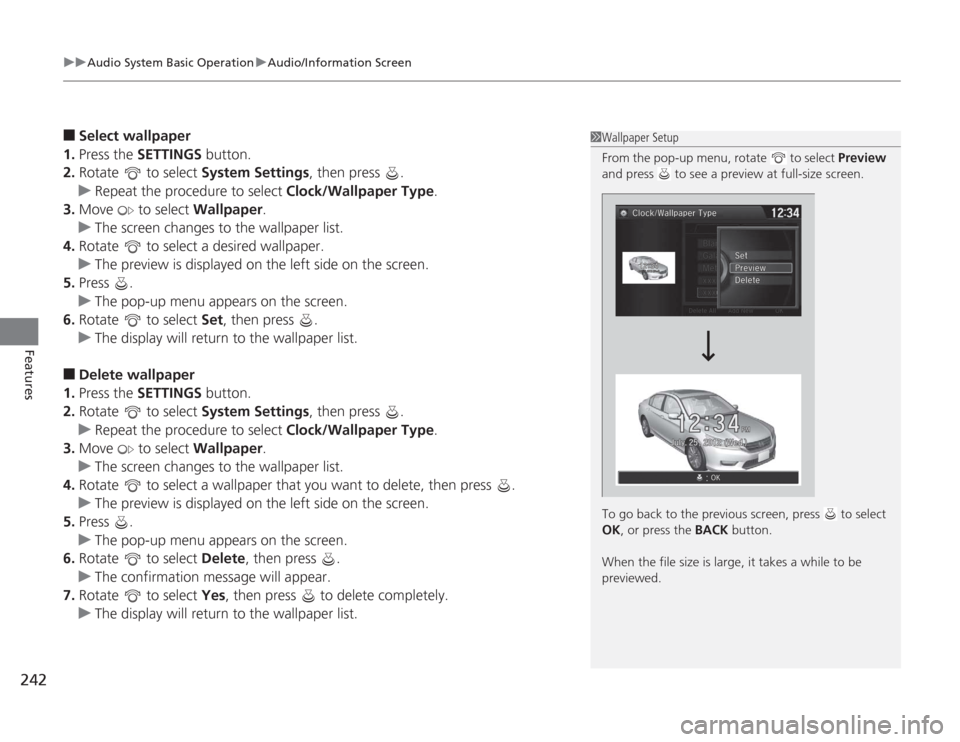
1Wallpaper Setup
From the pop-up menu, rotate to select Preview
and press to see a preview at full-size screen.
To go back to the previous screen, press to select
OK , or press the BACK button.
When the file size is large, it takes a while to be
previewed.
Page 247 of 595
246
uuAudio System Basic Operation uVoice Control Operation
Features
The system accepts these commands on the
Voice Portal screen.
• Call Your contact name
• Call Phone Number
• Find nearest POI category name
• Go home
• Route menu
• Cancel route
The system accepts these commands on any
screen.
• Call by number
• Call by name
• Call Phone number
• Call your contact name
Contacts that are imported from your
phone to the vehicle are all made available
by voice. Voice Tags can also be recorded
for each of your Speed Dial entries.■
Voice Portal Commands
■
Phone Commands
2 Refer to the Navigation System Manual
The system accepts these commands on any
screen.
•Trip computer
• Traffic information
• Display clock
• Display wallpaper■
Navigation Commands
■
Info Commands
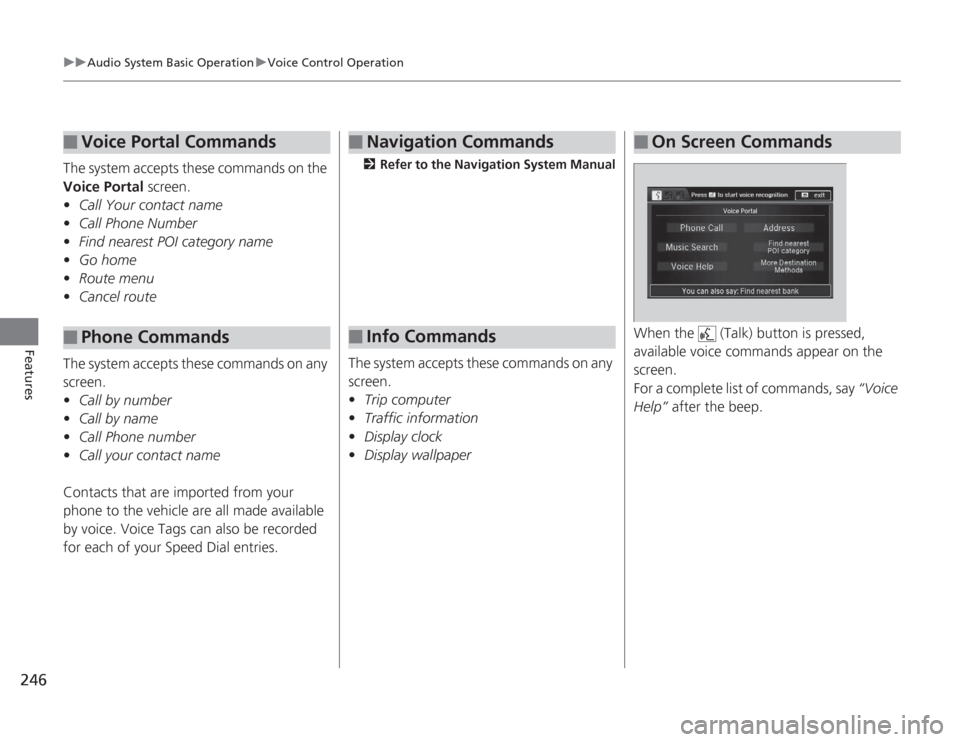
When the (Talk) button is pressed,
available voice commands appear on the
screen.
For a complete list of commands, say “Voice
Help” after the beep.■
On Screen Commands
Page 296 of 595
295
Features
General Information on the Audio SystemXM® Radio Service
*
1. You need your radio ID ready before registering for subscription. To see the ID in
the display: Turn the selector knob or the interface dial until 0 appears.
2. Have your radio ID and credit card number ready, and either call or visit the XM ®
website to subscribe.
Switch to the XM ® mode by using the SOURCE button, or through the audio with
touch screen, and stay in this mode for about 30 minutes until the service is
activated. Make sure your vehicle is in an open area with good reception.
Loading:
XM ® is loading the audio or program information.
Ch off air:
The channel is not currently broadcasting.
Ch unauthorized:
XM ® radio is receiving information update from the network.
No signal:
The signal is too weak in the current location.
Ch unavailable:
No such channel exists, the channel is not part of your subscription, or the artist or
title information is unavailable.
Check antenna:
There is a problem with the XM® antenna. Contact a dealer.■
Subscribing to XM ® Radio
■
Receiving XM ® Radio
■
XM ® Radio Display Messages
1 Subscribing to XM ® Radio
Contact Information for XM ® Radio:
US: XM ® Radio at www.siriusxm.com or (800) 852-
9696
Canada: XM ® Canada at www.xmradio.ca , or (877)
209-00791 Receiving XM ® Radio
The XM ® satellites are in orbit over the equator;
therefore, objects south of the vehicle may cause
satellite reception interruptions. Satellite signals are
more likely to be blocked by tall buildings and
mountains the farther north you travel from the
equator.
You may experience reception problems under the
following circumstances:•In a location with an obstruction to the south of
your vehicle.•In tunnels•On the lower level of a multi-tiered road•Large items carried on the roof rack
* Not available on all models
Page 299 of 595
298
uuGeneral Information on the Audio System uCompatible iPod ®, iPhone ®, and USB Flash Drives
Features
Compatible iPod ®, iPhone ®, and USB Flash Drives• Use a recommended USB flash drive of 256 MB or higher.
• Some digital audio players may not be compatible.
• Some USB flash drives (e.g., a device with security lockout) may not work.
• Some software files may not allow for audio play or text data display.
• Some versions of MP3, WMA, or AAC formats may be unsupported.■
iPod ® and iPhone ® Model Compatibility
Model
iPod ® (5th generation)
iPod classic ® 80GB/160GB (launch in 2007)
iPod classic® 120GB (launch in 2008)iPod classic ® 160GB (launch in 2009)
iPod nano® (1st to 6th generation) launch in 2010iPod touch ® (1st to 4th generation) launch in 2010iPhone® 3G/iPhone ® 3GS/iPhone ® 4/iPhone® 4S
■
USB Flash Drives
1iPod® and iPhone ® Model Compatibility
This system may not work with all software versions
of these devices.1 USB Flash Drives
Files on the USB flash drive are played in their stored
order. This order may be different from the order
displayed on your PC or device.
Page 302 of 595
301
uuCustomized Features u
Continued
Features
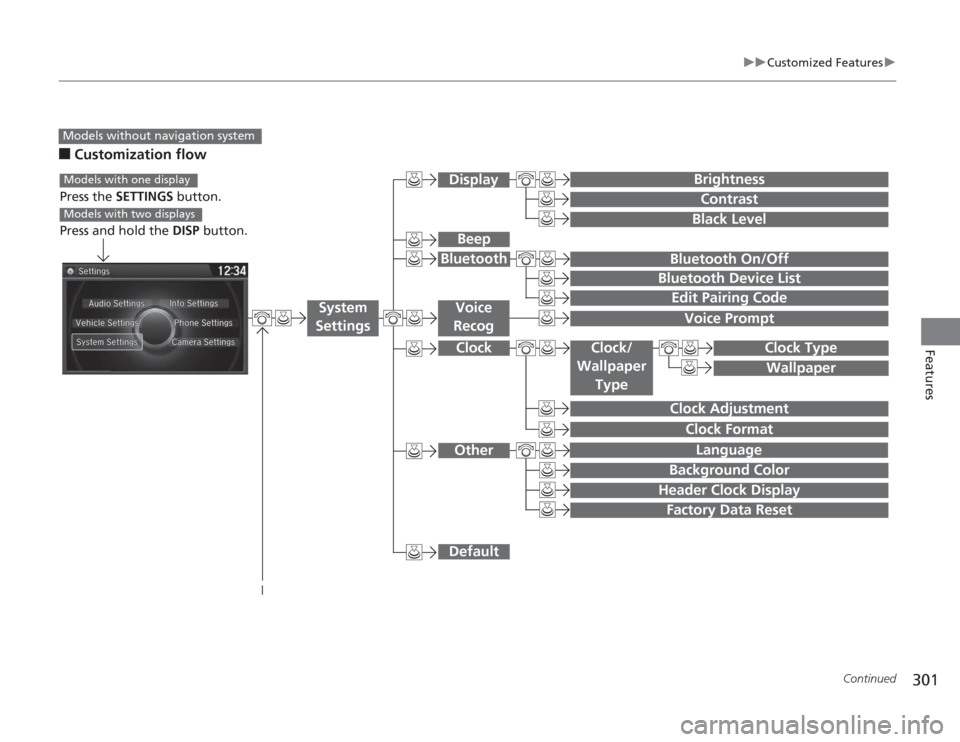
■
Customization flowModels without navigation system
Clock Format
Background ColorHeader Clock DisplayFactory Data ResetClock Adjustment
Press the SETTINGS button.
Press and hold the DISP button.Models with one displayModels with two displays
Language
Default
Edit Pairing CodeBluetooth On/OffBluetooth Device List
Voice PromptBrightnessContrastBlack Level
Beep
Clock/
Wallpaper
Type
Clock TypeWallpaper
System
Settings
Voice
Recog
BluetoothDisplayClockOther
Page 303 of 595
302
uuCustomized Features u
Features
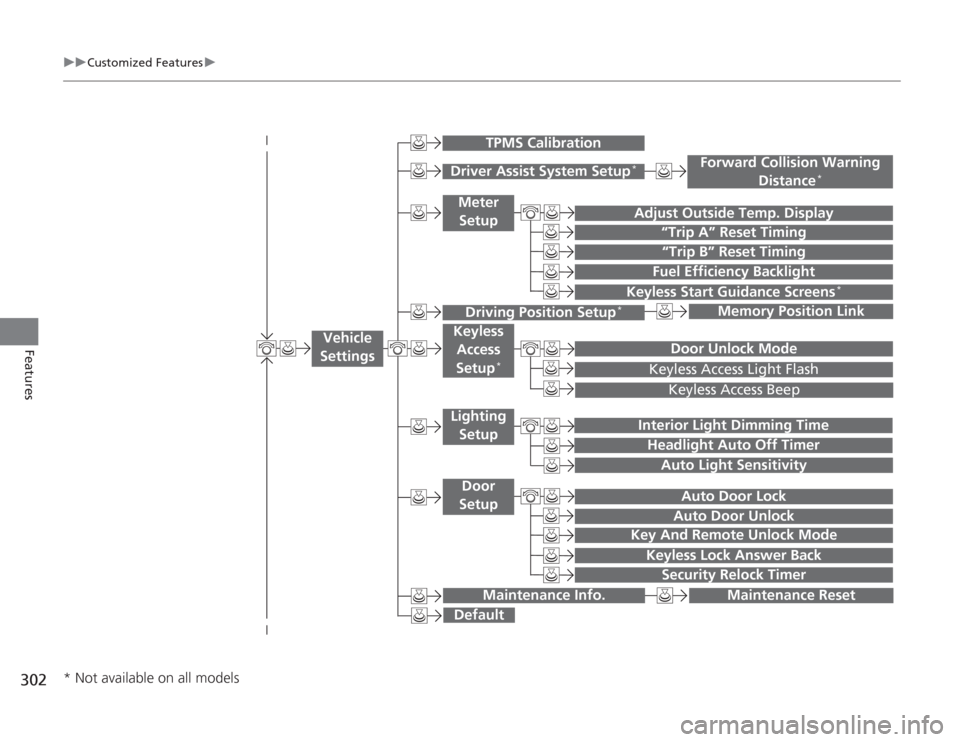
“Trip B” Reset Timing
Adjust Outside Temp. Display
“Trip A” Reset Timing
Keyless Access Light FlashAuto Light Sensitivity
Auto Door LockAuto Door Unlock
Fuel Efficiency Backlight
Forward Collision Warning
Distance
*
Door Unlock Mode
Interior Light Dimming TimeHeadlight Auto Off Timer
Memory Position Link
Keyless Start Guidance Screens
*
Key And Remote Unlock Mode
Keyless Lock Answer Back
Security Relock Timer
Maintenance Reset
Default
Vehicle
Settings
Driver Assist System Setup
*
Meter
Setup
TPMS Calibration
Driving Position Setup
*
Keyless Access
Setup
*
Lighting SetupDoor
Setup
Maintenance Info.
Keyless Access Beep
* Not available on all models
Page 304 of 595
303
uuCustomized Features u
Continued
Features
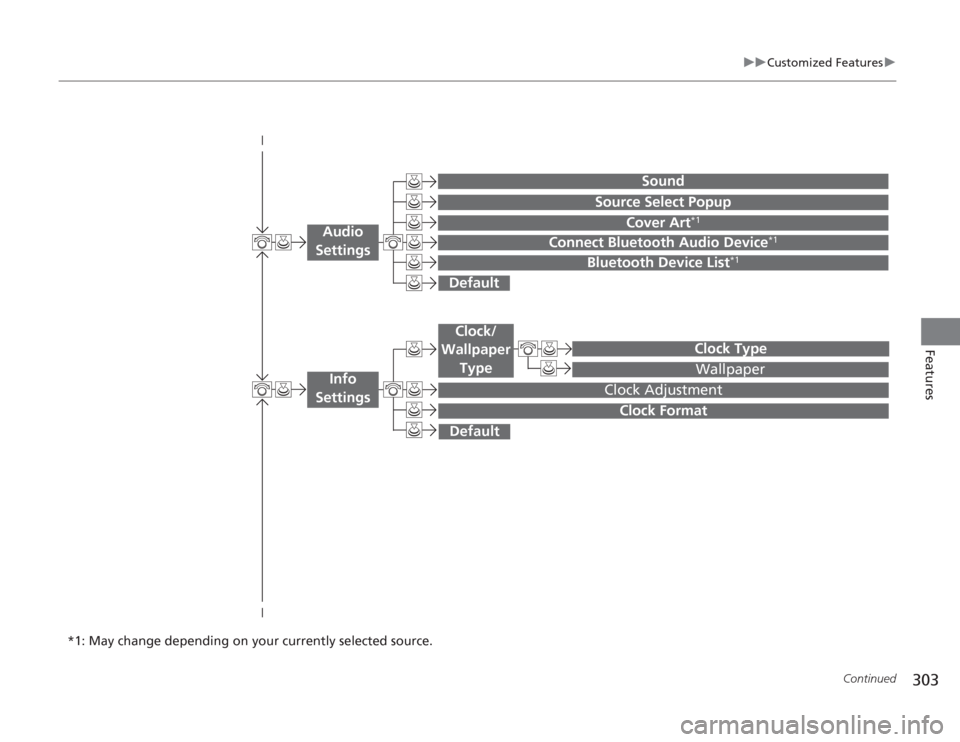
Wallpaper
Source Select Popup
Clock Type
Sound
Default
Cover Art
*1
Connect Bluetooth Audio Device
*1
Bluetooth Device List
*1
Default
Clock Adjustment
Clock Format
Audio
Settings
Clock/
Wallpaper Type
Info
Settings
*1: May change depending on your currently selected source.
Page 308 of 595
307
uuCustomized Features u
Continued
Features
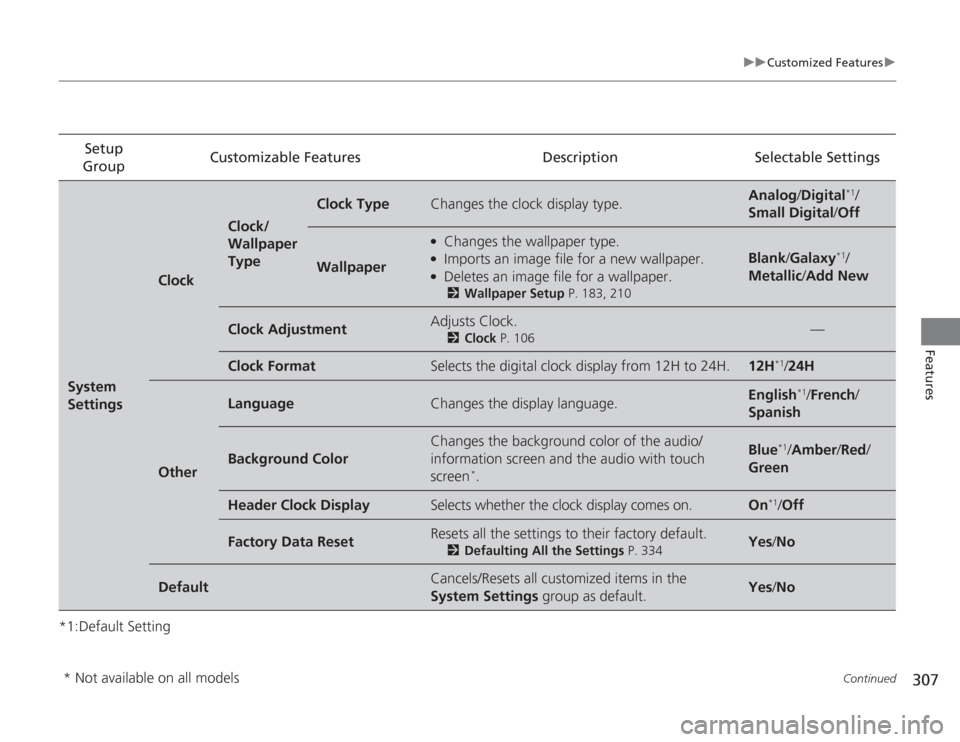
*1:Default SettingSetup
Group Customizable Features Description Selectable SettingsSystem
Settings
Clock
Clock/
Wallpaper
Type
Clock Type
Changes the clock display type.
Analog
/Digital
*1/
Small Digital /Off
Wallpaper
●
Changes the wallpaper type.
●
Imports an image file for a new wallpaper.
●
Deletes an image file for a wallpaper.2 Wallpaper Setup P. 183, 210
Blank/Galaxy
*1/
Metallic /Add New
Clock Adjustment
Adjusts Clock.
2 Clock P. 106
—
Clock Format
Selects the digital clock display from 12H to 24H.
12H
*1/24H
Other
Language
Changes the display language.
English
*1/ French /
Spanish
Background Color
Changes the background color of the audio/
information screen and the audio with touch
screen
*.
Blue
*1/ Amber /Red /
Green
Header Clock Display
Selects whether the clock display comes on.
On
*1/ Off
Factory Data Reset
Resets all the settings to their factory default.
2 Defaulting All the Settings P. 334
Yes /No
Default
Cancels/Resets all customized items in the
System Settings group as default.
Yes/No
* Not available on all models
Page 310 of 595
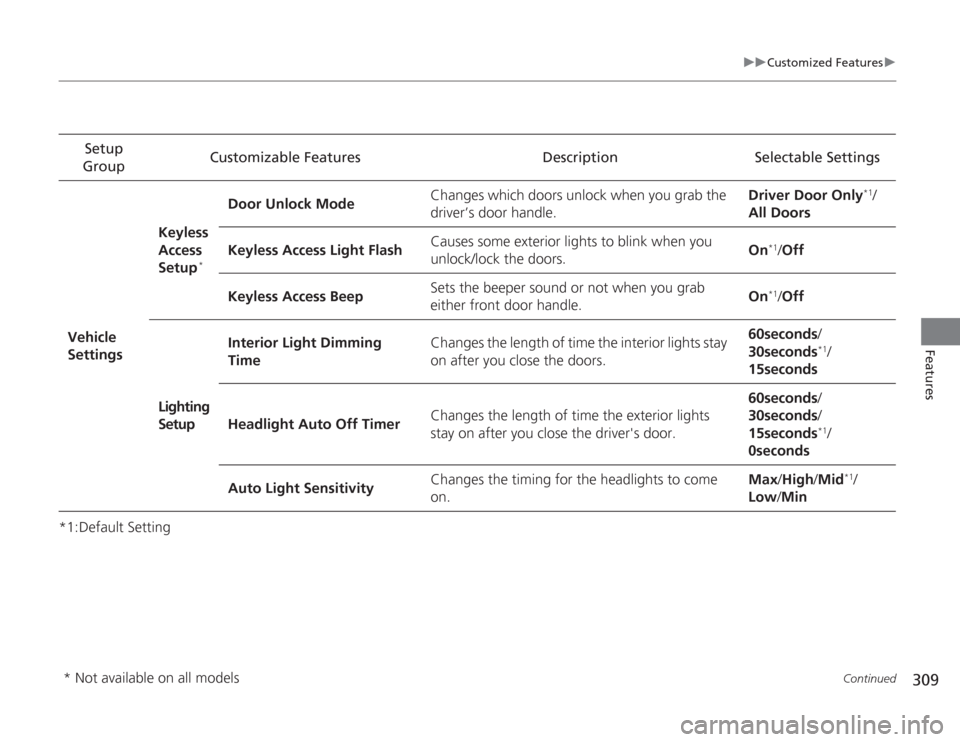
309
uuCustomized Features u
Continued
Features
*1:Default SettingSetup
Group Customizable Features Description Selectable Settings
Vehicle
Settings Keyless
Access
Setup
*
Door Unlock Mode
Changes which doors unlock when you grab the
driver’s door handle. Driver Door Only
*1/
All Doors
Keyless Access Light Flash Causes some exterior lights to blink when you
unlock/lock the doors.
On
*1/
Off
Keyless Access Beep Sets the beeper sound or not when you grab
either front door handle. On*1/
Off
Lighting
Setup Interior Light Dimming
Time
Changes the length of time the interior lights stay
on after you close the doors. 60seconds
/
30seconds
*1/
15seconds
Headlight Auto Off Timer Changes the length of time the exterior lights
stay on after you close the driver's door. 60seconds
/
30seconds /
15seconds*1/
0seconds
Auto Light Sensitivity Changes the timing for the headlights to come
on. Max
/High /Mid
*1/
Low /Min
* Not available on all models
Page 311 of 595
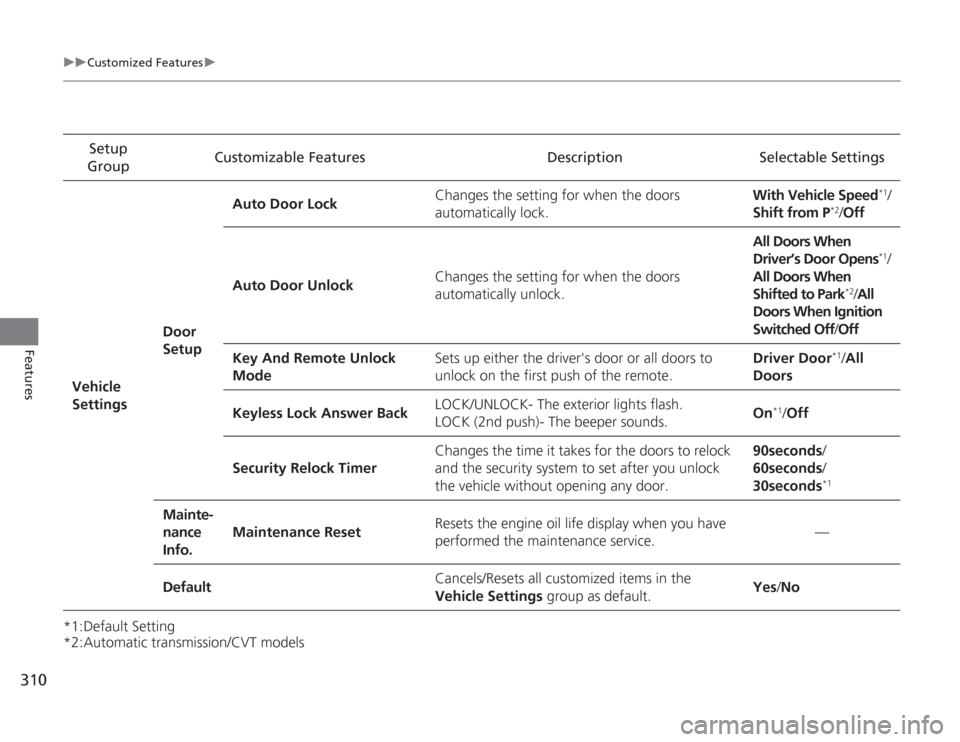
310
uuCustomized Features u
Features
*1:Default Setting
*2:Automatic transmission/CVT modelsSetup
Group Customizable Features Description Selectable Settings
Vehicle
Settings Door
SetupAuto Door Lock
Changes the setting for when the doors
automatically lock. With Vehicle Speed
*1/
Shift from P
*2/ Off
Auto Door Unlock Changes the setting for when the doors
automatically unlock. All Doors When
Driver’s Door Opens
*1/
All Doors When
Shifted to Park
*2/ All
Doors When Ignition
Switched Off /Off
Key And Remote Unlock
Mode Sets up either the driver's door or all doors to
unlock on the first push of the remote. Driver Door
*1/
All
Doors
Keyless Lock Answer Back LOCK/UNLOCK- The exterior lights flash.
LOCK (2nd push)- The beeper sounds.
On
*1/
Off
Security Relock Timer Changes the time it takes for the doors to relock
and the security system to set after you unlock
the vehicle without opening any door. 90seconds/
60seconds/
30seconds
*1
Mainte-
nance
Info.
Maintenance Reset
Resets the engine oil life display when you have
performed the maintenance service. —
Default Cancels/Resets all customized items in the
Vehicle Settings
group as default. Yes
/No