camera HONDA ACCORD 2014 9.G Owners Manual
[x] Cancel search | Manufacturer: HONDA, Model Year: 2014, Model line: ACCORD, Model: HONDA ACCORD 2014 9.GPages: 595
Page 7 of 595
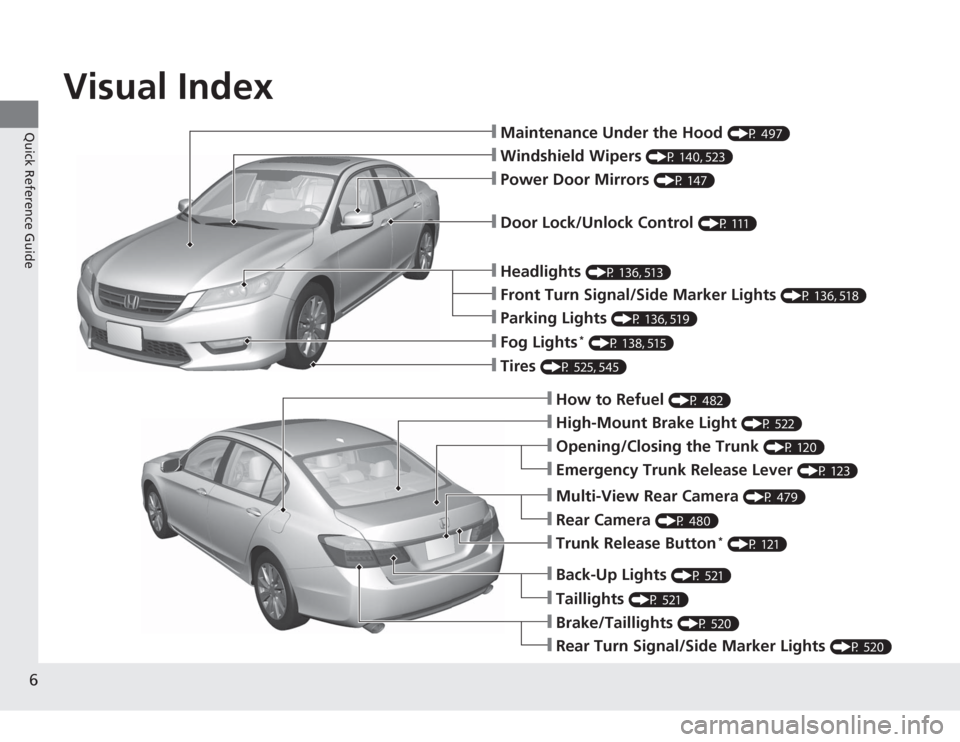
Visual Index
6Quick Reference Guide
❙Maintenance Under the Hood
(P 497)
❙Windshield Wipers
(P 140, 523)
❙Tires
(P 525, 545)
❙Door Lock/Unlock Control
(P 111)
❙Power Door Mirrors
(P 147)
❙Headlights
(P 136, 513)
❙How to Refuel
(P 482)
❙High-Mount Brake Light
(P 522)
❙Emergency Trunk Release Lever
(P 123)
❙Opening/Closing the Trunk
(P 120)
❙Parking Lights
(P 136, 519)
❙Front Turn Signal/Side Marker Lights
(P 136, 518)
❙Fog Lights
* (P 138, 515)
❙Multi-View Rear Camera
(P 479)
❙Trunk Release Button
* (P 121)
❙Back-Up Lights
(P 521)
❙Taillights
(P 521)
❙Brake/Taillights
(P 520)
❙Rear Turn Signal/Side Marker Lights
(P 520)
❙Rear Camera
(P 480)
Page 79 of 595
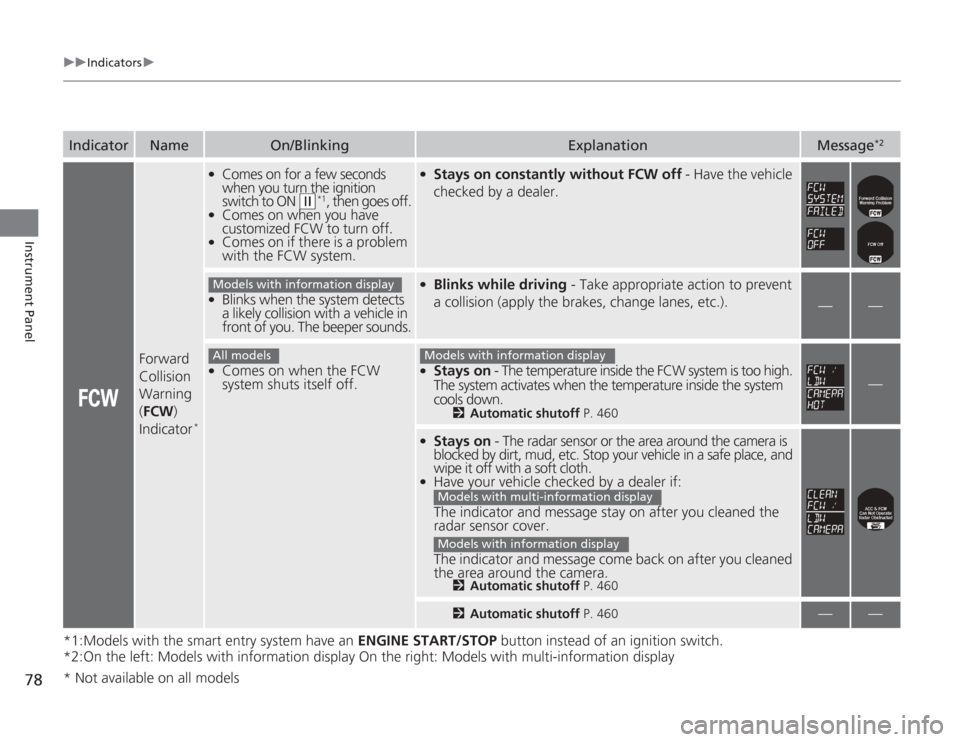
78
uuIndicators u
Instrument Panel
*1:Models with the smart entry system have an ENGINE START/STOP button instead of an ignition switch.
*2:On the left: Models with information display On the right: Models with multi-information displayIndicator
Name
On/Blinking
Explanation
Message
*2
Forward
Collision
Warning
( FCW )
Indicator
*
●
Comes on for a few seconds
when you turn the ignition
switch to ON
(w
*1, then goes off.
●
Comes on when you have
customized FCW to turn off.
●
Comes on if there is a problem
with the FCW system.
●
Stays on constantly without FCW off - Have the vehicle
checked by a dealer.
●
Blinks when the system detects
a likely collision with a vehicle in
front of you. The beeper sounds.
●
Blinks while driving - Take appropriate action to prevent
a collision (apply the brakes, change lanes, etc.).
—
—
●
Comes on when the FCW
system shuts itself off.
●
Stays on - The temperature inside the FCW system is too high.
The system activates when the temperature inside the system
cools down.
2 Automatic shutoff P. 460
—
●
Stays on - The radar sensor or the area around the camera is
blocked by dirt, mud, etc. Stop your vehicle in a safe place, and
wipe it off with a soft cloth.
●
Have your vehicle checked by a dealer if:
The indicator and message stay on after you cleaned the
radar sensor cover.
The indicator and message come back on after you cleaned
the area around the camera.
2 Automatic shutoff P. 4602Automatic shutoff P. 460
—
—
Models with information displayAll models
Models with information display
Models with multi-information displayModels with information display
* Not available on all models
Page 80 of 595
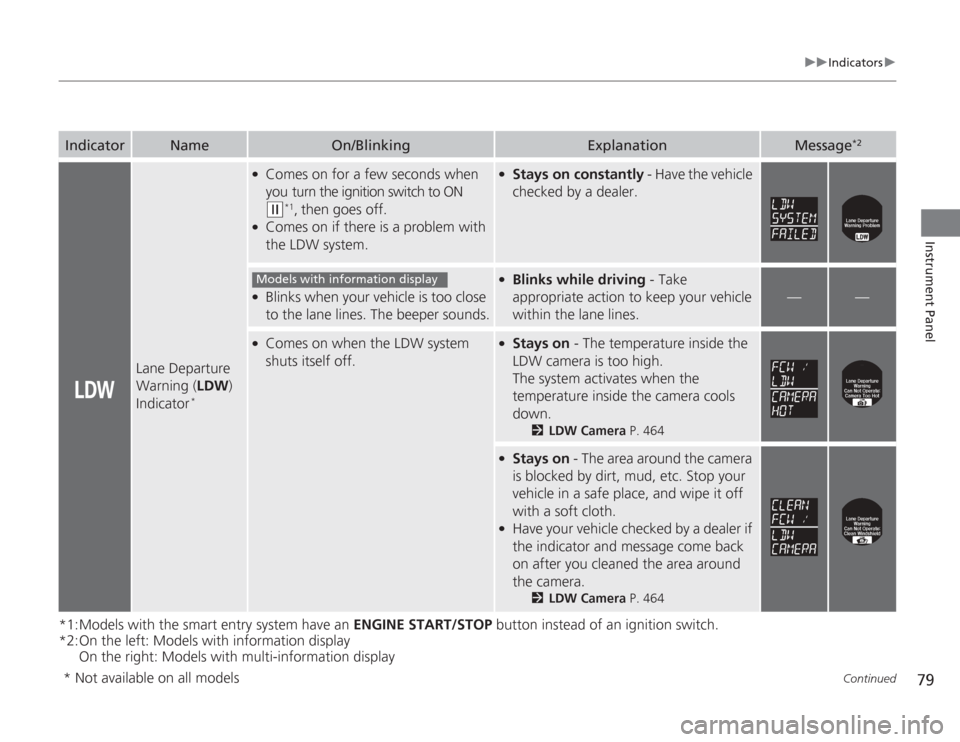
79
uuIndicators u
Continued
Instrument Panel
*1:Models with the smart entry system have an ENGINE START/STOP button instead of an ignition switch.
*2:On the left: Models with information display
On the right: Models with multi-information displayIndicator
Name
On/Blinking
Explanation
Message
*2
Lane Departure
Warning ( LDW)
Indicator
*
●
Comes on for a few seconds when
you turn the ignition switch to ON (w
*1, then goes off.
●
Comes on if there is a problem with
the LDW system.
●
Stays on constantly - Have the vehicle
checked by a dealer.
●
Blinks when your vehicle is too close
to the lane lines. The beeper sounds.
●
Blinks while driving - Take
appropriate action to keep your vehicle
within the lane lines.
—
—
●
Comes on when the LDW system
shuts itself off.
●
Stays on - The temperature inside the
LDW camera is too high.
The system activates when the
temperature inside the camera cools
down.
2 LDW Camera P. 464
●
Stays on - The area around the camera
is blocked by dirt, mud, etc. Stop your
vehicle in a safe place, and wipe it off
with a soft cloth.
●
Have your vehicle checked by a dealer if
the indicator and message come back
on after you cleaned the area around
the camera.
2 LDW Camera P. 464
Models with information display
* Not available on all models
Page 306 of 595
305
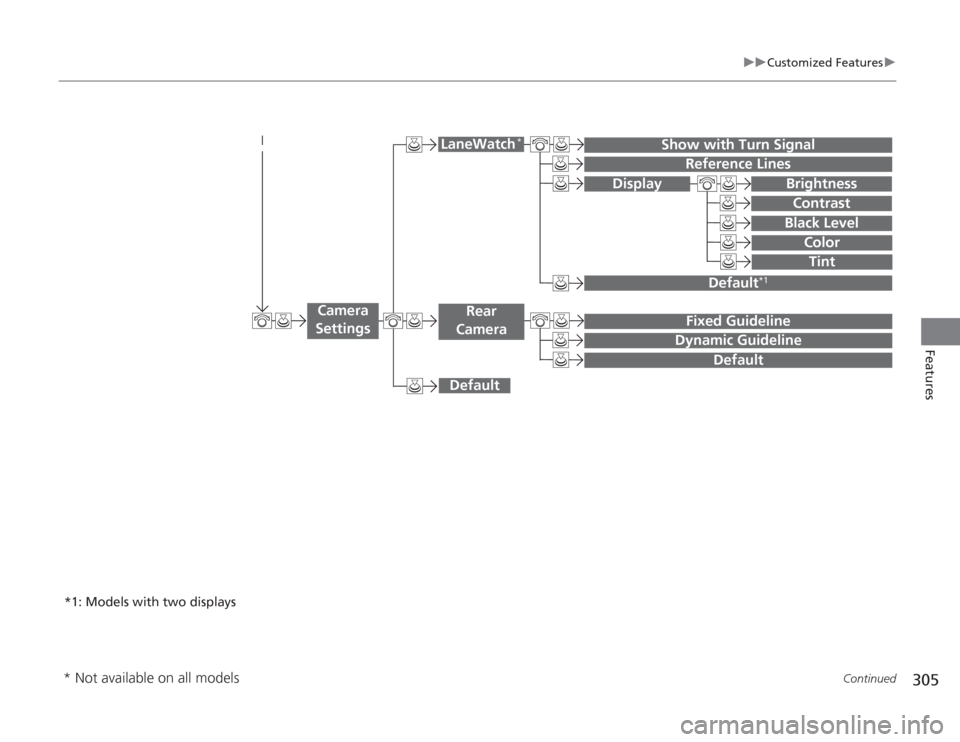
uuCustomized Features u
Continued
Features
Display
Show with Turn Signal
Reference Lines
Default
*1
Default
Default
Fixed GuidelineDynamic Guideline
Camera
Settings
LaneWatch
*
Rear
Camera
BrightnessContrastBlack Level
ColorTint
*1: Models with two displays* Not available on all models
Page 316 of 595
315
uuCustomized Features u
Continued
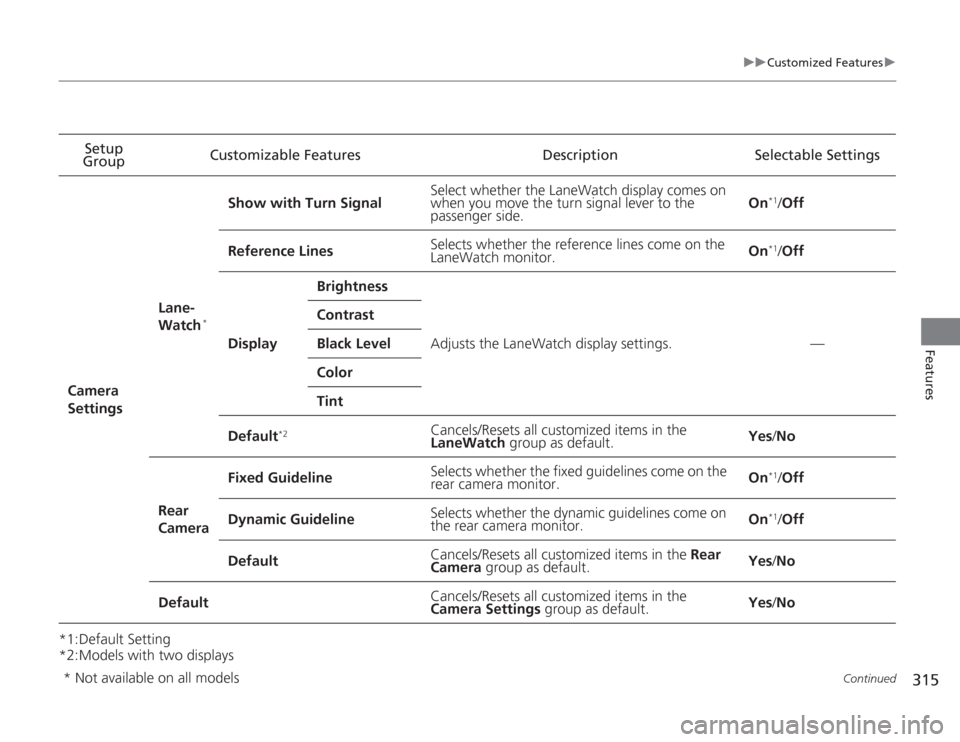
Features
*1:Default Setting
*2:Models with two displaysSetup
Group Customizable Features Description Selectable Settings
Camera
Settings Lane-
Watch
*
Show with Turn Signal
Select whether the LaneWatch display comes on
when you move the turn signal lever to the
passenger side. On
*1/
Off
Reference Lines Selects whether the reference lines come on the
LaneWatch monitor. On*1/
Off
Display Brightness
Adjusts the LaneWatch display settings. —
Contrast
Black Level
Color
Tint
Default
*2
Cancels/Resets all customized items in the
LaneWatch group as default. Yes
/No
Rear
Camera Fixed Guideline
Selects whether the fixed guidelines come on the
rear camera monitor.
On
*1/
Off
Dynamic Guideline Selects whether the dynamic guidelines come on
the rear camera monitor. On*1/
Off
Default Cancels/Resets all customized items in the
Rear
Camera group as default. Yes
/No
Default Cancels/Resets all customized items in the
Camera Settings
group as default. Yes
/No
* Not available on all models
Page 321 of 595
320
uuCustomized Features u
Features
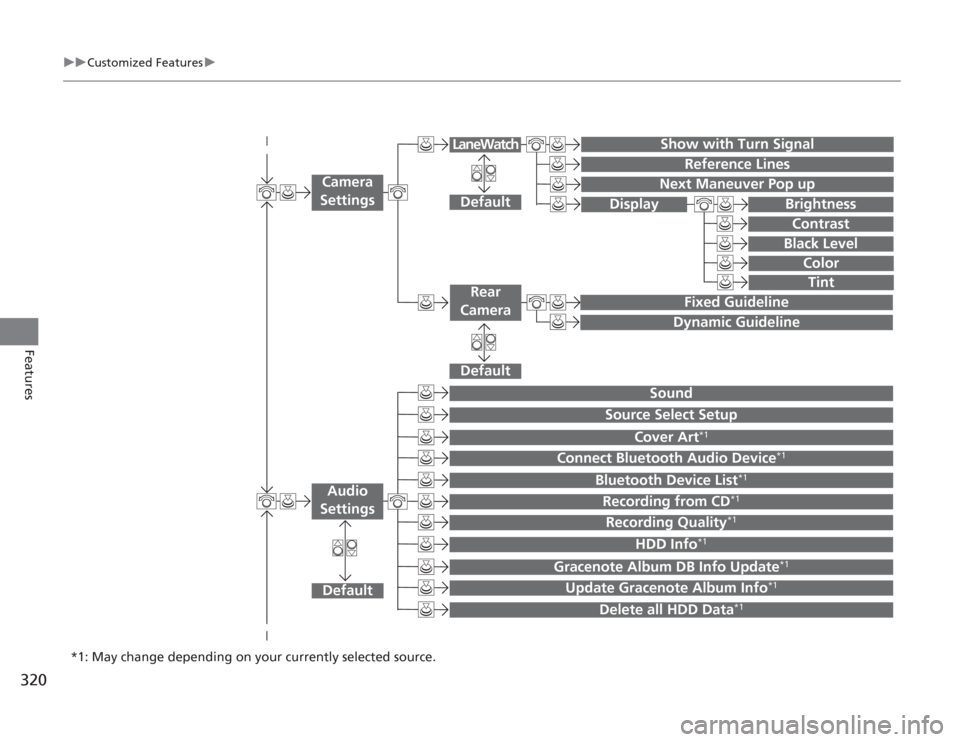
Show with Turn Signal
Reference Lines
Next Maneuver Pop up
Default
Fixed GuidelineDynamic Guideline
Default
Default
Sound
Source Select Setup
Cover Art
*1
Connect Bluetooth Audio Device
*1
Bluetooth Device List
*1
Recording from CD
*1
Recording Quality
*1
HDD Info
*1
Gracenote Album DB Info Update
*1
Update Gracenote Album Info
*1
Delete all HDD Data
*1
Camera
Settings
Rear
Camera
LaneWatch
Audio
Settings
Display
BrightnessContrastBlack Level
ColorTint
*1: May change depending on your currently selected source.
Page 330 of 595
329
uuCustomized Features u
Continued
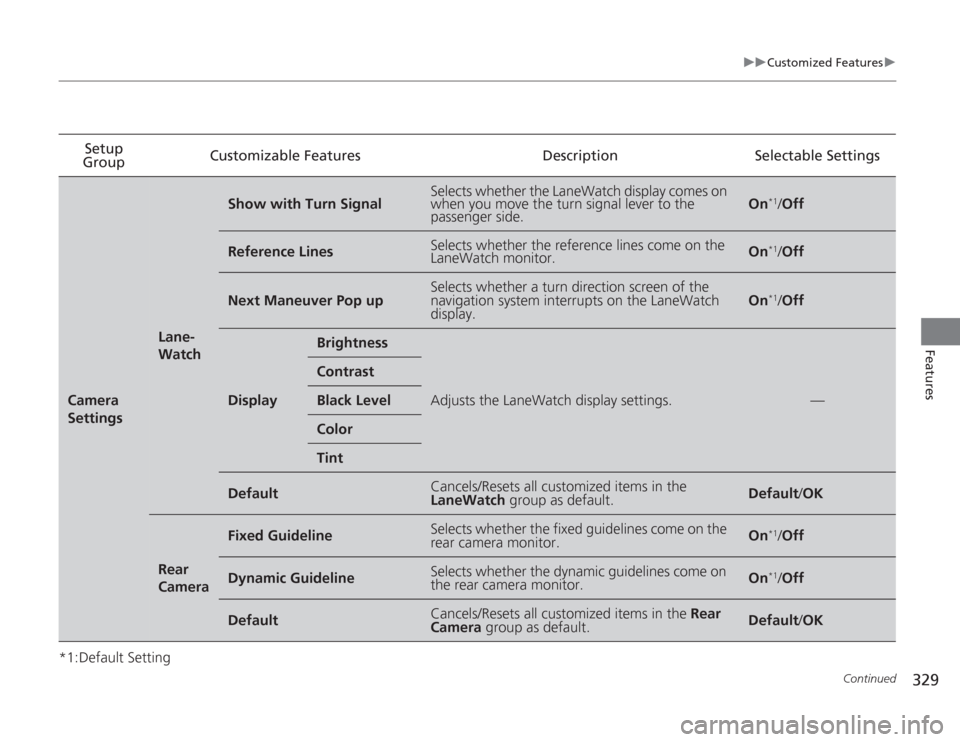
Features
*1:Default SettingSetup
Group Customizable Features
DescriptionSelectable SettingsCamera
Settings
Lane-
Watch
Show with Turn Signal
Selects whether the LaneWatch display comes on
when you move the turn signal lever to the
passenger side.
On
*1/Off
Reference Lines
Selects whether the reference lines come on the
LaneWatch monitor.
On
*1/Off
Next Maneuver Pop up
Selects whether a turn direction screen of the
navigation system interrupts on the LaneWatch
display.
On
*1/Off
Display
Brightness
Adjusts the LaneWatch display settings.
—
ContrastBlack LevelColorTint
Default
Cancels/Resets all customized items in the
LaneWatch group as default.
Default/OK
Rear
Camera
Fixed Guideline
Selects whether the fixed guidelines come on the
rear camera monitor.
On
*1/Off
Dynamic Guideline
Selects whether the dynamic guidelines come on
the rear camera monitor.
On
*1/Off
Default
Cancels/Resets all customized items in the Rear
Camera group as default.
Default /OK
Page 418 of 595
417
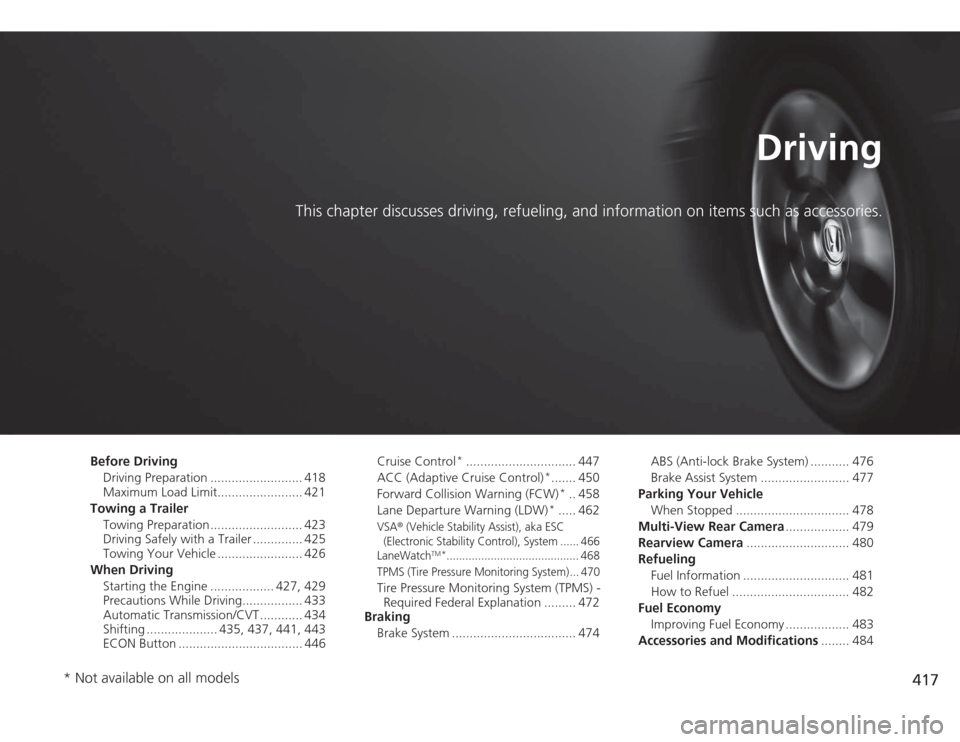
Driving
This chapter discusses driving, refueling, and information on items such as accessories.
Before DrivingDriving Preparation .......................... 418
Maximum Load Limit........................ 421
Towing a Trailer Towing Preparation .......................... 423
Driving Safely with a Trailer .............. 425
Towing Your Vehicle ........................ 426
When Driving Starting the Engine .................. 427, 429
Precautions While Driving................. 433
Automatic Transmission/CVT ............ 434
Shifting .................... 435, 437, 441, 443
ECON Button ................................... 446 Cruise Control
*............................... 447
ACC (Adaptive Cruise Control)
*....... 450
Forward Collision Warning (FCW)*.. 458
Lane Departure Warning (LDW)
*..... 462
VSA
® (Vehicle Stability Assist), aka ESC
(Electronic Stability Control), System ...... 466
LaneWatch
TM*.......................................... 468
TPMS (Tire Pressure Monitoring System) ... 470
Tire Pressure Monitoring System (TPMS) - Required Federal Explanation ......... 472
Braking
Brake System ................................... 474 ABS (Anti-lock Brake System) ........... 476
Brake Assist System ......................... 477
Parking Your Vehicle When Stopped ................................ 478
Multi-View Rear Camera .................. 479
Rearview Camera ............................. 480
Refueling Fuel Information .............................. 481
How to Refuel ................................. 482
Fuel Economy Improving Fuel Economy .................. 483
Accessories and Modifications ........ 484
* Not available on all models
Page 459 of 595
458
uuWhen Driving uForward Collision Warning (FCW)
*
Driving
Forward Collision Warning (FCW)
*
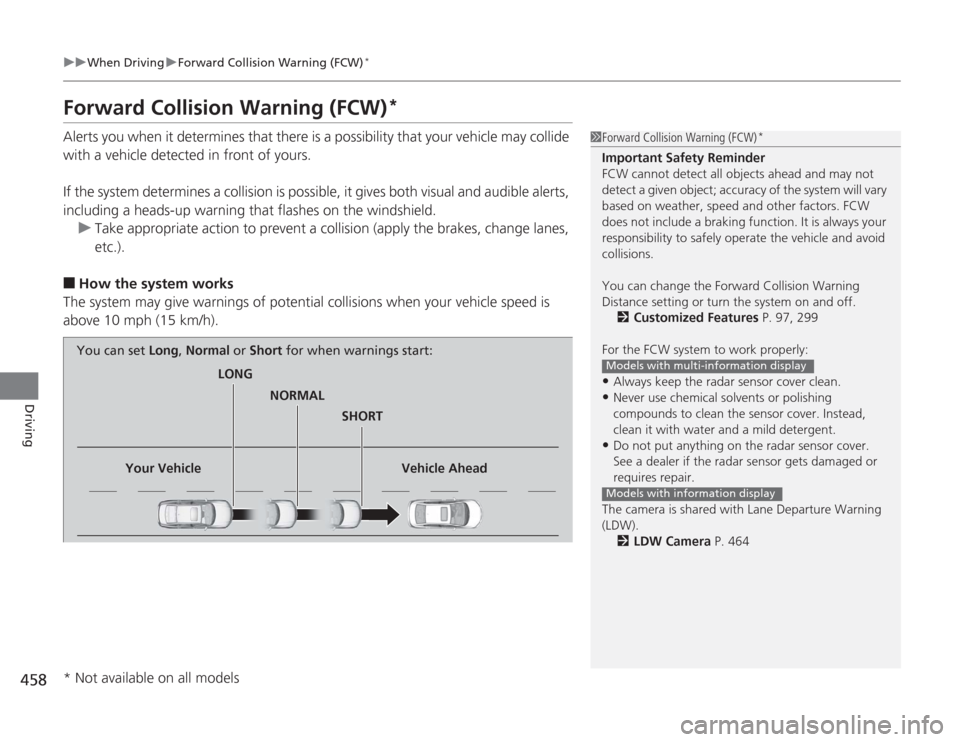
Alerts you when it determines that there is a possibility that your vehicle may collide
with a vehicle detected in front of yours.
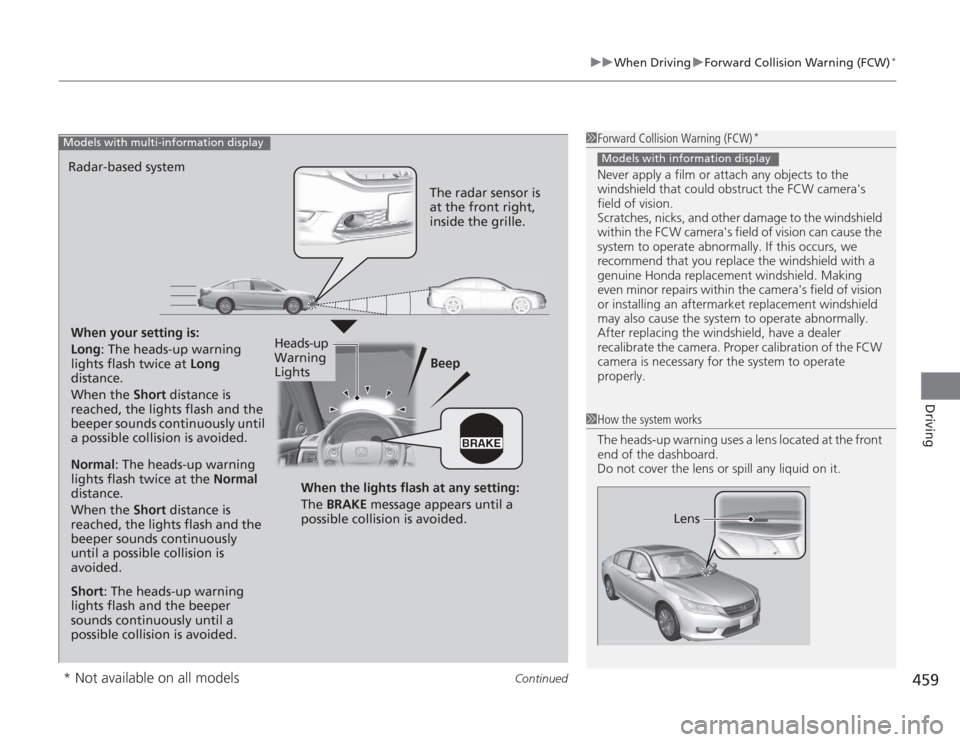
If the system determines a collision is possible, it gives both visual and audible alerts,
including a heads-up warning that flashes on the windshield.
u Take appropriate action to prevent a collision (apply the brakes, change lanes,
etc.).■
How the system works
The system may give warnings of potential collisions when your vehicle speed is
above 10 mph (15 km/h).
1 Forward Collision Warning (FCW)
*
Important Safety Reminder
FCW cannot detect all objects ahead and may not
detect a given object; accuracy of the system will vary
based on weather, speed and other factors. FCW
does not include a braking function. It is always your
responsibility to safely operate the vehicle and avoid
collisions.
You can change the Forward Collision Warning
Distance setting or turn the system on and off.
2 Customized Features P. 97, 299
For the FCW system to work properly:•Always keep the radar sensor cover clean.•Never use chemical solvents or polishing
compounds to clean the sensor cover. Instead,
clean it with water and a mild detergent.•Do not put anything on the radar sensor cover.
See a dealer if the radar sensor gets damaged or
requires repair.
The camera is shared wi th Lane Departure Warning
(LDW).
2 LDW Camera P. 464Models with multi-information displayModels with information display
LONG
NORMAL SHORT
Your Vehicle Vehicle Ahead
You can set
Long, Normal or Short for when warnings start:
* Not available on all models
Page 460 of 595
Continued
459
uuWhen Driving uForward Collision Warning (FCW)
*
Driving
1Forward Collision Warning (FCW)
*
Never apply a film or attach any objects to the
windshield that could obstruct the FCW camera's
field of vision.
Scratches, nicks, and other damage to the windshield
within the FCW camera's field of vision can cause the
system to operate abnormally. If this occurs, we
recommend that you replace the windshield with a
genuine Honda replacement windshield. Making
even minor repairs within the camera's field of vision
or installing an aftermarket replacement windshield
may also cause the system to operate abnormally.
After replacing the windshield, have a dealer
recalibrate the camera. Proper calibration of the FCW
camera is necessary for the system to operate
properly.Models with information display
1 How the system works
The heads-up warning uses a lens located at the front
end of the dashboard.
Do not cover the lens or spill any liquid on it.
Lens
*2
When your setting is:
Long : The heads-up warning
lights flash twice at Long
distance.
When the Short distance is
reached, the lights flash and the
beeper sounds continuously until
a possible collision is avoided. Beep
Radar-based systemModels with multi-information display
The radar sensor is
at the front right,
inside the grille.
Normal
: The heads-up warning
lights flash twice at the Normal
distance.
When the Short distance is
reached, the lights flash and the
beeper sounds continuously
until a possible collision is
avoided.
Short : The heads-up warning
lights flash and the beeper
sounds continuously until a
possible collision is avoided. When the lights flash at any setting:
The BRAKE
message appears until a
possible collision is avoided.
Heads-up
Warning
Lights
* Not available on all models