service HONDA ACCORD 2016 9.G Quick Guide
[x] Cancel search | Manufacturer: HONDA, Model Year: 2016, Model line: ACCORD, Model: HONDA ACCORD 2016 9.GPages: 83, PDF Size: 7.35 MB
Page 2 of 83

Devices That Emit Radio WavesThe following products and systems on your vehicle emit radio waves when\
in
operation:
•
Audio system • Immobilizer system
• Bluetooth® Audio • Remote transmitter
• Bluetooth® HandsFreeLink® • Smart entry system*
• HomeLink® Universal Transceiver • Wireless charger*
Each of the above complies with the appropriate requirements or the required
standards of the FCC (Federal Communications Commission) and Industry Canada,
described below:
As required by the FCC:
This device complies with Part 15 of the FCC rules. Operation is subject to the
following two conditions: (1) This device may not cause harmful interference, and
(2) this device must accept any interference received, including interference that
may cause undesired operation.
Changes or modifications not expressly approved by the party responsible for
compliance could void the user’s authority to operate the equipment.
As required by Industry Canada:
This device complies with Industry Canada Standard RSS-Gen/210/251/310.
Operation is subject to the following two conditions: (1) this device may not
cause interference, and (2) this device must accept any interference, including
interference that may cause undesired operation of the device.
California Perchlorate Contamination Prevention Act
The airbags, seat belt tensioners, and CR-type batteries in this vehicle may
contain perchlorate materials—special handling may apply. See www.dtsc.
ca.gov/hazardouswaste/perchlorate/ for more information.
California Proposition 65 Warning
WARNING: This product contains or emits chemicals known to the state of
California to cause cancer and birth defects or other reproductive harm.
DISCLOSURES
Event Data RecordersThis vehicle is equipped with an event data recorder (EDR). The main purpose of
an eDr is to record, in certain crash or near crash-like situations, such as an air
bag deployment or hitting a road obstacle, data that will assist in understanding
how a vehicle’s systems performed. The EDR is designed to record data related to
vehicle dynamics and safety systems for a short period of time, typicall\
y
30 seconds or less. The EDR in this vehicle is designed to record such d\
ata as:
• How various systems in your vehicle were operating;
• Whether or not the driver and passenger safety belts were buckled/fasten\
ed;
• How far (if at all) the driver was depressing the accelerator and/or b\
rake
pedal; and,
• How fast the vehicle was traveling.
These data can help provide a better understanding of the circumstances in
which crashes and injuries occur. NOTE: EDR data are recorded by your vehicle
only if a non-trivial crash situation occurs; no data are recorded by the EDR under
normal driving conditions and no personal data (e.g., name, gender, age, and
crash location) are recorded. However, other parties, such as law enforcement,
could combine the EDR data with the type of personally identifying data routinely
acquired during a crash investigation.
To read data recorded by an EDR, special equipment is required, and access to
the vehicle or the EDR is needed. In addition to the vehicle manufacturer, other
parties such as law enforcement that have the special equipment can read the
information if they have access to the vehicle or the eDr.
The data belong to the vehicle owner and may not be accessed by anyone else
except as legally required or with the permission of the vehicle owner.
Service Diagnostic Recorders
This vehicle is equipped with service-related devices that record information
about powertrain performance. The data can be used to verify emissions law
requirements and/or help technicians diagnose and solve service problems. It may
also be combined with data from other sources for research purposes, but
it remains confidential.
*if equipped
Page 3 of 83
INTRODUCTIONTABLE OF CONTENTS
This Owner’s Guide is intended to help you quickly get acquainted with your
2016 Honda Accord Sedan
. It provides basic information and instructions on
technology and convenience features, as well as emergency procedures and\
how to
get assistance.
This guide is for vehicles sold in the United States and Canada. It covers all Accord
Sedan models, so you may find descriptions of features and equipment that are not
in your vehicle. Images throughout this guide are from U.S. vehicles and represent
features and equipment that are available on some, but not all, models.
This guide is not intended to be a substitute for the Owner’s Manual. The Owner
Information CD enclosed in your glove box kit includes the Owner’s Manual,
Navigation Manual, and vehicle and tire warranties in electronic format.\
This
information can be viewed on a computer (PC or Mac platform) and saved or printed
for your reference. You can also visit owners.honda.com (U.S.) or myhonda.ca
(Canada) to view the complete and most current information.
If you are the first registered owner of your vehicle, you may request a complimentary
printed copy of the Owner’s Manual, Navigation Manual, or Vehicle Warranty within
the first six months of vehicle purchase. To request a copy, visit owners.honda.com
(U.S.) and create or log in to your account. In Canada, please request a copy from
your Honda dealer.
American Honda Motor Company strives to be proactive in protecting our
environment and natural resources. By using electronic delivery for a considerable
portion of the information typically found in a vehicle owner’s manual, we are further
reducing our impact on the environment.
Honda Automobile Customer Service
Your authorized Honda dealer should be able to answer any questions you have
about your vehicle. However, if you are dissatisfied with the information you receive,
you can call Honda Automobile Customer Service (see page 152).
Call (800) 999-1009 (U.S.) or (888) 946-6329 (Canada)
Honda Roadside Assistance
24-hour emergency road service is available to you in the United States and Canada
throughout your 3-year/36,000-mile warranty term. Services include jump starting,
flat tire and lockout assistance, towing, and more (limitations apply\
).
Call (866) 864-5211 (U.S.) or (800) 465-7587 (Canada)
*if equipped
VISUAL INDEX .......................................1
Steering Wheel and Nearby Controls ...1
Dashboard and Other Controls
...........2
SAFETY INFORMATION
........................3
Important Safety Information
..............3
Seat Belts
...............................................5
Airbags
....................................................8
Child Safety
..........................................14
Safety Label Locations
.......................21
Reporting Safety Defects
...................22
INSTRUMENT PANEL
.........................23
Malfunction Indicators
......................23
Condition Indicators
...........................25
On/Off Indicators
.................................26
Information Display*
..........................27
Multi-Information Display (MID)*
....28
VEHICLE CONTROLS
...........................30
Using the Key or Remote
Transmitter*
.........................................30
Smart Entry System*
...........................31
Door Operation
....................................32
Power Window Operation
................33
Power Moonroof Operation*
...........34
Interior and Exterior Lights
...............35
Auto High-Beam System*
..................36
Wiper Operation
..................................37
One-Touch Turn Signal
.......................38
Adjusting the Seats
............................39
Adjusting the Steering Wheel
..........43
Driving Position Memory System*
...43
Adjusting the Mirrors
.........................44
HomeLink
® Garage Opener* .............45
Climate Control System
....................46
Seat Heaters*
......................................47
Customized Features
..........................48 Setting the Clock
.................................49
AUDIO AND CONNECTIVITY
.............50
Basic Audio Operation
.......................50
Models with one display
One Display Audio Operation ...........54
FM/AM Radio
.......................................55
Compact Disc (CD)
..............................56
iPod
®...................................................... 57
USB Flash Drive
..................................58
Bluetooth
® Audio ................................59
Pandora
® ..............................................60
Models with touchscreen
Touchscreen Operation .....................61
HondaLink
® ..........................................63
Wi-Fi Connection
................................64
Aha™ Radio
.........................................64
Apple CarPlay
......................................65
Android Auto
........................................66
FM/AM Radio
......................................67
SiriusXM
® Radio* ...............................68
Compact Disc (CD)
.............................69
iPod
®...................................................... 70
USB Flash Drive
..................................71
Bluetooth
® Audio ................................72
Pandora
® ..............................................73
BLUETOOTH
® HANDSFREELINK® ....74
Models with one display
Basic HFL Operation ...........................74
Pairing a Phone
...................................75
Making a Call
......................................76
SMS Text Messaging
.........................78
Models with touchscreen
Basic HFL Operation ...........................79
Pairing a Phone
...................................81
Making a Call
......................................82
Page 10 of 83
12 || 13
SAFETYSAFETY
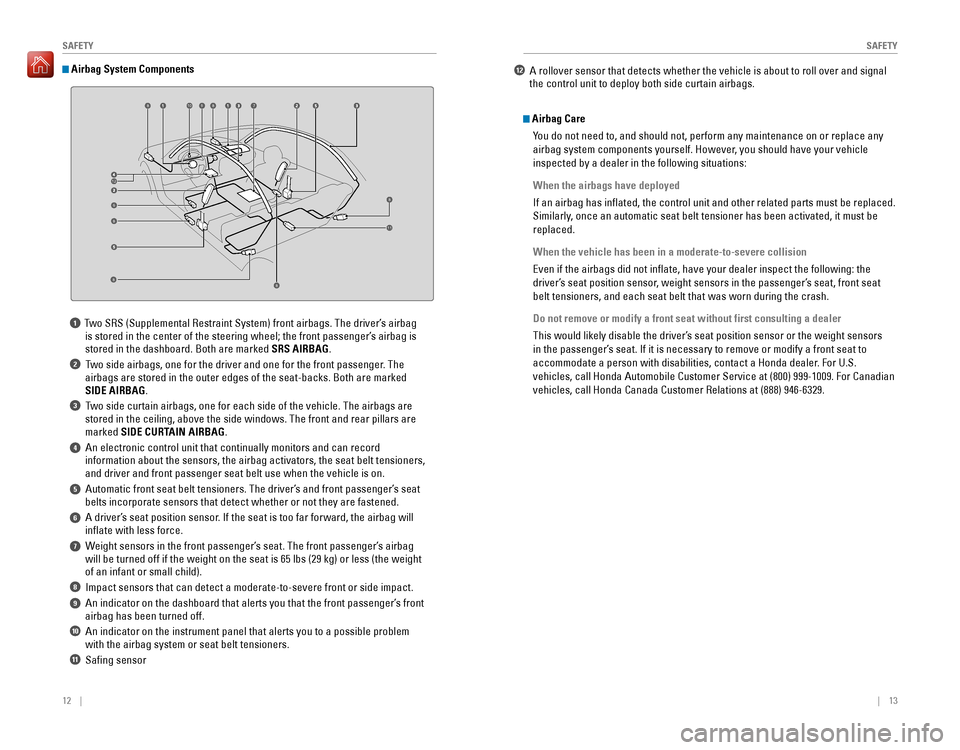
1 Two SRS (Supplemental Restraint System) front airbags. The driver’s airbag
is stored in the center of the steering wheel; the front passenger’s airbag is
stored in the dashboard. Both are marked SRS AIRBAG.
2 Two side airbags, one for the driver and one for the front passenger. The
airbags are stored in the outer edges of the seat-backs. Both are marked
SIDE AIRBAG.
3 Two side curtain airbags, one for each side of the vehicle. The airbags are
stored in the ceiling, above the side windows. The front and rear pillars are
marked SIDE CURTAIN AIRBAG.
4 An electronic control unit that continually monitors and can record
information about the sensors, the airbag activators, the seat belt tensioners,
and driver and front passenger seat belt use when the vehicle is on.
5 Automatic front seat belt tensioners. The driver’s and front passenger’s seat
belts incorporate sensors that detect whether or not they are fastened.
6 A driver’s seat position sensor. If the seat is too far forward, the airbag will
inflate with less force.
7 Weight sensors in the front passenger’s seat. The front passenger’s airbag
will be turned off if the weight on the seat is 65 lbs (29 kg) or less (the weight
of an infant or small child).
8 Impact sensors that can detect a moderate-to-severe front or side impact.
9 An indicator on the dashboard that alerts you that the front passenger’s front
airbag has been turned off.
10 An indicator on the instrument panel that alerts you to a possible problem
with the airbag system or seat belt tensioners.
11 Safing sensor
Airbag System Components
Airbag Care
You do not need to, and should not, perform any maintenance on or replace\
any
airbag system components yourself. However, you should have your vehicle
inspected by a dealer in the following situations:
When the airbags have deployed
If an airbag has inflated, the control unit and other related parts must be replaced.
Similarly, once an automatic seat belt tensioner has been activated, it must be
replaced.
When the vehicle has been in a moderate-to-severe collision
Even if the airbags did not inflate, have your dealer inspect the following: the
driver’s seat position sensor, weight sensors in the passenger’s seat, front seat
belt tensioners, and each seat belt that was worn during the crash.
Do not remove or modify a front seat without first consulting a dealer
This would likely disable the driver’s seat position sensor or the weight sensors
in the passenger’s seat. If it is necessary to remove or modify a front seat to
accommodate a person with disabilities, contact a Honda dealer. For U.S.
vehicles, call Honda Automobile Customer Service at (800) 999-1009. For Canadian
vehicles, call Honda Canada Customer relations at (888) 946-6329.
6
7
8
9
8
8
8
8810
11
12
12 A rollover sensor that detects whether the vehicle is about to roll over and signal
the control unit to deploy both side curtain airbags.
Page 35 of 83
62 || 63
AUDIO AND CONNECTIVITY
AUDIO AND CONNECTIVITY
Changing Icon Order
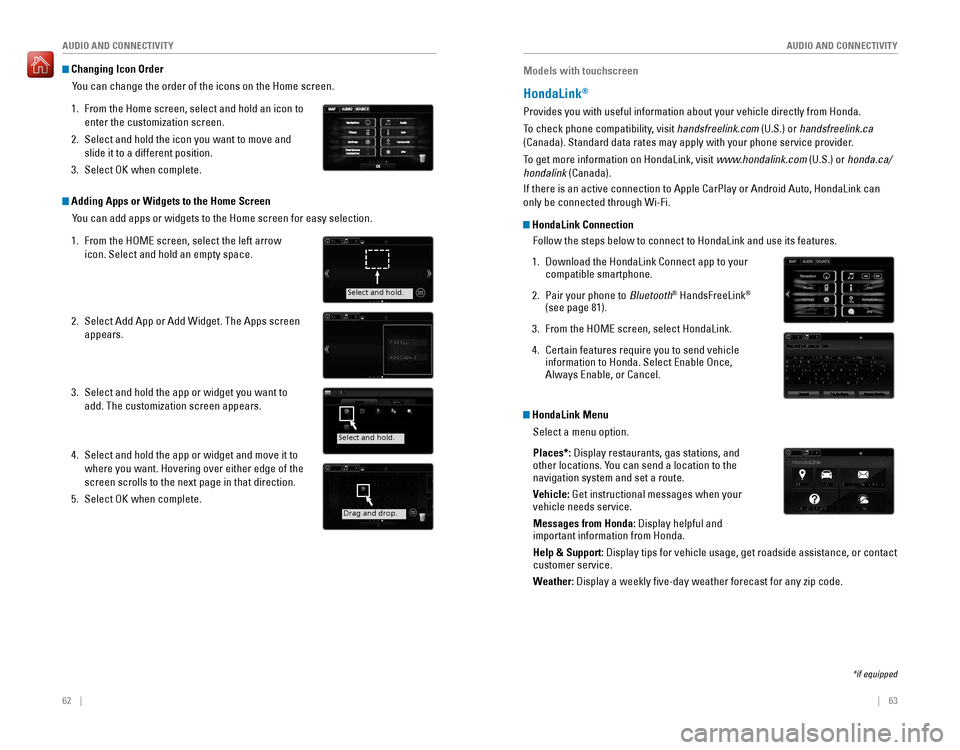
You can change the order of the icons on the Home screen.
1. From the Home screen, select and hold an icon to
enter the customization screen.
2. Select and hold the icon you want to move and
slide it to a different position.
3. Select oK when complete.
Adding Apps or Widgets to the Home ScreenYou can add apps or widgets to the Home screen for easy selection.
1. From the HoMe screen, select the left arrow
icon. Select and hold an empty space.
2. Select Add App or Add Widget. The Apps screen
appears.
3. Select and hold the app or widget you want to
add. The customization screen appears.
4. Select and hold the app or widget and move it to
where you want. Hovering over either edge of the
screen scrolls to the next page in that direction.
5. Select oK when complete.
Select and hold.
Select and hold.
Drag and drop.
Models with touchscreen
HondaLink®
Provides you with useful information about your vehicle directly from Honda.
To check phone compatibility, visit handsfreelink.com (U.S.) or handsfreelink.ca
(Canada). Standard data rates may apply with your phone service provid\
er.
To get more information on HondaLink, visit www.hondalink.com (U.S.) or honda.ca/
hondalink (Canada).
If there is an active connection to Apple CarPlay or Android Auto, HondaLink can
only be connected through Wi-Fi.
HondaLink Connection
Follow the steps below to connect to HondaLink and use its features.
1. Download the HondaLink Connect app to your compatible smartphone.
2. Pair your phone to Bluetooth® HandsFreeLink®
(see page 81).
3. From the HoMe screen, select HondaLink.
4. Certain features require you to send vehicle information to Honda. Select Enable Once, Always Enable, or Cancel.
HondaLink Menu
Select a menu option.
Places*: Display restaurants, gas stations, and
other locations. You can send a location to the
navigation system and set a route.
Vehicle: Get instructional messages when your
vehicle needs service.
Messages from Honda: Display helpful and
important information from Honda.
Help & Support: Display tips for vehicle usage, get roadside assistance, or contact
customer service.
Weather:
Display a weekly five-day weather forecast for any zip code.
*if equipped
Page 36 of 83
64 || 65
AUDIO AND CONNECTIVITY
AUDIO AND CONNECTIVITY
Models with touchscreen
Wi-Fi Connection
You can connect the audio system to the internet using Wi-Fi and use online
services through the touchscreen. If your compatible phone has hotspot capabilities,
the system can be tethered to the phone. Follow the steps below to set up Wi-Fi
when the vehicle is stopped. Standard data rates apply with your phone s\
ervice
provider.
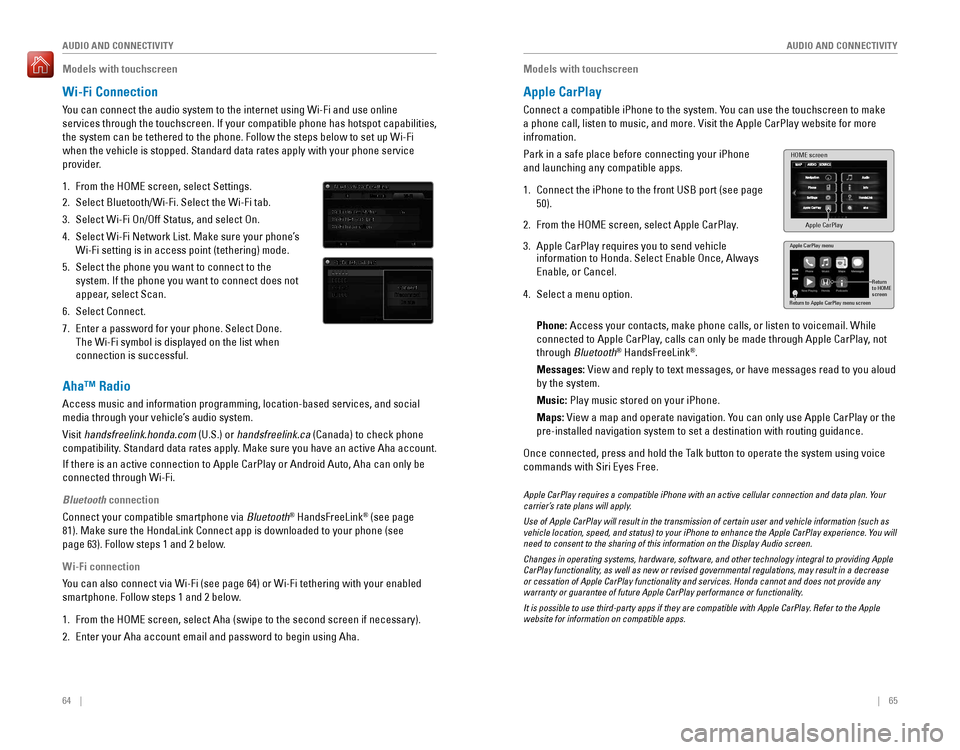
1. From the HoMe screen, select Settings.
2. Select Bluetooth/Wi-Fi. Select the Wi-Fi tab.
3. Select Wi-Fi On/Off Status, and select On.
4. Select Wi-Fi Network List. Make sure your phone’s
Wi-Fi setting is in access point (tethering) mode.
5. Select the phone you want to connect to the
system. If the phone you want to connect does not
appear, select Scan.
6. Select Connect.
7. enter a password for your phone. Select Done.
The Wi-Fi symbol is displayed on the list when
connection is successful.
Aha™ Radio
Access music and information programming, location-based services, and social
media through your vehicle’s audio system.
visit handsfreelink.honda.com (U.S.) or handsfreelink.ca (Canada) to check phone
compatibility. Standard data rates apply. Make sure you have an active Aha account.
If there is an active connection to Apple CarPlay or Android Auto, Aha can only be
connected through Wi-Fi.
Bluetooth connection
Connect your compatible smartphone via Bluetooth® HandsFreeLink® (see page
81). Make sure the HondaLink Connect app is downloaded to your phone (\
see
page 63). Follow steps 1 and 2 below.
Wi-Fi connection
You can also connect via Wi-Fi (see page 64) or Wi-Fi tethering with your enabled
smartphone. Follow steps 1 and 2 below.
1. From the HoMe screen, select Aha (swipe to the second screen if necessary).
2. Enter your Aha account email and password to begin using Aha.
Models with touchscreen
Apple CarPlay
Connect a compatible iPhone to the system. You can use the touchscreen to make
a phone call, listen to music, and more. Visit the Apple CarPlay website for more
infromation.
Park in a safe place before connecting your iPhone
and launching any compatible apps.
1. Connect the iPhone to the front USB port (see page
50).
2. From the HoMe screen, select Apple CarPlay.
3. Apple CarPlay requires you to send vehicle information to Honda. Select Enable Once, Always
Enable, or Cancel.
4. Select a menu option.
Phone:
Access your contacts, make phone calls, or listen to voicemail. While
connected to Apple CarPlay, calls can only be made through Apple CarPlay, not
through Bluetooth® HandsFreeLink®.
Messages:
view and reply to text messages, or have messages read to you aloud
by the system.
Music: Play music stored on your iPhone.
Maps:
view a map and operate navigation. You can only use Apple CarPlay or the
pre-installed navigation system to set a destination with routing guidan\
ce.
Once connected, press and hold the Talk button to operate the system using voice
commands with Siri eyes Free.
HOME screen
Apple CarPlay
Apple CarPlay menu
Return
to HOME
screen
Return to Apple CarPlay menu screen
Apple CarPlay requires a compatible iPhone with an active cellular connection and data plan. Your carrier’s rate plans will apply.
Use of Apple CarPlay will result in the transmission of certain user and vehicle information (such as vehicle location, speed, and status) to your iPhone to enhance the Apple CarPlay experience. You will need to consent to the sharing of this information on the Display Audio screen.
Changes in operating systems, hardware, software, and other technology integral to providing Apple CarPlay functionality, as well as new or revised governmental regulations, may result in a decrease or cessation of Apple CarPlay functionality and services. Honda cannot and does not provide any warranty or guarantee of future Apple CarPlay performance or functionality.
It is possible to use third-party apps if they are compatible with Apple CarPlay. Refer to the Apple website for information on compatible apps.
Page 37 of 83
66 || 67
AUDIO AND CONNECTIVITY
AUDIO AND CONNECTIVITY
Models with touchscreen
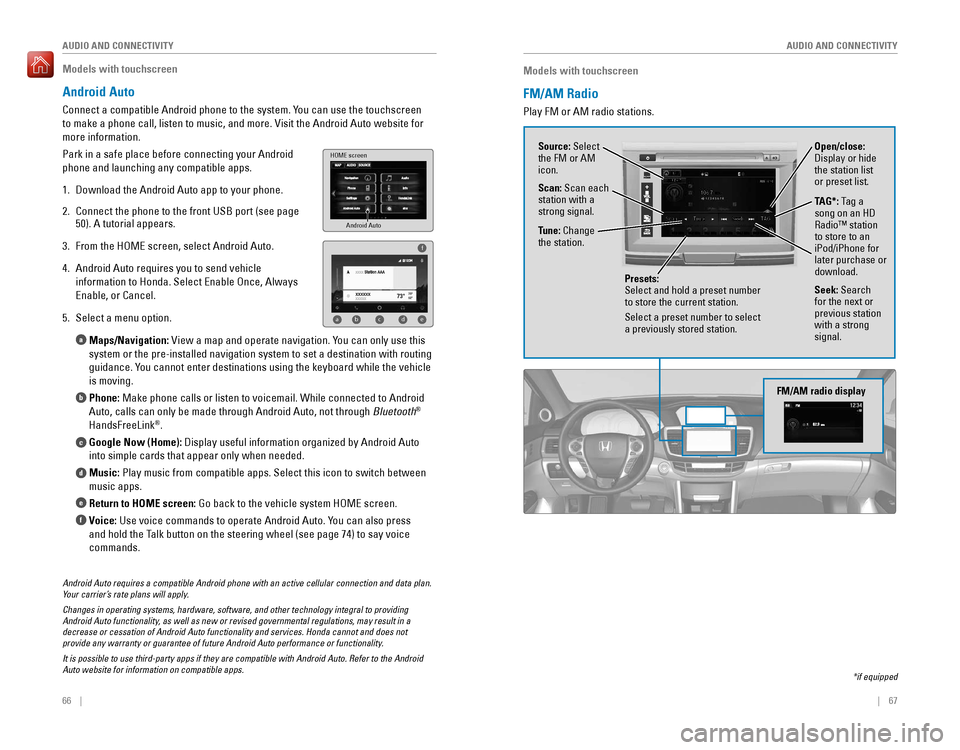
Android Auto
Connect a compatible Android phone to the system. You can use the touchscreen
to make a phone call, listen to music, and more. Visit the Android Auto website for
more information.
Park in a safe place before connecting your Android
phone and launching any compatible apps.
1. Download the Android Auto app to your phone.
2. Connect the phone to the front USB port (see page
50). A tutorial appears.
3. From the HoMe screen, select Android Auto.
4. Android Auto requires you to send vehicle
information to Honda. Select Enable Once, Always
Enable, or Cancel.
5. Select a menu option.
Maps/Navigation:
view a map and operate navigation. You can only use this
system or the pre-installed navigation system to set a destination with \
routing
guidance. You cannot enter destinations using the keyboard while the vehicle
is moving.
Phone:
Make phone calls or listen to voicemail. While connected to Android
Auto, calls can only be made through Android Auto, not through Bluetooth®
HandsFreeLink®.
Google Now (Home):
Display useful information organized by Android Auto
into simple cards that appear only when needed.
Music:
Play music from compatible apps. Select this icon to switch between
music apps.
Return to HOME screen:
Go back to the vehicle system HOME screen.
Voice: Use voice commands to operate Android Auto. You can also press
and hold the Talk button on the steering wheel (see page 74) to say voice
commands.
a
b
c
d
e
f
Android Auto
HOME screen
f
ab cde
Android Auto requires a compatible Android phone with an active cellular connection and data plan. Your carrier’s rate plans will apply.
Changes in operating systems, hardware, software, and other technology integral to providing Android Auto functionality, as well as new or revised governmental regulations, may result in a decrease or cessation of Android Auto functionality and services. Honda cannot and does not provide any warranty or guarantee of future Android Auto performance or functionality.
It is possible to use third-party apps if they are compatible with Android Auto. Refer to the Android Auto website for information on compatible apps.
Models with touchscreen
FM/AM Radio
Play FM or AM radio stations.
*if equipped
FM/AM radio display
Source: Select
the FM or AM
icon.
Tune: Change
the station.
Seek: Search
for the next or
previous station
with a strong
signal. Open/close:
Display or hide
the station list
or preset list.
Scan: Scan each
station with a
strong signal.
Presets:
Select and hold a preset number to store the current station.
Select a preset number to select a previously stored station.
TAG*: Tag a
song on an HD
radio™ station to store to an iPod/iPhone for later purchase or
download.
Page 40 of 83
72 || 73
AUDIO AND CONNECTIVITY
AUDIO AND CONNECTIVITY
Models with touchscreen
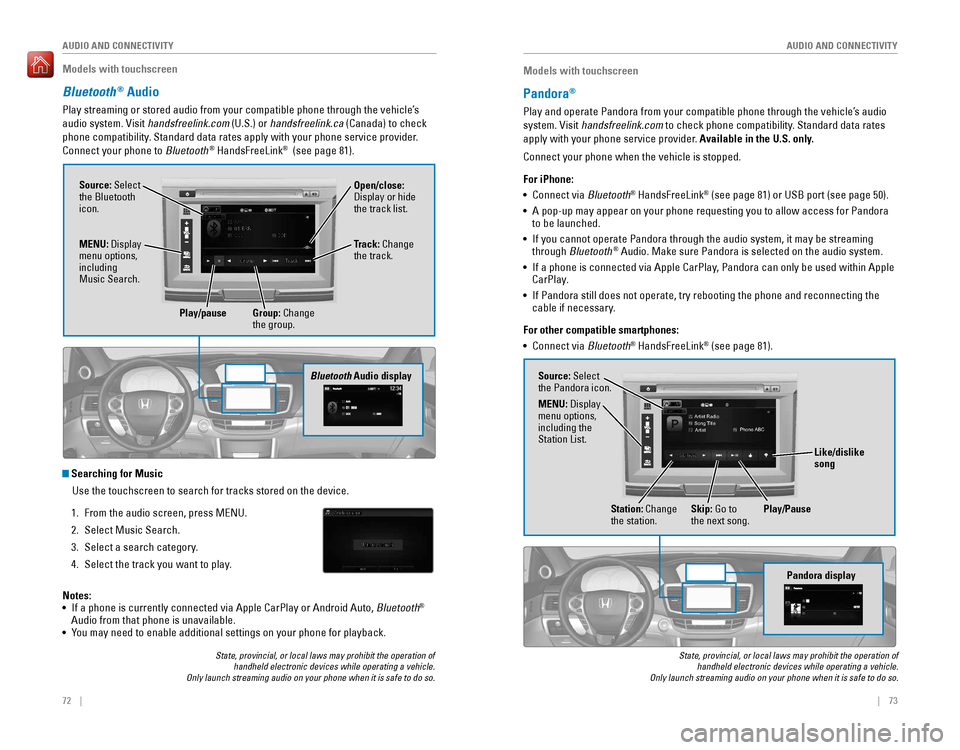
Bluetooth® Audio
Play streaming or stored audio from your compatible phone through the vehicle’s
audio system. visit handsfreelink.com (U.S.) or handsfreelink.ca (Canada) to check
phone compatibility. Standard data rates apply with your phone service provider.
Connect your phone to Bluetooth® HandsFreeLink® (see page 81).
State, provincial, or local laws may prohibit the operation of handheld electronic devices while operating a vehicle. Only launch streaming audio on your phone when it is safe to do so.
Searching for Music
Use the touchscreen to search for tracks stored on the device.
1. From the audio screen, press MeNU.
2. Select Music Search.
3. Select a search category.
4. Select the track you want to play.
Bluetooth Audio display
Notes:
• If a phone is currently connected via Apple CarPlay or Android Auto, Bluetooth® Audio from that phone is unavailable.• You may need to enable additional settings on your phone for playback.
Source: Select
the Bluetooth
icon. Open/close:
Display or hide
the track list.
MENU: Display
menu options,
including
Music Search. Track: Change
the track.
Play/pause Group: Change
the group.
Models with touchscreen
Pandora®
Play and operate Pandora from your compatible phone through the vehicle’s audio
system. visit handsfreelink.com to check phone compatibility. Standard data rates
apply with your phone service provider. Available in the U.S. only.
Connect your phone when the vehicle is stopped.
For iPhone:
• Connect via Bluetooth
® HandsFreeLink® (see page 81) or USB port (see page 50).
•
A pop-up may appear on your phone requesting you to allow access for Pandora to be launched.
• If you cannot operate Pandora through the audio system, it may be streaming through Bluetooth® Audio. Make sure Pandora is selected on the audio system.
•
If a phone is connected via Apple CarPlay, Pandora can only be used within Apple CarPlay.
•
If Pandora still does not operate, try rebooting the phone and reconnecting the cable if necessary.
For other compatible smartphones:
• Connect via Bluetooth® HandsFreeLink® (see page 81).
State, provincial, or local laws may prohibit the operation of handheld electronic devices while operating a vehicle. Only launch streaming audio on your phone when it is safe to do so.
Pandora display
Artist Radio
Song Title
Artist Phone ABC
Source: Select
the Pandora icon.
Station: Change
the station. Skip: Go to
the next song.
MENU: Display
menu options,
including the
Station List.
Like/dislike
song
Play/Pause
Page 46 of 83
84 || 85
Models with touchscreen
SMS Text Messaging and E-Mail*
receive and send messages from your paired and connected phone. visit
handsfreelink.honda.com (U.S.) or www.handsfreelink.ca (Canada) to check phone
compatibility. Standard message rates apply. This feature is limited while the vehicle
is moving.
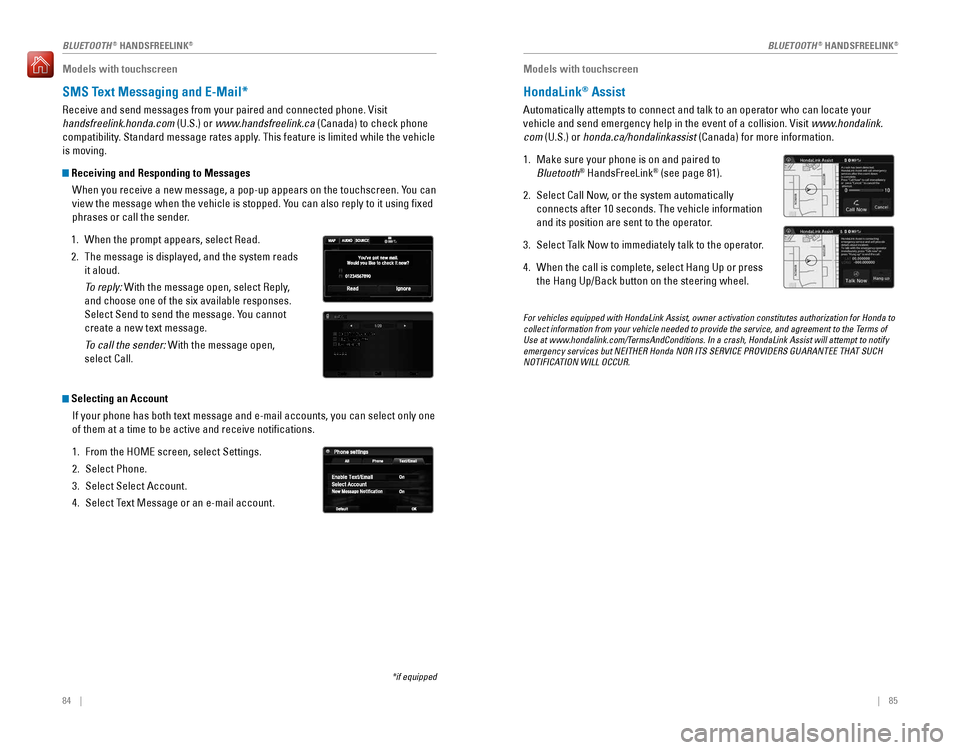
Receiving and Responding to Messages
When you receive a new message, a pop-up appears on the touchscreen. You can
view the message when the vehicle is stopped. You can also reply to it using fixed
phrases or call the sender.
1. When the prompt appears, select Read.
2. The message is displayed, and the system reads
it aloud.
To reply: With the message open, select Reply,
and choose one of the six available responses.
Select Send to send the message. You cannot
create a new text message.
To call the sender: With the message open,
select Call.
Selecting an Account
If your phone has both text message and e-mail accounts, you can select only one
of them at a time to be active and receive notifications.
1. From the HoMe screen, select Settings.
2. Select Phone.
3. Select Select Account.
4. Select Text Message or an e-mail account.
*if equipped
Models with touchscreen
HondaLink® Assist
Automatically attempts to connect and talk to an operator who can locate\
your
vehicle and send emergency help in the event of a collision. visit www.hondalink.
com (U.S.) or honda.ca/hondalinkassist (Canada) for more information.
1. Make sure your phone is on and paired to
Bluetooth® HandsFreeLink® (see page 81).
2. Select Call Now, or the system automatically
connects after 10 seconds. The vehicle information
and its position are sent to the operator.
3. Select Talk Now to immediately talk to the operator.
4. When the call is complete, select Hang Up or press
the Hang Up/Back button on the steering wheel.
For vehicles equipped with HondaLink Assist, owner activation constitutes authorization for Honda to collect information from your vehicle needed to provide the service, and agreement to the Terms of Use at www.hondalink.com/TermsAndConditions. In a crash, HondaLink Assist will attempt to notify emergency services but NEITHER Honda NOR ITS SERVICE PROVIDERS GUARANTEE THAT SUCH NOTIFICATION WILL OCCUR.
BLUETOOTH® HANDSFreeLINK®BLUETOOTH® HANDSFreeLINK®
Page 53 of 83
98 || 99
DRIVING
DRIVING
Towing a Trailer
Your vehicle can tow a trailer if you carefully observe the load limits, use the proper
equipment, and follow the towing guidelines. Check the load limits before driving
(see page 96).
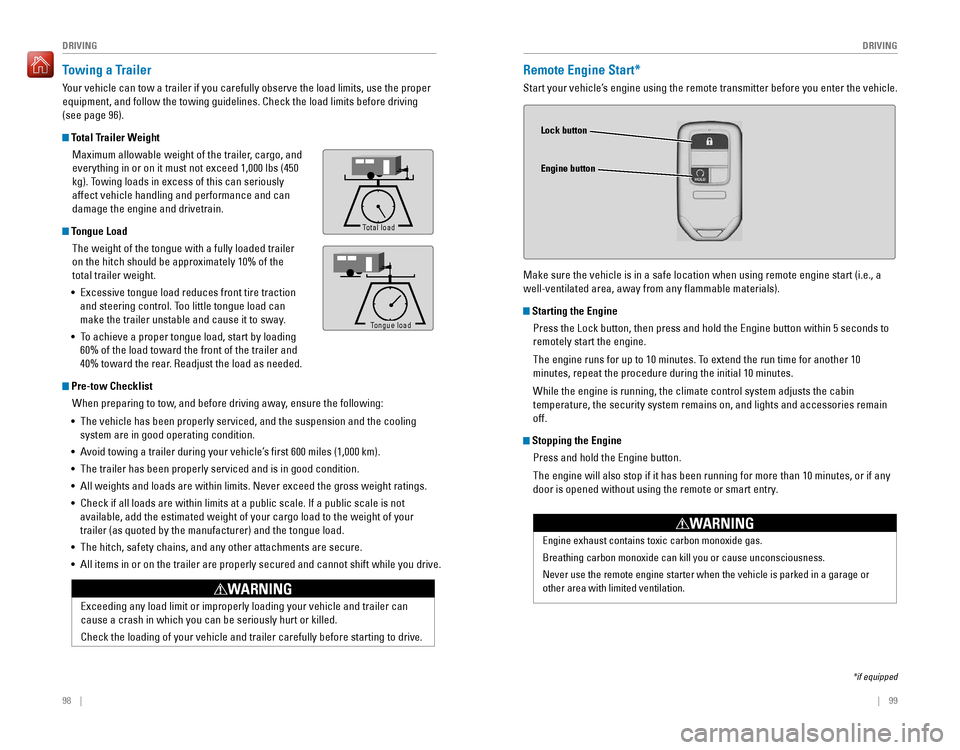
Total Trailer Weight
Maximum allowable weight of the trailer, cargo, and
everything in or on it must not exceed 1,000 lbs (450
kg). Towing loads in excess of this can seriously
affect vehicle handling and performance and can
damage the engine and drivetrain.
Tongue Load
The weight of the tongue with a fully loaded trailer
on the hitch should be approximately 10% of the
total trailer weight.
•
excessive tongue load reduces front tire traction
and steering control. Too little tongue load can
make the trailer unstable and cause it to sway.
• To achieve a proper tongue load, start by loading
60% of the load toward the front of the trailer and
40% toward the rear. Readjust the load as needed.
Pre-tow Checklist
When preparing to tow, and before driving away, ensure the following:
• The vehicle has been properly serviced, and the suspension and the cooling
system are in good operating condition.
• Avoid towing a trailer during your vehicle’s first 600 miles (1,000 km).
•
The trailer has been properly serviced and is in good condition.
• All weights and loads are within limits. Never exceed the gross weight r\
atings.
•
Check if all loads are within limits at a public scale. If a public scale is not
available, add the estimated weight of your cargo load to the weight of your
trailer (as quoted by the manufacturer) and the tongue load.
• The hitch, safety chains, and any other attachments are secure.
• All items in or on the trailer are properly secured and cannot shift whi\
le you drive.
exceeding any load limit or improperly loading your vehicle and trailer c\
an
cause a crash in which you can be seriously hurt or killed.
Check the loading of your vehicle and trailer carefully before starting to drive.
WARNING
To ngue Load
Total load
Tongue LoadTongue load
Remote Engine Start*
Start your vehicle’s engine using the remote transmitter before you enter the vehicle.
Make sure the vehicle is in a safe location when using remote engine start (i.e., a
well-ventilated area, away from any flammable materials).
Starting the Engine
Press the Lock button, then press and hold the Engine button within 5 seconds to
remotely start the engine.
The engine runs for up to 10 minutes. To extend the run time for another 10
minutes, repeat the procedure during the initial 10 minutes.
While the engine is running, the climate control system adjusts the cabin
temperature, the security system remains on, and lights and accessories remain
off.
Stopping the Engine
Press and hold the Engine button.
The engine will also stop if it has been running for more than 10 minutes, or if any
door is opened without using the remote or smart entry.
Engine exhaust contains toxic carbon monoxide gas.
Breathing carbon monoxide can kill you or cause unconsciousness.
Never use the remote engine starter when the vehicle is parked in a gara\
ge or
other area with limited ventilation.
WARNING
Lock button
Engine button
*if equipped
Page 61 of 83
114 || 115
DRIVING
DRIVING
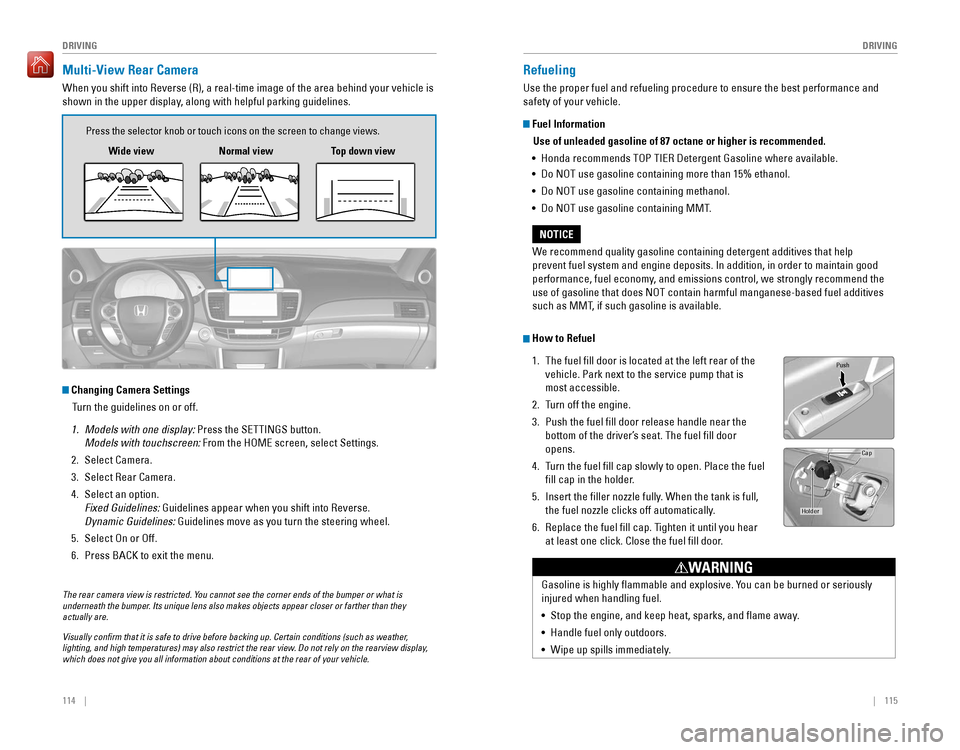
Multi-View Rear Camera
When you shift into Reverse (R), a real-time image of the area behind your vehicle is
shown in the upper display, along with helpful parking guidelines.
Changing Camera Settings
Turn the guidelines on or off.
1. Models with one display: Press the SETTINGS button.
Models with touchscreen: From the HoMe screen, select Settings.
2. Select Camera.
3. Select rear Camera.
4. Select an option.
Fixed Guidelines: Guidelines appear when you shift into reverse.
Dynamic Guidelines: Guidelines move as you turn the steering wheel.
5. Select on or off.
6. Press BACK to exit the menu.
Wide view
Press the selector knob or touch icons on the screen to change views.
Normal view Top down view
The rear camera view is restricted. You cannot see the corner ends of the bumper or what is underneath the bumper. Its unique lens also makes objects appear closer or farther than they actually are.
Visually confirm that it is safe to drive before backing up. Certain conditions (such as weather, lighting, and high temperatures) may also restrict the rear view. Do not rely on the rearview display, which does not give you all information about conditions at the rear of your vehicle.
Refueling
Use the proper fuel and refueling procedure to ensure the best performance and
safety of your vehicle.
Fuel Information
Use of unleaded gasoline of 87 octane or higher is recommended.
•
Honda recommends TOP TIER Detergent Gasoline where available.
• Do NOT use gasoline containing more than 15% ethanol.
• Do NoT use gasoline containing methanol.
• Do NoT use gasoline containing MMT.
How to Refuel
1. The fuel fill door is located at the left rear of the
vehicle. Park next to the service pump that is
most accessible.
2. Turn off the engine.
3. Push the fuel fill door release handle near the
bottom of the driver’s seat. The fuel fill door
opens.
4. Turn the fuel fill cap slowly to open. Place the fuel
fill cap in the holder.
5. Insert the filler nozzle fully. When the tank is full,
the fuel nozzle clicks off automatically.
6. replace the fuel fill cap. Tighten it until you hear
at least one click. Close the fuel fill door.
Push
Cap
Holder
Gasoline is highly flammable and explosive. You can be burned or seriously
injured when handling fuel.
• Stop the engine, and keep heat, sparks, and flame away.
• Handle fuel only outdoors.
•
Wipe up spills immediately.
WARNING
We recommend quality gasoline containing detergent additives that help
prevent fuel system and engine deposits. In addition, in order to maintain good
performance, fuel economy, and emissions control, we strongly recommend the
use of gasoline that does NOT contain harmful manganese-based fuel additives
such as MMT, if such gasoline is available.
NOTICE