radio HONDA ACCORD COUPE 2014 9.G Owner's Manual
[x] Cancel search | Manufacturer: HONDA, Model Year: 2014, Model line: ACCORD COUPE, Model: HONDA ACCORD COUPE 2014 9.GPages: 593, PDF Size: 22.22 MB
Page 220 of 593
219
uuAudio System Basic Operation uPlaying XM ® Radio
Features
To store a station:
1. Tune to the selected station.
2. Press to switch to the Audio menu screen.
3. Rotate to select Save Preset, then press .
4. Rotate to select the preset number you want to store that station, then press
.
2. Select More.
3. Select Save Preset .
4. Select the preset number you want to store that station.
■Preset Memory1Playing XM ® Radio
You can store 12 XM ® stations into the preset
memory.
Selector Knob
Audio with Touch Screen
Page 228 of 593
227
uuAudio System Basic Operation uPlaying Internet Radio
Continued
Features
Playing Internet Radio
Connect a compatible phone through Bluetooth®.
You can also connect the phone using your dock connector to the USB port.
Select Source to select Pandora or Aha mode.
Compatible phones only1Playing Internet Radio
Pandora ®, the Pandora logo, and the Pandora trade
dress are trademarks or registered trademarks of
Pandora Media, Inc., used with permission. Pandora
is currently available exclusively in the United States.
To find out if your phone is compatible with this
feature, visit www.handsfreelink.honda.com , or call
1-888-528-7876.
To use this service in your vehicle, the Pandora ® app
must first be installed on your phone. Visit
www.pandora.com . for more information.
iPhone
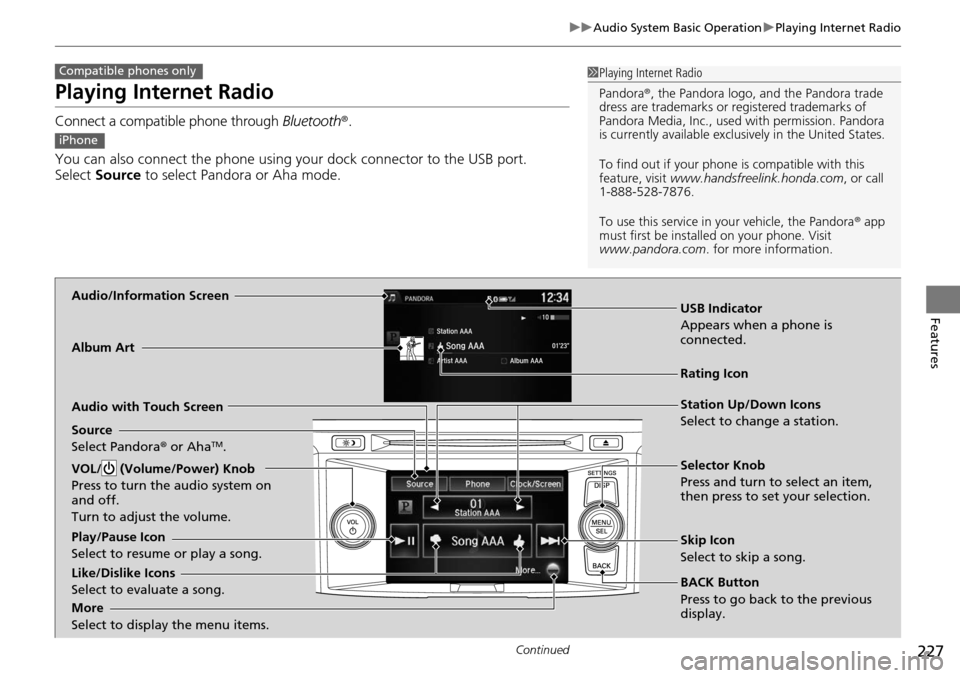
Audio/Information Screen
Album Art
USB Indicator
Appears when a phone is
connected.
Rating Icon
Audio with Touch Screen
BACK Button
Press to go back to the previous
display. Selector Knob
Press and turn to select an item,
then press to set your selection.
VOL/ (Volume/Power) Knob
Press to turn the audio system on
and off.
Turn to adjust the volume.
Skip Icon
Select to skip a song.
More
Select to display the menu items.
Station Up/Down Icons
Select to change a station.
Source
Select Pandora ® or Aha
TM.
Like/Dislike Icons
Select to evaluate a song. Play/Pause Icon
Select to resume or play a song.
Page 229 of 593
uuAudio System Basic Operation uPlaying Internet Radio
228
Features
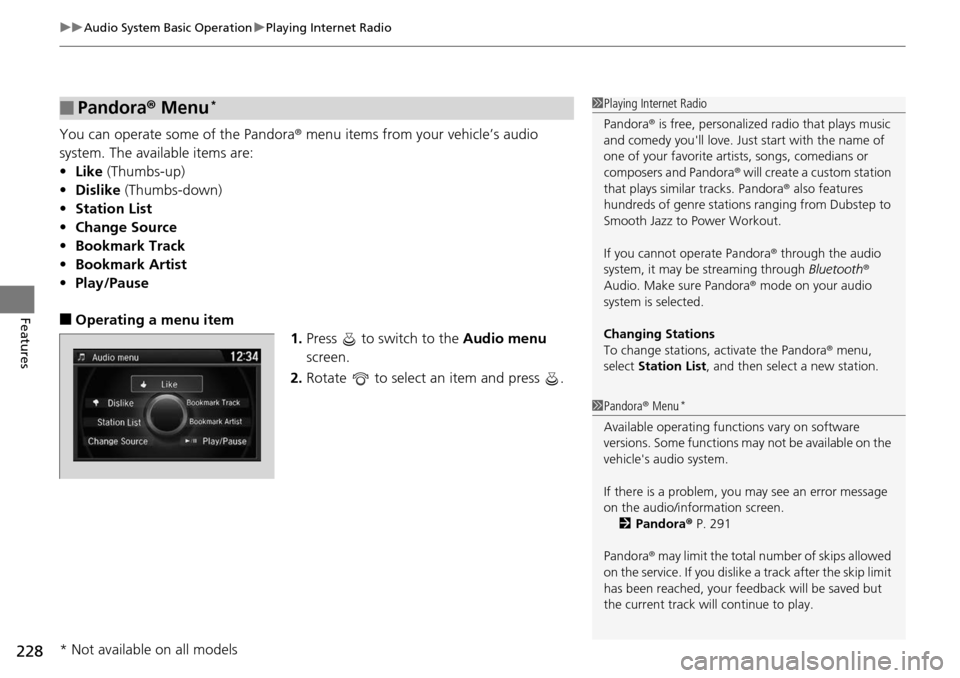
You can operate some of the Pandora® menu items from your vehicle’s audio
system. The available items are:
• Like (Thumbs-up)
• Dislike (Thumbs-down)
• Station List
• Change Source
• Bookmark Track
• Bookmark Artist
• Play/Pause
■Operating a menu item
1.Press to switch to the Audio menu
screen.
2. Rotate to select an item and press .
■Pandora® Menu*1Playing Internet Radio
Pandora ® is free, personalized radio that plays music
and comedy you'll love. Just start with the name of
one of your favorite arti sts, songs, comedians or
composers and Pandora ® will create a custom station
that plays similar tracks. Pandora ® also features
hundreds of genre stations ranging from Dubstep to
Smooth Jazz to Power Workout.
If you cannot operate Pandora ® through the audio
system, it may be streaming through Bluetooth®
Audio. Make sure Pandora ® mode on your audio
system is selected.
Changing Stations
To change stations, activate the Pandora ® menu,
select Station List , and then select a new station.
1Pandora ® Menu*
Available operating functi ons vary on software
versions. Some functions ma y not be available on the
vehicle's audio system.
If there is a problem, you may see an error message
on the audio/information screen. 2 Pandora ® P. 291
Pandora ® may limit the total number of skips allowed
on the service. If you dislike a track after the skip limit
has been reached, your fe edback will be saved but
the current track will continue to play.
* Not available on all models
Page 230 of 593
229
uuAudio System Basic Operation uPlaying Internet Radio
Features
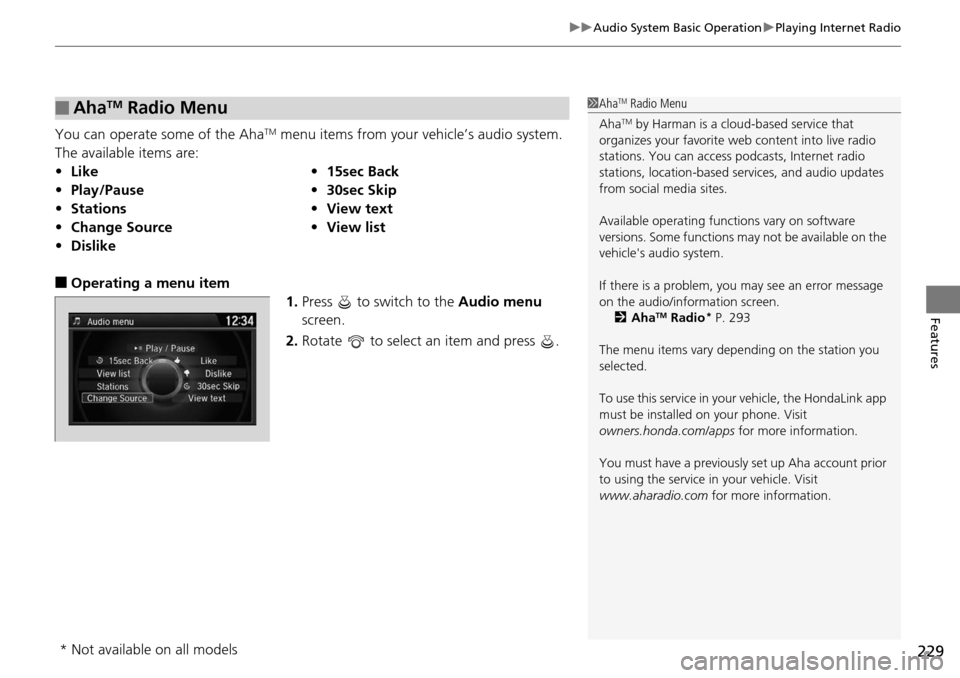
You can operate some of the AhaTM menu items from your vehicle’s audio system.
The available items are:
■Operating a menu item 1.Press to switch to the Audio menu
screen.
2. Rotate to select an item and press .
■AhaTM Radio Menu
•Like •15sec Back
• Play/Pause •30sec Skip
• Stations •View text
• Change Source •View list
• Dislike
1AhaTM Radio Menu
Aha
TM by Harman is a clou d-based service that
organizes your favorite we b content into live radio
stations. You can access podcasts, Internet radio
stations, location-based se rvices, and audio updates
from social media sites.
Available operating functi ons vary on software
versions. Some functions ma y not be available on the
vehicle's audio system.
If there is a problem, you may see an error message
on the audio/information screen. 2 Aha
TM Radio* P. 293
The menu items vary depending on the station you
selected.
To use this service in your vehicle, the HondaLink app
must be installed on your phone. Visit
owners.honda.com/apps for more information.
You must have a previously set up Aha account prior
to using the service in your vehicle. Visit
www.aharadio.com for more information.
* Not available on all models
Page 236 of 593
235
Features
Audio System Basic Operation
To use the audio system function, the power mode must be in ACCESSORY or ON.
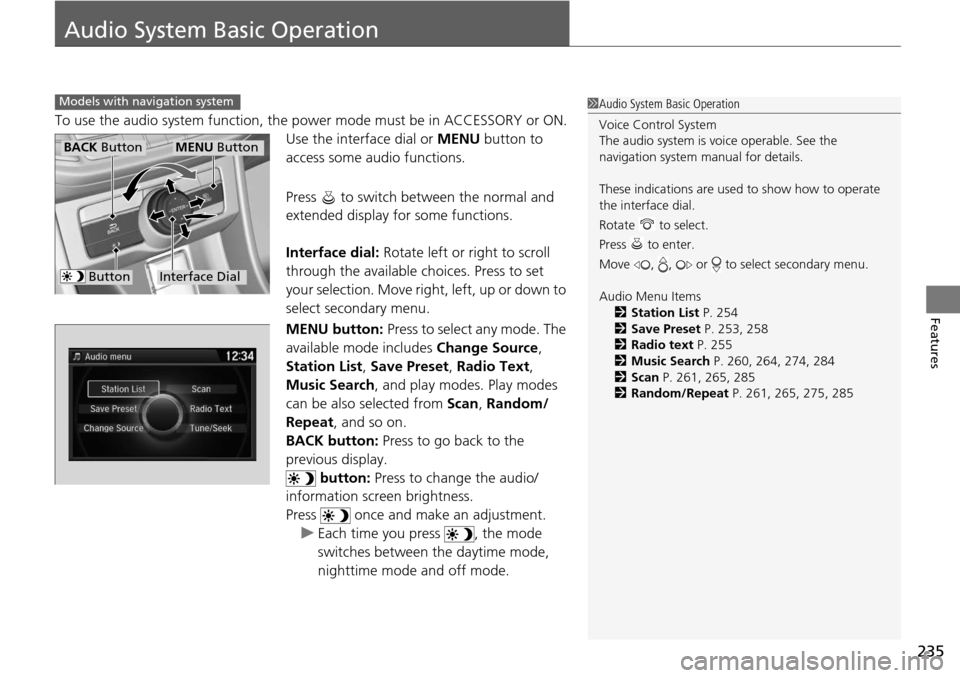
Use the interface dial or MENU button to
access some au dio functions.
Press to switch between the normal and
extended display fo r some functions.
Interface dial: Rotate left or right to scroll
through the available choices. Press to set
your selection. Move right, left, up or down to
select secondary menu.
MENU button: Press to select any mode. The
available mode includes Change Source,
Station List , Save Preset, Radio Text ,
Music Search , and play mode s. Play modes
can be also selected from Scan, Random/
Repeat , and so on.
BACK button: Press to go back to the
previous display. button: Press to change the audio/
information screen brightness.
Press once and make an adjustment.
u Each time you press , the mode
switches between the daytime mode,
nighttime mode and off mode.
Models with navigation system1Audio System Basic Operation
Voice Control System
The audio system is voice operable. See the
navigation system manual for details.
These indications are used to show how to operate
the interface dial.
Rotate to select.
Press to enter.
Move , , or to select secondary menu.
Audio Menu Items
2 Station List P. 254
2 Save Preset P. 253, 258
2 Radio text P. 255
2 Music Search P. 260, 264, 274, 284
2 Scan P. 261, 265, 285
2 Random/Repeat P. 261, 265, 275, 285
Interface Dial
MENU ButtonBACK Button
Button
Page 248 of 593
247
uuAudio System Basic Operation uVoice Control Operation
Continued
Features
■HDD commands
• Hard Disc Drive play
• Hard Disc Drive play track # (#: 1 to 30)
• Hard Disc Drive skip forward
• Hard Disc Drive skip back
• Hard Disc Drive album up
*2
•Hard Disc Drive album down*2
•Hard Disc Drive track up
• Hard Disc Drive track down
• Hard Disc Drive playlist up
*2
•Hard Disc Drive playlist down*2
•Hard Disc Drive track random*1
•Hard Disc Drive track repeat*1
•Hard Disc Drive track scan*1
•Hard Disc Drive normal play
• What am I listening to?
• Who am I listening to?
• Who is this?
• What’s playing?
• Who’s playing?
• What album is this?
*1: These commands toggle the function
on and off, so the co mmand may not match
your intended action.
*2: These commands are available only in
the corresponding playback mode.
For example, “Artist” commands are
available only in “Artist” mode.
■Radio commands
• Audio on*1
•Audio off*1
•Radio on*1
•Radio off*1
•Radio select FM
• Radio select AM
• Radio tune to # FM
(#: frequency from 87.7 to 107.9)
• Radio tune to # AM
(#: frequency from 5 30 [five thirty] to
1710 [seventeen ten])
• Radio seek up
• Radio seek down
• Radio next station
• Radio preset # (#: 1 to 12)
• Radio FM preset # (#: 1 to 12)
• Radio AM preset # (#: 1 to 6)
• Radio scan
*1
•Radio select XM
• XM channel #
(#: 0 to 255 [two fifty five])
• XM channel down
• XM category up
• XM category down
• XM preset # (#: 1 to 12)
• XM scan
*1
•XM category mode
• XM channel mode *1: These commands toggle the function
on and off, so the co
mmand may not match
your intended action.
NOTE:
Radio volume levels cannot be controlled
using voice control.
■Disc commands
• Disc play
• Disc play track # (#: 1 to 30)
• Disc skip forward
• Disc skip back
• Disc track random
*1
•Disc track repeat*1
•Disc track scan*1
•Disc folder up
• Disc folder down
• Disc folder random
*1
•Disc folder repeat*1
•Disc folder scan*1
•Disc normal play
*1: These commands toggle the function
on and off, so the co mmand may not match
your intended action.
Page 250 of 593
249
uuAudio System Basic Operation uVoice Control Operation
Continued
Features
■Pandora ® commands*
The system accepts these commands while
the Pandora® is playing.
• Pandora play
• Pandora skip forward
• Pandora station up
• Pandora station down
• Pandora pause
• Pandora resume
• Pandora thumbs up
• Pandora thumbs down
■AhaTM Radio commands
The system accepts these commands while
the Aha
TM is playing.
• Aha radio play
• Aha radio skip forward
• Aha radio skip back
• Aha radio station up
• Aha radio station down
• Aha radio resume
• Aha radio pause
• Aha radio like
• Aha radio dislike
■Internet service commands
• Internet service play
• Internet service skip forward
*1
•Internet service skip back*1
•Internet service station up*1
•Internet service station down*1
•Internet service resume*1
•Internet service pause*1
•Internet service like*1
•Internet service dislike*1
*1: The system accepts these commands
while the Internet service is playing.
* Not available on all models
Page 253 of 593
252
uuAudio System Basic Operation uPlaying AM/FM Radio
Features
Playing AM/FM Radio
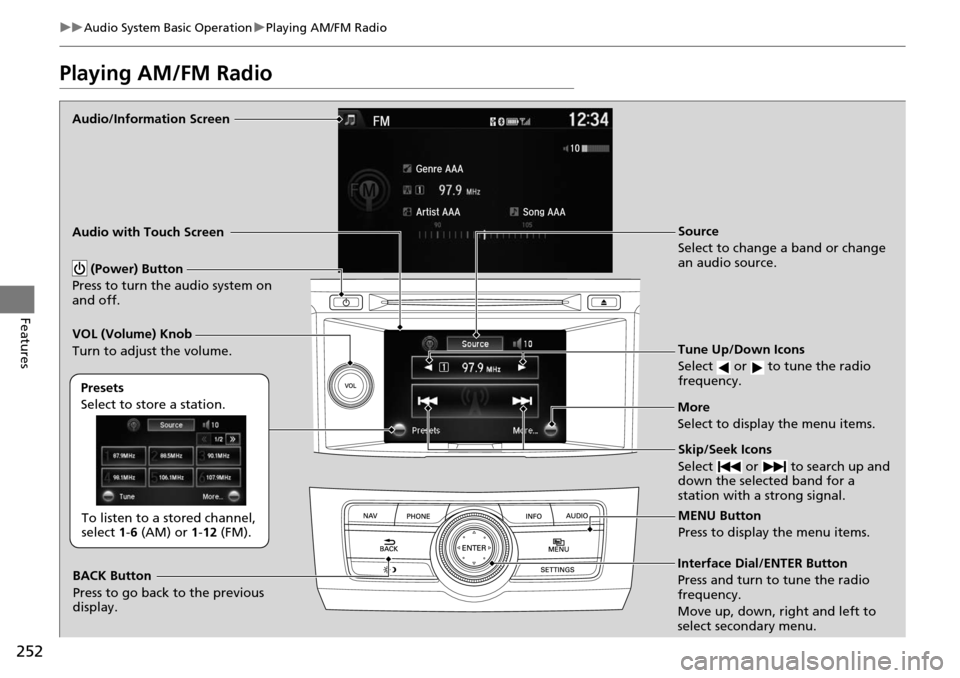
Audio/Information Screen
Audio with Touch Screen
Tune Up/Down Icons
Select or to tune the radio
frequency.
MENU Button
Press to display the menu items.
(Power) Button
Press to turn the audio system on
and off.
Source
Select to change a band or change
an audio source.
To listen to a stored channel,
select 1-6 (AM) or 1-12 (FM).
Presets
Select to store a station.
Skip/Seek Icons
Select or to search up and
down the selected band for a
station with a strong signal.
More
Select to display the menu items.
BACK Button
Press to go back to the previous
display.
VOL (Volume) Knob
Turn to adjust the volume.
Interface Dial/ENTER Button
Press and turn to tune the radio
frequency.
Move up, down, right and left to
select secondary menu.
Page 254 of 593
Continued253
uuAudio System Basic Operation uPlaying AM/FM Radio
Features
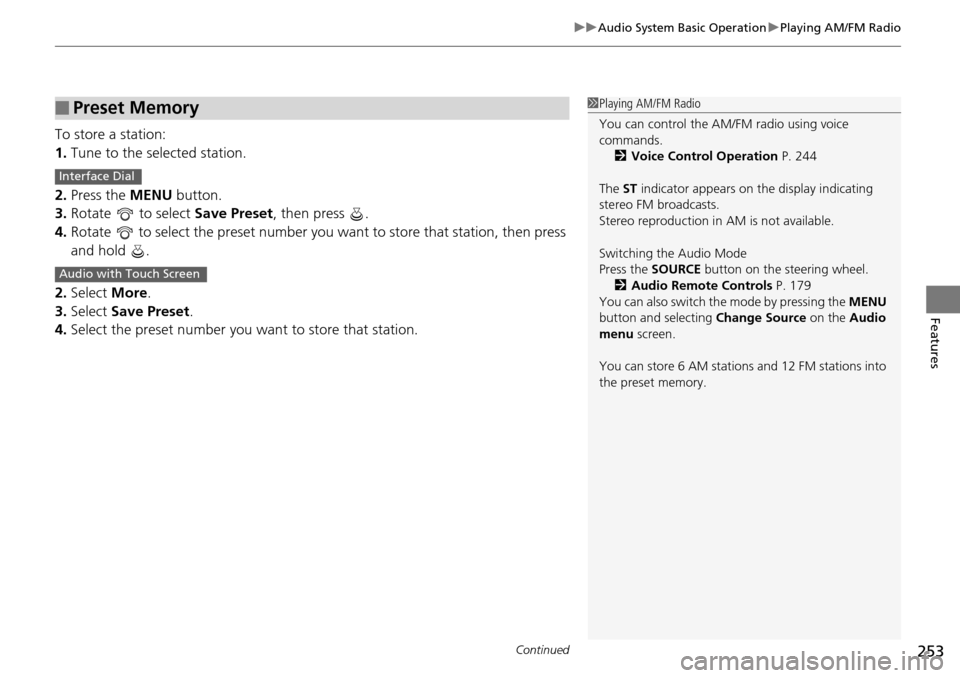
To store a station:
1. Tune to the selected station.
2. Press the MENU button.
3. Rotate to select Save Preset, then press .
4. Rotate to select the preset number you want to store that station, then press
and hold .
2. Select More.
3. Select Save Preset .
4. Select the preset number you want to store that station.
■Preset Memory1Playing AM/FM Radio
You can control the AM/FM radio using voice
commands.
2 Voice Control Operation P. 244
The ST indicator appears on the display indicating
stereo FM broadcasts.
Stereo reproduction in AM is not available.
Switching the Audio Mode
Press the SOURCE button on the steering wheel.
2 Audio Remote Controls P. 179
You can also switch the mode by pressing the MENU
button and selecting Change Source on the Audio
menu screen.
You can store 6 AM stations and 12 FM stations into
the preset memory.
Interface Dial
Audio with Touch Screen
Page 255 of 593
uuAudio System Basic Operation uPlaying AM/FM Radio
254
Features
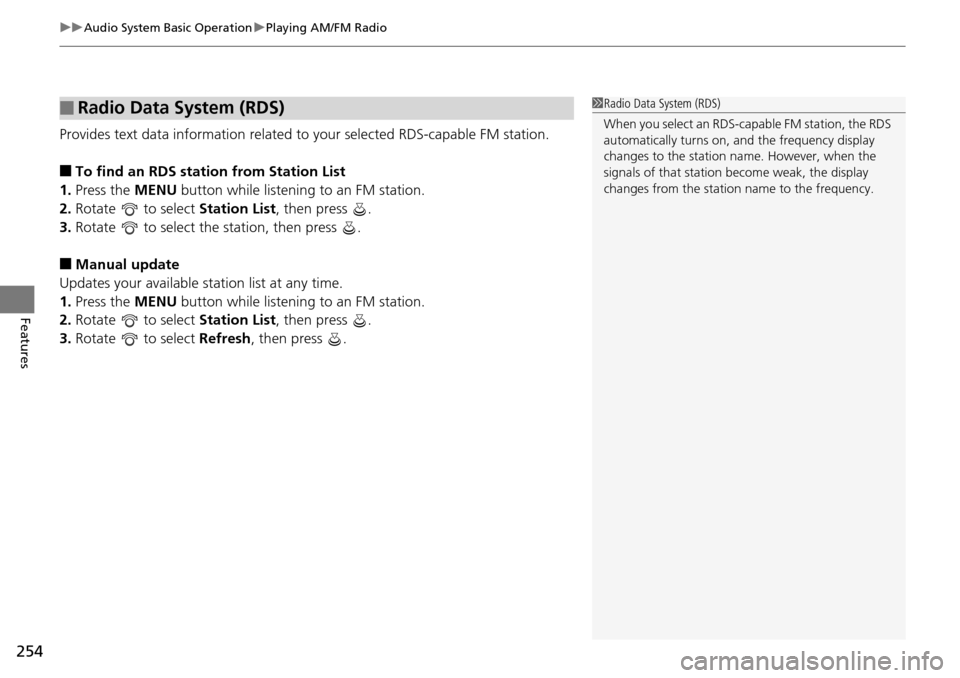
Provides text data information related to your selected RDS-capable FM station.
■To find an RDS station from Station List
1. Press the MENU button while listening to an FM station.
2. Rotate to select Station List, then press .
3. Rotate to select the station, then press .
■Manual update
Updates your available station list at any time.
1. Press the MENU button while listening to an FM station.
2. Rotate to select Station List, then press .
3. Rotate to select Refresh, then press .
■Radio Data System (RDS)1Radio Data System (RDS)
When you select an RDS-capable FM station, the RDS
automatically turns on, and the frequency display
changes to the station name. However, when the
signals of that station become weak, the display
changes from the statio n name to the frequency.