clock HONDA ACCORD COUPE 2015 9.G Owners Manual
[x] Cancel search | Manufacturer: HONDA, Model Year: 2015, Model line: ACCORD COUPE, Model: HONDA ACCORD COUPE 2015 9.GPages: 557
Page 3 of 557
ContentsThis owner’s manual should be considered a permanent part of the
vehicle and should remain with the vehicle when it is sold.
This owner’s manual covers all models of your vehicle. You may find
descriptions of equipment and features that are not on your
particular model.
Images throughout this owner’s manual (including the front cover)
represent features and equipment that are available on some, but
not all, models. Your particular model may not have some of these
features.
This owner’s manual is for vehicles sold in the United States and
Canada.
The information and specifications included in this publication were
in effect at the time of approval for printing. Honda Motor Co., Ltd.
reserves the right, however, to discontinue or change specifications
or design at any time without notice and without incurring any
obligation.
2Safe Driving P. 27For Safe Driving P. 28 Seat Belts P. 32 Airbags P. 392Instrument Panel P. 67Indicators P. 68 Gauges and Displays P. 812Controls P. 85Clock P. 86 Locking and Unlocking the Doors P. 88
Opening and Closing the Moonroof
* P. 109
Adjusting the Seats P. 127
2 Features P. 149Audio System P. 150 Audio System Basic Operation P. 156, 178, 211
Customized Features P. 274 HomeLink® Universal Transceiver
* P. 312
2 Driving P. 391Before Driving P. 392 Towing a Trailer P. 397
Refueling P. 447 Fuel Economy P. 4492Maintenance P. 451Before Performing Maintenance P. 452 Maintenance Minder
TM P. 455
Checking and Maintaining Wiper Blades P. 483
Climate Control System Maintenance P. 497
2 Handling the Unexpected P. 503Tools P. 504 If a Tire Goes Flat P. 505
Overheating P. 518 Indicator, Coming On/Blinking P. 5202Information P. 529Specifications P. 530 Identification Numbers P. 534
Emissions Testing P. 537 Warranty Coverages P. 539
Page 13 of 557
12Quick Reference Guide
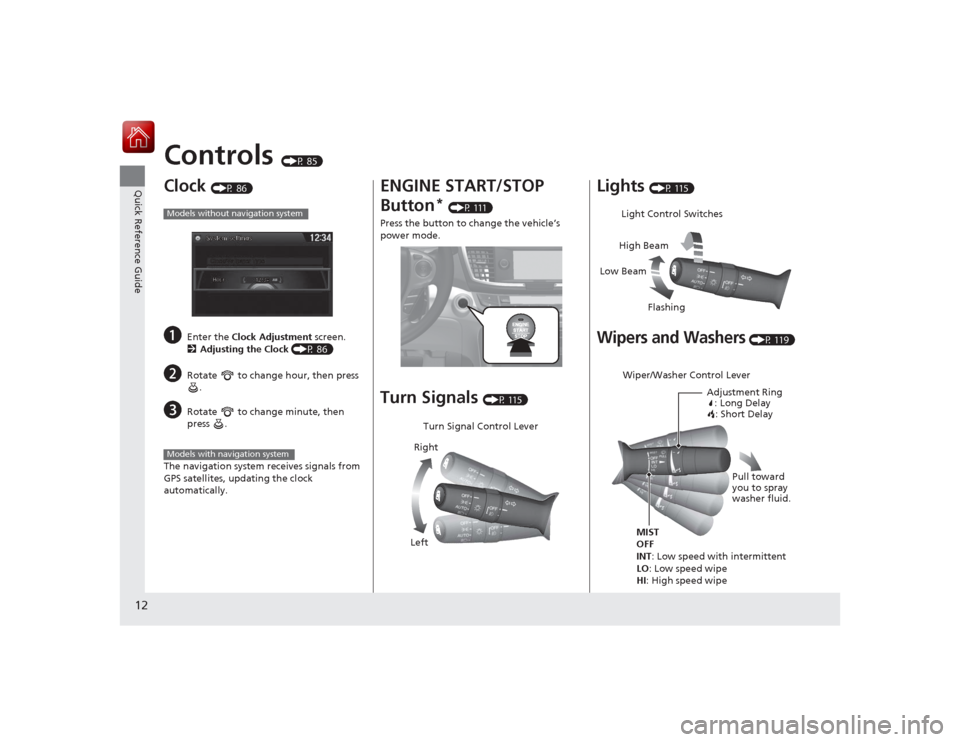
Controls
(P 85)
Clock
(P 86)
a
Enter the Clock Adjustment screen.
2 Adjusting the Clock (P 86)
b
Rotate to change hour, then press
.
c
Rotate to change minute, then
press .
The navigation system receives signals from
GPS satellites, updating the clock
automatically.
Models without navigation systemModels with navigation system
ENGINE START/STOP
Button
* (P 111)
Press the button to change the vehicle’s
power mode.
Turn Signals
(P 115)
Turn Signal Control Lever
Right
Left
Lights
(P 115)
Wipers and Washers
(P 119)
Light Control Switches
Low Beam High Beam
FlashingWiper/Washer Control Lever Adjustment Ring: Long Delay: Short Delay
MIST
OFF
INT: Low speed with intermittent
LO : Low speed wipe
HI: High speed wipe Pull toward
you to spray
washer fluid.
Page 17 of 557
16Quick Reference Guide
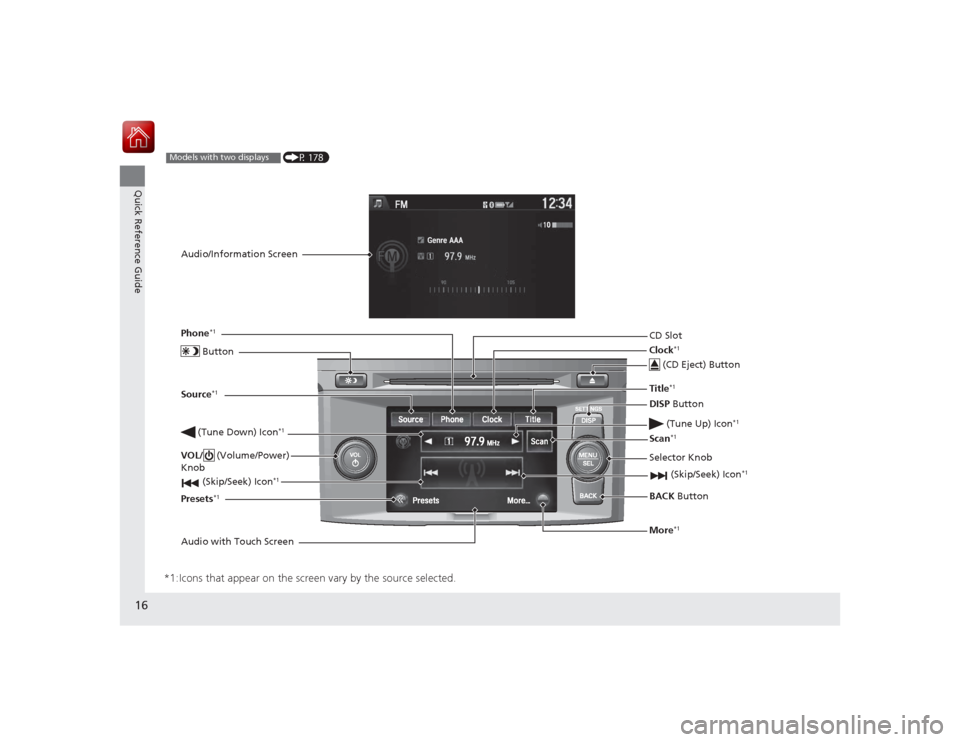
*1:Icons that appear on the screen vary by the source selected.
CD Slot (CD Eject) ButtonBACK Button
Selector Knob
(Tune Down) Icon
*1
(Skip/Seek) Icon
*1
(P 178)
Models with two displaysAudio/Information Screen
Audio with Touch Screen ButtonSource
*1
VOL/
(Volume/Power)
Knob
(Skip/Seek) Icon
*1
Presets
*1
Phone
*1
Clock
*1
DISP Button
(Tune Up) Icon
*1
More
*1
Title
*1
Scan
*1
Page 86 of 557
85
Controls
This chapter explains how to operate the various controls necessary for driving.
Clock.................................................... 86
Locking and Unlocking the Doors
Key Types and Functions .................... 88Low Smart Entry Remote Signal Strength
*...................................... 90
Locking/Unlocking the Doors from the
Inside ............................................... 96
Auto Door Locking/Unlocking ............ 98
Opening and Closing the Trunk ......... 99
Security System Immobilizer System .......................... 103
Security System Alarm ...................... 103
Opening and Closing the Windows ... 106Opening and Closing the Moonroof
*...109
Operating the Switches Around the
Steering Wheel
Ignition Switch
*............................... 110
ENGINE START/STOP Button
*........... 111
Ignition Switch and Power Mode
Comparison ................................... 114
Turn Signals ..................................... 115
Light Switches.................................. 115
Fog Lights
*...................................... 117
Daytime Running Lights ................... 118
Wipers and Washers ........................ 119
Brightness Control ........................... 120
Rear Defogger/Heated Door Mirror
*
Button ........................................... 121 Driving Position Memory System
*.... 122
Adjusting the Steering Wheel .......... 124
Adjusting the Mirrors Interior Rearview Mirror ................... 125
Power Door Mirrors ......................... 126
Adjusting the Seats .......................... 127
Interior Lights/Interior Convenience Items ................................................ 135
Climate Control System Using Automatic Climate Control .... 144
Synchronized Mode ......................... 146
Automatic Climate Control Sensors ... 147
* Not available on all models
Page 87 of 557
86Controls
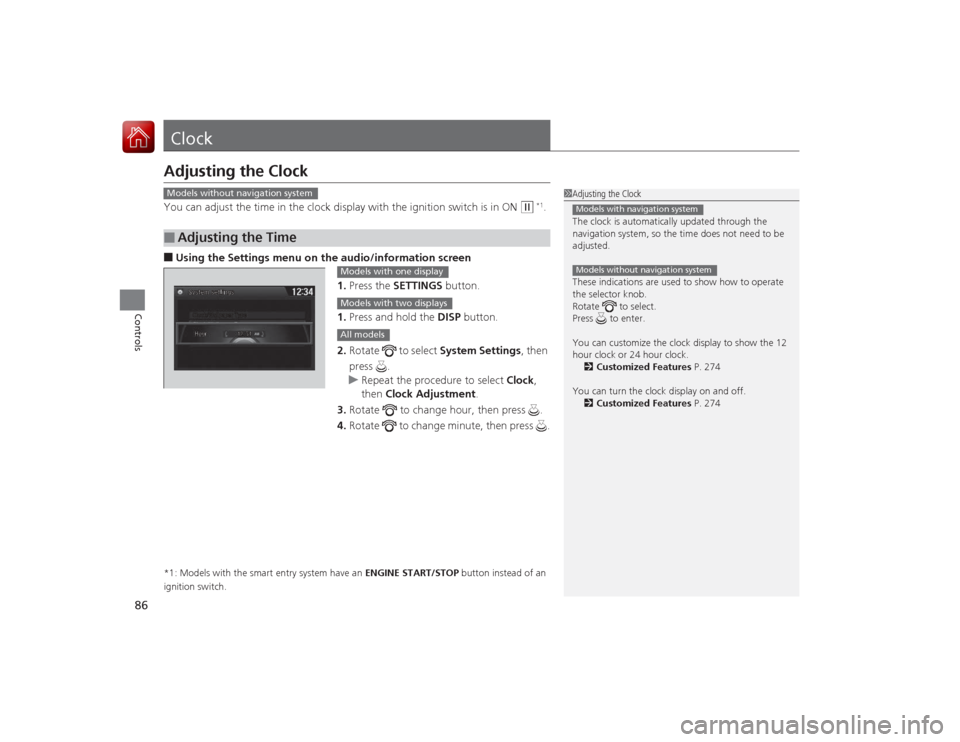
ClockAdjusting the ClockYou can adjust the time in the clock display with the ignition switch is in ON
(w
*1.
■Using the Settings menu on the audio /information screen
1. Press the SETTINGS button.
1. Press and hold the DISP button.
2. Rotate to select System Settings, then
press .
u Repeat the procedure to select Clock,
then Clock Adjustment .
3. Rotate to change hour, then press .
4. Rotate to change minute, then press .*1: Models with the smart entry system have an ENGINE START/STOP button instead of an
ignition switch.■
Adjusting the Time
1 Adjusting the Clock
The clock is automatically updated through the
navigation system, so the time does not need to be
adjusted.
These indications are used to show how to operate
the selector knob.
Rotate to select.
Press to enter.
You can customize the clock display to show the 12
hour clock or 24 hour clock.
2 Customized Features P. 274
You can turn the clock display on and off. 2 Customized Features P. 274Models with navigation systemModels without navigation system
Models without navigation system
Models with one displayModels with two displaysAll models
Page 88 of 557
87
uuClock uAdjusting the Clock
Controls
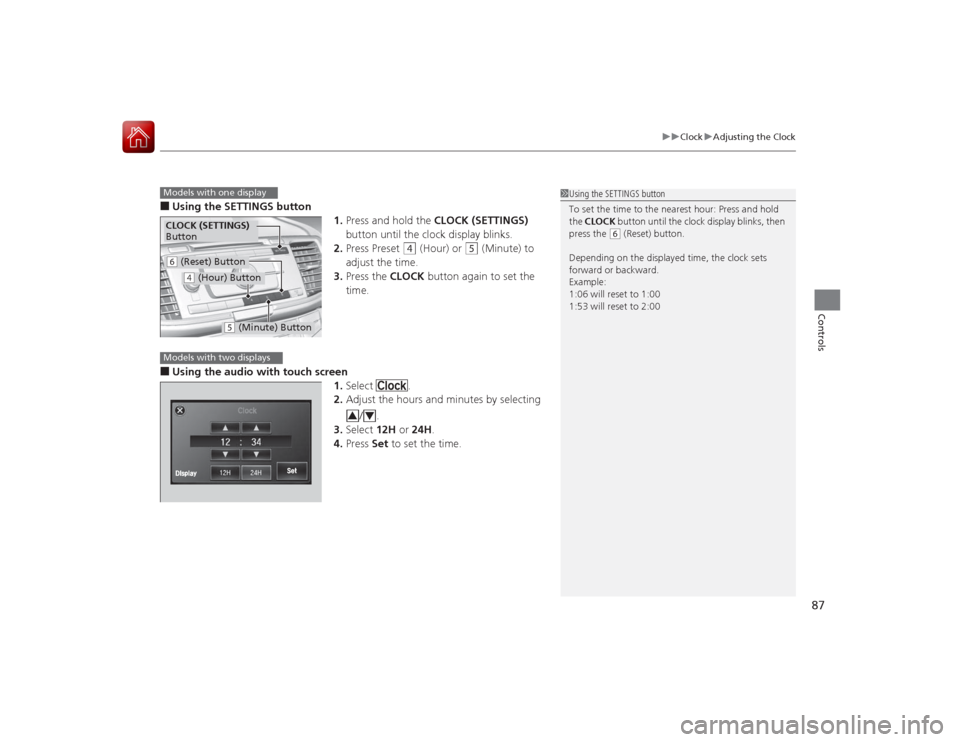
■Using the SETTINGS button
1.Press and hold the CLOCK (SETTINGS)
button until the clock display blinks.
2. Press Preset
(4
(Hour) or
(5
(Minute) to
adjust the time.
3. Press the CLOCK button again to set the
time.
■Using the audio with touch screen 1.Select .
2. Adjust the hours and minutes by selecting
/.
3. Select 12H or 24H.
4. Press Set to set the time.
1Using the SETTINGS button
To set the time to the nearest hour: Press and hold
the CLOCK button until the clock display blinks, then
press the
( 6 (Reset) button.
Depending on the displayed time, the clock sets
forward or backward.
Example:
1:06 will reset to 1:00
1:53 will reset to 2:00
Models with one displayCLOCK (SETTINGS)
Button( 6 (Reset) Button(4 (Hour) Button
(5 (Minute) Button
Models with two displays
3
4
Page 158 of 557
157
uuAudio System Basic Operation uAudio/Information Screen
Continued
Features
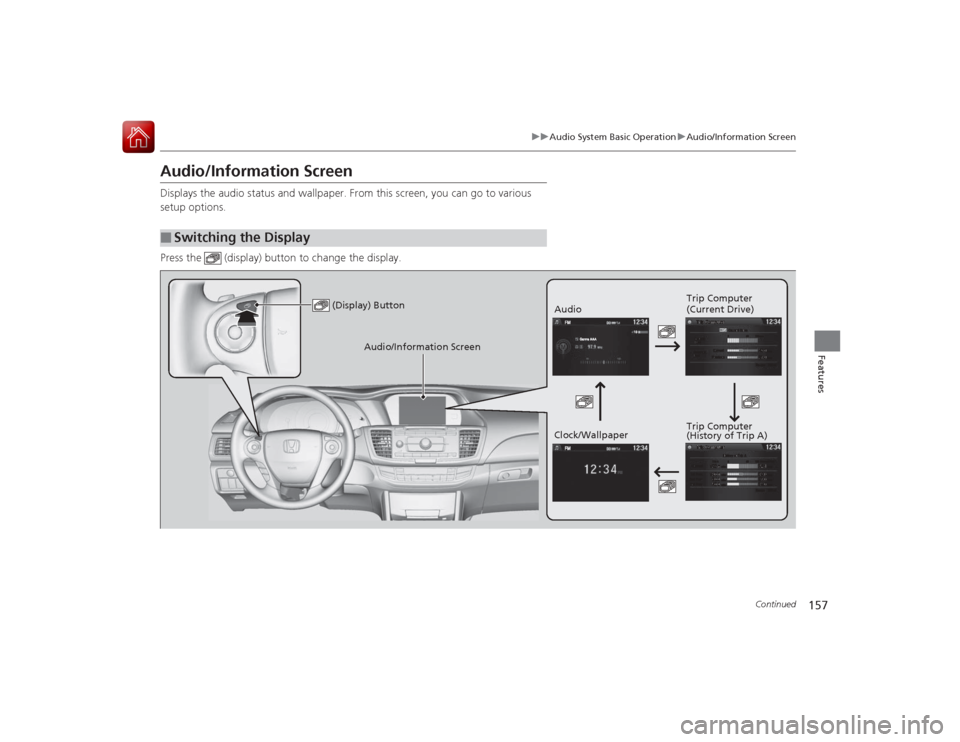
Audio/Information ScreenDisplays the audio status and wallpaper. From this screen, you can go to various
setup options.
Press the (display) button to change the display.■
Switching the Display
(Display) Button
Audio Trip Computer
(Current Drive)
Clock/Wallpaper Trip Computer
(History of Trip A)
Audio/Information Screen
Page 159 of 557
158
uuAudio System Basic Operation uAudio/Information Screen
Features
■Audio
Shows the current audio information.■Trip computer (Current Drive)
Shows the range, and instant and average fuel economy of the current trip, as well
as the average fuel economy from your last trip.■Trip computer (History of Trip A)
Shows the range, average fuel economy and distance traveled for the current trip,
as well as the average fuel economy and distances traveled during the last three
driving cycles.
Each time you reset the trip meter A, the information on the display updates. The
history of the previous three driving cycles is kept.■Clock/Wallpaper
Shows a clock screen or an image you import.
Page 160 of 557
Continued
159
uuAudio System Basic Operation uAudio/Information Screen
Features
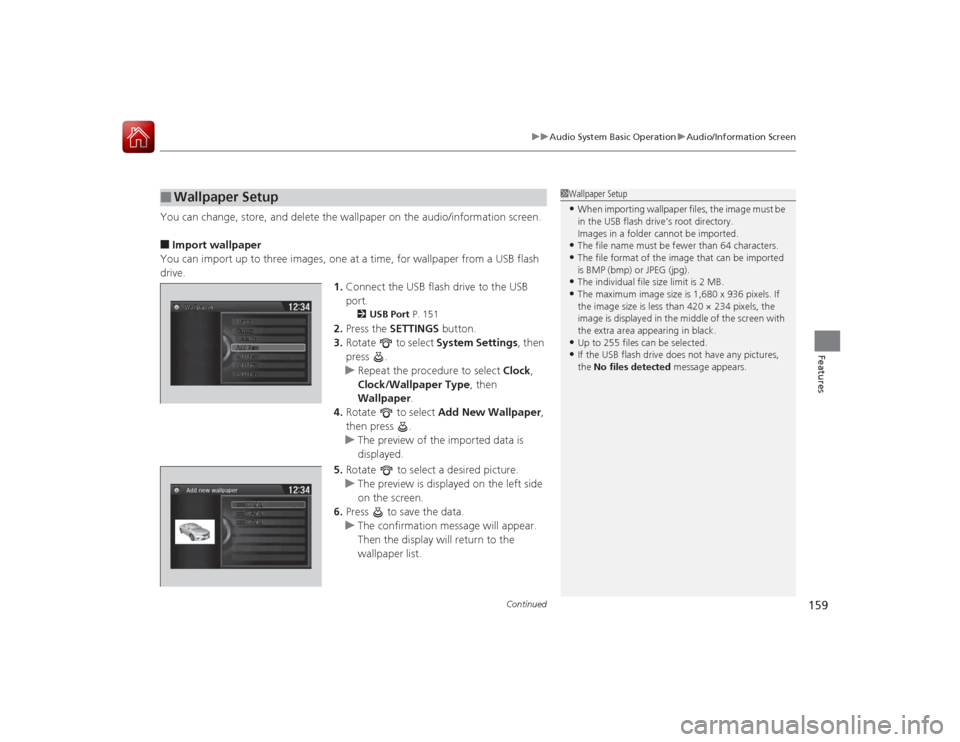
You can change, store, and delete the wallpaper on the audio/information screen.■Import wallpaper
You can import up to three images, one at a time, for wallpaper from a USB flash
drive. 1.Connect the USB flash drive to the USB
port.
2 USB Port P. 151
2.Press the SETTINGS button.
3. Rotate to select System Settings, then
press .
u Repeat the procedure to select Clock,
Clock/Wallpaper Type , then
Wallpaper .
4. Rotate to select Add New Wallpaper ,
then press .
u The preview of the imported data is
displayed.
5. Rotate to select a desired picture.
u The preview is displayed on the left side
on the screen.
6. Press to save the data.
u The confirmation message will appear.
Then the display will return to the
wallpaper list.
■
Wallpaper Setup
1Wallpaper Setup•When importing wallpaper files, the image must be
in the USB flash drive’s root directory.
Images in a folder cannot be imported.•The file name must be fewer than 64 characters.•The file format of the image that can be imported
is BMP (bmp) or JPEG (jpg).•The individual file size limit is 2 MB.•The maximum image size is 1,680 x 936 pixels. If
the image size is less than 420 × 234 pixels, the
image is displayed in the middle of the screen with
the extra area appearing in black.•Up to 255 files can be selected.•If the USB flash drive does not have any pictures,
the No files detected message appears.
Page 161 of 557
uuAudio System Basic Operation uAudio/Information Screen
160Features
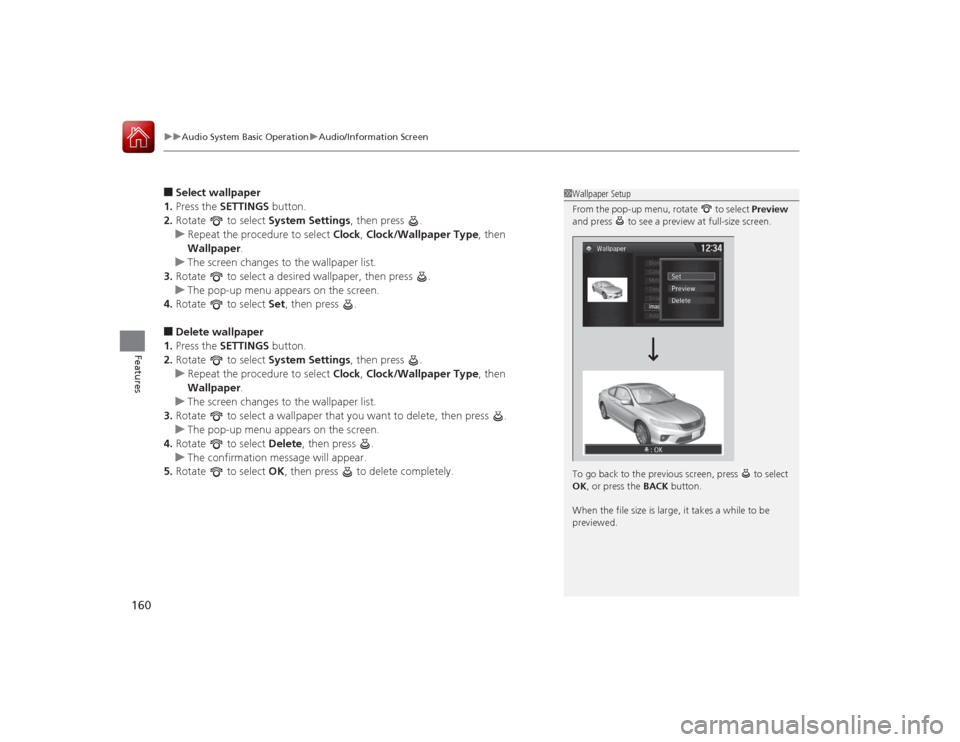
■Select wallpaper
1. Press the SETTINGS button.
2. Rotate to select System Settings, then press .
u Repeat the procedure to select Clock, Clock/Wallpaper Type , then
Wallpaper .
u The screen changes to the wallpaper list.
3. Rotate to select a desired wallpaper, then press .
u The pop-up menu appears on the screen.
4. Rotate to select Set, then press .■Delete wallpaper
1. Press the SETTINGS button.
2. Rotate to select System Settings, then press .
u Repeat the procedure to select Clock, Clock/Wallpaper Type , then
Wallpaper .
u The screen changes to the wallpaper list.
3. Rotate to select a wallpaper that you want to delete, then press .
u The pop-up menu appears on the screen.
4. Rotate to select Delete, then press .
u The confirmation message will appear.
5. Rotate to select OK, then press to delete completely.
1Wallpaper Setup
From the pop-up menu, rotate to select Preview
and press to see a preview at full-size screen.
To go back to the previous screen, press to select
OK , or press the BACK button.
When the file size is large, it takes a while to be
previewed.