USB port HONDA ACCORD COUPE 2016 9.G Quick Guide
[x] Cancel search | Manufacturer: HONDA, Model Year: 2016, Model line: ACCORD COUPE, Model: HONDA ACCORD COUPE 2016 9.GPages: 84, PDF Size: 19.4 MB
Page 3 of 84
INTRODUCTIONTABLE OF CONTENTS
This Owner’s Guide is intended to help you quickly get acquainted with your
2016 Honda Accord Coupe. It provides basic information and instructions on
technology and convenience features, as well as emergency procedures and\
how to
get assistance.
This guide is for vehicles sold in the United States and Canada. It covers all Accord
Coupe models, so you may find descriptions of features and equipment that are not
in your vehicle. Images throughout this guide are from U.S. vehicles and represent
features and equipment that are available on some, but not all, models.
This guide is not intended to be a substitute for the Owner’s Manual. The Owner
Information CD enclosed in your glove box kit includes the Owner’s Manual,
Navigation Manual, and vehicle and tire warranties in electronic format.\
This
information can be viewed on a computer (PC or Mac platform) and saved or printed
for your reference. You can also visit owners.honda.com (U.S.) or myhonda.ca
(Canada) to view the complete and most current information.
If you are the first registered owner of your vehicle, you may request a complimentary
printed copy of the Owner’s Manual, Navigation Manual, or Vehicle Warranty within
the first six months of vehicle purchase. To request a copy, visit owners.honda.com
(U.S.) and create or log in to your account. In Canada, please request a copy from
your Honda dealer.
American Honda Motor Company strives to be proactive in protecting our
environment and natural resources. By using electronic delivery for a considerable
portion of the information typically found in a vehicle owner’s manual, we are further
reducing our impact on the environment.
Honda Automobile Customer Service
Your authorized Honda dealer should be able to answer any questions you have
about your vehicle. However, if you are dissatisfied with the information you receive,
you can call Honda Automobile Customer Service (see page 153).
Call (800) 999-1009 (U.S.) or (888) 946-6329 (Canada)
Honda Roadside Assistance
24-hour emergency road service is available to you in the United States and Canada
throughout your 3-year/36,000-mile warranty term. Services include jump starting,
flat tire and lockout assistance, towing, and more (limitations apply\
).
Call (866) 864-5211 (U.S.) or (800) 465-7587 (Canada)
*if equipped
VISUAL INDEX .......................................1
Steering Wheel and Nearby Controls...1
Dashboard and Other Controls ...........2
SAFETY INFORMATION ........................3
Important Safety Information ..............3
Seat Belts ...............................................5
Airbags ....................................................8
Child Safety ..........................................14
Safety Label Locations .......................21
Reporting Safety Defects ...................22
INSTRUMENT PANEL .........................23
Malfunction Indicators ......................23
Condition Indicators ...........................25
On/Off Indicators .................................26
Information Display* ..........................27
Multi-Information Display (MID)* ....28
VEHICLE CONTROLS ...........................30
Using the Key or Remote
Transmitter* .........................................30
Smart Entry System* ...........................31
Door Operation ....................................32
Power Window Operation ................33
Power Moonroof Operation* ...........34
Interior and Exterior Lights ...............35
Auto High-Beam System* ..................36
Wiper Operation ..................................37
One-Touch Turn Signal .......................38
Adjusting the Seats ............................39
Adjusting the Steering Wheel ..........43
Driving Position Memory System* ...43
Adjusting the Mirrors .........................44
HomeLink® Garage Opener* .............45
Climate Control System ....................46
Seat Heaters* ......................................46
Customized Features ..........................47
Setting the Clock .................................48
AUDIO AND CONNECTIVITY .............49
Basic Audio Operation .......................49
Models with one display
One Display Audio Operation ...........53
FM/AM Radio .......................................54
Compact Disc (CD) ..............................55
iPod®......................................................56
USB Flash Drive ..................................57
Bluetooth® Audio ................................58
Pandora® ..............................................59
Models with touchscreen
Touchscreen Operation .....................60
HondaLink® ..........................................62
Wi-Fi Connection ................................63
Aha™ Radio .........................................63
Apple CarPlay ......................................64
Android Auto ........................................65
FM/AM Radio ......................................66
SiriusXM® Radio* ...............................67
Compact Disc (CD) .............................68
iPod®......................................................69
USB Flash Drive ..................................70
Bluetooth® Audio ................................71
Pandora® ..............................................72
BLUETOOTH® HANDSFREELINK® ....73
Models with one display
Basic HFL Operation ...........................73
Pairing a Phone ...................................74
Making a Call ......................................75
SMS Text Messaging .........................77
Models with touchscreen
Basic HFL Operation ...........................78
Pairing a Phone ...................................80
Page 5 of 84
2 || 3
SAFETYVISUAL INDEX
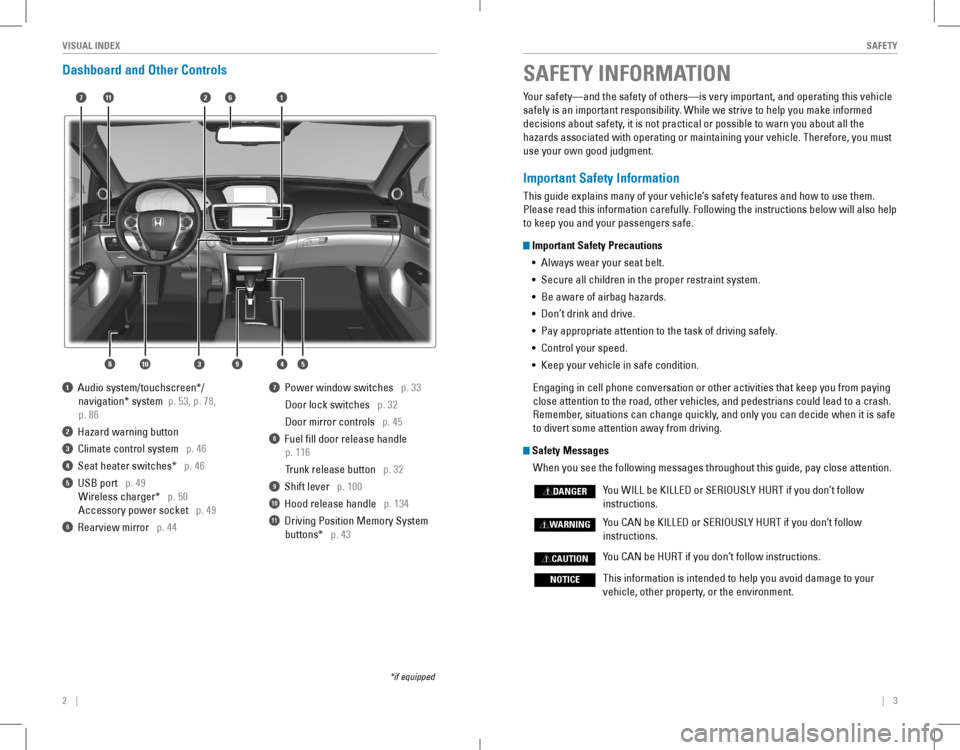
Dashboard and Other Controls
1 Audio system/touchscreen*/
navigation* system p. 53, p. 78,
p. 86
2 Hazard warning button
3 Climate control system p. 46
4 Seat heater switches* p. 46
5 USB port p. 49
Wireless charger* p. 50
Accessory power socket p. 49
6 rearview mirror p. 44
7 Power window switches p. 33
Door lock switches p. 32
Door mirror controls p. 45
8 Fuel fill door release handle
p. 116
Trunk release button p. 32
9 Shift lever p. 100
10 Hood release handle p. 134
11 Driving Position Memory System
buttons* p. 43
*if equipped
SAFETY INFORMATION
2
4
71
8
6
3
Your safety—and the safety of others—is very important, and operati\
ng this vehicle
safely is an important responsibility. While we strive to help you make informed
decisions about safety, it is not practical or possible to warn you about all the
hazards associated with operating or maintaining your vehicle. Therefore, you must
use your own good judgment.
Important Safety Information
This guide explains many of your vehicle’s safety features and how to use them.
Please read this information carefully. Following the instructions below will also help
to keep you and your passengers safe.
Important Safety Precautions
• Always wear your seat belt.
• Secure all children in the proper restraint system.
• Be aware of airbag hazards.
• Don’t drink and drive.
• Pay appropriate attention to the task of driving safely.
• Control your speed.
• Keep your vehicle in safe condition.
engaging in cell phone conversation or other activities that keep you fro\
m paying
close attention to the road, other vehicles, and pedestrians could lead \
to a crash.
Remember, situations can change quickly, and only you can decide when it is safe
to divert some attention away from driving.
Safety Messages
When you see the following messages throughout this guide, pay close attention.
You WILL be KILLED or SERIOUSLY HURT if you don’t follow
instructions.
You CAN be KILLED or SERIOUSLY HURT if you don’t follow
instructions.
You CAN be HURT if you don’t follow instructions.
This information is intended to help you avoid damage to your
vehicle, other property, or the environment.
DANGER
WARNING
CAUTION
NOTICE
5910
11
Page 28 of 84
48 || 49
AUDIO AND CONNECTIVITYVEHICLE CONTROLS
Setting the Clock
Adjust the time using the steps described for your vehicle type.
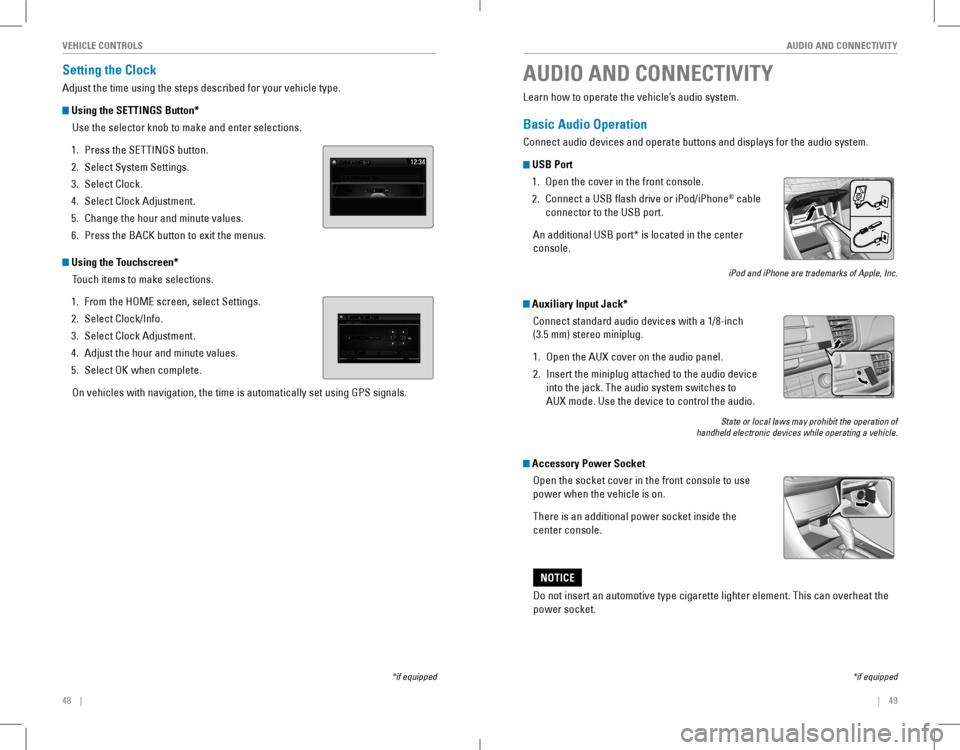
Using the SETTINGS Button*
Use the selector knob to make and enter selections.
1. Press the SETTINGS button.
2. Select System Settings.
3. Select Clock.
4. Select Clock Adjustment.
5. Change the hour and minute values.
6. Press the BACK button to exit the menus.
Using the Touchscreen*
Touch items to make selections.
1. From the HoMe screen, select Settings.
2. Select Clock/Info.
3. Select Clock Adjustment.
4. Adjust the hour and minute values.
5. Select oK when complete.
on vehicles with navigation, the time is automatically set using GPS sign\
als.
*if equipped
AUDIO AND CONNECTIVITY
*if equipped
Learn how to operate the vehicle’s audio system.
Basic Audio Operation
Connect audio devices and operate buttons and displays for the audio system.
USB Port
1. open the cover in the front console.
2. Connect a USB flash drive or iPod/iPhone® cable
connector to the USB port.
An additional USB port* is located in the center
console.
iPod and iPhone are trademarks of Apple, Inc.
Auxiliary Input Jack*
Connect standard audio devices with a 1/8-inch
(3.5 mm) stereo miniplug.
1. open the AUX cover on the audio panel.
2. Insert the miniplug attached to the audio device
into the jack. The audio system switches to
AUX mode. Use the device to control the audio.
State or local laws may prohibit the operation of handheld electronic devices while operating a vehicle.
Accessory Power Socket
open the socket cover in the front console to use
power when the vehicle is on.
There is an additional power socket inside the
center console.
Do not insert an automotive type cigarette lighter element. This can ove\
rheat the
power socket.
NOTICE
Page 32 of 84
56 || 57
AUDIO AND CONNECTIVITYAUDIO AND CONNECTIVITY
Models with one display
iPod®
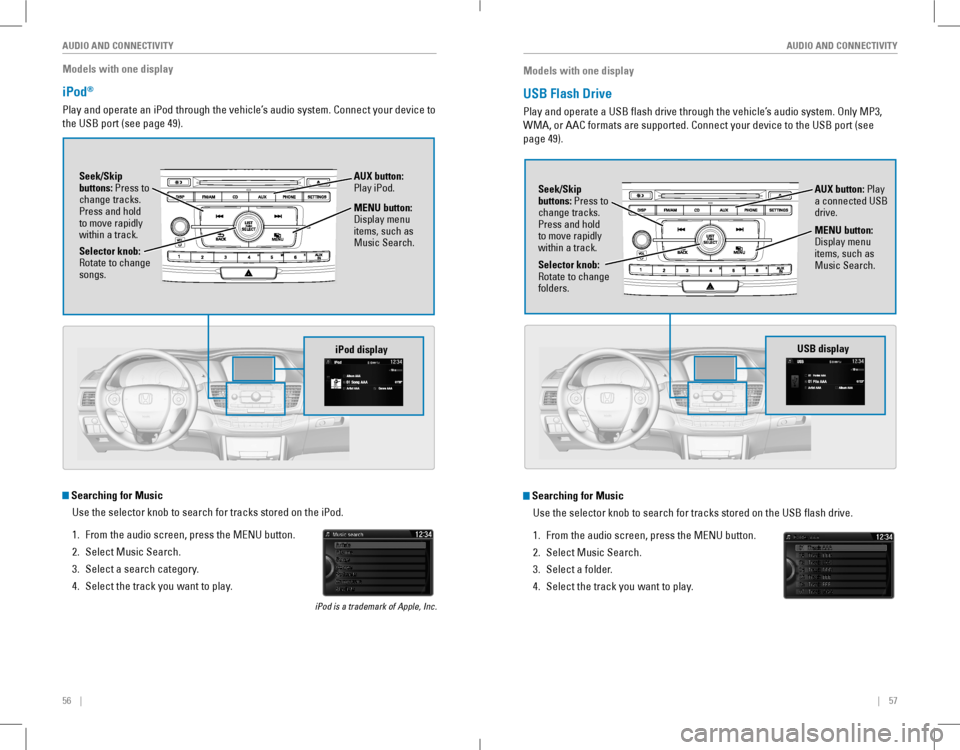
Play and operate an iPod through the vehicle’s audio system. Connect your device to
the USB port (see page 49).
MENU button: Display menu items, such as Music Search.Selector knob: rotate to change songs.
Seek/Skip buttons: Press to change tracks. Press and hold to move rapidly within a track.
AUX button: Play iPod.
Searching for Music
Use the selector knob to search for tracks stored on the iPod.
1. From the audio screen, press the MENU button.
2. Select Music Search.
3. Select a search category.
4. Select the track you want to play.
iPod is a trademark of Apple, Inc.
iPod display
Models with one display
USB Flash Drive
Play and operate a USB flash drive through the vehicle’s audio system. only MP3,
WMA, or AAC formats are supported. Connect your device to the USB port (see
page 49).
Searching for Music
Use the selector knob to search for tracks stored on the USB flash drive.
1. From the audio screen, press the MENU button.
2. Select Music Search.
3. Select a folder.
4. Select the track you want to play.
Selector knob: rotate to change folders.
Seek/Skip buttons: Press to change tracks. Press and hold to move rapidly within a track.
AUX button: Play a connected USB drive.
MENU button: Display menu items, such as Music Search.
USB display
Page 33 of 84
58 || 59
AUDIO AND CONNECTIVITYAUDIO AND CONNECTIVITY
Models with one display
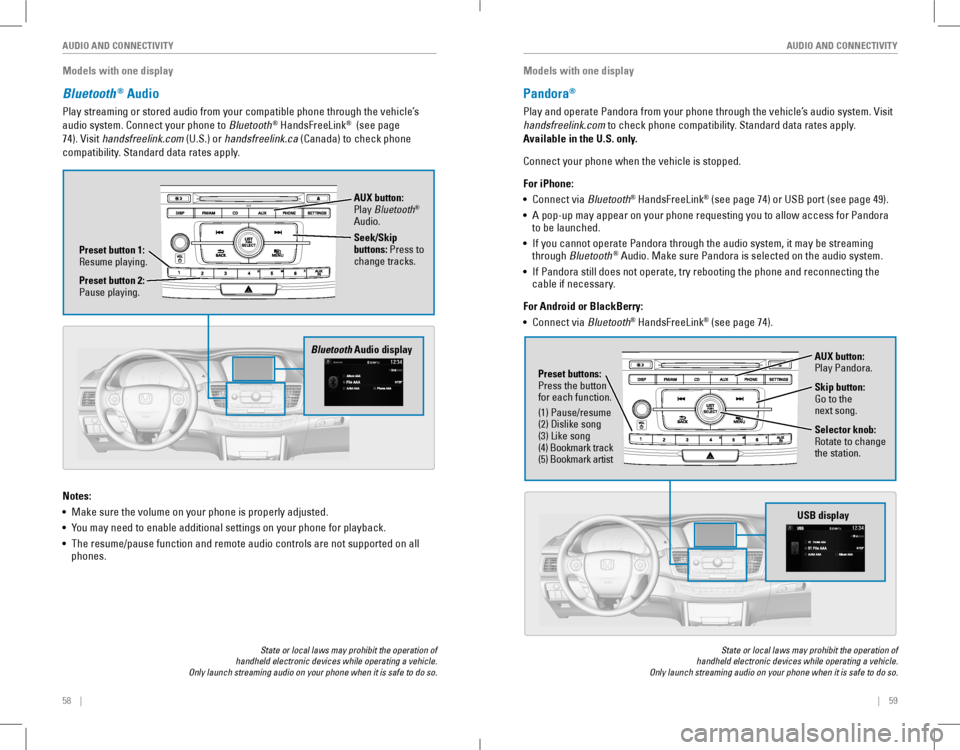
Bluetooth® Audio
Play streaming or stored audio from your compatible phone through the vehicle’s
audio system. Connect your phone to Bluetooth® HandsFreeLink® (see page
74). visit handsfreelink.com (U.S.) or handsfreelink.ca (Canada) to check phone
compatibility. Standard data rates apply.
State or local laws may prohibit the operation of handheld electronic devices while operating a vehicle. Only launch streaming audio on your phone when it is safe to do so.
Notes:
• Make sure the volume on your phone is properly adjusted.
• You may need to enable additional settings on your phone for playback.
• The resume/pause function and remote audio controls are not supported on all phones.
Bluetooth Audio display
Preset button 1: resume playing.
AUX button: Play Bluetooth® Audio.
Seek/Skip buttons: Press to change tracks.
Preset button 2: Pause playing.
Models with one display
Pandora®
Play and operate Pandora from your phone through the vehicle’s audio system. visit
handsfreelink.com to check phone compatibility. Standard data rates apply.
Available in the U.S. only.
Connect your phone when the vehicle is stopped.
For iPhone:
• Connect via Bluetooth® HandsFreeLink® (see page 74) or USB port (see page 49).
• A pop-up may appear on your phone requesting you to allow access for Pandora to be launched.
• If you cannot operate Pandora through the audio system, it may be streaming through Bluetooth® Audio. Make sure Pandora is selected on the audio system.
• If Pandora still does not operate, try rebooting the phone and reconnecting the cable if necessary.
For Android or BlackBerry:
• Connect via Bluetooth® HandsFreeLink® (see page 74).
State or local laws may prohibit the operation of handheld electronic devices while operating a vehicle. Only launch streaming audio on your phone when it is safe to do so.
Selector knob: rotate to change the station.
USB display
AUX button: Play Pandora.
Skip button: Go to the next song.
Preset buttons: Press the button for each function.
(1) Pause/resume(2) Dislike song(3) Like song(4) Bookmark track(5) Bookmark artist
Page 36 of 84
64 || 65
AUDIO AND CONNECTIVITYAUDIO AND CONNECTIVITY
Models with touchscreen
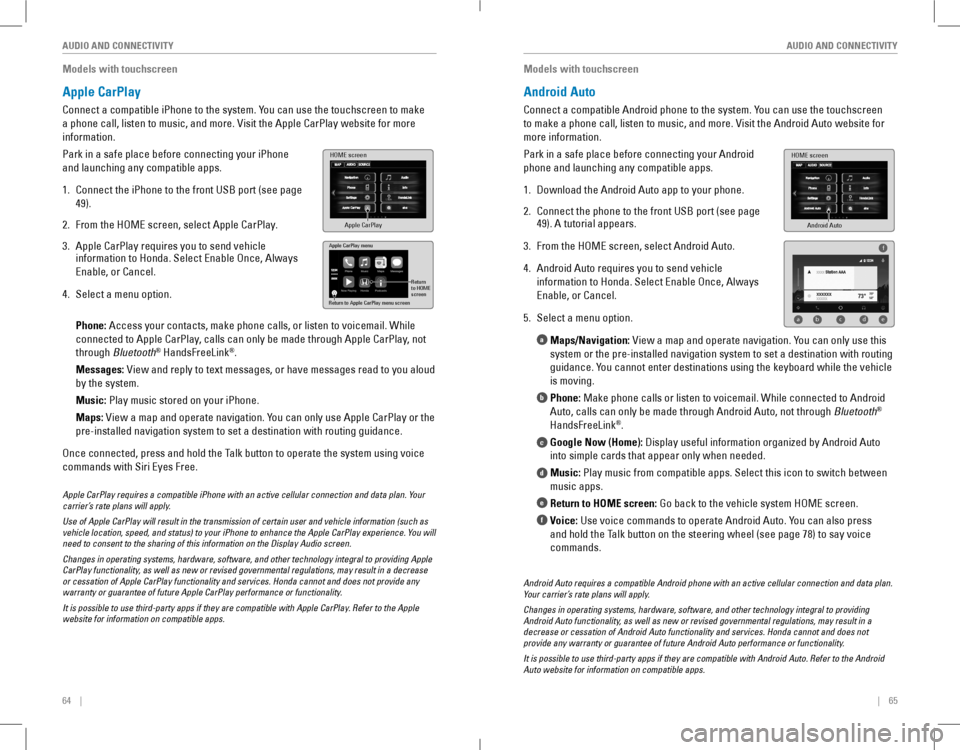
Apple CarPlay
Connect a compatible iPhone to the system. You can use the touchscreen to make
a phone call, listen to music, and more. Visit the Apple CarPlay website for more
information.
Park in a safe place before connecting your iPhone
and launching any compatible apps.
1. Connect the iPhone to the front USB port (see page
49).
2. From the HoMe screen, select Apple CarPlay.
3. Apple CarPlay requires you to send vehicle information to Honda. Select Enable Once, Always
Enable, or Cancel.
4. Select a menu option.
Phone: Access your contacts, make phone calls, or listen to voicemail. While
connected to Apple CarPlay, calls can only be made through Apple CarPlay, not
through Bluetooth® HandsFreeLink®.
Messages: view and reply to text messages, or have messages read to you aloud
by the system.
Music: Play music stored on your iPhone.
Maps: view a map and operate navigation. You can only use Apple CarPlay or the
pre-installed navigation system to set a destination with routing guidan\
ce.
Once connected, press and hold the Talk button to operate the system using voice
commands with Siri eyes Free.
HOME screen
Apple CarPlay
Apple CarPlay menu
Return
to HOME
screen
Return to Apple CarPlay menu screen
Apple CarPlay requires a compatible iPhone with an active cellular connection and data plan. Your carrier’s rate plans will apply.
Use of Apple CarPlay will result in the transmission of certain user and vehicle information (such as vehicle location, speed, and status) to your iPhone to enhance the Apple CarPlay experience. You will need to consent to the sharing of this information on the Display Audio screen.
Changes in operating systems, hardware, software, and other technology integral to providing Apple CarPlay functionality, as well as new or revised governmental regulations, may result in a decrease or cessation of Apple CarPlay functionality and services. Honda cannot and does not provide any warranty or guarantee of future Apple CarPlay performance or functionality.
It is possible to use third-party apps if they are compatible with Apple CarPlay. Refer to the Apple website for information on compatible apps.
Models with touchscreen
Android Auto
Connect a compatible Android phone to the system. You can use the touchscreen
to make a phone call, listen to music, and more. Visit the Android Auto website for
more information.
Park in a safe place before connecting your Android
phone and launching any compatible apps.
1. Download the Android Auto app to your phone.
2. Connect the phone to the front USB port (see page 49). A tutorial appears.
3. From the HoMe screen, select Android Auto.
4. Android Auto requires you to send vehicle
information to Honda. Select Enable Once, Always
Enable, or Cancel.
5. Select a menu option.
Maps/Navigation: view a map and operate navigation. You can only use this
system or the pre-installed navigation system to set a destination with \
routing
guidance. You cannot enter destinations using the keyboard while the vehicle
is moving.
Phone: Make phone calls or listen to voicemail. While connected to Android
Auto, calls can only be made through Android Auto, not through Bluetooth®
HandsFreeLink®.
Google Now (Home): Display useful information organized by Android Auto
into simple cards that appear only when needed.
Music: Play music from compatible apps. Select this icon to switch between
music apps.
Return to HOME screen: Go back to the vehicle system HOME screen.
Voice: Use voice commands to operate Android Auto. You can also press
and hold the Talk button on the steering wheel (see page 78) to say voice
commands.
a
b
c
d
e
f
Android Auto
HOME screen
f
ab cde
Android Auto requires a compatible Android phone with an active cellular connection and data plan. Your carrier’s rate plans will apply.
Changes in operating systems, hardware, software, and other technology integral to providing Android Auto functionality, as well as new or revised governmental regulations, may result in a decrease or cessation of Android Auto functionality and services. Honda cannot and does not provide any warranty or guarantee of future Android Auto performance or functionality.
It is possible to use third-party apps if they are compatible with Android Auto. Refer to the Android Auto website for information on compatible apps.
Page 38 of 84
68 || 69
AUDIO AND CONNECTIVITYAUDIO AND CONNECTIVITY
Models with touchscreen
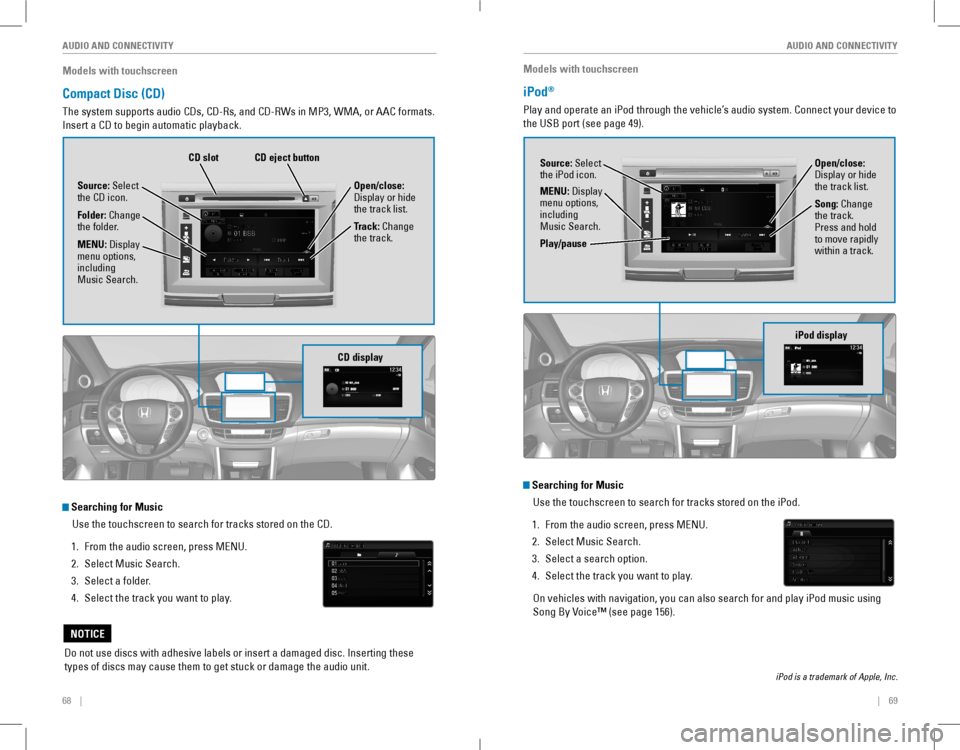
Compact Disc (CD)
The system supports audio CDs, CD-Rs, and CD-RWs in MP3, WMA, or AAC formats.
Insert a CD to begin automatic playback.
Do not use discs with adhesive labels or insert a damaged disc. Inserting these
types of discs may cause them to get stuck or damage the audio unit.
NOTICE
Searching for Music
Use the touchscreen to search for tracks stored on the CD.
1. From the audio screen, press MeNU.
2. Select Music Search.
3. Select a folder.
4. Select the track you want to play.
CD display
Source: Select the CD icon.
Folder: Change the folder.
Open/close: Display or hide the track list.
Track: Change the track. MENU: Display menu options, including Music Search.
CD eject buttonCD slot
Models with touchscreen
iPod®
Play and operate an iPod through the vehicle’s audio system. Connect your device to
the USB port (see page 49).
Searching for Music
Use the touchscreen to search for tracks stored on the iPod.
1. From the audio screen, press MeNU.
2. Select Music Search.
3. Select a search option.
4. Select the track you want to play.
on vehicles with navigation, you can also search for and play iPod music using
Song By voice™ (see page 156).
iPod is a trademark of Apple, Inc.
iPod display
Source: Select the iPod icon.Open/close: Display or hide the track list.MENU: Display menu options, including Music Search.
Song: Change the track. Press and hold to move rapidly within a track.Play/pause
Page 39 of 84
70 || 71
AUDIO AND CONNECTIVITYAUDIO AND CONNECTIVITY
Models with touchscreen
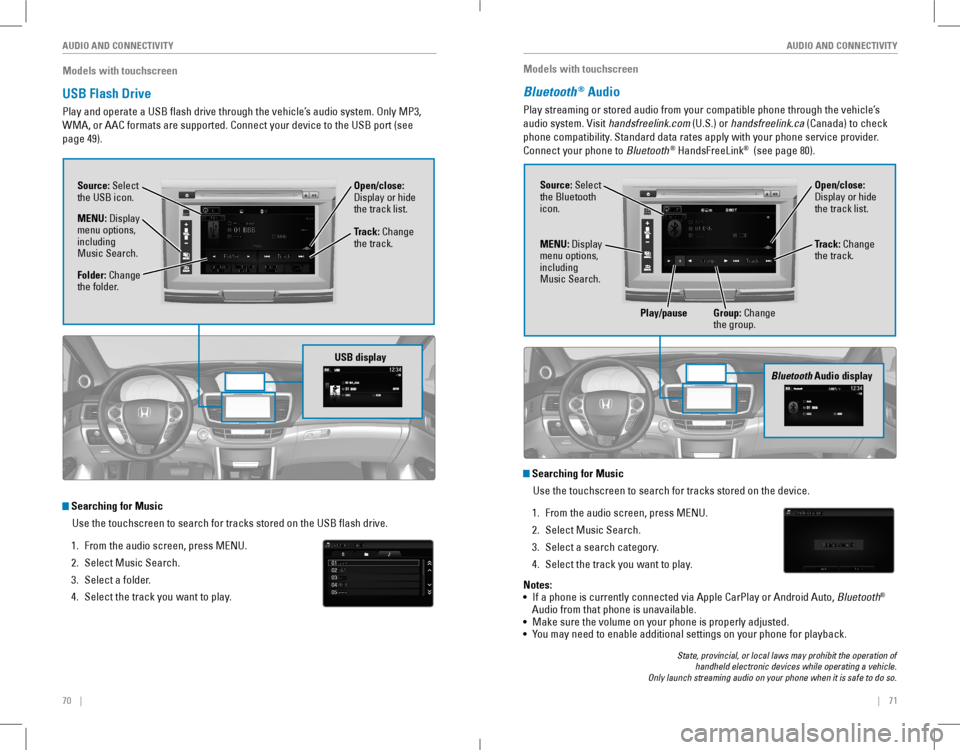
USB Flash Drive
Play and operate a USB flash drive through the vehicle’s audio system. only MP3,
WMA, or AAC formats are supported. Connect your device to the USB port (see
page 49).
Searching for Music
Use the touchscreen to search for tracks stored on the USB flash drive\
.
1. From the audio screen, press MeNU.
2. Select Music Search.
3. Select a folder.
4. Select the track you want to play.
USB display
Source: Select the USB icon.
Folder: Change the folder.
Open/close: Display or hide the track list.MENU: Display menu options, including Music Search.
Track: Change the track.
Models with touchscreen
Bluetooth® Audio
Play streaming or stored audio from your compatible phone through the vehicle’s
audio system. visit handsfreelink.com (U.S.) or handsfreelink.ca (Canada) to check
phone compatibility. Standard data rates apply with your phone service provider.
Connect your phone to Bluetooth® HandsFreeLink® (see page 80).
State, provincial, or local laws may prohibit the operation of handheld electronic devices while operating a vehicle. Only launch streaming audio on your phone when it is safe to do so.
Searching for Music
Use the touchscreen to search for tracks stored on the device.
1. From the audio screen, press MeNU.
2. Select Music Search.
3. Select a search category.
4. Select the track you want to play.
Bluetooth Audio display
Notes:
• If a phone is currently connected via Apple CarPlay or Android Auto, Bluetooth® Audio from that phone is unavailable.• Make sure the volume on your phone is properly adjusted.• You may need to enable additional settings on your phone for playback.
Source: Select the Bluetooth icon.
Open/close: Display or hide the track list.
MENU: Display menu options, including Music Search.
Track: Change the track.
Play/pauseGroup: Change the group.
Page 40 of 84
| 7372 |
AUDIO AND CONNECTIVITY
Models with touchscreen
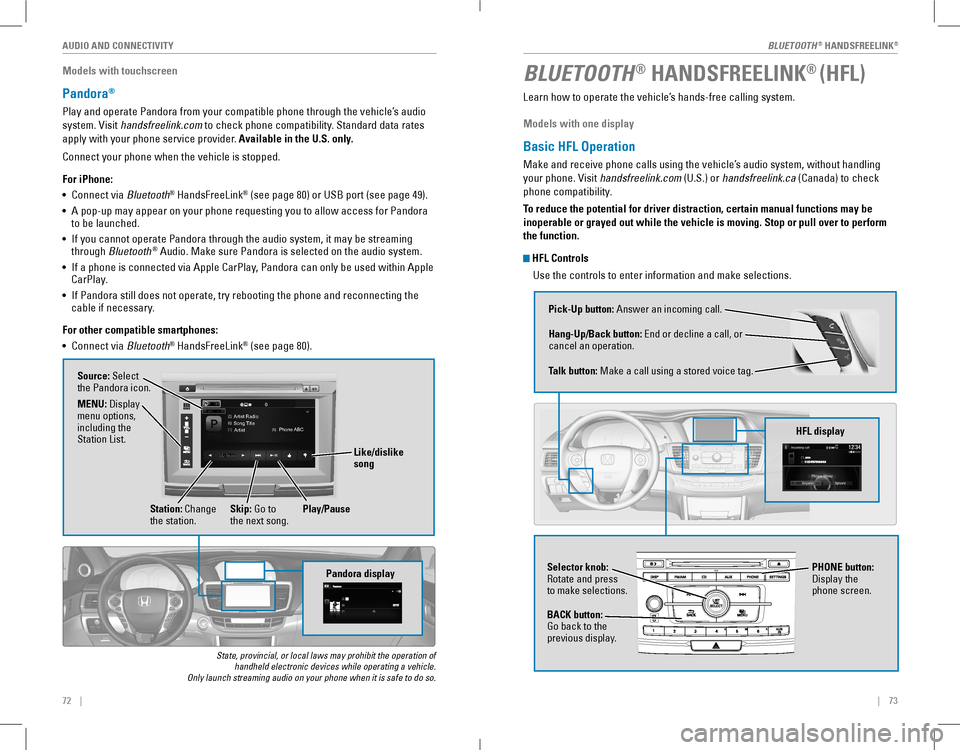
Pandora®
Play and operate Pandora from your compatible phone through the vehicle’s audio
system. visit handsfreelink.com to check phone compatibility. Standard data rates
apply with your phone service provider. Available in the U.S. only.
Connect your phone when the vehicle is stopped.
For iPhone:
• Connect via Bluetooth® HandsFreeLink® (see page 80) or USB port (see page 49).
• A pop-up may appear on your phone requesting you to allow access for Pandora to be launched.
• If you cannot operate Pandora through the audio system, it may be streaming through Bluetooth® Audio. Make sure Pandora is selected on the audio system.
• If a phone is connected via Apple CarPlay, Pandora can only be used within Apple CarPlay.
• If Pandora still does not operate, try rebooting the phone and reconnecting the cable if necessary.
For other compatible smartphones:
• Connect via Bluetooth® HandsFreeLink® (see page 80).
State, provincial, or local laws may prohibit the operation of handheld electronic devices while operating a vehicle. Only launch streaming audio on your phone when it is safe to do so.
Pandora display
Artist Radio
Song Title
Artist Phone
ABC
Source: Select the Pandora icon.
Station: Change the station.Skip: Go to the next song.
MENU: Display menu options, including the Station List.
Like/dislike song
Play/Pause
BLUETOOTH® HANDSFREELINK® (HFL)
Learn how to operate the vehicle’s hands-free calling system.
Models with one display
Basic HFL Operation
Make and receive phone calls using the vehicle’s audio system, without handling
your phone. visit handsfreelink.com (U.S.) or handsfreelink.ca (Canada) to check
phone compatibility.
To reduce the potential for driver distraction, certain manual functions \
may be
inoperable or grayed out while the vehicle is moving. Stop or pull over \
to perform
the function.
HFL Controls
Use the controls to enter information and make selections.
Pick-Up button: Answer an incoming call.
Hang-Up/Back button: end or decline a call, or cancel an operation.
Talk button: Make a call using a stored voice tag.
HFL display
Selector knob: rotate and press to make selections.
BACK button: Go back to the previous display.
PHONE button: Display the phone screen.
BLUETOOTH® HANDSFreeLINK®
BLUETOOTH® HANDSFreeLINK®
Page 82 of 84
156 || 157
INDEXVOICE COMMAND INDEX
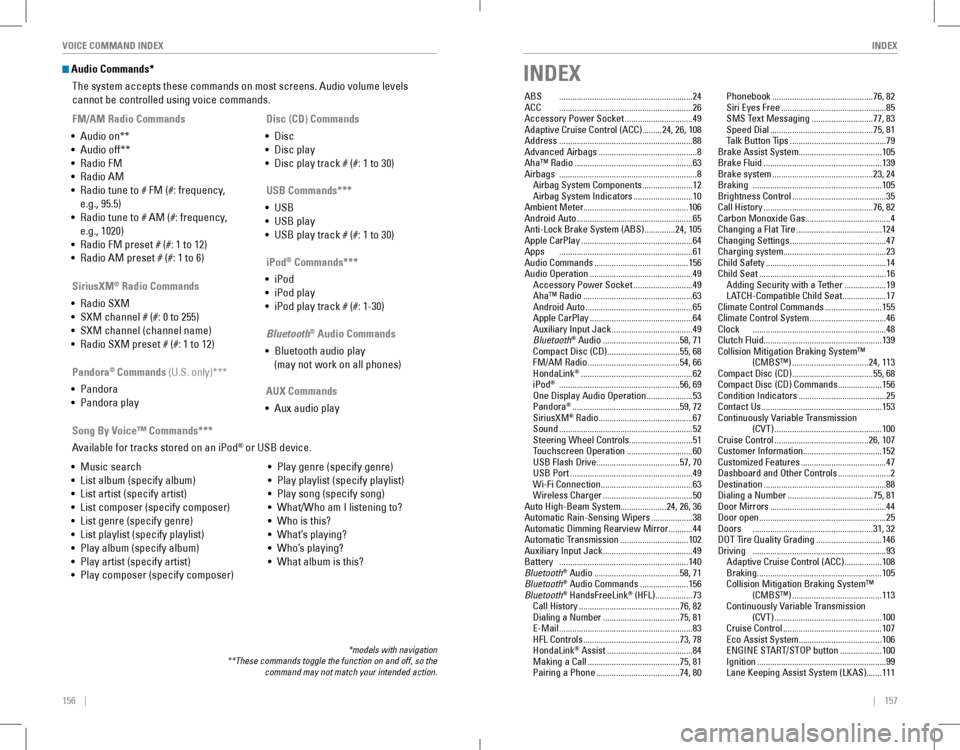
Audio Commands*
The system accepts these commands on most screens. Audio volume levels
cannot be controlled using voice commands.
FM/AM Radio Commands
• Audio on**
• Audio off**
• radio FM
• radio AM
• Radio tune to # FM (#: frequency,
e.g., 95.5)
• Radio tune to # AM (#: frequency,
e.g., 1020)
• radio FM preset # (#: 1 to 12)
• radio AM preset # (#: 1 to 6)
SiriusXM® Radio Commands
• radio SXM
• SXM channel # (#: 0 to 255)
• SXM channel (channel name)
• radio SXM preset # (#: 1 to 12)
Disc (CD) Commands
• Disc
• Disc play
• Disc play track # (#: 1 to 30)
USB Commands***
• USB
• USB play
• USB play track # (#: 1 to 30)
Pandora® Commands (U.S. only)***
• Pandora
• Pandora play
iPod® Commands***
• iPod
• iPod play
• iPod play track # (#: 1-30)
Bluetooth® Audio Commands
• Bluetooth audio play
(may not work on all phones)
AUX Commands
• Aux audio play
• Music search
• List album (specify album)
• List artist (specify artist)
• List composer (specify composer)
• List genre (specify genre)
• List playlist (specify playlist)
• Play album (specify album)
• Play artist (specify artist)
• Play composer (specify composer)
• Play genre (specify genre)
• Play playlist (specify playlist)
• Play song (specify song)
• What/Who am I listening to?
• Who is this?
• What’s playing?
• Who’s playing?
• What album is this?
Song By Voice™ Commands***
Available for tracks stored on an iPod® or USB device.
*models with navigation**These commands toggle the function on and off, so the command may not match your intended action.
INDEX
ABS .............................................................24ACC .............................................................26Accessory Power Socket ...............................49Adaptive Cruise Control (ACC) .........24, 26, 108Address .............................................................88Advanced Airbags .............................................8Aha™ radio ......................................................63Airbags ...............................................................8Airbag System Components .......................12Airbag System Indicators ...........................10Ambient Meter................................................106Android Auto .....................................................65Anti-Lock Brake System (ABS) ..............24, 105Apple CarPlay ...................................................64Apps .............................................................61Audio Commands ...........................................156Audio operation ...............................................49Accessory Power Socket ...........................49Aha™ radio ..................................................63Android Auto .................................................65Apple CarPlay ...............................................64Auxiliary Input Jack .....................................49Bluetooth® Audio ...................................58, 71Compact Disc (CD) .................................55, 68FM/AM Radio ..........................................54, 66HondaLink® ...................................................62iPod® .......................................................56, 69one Display Audio operation .....................53Pandora® .................................................59, 72SiriusXM® radio ...........................................67Sound .............................................................52Steering Wheel Controls .............................51Touchscreen operation ..............................60USB Flash Drive ......................................57, 70USB Port ........................................................49Wi-Fi Connection ..........................................63Wireless Charger .........................................50Auto High-Beam System.....................24, 26, 36Automatic Rain-Sensing Wipers ...................38Automatic Dimming rearview Mirror ...........44Automatic Transmission ...............................102Auxiliary Input Jack .........................................49Battery ...........................................................140Bluetooth® Audio .......................................58, 71Bluetooth® Audio Commands ......................156Bluetooth® HandsFreeLink® (HFL) .................73Call History ..............................................76, 82Dialing a Number ...................................75, 81e-Mail .............................................................83HFL Controls ............................................73, 78HondaLink® Assist .......................................84Making a Call ..........................................75, 81Pairing a Phone ......................................74, 80
Phonebook ..............................................76, 82Siri eyes Free ................................................85SMS Text Messaging ............................77, 83Speed Dial ...............................................75, 81Talk Button Tips ............................................79Brake Assist System......................................105Brake Fluid ......................................................139Brake system ..............................................23, 24Braking ...........................................................105Brightness Control ...........................................35Call History ..................................................76, 82Carbon Monoxide Gas.......................................4Changing a Flat Tire .......................................124Changing Settings ............................................47Charging system...............................................23Child Safety .......................................................14Child Seat ..........................................................16Adding Security with a Tether ...................19LATCH-Compatible Child Seat ....................17Climate Control Commands ..........................155Climate Control System ...................................46Clock .............................................................48Clutch Fluid......................................................139Collision Mitigation Braking System™ (CMBS™) ...................................24, 113Compact Disc (CD) .....................................55, 68Compact Disc (CD) Commands ....................156Condition Indicators ........................................25Contact Us .......................................................153Continuously Variable Transmission (CvT) .................................................100Cruise Control ...........................................26, 107Customer Information....................................152Customized Features .......................................47Dashboard and Other Controls ........................2Destination ........................................................88Dialing a Number .......................................75, 81Door Mirrors .....................................................44Door open ..........................................................25Doors .......................................................31, 32DoT Tire Quality Grading ..............................146Driving .............................................................93Adaptive Cruise Control (ACC) .................108Braking .........................................................105Collision Mitigation Braking System™ (CMBS™) .........................................113Continuously Variable Transmission (CvT) .................................................100Cruise Control .............................................107eco Assist System ......................................106ENGINE START/STOP button ...................100Ignition ...........................................................99Lane Keeping Assist System (LKAS) .......111