USB HONDA ACCORD SEDAN 2020 (in English) Owner's Guide
[x] Cancel search | Manufacturer: HONDA, Model Year: 2020, Model line: ACCORD SEDAN, Model: HONDA ACCORD SEDAN 2020Pages: 728, PDF Size: 34.06 MB
Page 281 of 728
Continued279
uuAudio System Basic Operation uAudio/Information Screen
Features
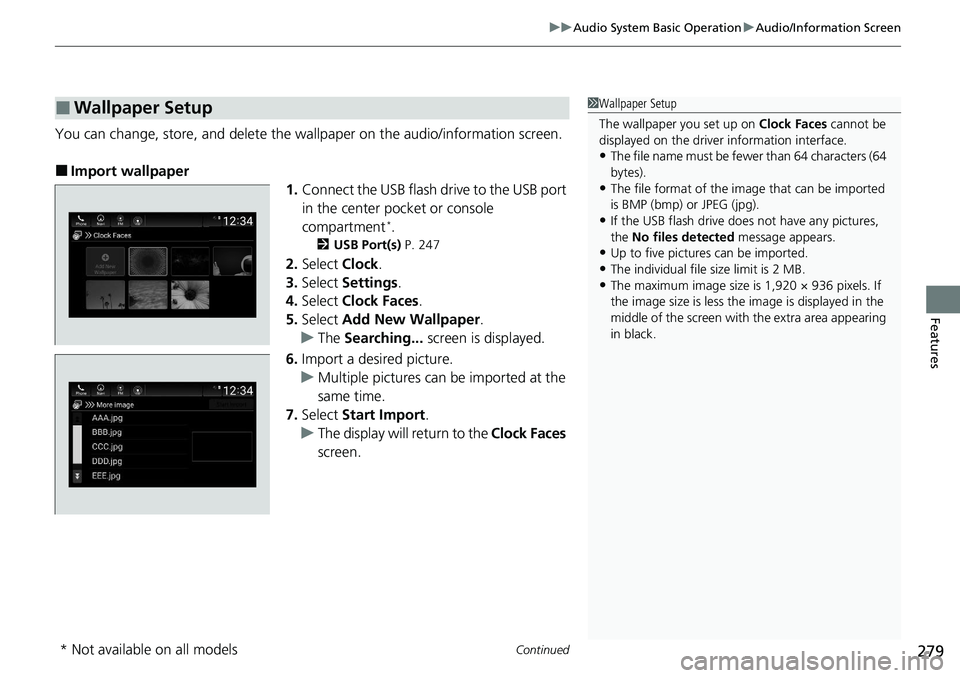
You can change, store, and delete the wallpaper on the audio/ information screen.
■Import wallpaper
1.Connect the USB flash drive to the USB port
in the center pocket or console
compartment
*.
2 USB Port(s) P. 247
2.Select Clock.
3. Select Settings .
4. Select Clock Faces .
5. Select Add New Wallpaper .
u The Searching... screen is displayed.
6. Import a desired picture.
u Multiple pictures can be imported at the
same time.
7. Select Start Import .
u The display will return to the Clock Faces
screen.
■Wallpaper Setup1 Wallpaper Setup
The wallpaper you set up on Clock Faces cannot be
displayed on the driver information interface.
•The file name must be fewe r than 64 characters (64
bytes).
•The file format of the im age that can be imported
is BMP (bmp) or JPEG (jpg).
•If the USB flash drive doe s not have any pictures,
the No files detected message appears.
•Up to five pictur es can be imported.
•The individual file size limit is 2 MB.•The maximum image size is 1,920 × 936 pixels. If
the image size is less the image is displayed in the
middle of the screen with the extra area appearing
in black.
* Not available on all models
Page 290 of 728
288
uuAudio System Basic Operation uSystem Updates
Features
System Updates
The audio system’s firmware can be updated with a Wi-Fi connection, or with a USB
device.
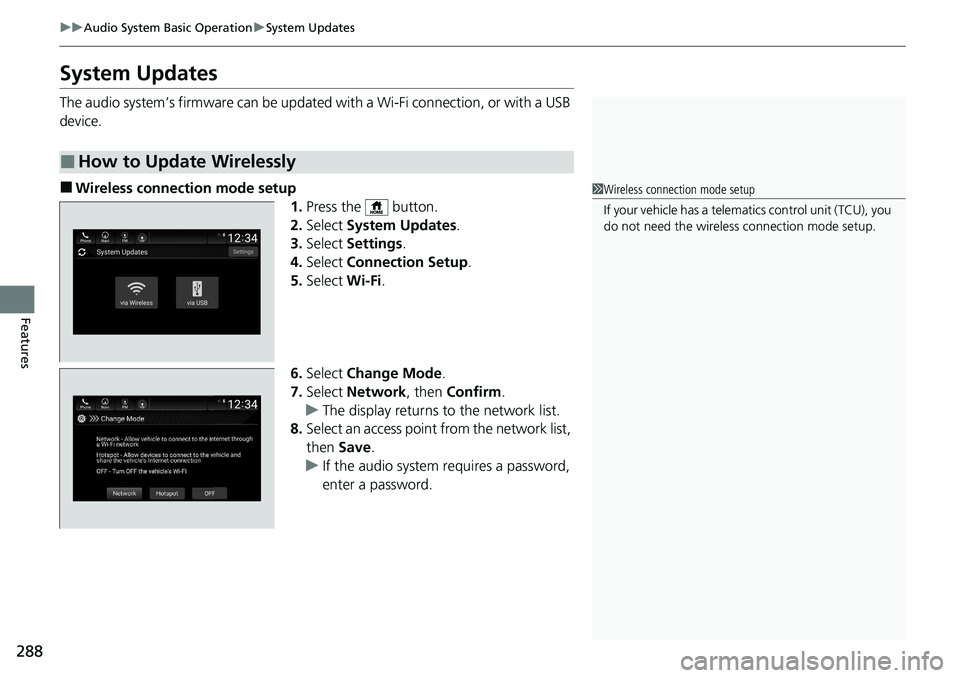
■Wireless connecti on mode setup
1.Press the button.
2. Select System Updates .
3. Select Settings .
4. Select Connection Setup .
5. Select Wi-Fi.
6. Select Change Mode .
7. Select Network, then Confirm.
u The display returns to the network list.
8. Select an access point from the network list,
then Save.
u If the audio system requires a password,
enter a password.
■How to Update Wirelessly
1Wireless connection mode setup
If your vehicle has a telema tics control unit (TCU), you
do not need the wireless connection mode setup.
Page 294 of 728
uuAudio System Basic Operation uSystem Updates
292
Features
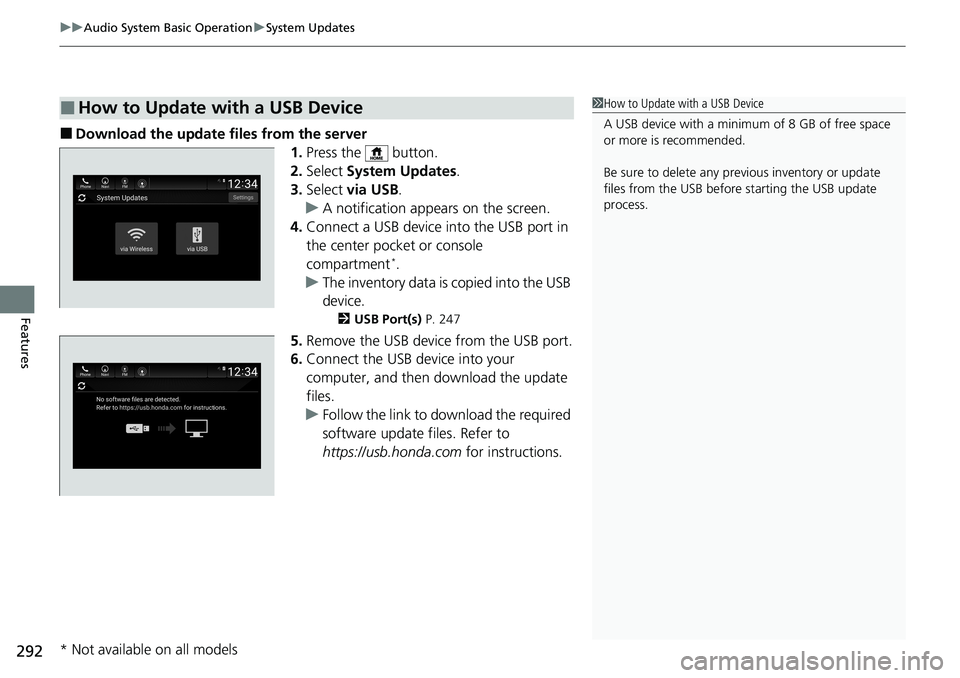
■Download the update files from the server
1.Press the button.
2. Select System Updates .
3. Select via USB .
u A notification appears on the screen.
4. Connect a USB device into the USB port in
the center pocket or console
compartment
*.
u The inventory data is copied into the USB
device.
2 USB Port(s) P. 247
5.Remove the USB device from the USB port.
6. Connect the USB device into your
computer, and then download the update
files.
u Follow the link to download the required
software update files. Refer to
https://usb.honda.com for instructions.
■How to Update with a USB Device1How to Update with a USB Device
A USB device with a minimum of 8 GB of free space
or more is recommended.
Be sure to delete any pr evious inventory or update
files from the USB before starting the USB update
process.
* Not available on all models
Page 295 of 728
293
uuAudio System Basic Operation uSystem Updates
Features
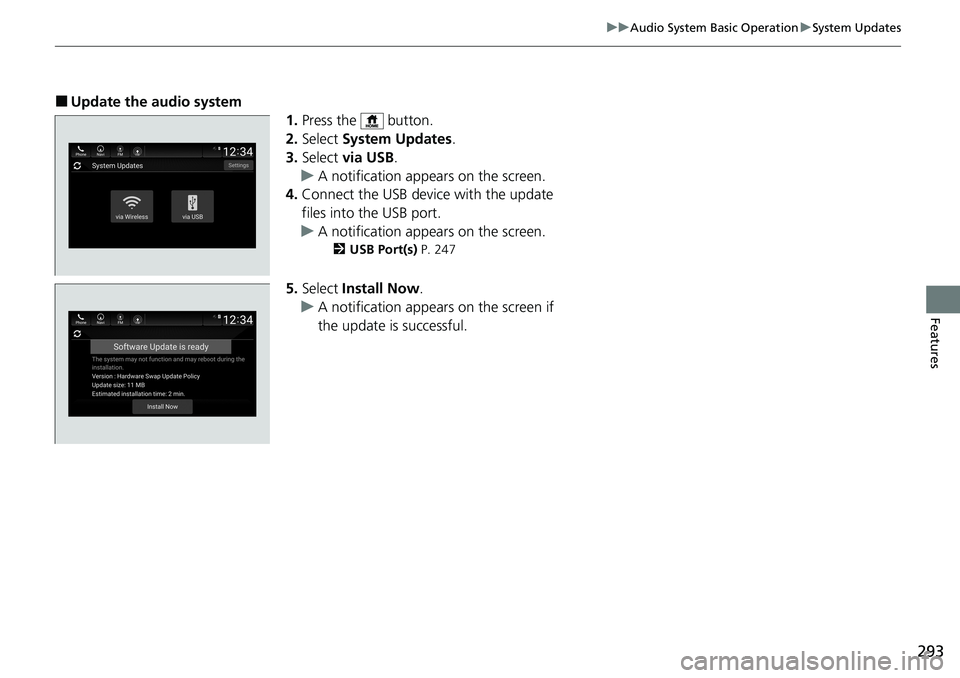
■Update the audio system
1.Press the button.
2. Select System Updates .
3. Select via USB .
u A notification appears on the screen.
4. Connect the USB device with the update
files into the USB port.
u A notification appears on the screen.
2 USB Port(s) P. 247
5.Select Install Now .
u A notification appears on the screen if
the update is successful.
Page 300 of 728
298
uuAudio System Basic Operation uVoice Control Operation
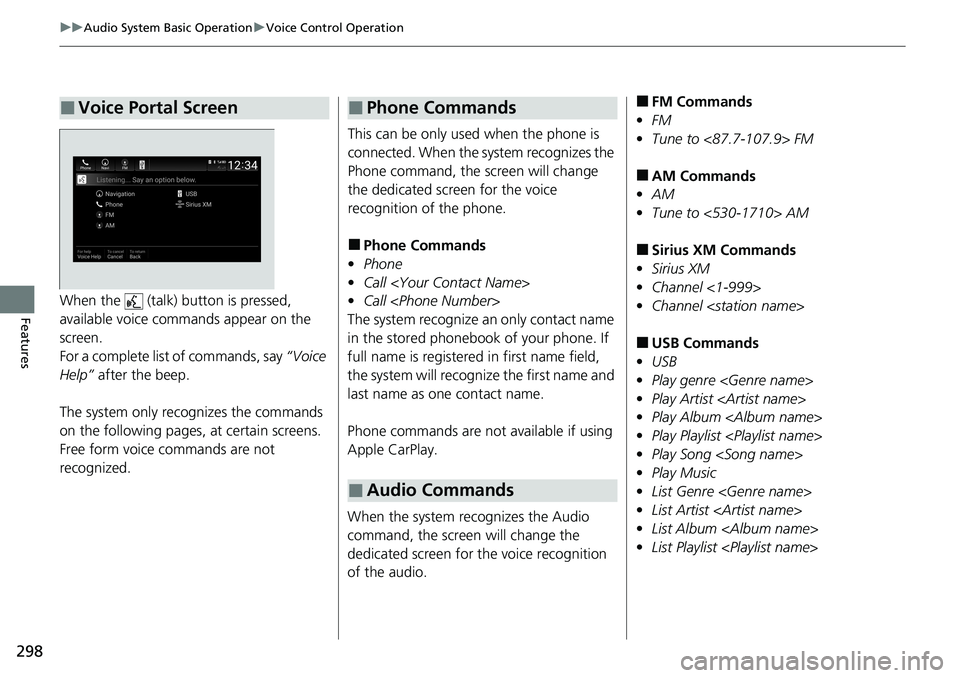
FeaturesWhen the (talk) button is pressed,
available voice commands appear on the
screen.
For a complete list of commands, say “Voice
Help” after the beep.
The system only reco gnizes the commands
on the following pages, at certain screens.
Free form voice commands are not
recognized.
■Voice Portal Screen
This can be only used when the phone is
connected. When the sy stem recognizes the
Phone command, the screen will change
the dedicated screen for the voice
recognition of the phone.
■Phone Commands
• Phone
• Call
• Call
The system recognize an only contact name
in the stored phonebook of your phone. If
full name is registered in first name field,
the system will recognize the first name and
last name as one contact name.
Phone commands are not available if using
Apple CarPlay.
When the system recognizes the Audio
command, the screen will change the
dedicated screen for the voice recognition
of the audio.
■Phone Commands
■Audio Commands
■FM Commands
• FM
• Tune to <87.7-107.9> FM
■AM Commands
• AM
• Tune to <530-1710> AM
■Sirius XM Commands
• Sirius XM
• Channel <1-999>
• Channel
■USB Commands
• USB
• Play genre
• Play Artist
• Play Album
• Play Playlist
• Play Song
• Play Music
• List Genre
• List Artist
• List Album
• List Playlist
Page 317 of 728
315
uuAudio System Basic Operation uPlaying an iPod
Continued
Features
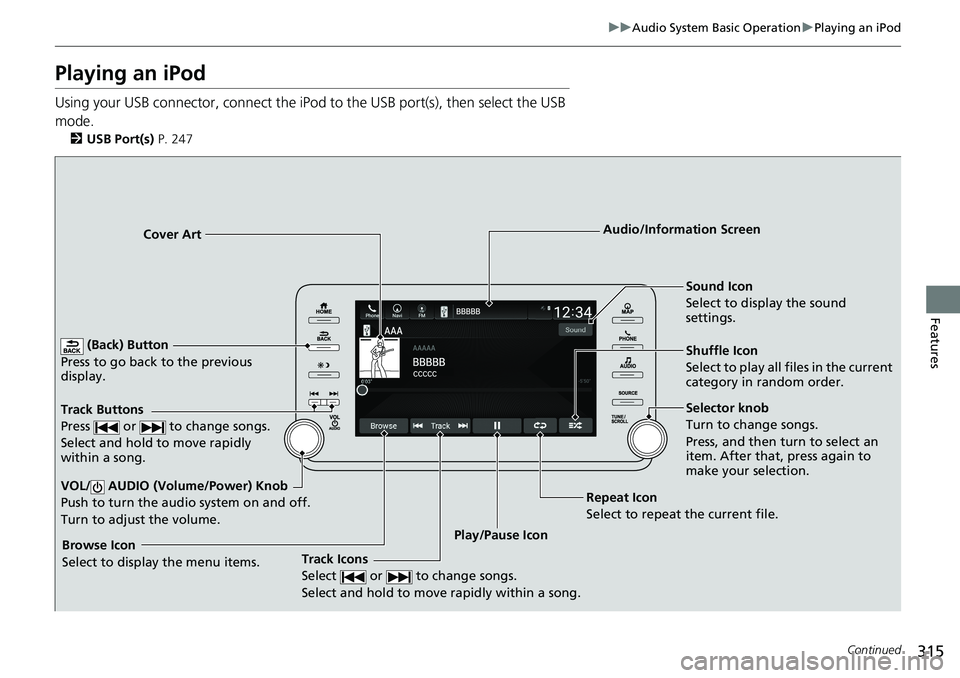
Playing an iPod
Using your USB connector, connect the iPod to the USB port(s), then select the USB
mode.
2 USB Port(s) P. 247
(Back) Button
Press to go back to the previous
display.
Track Buttons
Press or to change songs.
Select and hold to move rapidly
within a song.
VOL/ AUDIO (Volume/Power) Knob
Push to turn the audio system on and off.
Turn to adjust the volume.
Cover Art Audio/Information Screen
Play/Pause Icon S
ound Icon
Select to display the sound
settings.
Shuffle Icon
Select to play all files in the current
category in random order.
Track Icons
Select or to change songs.
Select and hold to move rapidly within a song.Browse Icon
Select to display the menu items. Repeat Icon
Select to repeat the current file.
Selector knob
Turn to change songs.
Press, and then turn to select an
item. After that, press again to
make your selection.
Page 318 of 728
uuAudio System Basic Operation uPlaying an iPod
316
Features
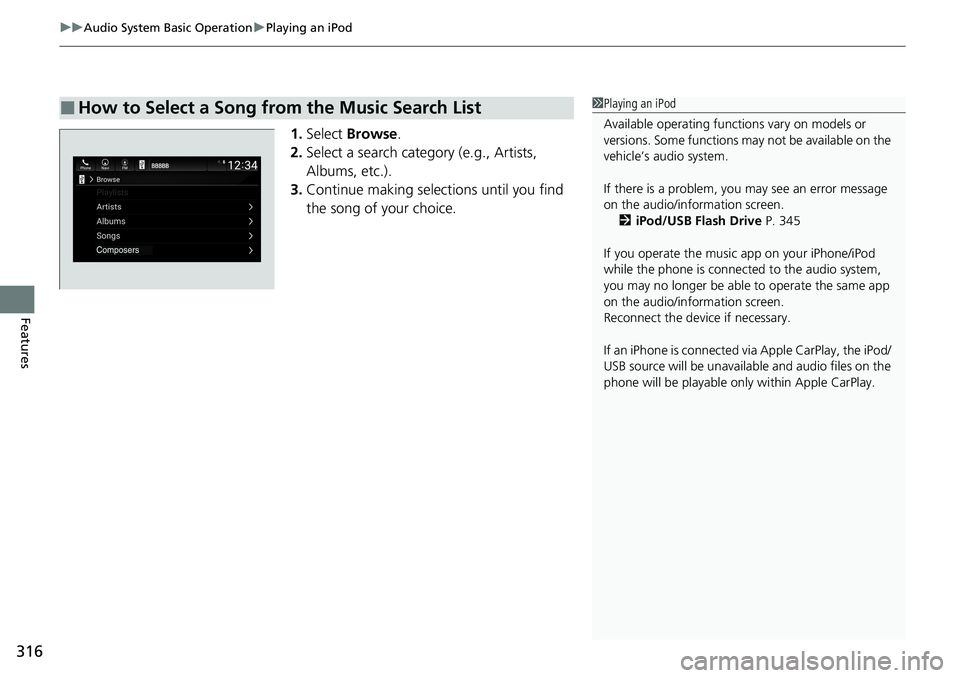
1. Select Browse .
2. Select a search catego ry (e.g., Artists,
Albums, etc.).
3. Continue making selections until you find
the song of your choice.
■How to Select a Song from the Music Search List1Playing an iPod
Available operating functi ons vary on models or
versions. Some functions ma y not be available on the
vehicle’s audio system.
If there is a problem, you may see an error message
on the audio/information screen. 2 iPod/USB Flash Drive P. 345
If you operate the musi c app on your iPhone/iPod
while the phone is connected to the audio system,
you may no longer be able to operate the same app
on the audio/information screen.
Reconnect the devi ce if necessary.
If an iPhone is connected vi a Apple CarPlay, the iPod/
USB source will be unavailable and audio files on the
phone will be playable onl y within Apple CarPlay.
Page 320 of 728
318
uuAudio System Basic Operation uPlaying a USB Flash Drive
Features
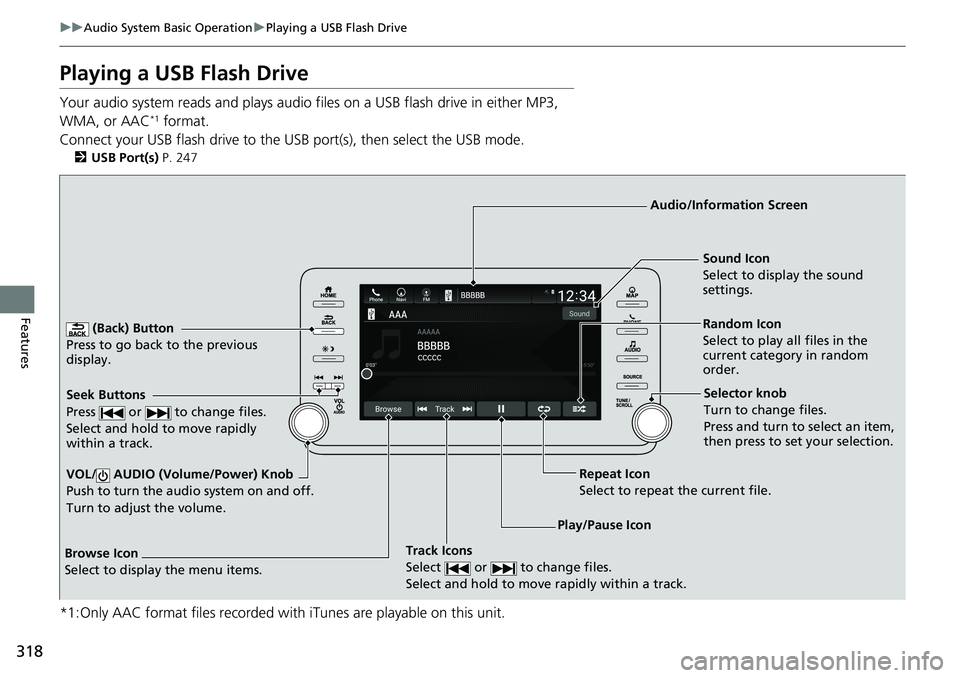
Playing a USB Flash Drive
Your audio system reads and plays audio f iles on a USB flash drive in either MP3,
WMA, or AAC*1 format.
Connect your USB flash drive to the USB port(s), then select the USB mode.
2 USB Port(s) P. 247
*1:Only AAC format files recorded with iTunes are playable on this unit.
(Back) Button
Press to go back to the previous
display.
Track Icons
Select or to change files.
Select and hold to move rapidly within a track.
VOL/ AUDIO (Volume/Power) Knob
Push to turn the audio system on and off.
Turn to adjust the volume.
Audio/Information Screen
Play/Pause Icon
S
eek Buttons
Press or to change files.
Select and hold to move rapidly
within a track.
Random Icon
Select to play all files in the
current category in random
order. Sound Icon
Select to disp lay the sound
settings.
Browse Icon
Select to display the menu items.
Repeat Icon
Select to repeat the current file.
Selector knob
Turn to change files.
Press and turn to select an item,
then press to set your selection.
Page 321 of 728
Continued319
uuAudio System Basic Operation uPlaying a USB Flash Drive
Features
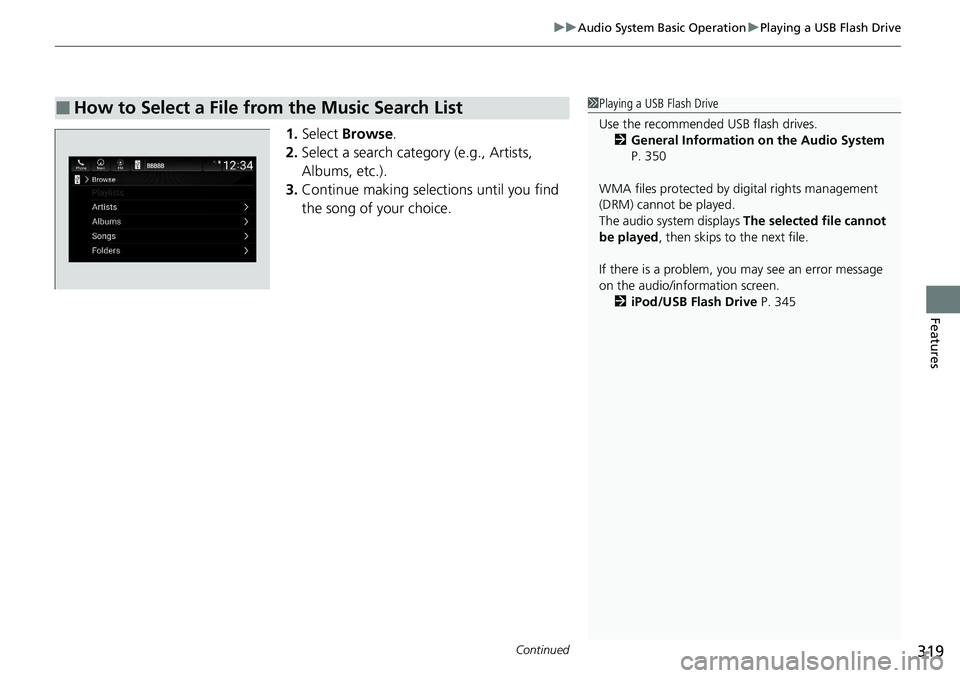
1. Select Browse .
2. Select a search catego ry (e.g., Artists,
Albums, etc.).
3. Continue making selections until you find
the song of your choice.
■How to Select a File from the Music Search List1Playing a USB Flash Drive
Use the recommended USB flash drives.
2 General Information on the Audio System
P. 350
WMA files protected by di gital rights management
(DRM) cannot be played.
The audio system displays The selected file cannot
be played , then skips to the next file.
If there is a problem, you may see an error message
on the audio/information screen. 2 iPod/USB Flash Drive P. 345
Page 322 of 728
uuAudio System Basic Operation uPlaying a USB Flash Drive
320
Features
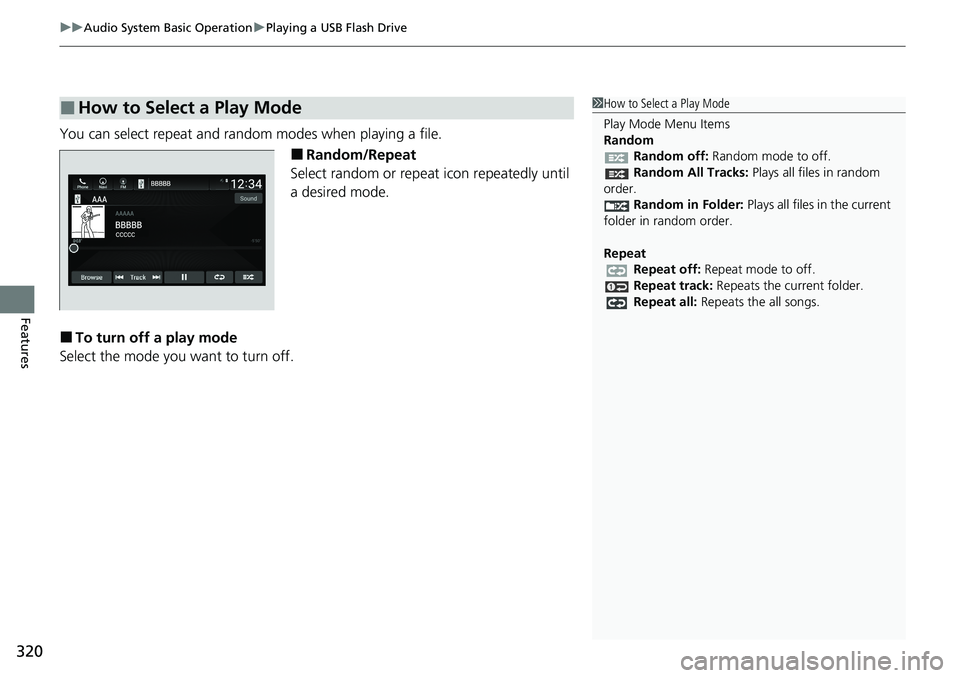
You can select repeat and random modes when playing a file.
■Random/Repeat
Select random or repeat icon repeatedly until
a desired mode.
■To turn off a play mode
Select the mode you want to turn off.
■How to Select a Play Mode1 How to Select a Play Mode
Play Mode Menu Items
Random
Random off: Random mode to off.
Random All Tracks: Plays all files in random
order.
Random in Folder: Plays all files in the current
folder in random order.
Repeat Repeat off: Repeat mode to off.
Repeat track: Repeats the current folder.
Repeat all: Repeats the all songs.