remote control HONDA ACCORD SEDAN 2021 (in English) Owner's Guide
[x] Cancel search | Manufacturer: HONDA, Model Year: 2021, Model line: ACCORD SEDAN, Model: HONDA ACCORD SEDAN 2021Pages: 659, PDF Size: 28.71 MB
Page 193 of 659
191Continued
Controls
Operating the Switches Around the Steering Wheel
ENGINE START/STOP Button
*1 : Continuously variable transmission models for Canadian models
*2 : U.S. models
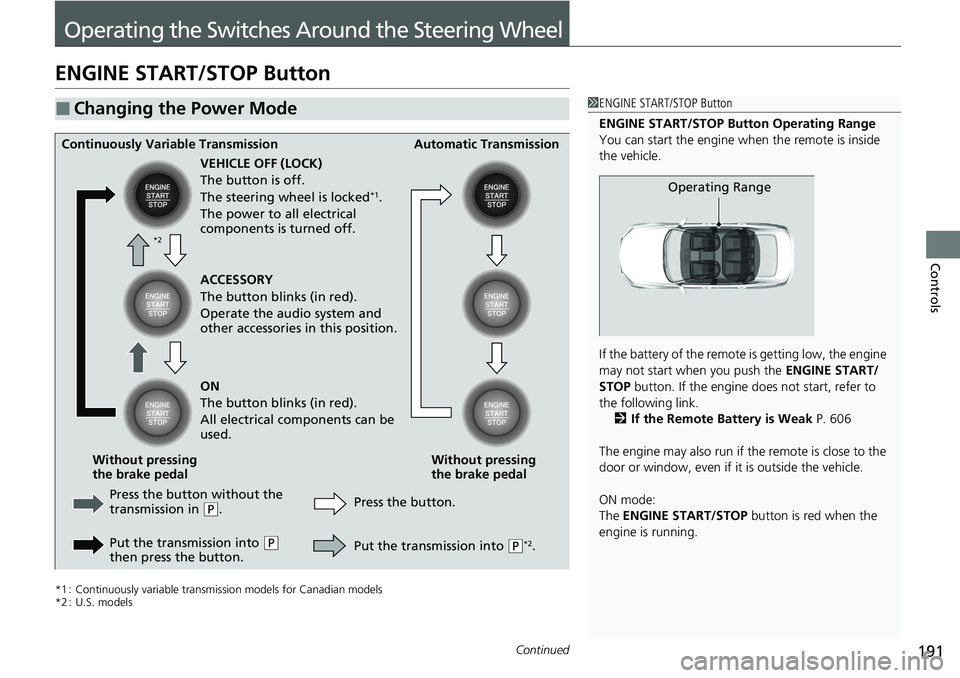
■Changing the Power Mode1ENGINE START/STOP Button
ENGINE START/STOP Button Operating Range
You can start the engine wh en the remote is inside
the vehicle.
If the battery of the remote is getting low, the engine
may not start when you push the ENGINE START/
STOP button. If the engine do es not start, refer to
the following link. 2 If the Remote Battery is Weak P. 606
The engine may also run if the remote is close to the
door or window, even if it is outside the vehicle.
ON mode:
The ENGINE START/STOP button is red when the
engine is running.
Operating Range
Continuously Variable Transmission Automatic Transmission
VEHICLE OFF (LOCK)
The button is off.
The steering wheel is locked
*1.
The power to all electrical
components is turned off.
Press the button without the
transmission in
( P.
Put the transmission into
( P
then press the button. Press the button.
Without pressing
the brake pedal
Without pressing
the brake pedal ACCESSORY
The button blinks (in red).
Operate the audio system and
other accessories in this position.
ON
The button blinks (in red).
All electrical components can be
used.
Put the transmission into (P*2.
*2
Page 194 of 659
uuOperating the Switches Around the Steering Wheel uENGINE START/STOP Button
192
Controls
If you leave the vehicle for 30 to 60 minutes with the transmission in (P and the
power mode in ACCESSORY, the vehicle auto matically goes into the mode similar to
VEHICLE OFF (LOCK) to avoid draining the battery.
When in this mode:
The steering wheel does not lock.
You cannot lock or unlock doors with th e remote transmitter or the smart entry
system.
Press the ENGINE START/STOP button twice to switch the mode to VEHICLE OFF
(LOCK).
If you open the driver’s door when the power mode is set to ACCESSORY, a warning
buzzer sounds.
■Automatic Power Off
■Power Mode Reminder
1 Changing the Power Mode
If the power mode does not change from VEHICLE
OFF to ACCESSORY, press the ENGINE START/STOP
button while moving the st eering wheel left and
right. The steering wheel will unlock, allowing the
mode to change.
Do not leave the power mode in ACCESSORY or ON
when you get out.
Continuously variable transmission models
for Canadian models
Continuously variable transmission models
for Canadian models
Page 195 of 659
193
uuOperating the Switches Around the Steering Wheel uENGINE START/STOP Button
Controls
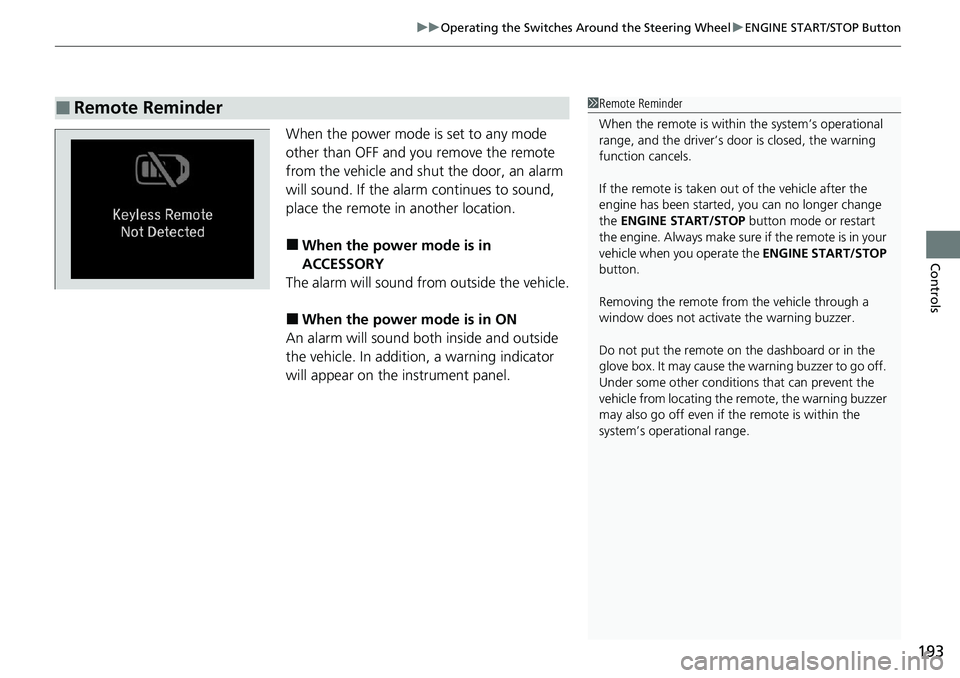
When the power mode is set to any mode
other than OFF and yo u remove the remote
from the vehicle and shut the door, an alarm
will sound. If the alarm continues to sound,
place the remote in another location.
■When the power mode is in
ACCESSORY
The alarm will sound from outside the vehicle.
■When the power mode is in ON
An alarm will sound both inside and outside
the vehicle. In additi on, a warning indicator
will appear on the instrument panel.
■Remote Reminder1 Remote Reminder
When the remote is within the system’s operational
range, and the driver’s door is closed, the warning
function cancels.
If the remote is taken out of the vehicle after the
engine has been started, you can no longer change
the ENGINE START/STOP button mode or restart
the engin e. Always make sur e if t he remote is in your
vehicle when you operate the ENGINE START/STOP
button.
Removing the remote fr om the vehicle through a
window does not activate the warning buzzer.
Do not put the remote on the dashboard or in the
glove box. It may cause the warning buzzer to go off.
Under some other conditions that can prevent the
vehicle from locating the remote, the warning buzzer
may also go off even if the remote is within the
system’s operational range.
Page 199 of 659
197
uuOperating the Switches Around the Steering Wheel uFog Lights*
Controls
The headlights automatically come on when th e wipers are used several times within
a certain number of intervals with the headlight switch in AUTO.
The headlights automatically go off a few mi nutes later if the wipers are stopped.
The headlights, all other exterior lights, and the instrument panel lights turn off 15
seconds after you set the power mode to VEHICLE OFF, take the remote with you,
and close the driver’s door.
If you set the power mode to VEHICLE OFF with the headlight switch on, but do not
open the door, the lights turn off after 10 minutes (three minutes, if the switch is in
the AUTO position).
The lights turn on again when you unlock or open the driver’s door. If you unlock
the door, but do not open it within 15 seconds, the lights go off. If you open the
driver’s door, you will hear a reminder chime alerting you that the lights are on.
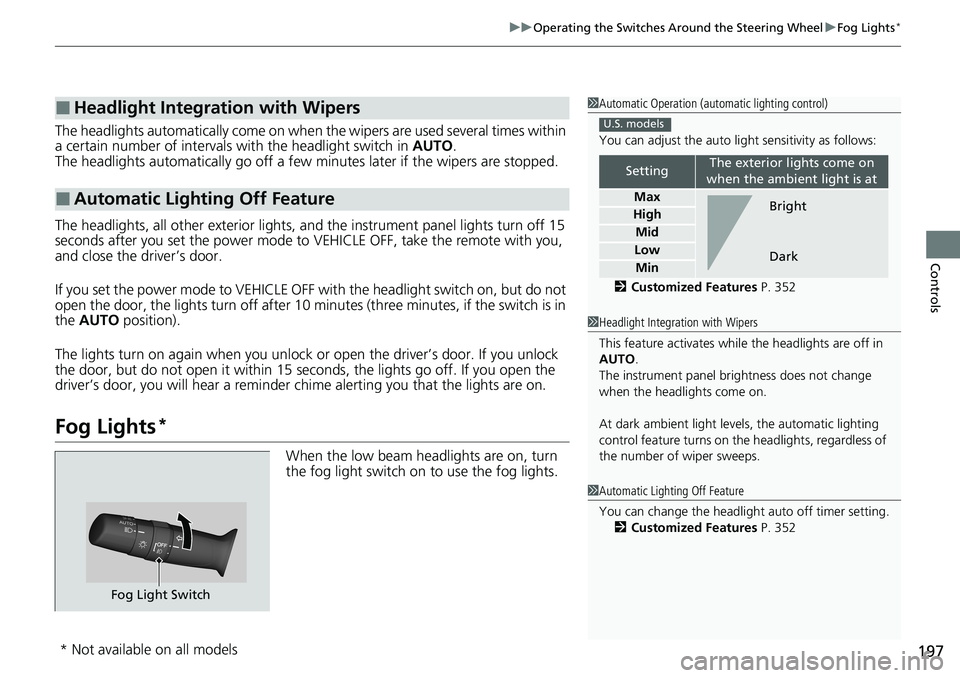
Fog Lights*
When the low beam headlights are on, turn
the fog light switch on to use the fog lights.
■Headlight Integration with Wipers
■Automatic Lighting Off Feature
1 Automatic Operation (aut omatic lighting control)
You can adjust the auto li ght sensitivity as follows:
2 Customized Features P. 352
SettingThe exterior lights come on
when the ambient light is at
Max
High
Mid
Low
Min
U.S. models
Bright
Dark
1 Headlight Integration with Wipers
This feature activates while the headlights are off in
AUTO .
The instrument panel br ightness does not change
when the headlights come on.
At dark ambient light leve ls, the automatic lighting
control feature turns on the headlights, regardless of
the number of wiper sweeps.
1 Automatic Lighting Off Feature
You can change the headlight auto off timer setting.
2 Customized Features P. 352
Fog Light Switch
* Not available on all models
Page 209 of 659
207
uuOperating the Switches Around the Steering Wheel uDriving Position Memory System*
Continued
Controls
Driving Position Memory System*
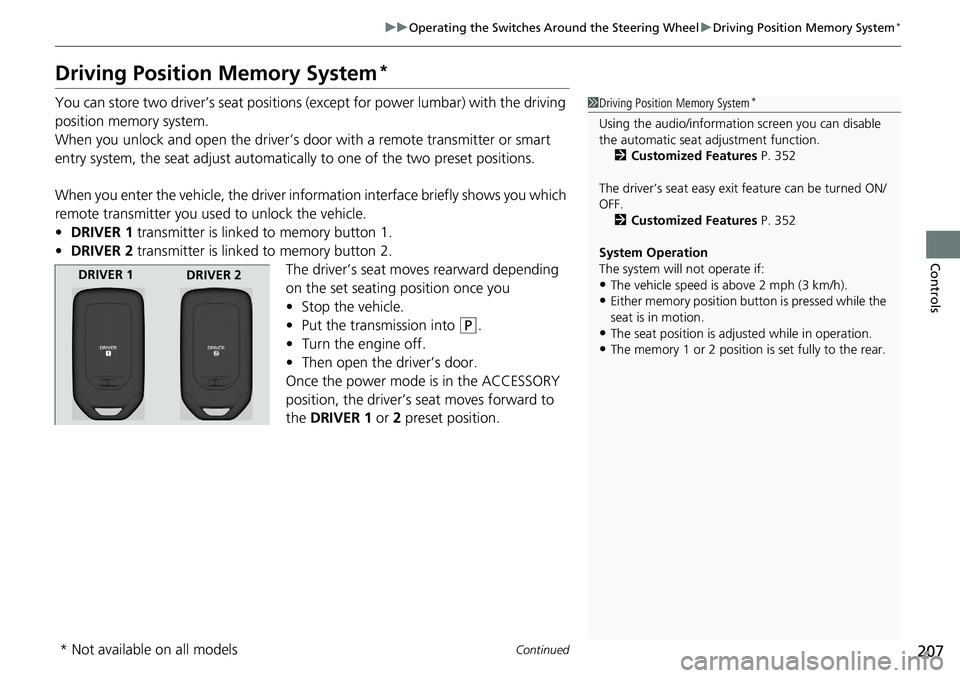
You can store two driver’s seat positions (except for power lumbar) with the driving
position memory system.
When you unlock and open the driver’s door with a remote transmitter or smart
entry system, the seat adjust automatica lly to one of the two preset positions.
When you enter the vehicle, the driver in formation interface briefly shows you which
remote transmitter you used to unlock the vehicle.
• DRIVER 1 transmitter is linked to memory button 1.
• DRIVER 2 transmitter is linked to memory button 2.
The driver’s seat moves rearward depending
on the set seating position once you
•Stop the vehicle.
• Put the transmission into
(P.
• Turn the engine off.
• Then open the driver’s door.
Once the power mode is in the ACCESSORY
position, the driver’s seat moves forward to
the DRIVER 1 or 2 preset position.
1 Driving Position Memory System*
Using the audio/informati on screen you can disable
the automatic seat adjustment function. 2 Customized Features P. 352
The driver’s seat easy exit feature can be turned ON/
OFF. 2 Customized Features P. 352
System Operation
The system will not operate if:
•The vehicle speed is above 2 mph (3 km/h).
•Either memory position button is pressed while the
seat is in motion.
•The seat position is adju sted while in operation.
•The memory 1 or 2 position is set fully to the rear.
DRIVER 1
DRIVER 2
* Not available on all models
Page 247 of 659
245
Features
This chapter describes how to operate technology features.
Audio SystemAbout Your Audio System ................ 246
USB Ports ......................................... 247
Audio System Theft Protection ......... 249
Audio Remote Controls .................... 250
Audio System Basic Operation ........ 253
Audio/Information Screen ................ 254
System Updates
*............................. 266
Adjusting the Sound ........................ 272
Display Setup ................................... 273
Voice Control Operation .................. 275
Playing AM/FM Radio ....................... 278
Playing SiriusXM ® Radio
*................. 282
Playing an iPod ................................ 293 Playing a USB Flash Drive ................. 296
Playing
Bluetooth ® Audio................. 299
HondaLink ®..................................... 301
HondaLink ® Service
*........................ 305
Wi-Fi Connection ............................. 310
AT&T Hotspot
*................................ 312
Siri Eyes Free*.................................. 313
Apple CarPlay .................................. 314
Android Auto................................... 321
Audio Error Messages ...................... 328
General Information on the Audio System ............................................. 330
Customized Features ........................ 352
HomeLink ® Universal Transceiver
*..... 372 Bluetooth®
HandsFreeLink® ............. 375
Refuel Recommend .............................. 401
* Not available on all models
Page 248 of 659
246
Features
Audio System
About Your Audio System
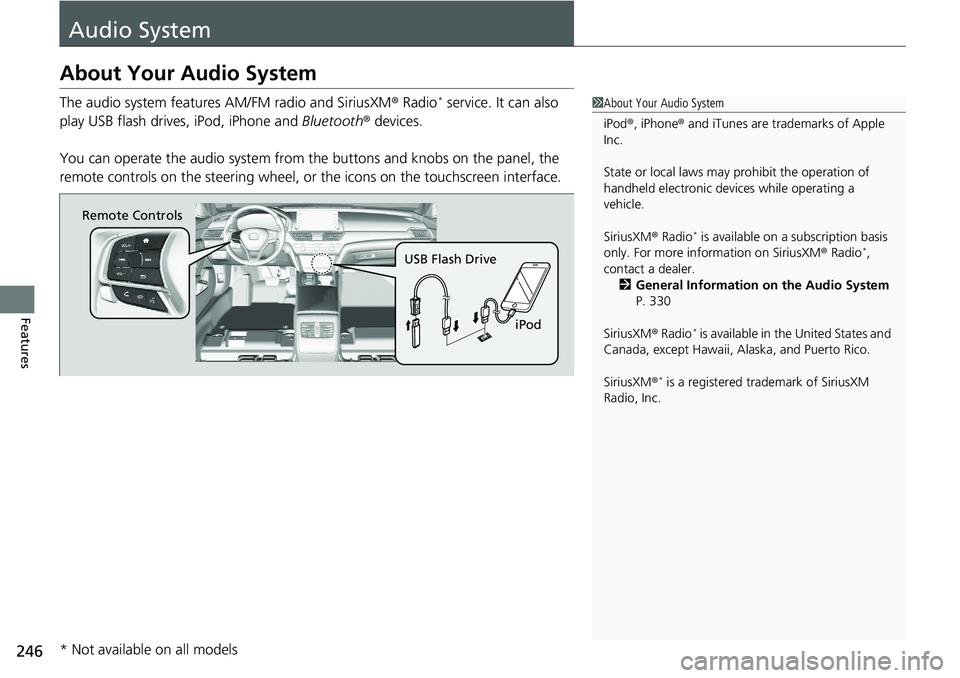
The audio system features AM/FM radio and SiriusXM® Radio* service. It can also
play USB flash drives, iPod, iPhone and Bluetooth® devices.
You can operate the audio system from the buttons and knobs on the panel, the
remote controls on the steering wheel, or the icons on the touchscreen interface.1 About Your Audio System
iPod ®, iPhone ® and iTunes are trad emarks of Apple
Inc.
State or local laws may pr ohibit the operation of
handheld electronic devices while operating a
vehicle.
SiriusXM ® Radio
* is available on a subscription basis
only. For more information on SiriusXM ® Radio*,
contact a dealer. 2 General Information on the Audio System
P. 330
SiriusXM ® Radio
* is available in the United States and
Canada, except Ha waii, Alaska, and Puerto Rico.
SiriusXM ®
* is a registered tra demark of SiriusXM
Radio, Inc.
Remote Controls
iPod
USB Flash Drive
* Not available on all models
Page 252 of 659
250
uuAudio System uAudio Remote Controls
Features
Audio Remote Controls
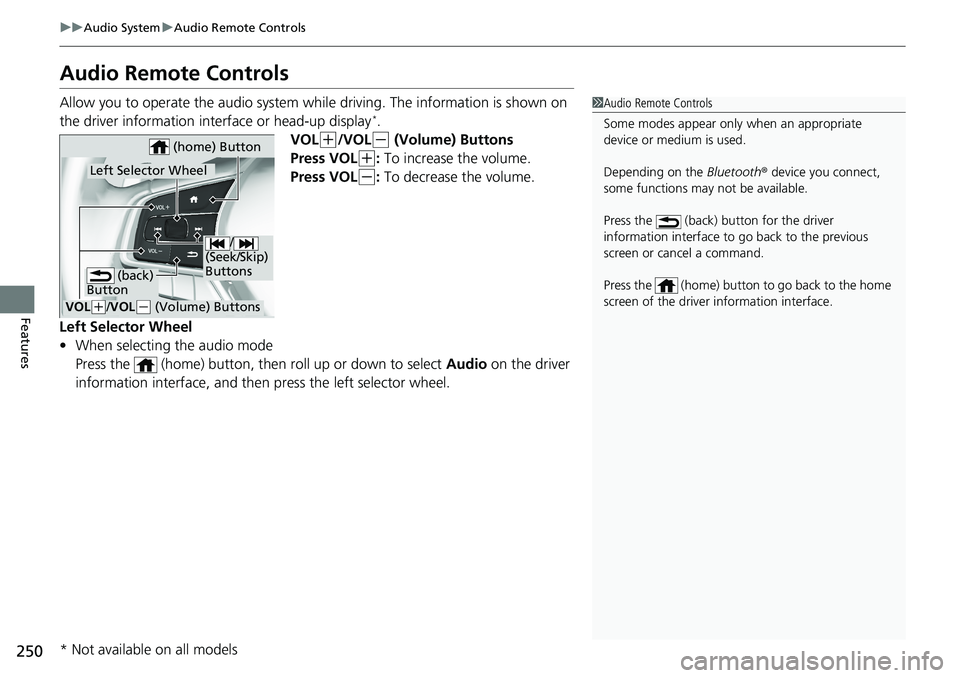
Allow you to operate the audio system wh ile driving. The information is shown on
the driver information interface or head-up display*.
VOL
(+/VOL(- (Volume) Buttons
Press VOL
(+: To increase the volume.
Press VOL
(-: To decrease the volume.
Left Selector Wheel
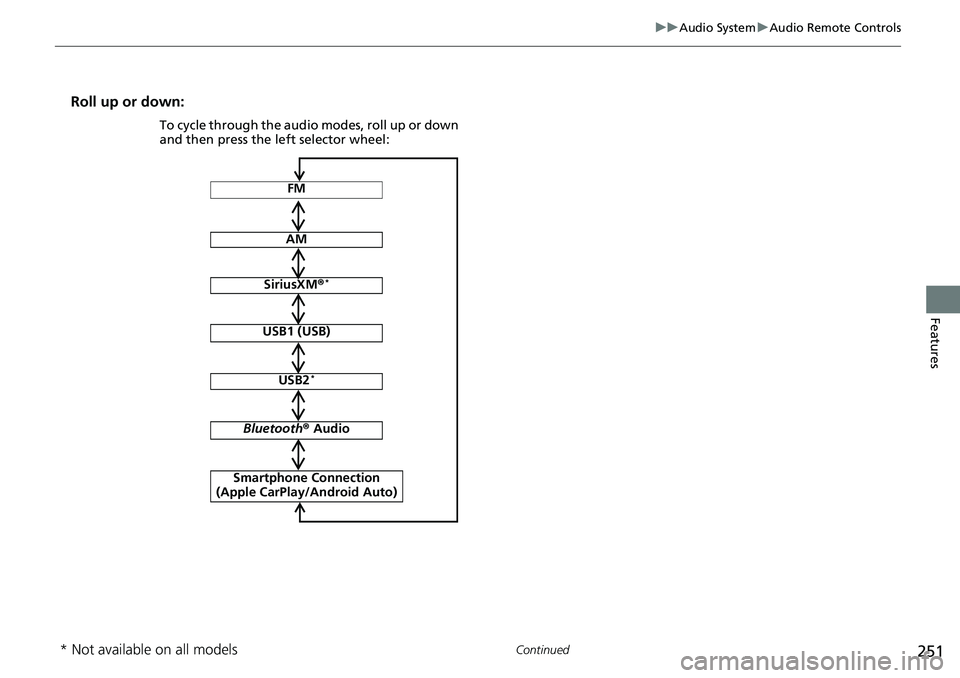
• When selecting the audio mode
Press the (home) button, then roll up or down to select Audio on the driver
information interface, and then press the left selector wheel.
1 Audio Remote Controls
Some modes appear only when an appropriate
device or medium is used.
Depending on the Bluetooth® device you connect,
some functions may not be available.
Press the (back) button for the driver
information interface to go back to the previous
screen or cancel a command.
Press the (home) button to go back to the home
screen of the driver information interface.
/
(Seek/Skip)
Buttons
VOL( +/VOL(- (Volume) Buttons
Left Selector Wheel
(home) Button
(back)
Button
* Not available on all models
Page 253 of 659
251
uuAudio System uAudio Remote Controls
Continued
Features
Roll up or down:
FM
AM
SiriusXM ®*
USB1 (USB)
USB2*
Bluetooth ® Audio
Smartphone Connection
(Apple CarPlay/Android Auto)
To cycle through the audio modes, roll up or down
and then press the left selector wheel:
* Not available on all models
Page 254 of 659
252
uuAudio System uAudio Remote Controls
Features
/ (Seek/Skip) Buttons
• When listening to the radio
Press : To select the next preset radio station.
Press : To select the previous preset radio station.
Press and hold : To select the next strong station.
Press and hold : To select the previous strong station.
• When listening to an iPod, USB flash drive, or Bluetooth® Audio, or Smartphone
Connection
Press : To skip to the next song.
Press : To go back to the beginning of the current or previous song.
• When listening to a USB flash drive
Press and hold : To skip to the next folder.
Press and hold : To go back to the previous folder.