buttons HONDA CIVIC 2012 9.G User Guide
[x] Cancel search | Manufacturer: HONDA, Model Year: 2012, Model line: CIVIC, Model: HONDA CIVIC 2012 9.GPages: 345, PDF Size: 9.02 MB
Page 152 of 345
151
uuAudio System Basic Operation*uPlaying a CD
Continued
Features
Playing a CD
Your audio system supports audio CDs, CD-Rs, and CD-RWs in either MP3 or WMA
format. With the CD loaded, press the CD button.
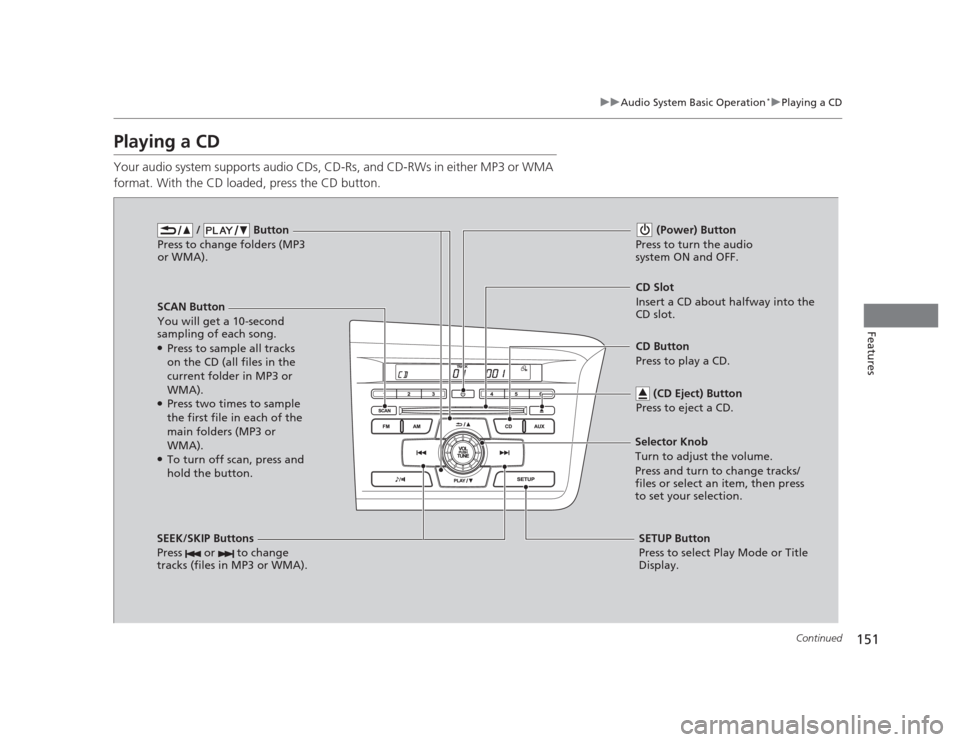
/ Button
Press to change folders (MP3
or WMA).
SCAN Button
You will get a 10-second
sampling of each song.● Press to sample all tracks
on the CD (all files in the
current folder in MP3 or WMA).
● Press two times to sample
the first file in each of the
main folders (MP3 or WMA).
● To turn off scan, press and
hold the button. (Power) Button
Press to turn the audio
system ON and OFF.
CD Slot
Insert a CD about halfway into the
CD slot.
SEEK/SKIP Buttons
Press or to change
tracks (files in MP3 or WMA).
SETUP Button
Press to select Play Mode or Title
Display.
Selector Knob
Turn to adjust the volume.
Press and turn to change tracks/
files or select an item, then press
to set your selection.
CD Button
Press to play a CD.
(CD Eject) Button
Press to eject a CD.
Page 157 of 345
156
uuAudio System Basic Operation*uAudio Remote Controls
*
Features
Audio Remote Controls *
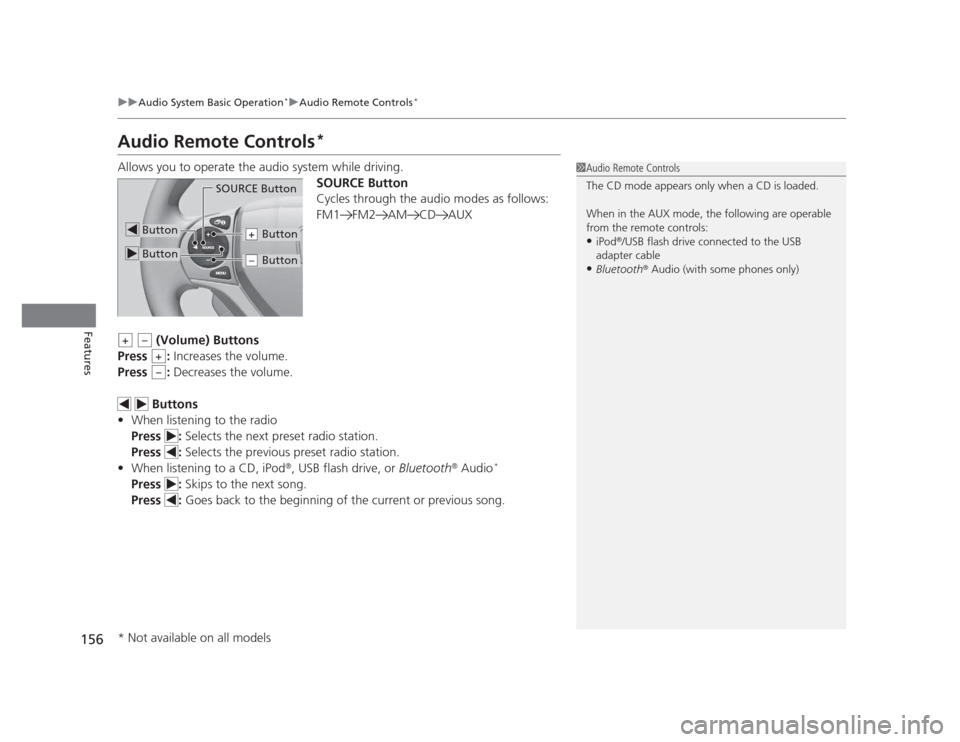
Allows you to operate the audio system while driving. SOURCE Button
Cycles through the audio modes as follows:
FM1 FM2 AM CD AUX
(Volume) Buttons
Press : Increases the volume.
Press : Decreases the volume.
Buttons
• When listening to the radio
Press : Selects the next preset radio station.
Press : Selects the previous preset radio station.
• When listening to a CD, iPod ®
, USB flash drive, or Bluetooth®
Audio *
Press : Skips to the next song.
Press : Goes back to the beginning of the current or previous song.
1Audio Remote Controls
The CD mode appears only when a CD is loaded.
When in the AUX mode, the following are operable
from the remote controls: •iPod ®
/USB flash drive connected to the USB
adapter cable
• Bluetooth ®
Audio (with some phones only)
Button
SOURCE Button
Button
Button+
Button–
+–
+
–
* Not available on all models
Page 159 of 345
158
uuAudio System Basic Operation*uPlaying the AM/FM Radio
Features
Playing the AM/FM Radio
002300
75°F miles
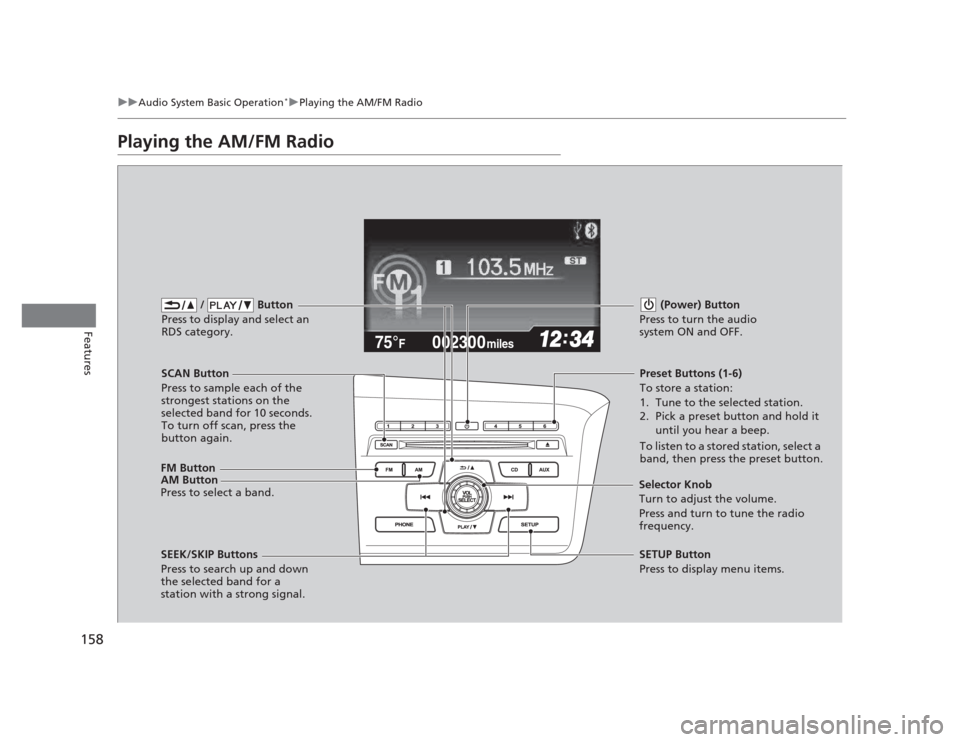
FM Button / Button
Press to display and select an
RDS category.
SCAN Button
Press to sample each of the
strongest stations on the
selected band for 10 seconds.
To turn off scan, press the
button again. (Power) Button
Press to turn the audio
system ON and OFF.Preset Buttons (1-6)
To store a station:
1. Tune to the selected station.
2. Pick a preset button and hold it until you hear a beep.
To listen to a stored station, select a
band, then press the preset button.
SEEK/SKIP Buttons
Press to search up and down
the selected band for a
station with a strong signal. SETUP Button
Press to display menu items.
Selector Knob
Turn to adjust the volume.
Press and turn to tune the radio
frequency.
AM Button
Press to select a band.
Page 165 of 345
164
uuAudio System Basic Operation*uPlaying an iPod®
Features
Playing an iPod ®
Connect the iPod ®
using your dock connector to the USB adapter cable, then press
the AUX button. 2 USB Adapter Cable P. 145
123456
Genre AAA
Song AAA
Artist AAA
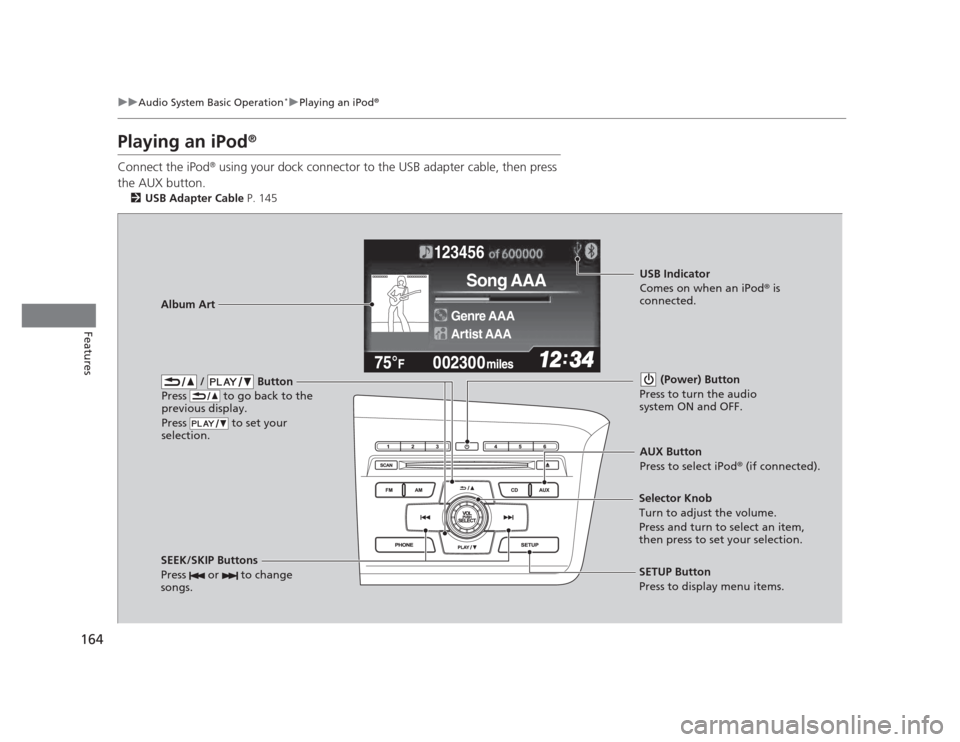
/ Button
Press to go back to the
previous display.
Press to set your
selection. (Power) Button
Press to turn the audio
system ON and OFF.
SEEK/SKIP Buttons
Press or to change
songs.SETUP Button
Press to display menu items.
Selector Knob
Turn to adjust the volume.
Press and turn to select an item,
then press to set your selection.
AUX Button
Press to select iPod
®
(if connected).
Album Art
USB Indicator
Comes on when an iPod ®
is
connected.
Page 171 of 345
170
uuAudio System Basic Operation*uPlaying
Bluetooth ®
Audio
Features
Playing Bluetooth ®
Audio
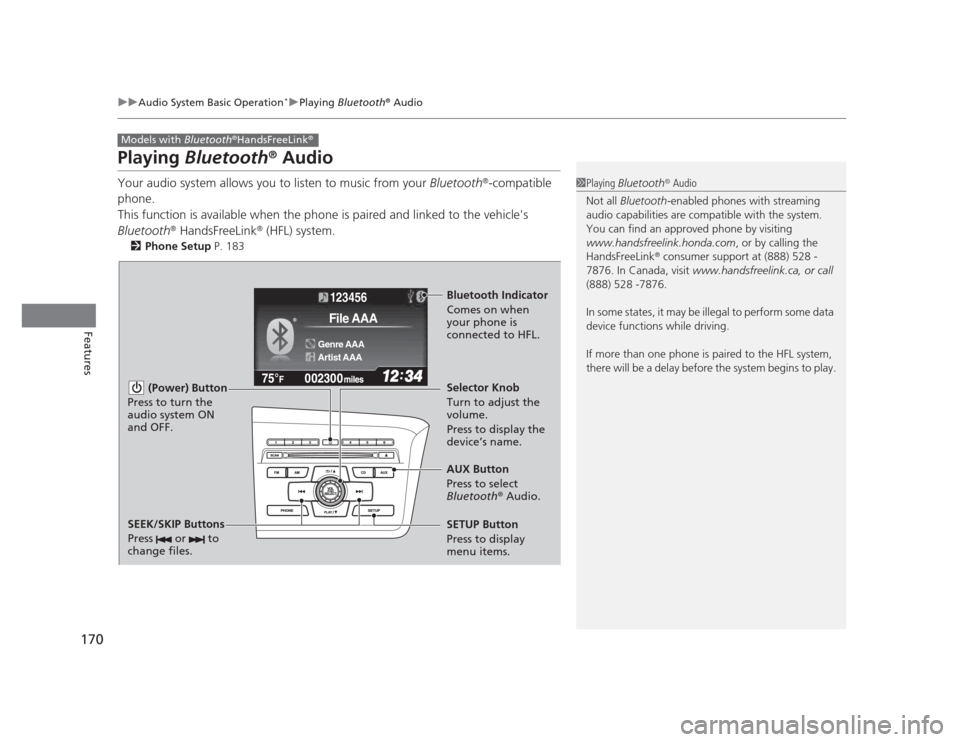
Your audio system allows you to listen to music from your Bluetooth®
-compatible
phone.
This function is available when the phone is paired and linked to the vehicle's
Bluetooth ®
HandsFreeLink ®
(HFL) system.
2 Phone Setup P. 183
Models with Bluetooth®
HandsFreeLink ®
1Playing
Bluetooth ®
Audio
Not all Bluetooth -enabled phones with streaming
audio capabilities are compatible with the system.
You can find an approved phone by visiting
www.handsfreelink.honda.com , or by calling the
HandsFreeLink ®
consumer support at (888) 528 -
7876. In Canada, visit www.handsfreelink.ca, or call
(888) 528 -7876.
In some states, it may be illegal to perform some data
device functions while driving.
If more than one phone is paired to the HFL system,
there will be a delay before the system begins to play.
123456
Genre AAA
File AAA
Artist AAA
(Power) Button
Press to turn the
audio system ON and OFF.
SETUP Button
Press to display
menu items. Selector Knob
Turn to adjust the
volume.
Press to display the
device’s name.
AUX Button
Press to select
Bluetooth ®
Audio.
SEEK/SKIP Buttons
Press or to
change files.
Bluetooth Indicator
Comes on when
your phone is
connected to HFL.
Page 178 of 345
177
Continued
Features
Bluetooth ®
HandsFreeLink ®*
For models with the navigation system, see Navigation System Manual for how to operate the
Bluetooth®
HandsFreeLink ®
.
Bluetooth ®
HandsFreeLink ®
(HFL) allows you to place and receive phone calls using
your vehicle's audio system, without handling your cell phone.
Using HFL
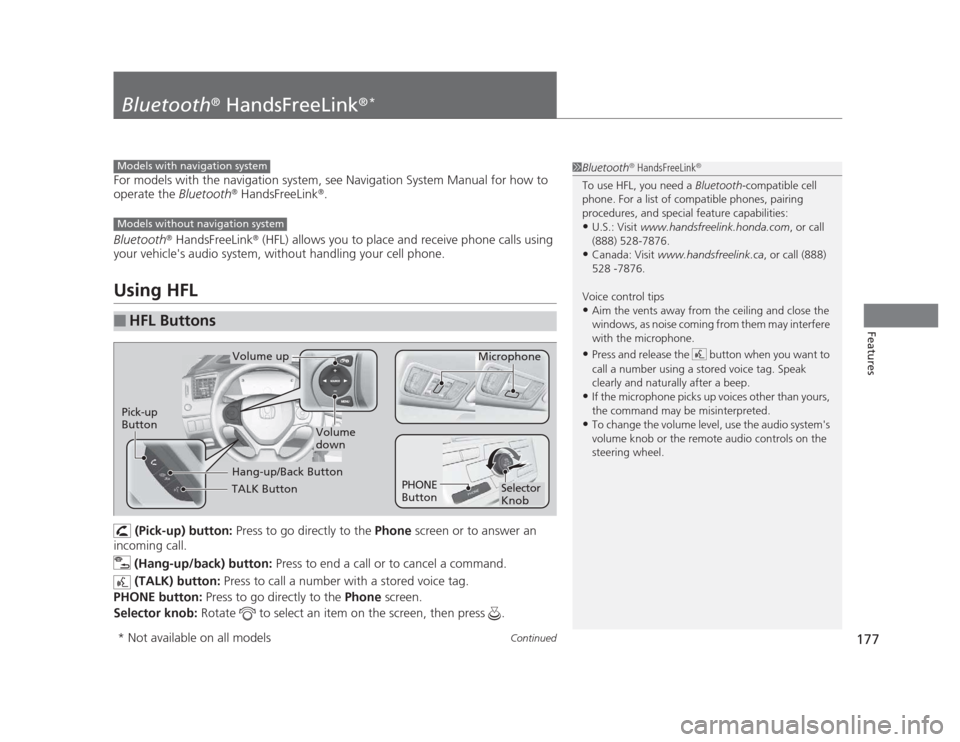
(Pick-up) button: Press to go directly to the Phone screen or to answer an
incoming call.
(Hang-up/back) button: Press to end a call or to cancel a command.
(TALK) button: Press to call a number with a stored voice tag.
PHONE button: Press to go directly to the Phone screen.
Selector knob: Rotate to select an item on the screen, then press .
■HFL Buttons
1Bluetooth®
HandsFreeLink ®
To use HFL, you need a Bluetooth-compatible cell
phone. For a list of compatible phones, pairing
procedures, and special feature capabilities:
• U.S.: Visit www.handsfreelink.honda.com , or call
(888) 528-7876.
• Canada: Visit www.handsfreelink.ca , or call (888)
528 -7876.
Voice control tips • Aim the vents away from the ceiling and close the
windows, as noise coming from them may interfere
with the microphone.
• Press and release the button when you want to
call a number using a stored voice tag. Speak
clearly and naturally after a beep.
• If the microphone picks up voices other than yours,
the command may be misinterpreted.
• To change the volume level, use the audio system's
volume knob or the remote audio controls on the
steering wheel.Models with navigation system
Models without navigation system
TALK Button
Volume up
Microphone
Hang-up/Back Button
Pick-up
Button
Volume
down
Selector Knob
PHONE
Button
* Not available on all models
Page 193 of 345
uuBluetooth®
HandsFreeLink ®*uHFL Menus
192
Features
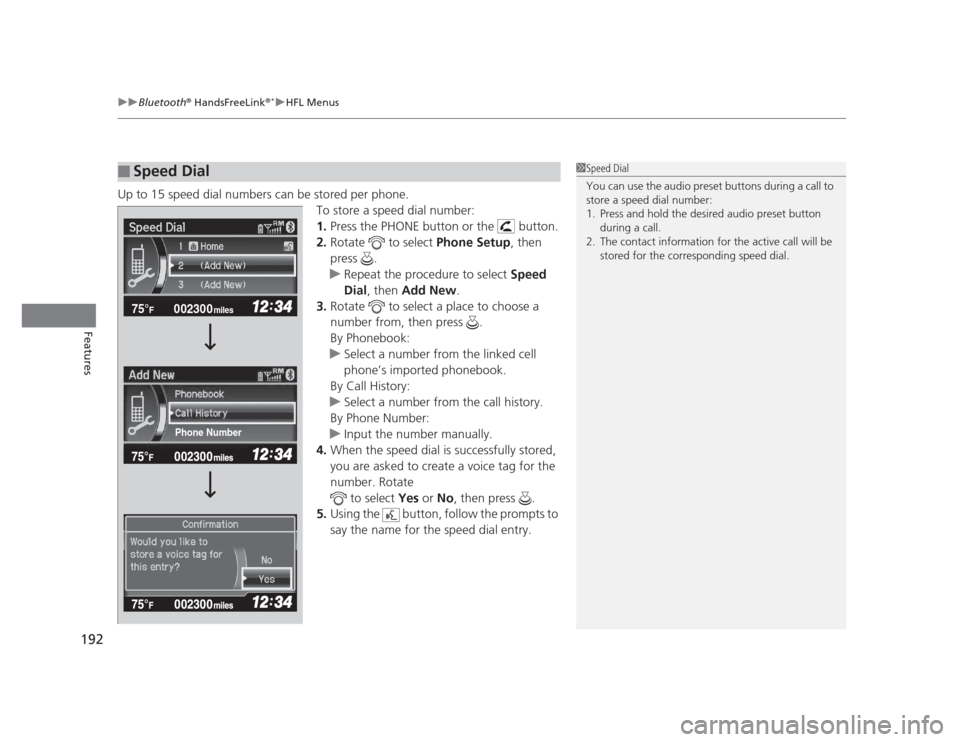
Up to 15 speed dial numbers can be stored per phone. To store a speed dial number: 1.Press the PHONE button or the button.
2. Rotate to select Phone Setup, then
press .
uRepeat the procedure to select Speed
Dial , then Add New .
3. Rotate to select a place to choose a
number from, then press .
By Phonebook:
uSelect a number from the linked cell
phone’s imported phonebook.
By Call History:
uSelect a number from the call history.
By Phone Number:
uInput the number manually.
4. When the speed dial is successfully stored,
you are asked to create a voice tag for the number. Rotate
to select Yes or No, then press .
5. Using the button, follow the prompts to
say the name for the speed dial entry.
■Speed Dial1Speed Dial
You can use the audio preset buttons during a call to
store a speed dial number:
1. Press and hold the desired audio preset button
during a call.
2. The contact information for the active call will be stored for the corresponding speed dial.
002300
75°F miles
Phone Number
Page 199 of 345
uuBluetooth®
HandsFreeLink ®*uHFL Menus
198
Features
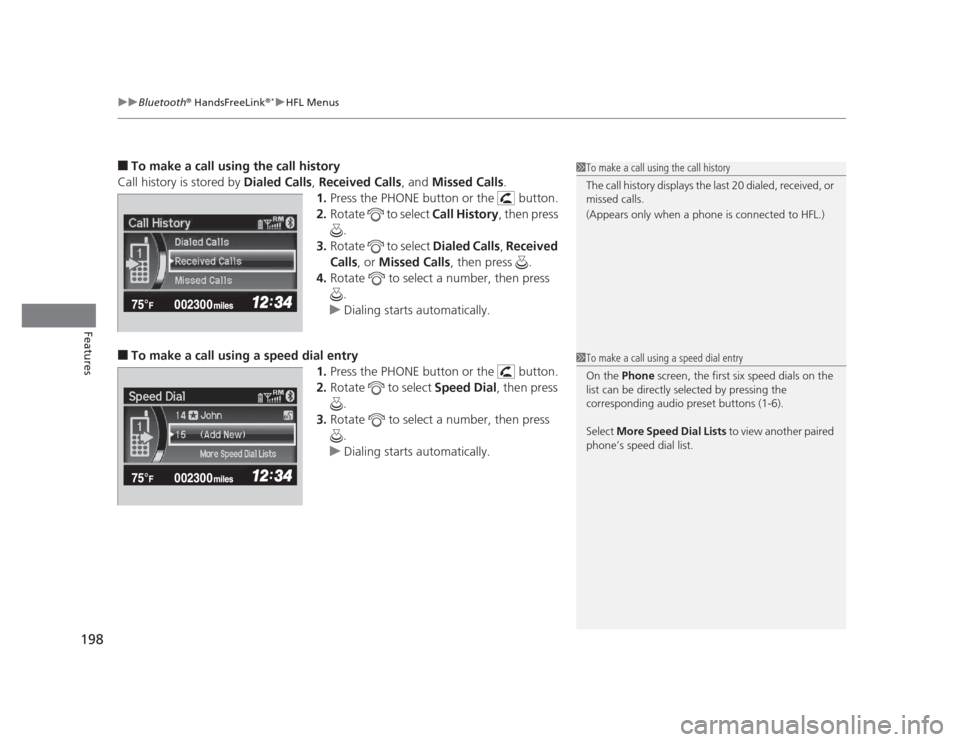
■ To make a call using the call history
Call history is stored by Dialed Calls, Received Calls , and Missed Calls .
1. Press the PHONE button or the button.
2. Rotate to select Call History, then press
.
3. Rotate to select Dialed Calls, Received
Calls , or Missed Calls , then press .
4. Rotate to select a number, then press
.
uDialing starts automatically.
■ To make a call using a speed dial entry
1.Press the PHONE button or the button.
2. Rotate to select Speed Dial, then press
.
3. Rotate to select a number, then press
.
uDialing starts automatically.
1To make a call using the call history
The call history displays the last 20 dialed, received, or
missed calls.
(Appears only when a phone is connected to HFL.)
1To make a call using a speed dial entry
On the Phone screen, the first six speed dials on the
list can be directly selected by pressing the
corresponding audio preset buttons (1-6).
Select More Speed Dial Lists to view another paired
phone’s speed dial list.
Page 223 of 345
uuWhen DrivinguCruise Control*
222
Driving
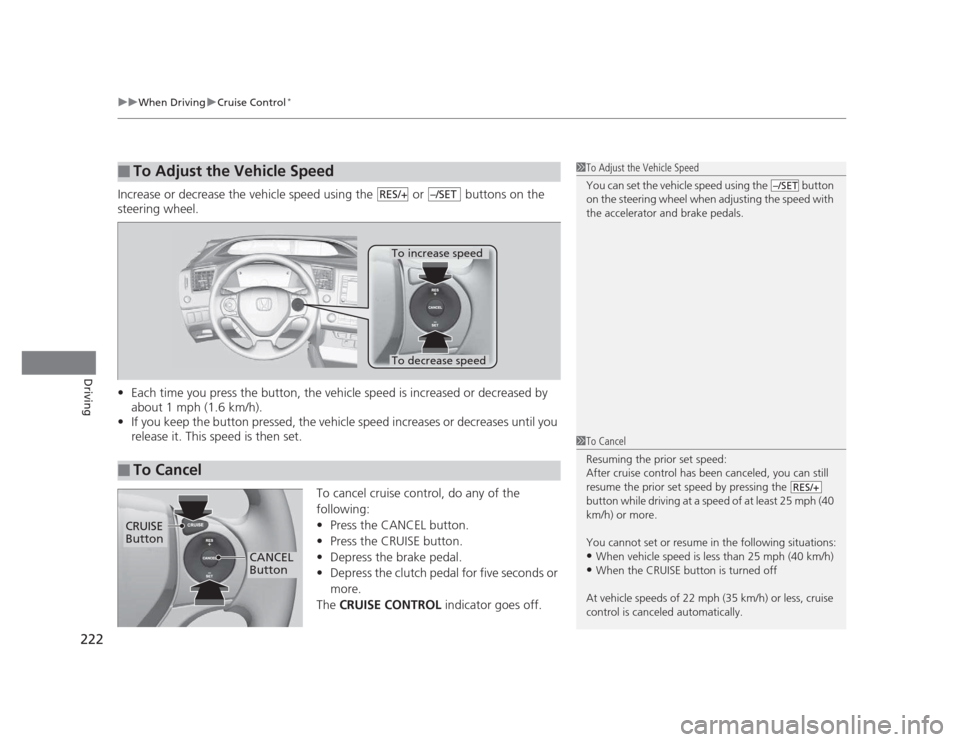
Increase or decrease the vehicle speed using the or buttons on the
steering wheel. • Each time you press the button, the vehicle speed is increased or decreased by
about 1 mph (1.6 km/h).
• If you keep the button pressed, the vehicle speed increases or decreases until you
release it. This speed is then set.
To cancel cruise control, do any of the
following: •Press the CANCEL button.
• Press the CRUISE button.
• Depress the brake pedal.
• Depress the clutch pedal for five seconds or
more.
The CRUISE CONTROL indicator goes off.
■To Adjust the Vehicle Speed1To Adjust the Vehicle Speed
You can set the vehicle speed using the button
on the steering wheel when adjusting the speed with
the accelerator and brake pedals.
–/SETRES/+–/SET
■To Cancel
To decrease speed
To increase speed
1To Cancel
Resuming the prior set speed:
After cruise control has been canceled, you can still
resume the prior set speed by pressing the
button while driving at a speed of at least 25 mph (40
km/h) or more.
You cannot set or resume in the following situations: •When vehicle speed is less than 25 mph (40 km/h)
• When the CRUISE button is turned off
At vehicle speeds of 22 mph (35 km/h) or less, cruise
control is canceled automatically.
RES/+
CRUISE Button
CANCEL
Button
Page 340 of 345
339
INDEX
Electric Power Steering System (EPS)Indicator ........................................... 71, 315
Electronic Stability Control (ESC) ............ 223
Emergency ................................................ 321
Emergency Trunk Opener ....................... 111
Emissions Testing (Readiness Codes) ...... 331
Engine ....................................................... 328
Coolant .................................................. 261
Jump Starting ......................................... 307
Oil .......................................................... 254
Starting................................................... 211
Switch Buzzer ......................................... 117
Engine Coolant ........................................ 261
Adding to the Radiator ........................... 262
Adding to the Reserve Tank .................... 261
High Temperature Indicator ....... ............... 69
Low Temperature Indicator ....................... 74
Overheating ............................................ 311
Engine Oil ................................................. 254
Adding ................................................... 257
Checking ................................................ 255
Displaying Oil Life ........................... 243, 247
Low Oil Pressure Indicator ................. 66, 313
Recommended Engine Oil ....................... 254
EPS (Electric Power Steering
System) .............................................. 71, 315
Exhaust Gas Hazard
(Carbon Monoxide) .................................. 62
Exterior Care (Cleaning) .......................... 294
Exterior Mirrors ........................................ 125 F Features
..................................................... 143
Filters
Dust and Pollen ....................................... 291
Oil ........................................................... 258
Flat Tire ..................................................... 299
Floor Mats ................................................. 293
Fluids Automatic Transmission........................... 263
Brake/Clutch............................................ 266
Engine Coolant........................................ 261
Manual Transmission ............................... 264
Windshield Washer.................................. 267
Fog Light Indicator ..................................... 73
Folding Down the Rear Seats .................. 132
Foot Brake ................................................. 230
Front Airbags (SRS) ..................................... 38
Front Seats ................................................ 126
Adjusting................................................. 126
Fuel ...................................................... 16, 234
Economy ................................................. 237
Gauge ....................................................... 78
Instant Fuel Economy........................... 78, 85
Low Fuel Indicator ..................................... 68
Range.................................................. 81, 84
Recommendation .................................... 234
Refueling ................................................. 234
Fuel Economy ............................................ 237
Fuel Fill Cap ......................................... 16, 236
Message .................................................. 314
Fuel Fill Door ....................................... 16, 235 Fuses
.......................................................... 318
Inspecting and Changing........ ................. 320
Locations......................................... 318, 319
G
Gasoline (Fuel) Economy ................................................. 237
Gauge ....................................................... 78
Information ............................................. 234
Instant Fuel Economy .......................... 78, 85
Low Fuel Indicator ..................................... 68
Refueling................................................. 234
Gauges ........................................................ 78
Gear Shift Lever Positions
Automatic Transmission .......................... 215
Manual Transmission ............................... 218
Glass (care) ................................................ 295
Glove Box .................................................. 135
H
Halogen Bulbs .................................. 268, 272
Handling the Unexpected ........................ 297
HandsFreeLink® (HFL) ............................. 177
Automatic Import of Cellular Phonebook
and Call History ..................................... 191
Automatic Transferring............................ 189
Caller’s ID Information............................. 189
HFL Buttons............................................. 177
HFL Menus .............................................. 179