change HONDA CIVIC 2012 9.G Owner's Manual
[x] Cancel search | Manufacturer: HONDA, Model Year: 2012, Model line: CIVIC, Model: HONDA CIVIC 2012 9.GPages: 345, PDF Size: 9.02 MB
Page 135 of 345
134
Controls
Interior Lights/Interior Convenience Items
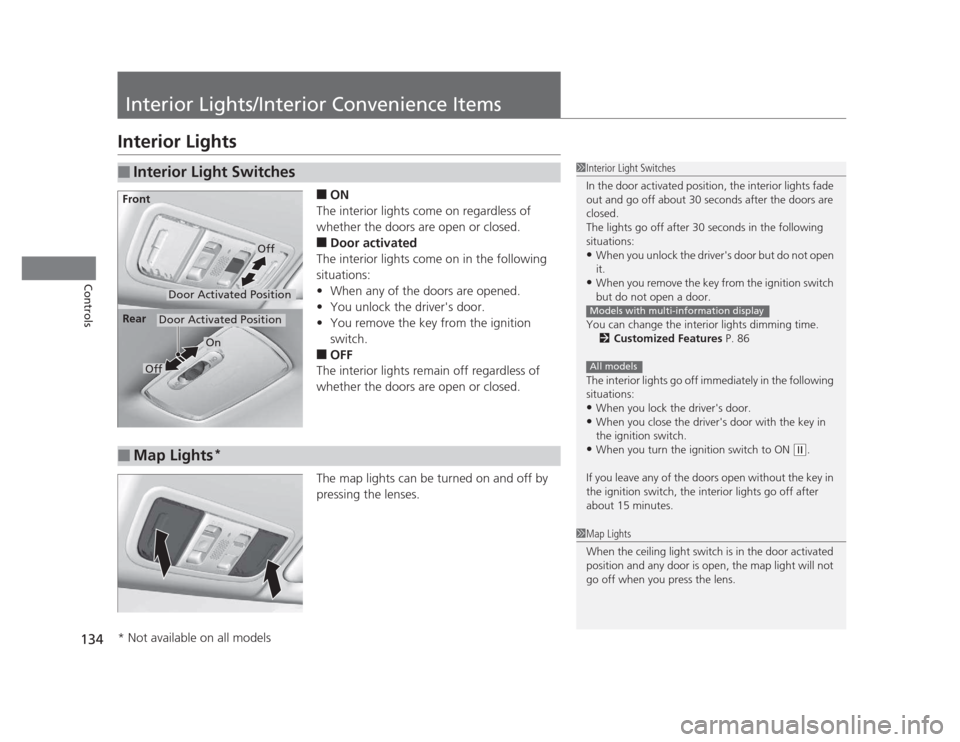
Interior Lights■ON
The interior lights come on regardless of
whether the doors are open or closed. ■ Door activated
The interior lights come on in the following
situations: • When any of the doors are opened.
• You unlock the driver's door.
• You remove the key from the ignition
switch.
■ OFF
The interior lights remain off regardless of
whether the doors are open or closed.
The map lights can be turned on and off by
pressing the lenses.
■Interior Light Switches1Interior Light Switches
In the door activated position, the interior lights fade
out and go off about 30 seconds after the doors are closed.
The lights go off after 30 seconds in the following
situations:• When you unlock the driver's door but do not open it.
• When you remove the key from the ignition switch
but do not open a door.
You can change the interior lights dimming time. 2 Customized Features P. 86
The interior lights go off immediately in the following
situations: • When you lock the driver's door.
• When you close the driver's door with the key in
the ignition switch.
• When you turn the ignition switch to ON
(w .
If you leave any of the doors open without the key in
the ignition switch, the interior lights go off after
about 15 minutes.
Models with multi-information display
All models
Door Activated Position
Off
Front
Door Activated Position
On
Off
Rear
■Map Lights
*
1Map Lights
When the ceiling light switch is in the door activated
position and any door is open, the map light will not
go off when you press the lens.
* Not available on all models
Page 141 of 345
140
Controls
Heating and Cooling*
Using Vents, Heating and A/C
*
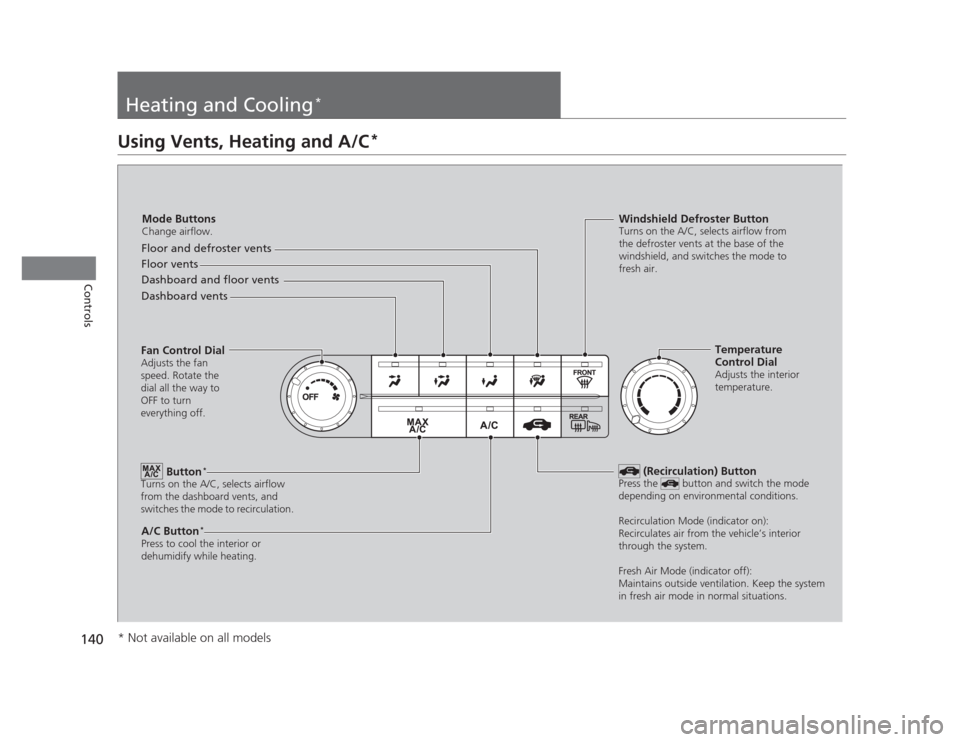
Mode Buttons
Change airflow.
Floor and defroster vents
Floor vents
Dashboard and floor vents
Dashboard vents
Fan Control Dial Adjusts the fan
speed. Rotate the
dial all the way to
OFF to turn
everything off.
Button *
Turns on the A/C, selects airflow
from the dashboard vents, and
switches the mode to recirculation.
A/C Button *
Press to cool the interior or
dehumidify while heating. Windshield Defroster Button
Turns on the A/C, selects airflow from
the defroster vents at the base of the
windshield, and switches the mode to
fresh air.
Temperature
Control Dial
Adjusts the interior
temperature.
(Recirculation) Button
Press the button and switch the mode
depending on environmental conditions.
Recirculation Mode (indicator on):
Recirculates air from the vehicle’s interior
through the system.
Fresh Air Mode (indicator off):
Maintains outside ventilation. Keep the system
in fresh air mode in normal situations.
* Not available on all models
Page 142 of 345
Continued141
uuHeating and Cooling*uUsing Vents, Heating and A/C
*
Controls
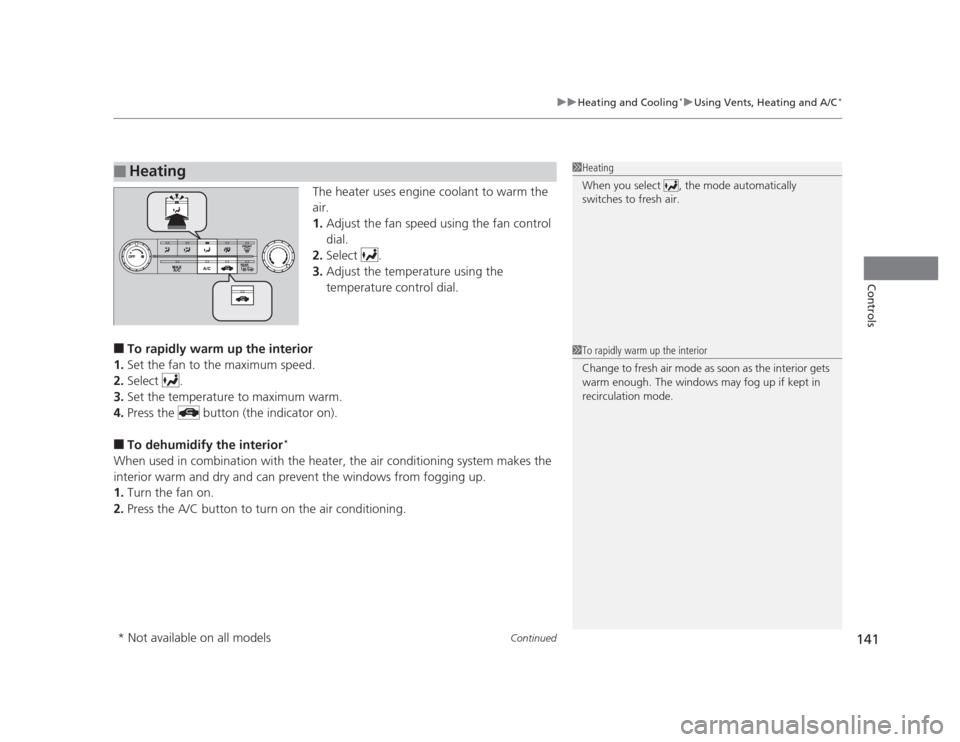
The heater uses engine coolant to warm the
air. 1.
Adjust the fan speed using the fan control
dial.
2. Select .
3. Adjust the temperature using the
temperature control dial.
■ To rapidly warm up the interior
1. Set the fan to the maximum speed.
2. Select .
3. Set the temperature to maximum warm.
4. Press the button (the indicator on).
■ To dehumidify the interior *
When used in combination with the heater, the air conditioning system makes the
interior warm and dry and can prevent the windows from fogging up. 1. Turn the fan on.
2. Press the A/C button to turn on the air conditioning.
■Heating1Heating
When you select , the mode automatically
switches to fresh air.
1To rapidly warm up the interior
Change to fresh air mode as soon as the interior gets
warm enough. The windows may fog up if kept in
recirculation mode.
* Not available on all models
Page 152 of 345
151
uuAudio System Basic Operation*uPlaying a CD
Continued
Features
Playing a CD
Your audio system supports audio CDs, CD-Rs, and CD-RWs in either MP3 or WMA
format. With the CD loaded, press the CD button.
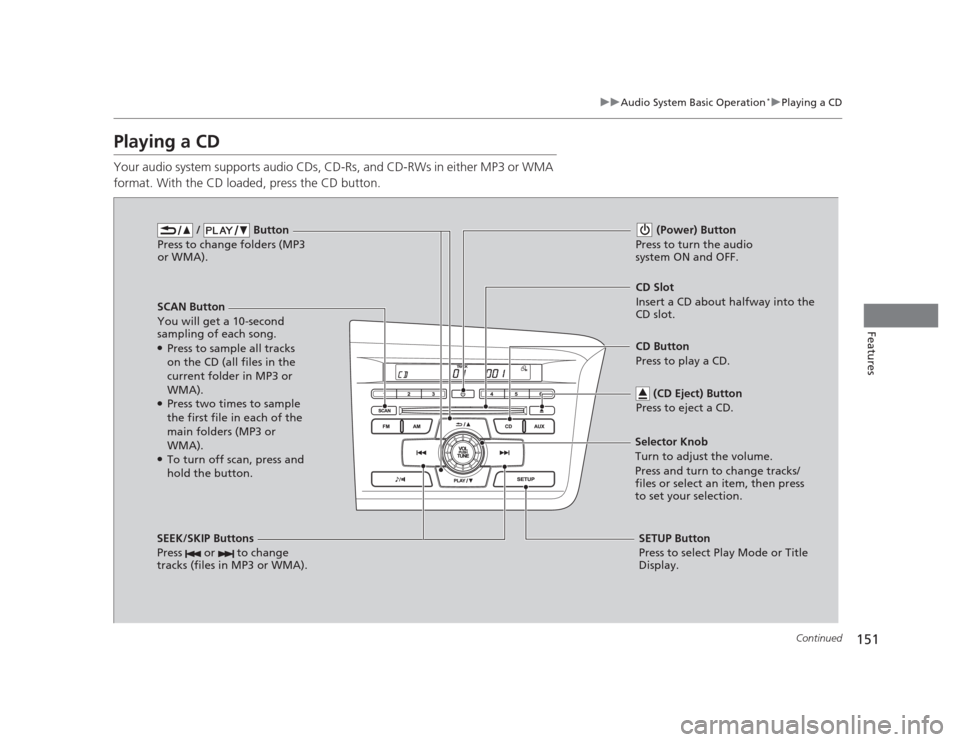
/ Button
Press to change folders (MP3
or WMA).
SCAN Button
You will get a 10-second
sampling of each song.● Press to sample all tracks
on the CD (all files in the
current folder in MP3 or WMA).
● Press two times to sample
the first file in each of the
main folders (MP3 or WMA).
● To turn off scan, press and
hold the button. (Power) Button
Press to turn the audio
system ON and OFF.
CD Slot
Insert a CD about halfway into the
CD slot.
SEEK/SKIP Buttons
Press or to change
tracks (files in MP3 or WMA).
SETUP Button
Press to select Play Mode or Title
Display.
Selector Knob
Turn to adjust the volume.
Press and turn to change tracks/
files or select an item, then press
to set your selection.
CD Button
Press to play a CD.
(CD Eject) Button
Press to eject a CD.
Page 153 of 345
uuAudio System Basic Operation*uPlaying a CD
152
Features
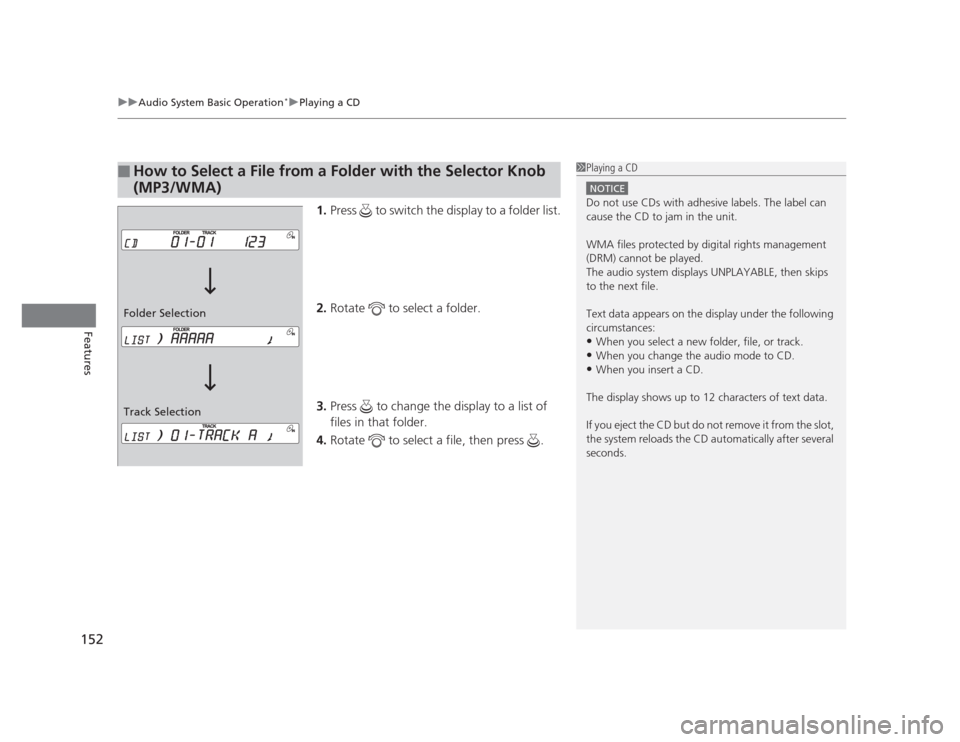
1. Press to switch the display to a folder list.
2. Rotate to select a folder.
3. Press to change the display to a list of files in that folder.
4. Rotate to select a file, then press .
■How to Select a File from a Folder with the Selector Knob
(MP3/WMA)1Playing a CD
NOTICE
Do not use CDs with adhesive labels. The label can
cause the CD to jam in the unit.
WMA files protected by digital rights management
(DRM) cannot be played.
The audio system displays UNPLAYABLE, then skips to the next file.
Text data appears on the display under the following
circumstances: •When you select a new folder, file, or track.
• When you change the audio mode to CD.
• When you insert a CD.
The display shows up to 12 characters of text data.
If you eject the CD but do not remove it from the slot,
the system reloads the CD automatically after several
seconds.
Track Selection
Folder Selection
Page 156 of 345
155
Features
Audio System Basic Operation*
To use the audio system function, the ignition switch must be in ACCESSORY (q
or
ON
(w .
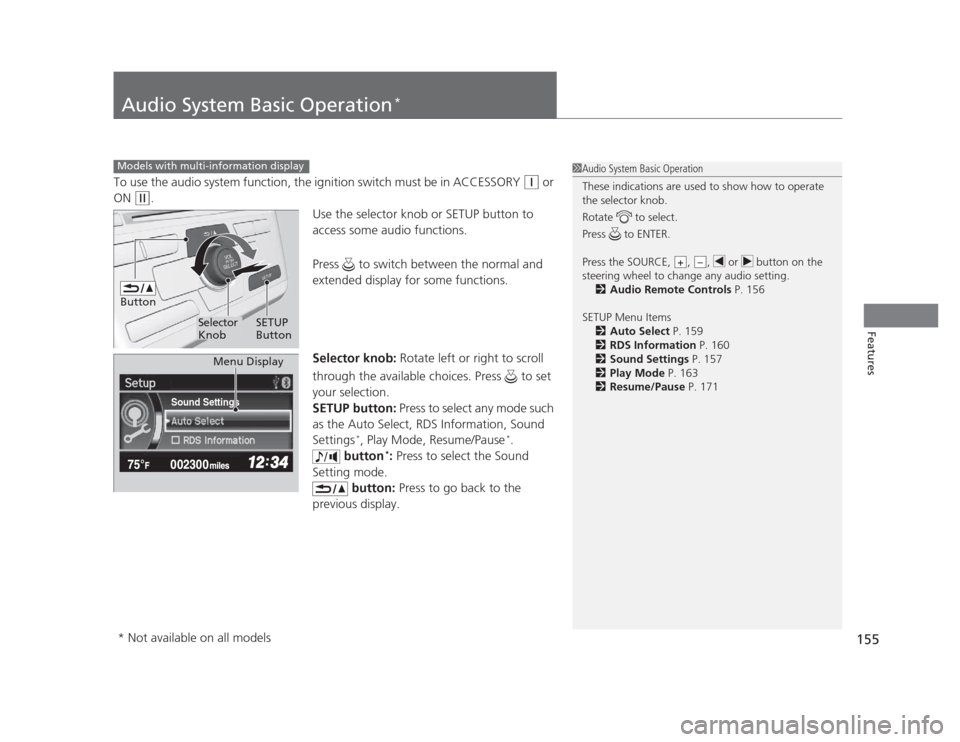
Use the selector knob or SETUP button to
access some audio functions.
Press to switch between the normal and
extended display for some functions.
Selector knob: Rotate left or right to scroll
through the available choices. Press to set
your selection.
SETUP button: Press to select any mode such
as the Auto Select, RDS Information, Sound Settings *
, Play Mode, Resume/Pause *
.
button *
: Press to select the Sound
Setting mode. button: Press to go back to the
previous display.
Models with multi-information display1Audio System Basic Operation
These indications are used to show how to operate
the selector knob.
Rotate to select.
Press to ENTER.
Press the SOURCE, , , or button on the
steering wheel to change any audio setting. 2 Audio Remote Controls P. 156
SETUP Menu Items 2 Auto Select P. 159
2 RDS Information P. 160
2 Sound Settings P. 157
2 Play Mode P. 163
2 Resume/Pause P. 171
+–
Button
Selector Knob SETUP
Button
Sound Settings
Menu Display
* Not available on all models
Page 163 of 345
uuAudio System Basic Operation*uPlaying a CD
162
Features
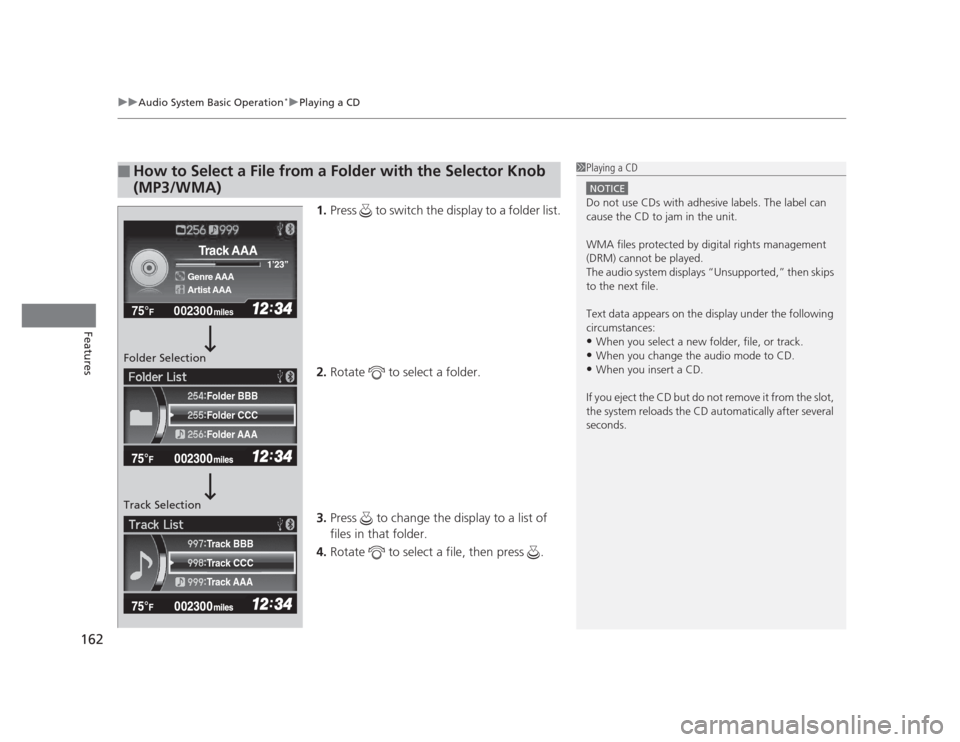
1. Press to switch the display to a folder list.
2. Rotate to select a folder.
3. Press to change the display to a list of files in that folder.
4. Rotate to select a file, then press .
■How to Select a File from a Folder with the Selector Knob
(MP3/WMA)1Playing a CD
NOTICE
Do not use CDs with adhesive labels. The label can
cause the CD to jam in the unit.
WMA files protected by digital rights management
(DRM) cannot be played.
The audio system displays “Unsupported,” then skips to the next file.
Text data appears on the display under the following
circumstances: •When you select a new folder, file, or track.
• When you change the audio mode to CD.
• When you insert a CD.
If you eject the CD but do not remove it from the slot,
the system reloads the CD automatically after several
seconds.
002300
75°F miles
Genre AAA 1
Page 165 of 345
164
uuAudio System Basic Operation*uPlaying an iPod®
Features
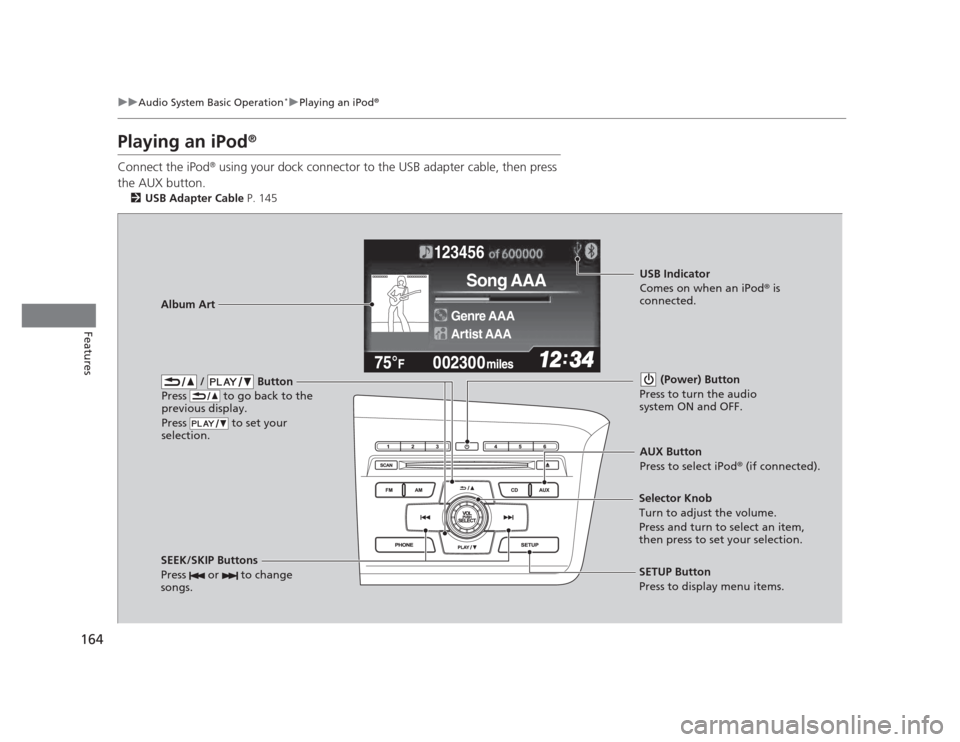
Playing an iPod ®
Connect the iPod ®
using your dock connector to the USB adapter cable, then press
the AUX button. 2 USB Adapter Cable P. 145
123456
Genre AAA
Song AAA
Artist AAA
/ Button
Press to go back to the
previous display.
Press to set your
selection. (Power) Button
Press to turn the audio
system ON and OFF.
SEEK/SKIP Buttons
Press or to change
songs.SETUP Button
Press to display menu items.
Selector Knob
Turn to adjust the volume.
Press and turn to select an item,
then press to set your selection.
AUX Button
Press to select iPod
®
(if connected).
Album Art
USB Indicator
Comes on when an iPod ®
is
connected.
Page 169 of 345
uuAudio System Basic Operation*uPlaying a USB Flash Drive
168
Features
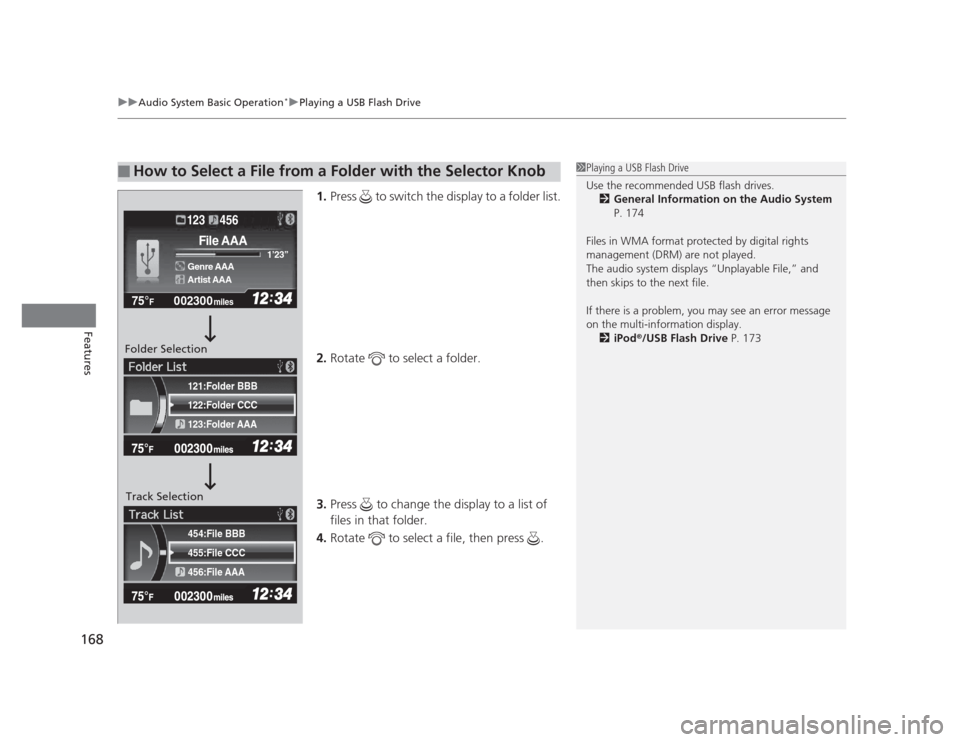
1. Press to switch the display to a folder list.
2. Rotate to select a folder.
3. Press to change the display to a list of files in that folder.
4. Rotate to select a file, then press .
■How to Select a File from a Folder with the Selector Knob1Playing a USB Flash Drive
Use the recommended USB flash drives.
2 General Information on the Audio System
P. 174
Files in WMA format protected by digital rights
management (DRM) are not played.
The audio system displays “Unplayable File,” and
then skips to the next file.
If there is a problem, you may see an error message
on the multi-information display. 2 iPod ®
/USB Flash Drive P. 173
455:File CCC
456:File AAA
454:File BBB
122:Folder CCC
123:Folder AAA
121:Folder BBB
002300
75°F miles
Genre AAA 1
Page 171 of 345
170
uuAudio System Basic Operation*uPlaying
Bluetooth ®
Audio
Features
Playing Bluetooth ®
Audio
Your audio system allows you to listen to music from your Bluetooth®
-compatible
phone.
This function is available when the phone is paired and linked to the vehicle's
Bluetooth ®
HandsFreeLink ®
(HFL) system.
2 Phone Setup P. 183
Models with Bluetooth®
HandsFreeLink ®
1Playing
Bluetooth ®
Audio
Not all Bluetooth -enabled phones with streaming
audio capabilities are compatible with the system.
You can find an approved phone by visiting
www.handsfreelink.honda.com , or by calling the
HandsFreeLink ®
consumer support at (888) 528 -
7876. In Canada, visit www.handsfreelink.ca, or call
(888) 528 -7876.
In some states, it may be illegal to perform some data
device functions while driving.
If more than one phone is paired to the HFL system,
there will be a delay before the system begins to play.
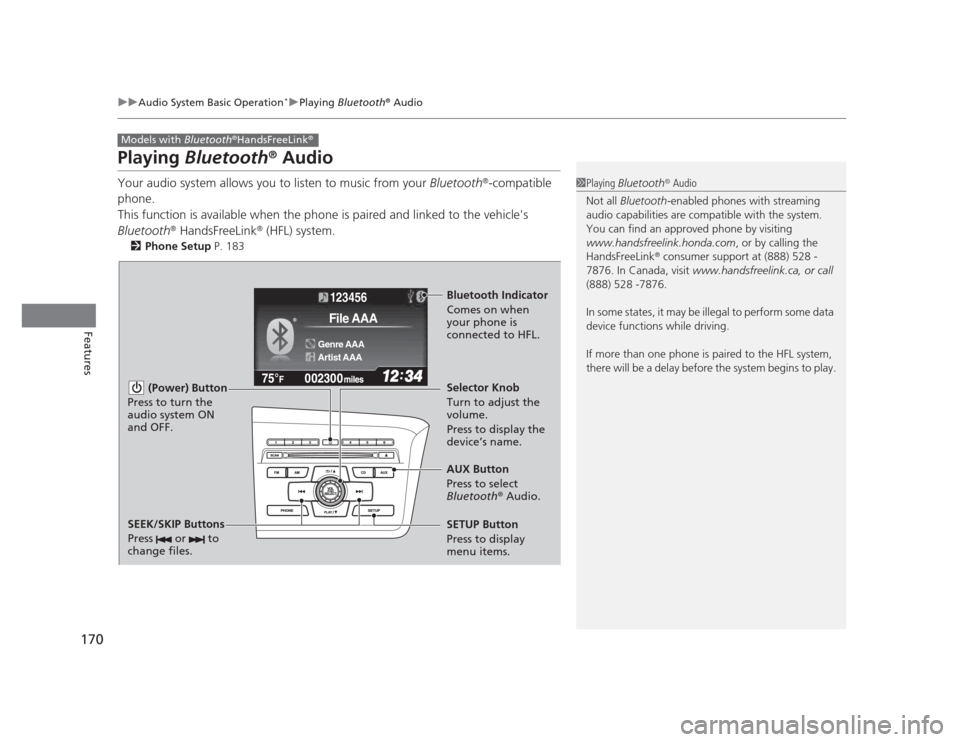
123456
Genre AAA
File AAA
Artist AAA
(Power) Button
Press to turn the
audio system ON and OFF.
SETUP Button
Press to display
menu items. Selector Knob
Turn to adjust the
volume.
Press to display the
device’s name.
AUX Button
Press to select
Bluetooth ®
Audio.
SEEK/SKIP Buttons
Press or to
change files.
Bluetooth Indicator
Comes on when
your phone is
connected to HFL.