buttons HONDA CIVIC 2013 9.G User Guide
[x] Cancel search | Manufacturer: HONDA, Model Year: 2013, Model line: CIVIC, Model: HONDA CIVIC 2013 9.GPages: 367, PDF Size: 8.43 MB
Page 155 of 367
154
uuAudio System Basic Operation uPlaying AM/FM Radio
Features
Playing AM/FM Radio
1Playing AM/FM Radio
The ST indicator appears on the display indicating
stereo FM broadcasts.
Stereo reproduction in AM is not available.
You can store six AM stations and twelve FM stations
into the preset button memory. FM1 and FM2 let you
store six stations each.
A.SEL function scans and stores up to six AM stations
and twelve FM stations with a strong signal into the
preset button memory.
If you do not like the stations auto select has stored,
you can manually store your preferred frequencies.
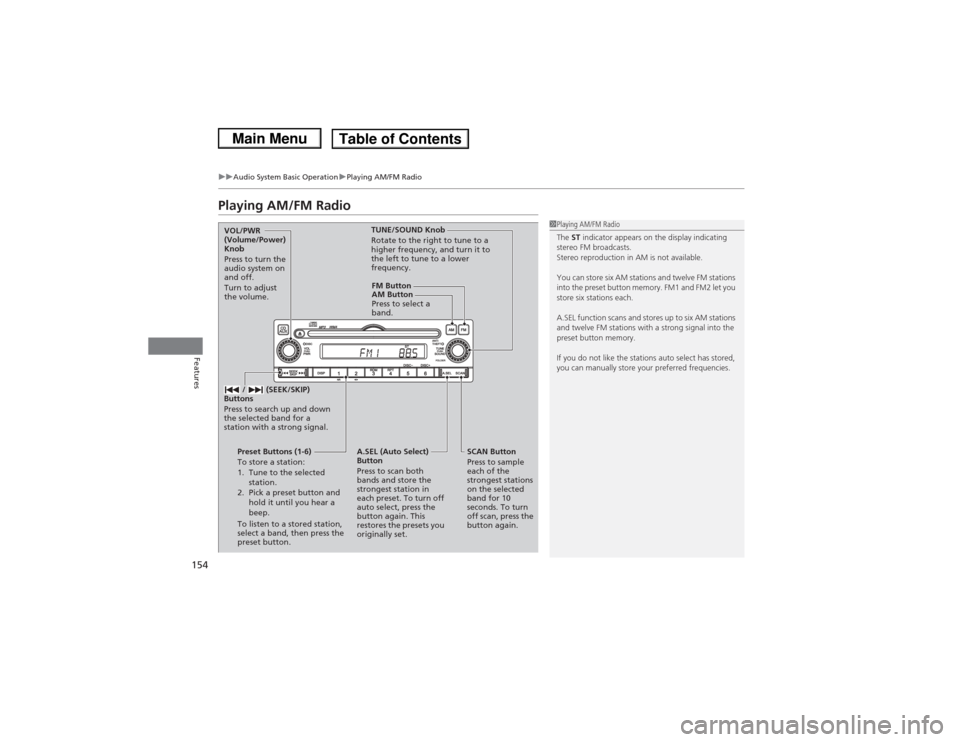
FM Button
SCAN Button
Press to sample
each of the
strongest stations
on the selected
band for 10
seconds. To turn
off scan, press the
button again.
VOL/PWR
(Volume/Power)
Knob
Press to turn the
audio system on
and off.
Turn to adjust
the volume.
Preset Buttons (1-6)
To store a station:
1. Tune to the selected station.
2. Pick a preset button and hold it until you hear a
beep.
To listen to a stored station,
select a band, then press the
preset button. / (SEEK/SKIP)
Buttons
Press to search up and down
the selected band for a
station with a strong signal.
A.SEL (Auto Select)
Button
Press to scan both
bands and store the
strongest station in
each preset. To turn off
auto select, press the
button again. This
restores the presets you
originally set. TUNE/SOUND Knob
Rotate to the right to tune to a
higher frequency, and turn it to
the left to tune to a lower
frequency.
AM Button
Press to select a
band.
Page 156 of 367
155
uuAudio System Basic Operation uPlaying a CD
Features
Playing a CDYour audio system supports audio CDs, CD-Rs, and CD-RWs in either MP3 or WMA
format. With the CD loaded, press the CD/AUX button.
1Playing a CDNOTICEDo not use CDs with adhesive labels. The label can
cause the CD to jam in the unit.
WMA files protected by digital rights management
(DRM) cannot be played.
The audio system displays FORMAT, then skips to
the next file.
Text data appears on the display under the following
circumstances:•When you select a new folder, file, or track.•When you change the audio mode to CD.•When you insert a CD.
The display shows up to 10 characters of text data.
Press and hold the DISP button to see additional
characters. > indicates that the text data continues.
The display goes back to the previous screen if you
press and hold the button again.
If you eject the CD but do not remove it from the slot,
the system reloads the CD automatically after several
seconds.
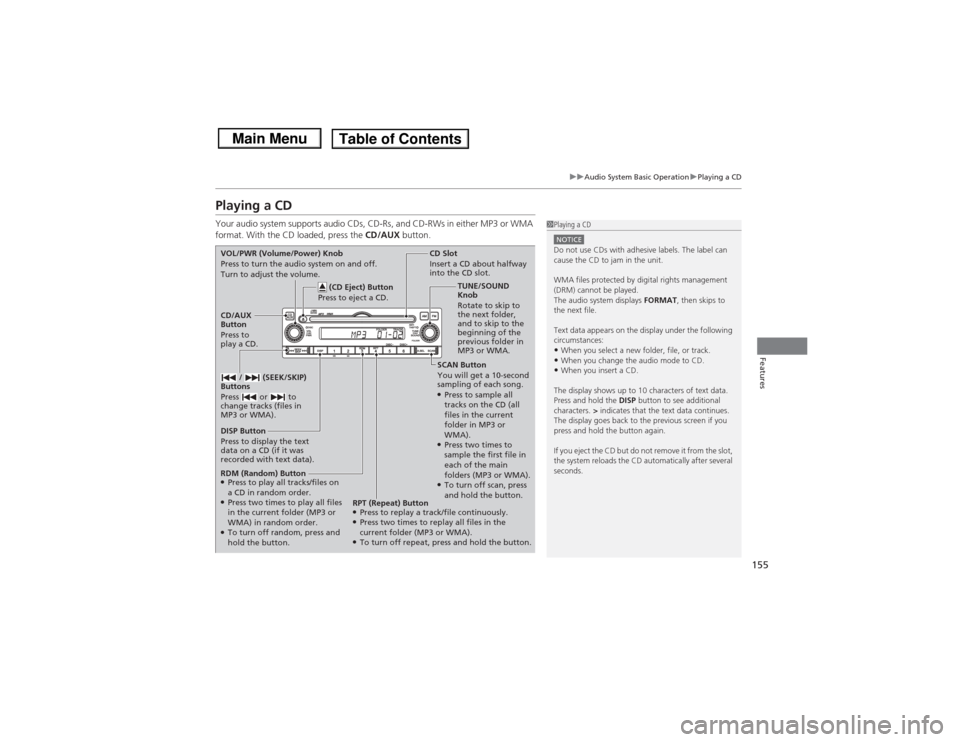
SCAN Button
You will get a 10-second
sampling of each song.●Press to sample all
tracks on the CD (all
files in the current
folder in MP3 or
WMA).●Press two times to
sample the first file in
each of the main
folders (MP3 or WMA).●To turn off scan, press
and hold the button.
CD Slot
Insert a CD about halfway
into the CD slot.
DISP Button
Press to display the text
data on a CD (if it was
recorded with text data). CD/AUX
Button
Press to
play a CD. (CD Eject) Button
Press to eject a CD.
VOL/PWR (Volume/Power) Knob
Press to turn the audio system on and off.
Turn to adjust the volume.
/ (SEEK/SKIP)
Buttons
Press or to
change tracks (files in
MP3 or WMA).RDM (Random) Button●Press to play all tracks/files on
a CD in random order.●Press two times to play all files
in the current folder (MP3 or
WMA) in random order.●To turn off random, press and
hold the button. TUNE/SOUND
Knob
Rotate to skip to
the next folder,
and to skip to the
beginning of the
previous folder in
MP3 or WMA.
RPT (Repeat) Button
●Press to replay a track/file continuously.●Press two times to replay all files in the
current folder (MP3 or WMA).●To turn off repeat, press and hold the button.
Page 158 of 367
157
uuAudio System Basic Operation uAudio Remote Controls
Features
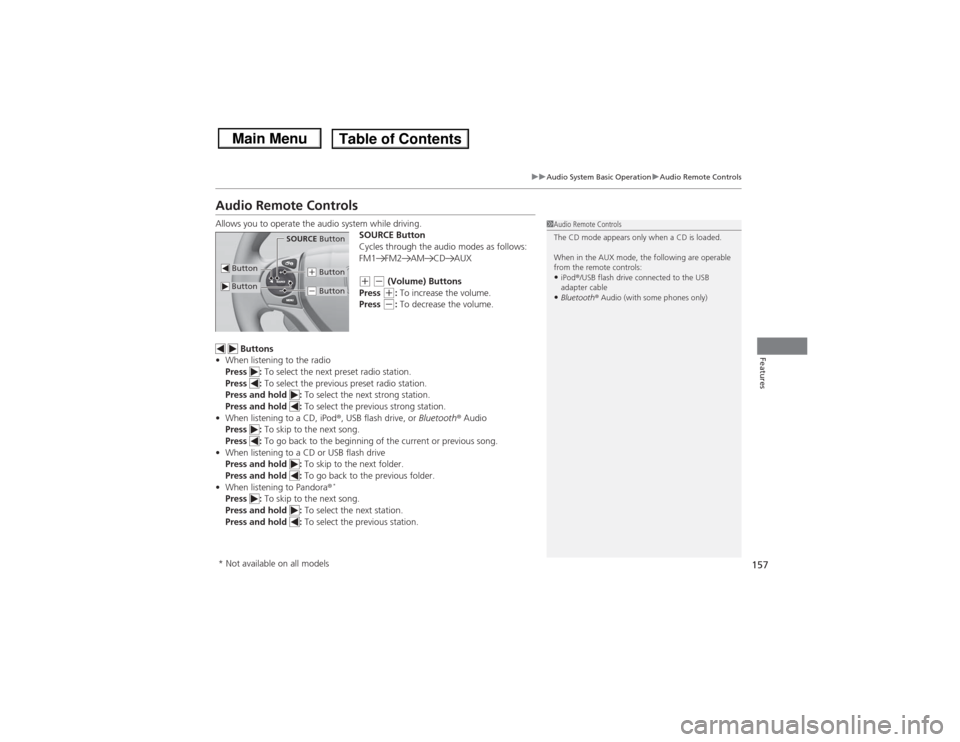
Audio Remote ControlsAllows you to operate the audio system while driving.
SOURCE Button
Cycles through the audio modes as follows:
FM1 FM2 AM CD AUX
(+ (- (Volume) Buttons
Press (+: To increase the volume.
Press (-: To decrease the volume.
Buttons
• When listening to the radio
Press : To select the next preset radio station.
Press : To select the previous preset radio station.
Press and hold : To select the next strong station.
Press and hold : To select the previous strong station.
• When listening to a CD, iPod ®, USB flash drive, or Bluetooth® Audio
Press : To skip to the next song.
Press : To go back to the beginning of the current or previous song.
• When listening to a CD or USB flash drive
Press and hold : To skip to the next folder.
Press and hold : To go back to the previous folder.
• When listening to Pandora ®
*
Press : To skip to the next song.
Press and hold : To select the next station.
Press and hold : To select the previous station.
1Audio Remote Controls
The CD mode appears only when a CD is loaded.
When in the AUX mode, the following are operable
from the remote controls:•iPod ®/USB flash drive connected to the USB
adapter cable•Bluetooth ® Audio (with some phones only)
Button
SOURCE Button
Button
(+ Button(- Button
* Not available on all models
Page 160 of 367
159
uuAudio System Basic Operation uPlaying AM/FM Radio
Continued
Features
Playing AM/FM Radio
002300
75°
F miles
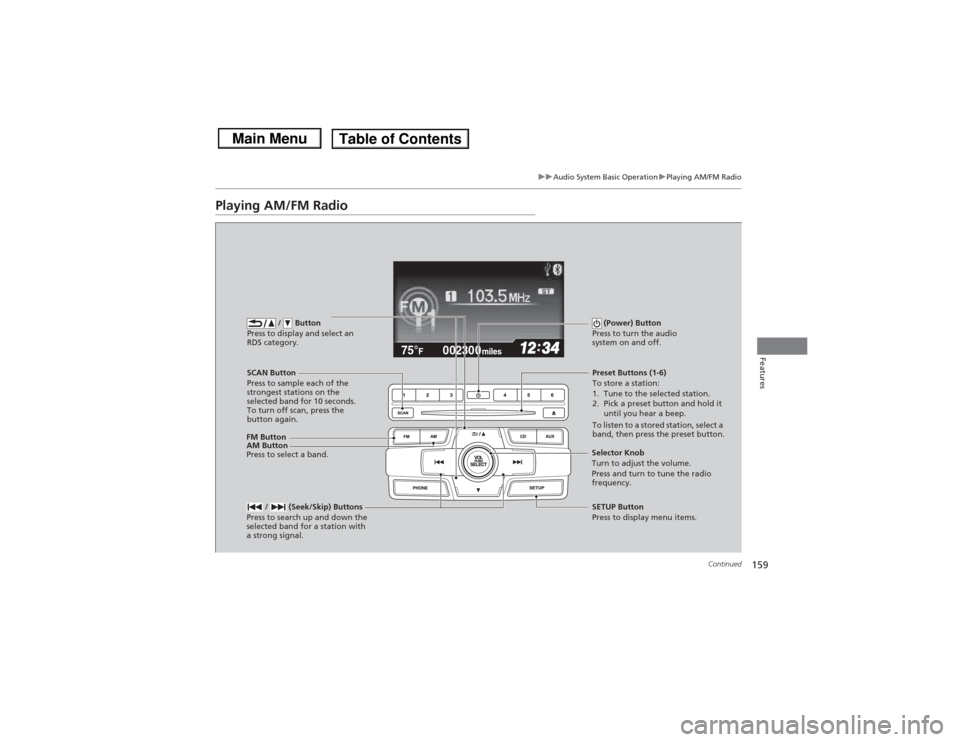
FM Button / Button
Press to display and select an
RDS category.SCAN Button
Press to sample each of the
strongest stations on the
selected band for 10 seconds.
To turn off scan, press the
button again. (Power) Button
Press to turn the audio
system on and off.
Preset Buttons (1-6)
To store a station:
1. Tune to the selected station.
2. Pick a preset button and hold it until you hear a beep.
To listen to a stored station, select a
band, then press the preset button.
/ (Seek/Skip) Buttons
Press to search up and down the
selected band for a station with
a strong signal.SETUP Button
Press to display menu items.
Selector Knob
Turn to adjust the volume.
Press and turn to tune the radio
frequency.
AM Button
Press to select a band.
Page 163 of 367
162
uuAudio System Basic Operation uPlaying a CD
Features
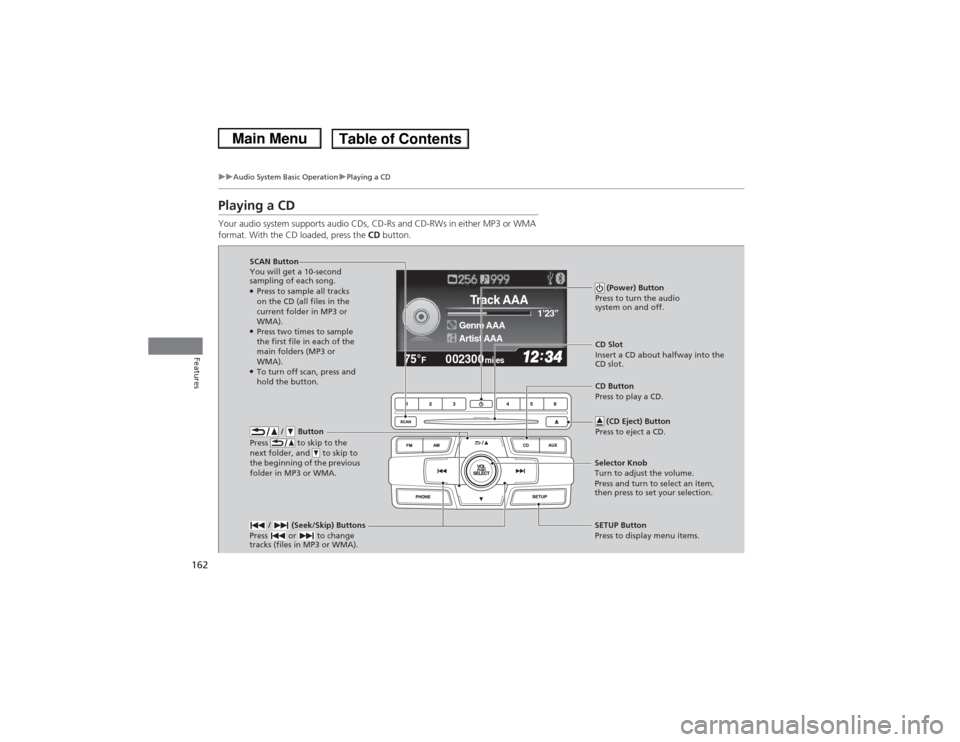
Playing a CDYour audio system supports audio CDs, CD-Rs and CD-RWs in either MP3 or WMA
format. With the CD loaded, press the CD button.
002300
75°
F miles
Genre AAA 1’23’’Track AAAArtist AAA
/ Button
Press to skip to the
next folder, and to skip to
the beginning of the previous
folder in MP3 or WMA.
SCAN Button
You will get a 10-second
sampling of each song.●Press to sample all tracks
on the CD (all files in the
current folder in MP3 or
WMA).●Press two times to sample
the first file in each of the
main folders (MP3 or
WMA).●To turn off scan, press and
hold the button. (Power) Button
Press to turn the audio
system on and off.
CD Slot
Insert a CD about halfway into the
CD slot.
/ (Seek/Skip) Buttons
Press or to change
tracks (files in MP3 or WMA).SETUP Button
Press to display menu items.
Selector Knob
Turn to adjust the volume.
Press and turn to select an item,
then press to set your selection. CD Button
Press to play a CD.
(CD Eject) Button
Press to eject a CD.
Page 166 of 367
165
uuAudio System Basic Operation uPlaying an iPod ®
Continued
Features
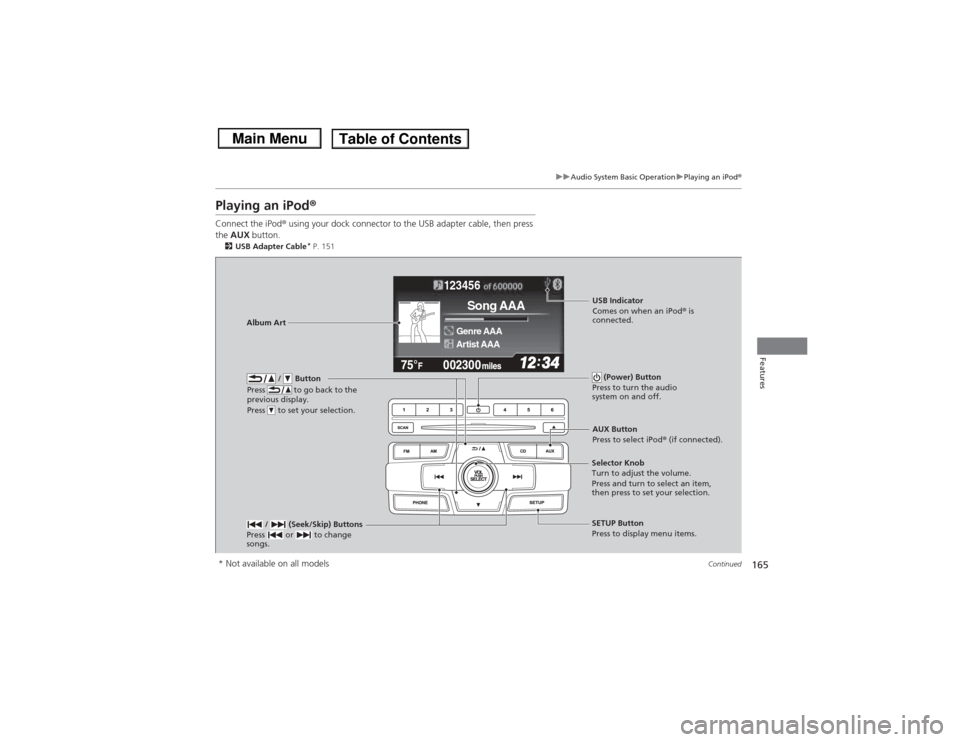
Playing an iPod ®Connect the iPod ® using your dock connector to the USB adapter cable, then press
the AUX button.2USB Adapter Cable
* P. 151
123456
Genre AAASong AAAArtist AAA
/ Button
Press to go back to the
previous display.
Press to set your selection.
(Power) Button
Press to turn the audio
system on and off.
/ (Seek/Skip) Buttons
Press or to change
songs.
SETUP Button
Press to display menu items.
Selector Knob
Turn to adjust the volume.
Press and turn to select an item,
then press to set your selection.AUX Button
Press to select iPod®
(if connected).
Album Art
USB Indicator
Comes on when an iPod ® is
connected.
* Not available on all models
Page 171 of 367
170
uuAudio System Basic Operation uPlaying a USB Flash Drive
Features
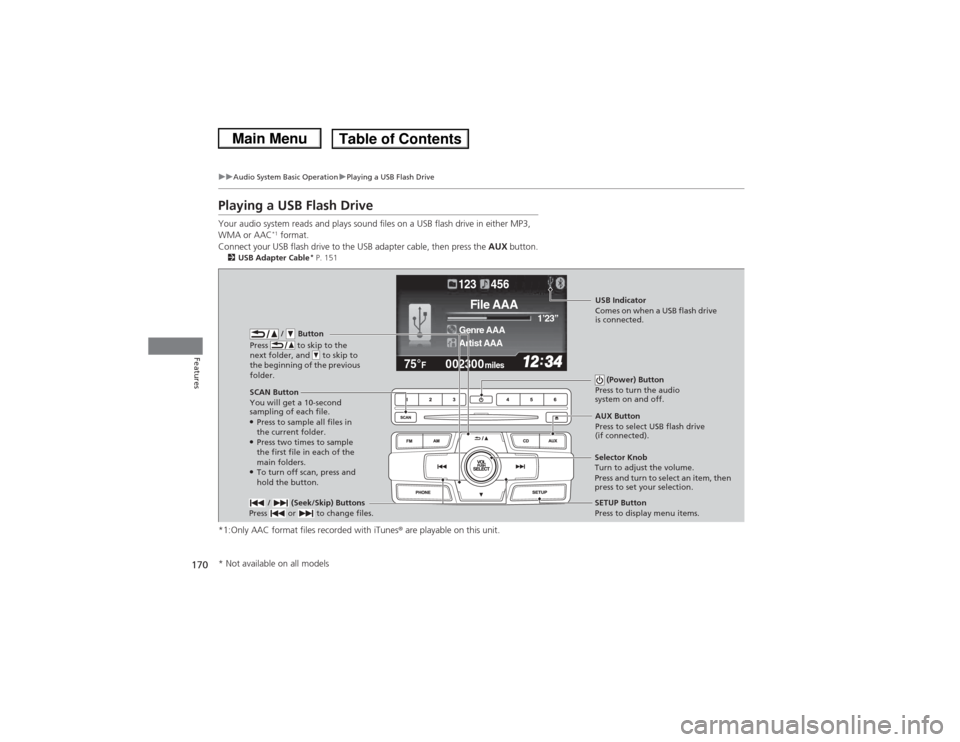
Playing a USB Flash DriveYour audio system reads and plays sound files on a USB flash drive in either MP3,
WMA or AAC
*1 format.
Connect your USB flash drive to the USB adapter cable, then press the AUX button.
2USB Adapter Cable
* P. 151
*1:Only AAC format files recorded with iTunes ® are playable on this unit.
002300
75°
F miles
Genre AAA 1’23’’File AAAArtist AAA123 456
/ Button
Press to skip to the
next folder, and to skip to
the beginning of the previous
folder.
SCAN Button
You will get a 10-second
sampling of each file.●Press to sample all files in
the current folder.●Press two times to sample
the first file in each of the
main folders.●To turn off scan, press and
hold the button. (Power) Button
Press to turn the audio
system on and off. / (Seek/Skip) Buttons
Press or to change files.
SETUP Button
Press to display menu items.
Selector Knob
Turn to adjust the volume.
Press and turn to select an item, then
press to set your selection. AUX Button
Press to select USB flash drive
(if connected).USB Indicator
Comes on when a USB flash drive
is connected.
* Not available on all models
Page 174 of 367
173
uuAudio System Basic Operation uPlaying Bluetooth® Audio
Continued
Features
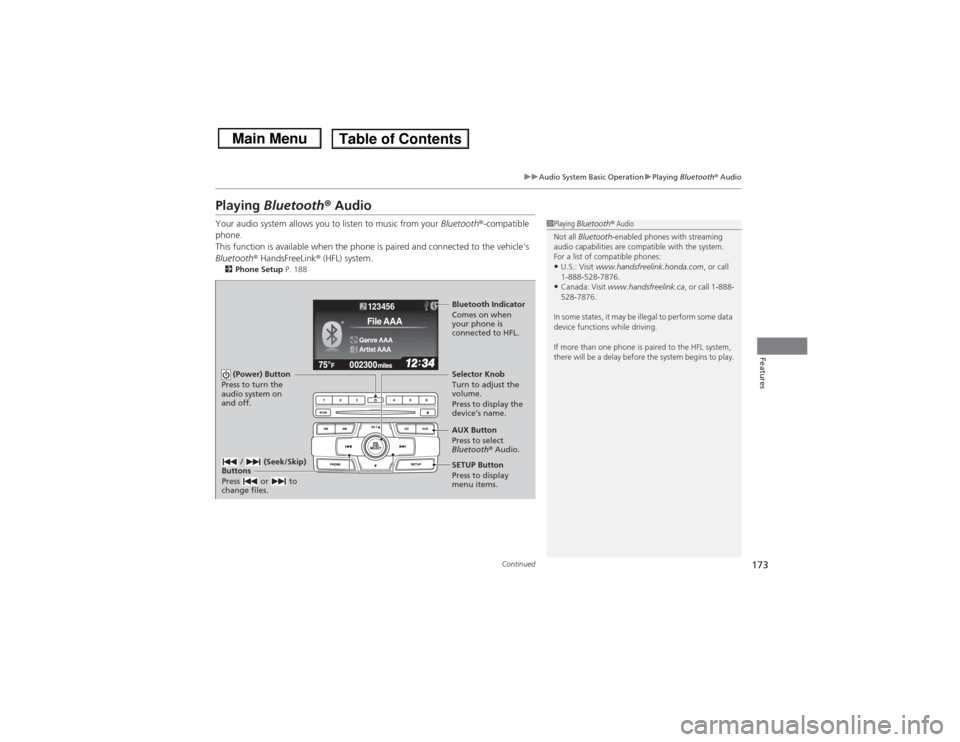
Playing Bluetooth ® AudioYour audio system allows you to listen to music from your Bluetooth®-compatible
phone.
This function is available when the phone is paired and connected to the vehicle's
Bluetooth ® HandsFreeLink ® (HFL) system.2 Phone Setup P. 188
1Playing Bluetooth ® Audio
Not all Bluetooth -enabled phones with streaming
audio capabilities are compatible with the system.
For a list of compatible phones:•U.S.: Visit www.handsfreelink.honda.com , or call
1-888-528-7876.•Canada: Visit www.handsfreelink.ca , or call 1-888-
528-7876.
In some states, it may be illegal to perform some data
device functions while driving.
If more than one phone is paired to the HFL system,
there will be a delay before the system begins to play.
123456Genre AAAFile AAAArtist AAA
(Power) Button
Press to turn the
audio system on
and off.
SETUP Button
Press to display
menu items. Selector Knob
Turn to adjust the
volume.
Press to display the
device’s name.
AUX Button
Press to select
Bluetooth® Audio.
/ (Seek/Skip)
Buttons
Press or to
change files.Bluetooth Indicator
Comes on when
your phone is
connected to HFL.
Page 182 of 367
181
Continued
Features
Bluetooth® HandsFreeLink®
*
For models with the navigation system, see Navigation System Manual for how to
operate the Bluetooth® HandsFreeLink ®.
Bluetooth ® HandsFreeLink ® (HFL) allows you to place and receive phone calls using
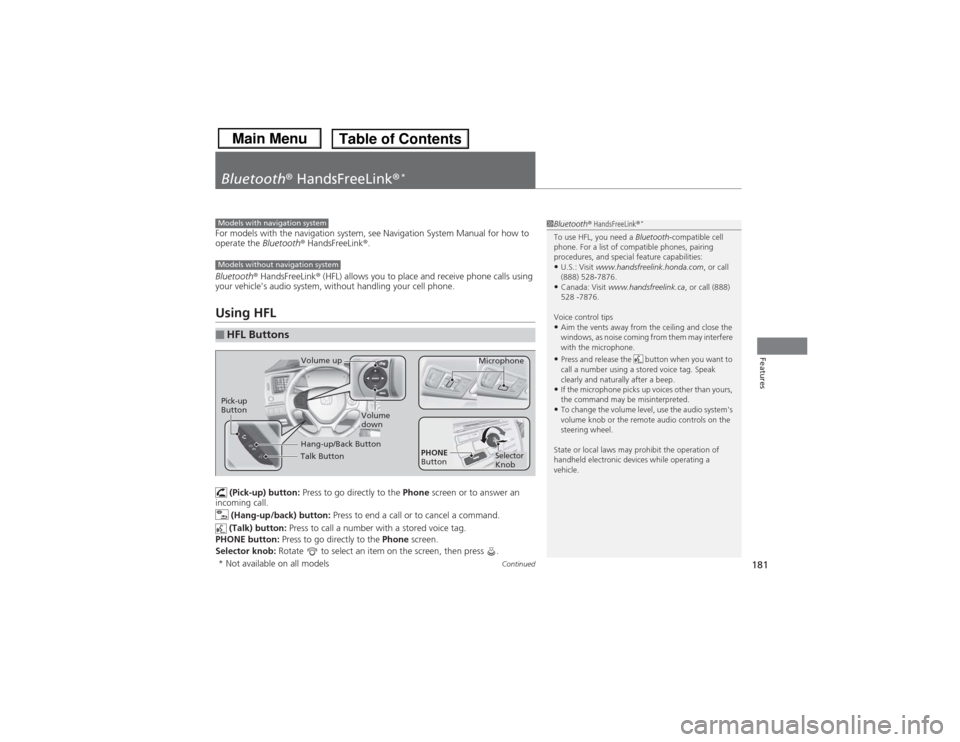
your vehicle's audio system, without handling your cell phone.Using HFL (Pick-up) button: Press to go directly to the Phone screen or to answer an
incoming call.
(Hang-up/back) button: Press to end a call or to cancel a command.
(Talk) button: Press to call a number with a stored voice tag.
PHONE button: Press to go directly to the Phone screen.
Selector knob: Rotate to select an item on the screen, then press .■HFL Buttons
1Bluetooth ® HandsFreeLink ®
*
To use HFL, you need a Bluetooth-compatible cell
phone. For a list of compatible phones, pairing
procedures, and special feature capabilities:•U.S.: Visit www.handsfreelink.honda.com , or call
(888) 528-7876.•Canada: Visit www.handsfreelink.ca , or call (888)
528 -7876.
Voice control tips•Aim the vents away from the ceiling and close the
windows, as noise coming from them may interfere
with the microphone.•Press and release the button when you want to
call a number using a stored voice tag. Speak
clearly and naturally after a beep.•If the microphone picks up voices other than yours,
the command may be misinterpreted.•To change the volume level, use the audio system's
volume knob or the remote audio controls on the
steering wheel.
State or local laws may prohibit the operation of
handheld electronic devices while operating a
vehicle.
Models with navigation systemModels without navigation system
Talk ButtonVolume up Microphone
Hang-up/Back Button
Pick-up
Button
Volume
down
Selector
Knob
PHONE
Button
* Not available on all models
Page 199 of 367
uuBluetooth® HandsFreeLink ®
*uHFL Menus
198Features
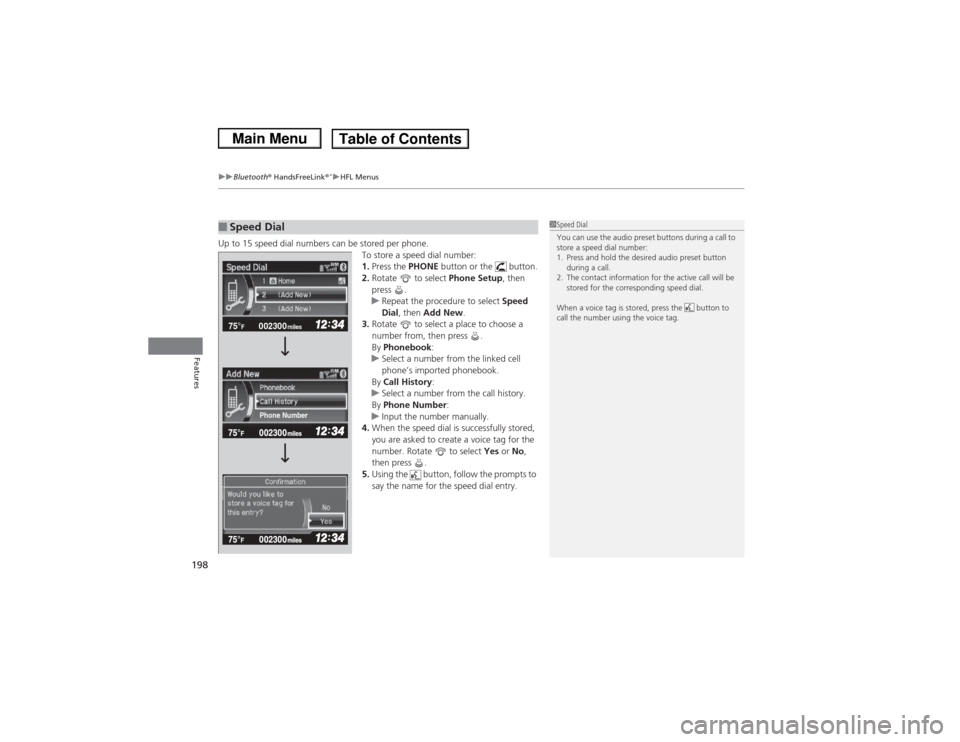
Up to 15 speed dial numbers can be stored per phone.
To store a speed dial number:
1.Press the PHONE button or the button.
2. Rotate to select Phone Setup, then
press .
u Repeat the procedure to select Speed
Dial , then Add New .
3. Rotate to select a place to choose a
number from, then press .
By Phonebook :
u Select a number from the linked cell
phone’s imported phonebook.
By Call History:
u Select a number from the call history.
By Phone Number:
u Input the number manually.
4. When the speed dial is successfully stored,
you are asked to create a voice tag for the
number. Rotate to select Yes or No ,
then press .
5. Using the button, follow the prompts to
say the name for the speed dial entry.■Speed Dial
1Speed Dial
You can use the audio preset buttons during a call to
store a speed dial number:
1. Press and hold the desired audio preset button
during a call.
2. The contact information for the active call will be stored for the corresponding speed dial.
When a voice tag is stored, press the button to
call the number using the voice tag.
002300
75°
F miles
Phone Number