audio HONDA CIVIC 2013 9.G Owner's Manual
[x] Cancel search | Manufacturer: HONDA, Model Year: 2013, Model line: CIVIC, Model: HONDA CIVIC 2013 9.GPages: 367, PDF Size: 8.43 MB
Page 163 of 367
162
uuAudio System Basic Operation uPlaying a CD
Features
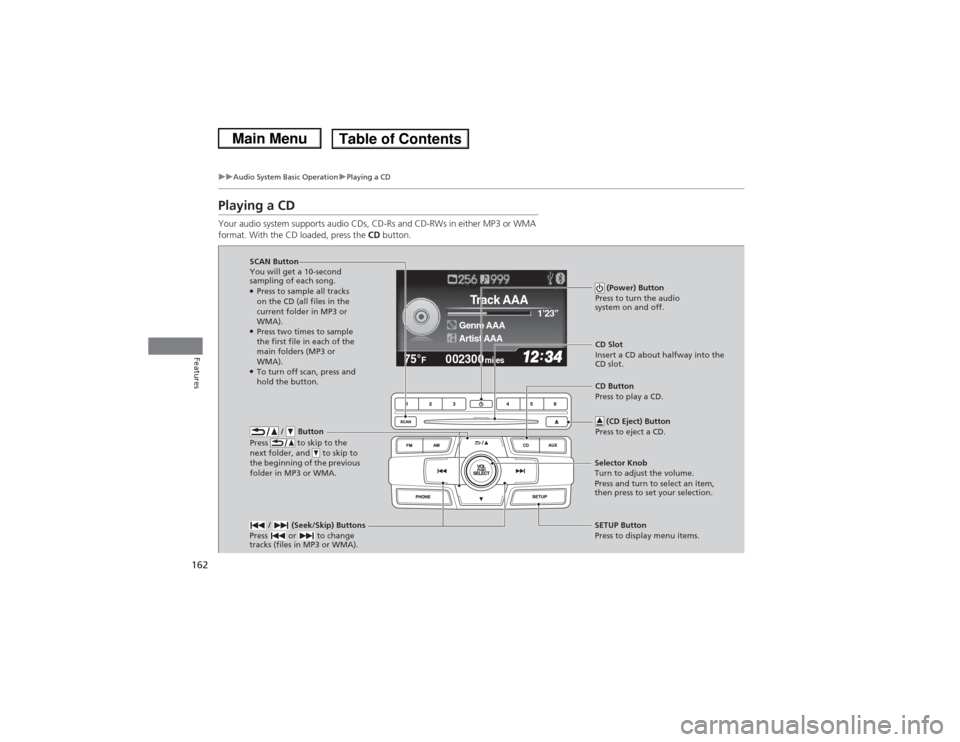
Playing a CDYour audio system supports audio CDs, CD-Rs and CD-RWs in either MP3 or WMA
format. With the CD loaded, press the CD button.
002300
75°
F miles
Genre AAA 1’23’’Track AAAArtist AAA
/ Button
Press to skip to the
next folder, and to skip to
the beginning of the previous
folder in MP3 or WMA.
SCAN Button
You will get a 10-second
sampling of each song.●Press to sample all tracks
on the CD (all files in the
current folder in MP3 or
WMA).●Press two times to sample
the first file in each of the
main folders (MP3 or
WMA).●To turn off scan, press and
hold the button. (Power) Button
Press to turn the audio
system on and off.
CD Slot
Insert a CD about halfway into the
CD slot.
/ (Seek/Skip) Buttons
Press or to change
tracks (files in MP3 or WMA).SETUP Button
Press to display menu items.
Selector Knob
Turn to adjust the volume.
Press and turn to select an item,
then press to set your selection. CD Button
Press to play a CD.
(CD Eject) Button
Press to eject a CD.
Page 164 of 367
Continued
163
uuAudio System Basic Operation uPlaying a CD
Features
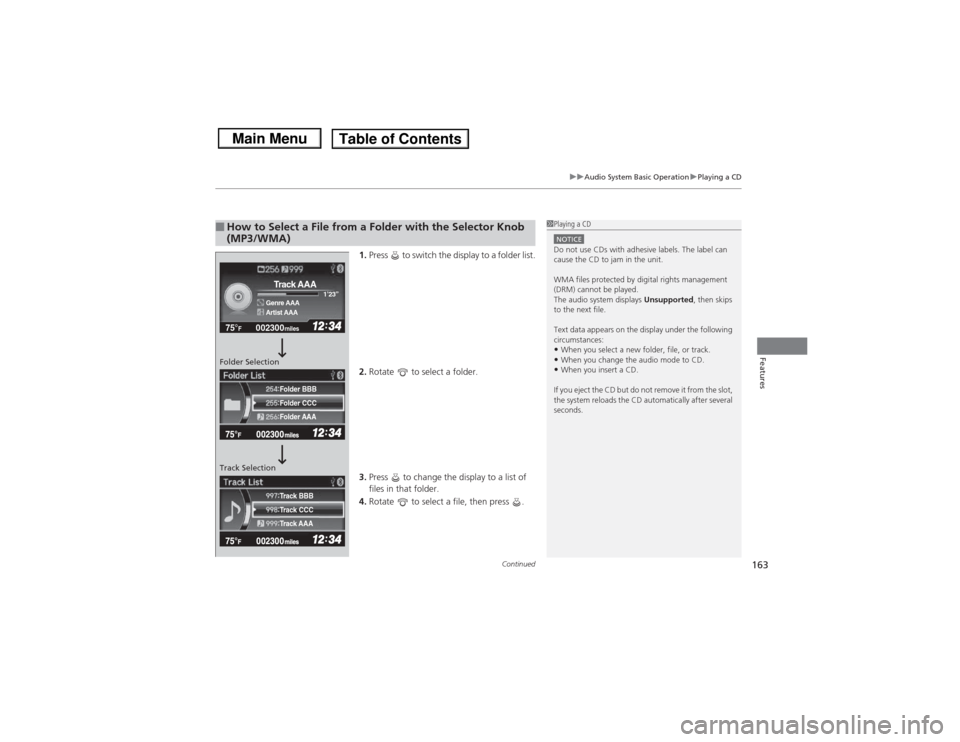
1. Press to switch the display to a folder list.
2. Rotate to select a folder.
3. Press to change the display to a list of
files in that folder.
4. Rotate to select a file, then press .
■How to Select a File from a Folder with the Selector Knob
(MP3/WMA)
1Playing a CDNOTICEDo not use CDs with adhesive labels. The label can
cause the CD to jam in the unit.
WMA files protected by digital rights management
(DRM) cannot be played.
The audio system displays Unsupported, then skips
to the next file.
Text data appears on the display under the following
circumstances:•When you select a new folder, file, or track.•When you change the audio mode to CD.•When you insert a CD.
If you eject the CD but do not remove it from the slot,
the system reloads the CD automatically after several
seconds.
002300
75°
F miles
Genre AAA 1’23’’Track AAAArtist AAA
Folder CCC
Folder AAA Folder BBB
Track CCC
Track AAA Track BBB
Folder Selection
Track Selection
Page 165 of 367
uuAudio System Basic Operation uPlaying a CD
164Features
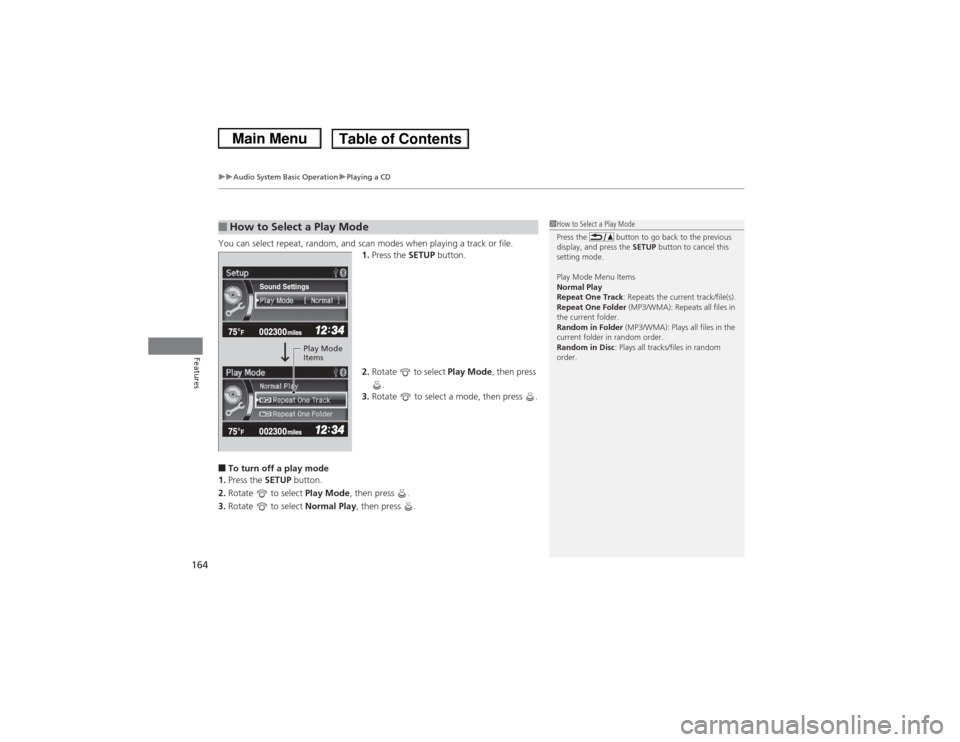
You can select repeat, random, and scan modes when playing a track or file.
1.Press the SETUP button.
2. Rotate to select Play Mode, then press
.
3. Rotate to select a mode, then press .■To turn off a play mode
1. Press the SETUP button.
2. Rotate to select Play Mode, then press .
3. Rotate to select Normal Play, then press .■How to Select a Play Mode
1How to Select a Play Mode
Press the button to go back to the previous
display, and press the SETUP button to cancel this
setting mode.
Play Mode Menu Items
Normal Play
Repeat One Track: Repeats the current track/file(s).
Repeat One Folder (MP3/WMA): Repeats all files in
the current folder.
Random in Folder (MP3/WMA): Plays all files in the
current folder in random order.
Random in Disc : Plays all tracks/files in random
order.
Sound Settings
Play Mode
Items
Page 166 of 367
165
uuAudio System Basic Operation uPlaying an iPod ®
Continued
Features
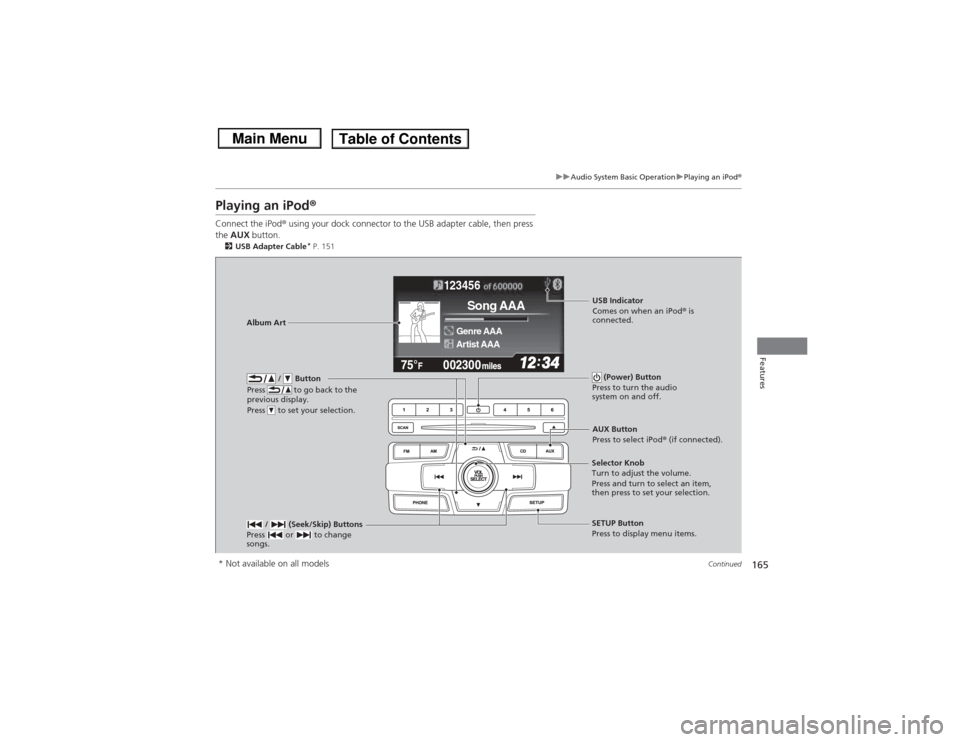
Playing an iPod ®Connect the iPod ® using your dock connector to the USB adapter cable, then press
the AUX button.2USB Adapter Cable
* P. 151
123456
Genre AAASong AAAArtist AAA
/ Button
Press to go back to the
previous display.
Press to set your selection.
(Power) Button
Press to turn the audio
system on and off.
/ (Seek/Skip) Buttons
Press or to change
songs.
SETUP Button
Press to display menu items.
Selector Knob
Turn to adjust the volume.
Press and turn to select an item,
then press to set your selection.AUX Button
Press to select iPod®
(if connected).
Album Art
USB Indicator
Comes on when an iPod ® is
connected.
* Not available on all models
Page 167 of 367
uuAudio System Basic Operation uPlaying an iPod ®
166Features
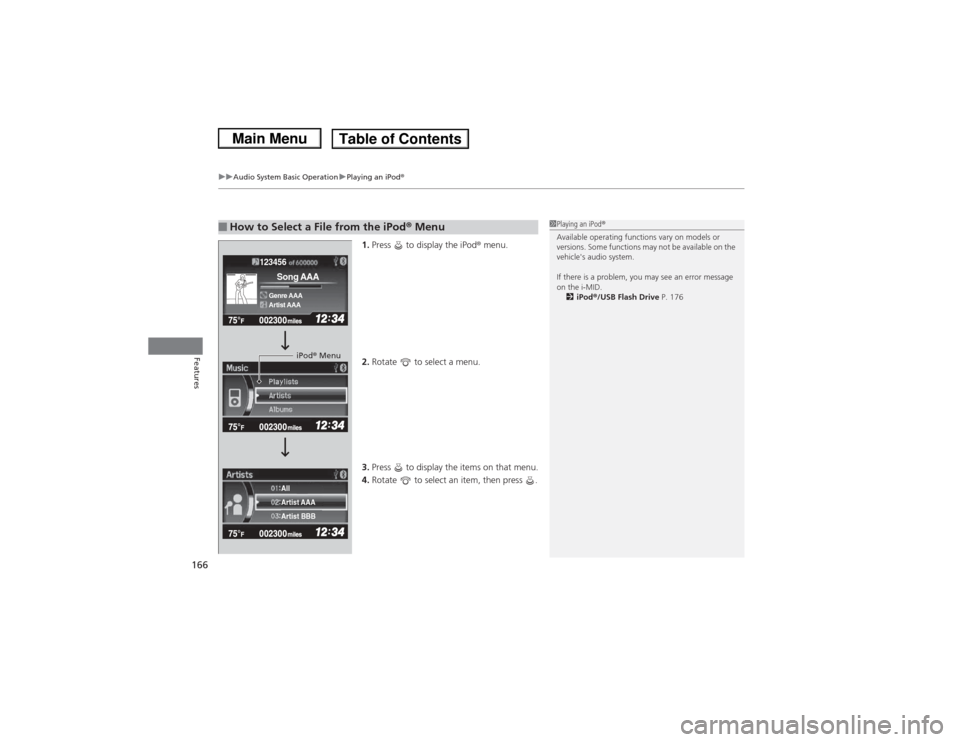
1.Press to display the iPod ® menu.
2. Rotate to select a menu.
3. Press to display the items on that menu.
4. Rotate to select an item, then press .
■How to Select a File from the iPod® Menu
1Playing an iPod ®
Available operating functions vary on models or
versions. Some functions may not be available on the
vehicle's audio system.
If there is a problem, you may see an error message
on the i-MID. 2 iPod ®/USB Flash Drive P. 176
123456Genre AAASong AAAArtist AAA
Artist AAA
Artist BBB All
iPod® Menu
Page 168 of 367
Continued
167
uuAudio System Basic Operation u
Features
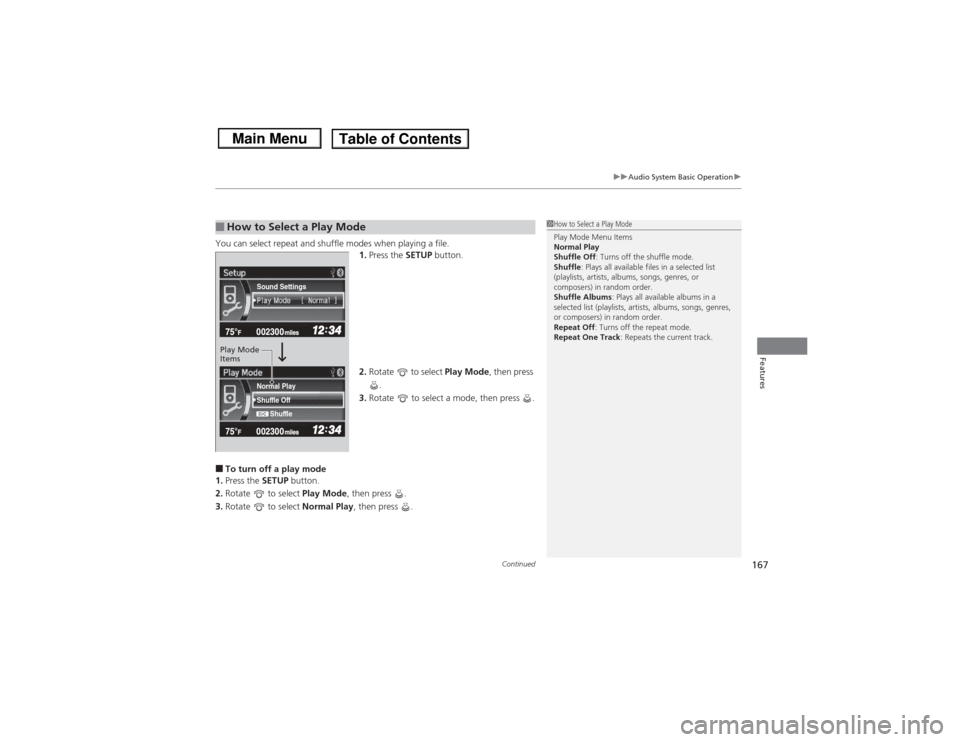
You can select repeat and shuffle modes when playing a file.
1.Press the SETUP button.
2. Rotate to select Play Mode, then press
.
3. Rotate to select a mode, then press .■To turn off a play mode
1. Press the SETUP button.
2. Rotate to select Play Mode, then press .
3. Rotate to select Normal Play, then press .■How to Select a Play Mode
1How to Select a Play Mode
Play Mode Menu Items
Normal Play
Shuffle Off : Turns off the shuffle mode.
Shuffle : Plays all available files in a selected list
(playlists, artists, albums, songs, genres, or
composers) in random order.
Shuffle Albums : Plays all available albums in a
selected list (playlists, artists, albums, songs, genres,
or composers) in random order.
Repeat Off : Turns off the repeat mode.
Repeat One Track : Repeats the current track.
Shuffle Off
Shuffle
Normal PlaySound Settings
Play Mode
Items
Page 169 of 367
168
uuAudio System Basic Operation uPlaying Internet Radio
Features
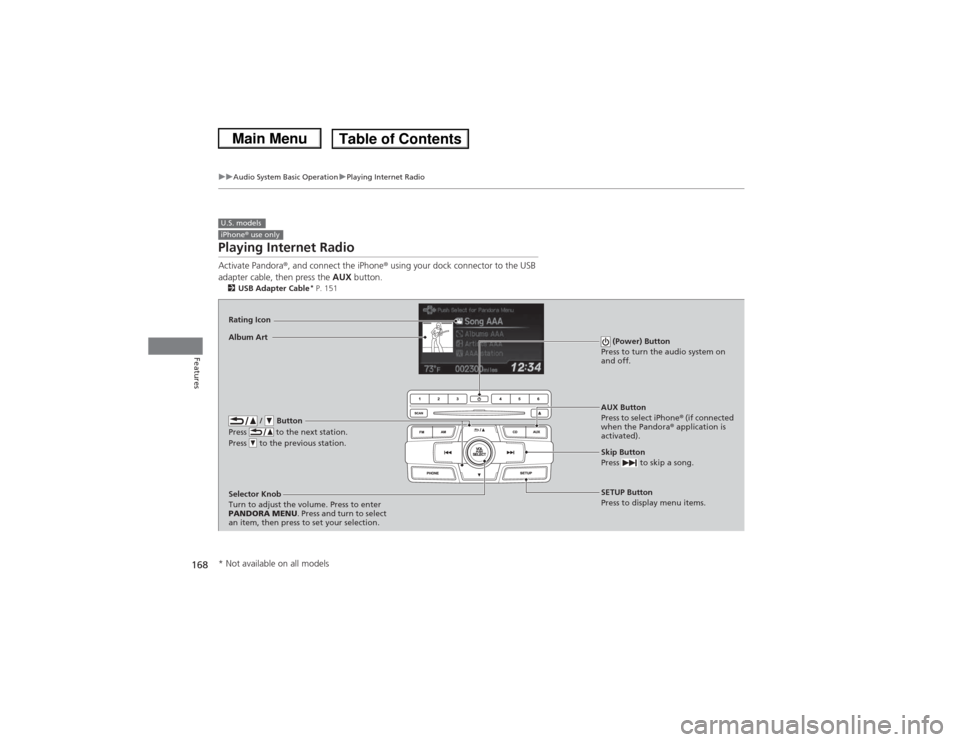
Playing Internet RadioActivate Pandora ®, and connect the iPhone ® using your dock connector to the USB
adapter cable, then press the AUX button.2USB Adapter Cable
* P. 151
U.S. modelsiPhone ® use only
AUX Button
Press to select iPhone ® (if connected
when the Pandora ® application is
activated).
Skip Button
Press to skip a song.SETUP Button
Press to display menu items.
Selector Knob
Turn to adjust the volume. Press to enter
PANDORA MENU
. Press and turn to select
an item, then press to set your selection.
Album ArtRating Icon
/ Button
Press to the next station.
Press to the previous station.
(Power) Button
Press to turn the audio system on
and off.
* Not available on all models
Page 170 of 367
169
uuAudio System Basic Operation uPlaying Internet Radio
Features
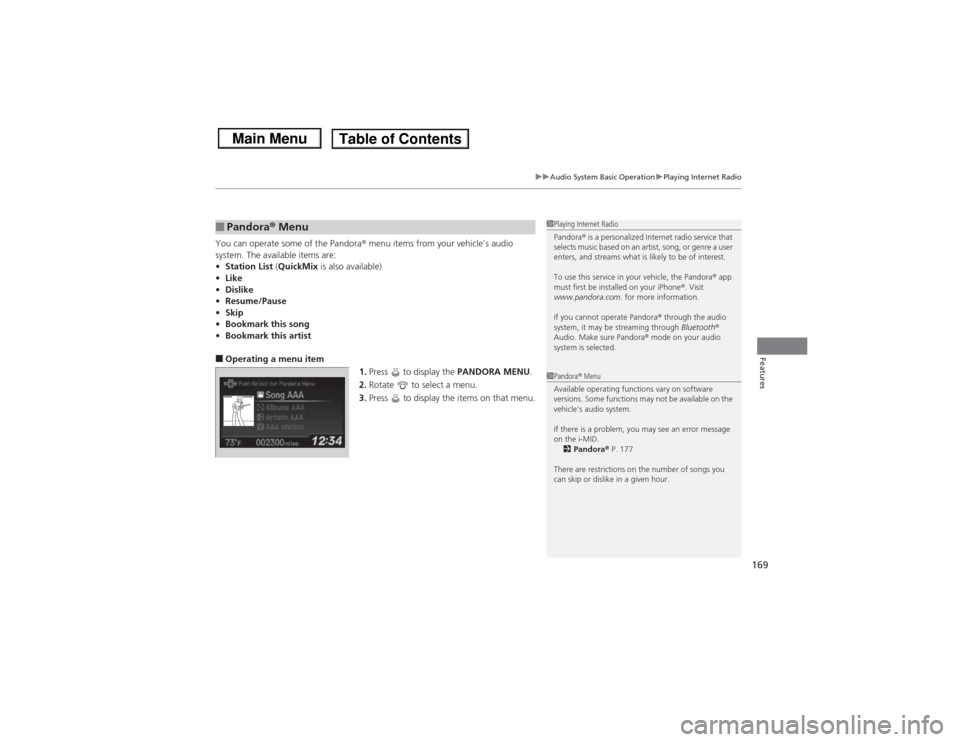
You can operate some of the Pandora ® menu items from your vehicle’s audio
system. The available items are:
• Station List (QuickMix is also available)
• Like
• Dislike
• Resume/Pause
• Skip
• Bookmark this song
• Bookmark this artist■Operating a menu item
1.Press to display the PANDORA MENU.
2. Rotate to select a menu.
3. Press to display the items on that menu.■Pandora® Menu
1Playing Internet Radio
Pandora ® is a personalized Internet radio service that
selects music based on an artist, song, or genre a user
enters, and streams what is likely to be of interest.
To use this service in your vehicle, the Pandora ® app
must first be installed on your iPhone ®. Visit
www.pandora.com. for more information.
If you cannot operate Pandora ® through the audio
system, it may be streaming through Bluetooth®
Audio. Make sure Pandora ® mode on your audio
system is selected.1 Pandora ® Menu
Available operating functions vary on software
versions. Some functions may not be available on the
vehicle's audio system.
If there is a problem, you may see an error message
on the i-MID. 2 Pandora ® P. 177
There are restrictions on the number of songs you
can skip or dislike in a given hour.
Page 171 of 367
170
uuAudio System Basic Operation uPlaying a USB Flash Drive
Features
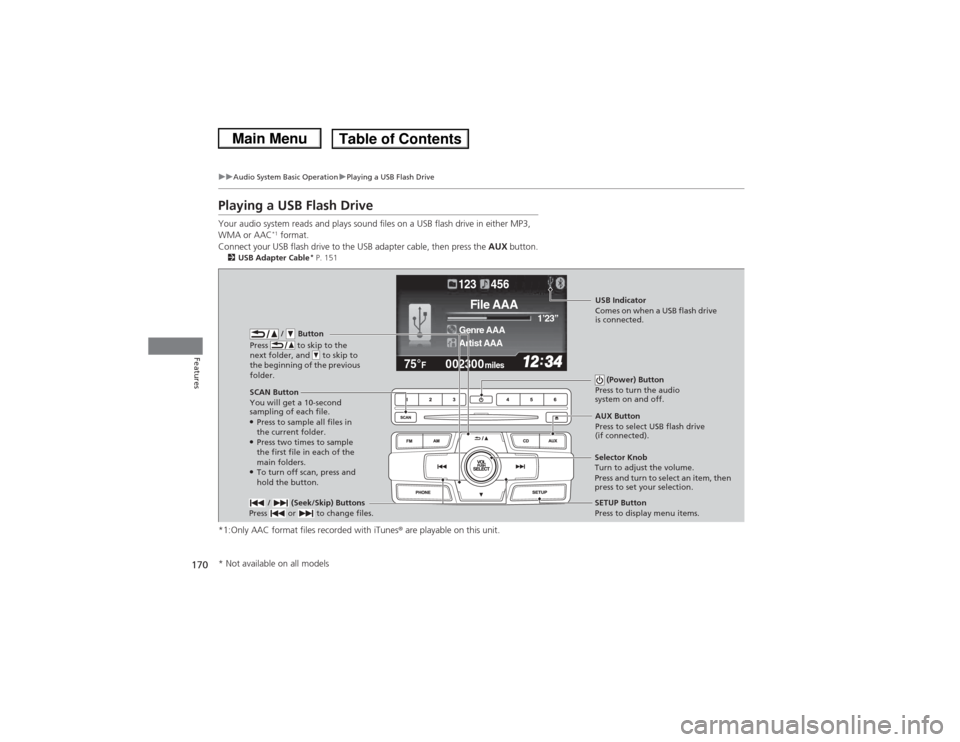
Playing a USB Flash DriveYour audio system reads and plays sound files on a USB flash drive in either MP3,
WMA or AAC
*1 format.
Connect your USB flash drive to the USB adapter cable, then press the AUX button.
2USB Adapter Cable
* P. 151
*1:Only AAC format files recorded with iTunes ® are playable on this unit.
002300
75°
F miles
Genre AAA 1’23’’File AAAArtist AAA123 456
/ Button
Press to skip to the
next folder, and to skip to
the beginning of the previous
folder.
SCAN Button
You will get a 10-second
sampling of each file.●Press to sample all files in
the current folder.●Press two times to sample
the first file in each of the
main folders.●To turn off scan, press and
hold the button. (Power) Button
Press to turn the audio
system on and off. / (Seek/Skip) Buttons
Press or to change files.
SETUP Button
Press to display menu items.
Selector Knob
Turn to adjust the volume.
Press and turn to select an item, then
press to set your selection. AUX Button
Press to select USB flash drive
(if connected).USB Indicator
Comes on when a USB flash drive
is connected.
* Not available on all models
Page 172 of 367
Continued
171
uuAudio System Basic Operation uPlaying a USB Flash Drive
Features
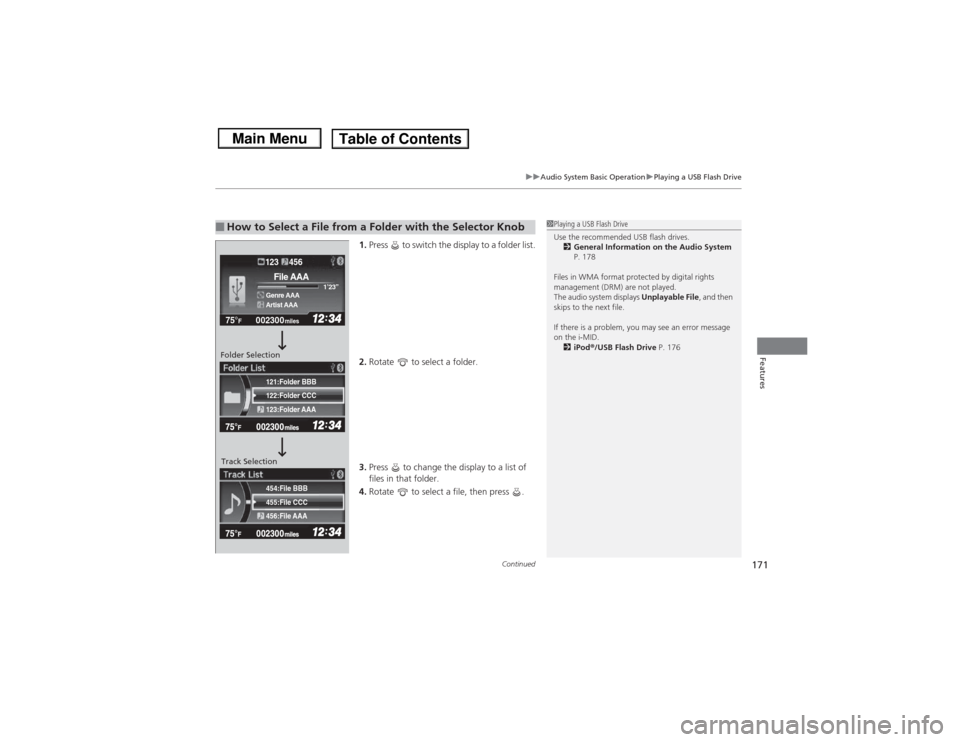
1. Press to switch the display to a folder list.
2. Rotate to select a folder.
3. Press to change the display to a list of
files in that folder.
4. Rotate to select a file, then press .
■How to Select a File from a Folder with the Selector Knob
1Playing a USB Flash Drive
Use the recommended USB flash drives.
2 General Information on the Audio System
P. 178
Files in WMA format protected by digital rights
management (DRM) are not played.
The audio system displays Unplayable File, and then
skips to the next file.
If there is a problem, you may see an error message
on the i-MID.
2 iPod ®/USB Flash Drive P. 176
455:File CCC
456:File AAA 454:File BBB122:Folder CCC
123:Folder AAA 121:Folder BBB002300
75°
F miles
Genre AAA 1’23’’File AAAArtist AAA123 456
Folder Selection
Track Selection