instrument panel HONDA CIVIC 2013 9.G Owner's Guide
[x] Cancel search | Manufacturer: HONDA, Model Year: 2013, Model line: CIVIC, Model: HONDA CIVIC 2013 9.GPages: 367, PDF Size: 8.43 MB
Page 92 of 367
91
uuGauges and Displays uintelligent Multi-Info rmation Display (i-MID)
*
Continued
Instrument Panel
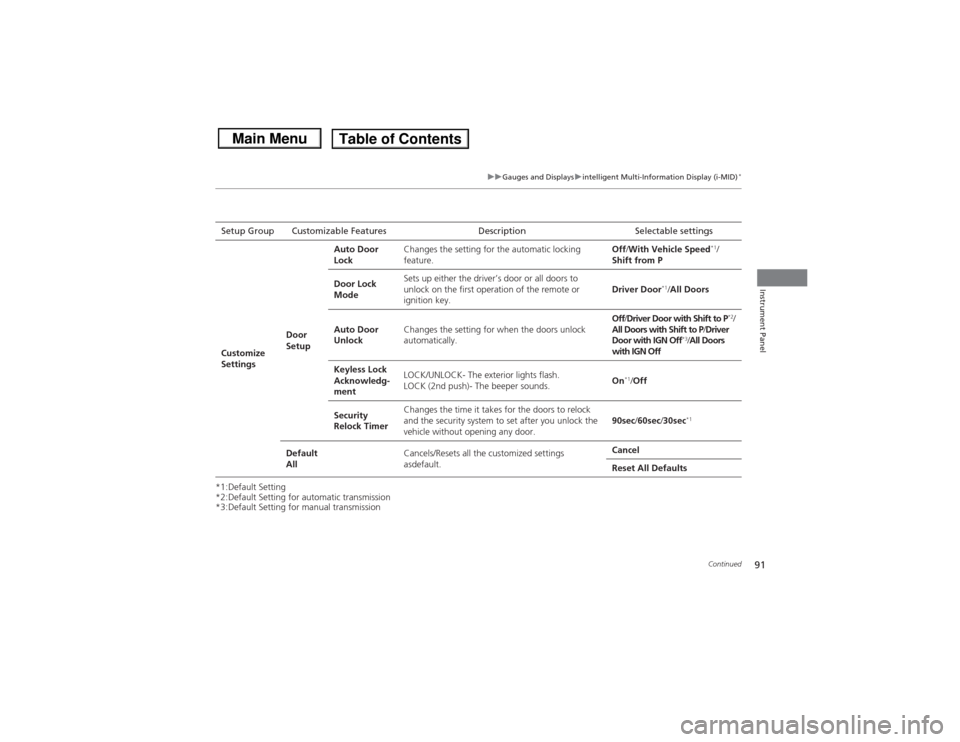
*1:Default Setting
*2:Default Setting for automatic transmission
*3:Default Setting for manual transmissionSetup Group Customizable Features D
escription Selectable settings
Customize
Settings Door
SetupAuto Door
Lock
Changes the setting for the automatic locking
feature. Off
/With Vehicle Speed
*1/
Shift from P
Door Lock
Mode Sets up either the driver’s door or all doors to
unlock on the first operation of the remote or
ignition key.
Driver Door
*1/
All Doors
Auto Door
Unlock Changes the setting for when the doors unlock
automatically. Off
/Driver Door with Shift to P
*2/
All Doors with Shift to P /Driver
Door with IGN Off
*3/ All Doors
with IGN Off
Keyless Lock
Acknowledg-
ment LOCK/UNLOCK- The exterior lights flash.
LOCK (2nd push)- The beeper sounds.
On
*1/
Off
Security
Relock Timer Changes the time it takes for the doors to relock
and the security system to set after you unlock the
vehicle without opening any door.
90sec
/60sec /30sec
*1
Default
All Cancels/Resets all the customized settings
asdefault. Cancel
Reset All Defaults
Page 93 of 367
uuGauges and Displays uintelligent Multi-Information Display (i-MID)
*
92Instrument Panel
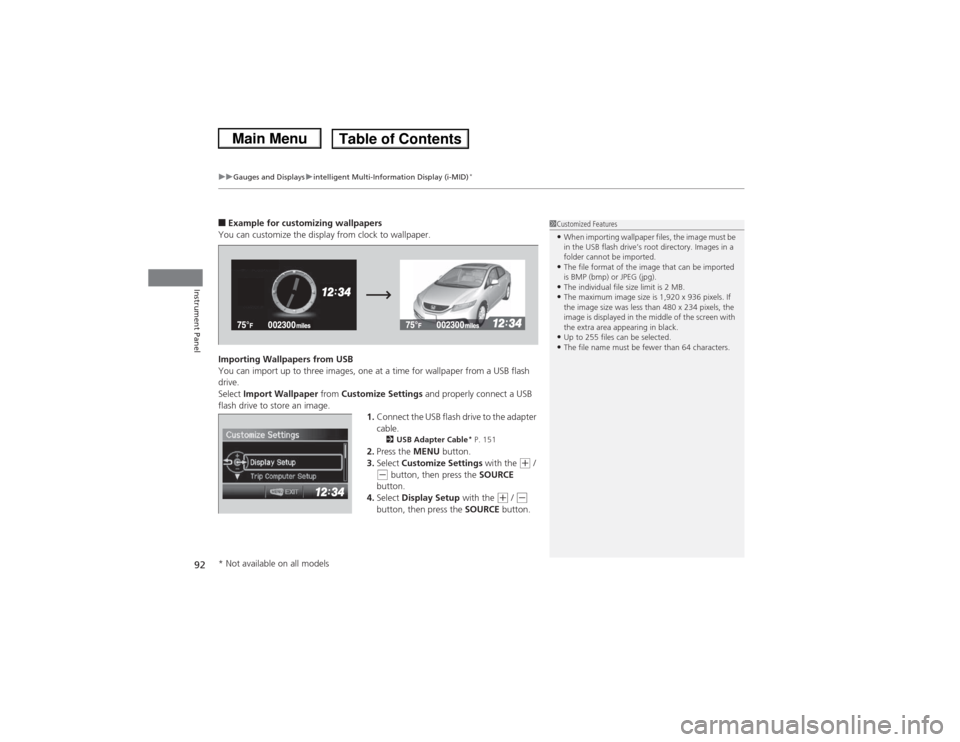
■Example for customizing wallpapers
You can customize the display from clock to wallpaper.
Importing Wallpapers from USB
You can import up to three images, one at a time for wallpaper from a USB flash
drive.
Select Import Wallpaper from Customize Settings and properly connect a USB
flash drive to store an image.
1.Connect the USB flash drive to the adapter
cable.
2 USB Adapter Cable
* P. 151
2.Press the MENU button.
3. Select Customize Settings with the
(+ /
(- button, then press the SOURCE
button.
4. Select Display Setup with the
(+ / (-
button, then press the SOURCE button.
1Customized Features•When importing wallpaper files, the image must be
in the USB flash drive’s root directory. Images in a
folder cannot be imported.•The file format of the image that can be imported
is BMP (bmp) or JPEG (jpg).•The individual file size limit is 2 MB.•The maximum image size is 1,920 x 936 pixels. If
the image size was less than 480 x 234 pixels, the
image is displayed in the middle of the screen with
the extra area appearing in black.•Up to 255 files can be selected.•The file name must be fewer than 64 characters.
* Not available on all models
Page 94 of 367
93
uuGauges and Displays uintelligent Multi-Info rmation Display (i-MID)
*
Continued
Instrument Panel
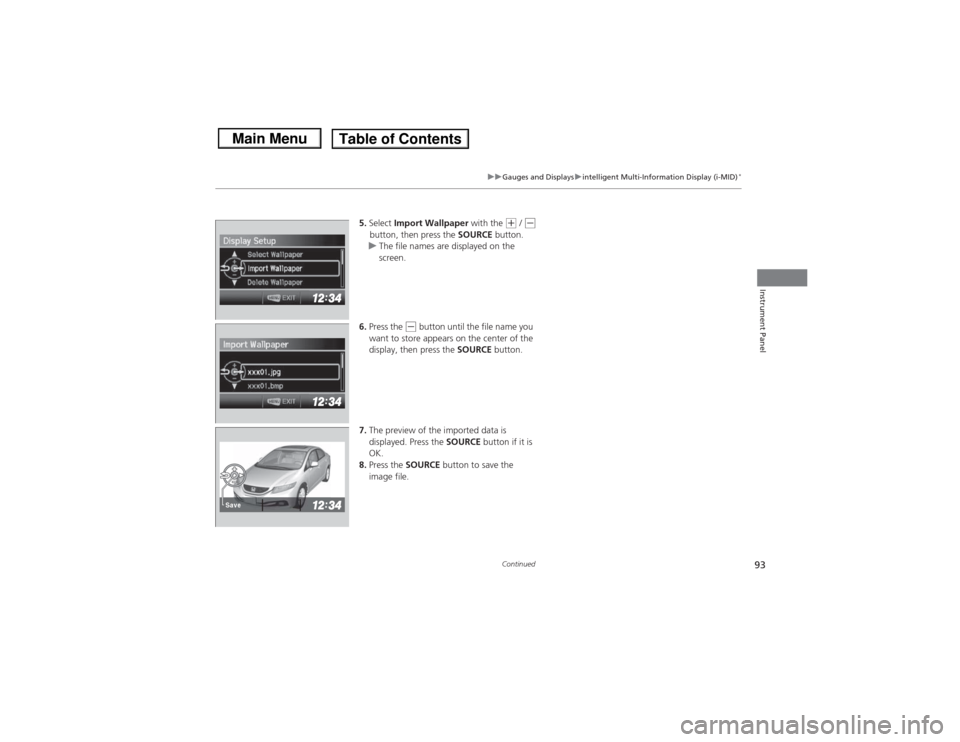
5.Select Import Wallpaper with the
(+ / (-
button, then press the SOURCE button.
u The file names are displayed on the
screen.
6. Press the
(- button until the file name you
want to store appears on the center of the
display, then press the SOURCE button.
7. The preview of the imported data is
displayed. Press the SOURCE button if it is
OK.
8. Press the SOURCE button to save the
image file.
Save
Page 95 of 367
94
uuGauges and Displays uintelligent Multi-Information Display (i-MID)
*
Instrument Panel
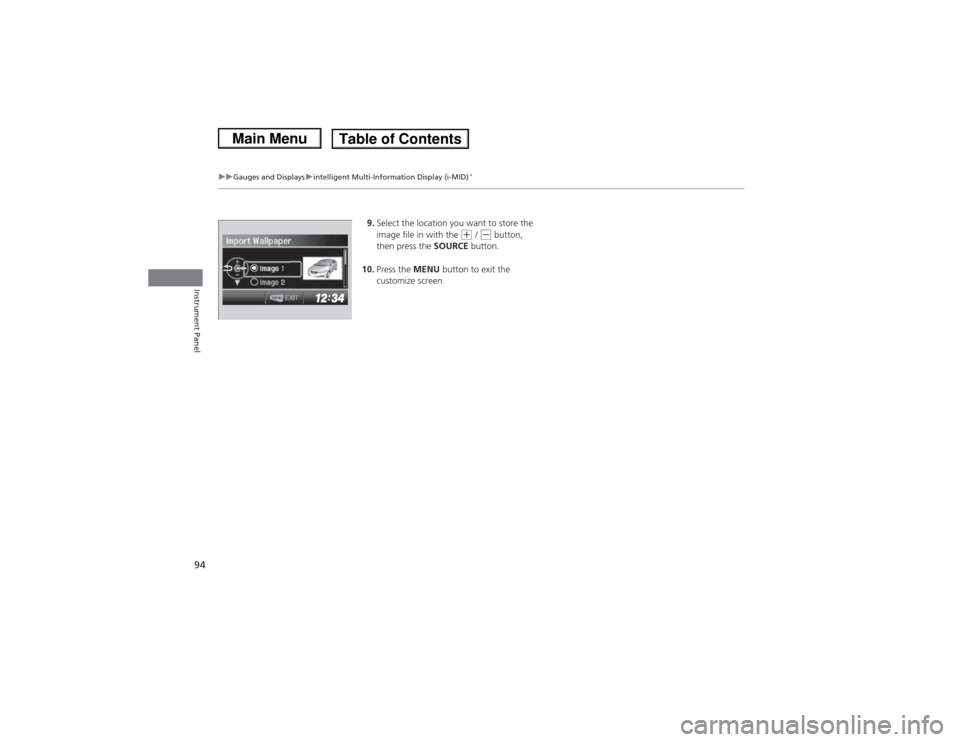
9. Select the location you want to store the
image file in with the
(+ / (- button,
then press the SOURCE button.
10. Press the MENU button to exit the
customize screen.
Page 96 of 367
95
uuGauges and Displays uintelligent Multi-Info rmation Display (i-MID)
*
Instrument Panel
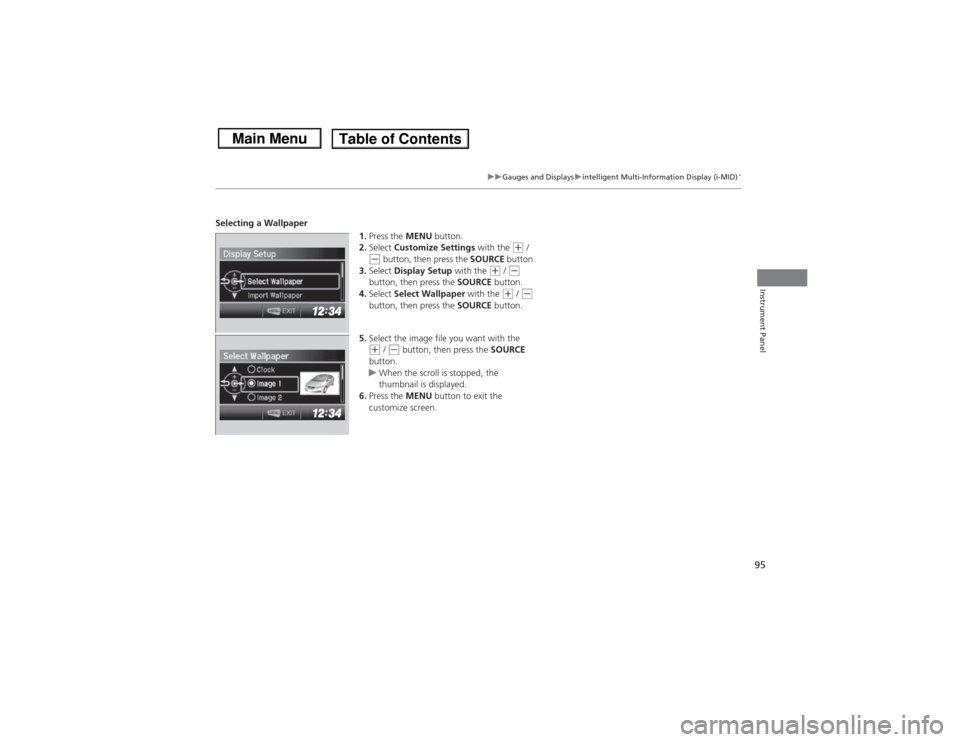
Selecting a Wallpaper
1.Press the MENU button.
2. Select Customize Settings with the
(+ /
(- button, then press the SOURCE button.
3. Select Display Setup with the
(+ / (-
button, then press the SOURCE button.
4. Select Select Wallpaper with the
(+ / (-
button, then press the SOURCE button.
5. Select the image file you want with the
(+ / (- button, then press the SOURCE
button.
u When the scroll is stopped, the
thumbnail is displayed.
6. Press the MENU button to exit the
customize screen.
Page 114 of 367
113
uuSecurity System uSecurity System Alarm
*
Controls
■Setting the security system alarm
The security system alarm automatically sets wh en the following conditions have
been met:
• The ignition switch is in LOCK
(0, and the key has been removed from the
ignition switch.
• The hood and trunk are closed.
• All doors are locked with the key or the remote transmitter.
■When the security system alarm sets
The security system indicator in the instrument panel blinks. When the blinking
interval changes after about 15 seconds, the security system is set.■To cancel the security system alarm
The security system is canceled when the vehicle is unlocked using the key or remote
transmitter, or the ignition switch is turned to ON
(w. The security system indicator
goes off at the same time.
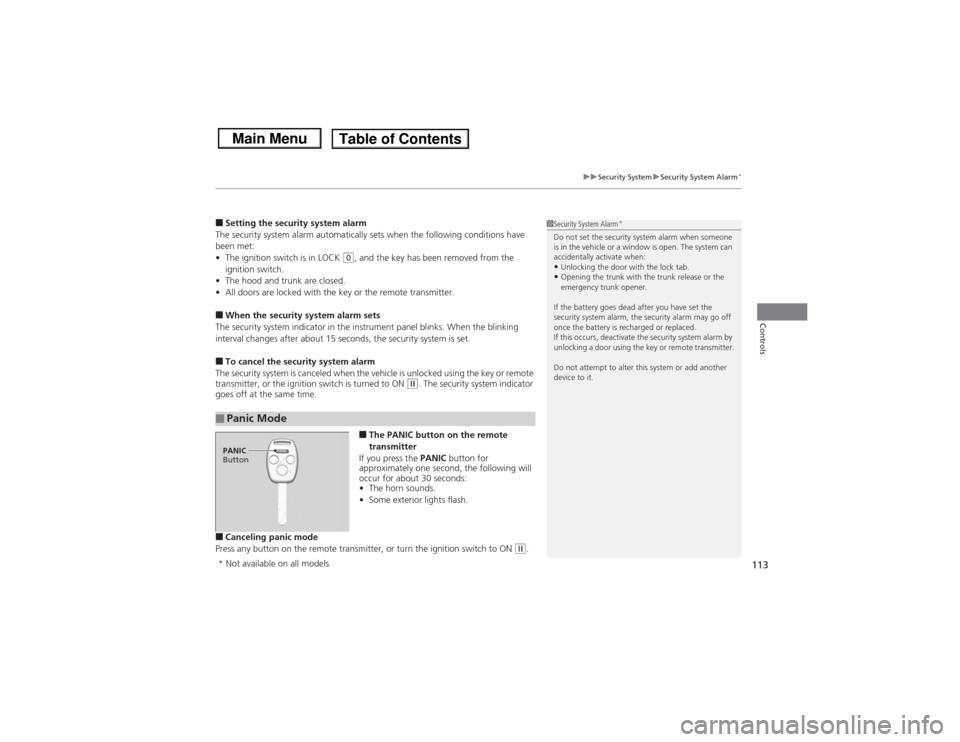
■The PANIC button on the remote
transmitter
If you press the PANIC button for
approximately one second, the following will
occur for about 30 seconds:
• The horn sounds.
• Some exterior lights flash.
■Canceling panic mode
Press any button on the remote transmitter, or turn the ignition switch to ON
(w.
■Panic Mode
1 Security System Alarm
*
Do not set the security system alarm when someone
is in the vehicle or a window is open. The system can
accidentally activate when:•Unlocking the door with the lock tab.•Opening the trunk with the trunk release or the
emergency trunk opener.
If the battery goes dead after you have set the
security system alarm, the security alarm may go off
once the battery is recharged or replaced.
If this occurs, deactivate the security system alarm by
unlocking a door using the key or remote transmitter.
Do not attempt to alter this system or add another
device to it.
PANIC
Button* Not available on all models
Page 119 of 367
118
uuOperating the Switches Around the Steering Wheel uTurn Signals
Controls
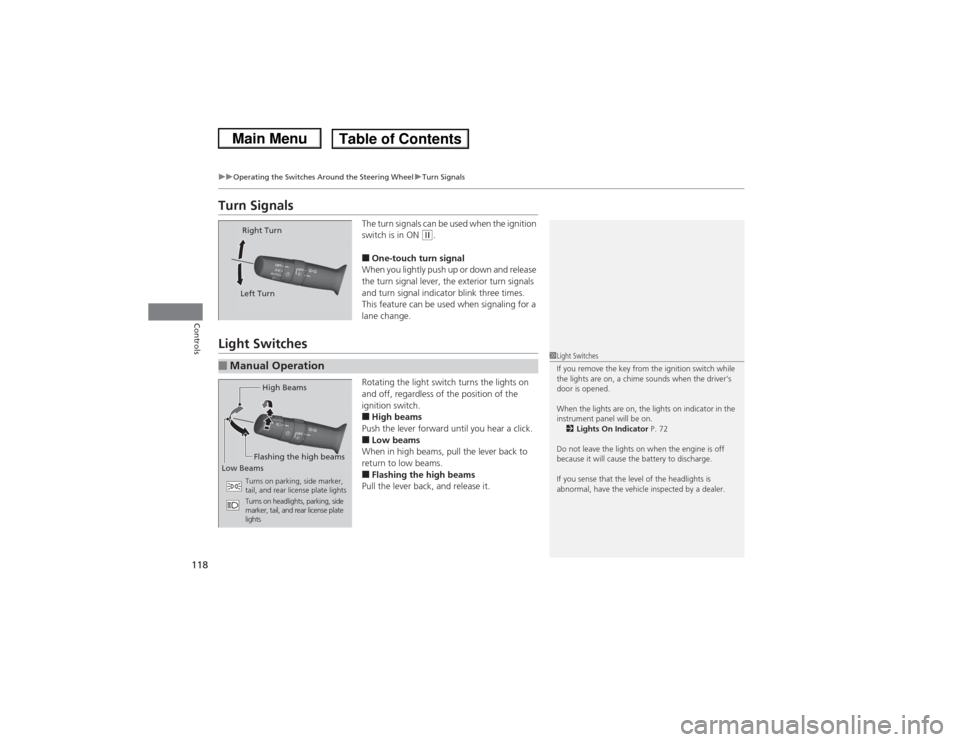
Turn Signals
The turn signals can be used when the ignition
switch is in ON
(w.
■One-touch turn signal
When you lightly push up or down and release
the turn signal lever, the exterior turn signals
and turn signal indicator blink three times.
This feature can be used when signaling for a
lane change.
Light Switches
Rotating the light switch turns the lights on
and off, regardless of the position of the
ignition switch.■High beams
Push the lever forward until you hear a click.■Low beams
When in high beams, pull the lever back to
return to low beams.■Flashing the high beams
Pull the lever back, and release it.
Right Turn
Left Turn
■Manual Operation
1 Light Switches
If you remove the key from the ignition switch while
the lights are on, a chime sounds when the driver’s
door is opened.
When the lights are on, the lights on indicator in the
instrument panel will be on.
2 Lights On Indicator P. 72
Do not leave the lights on when the engine is off
because it will cause the battery to discharge.
If you sense that the level of the headlights is
abnormal, have the vehicle inspected by a dealer.
High Beams
Flashing the high beams
Low Beams
Turns on parking, side marker,
tail, and rear license plate lights
Turns on headlights, parking, side
marker, tail, and rear license plate
lights
Page 121 of 367
uuOperating the Switches Around the Steering Wheel uLight Switches
120Controls
The headlights automatically come on when the wipers are used several times within
a certain number of intervals with the headlight switch in AUTO.
The headlights automatically go off a few minutes later if the wipers are stopped.
The headlights, all other exterior lights, and the instrument panel lights turn off
within 15 seconds after you remove the key and close the driver's door.
uYou can change the headlight auto off timer setting.
2 Customized Features P. 85
If you turn the ignition switch to LOCK
(0 with the headlight switch on, but do not
open the door, the lights turn off after 10 minutes (three minutes, if the switch is in
the AUTO position).
The lights turn on again when you unlock or open the driver's door. If you unlock
the door, but do not open it within 15 seconds, the lights go off. If you open the
driver's door, you will hear a lights on reminder chime.
■Headlight Integration with Wiper
*
■Automatic Lighting Off Feature
1 Headlight Integration with Wiper
*
This feature activates while the headlights are off in
AUTO .
The instrument panel brightness does not change
when the headlights come on.
At dark ambient light levels, the automatic lighting
control feature turns on the headlights, regardless of
the number of wiper sweeps.
* Not available on all models
Page 122 of 367
121
uuOperating the Switches Around the Steering Wheel uFog Lights
*
Controls
Fog Lights
*
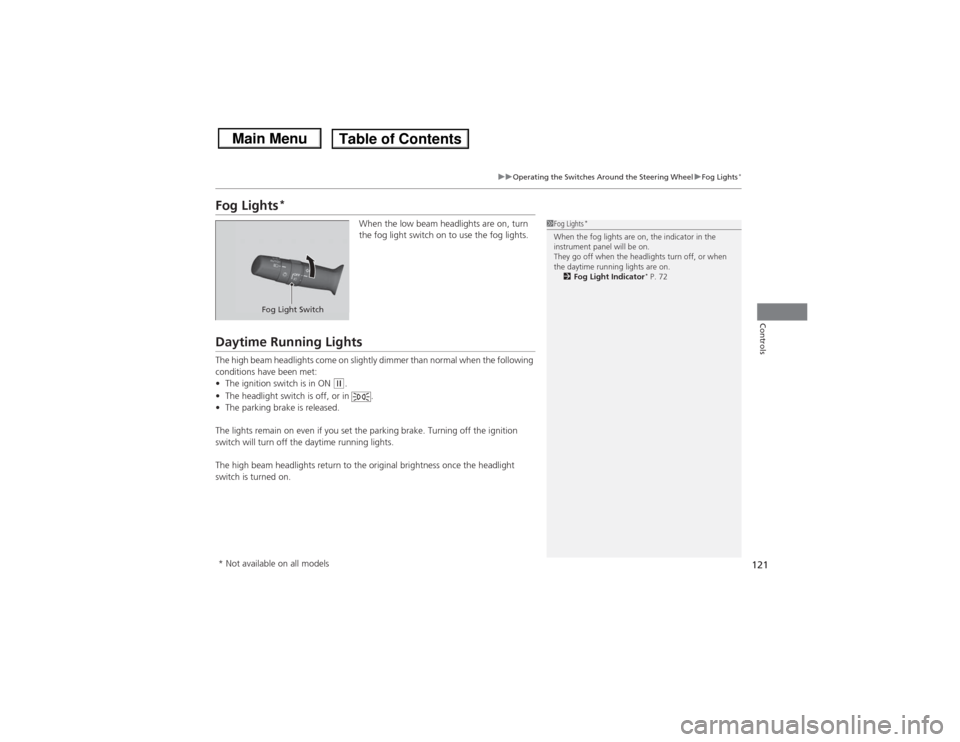
When the low beam headlights are on, turn
the fog light switch on to use the fog lights.
Daytime Running LightsThe high beam headlights come on slightly dimmer than normal when the following
conditions have been met:
• The ignition switch is in ON
(w.
• The headlight switch is off, or in .
• The parking brake is released.
The lights remain on even if you set the parking brake. Turning off the ignition
switch will turn off the daytime running lights.
The high beam headlights return to the original brightness once the headlight
switch is turned on.
1 Fog Lights
*
When the fog lights are on, the indicator in the
instrument panel will be on.
They go off when the headlights turn off, or when
the daytime running lights are on.
2 Fog Light Indicator
* P. 72
Fog Light Switch
* Not available on all models
Page 124 of 367
123
uuOperating the Switches Around the Steering Wheel uBrightness Control
Controls
Brightness Control
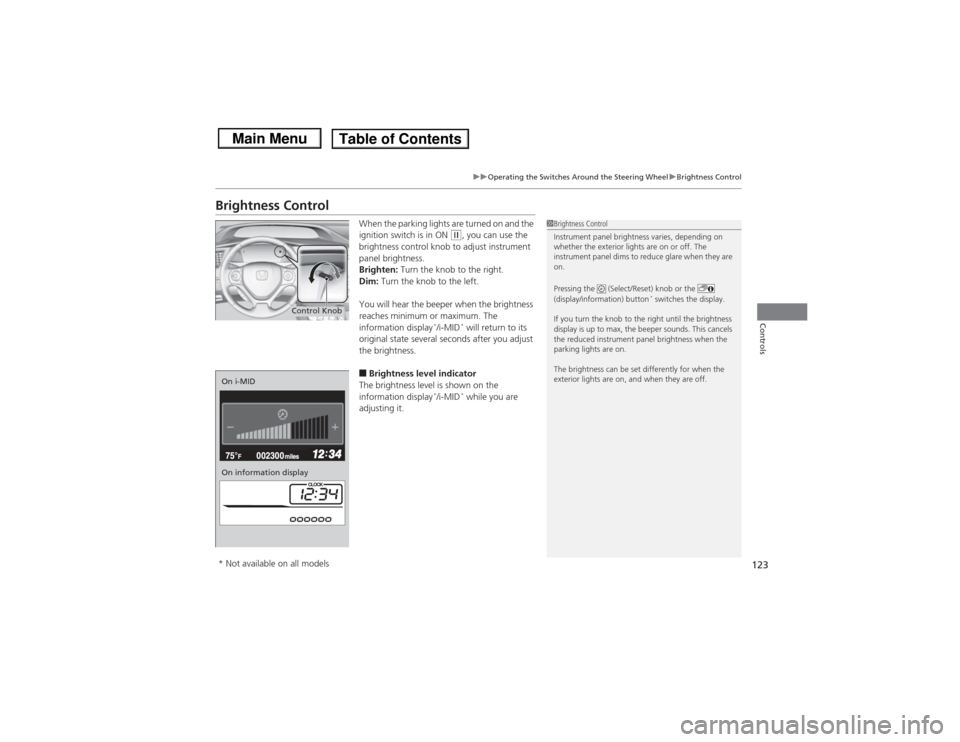
When the parking lights are turned on and the
ignition switch is in ON
(w, you can use the
brightness control knob to adjust instrument
panel brightness.
Brighten: Turn the knob to the right.
Dim: Turn the knob to the left.
You will hear the beeper when the brightness
reaches minimum or maximum. The
information display
*/i-MID
* will return to its
original state several seconds after you adjust
the brightness.
■Brightness level indicator
The brightness level is shown on the
information display
*/i-MID
* while you are
adjusting it.
1 Brightness Control
Instrument panel brightness varies, depending on
whether the exterior lights are on or off. The
instrument panel dims to reduce glare when they are
on.
Pressing the (Select/Reset) knob or the
(display/information) button
* switches the display.
If you turn the knob to the right until the brightness
display is up to max, the beeper sounds. This cancels
the reduced instrument panel brightness when the
parking lights are on.
The brightness can be set differently for when the
exterior lights are on, and when they are off.
Control Knob
On i-MID
On information display* Not available on all models