navigation HONDA CIVIC 2013 9.G Owners Manual
[x] Cancel search | Manufacturer: HONDA, Model Year: 2013, Model line: CIVIC, Model: HONDA CIVIC 2013 9.GPages: 367, PDF Size: 8.43 MB
Page 3 of 367
2Quick Reference Guide
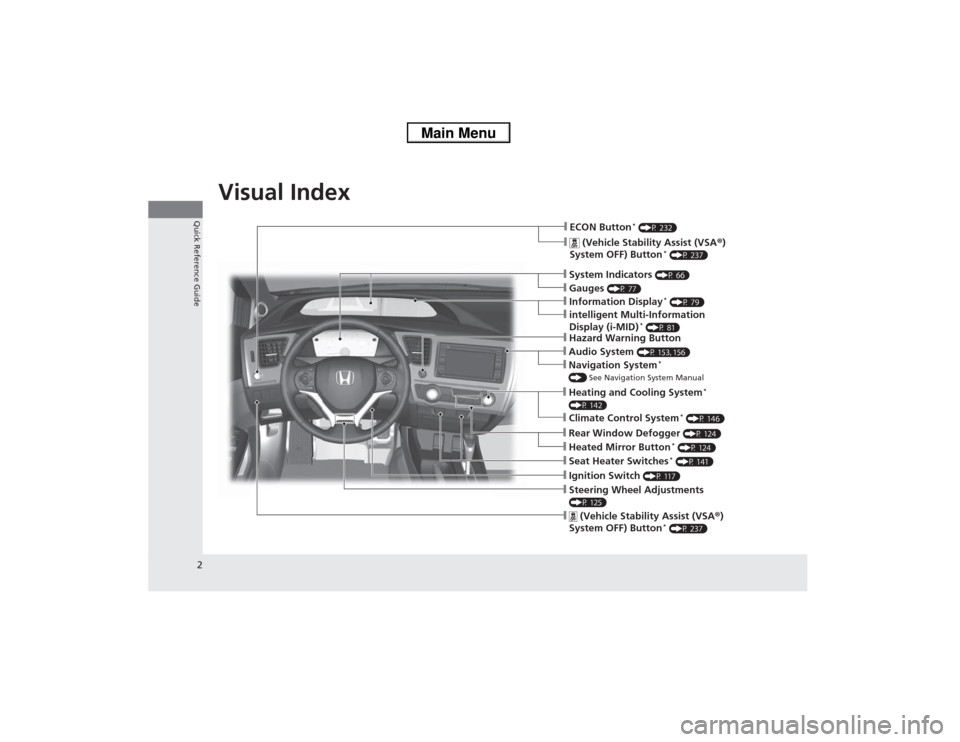
Quick Reference GuideVisual Index
❙Navigation System
*
() See Navigation System Manual❙Audio System
(P 153, 156)
❙Hazard Warning Button❙Seat Heater Switches
* (P 141)
❙Ignition Switch
(P 117)
❙Steering Wheel Adjustments (P 125)❙
(Vehicle Stability Assist (VSA ®)
System OFF) Button
* (P 237)
❙ECON Button
* (P 232)
❙
(Vehicle Stability Assist (VSA ®)
System OFF) Button
* (P 237)
❙Heating and Cooling System
*
(P 142)❙Climate Control System
* (P 146)
❙System Indicators
(P 66)
❙Gauges
(P 77)
❙Information Display
* (P 79)
❙intelligent Multi-Information
Display (i-MID)
* (P 81)
❙Rear Window Defogger
(P 124)
❙Heated Mirror Button
* (P 124)
Page 4 of 367
3Quick Reference Guide
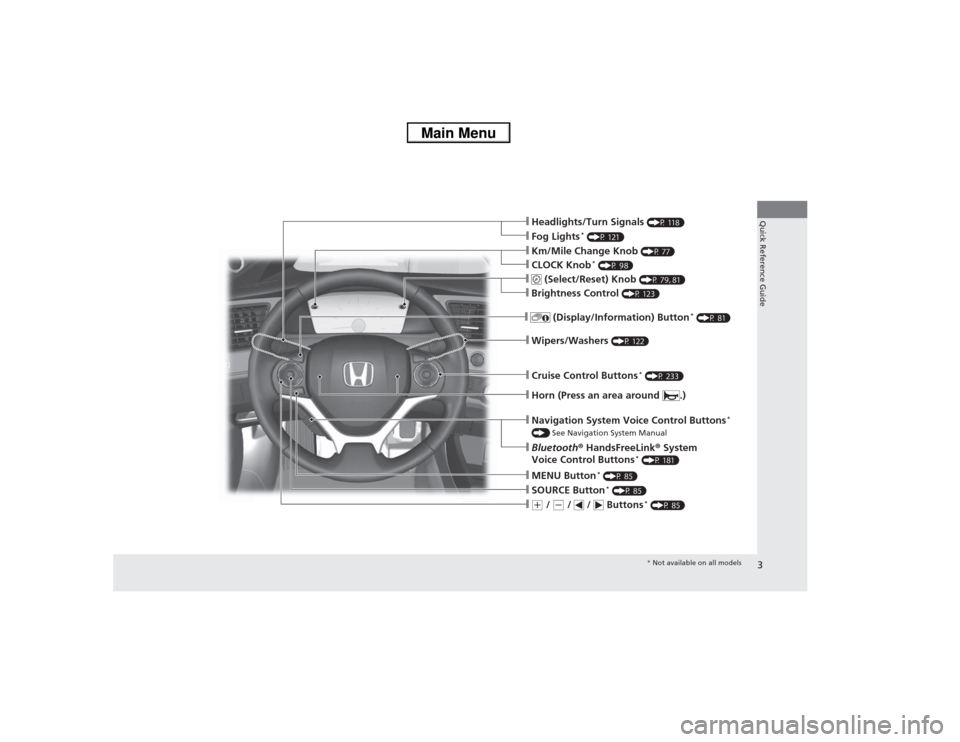
❙Headlights/Turn Signals
(P 118)
❙Fog Lights
* (P 121)
❙Wipers/Washers
(P 122)
❙Cruise Control Buttons
* (P 233)
❙Km/Mile Change Knob
(P 77)
❙CLOCK Knob
* (P 98)
❙MENU Button
* (P 85)
❙(+ / (- / / Buttons
* (P 85)
❙Navigation System Voice Control Buttons
*
() See Navigation System Manual❙Bluetooth ® HandsFreeLink ® System
Voice Control Buttons
* (P 181)
❙
(Select/Reset) Knob
(P 79, 81)
❙SOURCE Button
* (P 85)
❙
(Display/Information) Button
* (P 81)
❙Brightness Control
(P 123)
❙Horn (Press an area around .)
* Not available on all models
Page 11 of 367
10Quick Reference Guide
Controls
(P 97)
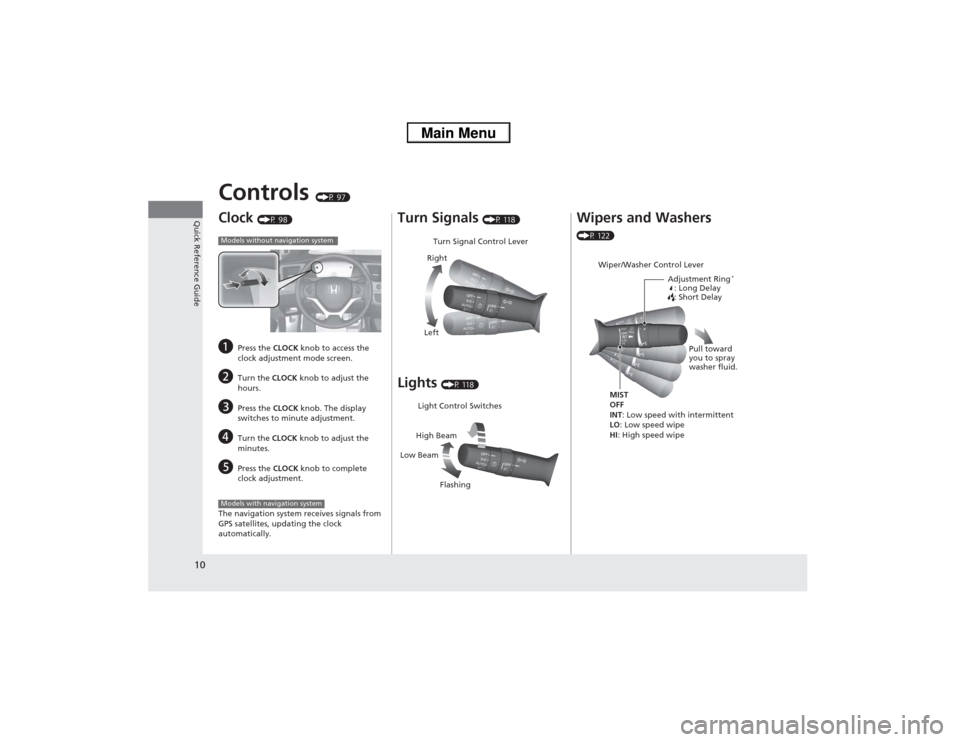
Clock
(P 98)
a
Press the CLOCK knob to access the
clock adjustment mode screen.
b
Turn the CLOCK knob to adjust the
hours.
c
Press the CLOCK knob. The display
switches to minute adjustment.
d
Turn the CLOCK knob to adjust the
minutes.
e
Press the CLOCK knob to complete
clock adjustment.
The navigation system receives signals from
GPS satellites, updating the clock
automatically.
Models without navigation systemModels with navigation system
Turn Signals
(P 118)
Lights
(P 118)Turn Signal Control Lever
Right
Left
Light Control Switches
Low Beam High Beam
Flashing
Wipers and Washers (P 122)
Wiper/Washer Control Lever Adjustment Ring
*
: Long Delay
: Short Delay
MIST
OFF
INT: Low speed with intermittent
LO : Low speed wipe
HI : High speed wipe Pull toward
you to spray
washer fluid.
Page 14 of 367
13Quick Reference Guide
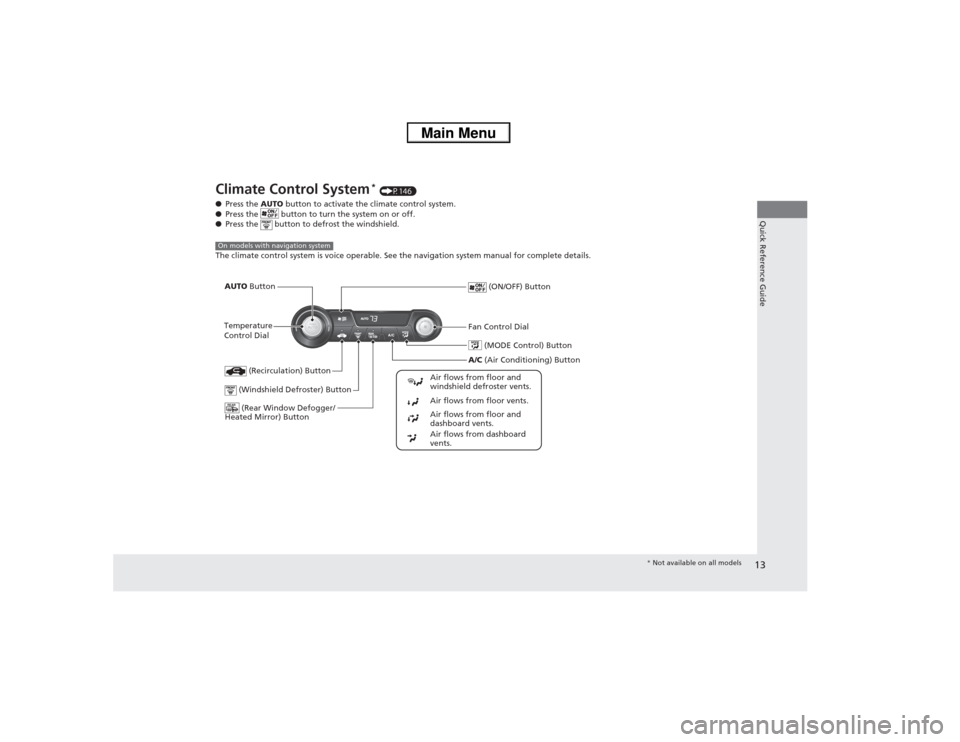
Climate Control System
* (P146)
● Press the AUTO button to activate the climate control system.
● Press the button to turn the system on or off.
● Press the button to defrost the windshield.
The climate control system is voice operable. See the navigation system manual for complete details.
On models with navigation system
(MODE Control) Button
(Rear Window Defogger/
Heated Mirror) Button (Windshield Defroster) Button
A/C (Air Conditioning) Button
Air flows from floor and
windshield defroster vents.
Air flows from floor vents.
Air flows from floor and
dashboard vents.
Air flows from dashboard
vents.
(Recirculation) Button
Temperature
Control Dial AUTO Button
(ON/OFF) Button
Fan Control Dial
* Not available on all models
Page 15 of 367
14Quick Reference Guide
Features
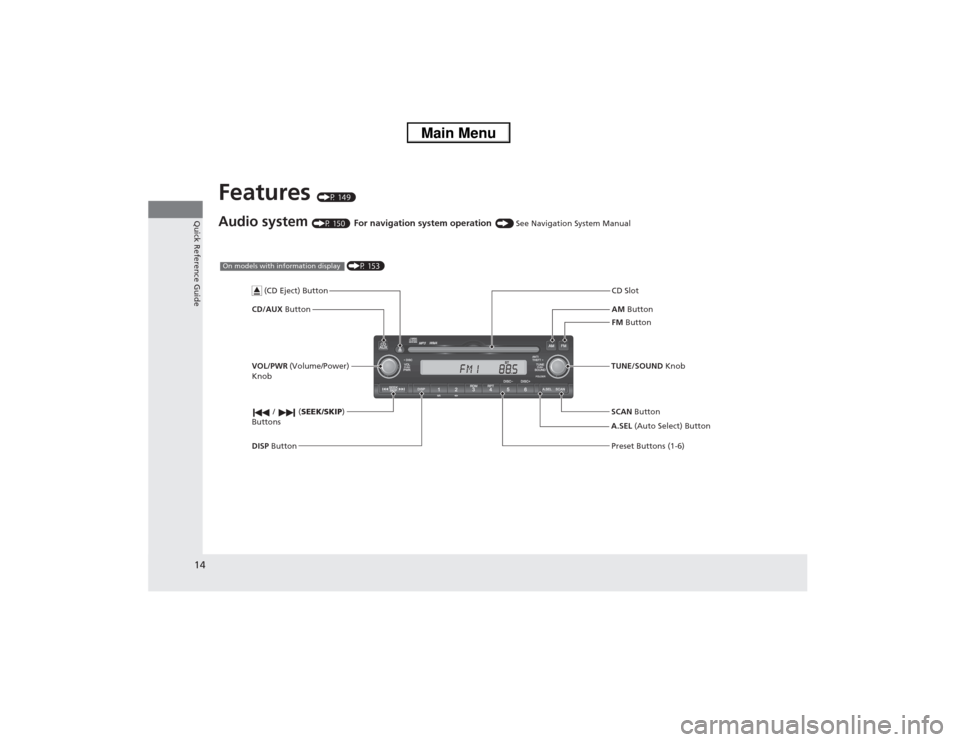
(P 149)
Audio system
(P 150)
For navigation system operation
() See Navigation System Manual
AM Button
FM Button
CD/AUX
Button CD Slot
SCAN Button Preset Buttons (1-6)
TUNE/SOUND
Knob
/ (SEEK/SKIP )
Buttons
(P 153)
On models with information display
A.SEL (Auto Select) Button
VOL/PWR
(Volume/Power)
Knob
DISP Button
(CD Eject) Button
Page 85 of 367
uuGauges and Displays uintelligent Multi-Information Display (i-MID)
*
84Instrument Panel
Shows the outside temperature in Fahrenheit (U.S.) or Celsius (Canada).■Adjusting the outside temperature display
Adjust the temperature reading up to ±5°F or ±3°C if the temperature reading
seems incorrect.
Use the i-MID’s customized features to correct the temperature.2 Customized Features P. 85Shows the instant fuel economy as a bar graph in mpg or l/100 km.
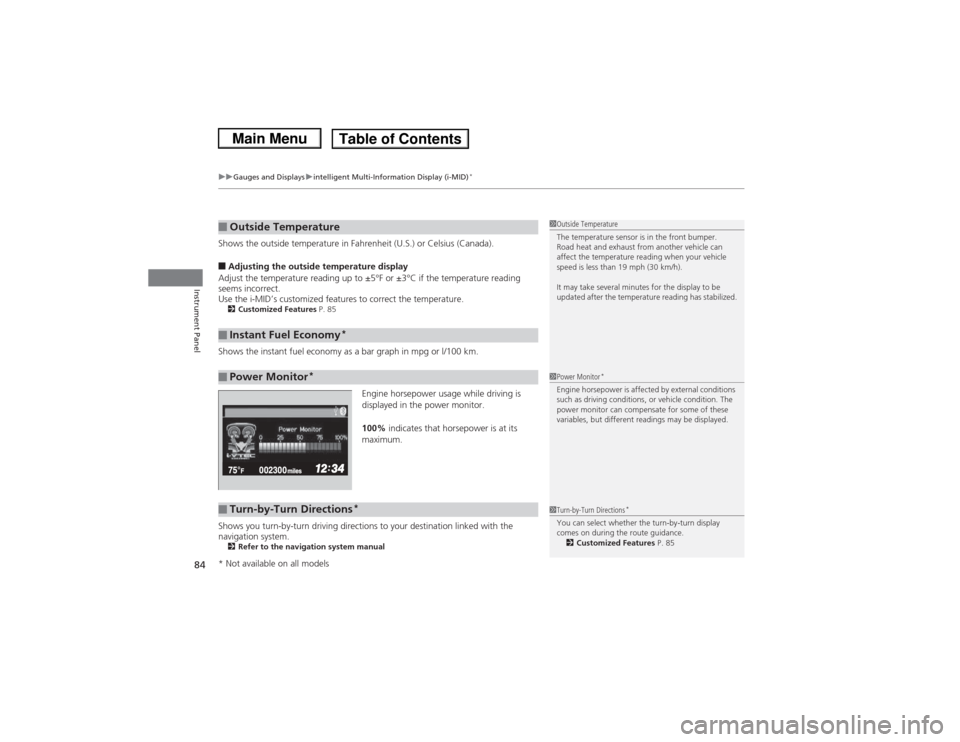
Engine horsepower usage while driving is
displayed in the power monitor.
100% indicates that horsepower is at its
maximum.
Shows you turn-by-turn driving directions to your destination linked with the
navigation system.2 Refer to the navigation system manual■Outside Temperature■Instant Fuel Economy
*
■Power Monitor
*
1Outside Temperature
The temperature sensor is in the front bumper.
Road heat and exhaust from another vehicle can
affect the temperature reading when your vehicle
speed is less than 19 mph (30 km/h).
It may take several minutes for the display to be
updated after the temperature reading has stabilized.1Power Monitor
*
Engine horsepower is affected by external conditions
such as driving conditions, or vehicle condition. The
power monitor can compensate for some of these
variables, but different readings may be displayed.
■Turn-by-Turn Directions
*
1Turn-by-Turn Directions
*
You can select whether the turn-by-turn display
comes on during the route guidance.
2 Customized Features P. 85
* Not available on all models
Page 90 of 367
89
uuGauges and Displays uintelligent Multi-Info rmation Display (i-MID)
*
Continued
Instrument Panel
*1: Not available on all models
*2: Default Setting
*3: Default Setting for 1.8 ℓ engine models
*4: Default Setting for 2.4 ℓ engine models
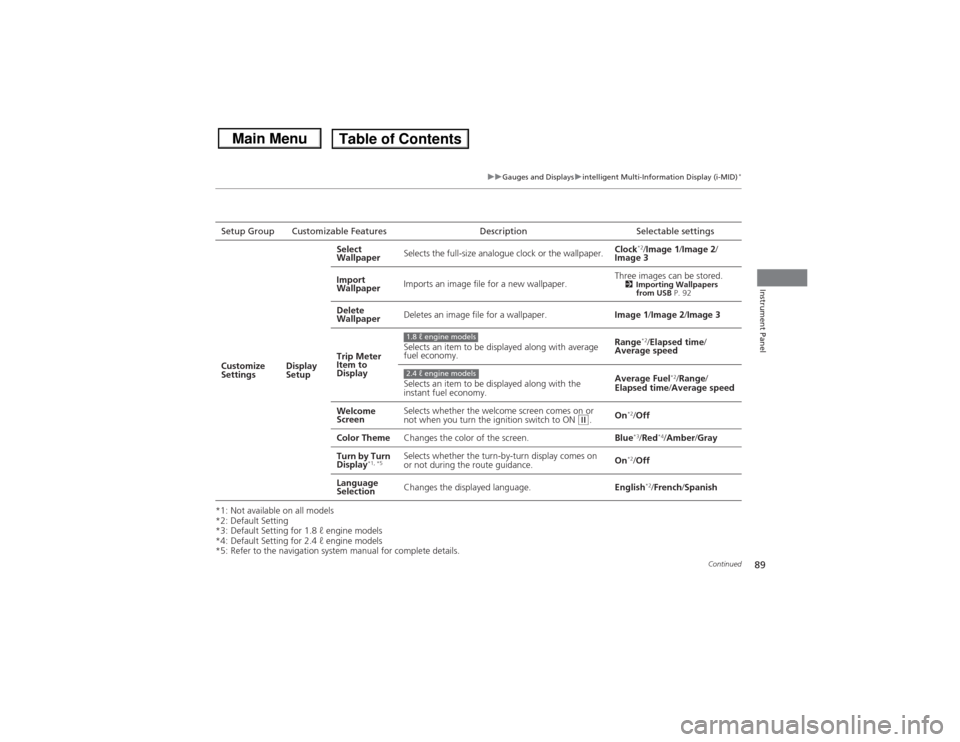
*5: Refer to the navigation system manual for complete details.Setup Group Customizable Features Description Selectable settings
Customize
Settings Display
SetupSelect
Wallpaper
Selects the full-size analogue clock or the wallpaper. Clock
*2/
Image 1 /Image 2/
Image 3
Import
Wallpaper Imports an image file for a new wallpaper. Three images can be stored.
2
Importing Wallpapers
from USB P. 92
Delete
Wallpaper Deletes an image file for a wallpaper.
Image 1/Image 2/ Image 3
Trip Meter
Item to
Display Selects an item to be displayed along with average
fuel economy.
Range
*2/
Elapsed time /
Average speed
Selects an item to be displayed along with the
instant fuel economy. Average Fuel
*2/
Range /
Elapsed time/ Average speed
Welcome
Screen Selects whether the welcome screen comes on or
not when you turn the ignition switch to ON
(w.
On
*2/
Off
Color Theme Changes the color of the screen. Blue*3/Red
*4/Amber /Gray
Turn by Turn
Display
*1, *5
Selects whether the turn-by-turn display comes on
or not during the route guidance. On
*2/
Off
Language
Selection Changes the displayed language.
English*2/French /Spanish
1.8 ℓ engine models2.4 ℓ engine models
Page 99 of 367
98Controls
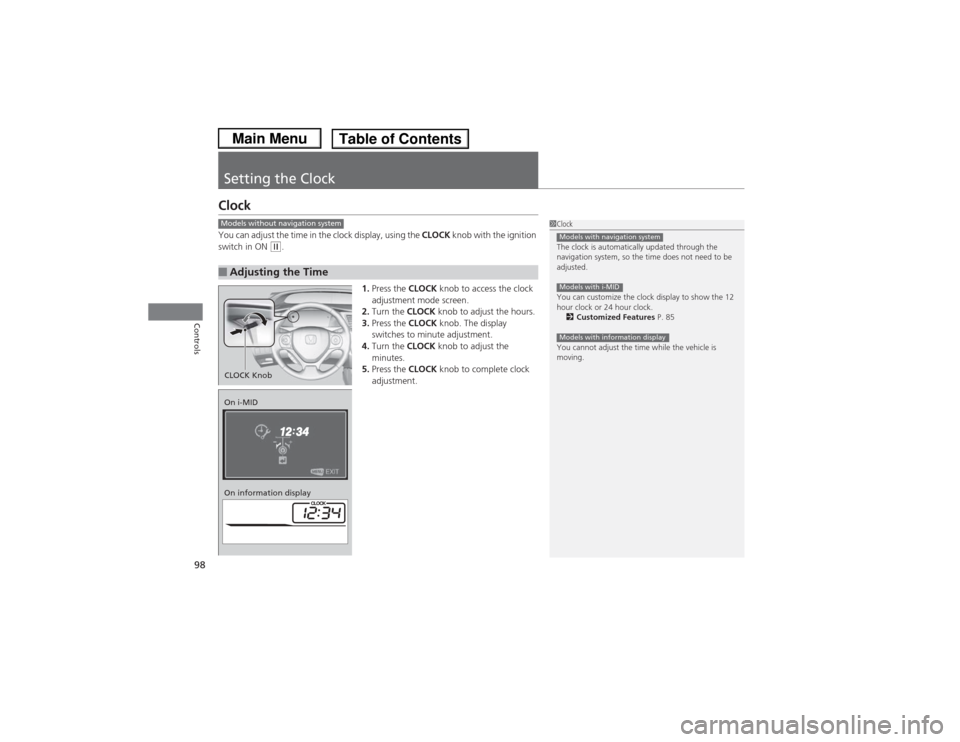
Setting the ClockClockYou can adjust the time in the clock display, using the CLOCK knob with the ignition
switch in ON
(w.
1.Press the CLOCK knob to access the clock
adjustment mode screen.
2. Turn the CLOCK knob to adjust the hours.
3. Press the CLOCK knob. The display
switches to minute adjustment.
4. Turn the CLOCK knob to adjust the
minutes.
5. Press the CLOCK knob to complete clock
adjustment.
■Adjusting the Time
1 Clock
The clock is automatically updated through the
navigation system, so the time does not need to be
adjusted.
You can customize the clock display to show the 12
hour clock or 24 hour clock.
2 Customized Features P. 85
You cannot adjust the time while the vehicle is
moving.Models with navigation systemModels with i-MIDModels with information display
Models without navigation systemCLOCK KnobOn i-MID
On information display
Page 151 of 367
150Features
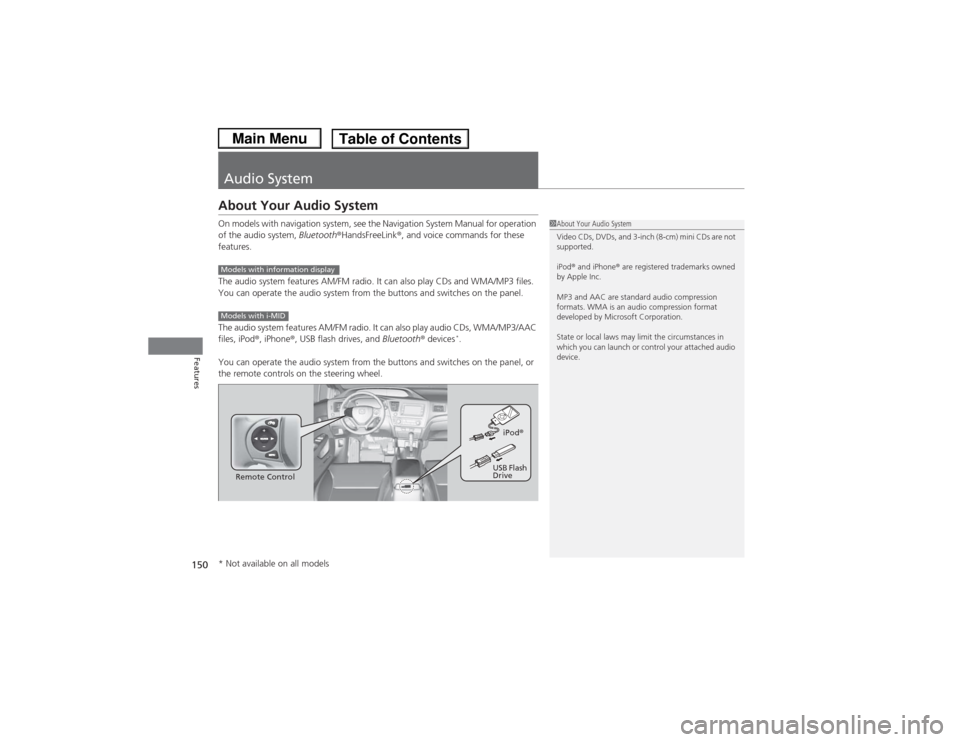
Audio SystemAbout Your Audio SystemOn models with navigation system, see the Navigation System Manual for operation
of the audio system, Bluetooth®HandsFreeLink ®, and voice commands for these
features.
The audio system features AM/FM radio. It can also play CDs and WMA/MP3 files.
You can operate the audio system from the buttons and switches on the panel.
The audio system features AM/FM radio. It can also play audio CDs, WMA/MP3/AAC
files, iPod ®, iPhone ®, USB flash drives, and Bluetooth® devices
*.
You can operate the audio system from the buttons and switches on the panel, or
the remote controls on the steering wheel.
1 About Your Audio System
Video CDs, DVDs, and 3-inch (8-cm) mini CDs are not
supported.
iPod ® and iPhone ® are registered trademarks owned
by Apple Inc.
MP3 and AAC are standard audio compression
formats. WMA is an audio compression format
developed by Microsoft Corporation.
State or local laws may limit the circumstances in
which you can launch or control your attached audio
device.
Models with information displayModels with i-MID
Remote Control iPod
®
USB Flash
Drive
* Not available on all models
Page 182 of 367
181
Continued
Features
Bluetooth® HandsFreeLink®
*
For models with the navigation system, see Navigation System Manual for how to
operate the Bluetooth® HandsFreeLink ®.
Bluetooth ® HandsFreeLink ® (HFL) allows you to place and receive phone calls using
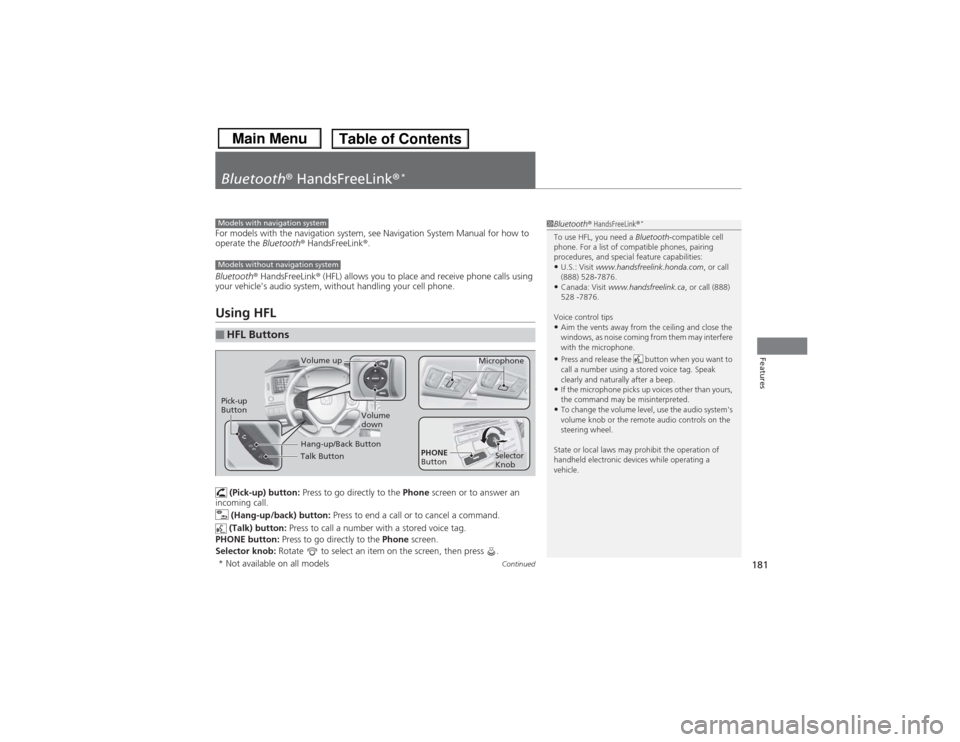
your vehicle's audio system, without handling your cell phone.Using HFL (Pick-up) button: Press to go directly to the Phone screen or to answer an
incoming call.
(Hang-up/back) button: Press to end a call or to cancel a command.
(Talk) button: Press to call a number with a stored voice tag.
PHONE button: Press to go directly to the Phone screen.
Selector knob: Rotate to select an item on the screen, then press .■HFL Buttons
1Bluetooth ® HandsFreeLink ®
*
To use HFL, you need a Bluetooth-compatible cell
phone. For a list of compatible phones, pairing
procedures, and special feature capabilities:•U.S.: Visit www.handsfreelink.honda.com , or call
(888) 528-7876.•Canada: Visit www.handsfreelink.ca , or call (888)
528 -7876.
Voice control tips•Aim the vents away from the ceiling and close the
windows, as noise coming from them may interfere
with the microphone.•Press and release the button when you want to
call a number using a stored voice tag. Speak
clearly and naturally after a beep.•If the microphone picks up voices other than yours,
the command may be misinterpreted.•To change the volume level, use the audio system's
volume knob or the remote audio controls on the
steering wheel.
State or local laws may prohibit the operation of
handheld electronic devices while operating a
vehicle.
Models with navigation systemModels without navigation system
Talk ButtonVolume up Microphone
Hang-up/Back Button
Pick-up
Button
Volume
down
Selector
Knob
PHONE
Button
* Not available on all models