radio HONDA CIVIC 2014 9.G User Guide
[x] Cancel search | Manufacturer: HONDA, Model Year: 2014, Model line: CIVIC, Model: HONDA CIVIC 2014 9.GPages: 469, PDF Size: 17.32 MB
Page 183 of 469
uuAudio System Basic Operation uPlaying AM/FM Radio
182Features
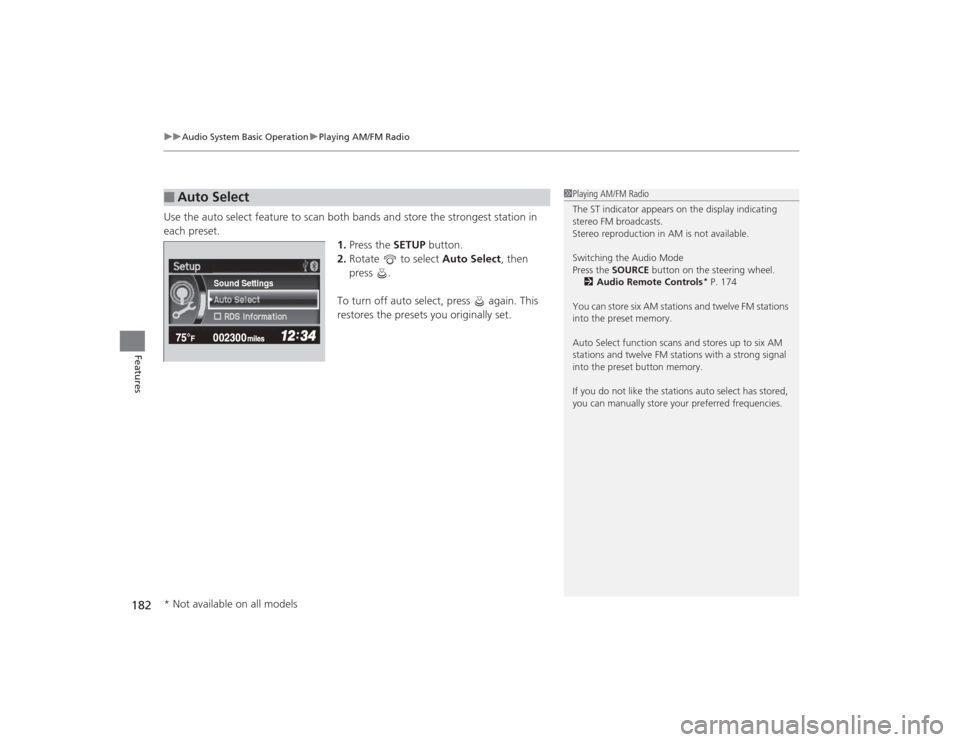
Use the auto select feature to scan both bands and store the strongest station in
each preset. 1.Press the SETUP button.
2. Rotate to select Auto Select, then
press .
To turn off auto select, press again. This
restores the presets you originally set.■
Auto Select
1 Playing AM/FM Radio
The ST indicator appears on the display indicating
stereo FM broadcasts.
Stereo reproduction in AM is not available.
Switching the Audio Mode
Press the SOURCE button on the steering wheel.
2 Audio Remote Controls
* P. 174
You can store six AM stations and twelve FM stations
into the preset memory.
Auto Select function scans and stores up to six AM
stations and twelve FM stations with a strong signal
into the preset button memory.
If you do not like the stations auto select has stored,
you can manually store your preferred frequencies.
Sound Settings
* Not available on all models
Page 184 of 469
183
uuAudio System Basic Operation uPlaying AM/FM Radio
Features
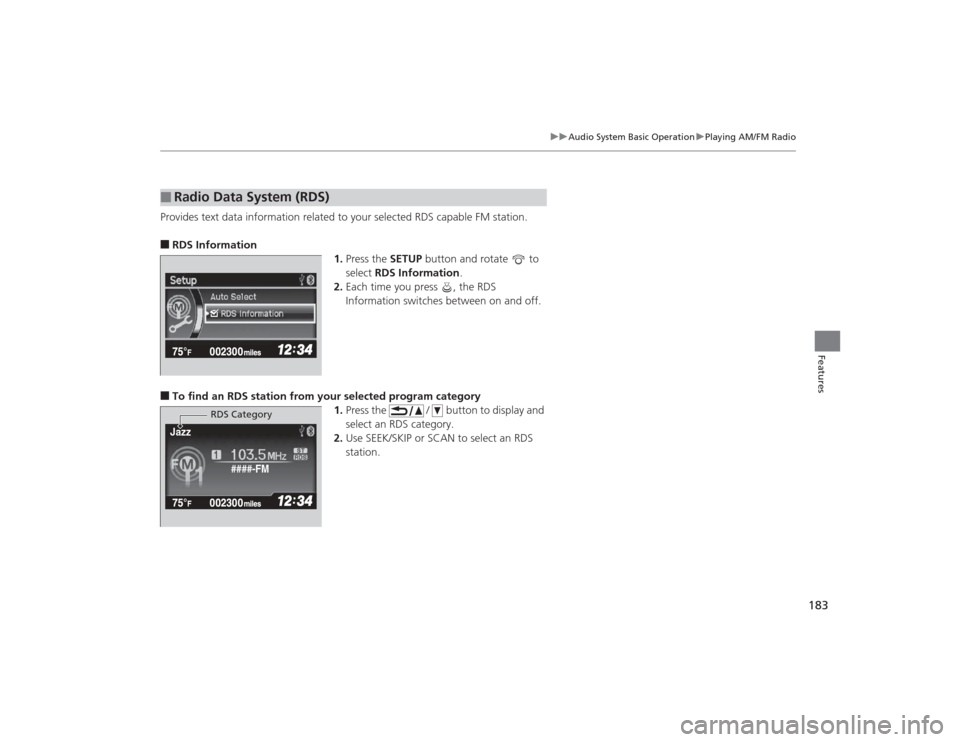
Provides text data information related to your selected RDS capable FM station.■RDS Information
1.Press the SETUP button and rotate to
select RDS Information .
2. Each time you press , the RDS
Information switches between on and off.■To find an RDS station from your selected program category
1.Press the / button to display and
select an RDS category.
2. Use SEEK/SKIP or SCAN to select an RDS
station.■
Radio Data System (RDS)
####-FM
Jazz
RDS Category
Page 191 of 469
190
uuAudio System Basic Operation uPlaying Internet Radio
Features
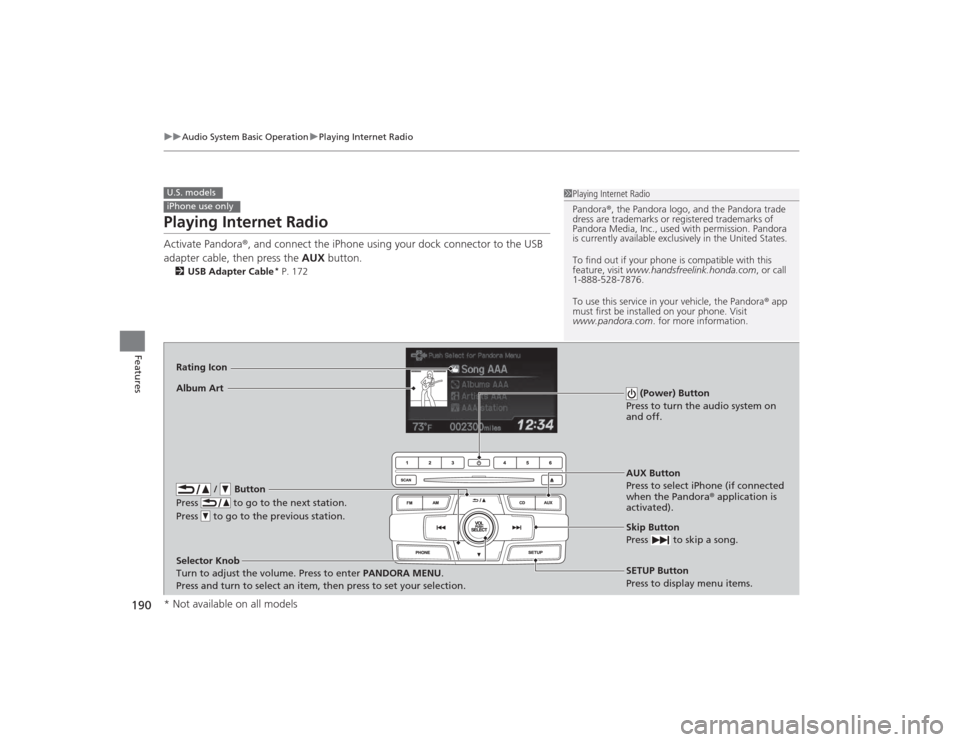
Playing Internet RadioActivate Pandora ®, and connect the iPhone using your dock connector to the USB
adapter cable, then press the AUX button.2USB Adapter Cable
* P. 172
U.S. modelsiPhone use only
1Playing Internet Radio
Pandora ®, the Pandora logo, and the Pandora trade
dress are trademarks or regi stered trademarks of
Pandora Media, Inc., used with permission. Pandora
is currently available exclusively in the United States.
To find out if your phone is compatible with this
feature, visit www.handsfreelink.honda.com , or call
1-888-528-7876.
To use this service in your vehicle, the Pandora ® app
must first be installed on your phone. Visit
www.pandora.com . for more information.
AUX Button
Press to select iPhone (if connected
when the Pandora ® application is
activated).
Skip Button
Press to skip a song.SETUP Button
Press to display menu items.
Selector Knob
Turn to adjust the volume. Press to enter PANDORA MENU
.
Press and turn to select an item, then press to set your selection.
Album ArtRating Icon
/ Button
Press to go to the next station.
Press to go to the previous station.
(Power) Button
Press to turn the audio system on
and off.
* Not available on all models
Page 192 of 469
191
uuAudio System Basic Operation uPlaying Internet Radio
Features
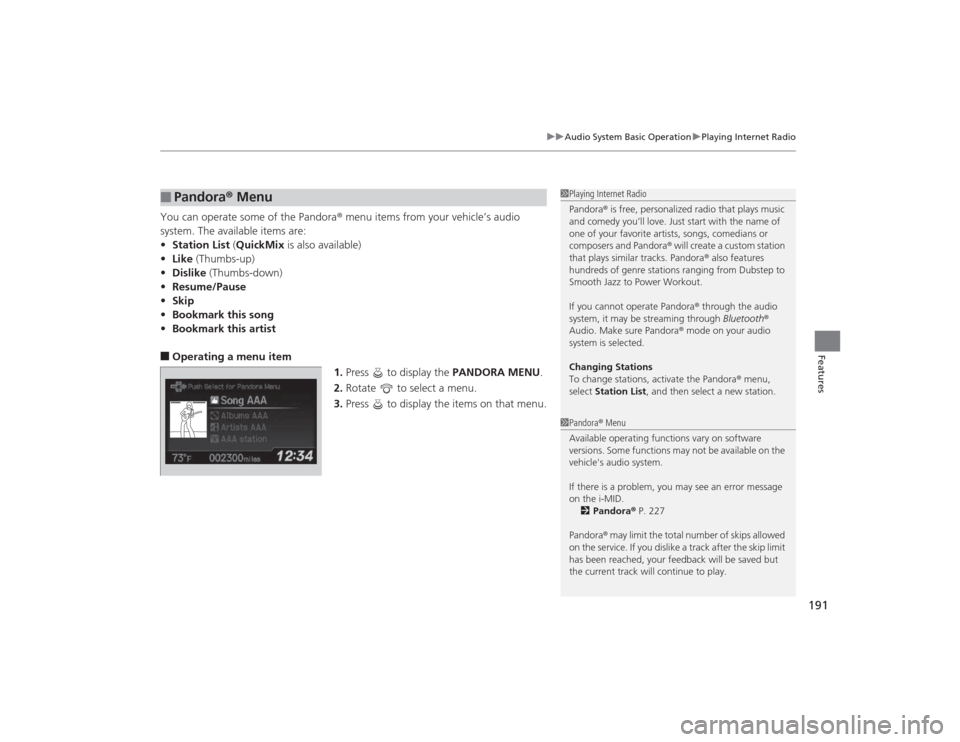
You can operate some of the Pandora ® menu items from your vehicle’s audio
system. The available items are:
• Station List (QuickMix is also available)
• Like (Thumbs-up)
• Dislike (Thumbs-down)
• Resume/Pause
• Skip
• Bookmark this song
• Bookmark this artist■Operating a menu item
1.Press to display the PANDORA MENU .
2. Rotate to select a menu.
3. Press to display the items on that menu.■
Pandora ® Menu
1 Playing Internet Radio
Pandora ® is free, personalized radio that plays music
and comedy you’ll love. Just start with the name of
one of your favorite artists, songs, comedians or
composers and Pandora ® will create a custom station
that plays similar tracks. Pandora ® also features
hundreds of genre stations ranging from Dubstep to
Smooth Jazz to Power Workout.
If you cannot operate Pandora ® through the audio
system, it may be streaming through Bluetooth®
Audio. Make sure Pandora ® mode on your audio
system is selected.
Changing Stations
To change stations, activate the Pandora® menu,
select Station List , and then select a new station.1Pandora ® Menu
Available operating functions vary on software
versions. Some functions may not be available on the
vehicle's audio system.
If there is a problem, you may see an error message
on the i-MID. 2 Pandora ® P. 227
Pandora ® may limit the total number of skips allowed
on the service. If you dislike a track after the skip limit
has been reached, your feedback will be saved but
the current track will continue to play.
Page 205 of 469
204
uuAudio System Basic Operation uPlaying AM/FM Radio
Features
Playing AM/FM Radio*1:Some or all of the lists may not be displayed.
002300
75°
F miles
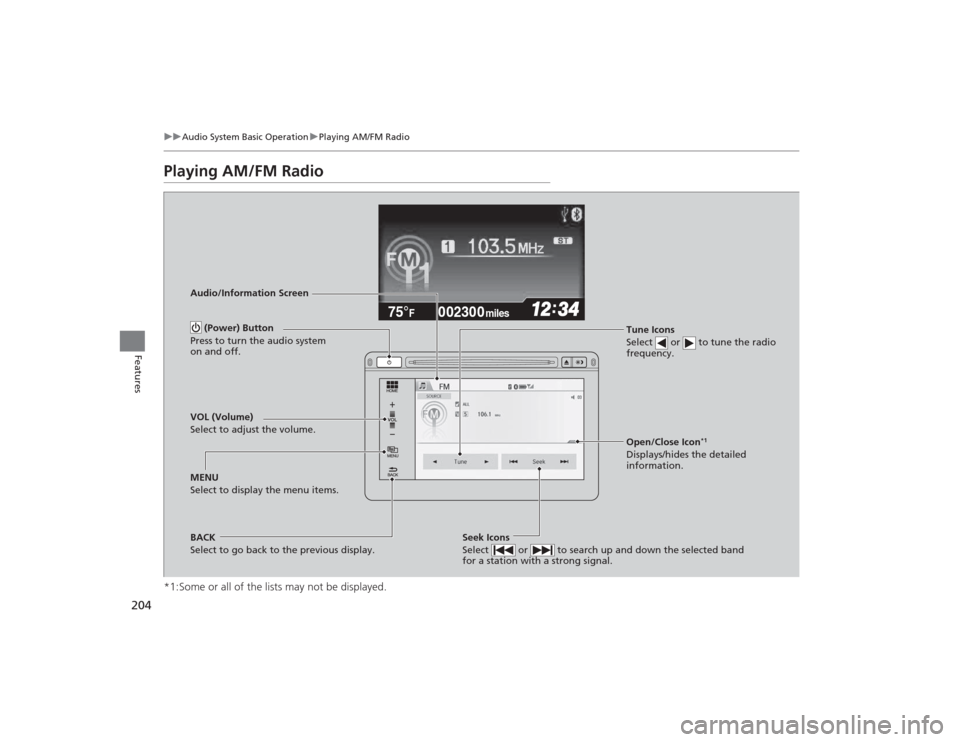
Audio/Information Screen
Tune Icons
Select or to tune the radio
frequency.BACK
Select to go back to the previous display. (Power) Button
Press to turn the audio system
on and off.
Seek Icons
Select or to search up and down the selected band
for a station with a strong signal.
MENU
Select to display the menu items. VOL (Volume)
Select to adjust the volume.
Open/Close Icon
*1
Displays/hides the detailed
information.
Page 206 of 469
Continued
205
uuAudio System Basic Operation uPlaying AM/FM Radio
Features
To store a station:
1. Tune to the selected station.
2. Select MENU .
3. Select Save Preset .
4. Select the preset number you want to store that station.
Provides text data information related to your selected RDS-capable FM station.■To find an RDS station from Station List
1. Select MENU while listening to an FM station.
2. Select Station List .
3. Select a station.■Manual update
Updates your available station list at any time.
1. Select MENU while listening to an FM station.
2. Select Station List .
3. Select Refresh .■
Preset Memory
■
Radio Data System (RDS)
1Playing AM/FM Radio
The ST indicator appears on the display indicating
stereo FM broadcasts.
Stereo reproduction in AM is not available.
Switching the Audio Mode
Press the SOURCE button on the steering wheel or
select SOURCE on the list.
2 Audio Remote Controls
* P. 174
You can also switch the mode by selecting Change
Source on the MENU screen.
You can store 6 AM stations and 12 FM stations into
the preset memory.
1 Radio Data System (RDS)
When you select an RDS-capable FM station, the RDS
automatically turns on, and the frequency display
changes to the station name. However, when the
signals of that station become weak, the display
changes from the station name to the frequency.
* Not available on all models
Page 207 of 469
206
uuAudio System Basic Operation uPlaying AM/FM Radio
Features
■Radio text
Displays the radio text information of the selected RDS station.
1. Select MENU .
2. Select View Radio Text .■Scan
Samples each of the strongest stations on the selected band for 10 seconds.
1. Select MENU .
2. Select Scan.
To turn off scan, select Cancel.
Page 214 of 469
213
uuAudio System Basic Operation uPlaying Internet Radio
Continued
Features
Playing Internet RadioConnect a compatible phone through Bluetooth®.2Phone Setup P. 283You can also connect the phone using your dock connector to the USB port or the
USB adapter cable.
Select Source to select Pandora mode.
*1:Some or all of the lists may not be displayed.U.S. modelsCompatible phones only
1 Playing Internet Radio
Pandora ®, the Pandora logo, and the Pandora trade
dress are trademarks or regi stered trademarks of
Pandora Media, Inc., used with permission. Pandora
is currently available exclusively in the United States.
To find out if your phone is compatible with this
feature, visit www.handsfreelink.honda.com , or call
1-888-528-7876.
To use this service in your vehicle, the Pandora ® app
must first be installed on your phone. Visit
www.pandora.com . for more information.
iPhone only
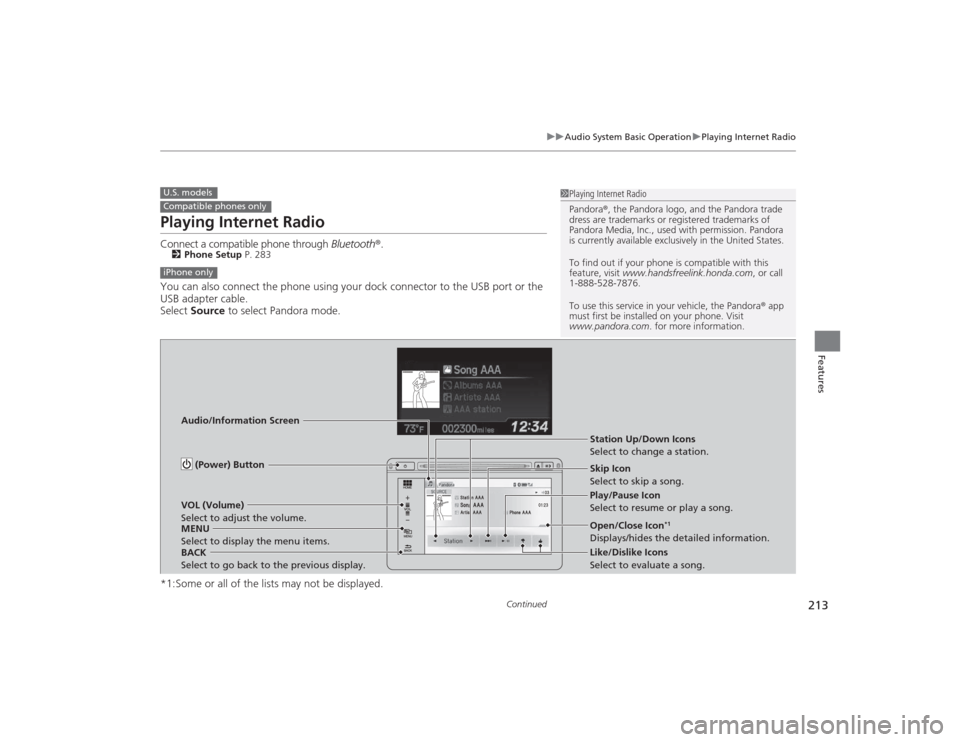
Audio/Information Screen
BACK
Select to go back to the previous display. VOL (Volume)
Select to adjust the volume.
MENU
Select to display the menu items. (Power) Button
Station Up/Down Icons
Select to change a station.
Skip Icon
Select to skip a song.
Play/Pause Icon
Select to resume or play a song.
Open/Close Icon
*1
Displays/hides the detailed information.
Like/Dislike Icons
Select to evaluate a song.
Page 215 of 469
uuAudio System Basic Operation uPlaying Internet Radio
214Features
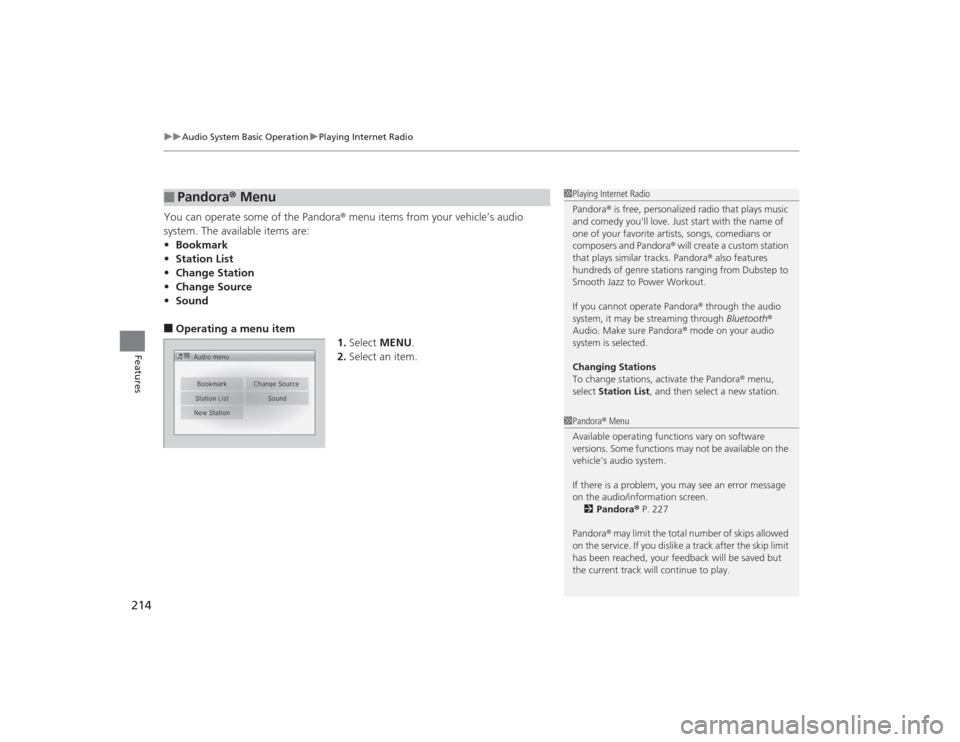
You can operate some of the Pandora® menu items from your vehicle’s audio
system. The available items are:
• Bookmark
• Station List
• Change Station
• Change Source
• Sound■Operating a menu item
1.Select MENU .
2. Select an item.■
Pandora® Menu
1Playing Internet Radio
Pandora ® is free, personalized radio that plays music
and comedy you'll love. Just start with the name of
one of your favorite artists, songs, comedians or
composers and Pandora ® will create a custom station
that plays similar tracks. Pandora ® also features
hundreds of genre stations ranging from Dubstep to
Smooth Jazz to Power Workout.
If you cannot operate Pandora ® through the audio
system, it may be streaming through Bluetooth®
Audio. Make sure Pandora ® mode on your audio
system is selected.
Changing Stations
To change stations, activate the Pandora® menu,
select Station List , and then select a new station.1Pandora ® Menu
Available operating functions vary on software
versions. Some functions may not be available on the
vehicle's audio system.
If there is a problem, you may see an error message
on the audio/information screen. 2 Pandora ® P. 227
Pandora ® may limit the total number of skips allowed
on the service. If you dislike a track after the skip limit
has been reached, your feedback will be saved but
the current track will continue to play.
Page 317 of 469
uuWhen Driving uStarting the Engine
316Driving
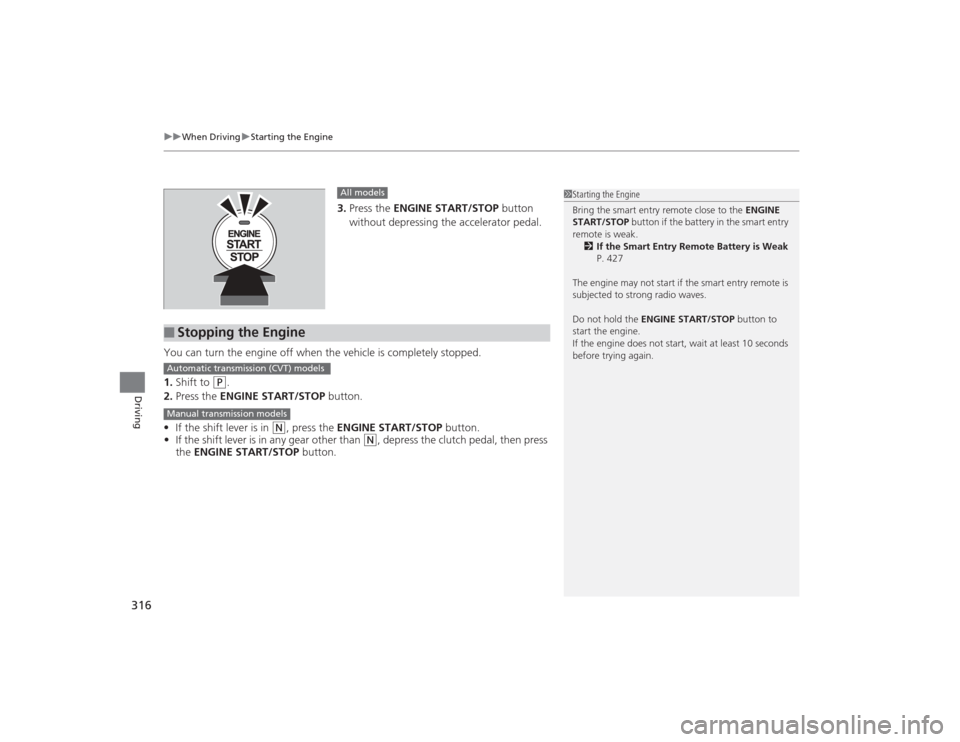
3. Press the ENGINE START/STOP button
without depressing the accelerator pedal.
You can turn the engine off when the vehicle is completely stopped.
1. Shift to
(P
.
2. Press the ENGINE START/STOP button.
• If the shift lever is in
(N
, press the ENGINE START/STOP button.
• If the shift lever is in any gear other than
(N
, depress the clutch pedal, then press
the ENGINE START/STOP button.
All models
■
Stopping the Engine
1Starting the Engine
Bring the smart entry remote close to the ENGINE
START/STOP button if the battery in the smart entry
remote is weak. 2 If the Smart Entry Remote Battery is Weak
P. 427
The engine may not start if the smart entry remote is
subjected to strong radio waves.
Do not hold the ENGINE START/STOP button to
start the engine.
If the engine does not start, wait at least 10 seconds
before trying again.
Automatic transmission (CVT) modelsManual transmission models