display HONDA CIVIC 2014 9.G Owner's Guide
[x] Cancel search | Manufacturer: HONDA, Model Year: 2014, Model line: CIVIC, Model: HONDA CIVIC 2014 9.GPages: 469, PDF Size: 17.32 MB
Page 97 of 469
96
uuGauges and Displays uintelligent Multi-Information Display (i-MID)
*
Instrument Panel
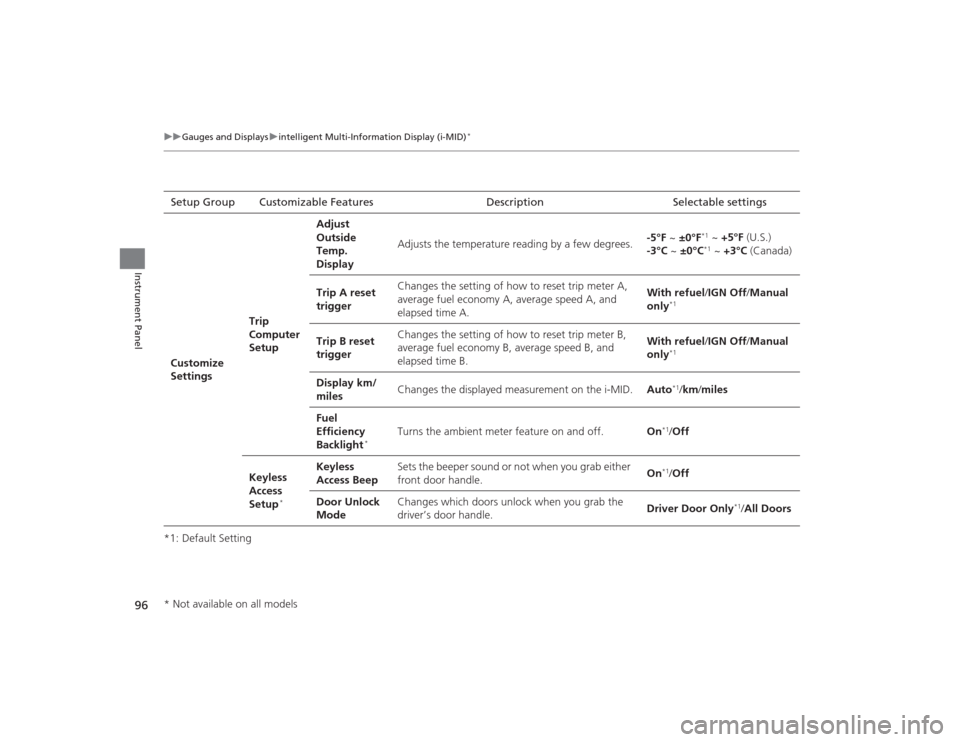
*1: Default SettingSetup Group Customizable Features Description Selectable settings
Customize
Settings Trip
Computer
SetupAdjust
Outside
Temp.
Display
Adjusts the temperature reading by a few degrees.
-5°F ~
±0°F
*1 ~ +5°F (U.S.)
-3°C ~ ±0°C*1 ~ +3°C (Canada)
Trip A reset
trigger Changes the setting of how to reset trip meter A,
average fuel economy A, average speed A, and
elapsed time A. With refuel
/IGN Off /Manual
only
*1
Trip B reset
trigger Changes the setting of how to reset trip meter B,
average fuel economy B, average speed B, and
elapsed time B. With refuel
/IGN Off /Manual
only
*1
Display km/
miles Changes the displayed measurement on the i-MID.
Auto
*1/km/ miles
Fuel
Efficiency
Backlight
*
Turns the ambient meter feature on and off. On
*1/Off
Keyless
Access
Setup
*
Keyless
Access Beep Sets the beeper sound or not when you grab either
front door handle.
On
*1/
Off
Door Unlock
Mode Changes which doors unlock when you grab the
driver’s door handle.
Driver Door Only
*1/
All Doors
* Not available on all models
Page 98 of 469
97
uuGauges and Displays uintelligent Multi-Information Display (i-MID)
*
Continued
Instrument Panel
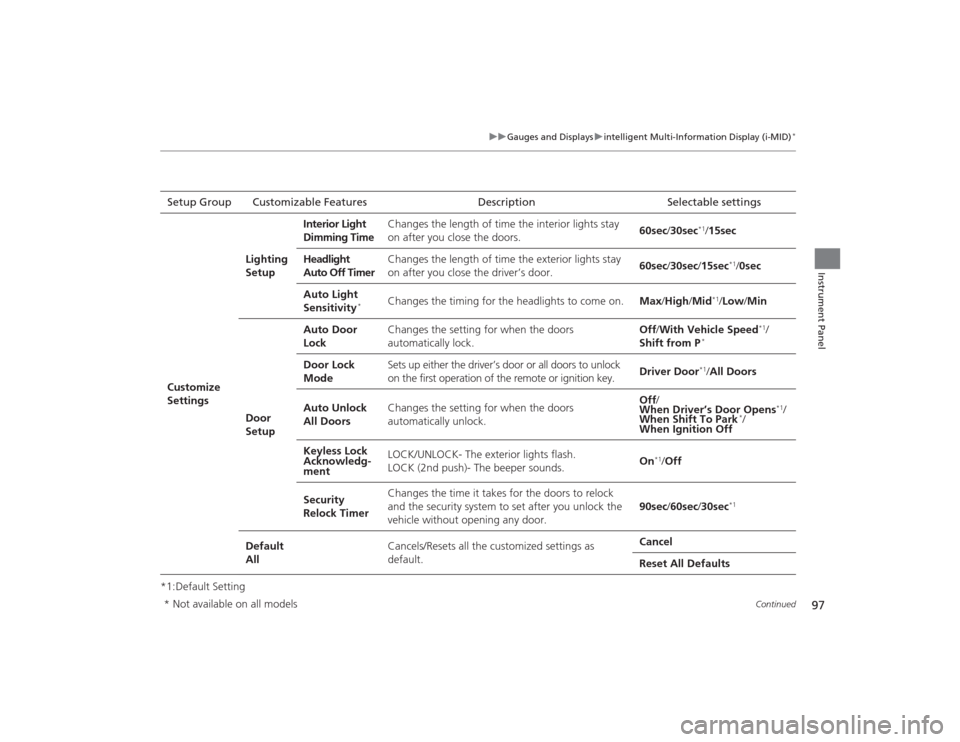
*1:Default SettingSetup Group Customizable Features Description Selectable settingsCustomize
Settings
Lighting
Setup
Interior Light
Dimming Time
Changes the length of time the interior lights stay
on after you close the doors.
60sec
/30sec
*1/15sec
Headlight
Auto Off Timer Changes the length of time the exterior lights stay
on after you close the driver’s door.
60sec
/30sec /15sec
*1/ 0sec
Auto Light
Sensitivity
*
Changes the timing for the headlights to come on. Max/High /Mid
*1/ Low /Min
Door
Setup Auto Door
Lock
Changes the setting for when the doors
automatically lock. Off
/With Vehicle Speed
*1/
Shift from P
*
Door Lock
Mode Sets up either the driver’s door or all doors to unlock
on the first operation of the remote or ignition key.
Driver Door
*1/
All Doors
Auto Unlock
All Doors Changes the setting for when the doors
automatically unlock. Off
/
When Driver’s Door Opens
*1/
When Shift To Park
*/
When Ignition Off
Keyless Lock
Acknowledg-
ment LOCK/UNLOCK- The exterior lights flash.
LOCK (2nd push)- The beeper sounds.
On
*1/
Off
Security
Relock Timer Changes the time it takes for the doors to relock
and the security system to set after you unlock the
vehicle without opening any door.
90sec
/60sec /30sec
*1
Default
All Cancels/Resets all the customized settings as
default. Cancel
Reset All Defaults
* Not available on all models
Page 99 of 469
uuGauges and Displays uintelligent Multi-Information Display (i-MID)
*
98Instrument Panel
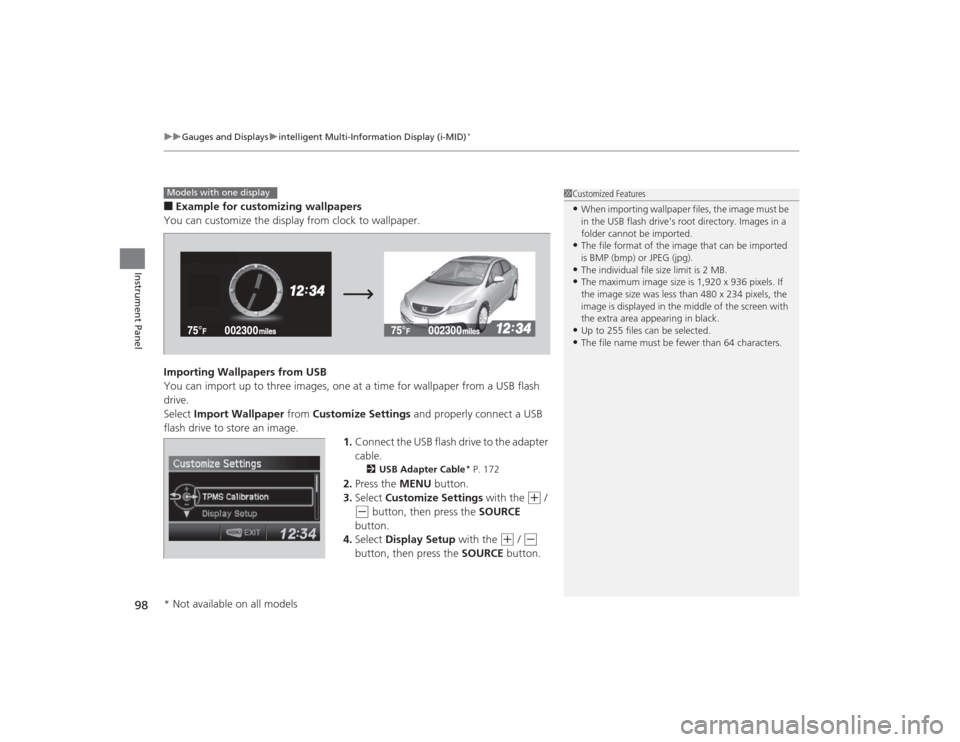
■Example for customizing wallpapers
You can customize the display from clock to wallpaper.
Importing Wallpapers from USB
You can import up to three images, one at a time for wallpaper from a USB flash
drive.
Select Import Wallpaper from Customize Settings and properly connect a USB
flash drive to store an image. 1.Connect the USB flash drive to the adapter
cable.
2 USB Adapter Cable
* P. 172
2.Press the MENU button.
3. Select Customize Settings with the
(+
/
(-
button, then press the SOURCE
button.
4. Select Display Setup with the
(+
/ (-
button, then press the SOURCE button.
1Customized Features•When importing wallpaper files, the image must be
in the USB flash drive’s root directory. Images in a
folder cannot be imported.•The file format of the image that can be imported
is BMP (bmp) or JPEG (jpg).•The individual file size limit is 2 MB.•The maximum image size is 1,920 x 936 pixels. If
the image size was less than 480 x 234 pixels, the
image is displayed in the middle of the screen with
the extra area appearing in black.•Up to 255 files can be selected.•The file name must be fewer than 64 characters.
Models with one display* Not available on all models
Page 100 of 469
99
uuGauges and Displays uintelligent Multi-Information Display (i-MID)
*
Continued
Instrument Panel
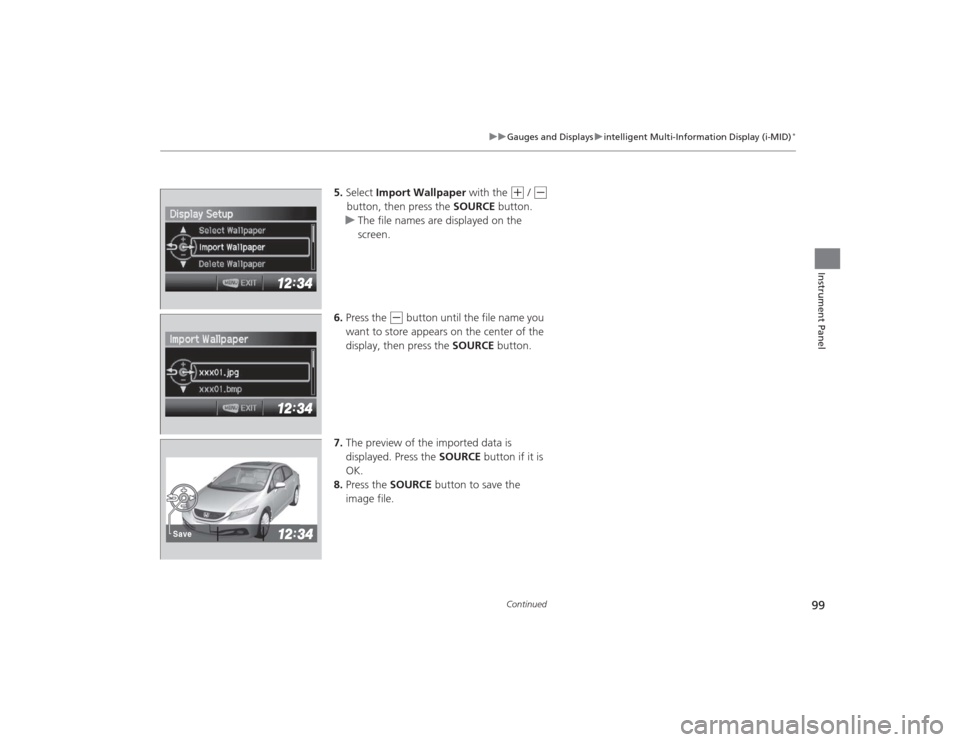
5. Select Import Wallpaper with the
(+
/ (-
button, then press the SOURCE button.
u The file names are displayed on the
screen.
6. Press the
(-
button until the file name you
want to store appears on the center of the
display, then press the SOURCE button.
7. The preview of the imported data is
displayed. Press the SOURCE button if it is
OK.
8. Press the SOURCE button to save the
image file.
Save
Page 101 of 469
100
uuGauges and Displays uintelligent Multi-Information Display (i-MID)
*
Instrument Panel
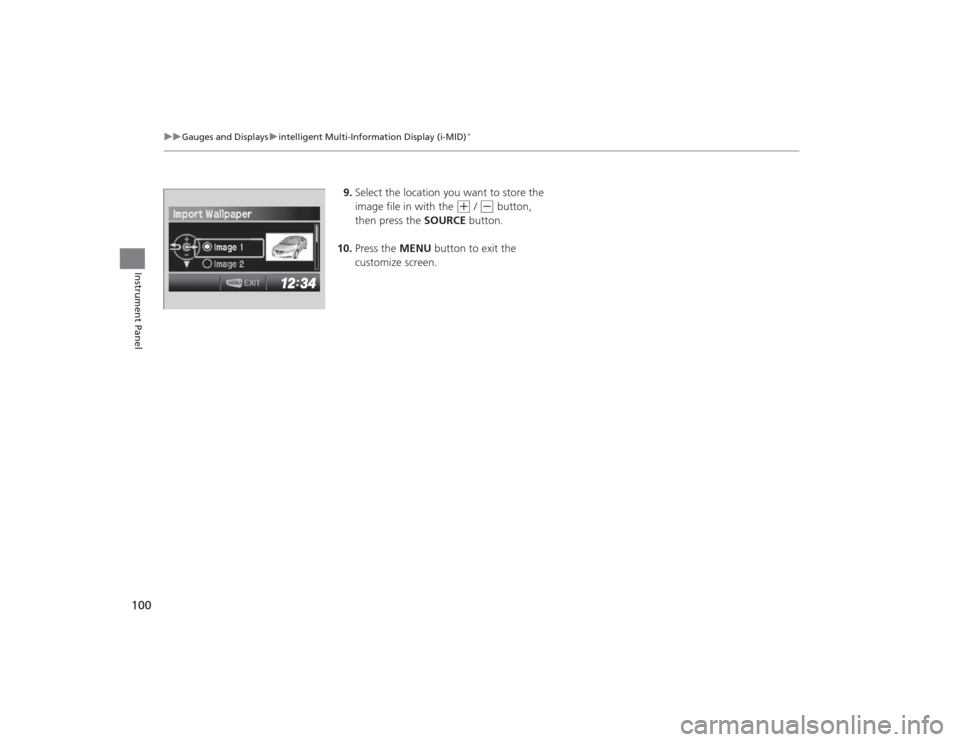
9. Select the location you want to store the
image file in with the
(+
/ (-
button,
then press the SOURCE button.
10. Press the MENU button to exit the
customize screen.
Page 102 of 469
101
uuGauges and Displays uintelligent Multi-Information Display (i-MID)
*
Instrument Panel
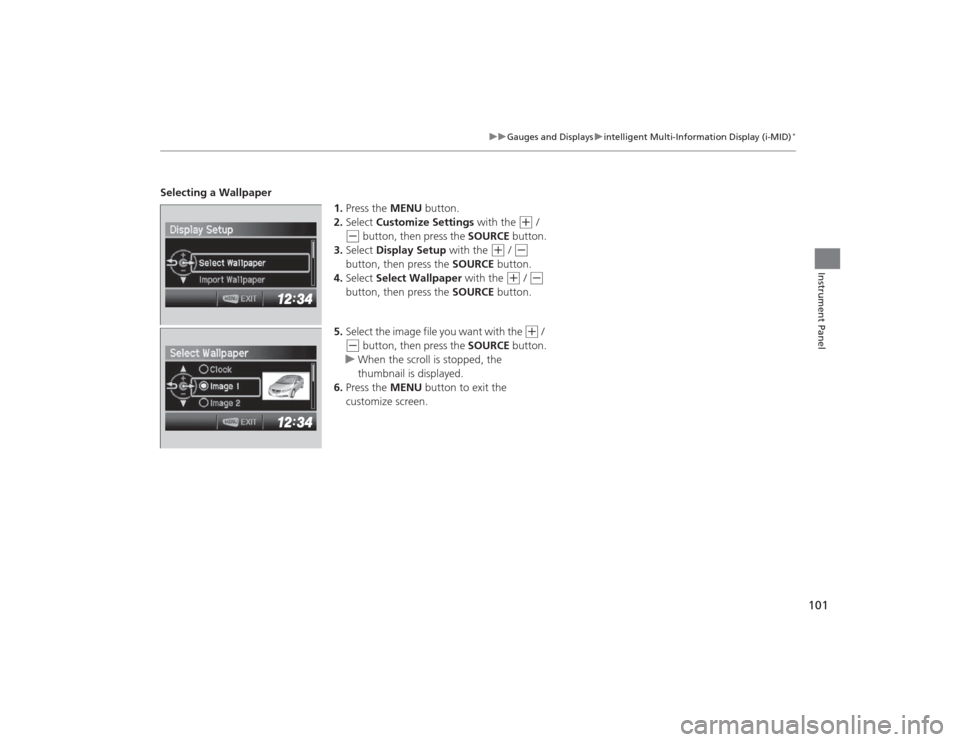
Selecting a Wallpaper
1.Press the MENU button.
2. Select Customize Settings with the
(+
/
(-
button, then press the SOURCE button.
3. Select Display Setup with the
(+
/ (-
button, then press the SOURCE button.
4. Select Select Wallpaper with the
(+
/ (-
button, then press the SOURCE button.
5. Select the image file you want with the
(+
/
(-
button, then press the SOURCE button.
u When the scroll is stopped, the
thumbnail is displayed.
6. Press the MENU button to exit the
customize screen.
Page 105 of 469
104Controls
ClockAdjusting the ClockYou can adjust the time in the clock display, using the CLOCK knob with the ignition
switch in ON
(w
*1.
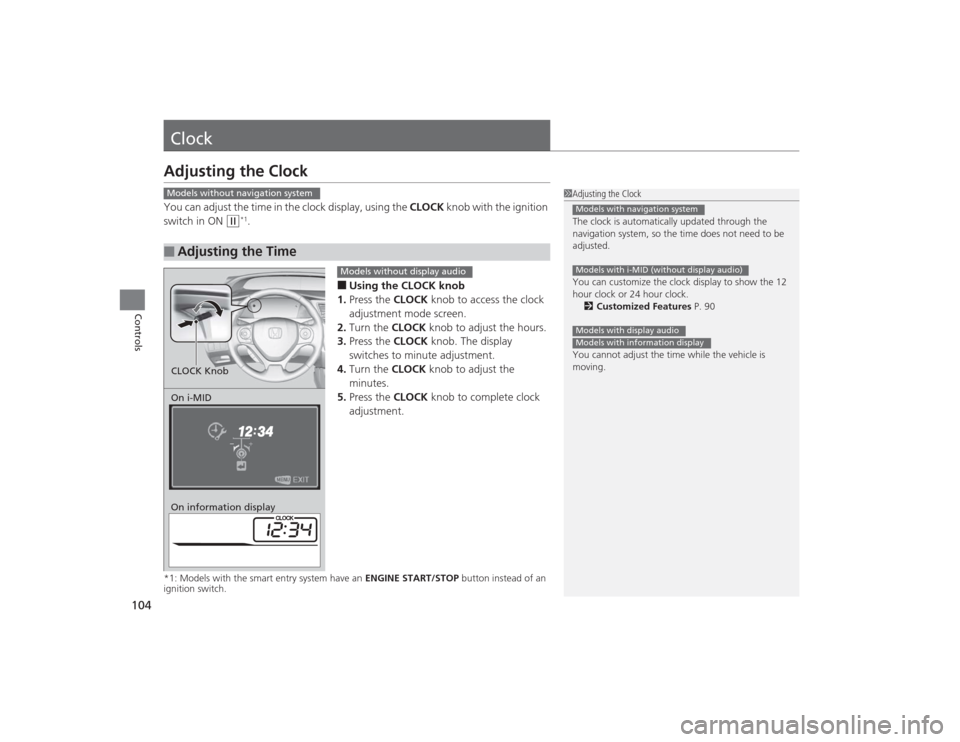
■Using the CLOCK knob
1. Press the CLOCK knob to access the clock
adjustment mode screen.
2. Turn the CLOCK knob to adjust the hours.
3. Press the CLOCK knob. The display
switches to minute adjustment.
4. Turn the CLOCK knob to adjust the
minutes.
5. Press the CLOCK knob to complete clock
adjustment.
*1: Models with the smart entry system have an ENGINE START/STOP button instead of an
ignition switch.■
Adjusting the Time
1 Adjusting the Clock
The clock is automatically updated through the
navigation system, so the time does not need to be
adjusted.
You can customize the clock display to show the 12
hour clock or 24 hour clock.
2 Customized Features P. 90
You cannot adjust the time while the vehicle is
moving.Models with navigation systemModels with i-MID (without display audio)Models with display audioModels with information display
Models without navigation systemOn i-MID
On information displayCLOCK Knob
Models without display audio
Page 106 of 469
105
uuClock uAdjusting the Clock
Controls
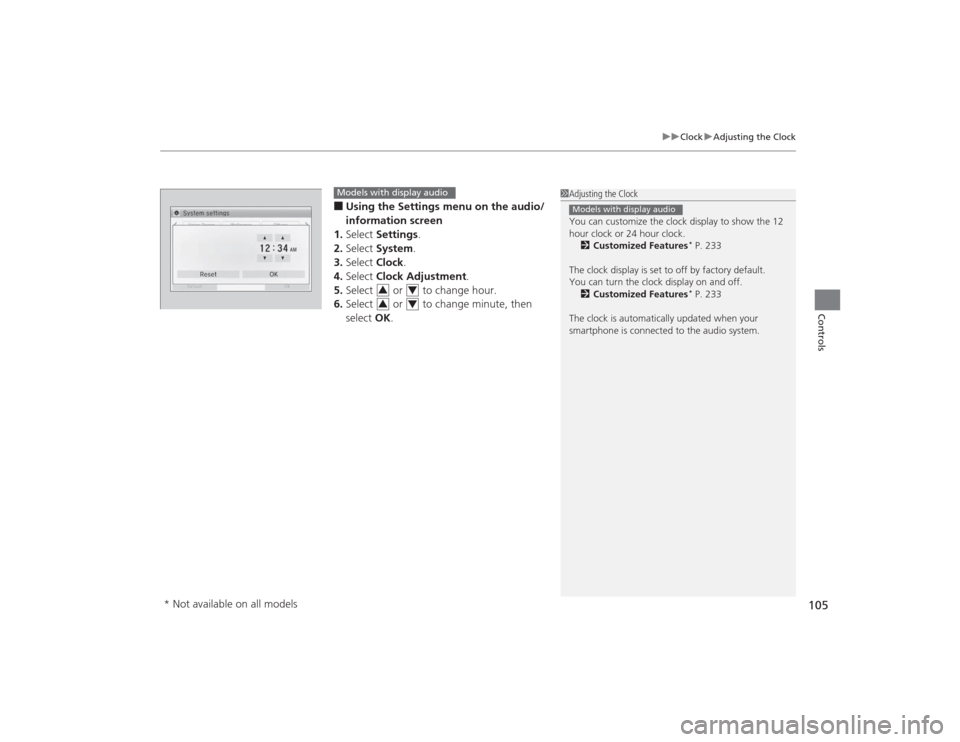
■Using the Settings menu on the audio/
information screen
1. Select Settings .
2. Select System.
3. Select Clock.
4. Select Clock Adjustment .
5. Select or to change hour.
6. Select or to change minute, then
select OK.
1Adjusting the Clock
You can customize the clock display to show the 12
hour clock or 24 hour clock.
2 Customized Features
* P. 233
The clock display is set to off by factory default.
You can turn the clock display on and off. 2 Customized Features* P. 233
The clock is automatically updated when your
smartphone is connected to the audio system.
Models with display audio
Models with display audio
3
4
3
4
* Not available on all models
Page 142 of 469
141
uuOperating the Switches Around the Steering Wheel uBrightness Control
Controls
Brightness Control
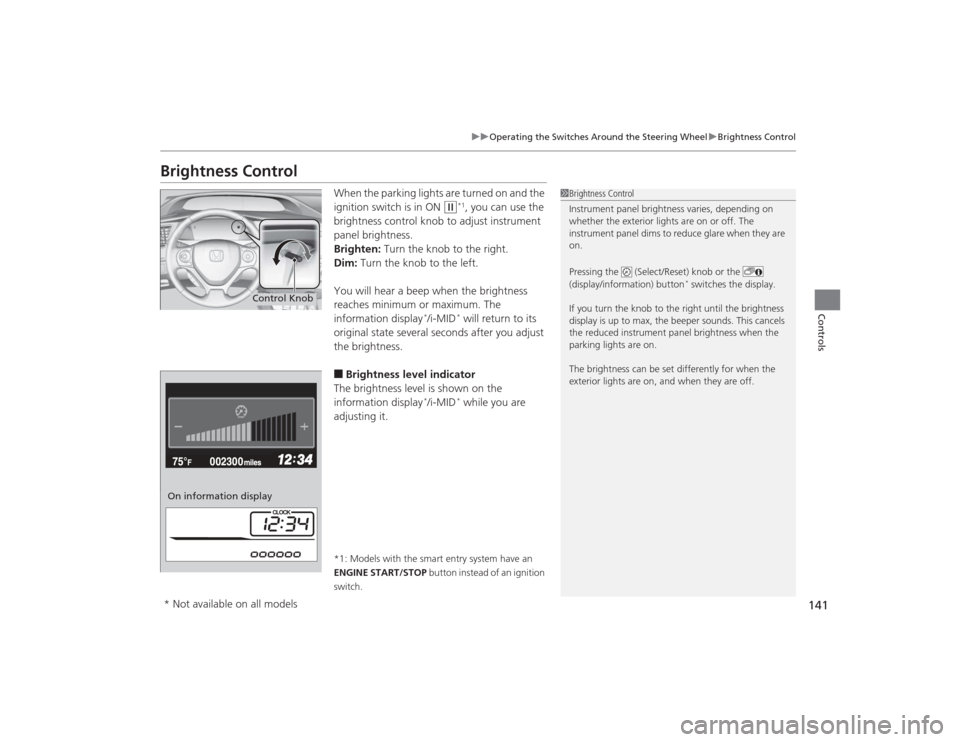
When the parking lights are turned on and the
ignition switch is in ON
(w
*1, you can use the
brightness control knob to adjust instrument
panel brightness.
Brighten: Turn the knob to the right.
Dim: Turn the knob to the left.
You will hear a beep when the brightness
reaches minimum or maximum. The
information display
*/i-MID
* will return to its
original state several seconds after you adjust
the brightness.
■Brightness level indicator
The brightness level is shown on the
information display
*/i-MID
* while you are
adjusting it.
*1: Models with the smart entry system have an
ENGINE START/STOP button instead of an ignition
switch.
1 Brightness Control
Instrument panel brightness varies, depending on
whether the exterior lights are on or off. The
instrument panel dims to reduce glare when they are
on.
Pressing the (Select/Reset) knob or the
(display/information) button
* switches the display.
If you turn the knob to the right until the brightness
display is up to max, the beeper sounds. This cancels
the reduced instrument panel brightness when the
parking lights are on.
The brightness can be set differently for when the
exterior lights are on, and when they are off.
Control Knob
On information display* Not available on all models
Page 166 of 469
165
Continued
Controls
Climate Control System
*
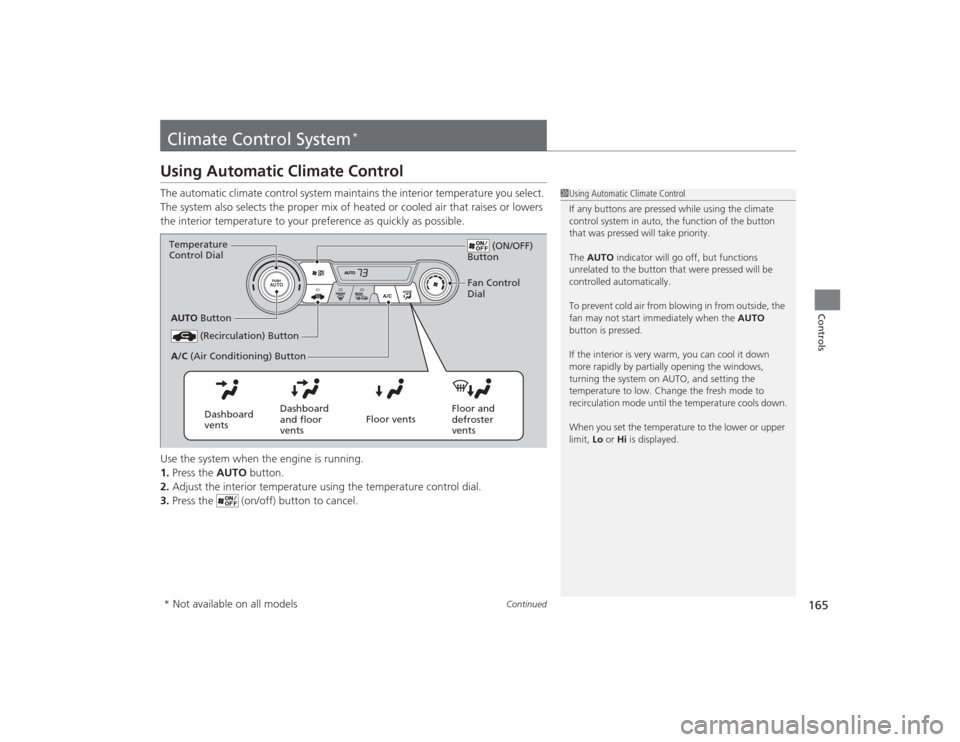
Using Automatic Climate ControlThe automatic climate control system maintains the interior temperature you select.
The system also selects the proper mix of heated or cooled air that raises or lowers
the interior temperature to your preference as quickly as possible.
Use the system when the engine is running.
1.Press the AUTO button.
2. Adjust the interior temperature using the temperature control dial.
3. Press the (on/off) button to cancel.
1Using Automatic Climate Control
If any buttons are pressed while using the climate
control system in auto, the function of the button
that was pressed will take priority.
The AUTO indicator will go off, but functions
unrelated to the button that were pressed will be
controlled automatically.
To prevent cold air from blowing in from outside, the
fan may not start immediately when the AUTO
button is pressed.
If the interior is very warm, you can cool it down
more rapidly by partially opening the windows,
turning the system on AUTO, and setting the
temperature to low. Change the fresh mode to
recirculation mode until the temperature cools down.
When you set the temperature to the lower or upper
limit, Lo or Hi is displayed.
(ON/OFF)
Button
(Recirculation) Button
Floor and
defroster
vents
Floor vents
Dashboard
and floor
vents
Dashboard
vents
AUTO
Button
A/C (Air Conditioning) Button
Temperature
Control Dial
Fan Control
Dial
* Not available on all models