lock HONDA CIVIC 2014 9.G Manual PDF
[x] Cancel search | Manufacturer: HONDA, Model Year: 2014, Model line: CIVIC, Model: HONDA CIVIC 2014 9.GPages: 469, PDF Size: 17.32 MB
Page 201 of 469
uuAudio System Basic Operation uAudio/Information Screen
200Features
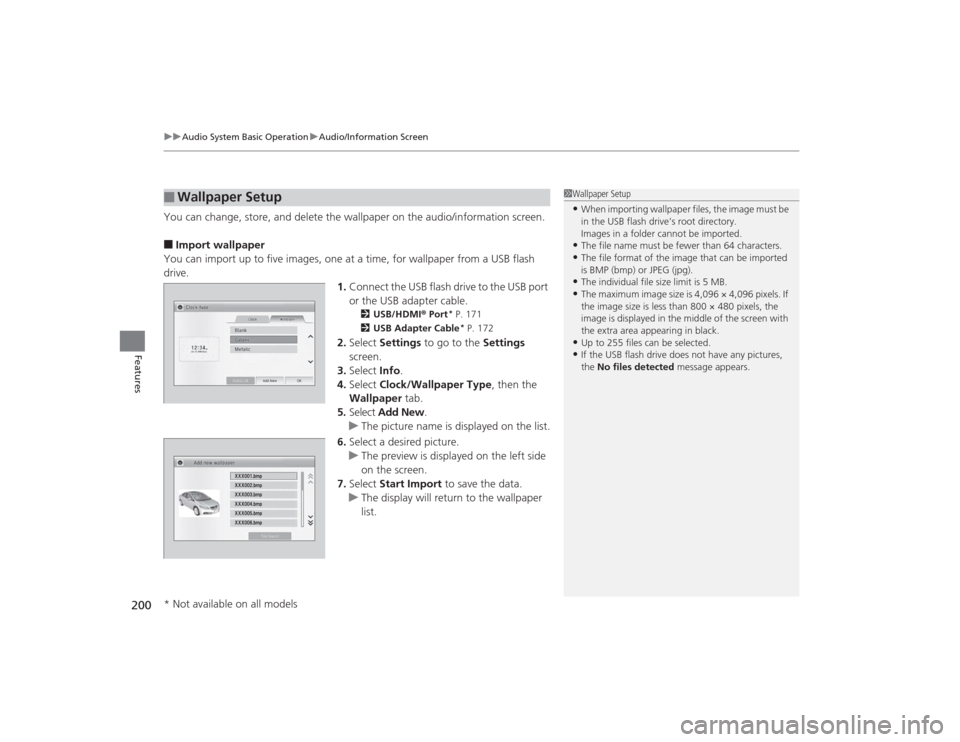
You can change, store, and delete the wallpaper on the audio/information screen.■Import wallpaper
You can import up to five images, one at a time, for wallpaper from a USB flash
drive. 1.Connect the USB flash drive to the USB port
or the USB adapter cable.
2 USB/HDMI® Port
* P. 171
2 USB Adapter Cable* P. 172
2.Select Settings to go to the Settings
screen.
3. Select Info.
4. Select Clock/Wallpaper Type , then the
Wallpaper tab.
5. Select Add New .
u The picture name is displayed on the list.
6. Select a desired picture.
u The preview is displayed on the left side
on the screen.
7. Select Start Import to save the data.
u The display will return to the wallpaper
list.
■
Wallpaper Setup
1Wallpaper Setup•When importing wallpaper files, the image must be
in the USB flash drive’s root directory.
Images in a folder cannot be imported.•The file name must be fewer than 64 characters.•The file format of the image that can be imported
is BMP (bmp) or JPEG (jpg).•The individual file size limit is 5 MB.•The maximum image size is 4,096 × 4,096 pixels. If
the image size is less than 800 × 480 pixels, the
image is displayed in the middle of the screen with
the extra area appearing in black.•Up to 255 files can be selected.•If the USB flash drive does not have any pictures,
the No files detected message appears.
* Not available on all models
Page 202 of 469
201
uuAudio System Basic Operation uAudio/Information Screen
Features
■Select wallpaper
1. Select Settings to go to the Settings screen.
2. Select Info.
3. Select Clock/Wallpaper Type , then the Wallpaper tab.
u The screen changes to the wallpaper list.
4. Select a desired wallpaper.
u The preview is displayed on the left side on the screen.
u The pop-up menu appears on the screen.
5. Select Set.
u The display will return to the wallpaper list.■Delete wallpaper
1. Select Settings to go to the Settings screen.
2. Select Info.
3. Select Clock/Wallpaper Type , then the Wallpaper tab.
u The screen changes to the wallpaper list.
4. Select a wallpaper that you want to delete.
u The preview is displayed on the left side on the screen.
u The pop-up menu appears on the screen.
5. Select Delete .
u The confirmation message will appear.
6. Select Yes to delete completely.
u The display will return to the wallpaper list.
1Wallpaper Setup
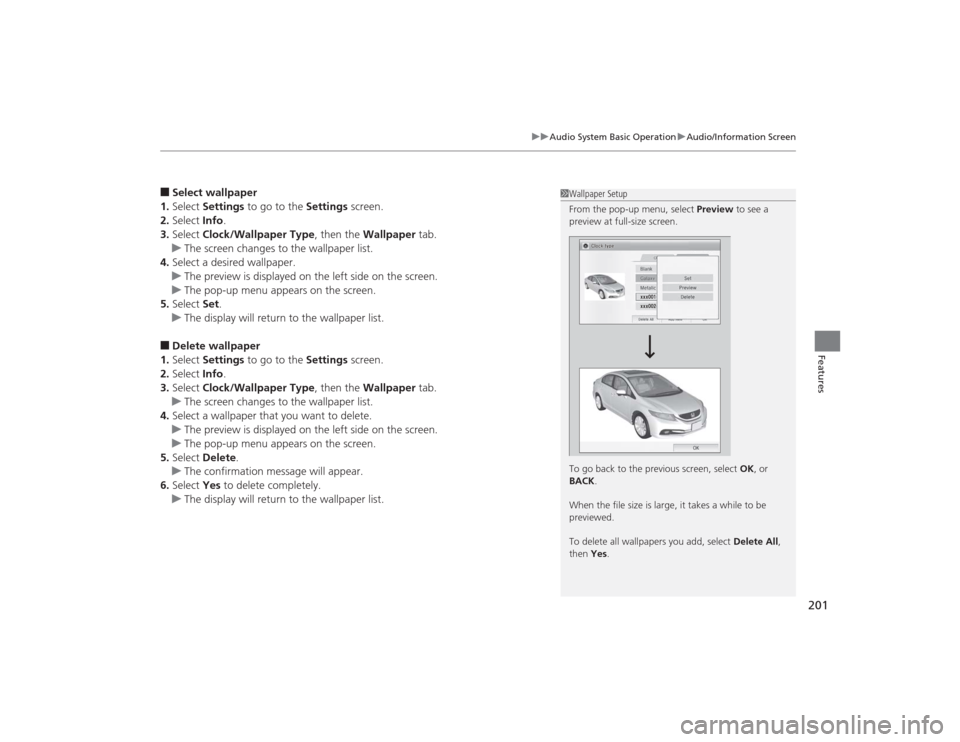
From the pop-up menu, select Preview to see a
preview at full-size screen.
To go back to the previous screen, select OK, or
BACK .
When the file size is large, it takes a while to be
previewed.
To delete all wallpapers you add, select Delete All,
then Yes .
Page 233 of 469
232
uuGeneral Information on the Audio System uCompatible iPod and USB Flash Drives
Features
Compatible iPod and USB Flash Drives*1:Models with display audio system
• Use a recommended USB flash drive of 256 MB or higher.
• Some digital audio players may not be compatible.
• Some USB flash drives (e.g., a device with security lockout) may not work.
• Some software files may not allow for audio play or text data display.
• Some versions of MP3, WMA, or AAC formats may be unsupported.■
iPod and iPhone Model Compatibility
Model
iPod (5th generation)
iPod classic 80GB/160GB (launch in 2007)
iPod classic 120GB (launch in 2008)iPod classic 160GB (launch in 2009)
iPod nanoiPod touch
iPhone 3G/iPhone 3GS/iPhone 4/iPhone 4S/iPhone 5
*1
■
USB Flash DrivesModels with i-MID
1iPod and iPhone Model Compatibility
This system may not work with all software versions
of these devices.1USB Flash Drives
Files on the USB flash drive are played in their stored
order. This order may be different from the order
displayed on your PC or device.
Page 235 of 469
234
uuCustomized Features
*u
Features
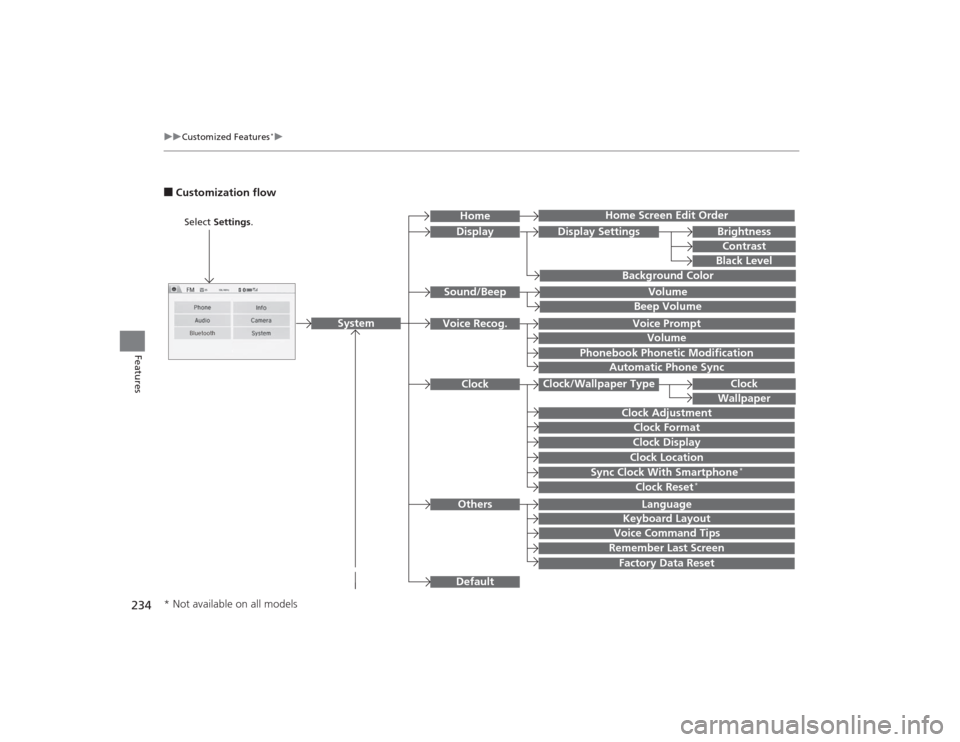
■Customization flow
Clock Format
Remember Last ScreenFactory Data ResetClock Adjustment
Select Settings .
Language
Default
BrightnessContrastBlack Level
Clock
Wallpaper
Display
Home Screen Edit Order
Background Color
Volume
Sync Clock With Smartphone
*
Clock LocationClock DisplayBeep VolumeKeyboard Layout
Home
Sound/Beep
Display Settings
Clock
Clock/Wallpaper Type
System
Clock Reset
*
Others
Phonebook Phonetic Modification
Automatic Phone Sync
Voice Prompt
Volume
Voice Recog.
Voice Command Tips
* Not available on all models
Page 236 of 469
![HONDA CIVIC 2014 9.G Manual PDF 235
uuCustomized Features
*u
Continued
Features
Color
Audio
Sound
Audio Source Pop-up
[Your selected media] Cover Art
*1
Display Adjustment
*1
Aspect Ratio Adjustment
*1
Change Bluetooth Audio Device](/img/13/5834/w960_5834-235.png "HONDA CIVIC 2014 9.G Manual PDF 235
uuCustomized Features
*u
Continued
Features
Color
Audio
Sound
Audio Source Pop-up
[Your selected media] Cover Art
*1
Display Adjustment
*1
Aspect Ratio Adjustment
*1
Change Bluetooth Audio Device")
235
uuCustomized Features
*u
Continued
Features
Color
Audio
Sound
Audio Source Pop-up
[Your selected media] Cover Art
*1
Display Adjustment
*1
Aspect Ratio Adjustment
*1
Change Bluetooth Audio Device
*1
Bluetooth Device List
*1
Default
Display
BrightnessContrastBlack Level
ColorTint
Clock FormatClock Adjustment
Clock/Wallpaper Type
Clock
Wallpaper
Sync Clock With Smartphone
*
Clock LocationClock Display
Info Screen Preference
Default
Info
Clock Reset
*
OtherClock
*1: May change depending on your currently
selected source.* Not available on all models
Page 239 of 469
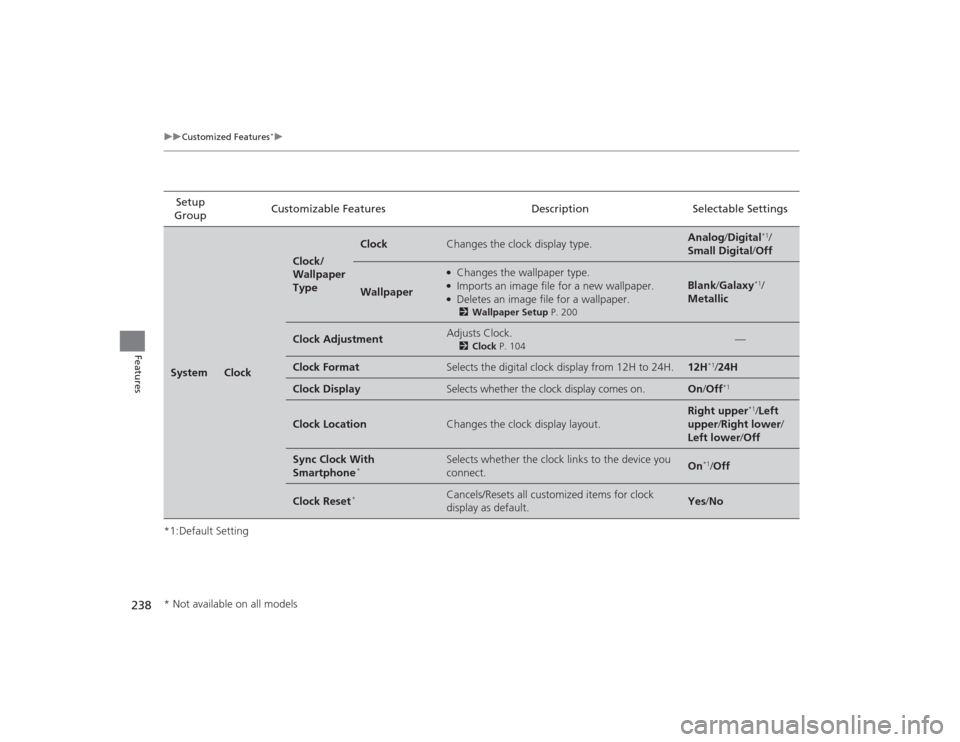
238
uuCustomized Features
*u
Features
*1:Default SettingSetup
Group Customizable Features Description Selectable SettingsSystem
Clock
Clock/
Wallpaper
Type
Clock
Changes the clock display type.
Analog
/Digital
*1/
Small Digital /Off
Wallpaper
●Changes the wallpaper type.●Imports an image file for a new wallpaper.●Deletes an image file for a wallpaper.2 Wallpaper Setup P. 200
Blank /Galaxy
*1/
Metallic
Clock Adjustment
Adjusts Clock.
2 Clock P. 104
—
Clock Format
Selects the digital clock display from 12H to 24H.
12H
*1/24H
Clock Display
Selects whether the clock display comes on.
On /Off
*1
Clock Location
Changes the clock display layout.
Right upper
*1/Left
upper /Right lower/
Left lower/ Off
Sync Clock With
Smartphone
*
Selects whether the clock links to the device you
connect.
On
*1/Off
Clock Reset
*
Cancels/Resets all customized items for clock
display as default.
Yes /No
* Not available on all models
Page 242 of 469
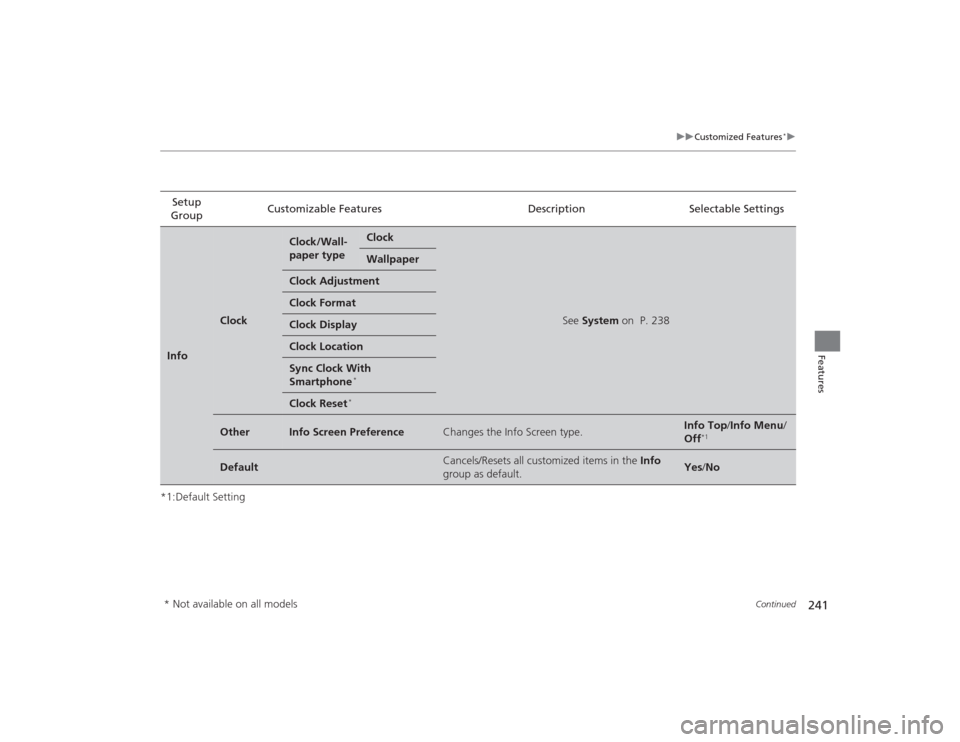
241
uuCustomized Features
*u
Continued
Features
*1:Default SettingSetup
Group Customizable Features Description Selectable SettingsInfo
Clock
Clock/Wall-
paper type
Clock
See
System on P. 238
Wallpaper
Clock AdjustmentClock FormatClock DisplayClock LocationSync Clock With
Smartphone
*
Clock Reset
*
Other
Info Screen Preference
Changes the Info Screen type.
Info Top /Info Menu/
Off
*1
Default
Cancels/Resets all customized items in the Info
group as default.
Yes /No
* Not available on all models
Page 304 of 469
303
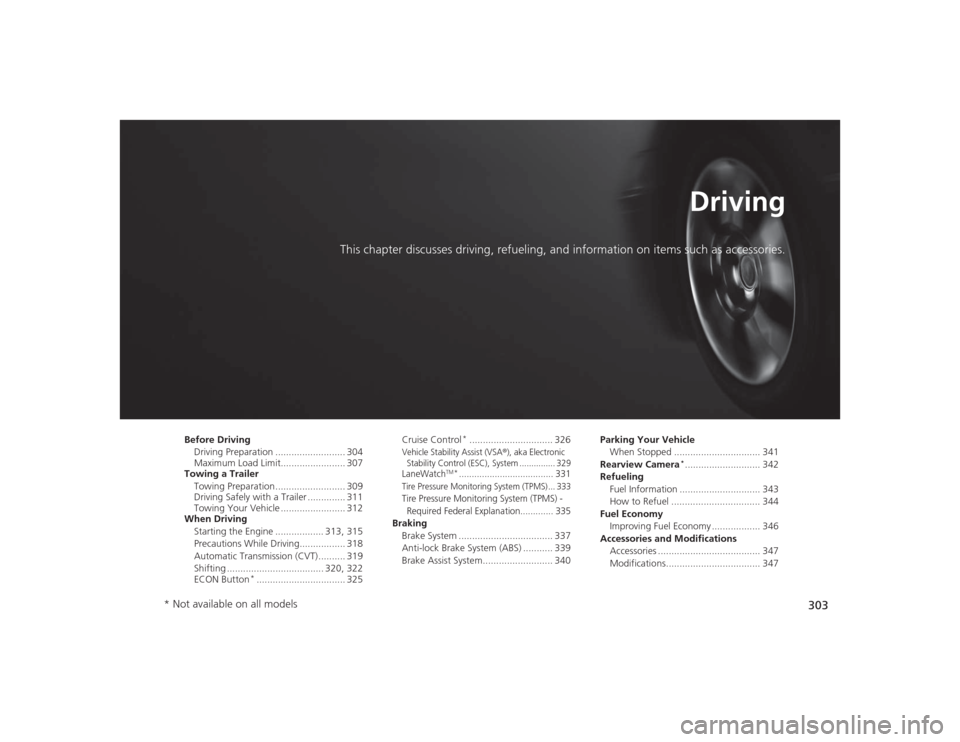
Driving
This chapter discusses driving, refueling, and information on items such as accessories.
Before DrivingDriving Preparation .......................... 304
Maximum Load Limit........................ 307
Towing a Trailer
Towing Preparation .......................... 309
Driving Safely with a Trailer .............. 311
Towing Your Vehicle ........................ 312
When Driving
Starting the Engine .................. 313, 315
Precautions While Driving................. 318
Automatic Transmission (CVT) .......... 319
Shifting .................................... 320, 322
ECON Button
*................................. 325 Cruise Control
*............................... 326
Vehicle Stability Assist (VSA
®), aka Electronic
Stability Control (ESC), System ............... 329
LaneWatch
TM*..................................... 331
Tire Pressure Monitoring System (TPMS) ... 333Tire Pressure Monitoring System (TPMS) -
Required Federal Explanation............. 335Braking Brake System ................................... 337
Anti-lock Brake System (ABS) ........... 339
Brake Assist System.......................... 340 Parking Your Vehicle
When Stopped ................................ 341
Rearview Camera
*............................ 342
Refueling Fuel Information .............................. 343
How to Refuel ................................. 344
Fuel Economy Improving Fuel Economy .................. 346
Accessories and Modifications Accessories ...................................... 347
Modifications................................... 347
* Not available on all models
Page 305 of 469
304Driving
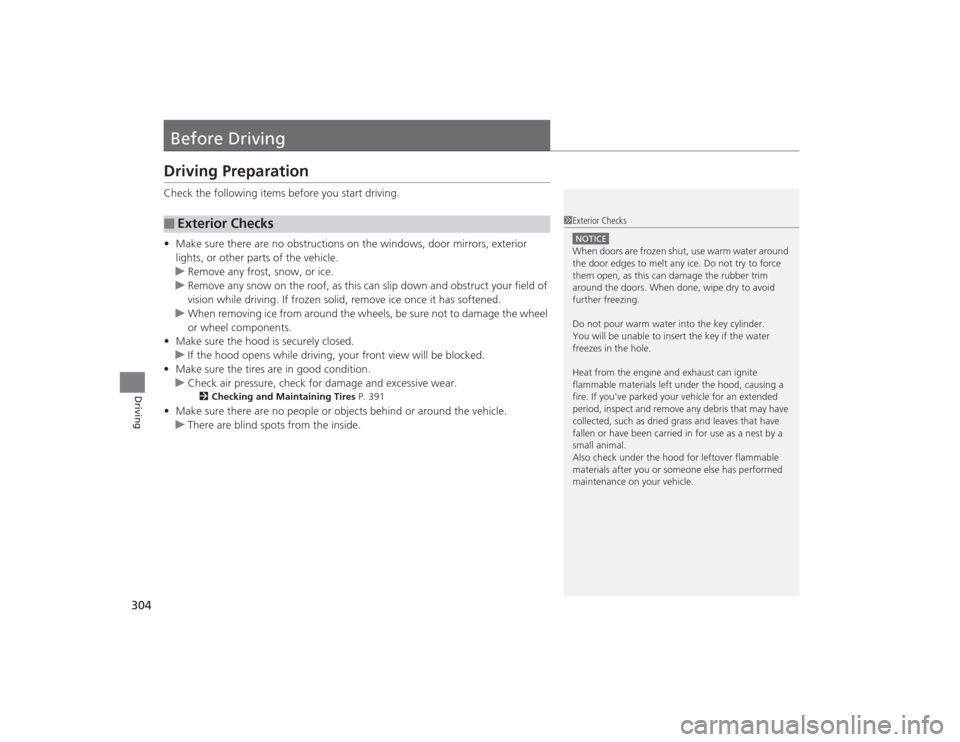
Before DrivingDriving PreparationCheck the following items before you start driving.
•Make sure there are no obstructions on the windows, door mirrors, exterior
lights, or other parts of the vehicle.
u Remove any frost, snow, or ice.
u Remove any snow on the roof, as this can slip down and obstruct your field of
vision while driving. If frozen solid, remove ice once it has softened.
u When removing ice from around the wheels, be sure not to damage the wheel
or wheel components.
• Make sure the hood is securely closed.
u If the hood opens while driving, your front view will be blocked.
• Make sure the tires are in good condition.
u Check air pressure, check for damage and excessive wear.
2 Checking and Maintaining Tires P. 391
•Make sure there are no people or objects behind or around the vehicle.
u There are blind spots from the inside.■
Exterior Checks
1Exterior ChecksNOTICEWhen doors are frozen shut, use warm water around
the door edges to melt any ice. Do not try to force
them open, as this can damage the rubber trim
around the doors. When done, wipe dry to avoid
further freezing.
Do not pour warm water into the key cylinder.
You will be unable to insert the key if the water
freezes in the hole.
Heat from the engine and exhaust can ignite
flammable materials left under the hood, causing a
fire. If you've parked your vehicle for an extended
period, inspect and remove any debris that may have
collected, such as dried grass and leaves that have
fallen or have been carried in for use as a nest by a
small animal.
Also check under the hood for leftover flammable
materials after you or someone else has performed
maintenance on your vehicle.
Page 306 of 469
Continued
305
uuBefore Driving uDriving Preparation
Driving
• Store or secure all items on board properly.
u Carrying too much cargo, or improperly storing it, can affect your vehicle's
handling, stability, stopping distance, and tires, and make it unsafe.
2 Maximum Load Limit P. 307
•Do not pile items higher than the seat height.
u They can block your view and may be thrown forward in the event of sudden
braking.
• Do not place anything in the front seat footwells. Make sure to secure the floor
mat
*.
u An object or unsecured floor mat can interfere with your brake and accelerator
pedal operation while driving.
• If you have any animals on board, do not let them move around in the vehicle.
u They may interfere with driving and a crash could occur.
• Securely close and lock all doors and the trunk.2 Locking/Unlocking the Doors from the Inside P. 114
•Adjust your seating position properly.
u Adjust the head restraint, too.
2 Adjusting the Seats P. 146
2 Adjusting the Head Restraints P. 149
•Adjust the mirrors and steering wheel properly for your driving.
u Adjust them while sitting in the proper driving position.
2 Adjusting the Mirrors P. 144
2 Adjusting the Steering Wheel P. 143
■
Interior Checks
1Interior Checks
The headlight aim is set by the factory, and does not
need to be adjusted. However, if you regularly carry
heavy items in the trunk or tow a trailer, have the
aiming readjusted at a dealer or by a qualified
technician.
* Not available on all models