display HONDA CIVIC 2015 9.G Quick Guide
[x] Cancel search | Manufacturer: HONDA, Model Year: 2015, Model line: CIVIC, Model: HONDA CIVIC 2015 9.GPages: 79, PDF Size: 18.16 MB
Page 40 of 79
72 || 73
BLUETOOTH
® HANDSFREELINK®BLUETOOTH® HANDSFREELINK®
Voice Recognition Tips
• When using the Talk button, wait for a beep before saying a command.
• To bypass the system prompts, simply press the Talk button again to say your command.
• When the Talk button is pressed, all available voice commands are highlighted in yellow.
• Speak in a clear, natural voice.
• Reduce all background noise.
• Adjust the dashboard and side vents away from the microphone in the ceil\
ing.
• Close the windows and moonroof.
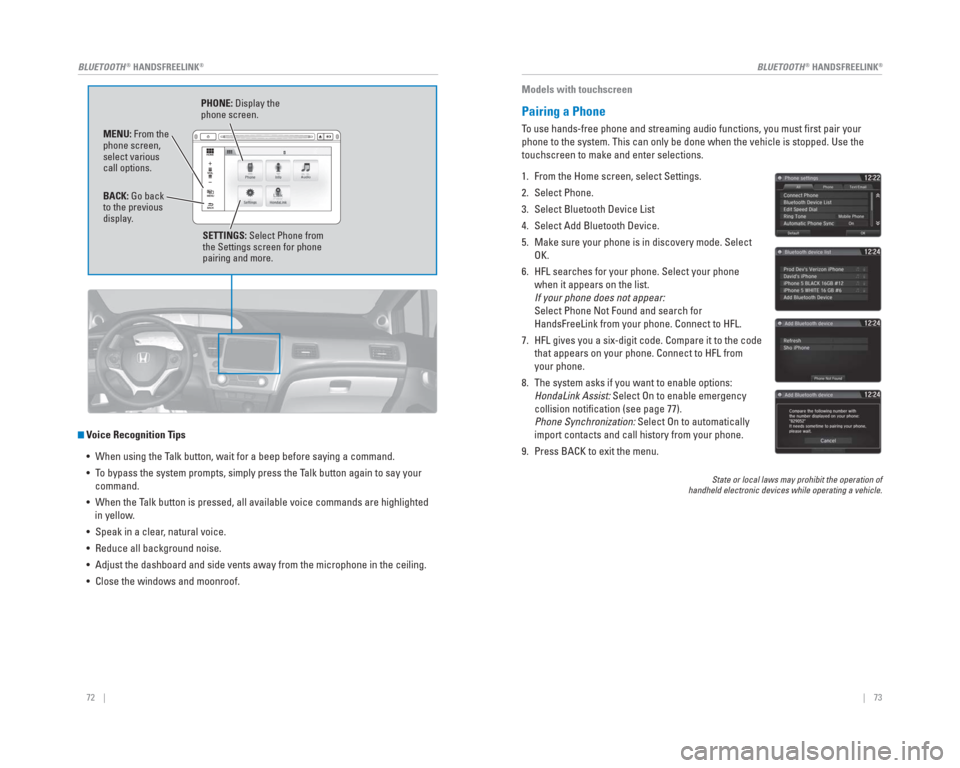
PHONE: Display the
phone screen.
MENU: From the
phone screen,
select various
call options.
BACK: Go back
to the previous
display. SETTINGS: Select Phone from
the Settings screen for phone
pairing and more.
Models with touchscreen
Pairing a Phone
To use hands-free phone and streaming audio functions, you must fi rst pair your
phone to the system. This can only be done when the vehicle is stopped. \
Use the
touchscreen to make and enter selections.
1. From the Home screen, select Settings.
2. Select Phone.
3. Select Bluetooth Device List
4. Select Add Bluetooth Device.
5. Make sure your phone is in discovery mode. Select OK.
6. HFL searches for your phone. Select your phone when it appears on the list.
If your phone does not appear:
Select Phone Not Found and search for
HandsFreeLink from your phone. Connect to HFL.
7. HFL gives you a six-digit code. Compare it to the code that appears on your phone. Connect to HFL from
your phone.
8. The system asks if you want to enable options: HondaLink Assist: Select On to enable emergency
collision notifi cation (see page 77).
Phone Synchronization: Select On to automatically
import contacts and call history from your phone.
9. Press BACK to exit the menu.
State or local laws may prohibit the operation of
handheld electronic devices while operating a vehicle.
Page 42 of 79
76 || 77
BLUETOOTH
® HANDSFREELINK®BLUETOOTH® HANDSFREELINK®
Models with touchscreen
SMS Text Messaging and E-Mail*
Receive and send messages from your paired and connected phone. Visit
handsfreelink.honda.com (U.S.) or www.handsfreelink.ca (Canada) to check phone
compatibility. Standard message rates apply. This feature is limited while the vehicle
is moving.
Receiving and Responding to Messages
When you receive a new message, a pop-up appears on the touchscreen. You can
view the message when the vehicle is stopped. You can also reply to it using fi xed
phrases or call the sender.
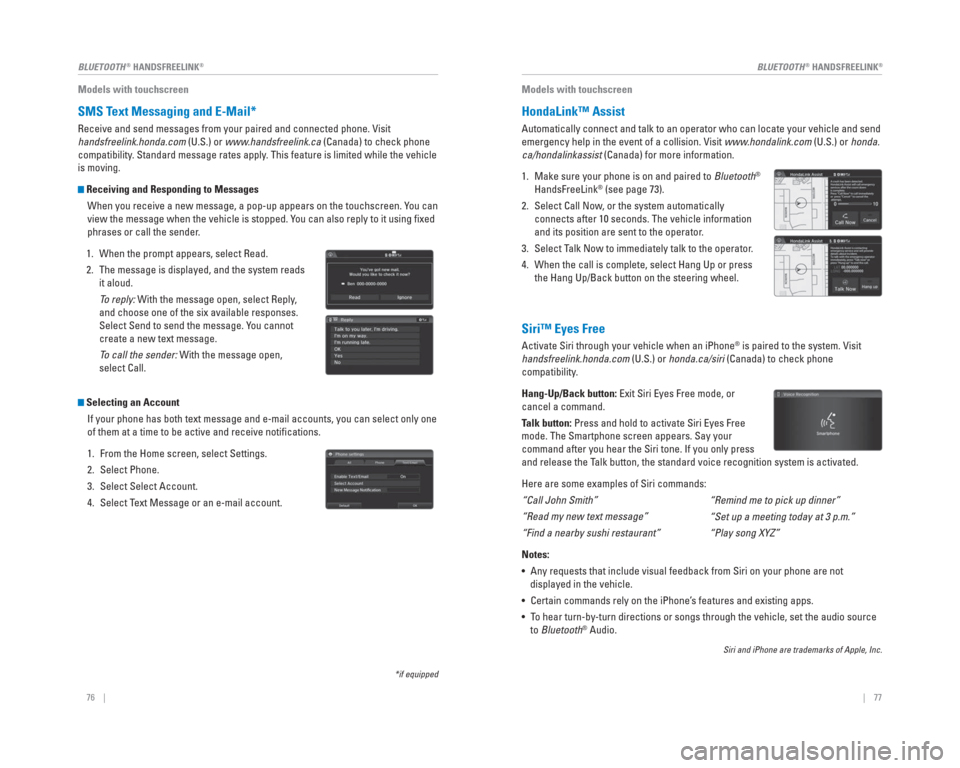
1. When the prompt appears, select Read.
2. The message is displayed, and the system reads it aloud.
To reply: With the message open, select Reply,
and choose one of the six available responses.
Select Send to send the message. You cannot
create a new text message.
To call the sender: With the message open,
select Call.
Selecting an Account
If your phone has both text message and e-mail accounts, you can select \
only one
of them at a time to be active and receive notifi cations.
1. From the Home screen, select Settings.
2. Select Phone.
3. Select Select Account.
4. Select Text Message or an e-mail account.
*if equipped
Models with touchscreen
HondaLink™ Assist
Automatically connect and talk to an operator who can locate your vehicl\
e and send
emergency help in the event of a collision. Visit www .hondalink.com (U.S.) or honda.
ca/hondalinkassist (Canada) for more information.
1. Make sure your phone is on and paired to Bluetooth
®
HandsFreeLink® (see page 73).
2. Select Call Now , or the system automatically
connects after 10 seconds. The vehicle information
and its position are sent to the operator .
3. Select T alk Now to immediately talk to the operator .
4. When the call is complete, select Hang Up or press
the Hang Up/Back button on the steering wheel.
Siri™ Eyes Free
Activate Siri through your vehicle when an iPhone® is paired to the system. Visit
handsfreelink.honda.com (U.S.) or honda.ca/siri (Canada) to check phone
compatibility .
Hang-Up/Back button: Exit Siri Eyes Free mode, or
cancel a command.
T alk button: Press and hold to activate Siri Eyes Free
mode. The Smartphone screen appears. Say your
command after you hear the Siri tone. If you only press
and release the T alk button, the standard voice recognition system is activated.
Here are some examples of Siri commands:
“Call John Smith”
“Read my new text message”
“Find a nearby sushi restaurant”
Notes:
• Any requests that include visual feedback from Siri on your phone are no\
t
displayed in the vehicle.
• Certain commands rely on the iPhone’ s features and existing apps.
• To hear turn-by-turn directions or songs through the vehicle, set the aud\
io source
to Bluetooth
® Audio.
Siri and iPhone are trademarks of Apple, Inc.
“Remind me to pick up dinner”
“Set up a meeting today at 3 p.m.”
“Play song XYZ”
Page 43 of 79
78 || 79
NAVIGATION
NAVIGATION
Learn how to enter a destination and operate the navigation system.
Basic Navigation Operation
A real-time navigation system uses GPS and a map database to show your c\
urrent
location and help guide you to a desired destination. You can operate the system
using voice commands or the touchscreen.
To reduce the potential for driver distraction, certain manual functions \
may be
inoperable or grayed out while the vehicle is moving. Voice commands are always
available.
Steering Wheel Controls
Use the steering wheel controls to control the system.
NAVIGATION*
*if equipped
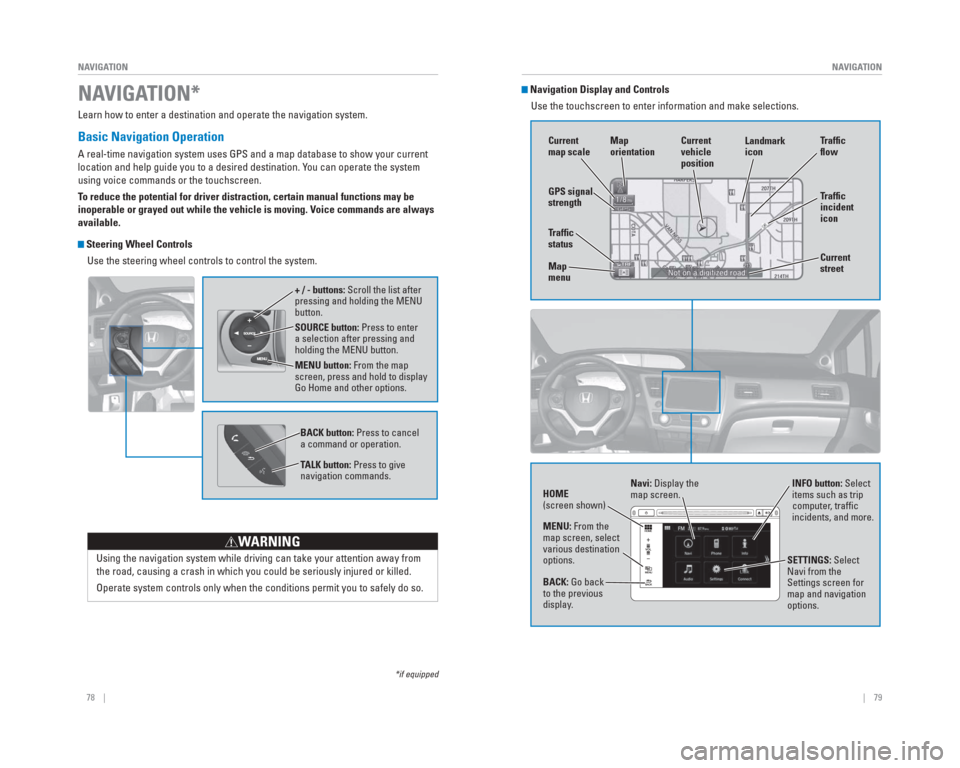
SOURCE button: Press to enter
a selection after pressing and
holding the MENU button.
MENU button: From the map
screen, press and hold to display
Go Home and other options. + / - buttons: Scroll the list after
pressing and holding the MENU
button.
Using the navigation system while driving can take your attention away f\
rom
the road, causing a crash in which you could be seriously injured or kil\
led.
Operate system controls only when the conditions permit you to safely do\
so.
WARNING
BACK button: Press to cancel
a command or operation.
TALK button: Press to give
navigation commands.
Navigation Display and ControlsUse the touchscreen to enter information and make selections.
GPS signal
strength Traf c
incident
icon Traf c
o w
Current
map scale Current
vehicle
position
Map
orientation
Current
street
Traf c
status
Map
menu Landmark
icon
Navi: Display the
map screen.
HOME
(screen shown) INFO button: Select
items such as trip
computer, traffi c
incidents, and more.
BACK: Go back
to the previous
display. SETTINGS: Select
Navi from the
Settings screen for
map and navigation
options.
MENU: From the
map screen, select
various destination
options.
Page 45 of 79

82 || 83
NAVIGATION
NAVIGATION
Place Category
Enter a destination or point of interest using voice commands. Press the\
Talk
button before saying each command.
You can also enter the place name manually when the vehicle is stopped. F\
rom the
map screen, press MENU and select Place Name. Follow the prompts.
1. From the Voice Portal screen, say “Place name.”
2. Say a category, for example “ATM/Bank.”
3. Say the name of the place, for example “ABC Bank.”
4. The system interprets the name. If necessary, you may have to clarify similar matches.
5. Say “Set as destination” to set the route.
Find Nearest Place
Enter a destination by category and distance using voice commands. Press\
the
Talk button before saying each command.
1. Say “Find nearest” and a place. For example,
“Find nearest ATM.”
2. A list of the nearest places in your area is displayed by shortest distance to destination.
3. Say the number next to the destination you want to select.
4. Say “Set as destination” to set the route.
Routing
After a destination is set, you can alter or cancel your route.
Map Legend
During route guidance
Turn-by-Turn Directions
Shows a more detailed view of the next maneuver on the i-MID.
Distance to next
maneuver
Current route
Upcoming
maneuver
Next
guidance
point
Estimated time
to destination
Distance to
destination
Calculated
route
Page 46 of 79

84 || 85
DRIVING
NAVIGATION
Taking a Detour
You can calculate a detour route manually if you encounter a road closure\
or other
obstacle.
1. When en route, press MENU from the map screen.
2. Select Detour. The system attempts to calculate a new route by avoiding the next 5 miles (8 km)
while on a freeway or 1 mile (1 km) while on a
surface street.
Traffic
View traffi c fl ow, incidents, and construction in major metro areas. You can also
route around congestion or incidents using voice commands. Press the Talk
button before saying each command. Available on U.S. models only.
1. When en route, say “Display traf c incidents.” A list of incidents on your route appears.
2. Say the number of the incident you want to avoid.
3. Say “Avoid” and the incident list returns.
4. Say “Recalculate route” to set the new route.
Canceling Your Route
You can cancel your route at any time.
1. When en route, press MENU from the map screen.
2. Select Cancel Route. The route is cleared and the map screen returns. You can also press the Talk
button and say “Cancel route.”
Learn about preparation for driving, as well as other features.
Before Driving
Check the following items before you begin driving.
Exterior Checks
• Make sure there are no obstructions on the windows, door mirrors, exteri\
or lights, or other parts of the vehicle.
• Remove any frost, snow, or ice.
• Make sure the hood is securely closed.
• Heat from the engine and exhaust can ignite fl ammable materials left under the hood, causing a fi re. If you’ve parked your vehicle for an extended period,
inspect and remove any debris that may have collected, such as dried gra\
ss
and leaves that have fallen or have been carried in for use as a nest by\
a small
animal. Also check under the hood for leftover fl ammable materials after you or
someone else has performed maintenance on your vehicle.
• Make sure the tires are in good condition.
• Make sure there are no people or objects behind or around the vehicle.
Interior Checks • Store or secure all items on board properly.
• Do not pile items higher than the seat height.
• Do not place anything in the front seat footwells. Make sure to secure t\
he fl oor mats.
• If you have any animals on board, do not let them move freely around in \
the vehicle.
• Securely close and lock all doors and the trunk.
• Adjust your seating position, mirrors, and steering wheel properly.
• Make sure items placed on the fl oor behind the front seats cannot roll under the seats.
• Everyone in the vehicle must fasten their seat belt.
• Make sure that the indicators in the instrument panel come on when you s\
tart the vehicle, and go off soon after.
If the doors are frozen shut, use warm water around the door edges to me\
lt any
ice. Do not try to force them open, as this can damage the rubber trim a\
round the
doors. When done, wipe dry to avoid further freezing.
NOTICE
DRIVING
Page 52 of 79
96 || 97
DRIVING
DRIVING
LaneWatch™*
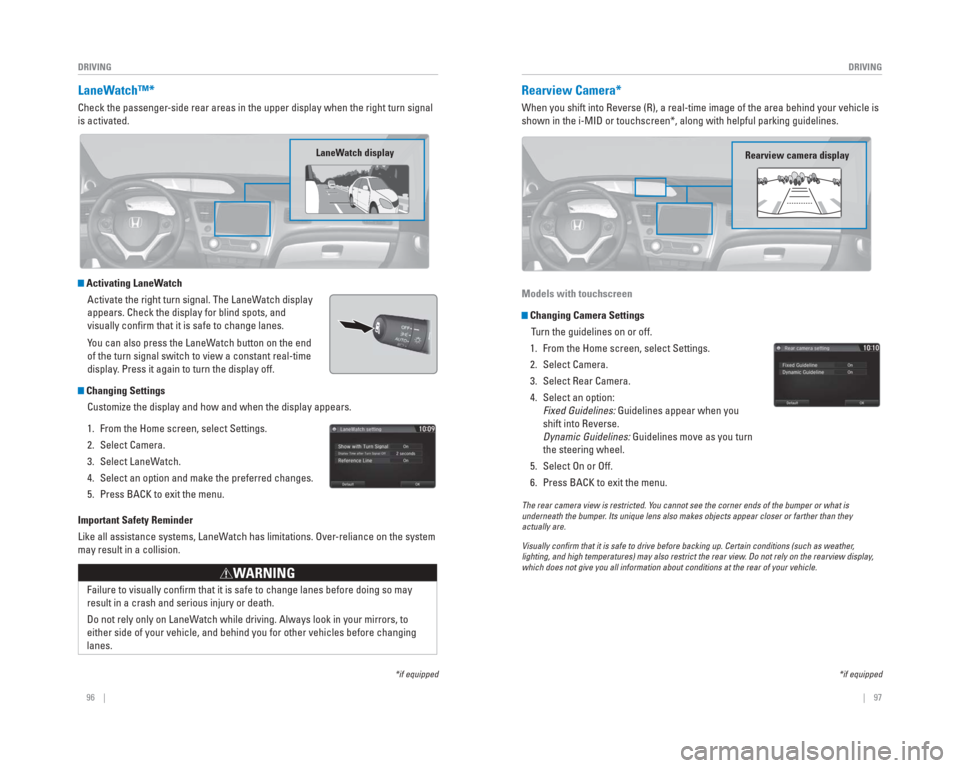
Check the passenger-side rear areas in the upper display when the right turn signal
is activated.
Activating LaneWatch
Activate the right turn signal. The LaneWatch display
appears. Check the display for blind spots, and
visually confi rm that it is safe to change lanes.
You can also press the LaneWatch button on the end
of the turn signal switch to view a constant real-time
display. Press it again to turn the display off.
Changing SettingsCustomize the display and how and when the display appears.
1. From the Home screen, select Settings.
2. Select Camera.
3. Select LaneWatch.
4. Select an option and make the preferred changes.
5. Press BACK to exit the menu.
Important Safety Reminder
Like all assistance systems, LaneWatch has limitations. Over-reliance on the system
may result in a collision.
Failure to visually confi rm that it is safe to change lanes before doing so may
result in a crash and serious injury or death.
Do not rely only on LaneWatch while driving. Always look in your mirrors, to
either side of your vehicle, and behind you for other vehicles before ch\
anging
lanes.
WARNING
*if equipped
LaneWatch display
Rearview Camera*
When you shift into Reverse (R), a real-time image of the area behind \
your vehicle is
shown in the i-MID or touchscreen*, along with helpful parking guideline\
s.
Models with touchscreen
Changing Camera Settings
Turn the guidelines on or off.
1. From the Home screen, select Settings.
2. Select Camera.
3. Select Rear Camera.
4. Select an option: Fixed Guidelines: Guidelines appear when you
shift into Reverse.
Dynamic Guidelines: Guidelines move as you turn
the steering wheel.
5. Select On or Off.
6. Press BACK to exit the menu.
The rear camera view is restricted. Y ou cannot see the corner ends of the bumper or what is
underneath the bumper . Its unique lens also makes objects appear closer or farther than they \
actually are.
Visually con rm that it is safe to drive before backing up. Certain conditions (such\
as weather ,
lighting, and high temperatures) may also restrict the rear view . Do not rely on the rearview display,
which does not give you all information about conditions at the rear of \
your vehicle.
*if equipped
Rearview camera display
Page 53 of 79
, a real-time image of the area behind \
your vehicle is
shown in the display, along with helpful parking")
98 || 99
DRIVING
DRIVING
Multi-View Rear Camera*
When you shift into Reverse (R), a real-time image of the area behind \
your vehicle is
shown in the display, along with helpful parking guidelines.
Changing Camera Settings
Turn the guidelines on or off. Use the interface dial to make and enter s\
elections.
1. From the Home screen, select Settings.
2. Select Camera.
3. Select an option: Fixed Guidelines: Guidelines appear when you
shift into Reverse.
Dynamic Guidelines: Guidelines move as you turn
the steering wheel.
4. Select On or Off.
5. Press BACK to exit the menu.
The rear camera view is restricted. You cannot see the corner ends of the bumper or what is
underneath the bumper. Its unique lens also makes objects appear closer or farther than they \
actually are.
Visually con rm that it is safe to drive before backing up. Certain conditions (such\
as weather,
lighting, and high temperatures) may also restrict the rear view. Do not rely on the rearview display,
which does not give you all information about conditions at the rear of \
your vehicle.
*if equipped
Wide view
Press icons on the screen to change views.
Normal viewTop down view
Refueling
Use the proper fuel and refueling procedure to ensure the best performan\
ce and
safety of your vehicle.
Sedan, Coupe, and Si models
Fuel Information
Use of unleaded gasoline of 87 octane or higher is recommended.
For Civic Si models, 91 octane or higher is recommended.
• Honda recommends TOP TIER Detergent Gasoline where available.
• Do NOT use gasoline containing more than 15% ethanol.
• Do NOT use gasoline containing methanol.
• Do NOT use gasoline containing MMT.
How to Refuel
1. The fuel fi ll door is located at the left rear of the vehicle. Park next to the service pump that is
most accessible.
2. Turn off the engine.
3. Push the fuel fi ll door release handle near the bottom of the driver’s seat. The fuel fi ll door
opens.
4. Turn the fuel fi ll cap slowly to open. Place the fuel fi ll cap in the holder.
5. Insert the fi ller nozzle fully. When the tank is full, the fuel nozzle clicks off automatically.
6. Replace the fuel fi ll cap. Tighten it until you hear at least one click. Close the fuel fi ll door.
We recommend quality gasoline containing detergent additives that help
prevent fuel system and engine deposits. In addition, in order to mainta\
in good
performance, fuel economy, and emissions control, we strongly recommend the
use of gasoline that does NOT contain harmful manganese-based fuel addit\
ives
such as MMT, if such gasoline is available.
NOTICE
Gasoline is highly fl ammable and explosive. You can be burned or seriously
injured when handling fuel.
• Stop the engine, and keep heat, sparks, and fl ame away.
• Handle fuel only outdoors.
• Wipe up spills immediately.
WARNING
Push Cap
Holder
Page 54 of 79
100 || 101
DRIVING
DRIVING
Natural Gas (CNG) models
Fuel Information
Compressed natural gas that meets NFPA-52 and SAE J1616 standards is
required.
Slow filling
• 6.96 gasoline gallon equivalent (3,000 psi)
• 7.77 gasoline gallon equivalent (3,600 psi)
Fast filling
• 5.84 gasoline gallon equivalent (3,000 psi)
• 6.51 gasoline gallon equivalent (3,600 psi)
Your vehicle runs on compressed natural gas (CNG). The CNG in your vehi\
cle is
stored under high pressure. The system is designed to hold gas at the ma\
ximum
of 3,600 psi/24,800 kPa, and you should never smell gas or hear a hissin\
g sound
unless you are refueling. If you smell gas or hear a hissing sound at an\
y other
time, shut down the CNG system immediately.
Your vehicle’s fuel tank meets the safety standards of NGV-2/NFPA-52/DOT NHTSA
FMVSS 304.
To ensure that your Civic Natural Gas vehicle receives CNG fuel with qual\
ity equal
to or above the NFPA-52 and SAE J1616 fuel standards, Honda only recommends
that your vehicle be refueled at a public commercial-grade CNG refueling\
station. Public stations offer an approximately fi ve minute refueling time, and the
assurance of natural gas quality meeting NFPA and SAE standards.
For information on the locations of the CNG fuel stations, visit either \
www.afdc.
energy.gov/afdc/fuels/natural_gas_locations.html or www.cngprices.com, or call
NGVAmerica at (202) 824-7360. In California, visit www.cngvc.org.
The location of the CNG pump can vary from station to station, may not b\
e clearly
marked, or be readily accessible during certain hours. It is recommended\
that you
call the station (the number should be displayed with the address infor\
mation) to
verify the location and availability of the CNG pump before you arrive.
Have an authorized dealer or certifi ed NGV technician inspect the fuel tank every
three years, or 36,000 miles, whichever comes fi rst, and replace it 15 years from
its production date. Do not use an expired tank or reuse the old tank fo\
r other
purposes. After a collision, have the fuel tank inspected by an authoriz\
ed dealer or
certifi ed NGV technician.
Compressed natural gas is highly fl ammable and explosive. You can be burned
or seriously injured if leaking natural gas is ignited.
If you suspect a leak, have your vehicle immediately inspected and repai\
red by
an authorized Honda Civic Natural Gas dealer.
WARNING
Using fast fi ll equipment at temperature below -4°F (-20°C) may damage the fu\
el
system, potentially causing a leak.
NOTICE
How to RefuelSlow filling
It takes about an hour and a half per GGE (Gasoline Gallon Equivalent)\
to fi ll up the
fuel tank. This method can be done using a vehicle refueling appliance.
Fast filling
It takes about 3–5 minutes to fi ll up the fuel tank. This method is usually available
at stations designed to refuel natural gas vehicles. During fast fi lling, the natural
gas is warmed, causing the pressure in the tank to rise and reduces the \
amount of
fuel you can put in. The steps for fast fi lling are described below.
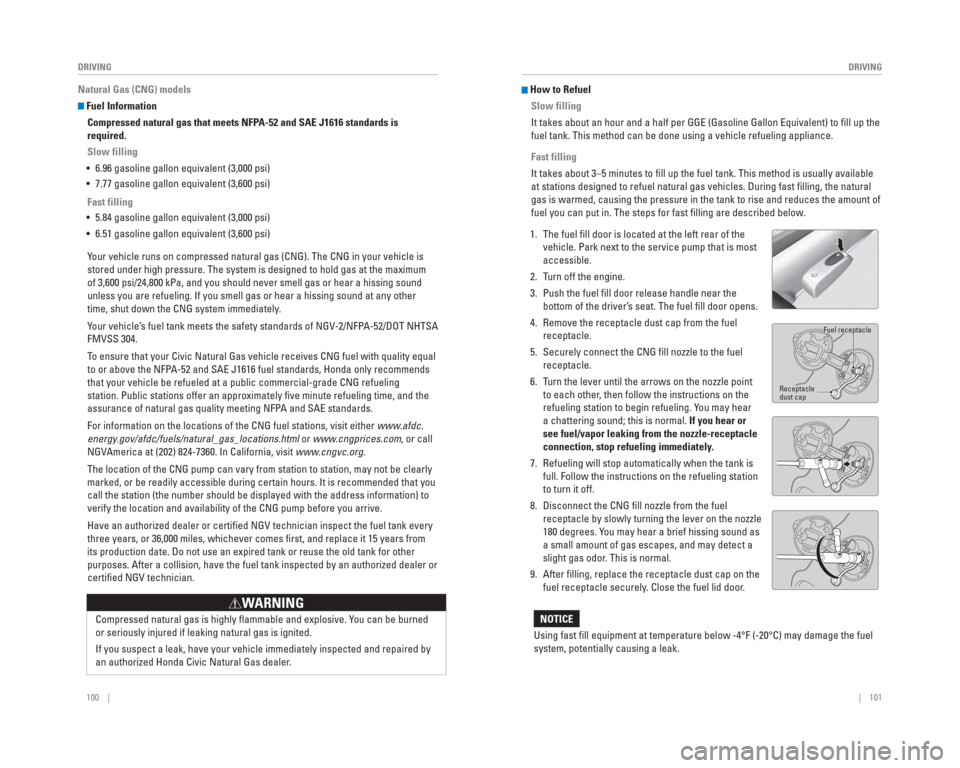
1. The fuel fi ll door is located at the left rear of the vehicle. Park next to the service pump that is most
accessible.
2. Turn off the engine.
3. Push the fuel fi ll door release handle near the bottom of the driver’s seat. The fuel fi ll door opens.
4. Remove the receptacle dust cap from the fuel receptacle.
5. Securely connect the CNG fi ll nozzle to the fuel receptacle.
6. Turn the lever until the arrows on the nozzle point to each other, then follow the instructions on the
refueling station to begin refueling. You may hear
a chattering sound; this is normal. If you hear or
see fuel/vapor leaking from the nozzle-receptacle
connection, stop refueling immediately.
7. Refueling will stop automatically when the tank is full. Follow the instructions on the refueling station
to turn it off.
8. Disconnect the CNG fi ll nozzle from the fuel receptacle by slowly turning the lever on the nozzle
180 degrees. You may hear a brief hissing sound as
a small amount of gas escapes, and may detect a
slight gas odor. This is normal.
9. After fi lling, replace the receptacle dust cap on the fuel receptacle securely. Close the fuel lid door.
Fuel receptacle
Receptacle
dust cap
Page 55 of 79
, the
fuel system may have a leak. Turn o")
102 || 103
HANDLING THE UNEXPECTED
DRIVING
If a Fuel Leak Is Detected
If you smell natural gas or hear a hissing sound (except when refueling\
), the
fuel system may have a leak. Turn off the manual shut-off valve immediately. You
should locate the valve before driving in case you need to turn it off q\
uickly.
1. Park your vehicle outside in a well-ventilated area, away from heat, sparks, and fl ame. Apply the
parking brake. Turn off the vehicle.
2. Open all windows and the trunk for proper ventilation.
3. Turn the manual shut-off valve one-quarter turn clockwise (as shown). The valve is turned to OFF.
4. Call a professional towing service (see page 106). Do not continue driving. Have the vehicle towed to
an authorized Civic Natural Gas dealer.
Manual shut-off valve
Learn about what to do in critical or emergency situations.
Smart Entry Remote Battery Strength
If the battery life in your remote transmitter is weak, a message appear\
s in the
display with information on how to start the engine.
1. Touch the back of the remote transmitter to the ENGINE START/STOP button while the indicator is
fl ashing.
2. With the brake pedal or clutch pedal pressed, press the ENGINE START/STOP button within 10
seconds.
Jump Starting
Turn off the power to electric devices, such as audio and lights. Turn off the engine,
then open the hood.
1. Connect the fi rst jumper cable to your vehicle’s battery (+) terminal.
2. Connect the other end of the fi rst jumper cable to the booster battery (+) terminal. Use a 12-volt
booster battery only.
3. Connect the second jumper cable to the booster battery (-) terminal.
4. Connect the other end of the second jumper cable to the grounding point as shown. Do not connect
this jumper cable to any other part.
5. If your vehicle is connected to another vehicle, start the assisting vehicle’s engine and increase its
rpm slightly.
6. Attempt to start your vehicle’s engine. If it turns over slowly, make sure that the jumper cables have
good metal-to-metal contact.
HANDLING THE UNEXPECTED
1.8 ℓ engine models
2.4 ℓ en gine mo dels
Booster battery
Booster battery
1.8 ℓ en gine mo dels
2.4 ℓ en gine mo dels
Page 57 of 79
106 || 107
HANDLING THE UNEXPECTED
HANDLING THE UNEXPECTED
Emergency Engine Stop*
The ENGINE START/STOP button may be used to stop the engine due to an
emergency situation even while driving. If you must stop the engine, cho\
ose one of
the following operations:
• Press and hold the ENGINE START/STOP button for
two seconds, or
• Firmly press the ENGINE START/STOP button two times.
The steering wheel will not lock. The power mode changes to ACCESSORY, unless
the shift lever is in Park (P), in which case the power mode changes t\
o VEHICLE OFF.
Because turning off the engine also disables the power assist the engine\
provides
to the steering and braking systems, it will require signifi cantly more physical effort
and time to steer and slow the vehicle. Downshift gears and use both fee\
t on the
brake pedal, if necessary, to slow the vehicle and stop immediately in a safe place
Do not press the button while driving unless it is absolutely necessary \
for the engine
to be switched off.
Emergency Towing
Call a professional towing service if you need to tow your vehicle.
Flat bed equipment: The operator loads your vehicle on the back of a tru\
ck. This is
the best way to transport your vehicle.
Wheel lift equipment: The tow truck uses two pivoting arms that go under\
the front
tires and lift them off the ground. The rear tires remain on the ground.\
This is an
acceptable way to tow your vehicle.
Trying to lift or tow your vehicle by the bumpers will cause serious dama\
ge. The
bumpers are not designed to support the vehicle’s weight.
Improper towing such as towing behind a motorhome or other motor vehicle\
can
damage the transmission.
NOTICE
*if equipped
Tire Pressure Monitoring System ( TPMS)*
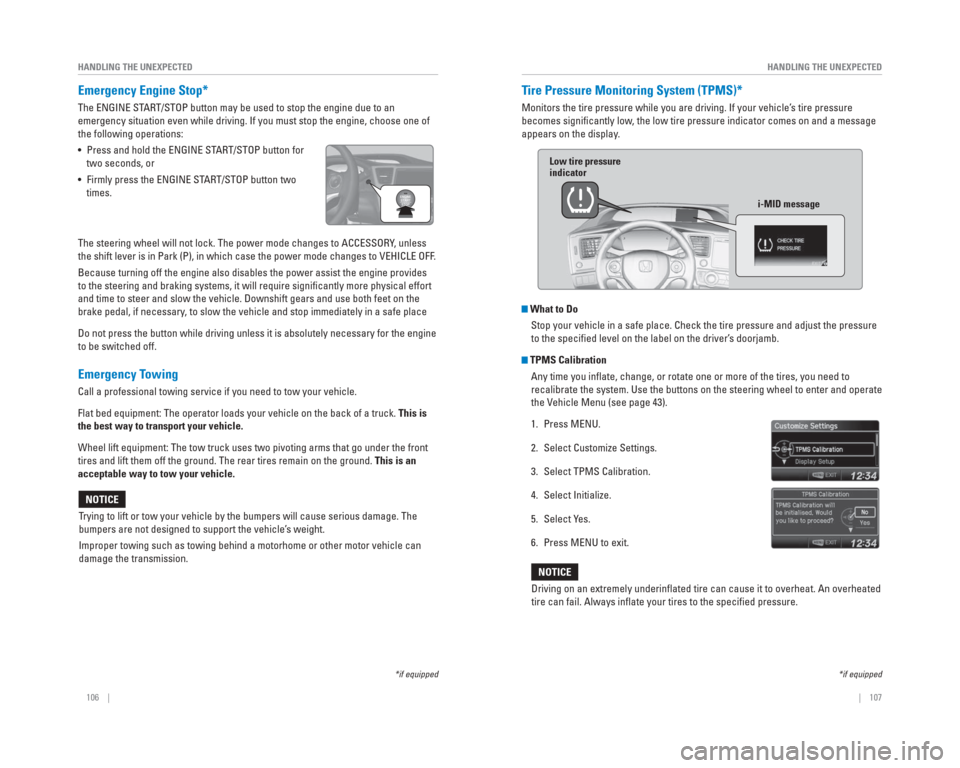
Monitors the tire pressure while you are driving. If your vehicle’s tire pressure
becomes signifi cantly low, the low tire pressure indicator comes on and a message
appears on the display.
What to Do Stop your vehicle in a safe place. Check the tire pressure and adjust th\
e pressure
to the specifi ed level on the label on the driver’s doorjamb.
TPMS CalibrationAny time you infl ate, change, or rotate one or more of the tires, you need to
recalibrate the system. Use the buttons on the steering wheel to enter a\
nd operate
the Vehicle Menu (see page 43).
1. Press MENU.
2. Select Customize Settings.
3. Select TPMS Calibration.
4. Select Initialize.
5. Select Yes.
6. Press MENU to exit.
Driving on an extremely underinfl ated tire can cause it to overheat. An overheated
tire can fail. Always infl ate your tires to the specifi ed pressure.
NOTICE
*if equipped
Low tire pressure
indicator
i-MID message