bluetooth HONDA CIVIC 2016 10.G User Guide
[x] Cancel search | Manufacturer: HONDA, Model Year: 2016, Model line: CIVIC, Model: HONDA CIVIC 2016 10.GPages: 590
Page 206 of 590
205
Features
Audio System Basic Operation
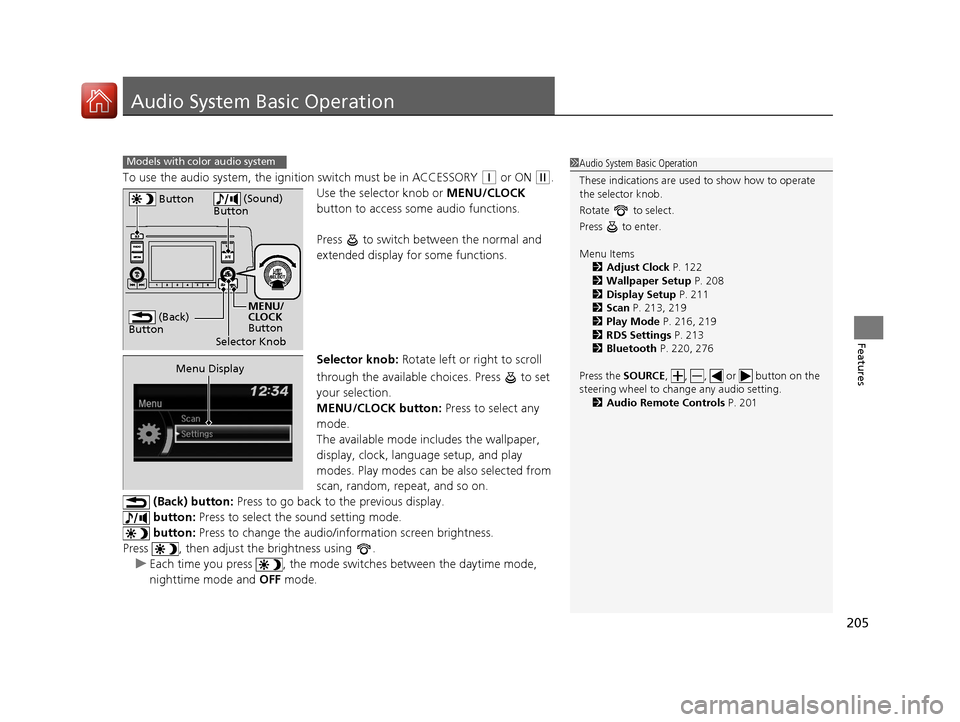
To use the audio system, the ignition switch must be in ACCESSORY (q or ON (w.
Use the selector knob or MENU/CLOCK
button to access some audio functions.
Press to switch between the normal and
extended display fo r some functions.
Selector knob: Rotate left or right to scroll
through the available choices. Press to set
your selection.
MENU/CLOCK button: Press to select any
mode.
The available mode in cludes the wallpaper,
display, clock, language setup, and play
modes. Play modes can be also selected from
scan, random, repeat, and so on.
(Back) button: Press to go back to the previous display.
button: Press to select the sound setting mode.
button: Press to change the audio/in formation screen brightness.
Press , then adjust the brightness using . u Each time you press , the mode switches between the daytime mode,
nighttime mode and OFF mode.
Models with color audio system1Audio System Basic Operation
These indications are used to show how to operate
the selector knob.
Rotate to select.
Press to enter.
Menu Items 2 Adjust Clock P. 122
2 Wallpaper Setup P. 208
2 Display Setup P. 211
2 Scan P. 213, 219
2 Play Mode P. 216, 219
2 RDS Settings P. 213
2 Bluetooth P. 220, 276
Press the SOURCE , , , or button on the
steering wheel to cha nge any audio setting.
2 Audio Remote Controls P. 201
(Back)
Button
Selector Knob MENU/
CLOCK
Button
Button
(Sound)
Button
Menu Display
16 CIVIC 4D-31TBA6000.book 205 ページ 2015年8月31日 月曜日 午後5時56分
Page 221 of 590
220
uuAudio System Basic Operation uPlaying Bluetooth ® Audio
Features
Playing Bluetooth® Audio
Your audio system allows you to listen to music from your Bluetooth-compatible
phone.
This function is available when the phone is paired and connected to the vehicle’s
Bluetooth ® HandsFreeLink ® (HFL) system.
2 Phone Setup P. 339
1Playing Bluetooth ® Audio
Not all Bluetooth -enabled phones with streaming
audio capabilities are comp atible with the system.
For a list of compatible phones:
•U.S.: Visit www.handsfreelink.honda.com , or call
1-888-528-7876.
•Canada: Visit www.handsfreelink.ca , or call 1-888-
528-7876.
In some states, it may be illegal to perform some data
device functions while driving.
Only one phone can be used with HFL at a time.
When there are more than two paired phones in the
vehicle, the first paired phone the system finds is
automatically connected.
If more than one phone is paired to the HFL system,
there will be a delay before the system begins to play.
In some cases, the name of the artist, album, or track
may not appear correctly.
Some functions may not be available on some
devices.
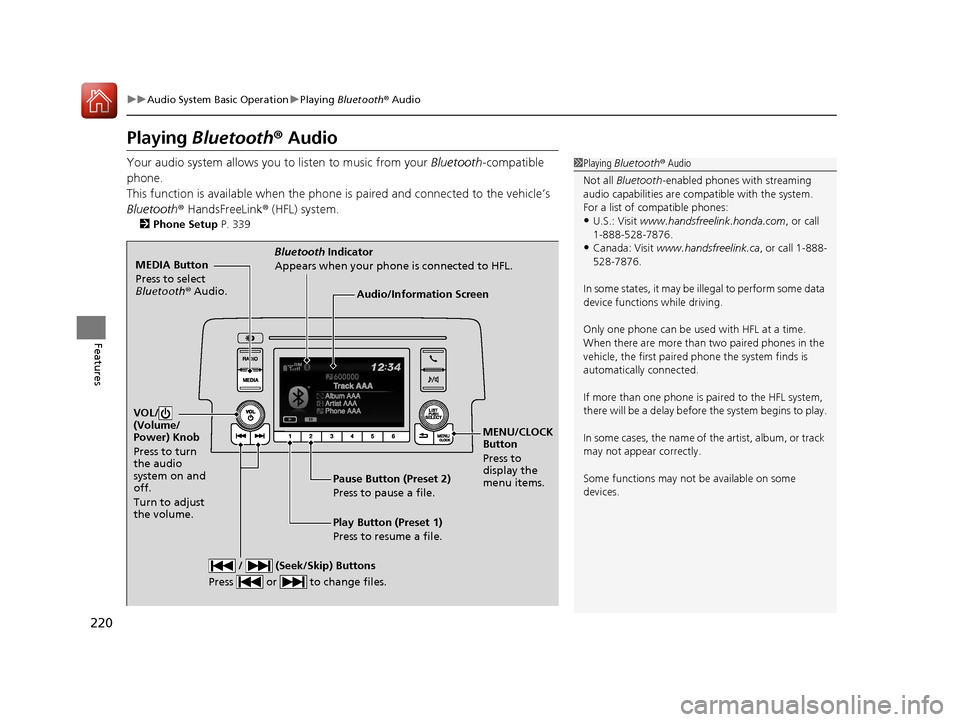
MEDIA Button
Press to select
Bluetooth ® Audio.
VOL/
(Volume/
Power) Knob
Press to turn
the audio
system on and
off.
Turn to adjust
the volume.
MENU/CLOCK
Button
Press to
display the
menu items.
Audio/Information Screen
Bluetooth Indicator
Appears when your phone is connected to HFL.
/ (Seek/Skip) Buttons
Press or to change files.
Play Button (Preset 1)
Press to resume a file. Pause Button (Preset 2)
Press to pause a file.
16 CIVIC 4D-31TBA6000.book 220 ページ 2015年8月31日 月曜日 午後5時56分
Page 222 of 590
Continued221
uuAudio System Basic Operation uPlaying Bluetooth ® Audio
Features
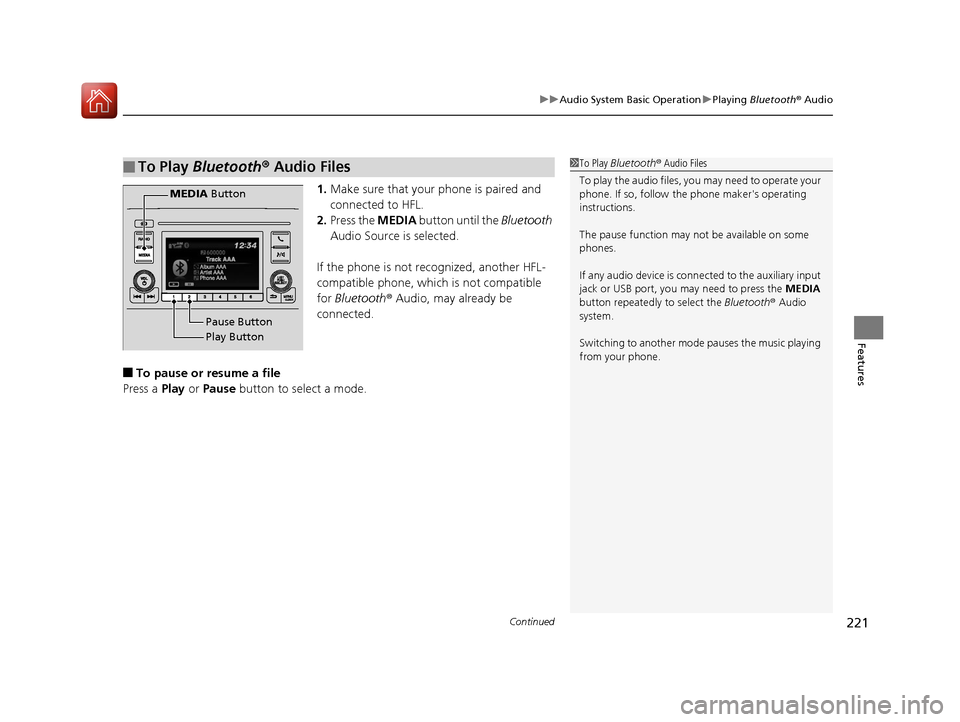
1. Make sure that your phone is paired and
connected to HFL.
2. Press the MEDIA button until the Bluetooth
Audio Source is selected.
If the phone is not recognized, another HFL-
compatible phone, which is not compatible
for Bluetooth ® Audio, may already be
connected.
■To pause or resume a file
Press a Play or Pause button to select a mode.
■To Play Bluetooth ® Audio Files1 To Play Bluetooth ® Audio Files
To play the audio files, y ou may need to operate your
phone. If so, follow the phone maker's operating
instructions.
The pause function may no t be available on some
phones.
If any audio device is conne cted to the auxiliary input
jack or USB port, you may need to press the MEDIA
button repeatedly to select the Bluetooth ® Audio
system.
Switching to another mode pauses the music playing
from your phone.
Play Button Pause Button
MEDIA
Button
16 CIVIC 4D-31TBA6000.book 221 ページ 2015年8月31日 月曜日 午後5時56分
Page 223 of 590
uuAudio System Basic Operation uPlaying Bluetooth ® Audio
222
Features
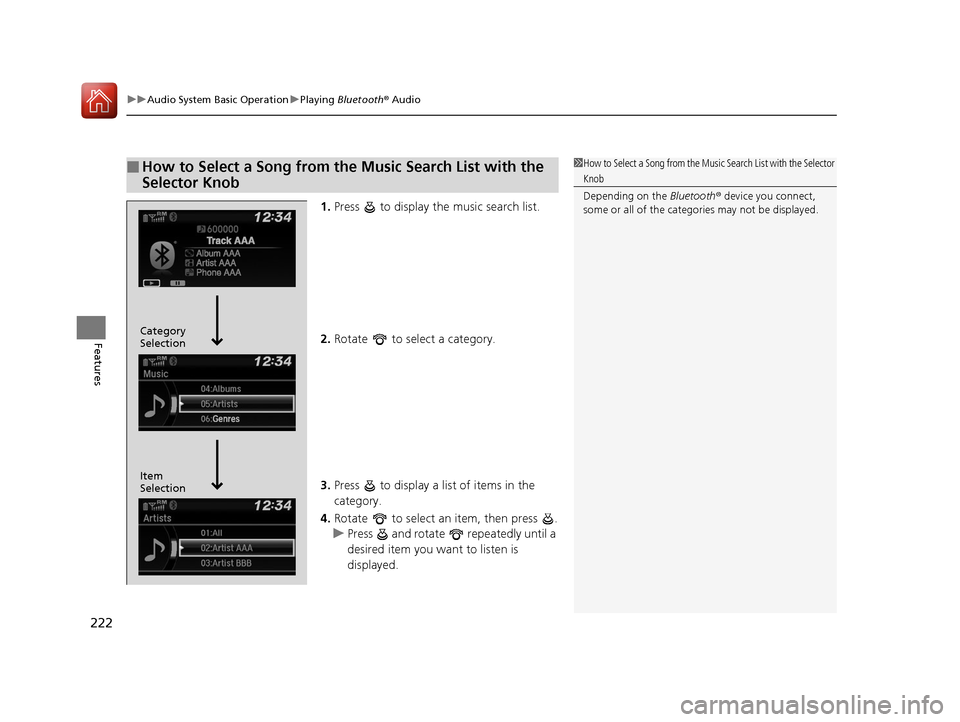
1. Press to display the music search list.
2. Rotate to select a category.
3. Press to display a list of items in the
category.
4. Rotate to select an item, then press .
u Press and rotate repeatedly until a
desired item you want to listen is
displayed.
■How to Select a Song from the Music Search List with the
Selector Knob1How to Select a Song from the Music Search List with the Selector
Knob
Depending on the Bluetooth® device you connect,
some or all of the catego ries may not be displayed.
Item
Selection Category
Selection
16 CIVIC 4D-31TBA6000.book 222 ページ 2015年8月31日 月曜日 午後5時56分
Page 226 of 590
225
uuAudio System Basic Operation uAudio/Information Screen
Continued
Features
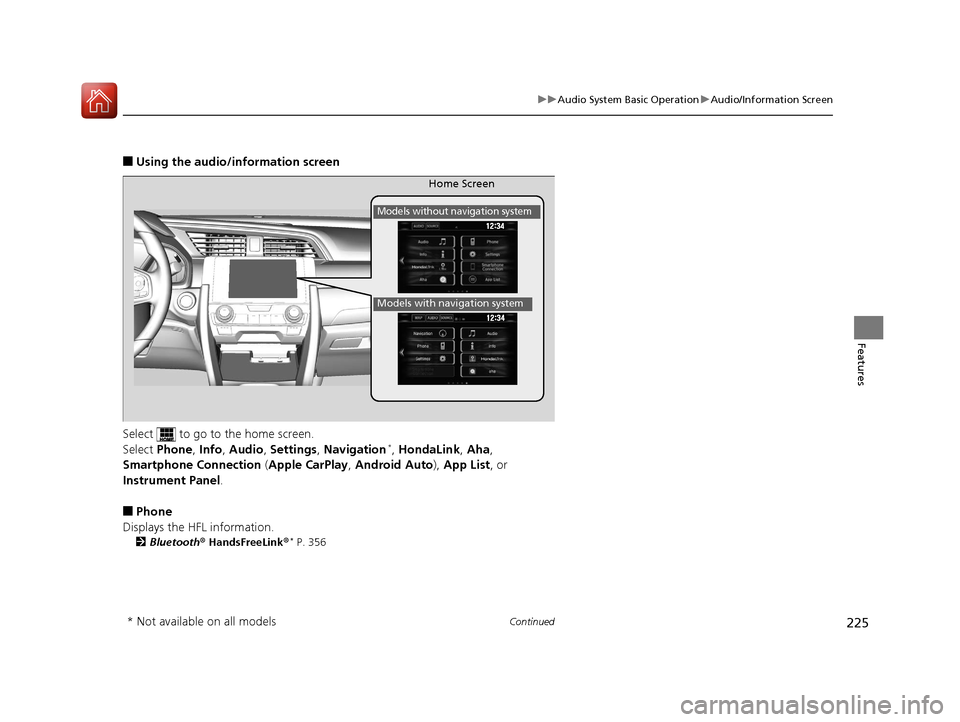
■Using the audio/in formation screen
Select to go to the home screen.
Select Phone , Info , Audio , Settings , Navigation
*, HondaLink , Aha ,
Smartphone Connection (Apple CarPlay , Android Auto ), App List, or
Instrument Panel .
■Phone
Displays the HFL information.
2 Bluetooth ® HandsFreeLink ®* P. 356
Home Screen
Models without navigation system
Models with navigation system
* Not available on all models
16 CIVIC 4D-31TBA6000.book 225 ページ 2015年8月31日 月曜日 午後5時56分
Page 251 of 590
250
uuAudio System Basic Operation uVoice Control Operation
Features
■Voice Help
You can see a list of the available
commands on the screen.
• Useful Commands
• Phone Commands
• Audio Commands
• On Screen Commands
• Music Search Commands
• General Commands
• Climate Control Commands
The system accepts these commands on the
voice portal top screen.
• Call
• Call
• What time is it?
• What is today’s date?
*1: Models with navigation system
■Useful Commands
The system accepts these commands on the
dedicated screen for the voice recognition
of the phone.
• Call by Number
• Call by Name
• Call
• Call
The system accepts these commands on the
dedicated screen for the voice recognition
of the audio.
■Radio FM Commands
• Radio tune to <87.7-107.9> FM
• Radio tune to <87.7 -107.9> HD <1-8>
FM
• Radio FM preset <1-12>
■Radio AM Commands
• Radio tune to <530-1710> AM
• Radio AM preset <1-6>
■Radio SXM Commands*
•SXM channel <1-255>
■Phone Commands
■Audio Commands*1
•SXM channel
sports team name>
• Radio SXM preset <1-12>
■Pandora Commands*
•Pandora play
■iPod Commands
• iPod play
• iPod play track <1-30>
• Music Search
• What album is this?
• What am I listening to?
■USB Commands
• USB play
• USB play track <1-30>
• Music Search
• What album is this?
• What am I listening to?
■Bluetooth ® audio Commands
• Bluetooth ® audio play
NOTE:
Bluetooth® Audio commands may not work
on some phones or Bluetooth ® Audio
devices.
* Not available on all models
16 CIVIC 4D-31TBA6000.book 250 ページ 2015年8月31日 月曜日 午後5時56分
Page 271 of 590
270
uuAudio System Basic Operation uPlaying Pandora ®*
Features
Playing Pandora ®*
Your audio system allows you to listen to music from the Pandora ® app on a
compatible smartphone.
This function is available when the phone is paired and connected to the vehicle’s
Bluetooth ® HandsFreeLink ® (HFL) system, or with an iPhone, you can connect using
your USB cable to the USB port.
2 Phone Setup P. 339
2 USB Port(s) P. 199
*1:Some or all of the lists may not be displayed.
U.S. models
1Playing Pandora ®*
Pandora
®
, the Pandora logo , and the Pandora trade
dress are trademarks or reg istered trademarks of
Pandora Media, Inc., used with permission. Pandora is
only availa ble in
certain countries. Visit
the Pandora
website
for more information.
To find out if your phone is compatible with this
feature, visit www.handsfreelink.honda.com , or call
1-888-528-7876.
To use this service in your vehicle, the Pandora
® app
must first be installed on your phone. Visit
www.pandora.com for more information.
Pandora ® is free, personalized radio that plays music
and comedy you’ll love. Just start with the name of
one of your favorite arti sts, songs, comedians or
composers and Pandora ® will create a custom station
that plays similar tracks. Pandora ® also features
hundreds of genre stations ranging from Dubstep to
Smooth Jazz to Power Workout.
If you cannot operate Pandora ® through the audio
system, it may be streaming through Bluetooth®
Audio. Make sure Pandora ® mode on your audio
system is selected. If your phone is connected to Android Auto,
Pandora
®
is only available throught the Android
Auto interface. Visit the Android Auto website to
check compatibility.
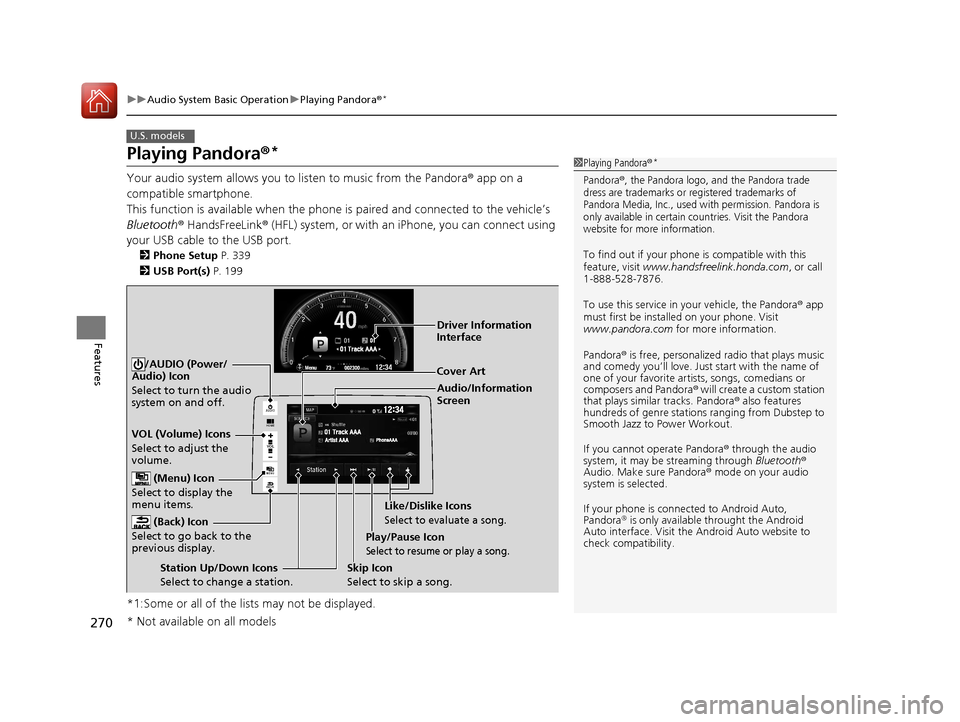
VOL
HOME
MENU
BACK
AUDIO
Audio/Information
Screen Cover Art
VOL (Volume) Icons
Select to adjust the
volume. (Back) Icon
Select to go back to the
previous display.
/AUDIO (Power/
Audio) Icon
Select to turn the audio
system on and off.
(Menu) Icon
Select to display the
menu items.
Play/Pause Icon
Select to resume or play a song.
Station Up/Down Icons
Select to change a station. Skip Icon
Select to skip a song.Like/Dislike Icons
Select to evaluate a song.
Driver Information
Interface
* Not available on all models
16 CIVIC 4D-31TBA6000.book 270 ページ 2015年8月31日 月曜日 午後5時56分
Page 273 of 590
272
uuAudio System Basic Operation uPlaying AhaTM
Features
Playing AhaTM
AhaTM can be displayed and operated on the audio/information screen when your
smartphone is connected to the audio system by Wi-Fi or through Bluetooth ® with
the HondaLink ® app downloaded to your smartphone.
2Wi-Fi Connection P. 283
2 HondaLink ® P. 278
1 Playing AhaTM
AhaTM by Harman is a clou d-based service that
organizes your favorite we b content into live radio
stations. You can access podcasts, internet radio,
location-based services , and audio updates from
social media sites.
Available operating functi ons vary on software
versions. Some functions ma y not be available on the
vehicle’s audio system.
The menu items vary depending on the station you
selected.
You must have a previously set up Aha
TM account
prior to using the service in your vehicle. Visit
www.aharadio.com for more information.
You want to select another source, select AUDIO on
the upper left of the screen. The source select screen
will appear. Select the source you want.
If there is an active connection to Appl e CarPlay or
Android Auto, Aha
TM can only be accessed when the
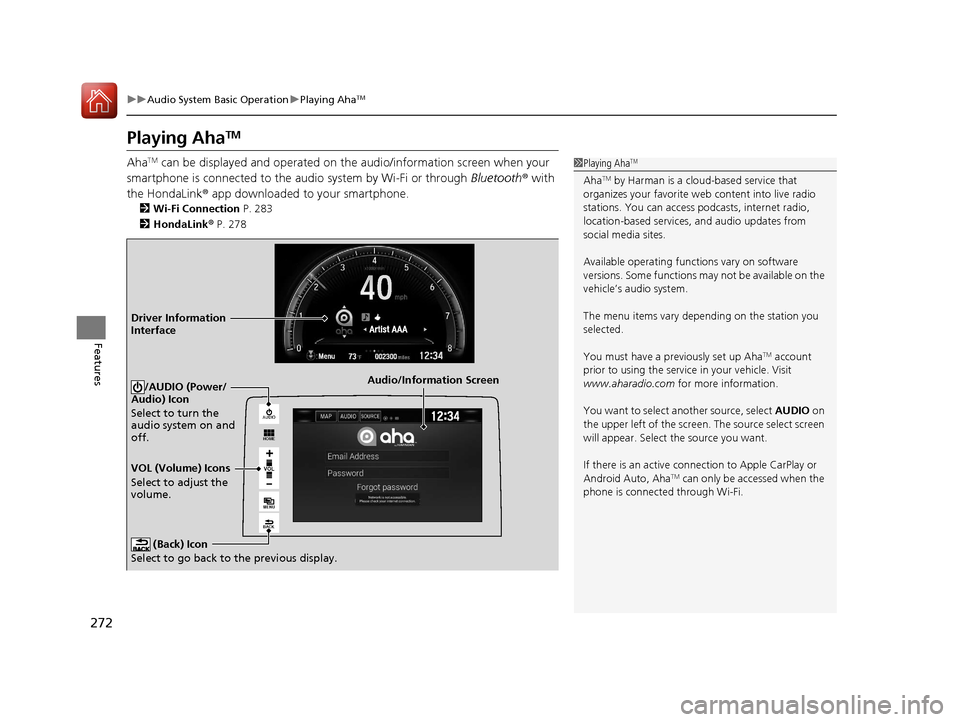
phone is connected through Wi-Fi.VOL
HOME
MENU
BACK
AUDIO
Audio/Information Screen
VOL (Volume) Icons
Select to adjust the
volume. (Back) Icon
Select to go back to the previous display./AUDIO (Power/
Audio) Icon
Select to turn the
audio system on and
off.
Driver Information
Interface
16 CIVIC 4D-31TBA6000.book 272 ページ 2015年8月31日 月曜日 午後5時56分
Page 277 of 590
276
uuAudio System Basic Operation uPlaying Bluetooth ® Audio
Features
Playing Bluetooth® Audio
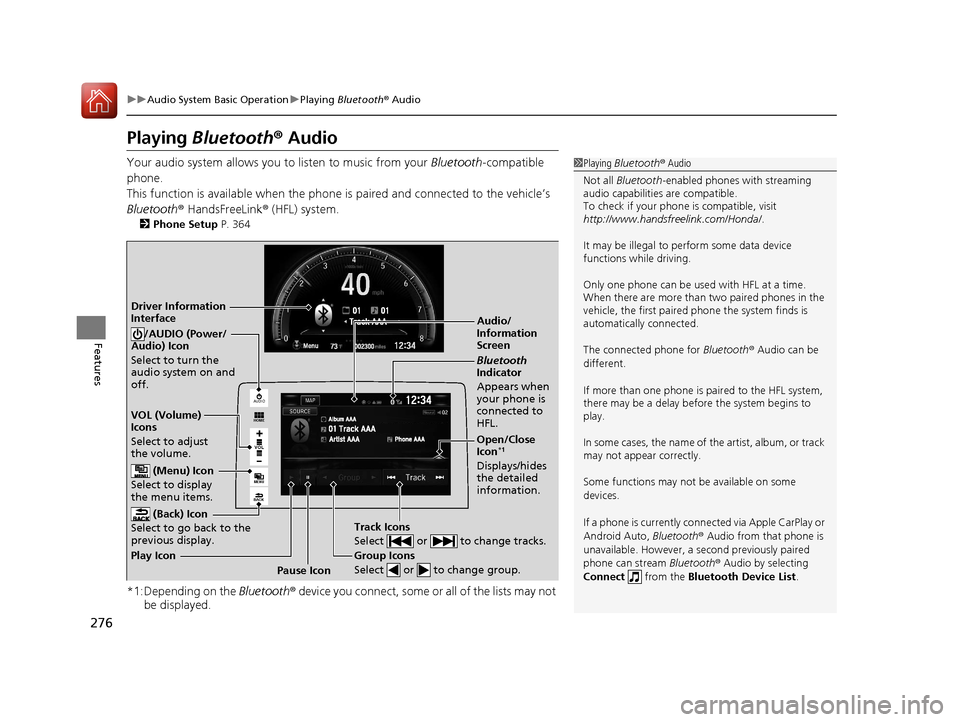
Your audio system allows you to listen to music from your Bluetooth-compatible
phone.
This function is available when the phone is paired and connected to the vehicle’s
Bluetooth ® HandsFreeLink ® (HFL) system.
2 Phone Setup P. 364
*1:Depending on the Bluetooth® device you connect, some or all of the lists may not
be displayed.
1 Playing Bluetooth ® Audio
Not all Bluetooth -enabled phones with streaming
audio capabilities are compatible.
To check if your phone is compatible, visit
http://www.handsfr eelink.com/Honda/.
It may be illegal to perform some data device
functions while driving.
Only one phone can be used with HFL at a time.
When there are more than two paired phones in the
vehicle, the first paired phone the system finds is
automatically connected.
The connected phone for Bluetooth® Audio can be
different.
If more than one phone is paired to the HFL system,
there may be a delay before the system begins to
play.
In some cases, the name of the artist, album, or track
may not appear correctly.
Some functions may not be available on some
devices.
If a phone is currently conne cted via Apple CarPlay or
Android Auto, Bluetooth® Audio from that phone is
unavailable. However, a se cond previously paired
phone can stream Bluetooth® Audio by selecting
Connect from the Bluetooth Device List .
VOL
HOME
MENU
BACK
AUDIO
Audio/
Information
Screen
VOL (Volume)
Icons
Select to adjust
the volume. (Back) Icon
Select to go back to the
previous display./AUDIO (Power/
Audio) Icon
Select to turn the
audio system on and
off.
(Menu) Icon
Select to display
the menu items.
Group Icons
Select or to change group.
Pause Icon
Play Icon
Bluetooth
Indicator
Appears when
your phone is
connected to
HFL.
Track Icons
Select or to change tracks.
Open/Close
Icon*1
Displays/hides
the detailed
information.
Driver Information
Interface
16 CIVIC 4D-31TBA6000.book 276 ページ 2015年8月31日 月曜日 午後5時56分
Page 278 of 590
277
uuAudio System Basic Operation uPlaying Bluetooth ® Audio
Features
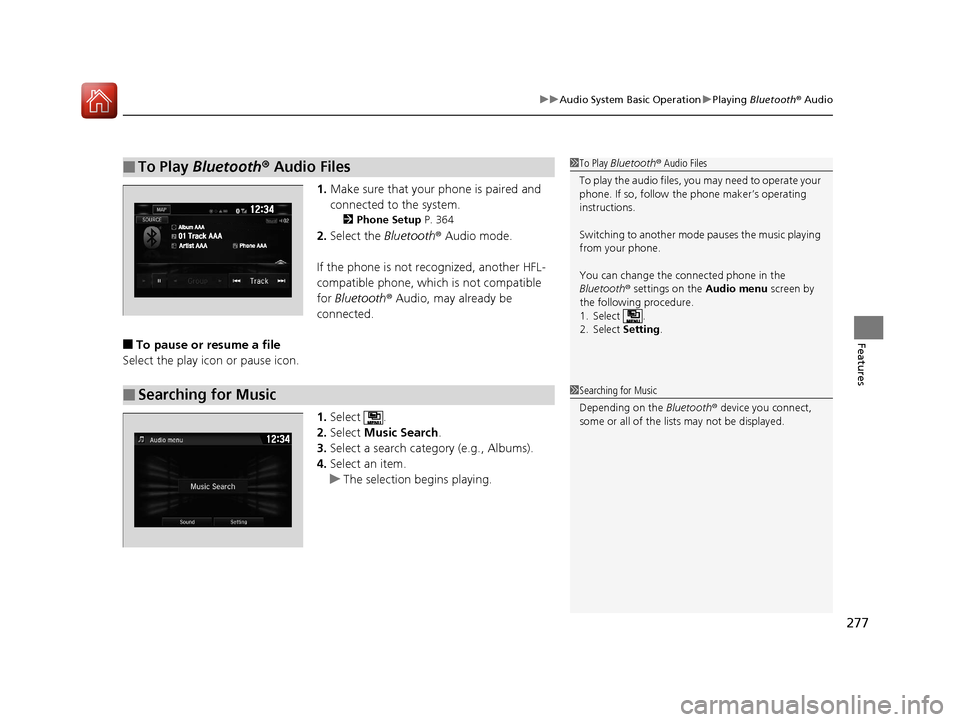
1. Make sure that your phone is paired and
connected to the system.
2 Phone Setup P. 364
2.Select the Bluetooth® Audio mode.
If the phone is not recognized, another HFL-
compatible phone, which is not compatible
for Bluetooth ® Audio, may already be
connected.
■To pause or resume a file
Select the play icon or pause icon.
1.Select .
2. Select Music Search.
3. Select a search catego ry (e.g., Albums).
4. Select an item.
u The selection begins playing.
■To Play Bluetooth ® Audio Files1 To Play Bluetooth ® Audio Files
To play the audio files, y ou may need to operate your
phone. If so, follow the phone maker’s operating
instructions.
Switching to another mode pauses the music playing
from your phone.
You can change the connected phone in the
Bluetooth ® settings on the Audio menu screen by
the following procedure.
1. Select .
2. Select Setting.
■Searching for Music1Searching for Music
Depending on the Bluetooth® device you connect,
some or all of the list s may not be displayed.
16 CIVIC 4D-31TBA6000.book 277 ページ 2015年8月31日 月曜日 午後5時56分