navigation system HONDA CIVIC 2016 10.G Owners Manual
[x] Cancel search | Manufacturer: HONDA, Model Year: 2016, Model line: CIVIC, Model: HONDA CIVIC 2016 10.GPages: 590
Page 5 of 590
4
Quick Reference Guide
Quick Reference Guide
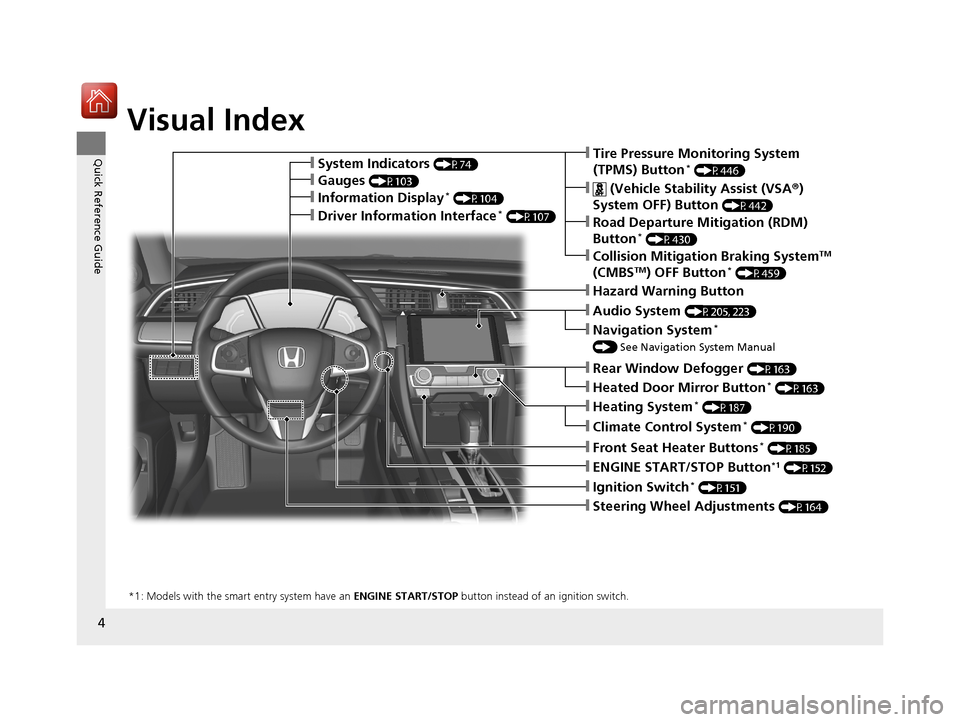
Visual Index
❙Ignition Switch* (P151)
❙ENGINE START/STOP Button*1 (P152)
*1: Models with the smart entry system have an ENGINE START/STOP button instead of an ignition switch.
❙Tire Pressure Monitoring System
(TPMS) Button* (P446)
❙Information Display* (P104)
❙System Indicators (P74)
❙Gauges (P103)
❙Collision Mitigation Braking SystemTM
(CMBSTM) OFF Button* (P459)
❙ (Vehicle Stability Assist (VSA ®)
System OFF) Button
(P442)
❙Road Departure Mitigation (RDM)
Button* (P430)
❙Navigation System*
() See Navigation System Manual
❙Audio System (P205, 223)
❙Hazard Warning Button
❙Rear Window Defogger (P163)
❙Heated Door Mirror Button* (P163)
❙Heating System* (P187)
❙Climate Control System* (P190)
❙Front Seat Heater Buttons* (P185)
❙Steering Wheel Adjustments (P164)
❙Driver Information Interface* (P107)
16 CIVIC 4D-31TBA6000.book 4 ページ 2015年8月31日 月曜日 午後5時56分
Page 6 of 590
5
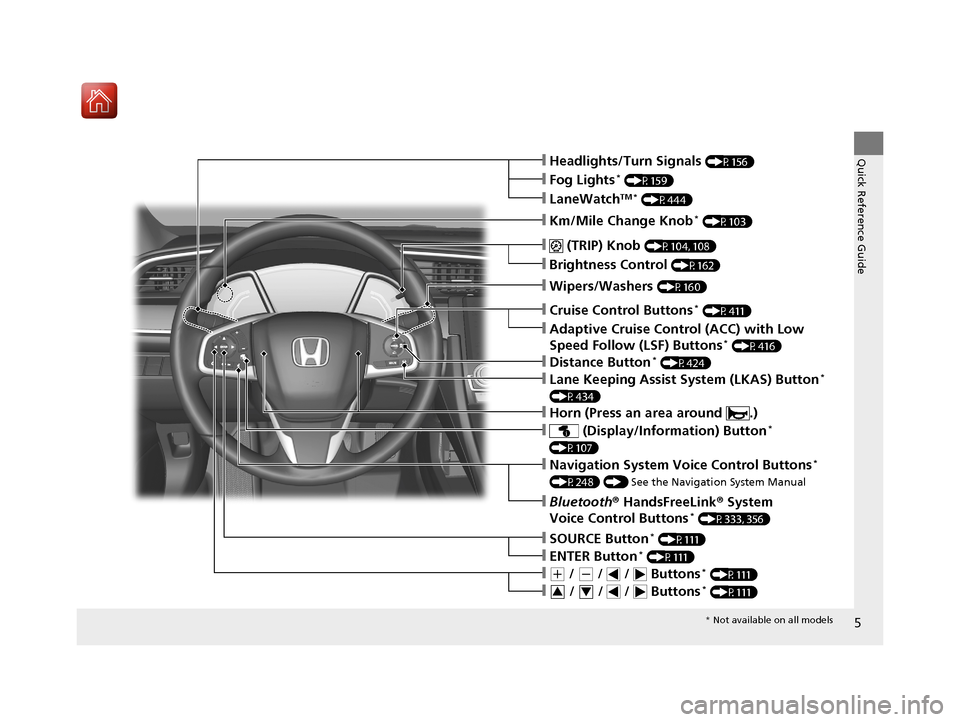
Quick Reference Guide❙Headlights/Turn Signals (P156)
❙Km/Mile Change Knob* (P103)
❙ (TRIP) Knob (P104, 108)
❙SOURCE Button* (P111)
❙Brightness Control (P162)
❙LaneWatchTM * (P444)
❙Fog Lights* (P159)
❙Wipers/Washers (P160)
❙Cruise Control Buttons* (P411)
❙Adaptive Cruise Control (ACC) with Low
Speed Follow (LSF) Buttons* (P416)
❙Lane Keeping Assist System (LKAS) Button*
(P434)
❙ (Display/Information) Button*
(P107)
❙Navigation System Voice Control Buttons*
(P248) () See the Navigation System Manual
❙Bluetooth® HandsFreeLink ® System
Voice Control Buttons* (P333, 356)
❙ENTER Button* (P111)
❙(+ / (- / / Buttons* (P111)
❙ / / / Buttons* (P111)34
❙Distance Button* (P424)
❙Horn (Press an area around .)
* Not available on all models
16 CIVIC 4D-31TBA6000.book 5 ページ 2015年8月31日 月曜日 午後5時56分
Page 24 of 590
23
Quick Reference Guide
Menu
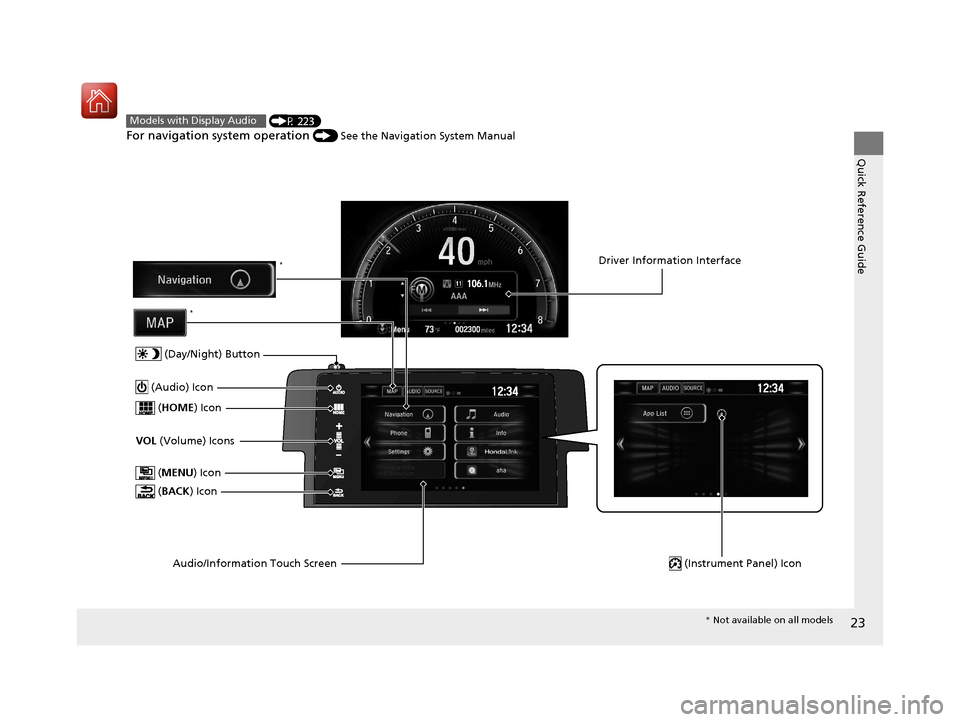
(P 223)
For navigation system operation () See the Navigation System Manual
Models with Display Audio
(MENU ) Icon
VOL (Volume) Icons
(
HOME ) Icon
(BACK ) Icon
Audio/Information Touch Screen
(Audio) Icon
Driver Information Interface
(Instrument Panel) Icon
(Day/Night) Button
*
*
* Not available on all models
16 CIVIC 4D-31TBA6000.book 23 ページ 2015年8月31日 月曜日 午後5時56分
Page 111 of 590
uuGauges and Displays uDriver Information Interface*
110
Instrument Panel
Shows the outside temperature in Fahr enheit (U.S.) or Celsius (Canada).
■Adjusting the outside temperature display
Adjust the temperature reading up to ±5°F or ±3°C if the temperature reading
seems incorrect.
Use the driver information interface’s customized features to correct the
temperature.
2 Customized Features P. 111
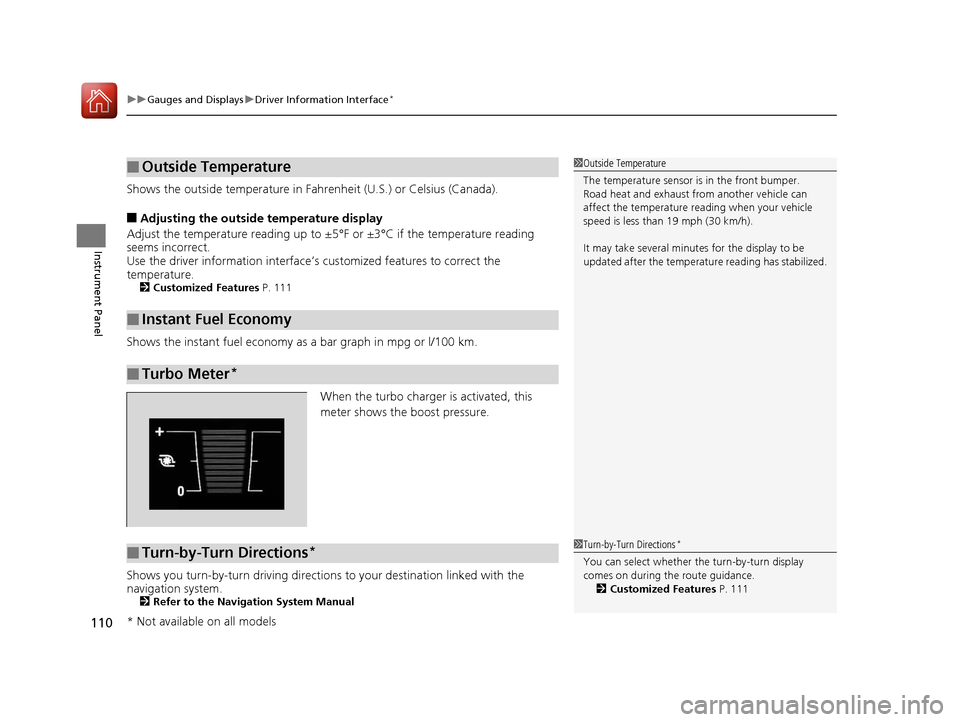
Shows the instant fuel economy as a bar graph in mpg or l/100 km.
When the turbo charger is activated, this
meter shows the boost pressure.
Shows you turn-by-turn driving directions to your destination linked with the
navigation system.
2 Refer to the Navigation System Manual
■Outside Temperature
■Instant Fuel Economy
■Turbo Meter*
1Outside Temperature
The temperature sensor is in the front bumper.
Road heat and exhaust from another vehicle can
affect the temperature reading when your vehicle
speed is less than 19 mph (30 km/h).
It may take several minutes for the display to be
updated after the temperature reading has stabilized.
■Turn-by-Turn Directions*1Turn-by-Turn Directions*
You can select whether th e turn-by-turn display
comes on during the route guidance. 2 Customized Features P. 111
* Not available on all models
16 CIVIC 4D-31TBA6000.book 110 ページ 2015年8月31日 月曜日 午後5時56分
Page 123 of 590
122
Controls
Clock
Adjusting the Clock
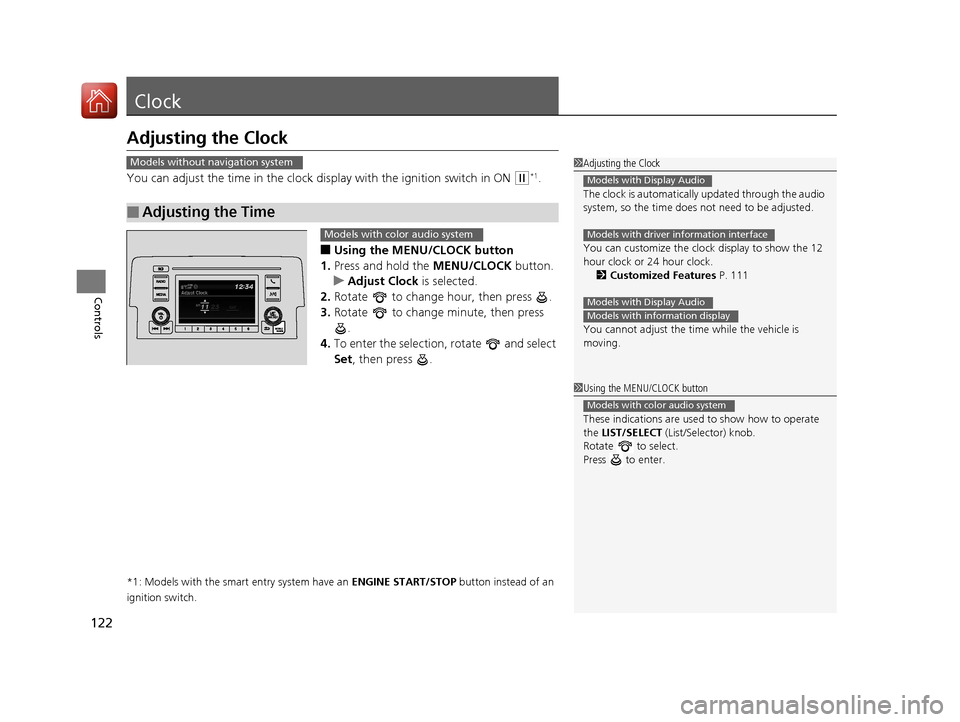
You can adjust the time in the clock display with the ignition switch in ON (w*1.
■Using the MENU/CLOCK button
1. Press and hold the MENU/CLOCK button.
u Adjust Clock is selected.
2. Rotate to change hour, then press .
3. Rotate to change minute, then press
.
4. To enter the selection, rotate and select
Set , then press .
*1: Models with the smart entry system have an ENGINE START/STOP button instead of an
ignition switch.
■Adjusting the Time
1 Adjusting the Clock
The clock is automatically updated through the audio
system, so the time does not need to be adjusted.
You can customize the clock display to show the 12
hour clock or 24 hour clock. 2 Customized Features P. 111
You cannot adjust the time while the vehicle is
moving.
Models with Display Audio
Models with driver information interface
Models with Display Audio
Models with information display
Models without navigation system
1 Using the MENU/CLOCK button
These indications are used to show how to operate
the LIST/SELECT (List/Selector) knob.
Rotate to select.
Press to enter.
Models with color audio system
Models with color audio system
16 CIVIC 4D-31TBA6000.book 122 ページ 2015年8月31日 月曜日 午後5時56分
Page 226 of 590
225
uuAudio System Basic Operation uAudio/Information Screen
Continued
Features
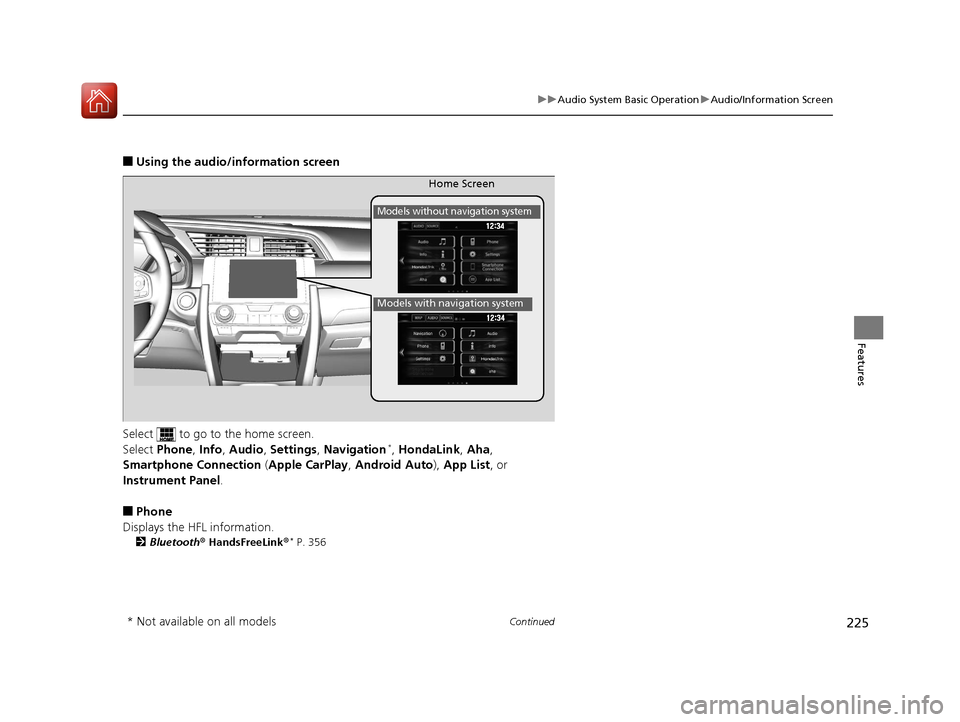
■Using the audio/in formation screen
Select to go to the home screen.
Select Phone , Info , Audio , Settings , Navigation
*, HondaLink , Aha ,
Smartphone Connection (Apple CarPlay , Android Auto ), App List, or
Instrument Panel .
■Phone
Displays the HFL information.
2 Bluetooth ® HandsFreeLink ®* P. 356
Home Screen
Models without navigation system
Models with navigation system
* Not available on all models
16 CIVIC 4D-31TBA6000.book 225 ページ 2015年8月31日 月曜日 午後5時56分
Page 227 of 590
226
uuAudio System Basic Operation uAudio/Information Screen
Features
■Info
Displays Trip Computer or Clock/Wallpaper . Select on the Info Menu screen
to see all available options: Trip Computer, Voice Info, Clock/Wallpaper and
System/Device Information .
Trip Computer :
• Current Drive tab: Displays the current trip information.
• History of Trip A tab: Displays information for the three previous drives. The
information is stored every time you reset Trip A.
To delete the history manually, select Delete History on the History of Trip A
tab. The confirmation message ap pears on the screen, then select Yes.
Voice Info: Displays the all commands list.
Clock/Wallpaper :
Displays the cloc k and wallpaper.
System/Device Information :
• System Info: Displays the software version of the audio system.
• USB Info : Displays the memory usage of the USB device.
■Audio
Displays the current audio information.
■Settings
Enters the customiz ing menu screen.
2Customized Features P. 302
■Navigation*
Displays the navigation screen.
2Refer to the Navigation System Manual
* Not available on all models
16 CIVIC 4D-31TBA6000.book 226 ページ 2015年8月31日 月曜日 午後5時56分
Page 240 of 590
Continued239
uuAudio System Basic Operation uAudio/Information Screen
Features
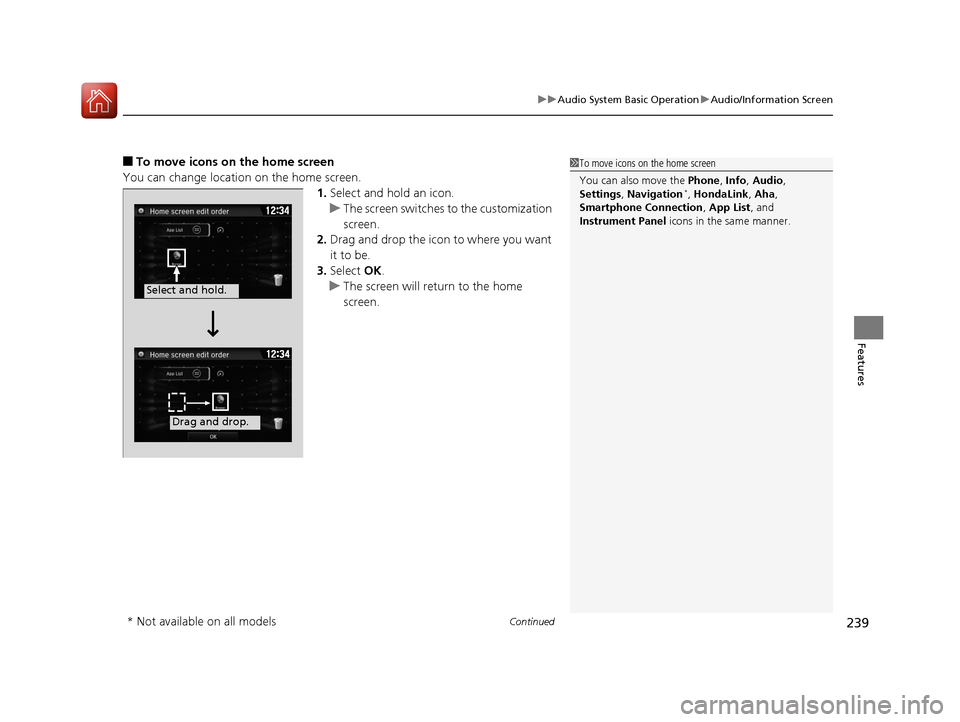
■To move icons on the home screen
You can change location on the home screen. 1.Select and hold an icon.
u The screen switches to the customization
screen.
2. Drag and drop the icon to where you want
it to be.
3. Select OK.
u The screen will return to the home
screen.1To move icons on the home screen
You can also move the Phone, Info, Audio ,
Settings , Navigation
*, HondaLink , Aha,
Smartphone Connection , App List, and
Instrument Panel icons in the same manner.
Select and hold.
Drag and drop.
* Not available on all models
16 CIVIC 4D-31TBA6000.book 239 ページ 2015年8月31日 月曜日 午後5時56分
Page 241 of 590
uuAudio System Basic Operation uAudio/Information Screen
240
Features
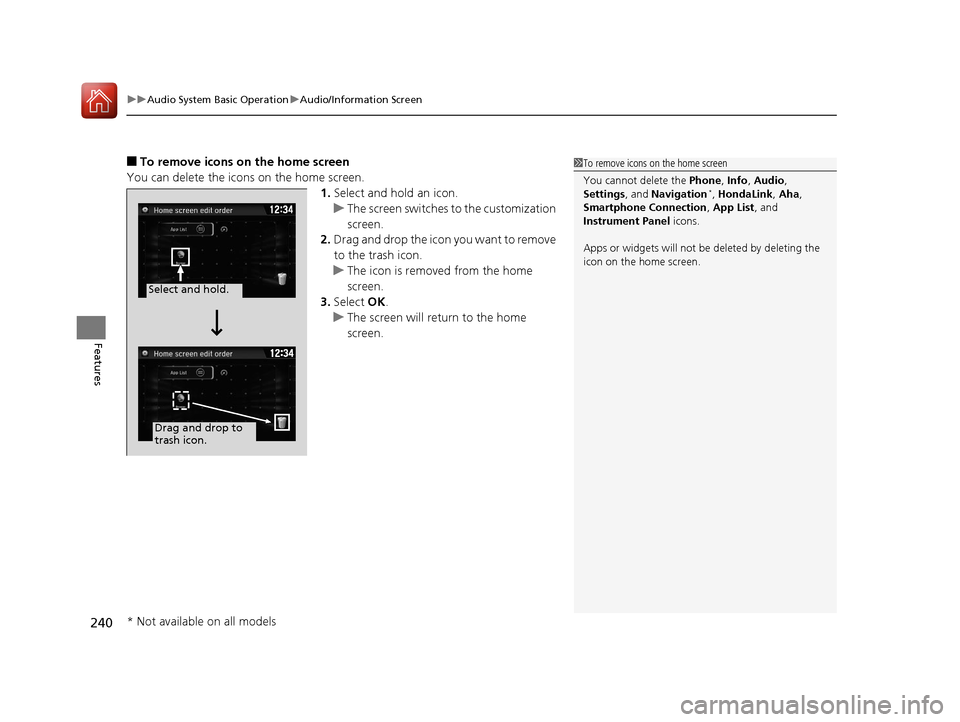
■To remove icons on the home screen
You can delete the icons on the home screen. 1.Select and hold an icon.
u The screen switches to the customization
screen.
2. Drag and drop the icon you want to remove
to the trash icon.
u The icon is removed from the home
screen.
3. Select OK.
u The screen will return to the home
screen.1To remove icons on the home screen
You cannot delete the Phone, Info, Audio ,
Settings , and Navigation
*, HondaLink , Aha,
Smartphone Connection , App List, and
Instrument Panel icons.
Apps or widgets will not be deleted by deleting the
icon on the home screen.
Select and hold.
Drag and drop to
trash icon.
* Not available on all models
16 CIVIC 4D-31TBA6000.book 240 ページ 2015年8月31日 月曜日 午後5時56分
Page 250 of 590
249
uuAudio System Basic Operation uVoice Control Operation
Continued
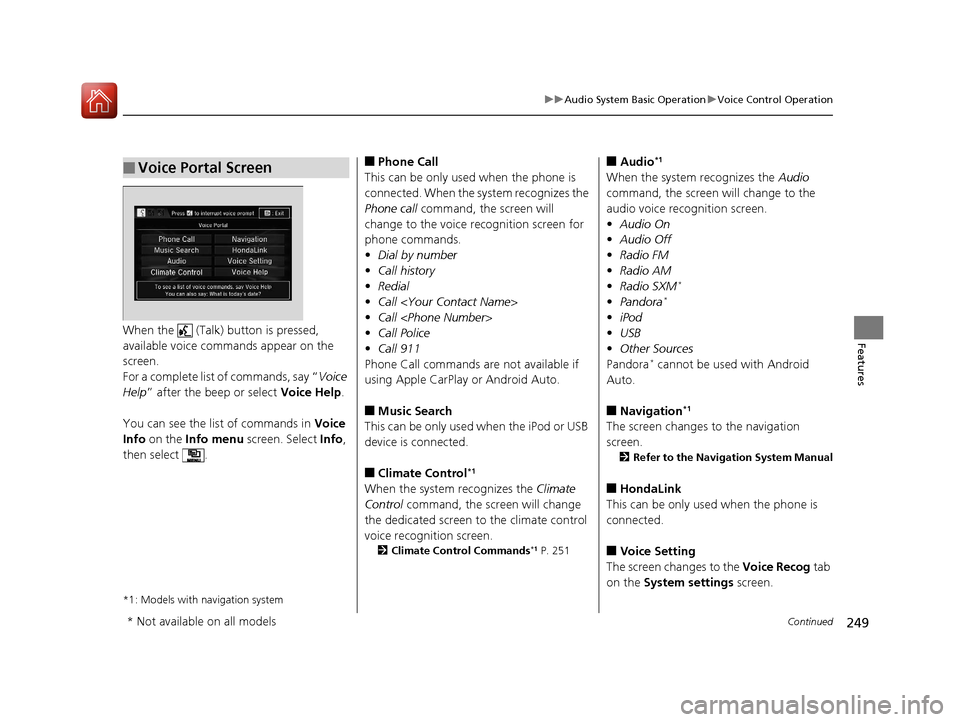
FeaturesWhen the (Talk) button is pressed,
available voice comma nds appear on the
screen.
For a complete list of commands, say “ Voice
Help ” after the beep or select Voice Help.
You can see the list of commands in Voice
Info on the Info menu screen. Select Info,
then select .
*1: Models with navigation system
■Voice Portal Screen■Phone Call
This can be only used when the phone is
connected. When the sy stem recognizes the
Phone call command, the screen will
change to the voice re cognition screen for
phone commands.
• Dial by number
• Call history
• Redial
• Call
• Call
• Call Police
• Call 911
Phone Call commands are not available if
using Apple CarPlay or Android Auto.
■Music Search
This can be only used when the iPod or USB
device is connected.
■Climate Control*1
When the system recognizes the Climate
Control command, the screen will change
the dedicated screen to the climate control
voice recognition screen.
2 Climate Control Commands*1 P. 251
■Audio*1
When the system recognizes the Audio
command, the screen will change to the
audio voice recognition screen.
• Audio On
• Audio Off
• Radio FM
• Radio AM
• Radio SXM
*
•Pandora*
•iPod
• USB
• Other Sources
Pandora
* cannot be used with Android
Auto.
■Navigation*1
The screen changes to the navigation
screen.
2 Refer to the Navigation System Manual
■HondaLink
This can be only used when the phone is
connected.
■Voice Setting
The screen changes to the Voice Recog tab
on the System settings screen.
* Not available on all models
16 CIVIC 4D-31TBA6000.book 249 ページ 2015年8月31日 月曜日 午後5時56分