audio HONDA CIVIC 2016 10.G Quick Guide
[x] Cancel search | Manufacturer: HONDA, Model Year: 2016, Model line: CIVIC, Model: HONDA CIVIC 2016 10.GPages: 82, PDF Size: 5.52 MB
Page 42 of 82
76 || 77
Models with Display Audio
Basic HFL Operation
Make and receive phone calls using the vehicle’s audio system, without handling
your phone. visit handsfreelink.com (U.S.) or handsfreelink.ca (Canada) to check
phone compatibility.
To reduce the potential for driver distraction, certain manual functions \
may be
inoperable or grayed out while the vehicle is moving. Stop or pull over \
to perform
the function. Voice commands are also available.
HFL Controls
Use the controls to enter information and make selections.
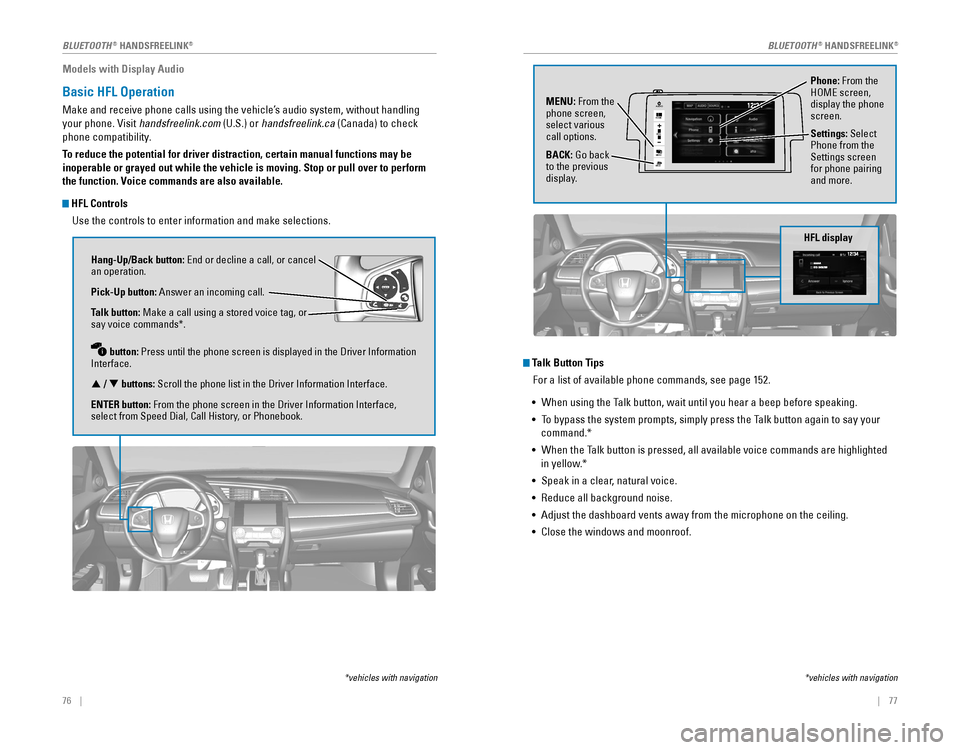
Hang-Up/Back button: end or decline a call, or cancel an operation.
Pick-Up button: Answer an incoming call.
Talk button: Make a call using a stored voice tag, or
say voice commands*.
button: Press until the phone screen is displayed in the Driver Information
Interface.
p / q buttons: Scroll the phone list in the Driver Information Interface.
ENTER button: From the phone screen in the Driver Information Interface,
select from Speed Dial, Call History, or Phonebook.
*vehicles with navigation
Talk Button Tips For a list of available phone commands, see page 152.
• When using the Talk button, wait until you hear a beep before speaking.
• To bypass the system prompts, simply press the Talk button again to say your
command.*
• When the Talk button is pressed, all available voice commands are highlighted
in yellow.*
• Speak in a clear, natural voice.
•
reduce all background noise.
• Adjust the dashboard vents away from the microphone on the ceiling.
• Close the windows and moonroof.
Phone: From the HoMe screen, display the phone
screen.
MENU: From the
phone screen,
select various
call options.
BACK: Go back
to the previous
display. Settings: Select
Phone from the
Settings screen
for phone pairing
and more.
*vehicles with navigation
HFL display
VO
L
HOME
MENUBACK
AUDIO
BLUETOOTH® HANDSFreeLINK®BLUETOOTH® HANDSFreeLINK®
Page 43 of 82

78 || 79
Models with Display Audio
Pairing a Phone
To use hands-free phone and streaming audio functions, you must first p\
air your
phone to the system. This can only be done when the vehicle is stopped. \
Use the
touchscreen to make and enter selections.
If there is an active connection to Apple CarPlay
® (see page 65) or Android Auto™
(see page 66), pairing of additional Bluetooth-compatible devices is unavailable
and Add Bluetooth Device is grayed out from the Bluetooth Device List sc\
reen.
1. From the Home screen, select Settings.
2. Select Phone.
3. Select Bluetooth Device List.
4. Select Add Bluetooth Device.
5. Make sure your phone is in discovery mode. Select
Continue.
6. The system searches for your phone. Select your
phone when it appears on the list.
If your phone does not appear:
Select Phone Not Found and search for
HandsFreeLink from your phone. Connect to HFL.
7. The system gives you a pairing code. Compare it to
the code that appears on your phone. Connect to
HFL from your phone.
8. The system asks if you want to enable options:
HondaLink Assist: Select on to enable emergency
collision notification (see page 80).
Phone Synchronization: Select on to automatically
import contacts and call history from your phone.
9. Press BACK to exit the menu.
State, provincial, or local laws may prohibit the operation of handheld electronic devices while operating a vehicle.
Models with Display Audio
Making a Call
You can make a call using several methods.
Dialing a Number
enter a 10-digit phone number to call.
Using voice commands
Press the Talk button before you say each command.
1. Say “Dial by number.”
2. Say the phone number: For example,
“3-1-0-5-5-5-1-2-3-4.”
3. The system begins to dial.
Using the touchscreen
Manual operation is limited while the vehicle is moving. voice commands are
always available.
1. From the Home screen, select Phone.
2. Select MeNU.
3. Select Dial.
4. enter the phone number. Select the green phone
icon to call.
Using the Phonebook When your phone is paired, its entire phonebook can be automatically imp\
orted to
the system. Phone synchronization must be turned on.
Using voice commands
Press the Talk button before you say each command.
1. Say “Dial by name.”
2. Say the phonebook name and phone type. For
example,
“John Smith mobile.”
Using the touchscreen
Manual operation is limited while the vehicle is moving. voice commands are
always available.
1. From the Home screen, select Phone.
2. Select MeNU.
3. Select Phonebook.
4. Scroll through the list to find the name and number
you want to call, and select it to call.
BLUETOOTH® HANDSFreeLINK®BLUETOOTH® HANDSFreeLINK®
Page 44 of 82
80 || 81
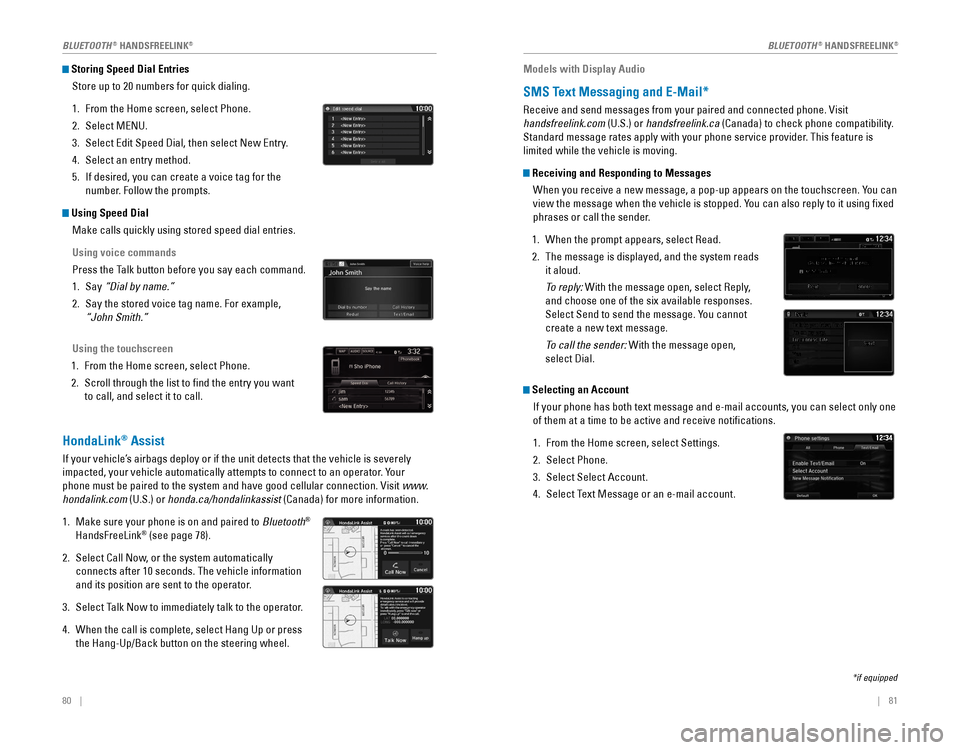
Storing Speed Dial Entries
Store up to 20 numbers for quick dialing.
1. From the Home screen, select Phone.
2. Select MeNU.
3. Select edit Speed Dial, then select New entry.
4. Select an entry method.
5. If desired, you can create a voice tag for the
number. Follow the prompts.
Using Speed DialMake calls quickly using stored speed dial entries.
Using voice commands
Press the Talk button before you say each command.
1. Say “Dial by name.”
2. Say the stored voice tag name. For example,
“John Smith.”
Using the touchscreen
1. From the Home screen, select Phone.
2. Scroll through the list to find the entry you want
to call, and select it to call.
HondaLink® Assist
If your vehicle’s airbags deploy or if the unit detects that the vehicle is severely
impacted, your vehicle automatically attempts to connect to an operator. Your
phone must be paired to the system and have good cellular connection. visit www.
hondalink.com (U.S.) or honda.ca/hondalinkassist (Canada) for more information.
1. Make sure your phone is on and paired to Bluetooth®
HandsFreeLink® (see page 78).
2. Select Call Now, or the system automatically
connects after 10 seconds. The vehicle information
and its position are sent to the operator.
3. Select Talk Now to immediately talk to the operator.
4. When the call is complete, select Hang Up or press
the Hang-Up/Back button on the steering wheel.
Models with Display Audio
SMS Text Messaging and E-Mail*
receive and send messages from your paired and connected phone. visit
handsfreelink.com (U.S.) or handsfreelink.ca (Canada) to check phone compatibility.
Standard message rates apply with your phone service provider. This feature is
limited while the vehicle is moving.
Receiving and Responding to Messages
When you receive a new message, a pop-up appears on the touchscreen. You can
view the message when the vehicle is stopped. You can also reply to it using fixed
phrases or call the sender.
1. When the prompt appears, select read.
2. The message is displayed, and the system reads
it aloud.
To reply: With the message open, select reply,
and choose one of the six available responses.
Select Send to send the message. You cannot
create a new text message.
To call the sender: With the message open,
select Dial.
Selecting an Account
If your phone has both text message and e-mail accounts, you can select \
only one
of them at a time to be active and receive notifications.
1. From the Home screen, select Settings.
2. Select Phone.
3. Select Select Account.
4. Select Text Message or an e-mail account.
*if equipped
BLUETOOTH® HANDSFreeLINK®BLUETOOTH® HANDSFreeLINK®
Page 45 of 82
82 || 83
Models with Display Audio
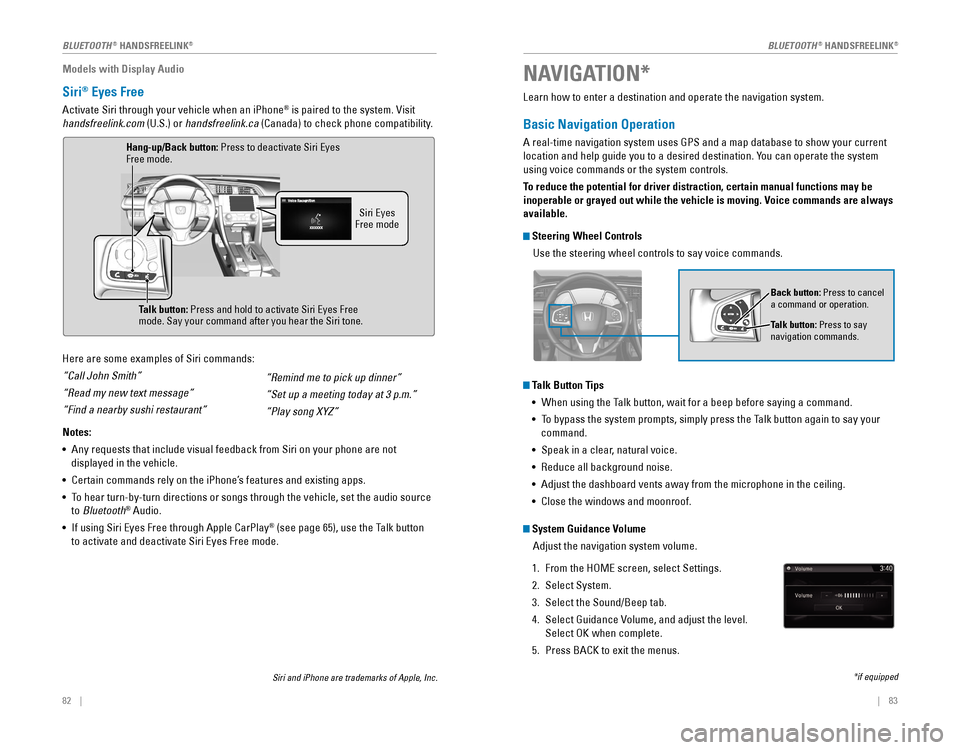
Siri® Eyes Free
Activate Siri through your vehicle when an iPhone® is paired to the system. visit
handsfreelink.com (U.S.) or handsfreelink.ca (Canada) to check phone compatibility.
Here are some examples of Siri commands:
“Call John Smith”
“Read my new text message”
“Find a nearby sushi restaurant”
Notes:
• Any requests that include visual feedback from Siri on your phone are no\
t
displayed in the vehicle.
• Certain commands rely on the iPhone’s features and existing apps.
• To hear turn-by-turn directions or songs through the vehicle, set the aud\
io source
to Bluetooth
® Audio.
•
If using Siri eyes Free through Apple CarPlay® (see page 65), use the Talk button
to activate and deactivate Siri eyes Free mode.
“Remind me to pick up dinner”
“Set up a meeting today at 3 p.m.”
“Play song XYZ”
Siri eyes Free mode
Talk button:
Press and hold to activate Siri eyes Free mode. Say your command after you hear the Siri tone.
Siri and iPhone are trademarks of Apple, Inc.
Hang-up/Back button: Press to deactivate Siri eyes Free mode.
Learn how to enter a destination and operate the navigation system.
Basic Navigation Operation
A real-time navigation system uses GPS and a map database to show your current
location and help guide you to a desired destination. You can operate the system
using voice commands or the system controls.
To reduce the potential for driver distraction, certain manual functions \
may be
inoperable or grayed out while the vehicle is moving. Voice commands are always
available.
Steering Wheel Controls Use the steering wheel controls to say voice commands.
Talk Button Tips• When using the Talk button, wait for a beep before saying a command.
• To bypass the system prompts, simply press the Talk button again to say your
command.
• Speak in a clear, natural voice.
•
reduce all background noise.
• Adjust the dashboard vents away from the microphone in the ceiling.
• Close the windows and moonroof.
Back button: Press to cancel
a command or operation.
Talk button: Press to say
navigation commands.
NAVIGATION*
*if equipped
System Guidance Volume
Adjust the navigation system volume.
1. From the HoMe screen, select Settings.
2. Select System.
3. Select the Sound/Beep tab.
4. Select Guidance volume, and adjust the level.
Select oK when complete.
5. Press BACK to exit the menus.
BLUETOOTH® HANDSFreeLINK®BLUETOOTH® HANDSFreeLINK®
Page 46 of 82
84 || 85
NAVIGATION
NAVIGATION
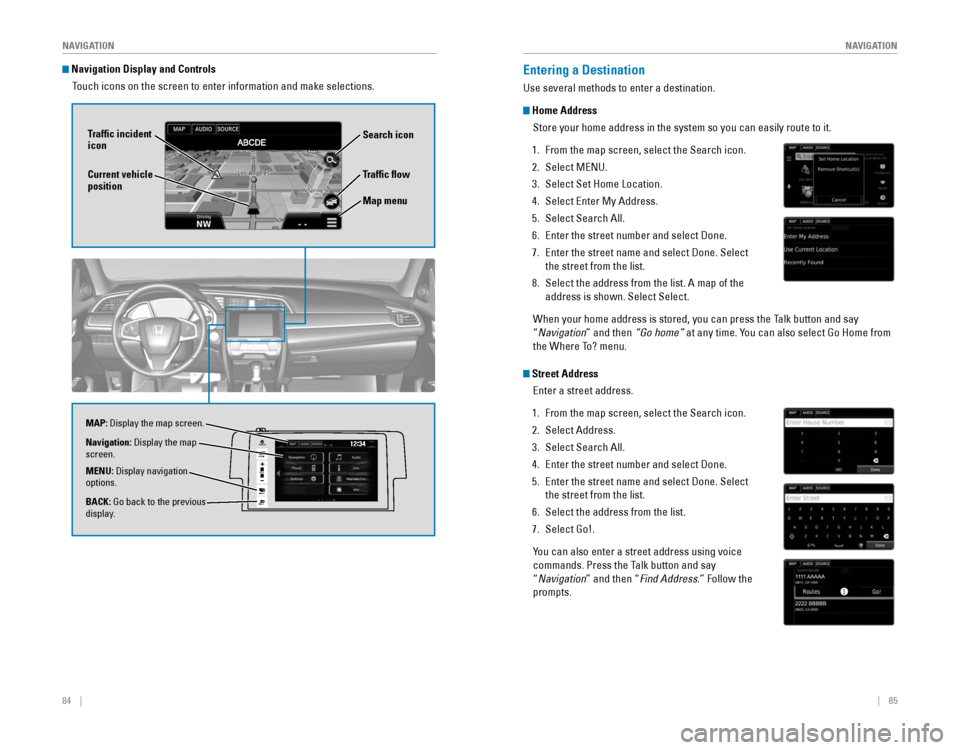
Navigation Display and Controls
Touch icons on the screen to enter information and make selections.
VO L
HOME
MENUBACK
AUDIO
Traffic flow
Current vehicle
position Traffic incident
icon
Search icon
Map menu
Navigation: Display the map
screen.
BACK: Go back to the previous
display. MENU: Display navigation
options. MAP: Display the map screen.
Entering a Destination
Use several methods to enter a destination.
Home Address
Store your home address in the system so you can easily route to it.
1. From the map screen, select the Search icon.
2. Select MeNU.
3. Select Set Home Location.
4. Select enter My Address.
5. Select Search All.
6. enter the street number and select Done.
7. enter the street name and select Done. Select
the street from the list.
8. Select the address from the list. A map of the
address is shown. Select Select.
When your home address is stored, you can press the Talk button and say
“Navigation” and then “Go home” at any time. You can also select Go Home from
the Where To? menu.
Street Address
enter a street address.
1. From the map screen, select the Search icon.
2. Select Address.
3. Select Search All.
4. enter the street number and select Done.
5. enter the street name and select Done. Select
the street from the list.
6. Select the address from the list.
7. Select Go!.
You can also enter a street address using voice
commands. Press the Talk button and say
“Navigation” and then “
Find Address.” Follow the
prompts.
Page 51 of 82
94 || 95
DRIVING
DRIVING
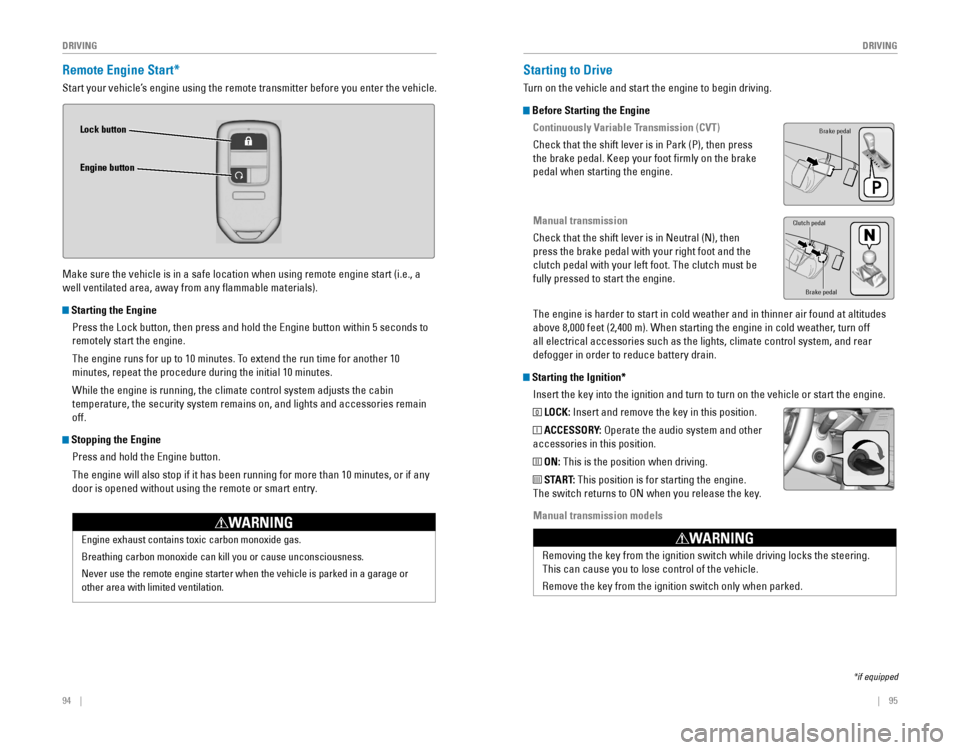
Remote Engine Start*
Start your vehicle’s engine using the remote transmitter before you enter the vehicle.
Make sure the vehicle is in a safe location when using remote engine start (i.e., a
well ventilated area, away from any flammable materials).
Starting the Engine
Press the Lock button, then press and hold the engine button within 5 seconds to
remotely start the engine.
The engine runs for up to 10 minutes. To extend the run time for another 10
minutes, repeat the procedure during the initial 10 minutes.
While the engine is running, the climate control system adjusts the cabi\
n
temperature, the security system remains on, and lights and accessories remain
off.
Stopping the Engine
Press and hold the engine button.
The engine will also stop if it has been running for more than 10 minute\
s, or if any
door is opened without using the remote or smart entry.
engine exhaust contains toxic carbon monoxide gas.
Breathing carbon monoxide can kill you or cause unconsciousness.
Never use the remote engine starter when the vehicle is parked in a gara\
ge or
other area with limited ventilation.
WARNING
Lock button
Engine button
Starting to Drive
Turn on the vehicle and start the engine to begin driving.
Before Starting the Engine
Continuously Variable Transmission (CVT)
Check that the shift lever is in Park (P), then press
the brake pedal. Keep your foot firmly on the brake
pedal when starting the engine.
Manual transmission
Check that the shift lever is in Neutral (N), then
press the brake pedal with your right foot and the
clutch pedal with your left foot. The clutch must be
fully pressed to start the engine.
The engine is harder to start in cold weather and in thinner air found a\
t altitudes
above 8,000 feet (2,400 m). When starting the engine in cold weather, turn off
all electrical accessories such as the lights, climate control system, a\
nd rear
defogger in order to reduce battery drain.
Starting the Ignition*Insert the key into the ignition and turn to turn on the vehicle or star\
t the engine.
0 LOCK: Insert and remove the key in this position.
I ACCESSORY: operate the audio system and other
accessories in this position.
II ON: This is the position when driving.
III START: This position is for starting the engine.
The switch returns to oN when you release the key.
Manual transmission models
*if equipped
Brake pedal
Brake pedal
Clutch pedal
removing the key from the ignition switch while driving locks the steerin\
g.
This can cause you to lose control of the vehicle.
remove the key from the ignition switch only when parked.
WARNING
Page 59 of 82
110 || 111
DRIVING
DRIVING
Models with Display Audio
1. From the Home screen, select Settings.
2. Select Camera.
3. Select rear Camera.
4. Select an option:
Fixed Guideline: Guidelines appear when you shift into reverse.
Dynamic Guideline: Guidelines move as you turn the steering wheel.
5. Select on or off.
6. Press BACK to exit the menu.
Changing Camera Settings
Turn the guidelines on or off.
Models with color audio system
1. Press the MeNU/CLoCK button.
2. Select Settings.
3. Select rear Camera.
4. Select Camera Guideline.
5. Select on or off.
6. Press the Back button to exit the menu.
Refueling
Use the proper fuel and refueling procedure to ensure the best performan\
ce and
safety of your vehicle.
Fuel InformationUse of unleaded gasoline of 87 octane or higher is recommended.
•
Honda recommends ToP TIer Detergent Gasoline where available.
• Do NoT use gasoline containing more than 15% ethanol.
• Do NoT use gasoline containing methanol.
• Do NoT use gasoline containing MMT.
We recommend quality gasoline containing detergent additives that help
prevent fuel system and engine deposits. In addition, in order to mainta\
in good
performance, fuel economy, and emissions control, we strongly recommend the
use of gasoline that does NoT contain harmful manganese-based fuel additives
such as MMT, if such gasoline is available.
NOTICE
Gasoline is highly flammable and explosive. You can be burned or seriously
injured when handling fuel.
• Stop the engine, and keep heat, sparks, and flame away.
• Handle fuel only outdoors.
• Wipe up spills immediately.
WARNING
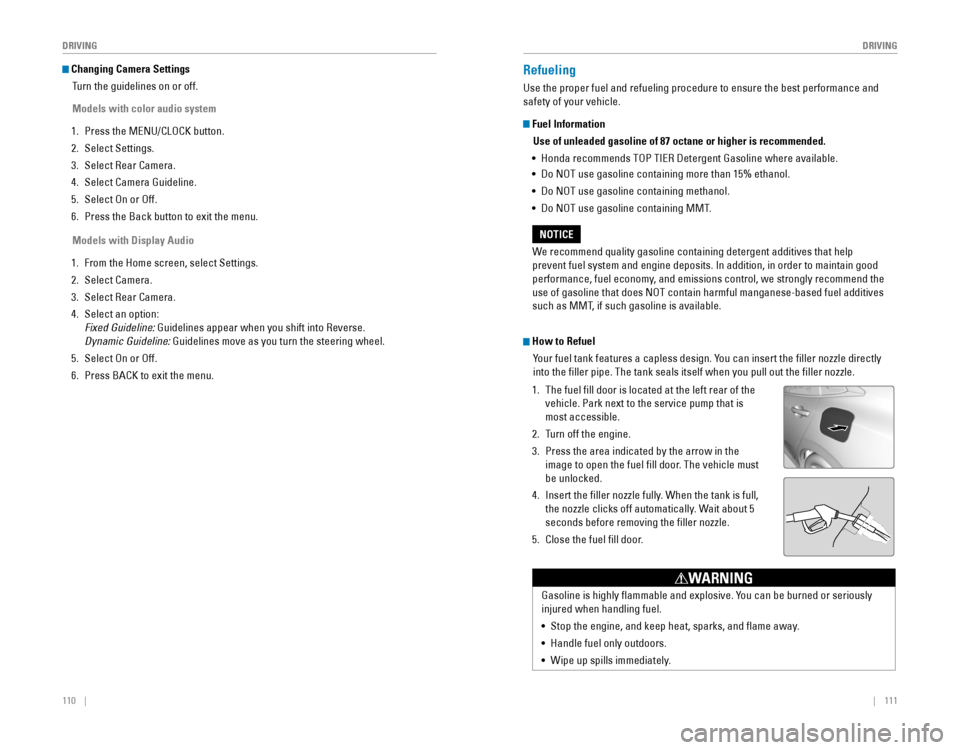
How to Refuel
Your fuel tank features a capless design. You can insert the filler nozzle directly
into the filler pipe. The tank seals itself when you pull out the fi\
ller nozzle.
1. The fuel fill door is located at the left rear of the
vehicle. Park next to the service pump that is
most accessible.
2. Turn off the engine.
3. Press the area indicated by the arrow in the
image to open the fuel fill door. The vehicle must
be unlocked.
4. Insert the filler nozzle fully. When the tank is full,
the nozzle clicks off automatically. Wait about 5
seconds before removing the filler nozzle.
5. Close the fuel fill door.
Page 61 of 82
114 || 115
HANDLING THE UNEXPECTED
HANDLING THE UNEXPECTED
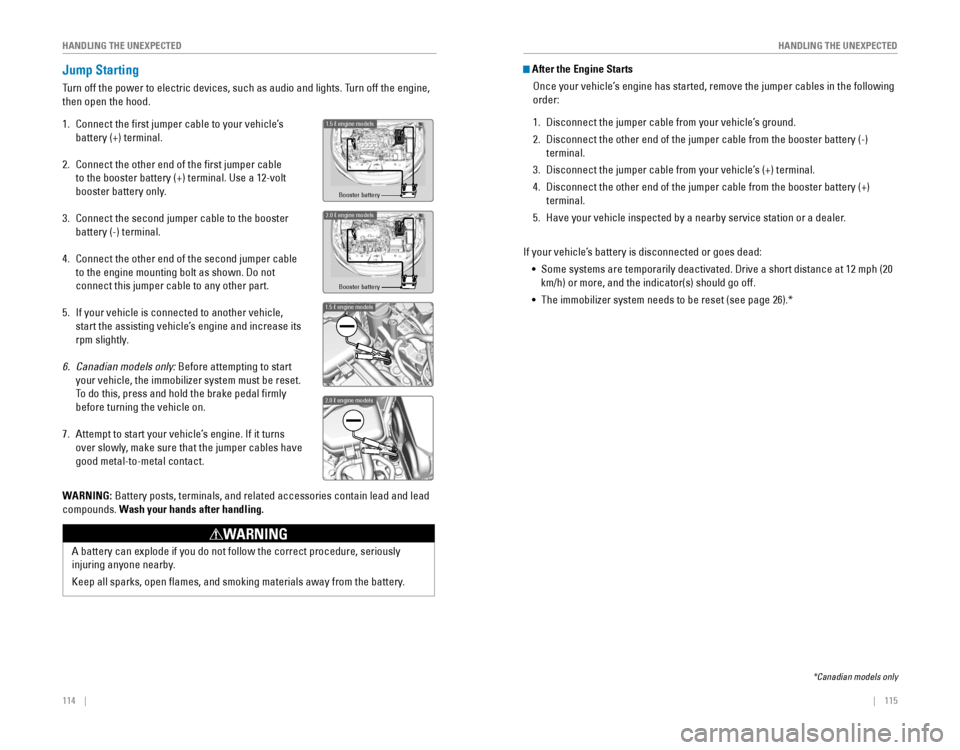
Jump Starting
Turn off the power to electric devices, such as audio and lights. Turn off the engine,
then open the hood.
1. Connect the first jumper cable to your vehicle’s
battery (+) terminal.
2. Connect the other end of the first jumper cable
to the booster battery (+) terminal. Use a 12-volt
booster battery only.
3. Connect the second jumper cable to the booster
battery (-) terminal.
4. Connect the other end of the second jumper cable
to the engine mounting bolt as shown. Do not
connect this jumper cable to any other part.
5. If your vehicle is connected to another vehicle,
start the assisting vehicle’s engine and increase its
rpm slightly.
6. Canadian models only: Before attempting to start
your vehicle, the immobilizer system must be reset.
To do this, press and hold the brake pedal firmly
before turning the vehicle on.
7. Attempt to start your vehicle’s engine. If it turns
over slowly, make sure that the jumper cables have
good metal-to-metal contact.
Booster battery
1.5 engine models
2.0 engine model\as
Booster batter\f
1.5 engine model\
s
2.0 engine model\
s
WARNING: Battery posts, terminals, and related accessories contain lead and lead\
compounds. Wash your hands after handling.
A battery can explode if you do not follow the correct procedure, seriou\
sly
injuring anyone nearby.
Keep all sparks, open flames, and smoking materials away from the batt\
ery.
WARNING
After the Engine Starts
once your vehicle’s engine has started, remove the jumper cables in the following
order:
1. Disconnect the jumper cable from your vehicle’s ground.
2. Disconnect the other end of the jumper cable from the booster battery (\
-)
terminal.
3. Disconnect the jumper cable from your vehicle’s (+) terminal.
4. Disconnect the other end of the jumper cable from the booster battery (\
+)
terminal.
5. Have your vehicle inspected by a nearby service station or a dealer.
If your vehicle’s battery is disconnected or goes dead: • Some systems are temporarily deactivated. Drive a short distance at 12 mph (20
km/h) or more, and the indicator(s) should go off.
• The immobilizer system needs to be reset (see page 26).*
*Canadian models only
Page 63 of 82
118 || 119
HANDLING THE UNEXPECTED
HANDLING THE UNEXPECTED
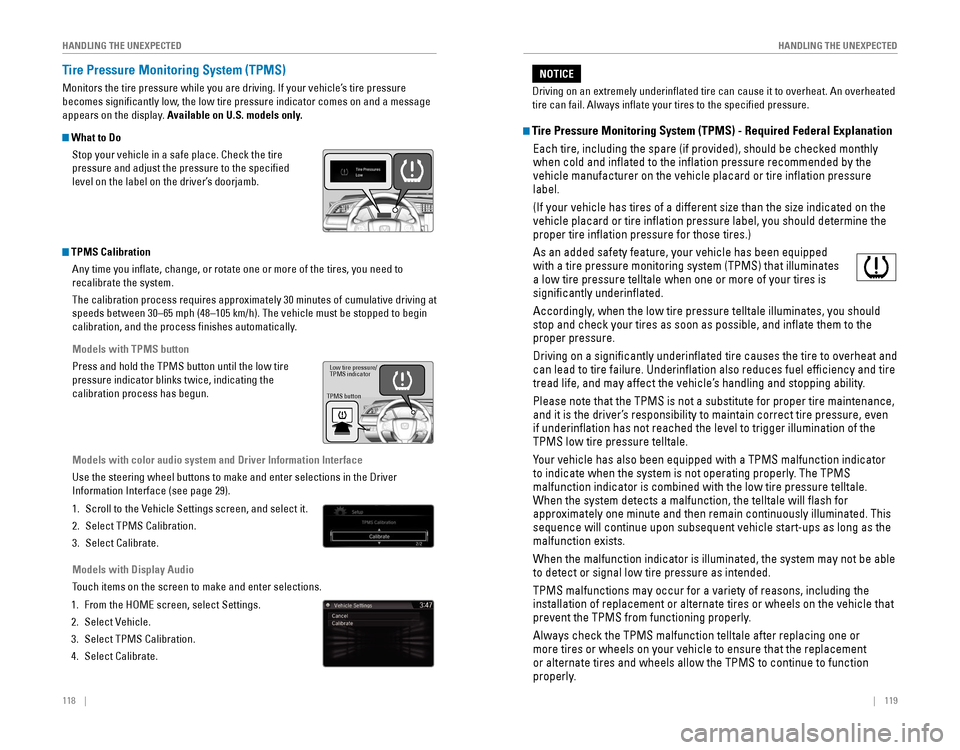
Tire Pressure Monitoring System (TPMS)
Monitors the tire pressure while you are driving. If your vehicle’s tire pressure
becomes significantly low, the low tire pressure indicator comes on and a message
appears on the display. Available on U.S. models only.
What to Do
Stop your vehicle in a safe place. Check the tire
pressure and adjust the pressure to the specified
level on the label on the driver’s doorjamb.
TPMS CalibrationAny time you inflate, change, or rotate one or more of the tires, you \
need to
recalibrate the system.
The calibration process requires approximately 30 minutes of cumulative driving at
speeds between 30–65 mph (48–105 km/h). The vehicle must be stop\
ped to begin
calibration, and the process finishes automatically.
Models with TPMS button
Press and hold the TPMS button until the low tire
pressure indicator blinks twice, indicating the
calibration process has begun.
Models with color audio system and Driver Information Interface
Use the steering wheel buttons to make and enter selections in the Drive\
r
Information Interface (see page 29).
1. Scroll to the vehicle Settings screen, and select it.
2. Select TPMS Calibration.
3. Select Calibrate.
Models with Display Audio
Touch items on the screen to make and enter selections.
1. From the HoMe screen, select Settings.
2. Select vehicle.
3. Select TPMS Calibration.
4. Select Calibrate.
TPMS button Low tire pressure/
TPMS indicator
Tire Pressure Monitoring System (TPMS) - Required Federal Explanation
each tire, including the spare (if provided), should be checked monthly\
when cold and inflated to the inflation pressure recommended by the \
vehicle manufacturer on the vehicle placard or tire inflation pressure\
label.
(If your vehicle has tires of a different size than the size indicated \
on the
vehicle placard or tire inflation pressure label, you should determine\
the
proper tire inflation pressure for those tires.)
As an added safety feature, your vehicle has been equipped
with a tire pressure monitoring system (TPMS) that illuminates
a low tire pressure telltale when one or more of your tires is
significantly underinflated.
Accordingly, when the low tire pressure telltale illuminates, you should
stop and check your tires as soon as possible, and inflate them to the\
proper pressure.
Driving on a significantly underinflated tire causes the tire to ove\
rheat and
can lead to tire failure. Underinflation also reduces fuel efficienc\
y and tire
tread life, and may affect the vehicle’s handling and stopping ability.
Please note that the TPMS is not a substitute for proper tire maintenanc\
e,
and it is the driver’s responsibility to maintain correct tire pressure, even
if underinflation has not reached the level to trigger illumination of\
the
TPMS low tire pressure telltale.
Your vehicle has also been equipped with a TPMS malfunction indicator
to indicate when the system is not operating properly. The TPMS
malfunction indicator is combined with the low tire pressure telltale.
When the system detects a malfunction, the telltale will flash for
approximately one minute and then remain continuously illuminated. This \
sequence will continue upon subsequent vehicle start-ups as long as the \
malfunction exists.
When the malfunction indicator is illuminated, the system may not be abl\
e
to detect or signal low tire pressure as intended.
TPMS malfunctions may occur for a variety of reasons, including the
installation of replacement or alternate tires or wheels on the vehicle \
that
prevent the TPMS from functioning properly.
Always check the TPMS malfunction telltale after replacing one or
more tires or wheels on your vehicle to ensure that the replacement
or alternate tires and wheels allow the TPMS to continue to function
properly.
Driving on an extremely underinflated tire can cause it to overheat. A\
n overheated
tire can fail. Always inflate your tires to the specified pressure.
NOTICE
Page 66 of 82

124 || 125
HANDLING THE UNEXPECTED
HANDLING THE UNEXPECTED
Fuse Locations
If any electrical devices are not working, turn the vehicle off and chec\
k to see if any
applicable fuse is blown. Fuse locations are shown on the fuse box cover\
. Locate the
fuse in question by the fuse number and box cover number.
Engine Compartment Fuse Box
Located under the hood near the battery. Push the tabs to open the box.
*if equipped
Circuit ProtectedAmps
1
Passenger’s Power Seat*/
Rear Seat Heaters*(60 A)
Cooling Fan*1(30 A)Cooling Fan*2(50 A)IG Main*3
*430 A
Headlight High Beam Main30 ABattery125A
2
EPS70 A
IG Main 30
A*3
50A*4
Fuse Box Option*(40 A)
Fuse Box60AFront Wiper Moto r30A
Headlight Low Beam Main 30 A
3
Rear Defroster40 AStarter Motor*3
*430A
Fuse Bo x40AABS/VSA Motor40AABS/VSA FS R40ABlower Motor40A
*1: 2.0L engine models
*2: 1.5L engine models
*3: Models with smart entry syste m
*4: Models without smart entry system
4
5Cooling Fan5A
6W asher15A7FI Main15A
8F I Sub1 5A
9 Stop Lights 10A
10 Injecto r
*2(15A )
11 LAF 5A
12 FI ECU 10A
13 Parking Lights 10A
14 Hazard1 5A
15 IG Coil 15A
16 Transmission
*5(1 5A )
17 Daytime Running Lights 10A
18 Back Up 10A
Circuit Protecte
d Amps
19 Audio 15A
20 Audio AMP*(30 A)
21 Interior Lights 10A
22 Front Fog Lights
*(15 A)
23 A/C Compressor*(10 A)
24 Horn 10A
25 Left Headlight Low Beam 10A
26 Right Headlight Low Beam 10A
27 VB ACT
*2(10 A)
28 Left Headlight High Beam 10A
29 Right Headlight High Beam 10A
30
31 Rear Seat Heaters
*(15 A)
32 Passenger’s Power Seat
Sliding
*(20 A)
33 Passenger’s Power Seat
Reclining
*(20 A)
34
35
36
Circuit Protected Amps
1 Passenger’s Power Seat*/
Rear Seat Heaters*(60 A)
Cooling Fan
*1(30 A)
Cooling Fan*2(50 A)
IG Main
*3
*430 A
Headlight High Beam Main 30A
Battery 125A
2 EPS
70A
IG Main 30
A
*3
50A*4
Fuse Box Option*(40 A)
Fuse Bo x6 0A
Front Wiper Moto r30A
Headlight Low Beam Main 30 A
3 Rear Defroster
40A
Starter Motor
*3
*430 A
Fuse Bo x 40A
ABS/VSA Motor 40A
ABS/VSA FS R 40A
Blower Motor 40A
*1: 2.0L engine models
*2: 1.5L engine models
*3: Models with smart entry syste m
*4: Models without smart entry system
*5: Continuously variable transmission
models
4
5 Cooling Fan 5A
6W asher1 5A
7 FI Main 15A
8F I Sub15A9Stop Lights10A
10 Injecto r*2(15A )11LAF5A
12 FI ECU 10A
13Parking Lights10 A
14 Hazard15A15IG Coil15A
16 Transmission*5(1 5A )17Daytime Running Lights10A
18 Back Up 10A
Circuit Protecte dAmps
19Audio15A
20 Audio AMP*(30 A)21Interior Lights10A
22 Front Fog Lights*(15 A)23A/C Compressor*(10 A)
24 Horn 10A
25Left Headlight Low Beam10A
26 Right Headlight Low Beam 10A
27VB ACT*2(10 A)
28 Left Headlight High Beam 10A
29Right Headlight High Beam10A
3031Rear Seat Heaters*(15 A)
32 Passenger’s Power Seat
Sliding
*(20 A)
33Passenger’s Power Seat Reclining*(20 A)
34
35
36
Interior Fuse Box
Located under the dashboard on the driver’s side.
*if equipped
Circuit ProtectedAmps1Accessory10 A
2*1
Key Lock*2
(5 A)
3
4Front Sensor Camera*1
Transmission*2, *3(5A)
(10 A)
5Optio n10A6SRS Indicator10A7Meter10A8Fuel Pump15A
*3: Continuously variable transmission models
9AIRCON10A1011Engine Control5A12Passenger Side Door Lock10A13Driver Side Rear Door Unloc k(10A )
14Rear Driver’s Side Power
Window(20A )
15Front Passenger’s Side
Power Windo w20A
16Door Lock20A
17Transmissio n*1, *3
Front Sensor Camera*2(10A )
(5 A)
18
19 Moonroo f*(20A )
20
21 ACG 10A
22 Daytime Running Lights 10A
23
24 Front Sensor Camera
*(5 A)
25 Driver’s Door Lock 10A
26
Passen ger Side Door Unlock10A
27 Rear Passenger’s Side
Power Window (2
0A )
*1: Models with smart entry system
*2: Models without smart entry system 28
Driver’s Power Window 20A
29 Front Accessory Power
Socket 20
A
30 Smart Entry
*1
*210
A
31 Driver’s Power Seat
Reclining
*(20 A)
32 Front Seat Heater
*(20 A)
33 Driver’s Power Seat Sliding*(20 A)
34 VSA/ABS 10A
35 SRS 10A
36
37
38 Driver Side Rear Door Lock (10 A)
39 Driver’s Door Unlock 10 A
Circuit Protecte
dAmps
Fuse label
Circuit Protected Amps
1 Accessory 10A
2
*1
Key Lock*2
(5 A)
3
4 Front Sensor Camera
*1
Transmission*2, *3(5
A)
(10 A)
5 Option 10A
6 SRS Indicator 10A
7 Meter 10A
8 Fuel Pump 15A
*3
: Continuously variable transmission models
9 AIRCON 10A
10
11 Engine Control 5A
12 Passenger Side Door Lock 10A
13
Driver Side Rear Door Unloc k(10A )
14 Rear Driver’s Side Power
Window (2
0A )
15 Front Passenger’s Side
Power Windo w20
A
16 Door Lock 20A
17 Transmissio
n
*1, *3
Front Sensor Camera*2(10A )
(5 A)
1819Moonroo f*(20A )2021ACG10A22Daytime Running Lights10A2324Front Sensor Camera*(5 A)25Driver’s Door Lock10A26Passen ger Side Door Unlock10A
27Rear Passenger’s Side
Power Window(20A )
*1: Models with smart entry system*2: Models without smart entry system
28Driver’s Power Window20 A
29 Front Accessory Power
Socket 20
A
30Smart Entry*1
*210A
31 Driver’s Power Seat
Reclining
*(20 A)
32Front Seat Heater*(20 A)
33 Driver’s Power Seat Sliding*(20 A)34VSA/ABS10A
35 SRS 10A
36
3738Driver Side Rear Door Lock(10 A)
39 Driver’s Door Unlock 10 A
Circuit Protecte dAmps