audio HONDA CIVIC 2022 Owners Manual
[x] Cancel search | Manufacturer: HONDA, Model Year: 2022, Model line: CIVIC, Model: HONDA CIVIC 2022Pages: 700, PDF Size: 13.98 MB
Page 412 of 700
411
uuBluetooth ® HandsFreeLink ®u Using HFL
Features
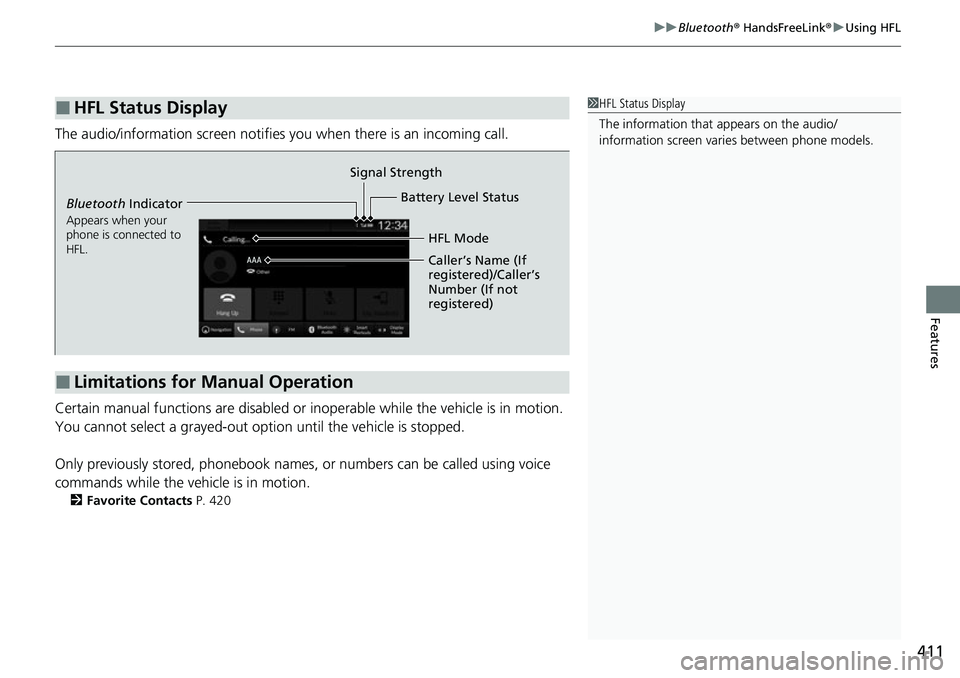
The audio/information scr een notifies you when there is an incoming call.
Certain manual functions are disabled or inoperable while the vehicle is in motion.
You cannot select a grayed-out option until the vehicle is stopped.
Only previously stored, phonebook names, or numbers can be called using voice
commands while the vehicle is in motion.
2 Favorite Contacts P. 420
■HFL Status Display1HFL Status Display
The information that appears on the audio/
information screen vari es between phone models.
■Limitations for Manual Operation
Bluetooth Indicator
Appears when your
phone is connected to
HFL.
Signal Strength
HFL Mode
Battery Level Status
Caller’s Name (If
registered)/Caller’s
Number (If not
registered)
Page 415 of 700
uuBluetooth ® HandsFreeLink ®u HFL Menus
414
Features
■Bluetooth ® setup
You can turn Bluetooth® function on and off.
1. Press the button.
2. Select General Settings .
3. Select Connections .
4. Select Bluetooth .
5. Select Options.
6. Select Bluetooth , then select ON.
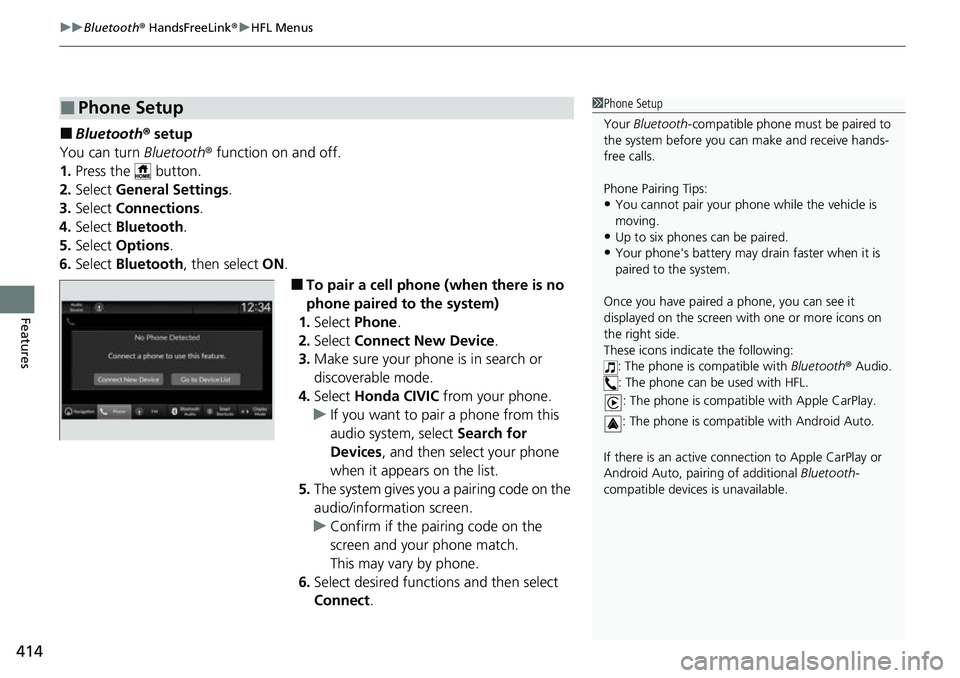
■To pair a cell phone (when there is no
phone paired to the system)
1. Select Phone .
2. Select Connect New Device .
3. Make sure your phone is in search or
discoverable mode.
4. Select Honda CIVIC from your phone.
u If you want to pair a phone from this
audio system, select Search for
Devices , and then select your phone
when it appears on the list.
5. The system gives you a pairing code on the
audio/information screen.
u Confirm if the pairing code on the
screen and your phone match.
This may vary by phone.
6. Select desired functions and then select
Connect .
■Phone Setup1Phone Setup
Your Bluetooth -compatible phone must be paired to
the system before you ca n make and receive hands-
free calls.
Phone Pairing Tips:
•You cannot pair your phone while the vehicle is
moving.
•Up to six phones can be paired.
•Your phone's battery may dr ain faster when it is
paired to the system.
Once you have paired a phone, you can see it
displayed on the screen with one or more icons on
the right side.
These icons indicate the following: : The phone is compatible with Bluetooth® Audio.
: The phone can be used with HFL.
: The phone is compatib le with Apple CarPlay.
: The phone is compatible with Android Auto.
If there is an active connection to Appl e CarPlay or
Android Auto, pairing of additional Bluetooth-
compatible devices is unavailable.
Page 423 of 700
uuBluetooth ® HandsFreeLink ®u HFL Menus
422
Features
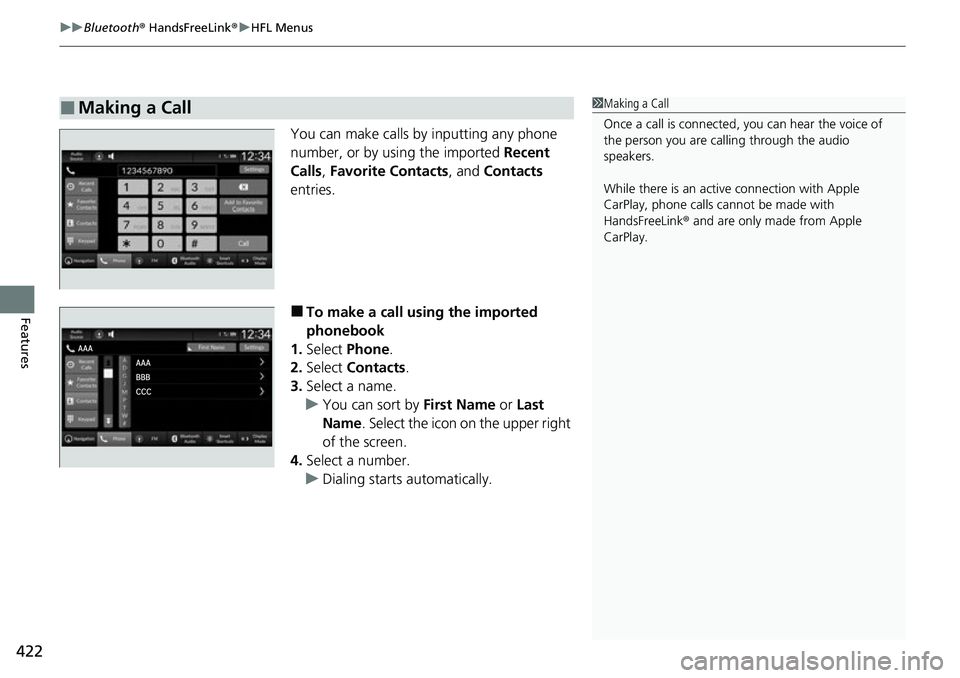
You can make calls by inputting any phone
number, or by using the imported Recent
Calls, Favorite Contacts , and Contacts
entries.
■To make a call using the imported
phonebook
1. Select Phone .
2. Select Contacts .
3. Select a name.
u You can sort by First Name or Last
Name . Select the icon on the upper right
of the screen.
4. Select a number.
u Dialing starts automatically.
■Making a Call1Making a Call
Once a call is connected, you can hear the voice of
the person you are call ing through the audio
speakers.
While there is an active connection with Apple
CarPlay, phone calls ca nnot be made with
HandsFreeLink ® and are only made from Apple
CarPlay.
Page 425 of 700
uuBluetooth ® HandsFreeLink ®u HFL Menus
424
Features
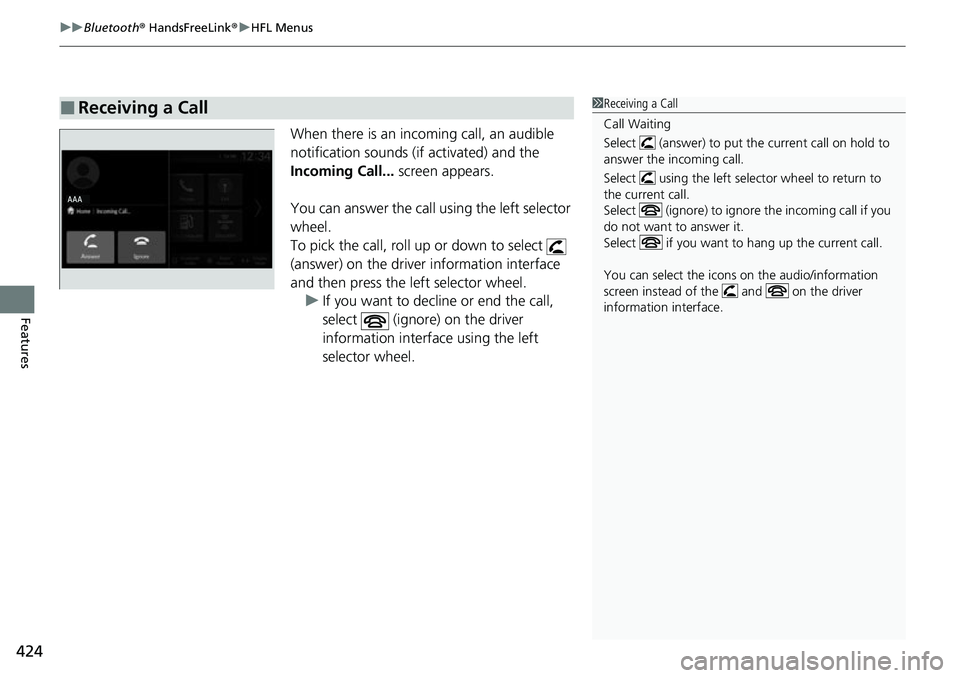
When there is an incoming call, an audible
notification sounds (if activated) and the
Incoming Call... screen appears.
You can answer the call using the left selector
wheel.
To pick the call, roll up or down to select
(answer) on the driver information interface
and then press the left selector wheel. u If you want to decline or end the call,
select (ignore) on the driver
information interface using the left
selector wheel.
■Receiving a Call1Receiving a Call
Call Waiting
Select (answer) to put the current call on hold to
answer the incoming call.
Select using the left selector wheel to return to
the current call.
Select (ignore) to ignor e the incoming call if you
do not want to answer it.
Select if you want to hang up the current call.
You can select the icons on the audio/information
screen instead of the and on the driver
information interface.
Page 426 of 700
425
uuBluetooth ® HandsFreeLink ®u HFL Menus
Features
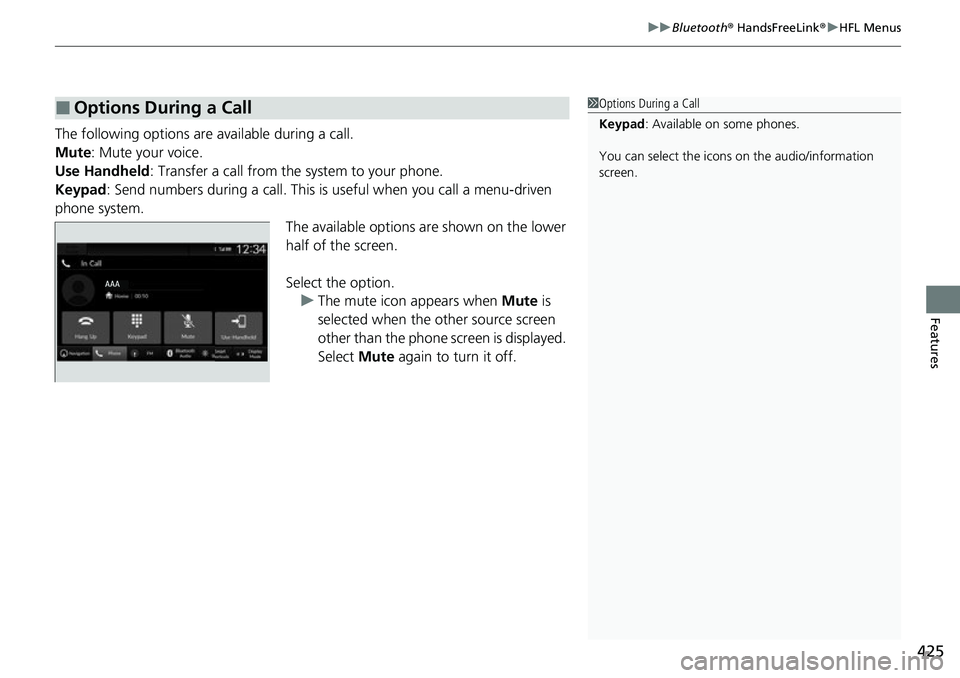
The following options ar e available during a call.
Mute: Mute your voice.
Use Handheld : Transfer a call from the system to your phone.
Keypad : Send numbers during a call. This is useful when you call a menu-driven
phone system. The available options are shown on the lower
half of the screen.
Select the option.u The mute icon appears when Mute is
selected when the other source screen
other than the phone screen is displayed.
Select Mute again to turn it off.
■Options During a Call1Options During a Call
Keypad : Available on some phones.
You can select the icons on the audio/information
screen.
Page 439 of 700
uuWhen Driving uStarting the Engine
438
Driving
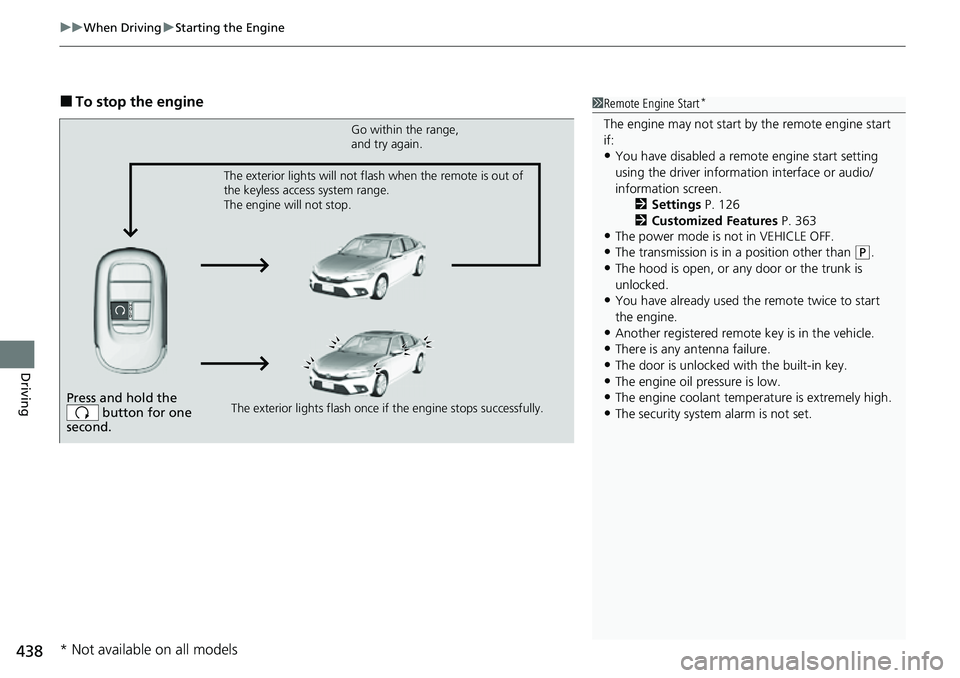
■To stop the engine1Remote Engine Start*
The engine may not start by the remote engine start
if:
•You have disabled a remo te engine start setting
using the driver information interface or audio/
information screen. 2Settings P. 126
2 Customized Features P. 363
•The power mode is not in VEHICLE OFF.
•The transmission is in a position other than (P.•The hood is open, or any door or the trunk is
unlocked.
•You have already used the remote twice to start
the engine.
•Another registered remote key is in the vehicle.
•There is any antenna failure.•The door is unlocked with the built-in key.
•The engine oil pressure is low.
•The engine coolant temper ature is extremely high.
•The security system alarm is not set.Press and hold the
button for one
second.
Go within the range,
and try again.
The exterior lights flash once if the engine stops successfully.
The exterior lights will not flash when the remote is out of
the keyless access system range.
The engine will not stop.
* Not available on all models
Page 465 of 700
464
uuWhen Driving uTire Pressure Monitoring System (TPMS)
Driving
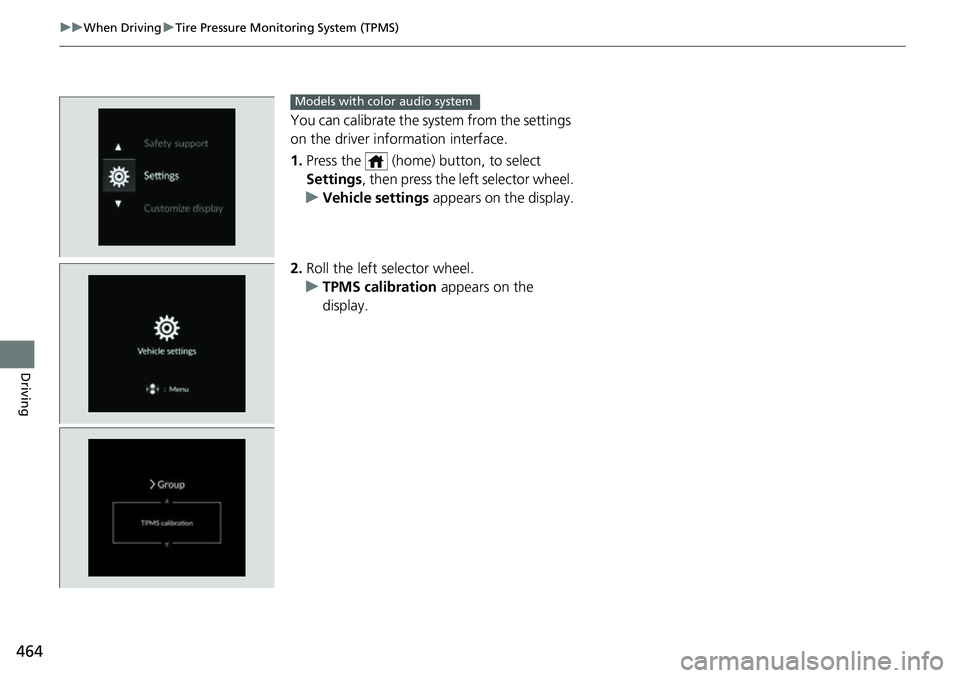
You can calibrate the system from the settings
on the driver information interface.
1. Press the (home) button, to select
Settings , then press the left selector wheel.
u Vehicle settings appears on the display.
2. Roll the left selector wheel.
u TPMS calibration appears on the
display.
Models with color audio system
Page 467 of 700
466
uuWhen Driving uTire Pressure Monitoring System (TPMS)
Driving
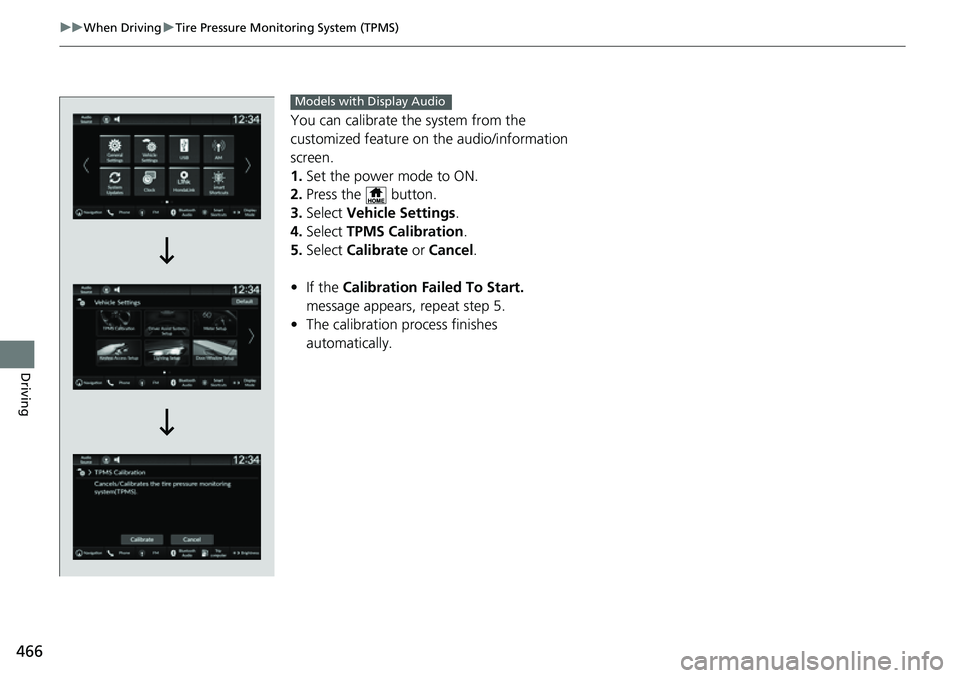
You can calibrate the system from the
customized feature on the audio/information
screen.
1. Set the power mode to ON.
2. Press the button.
3. Select Vehicle Settings .
4. Select TPMS Calibration .
5. Select Calibrate or Cancel .
• If the Calibration Failed To Start.
message appears, repeat step 5.
• The calibration pr ocess finishes
automatically.
Models with Display Audio
Page 479 of 700
478
uuHonda Sensing ®u Collision Mitigation Braking SystemTM (CMBSTM)
Driving
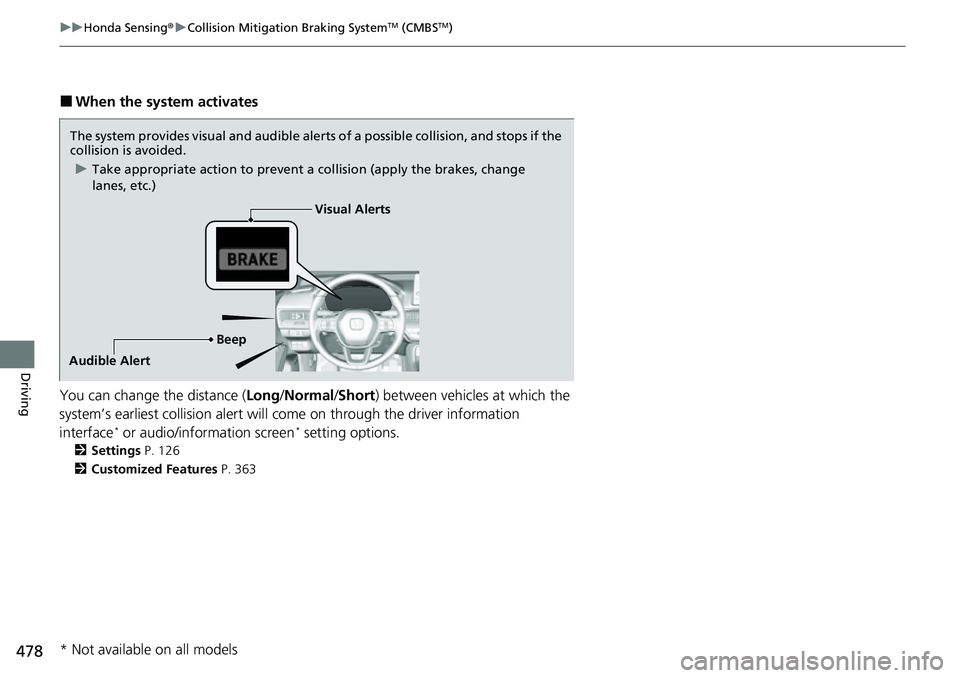
■When the system activates
You can change the distance ( Long/Normal /Short ) between vehicles at which the
system’s earliest collision alert will co me on through the driver information
interface
* or audio/information screen* setting options.
2 Settings P. 126
2 Customized Features P. 363
The system provides visual and audible alerts of a possible collisi on, and stops if the
collision is avoided.
u Take appropriate action to prevent a collision (apply the brakes, change
lanes, etc.)
Visual Alerts
Beep
Audible Alert
* Not available on all models
Page 497 of 700
uuHonda Sensing ®u Adaptive Cruise Control (ACC) with Low Speed Follow
496
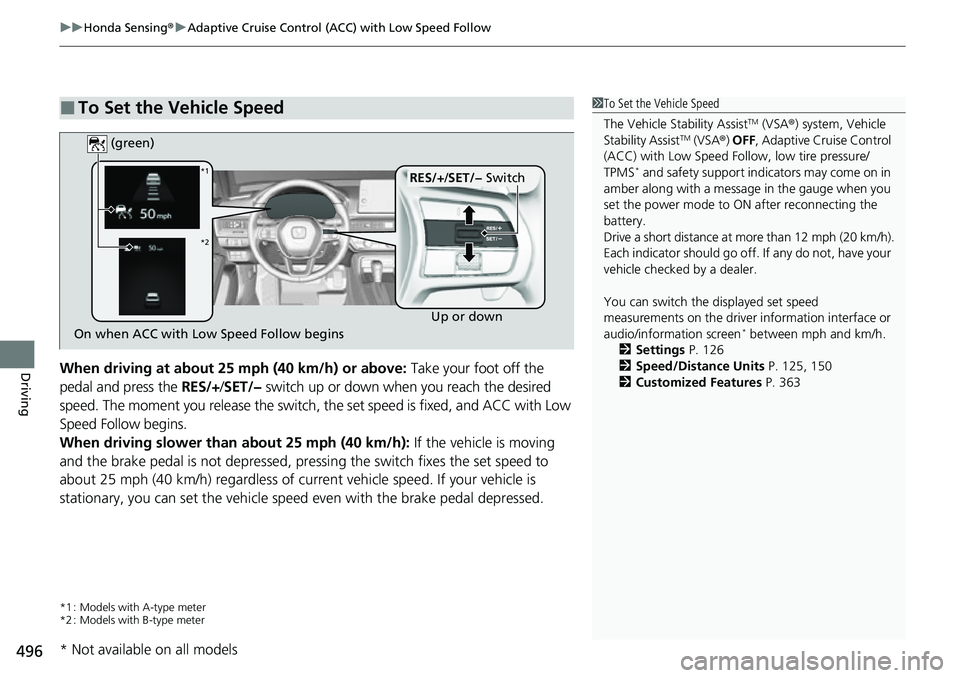
DrivingWhen driving at about 25 mph (40 km/h) or above: Take your foot off the
pedal and press the RES/+/SET/− switch up or down when you reach the desired
speed. The moment you release the switch, the set speed is fixed, and ACC with Low
Speed Follow begins.
When driving slower than about 25 mph (40 km/h): If the vehicle is moving
and the brake pedal is not depressed, pres sing the switch fixes the set speed to
about 25 mph (40 km/h) regardless of current vehicle speed. If your vehicle is
stationary, you can set the vehicle speed even with the brake pedal depressed.
*1 : Models with A-type meter
*2 : Models with B-type meter
■To Set the Vehicle Speed1 To Set the Vehicle Speed
The Vehicle Stability Assist
TM (VSA ®) system, Vehicle
Stability AssistTM (VSA ®) OFF , Adaptive Cruise Control
(ACC) with Low Speed Follow, low tire pressure/
TPMS
* and safety support indicators may come on in
amber along with a message in the gauge when you
set the power mode to ON after reconnecting the
battery.
Drive a short distance at more than 12 mph (20 km/h).
Each indicator should go off. If any do not, have your
vehicle checked by a dealer.
You can switch the displayed set speed
measurements on the driver information interface or
audio/information screen
* between mph and km/h.
2 Settings P. 126
2 Speed/Distance Units P. 125, 150
2 Customized Features P. 363On when ACC with Low Speed Follow begins Up or down
RES/+
/SET/− Switch
(green)*1
*2
* Not available on all models