display HONDA CIVIC 2022 Owner's Manual
[x] Cancel search | Manufacturer: HONDA, Model Year: 2022, Model line: CIVIC, Model: HONDA CIVIC 2022Pages: 700, PDF Size: 13.98 MB
Page 125 of 700
uuGauges and Driver Information Interface uDriver Information Interface
124
Instrument Panel
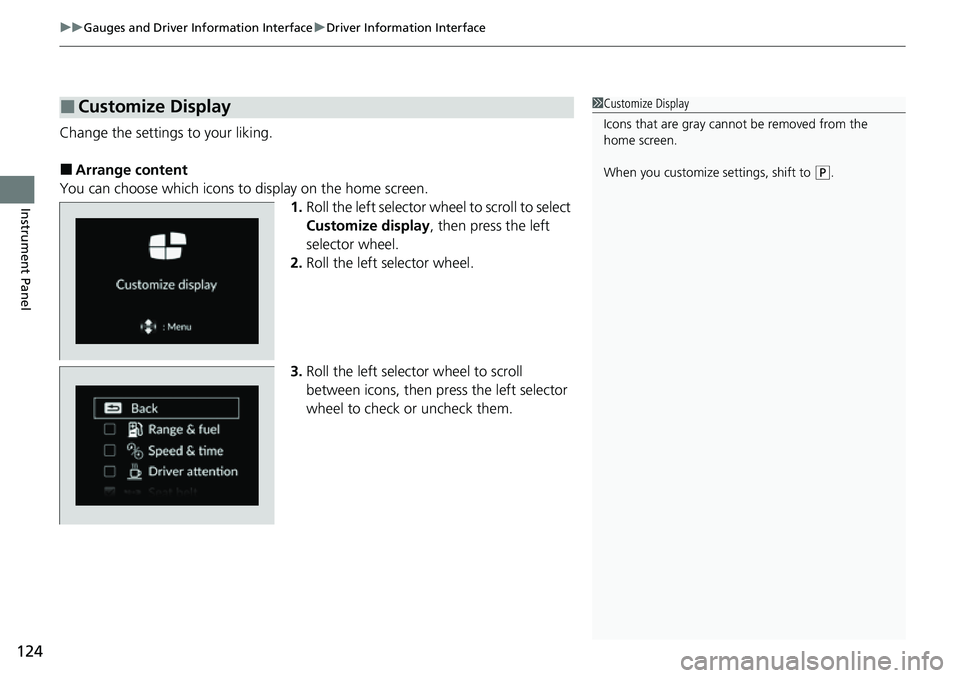
Change the settings to your liking.
■Arrange content
You can choose which icons to display on the home screen. 1.Roll the left selector wheel to scroll to select
Customize display , then press the left
selector wheel.
2. Roll the left selector wheel.
3. Roll the left selector wheel to scroll
between icons, then press the left selector
wheel to check or uncheck them.
■Customize Display1Customize Display
Icons that are gray cannot be removed from the
home screen.
When you customize settings, shift to
(P.
Page 126 of 700
Continued125
uuGauges and Driver Information Interface uDriver Information Interface
Instrument Panel
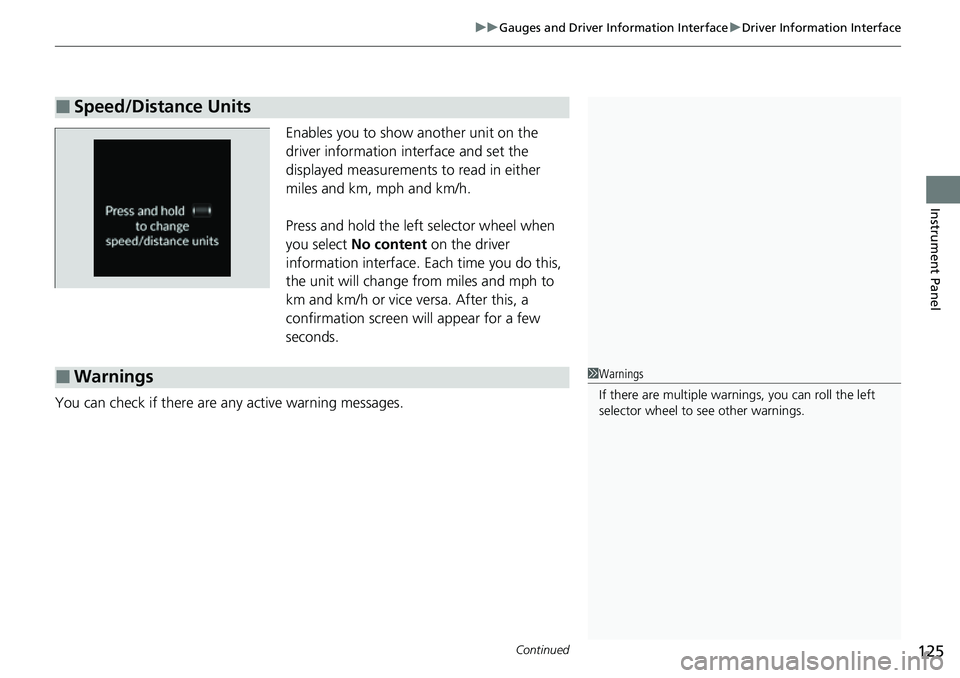
Enables you to show another unit on the
driver information interface and set the
displayed measurements to read in either
miles and km, mph and km/h.
Press and hold the left selector wheel when
you select No content on the driver
information interface. Each time you do this,
the unit will change from miles and mph to
km and km/h or vice versa. After this, a
confirmation screen will appear for a few
seconds.
You can check if there are any active warning messages.
■Speed/Distance Units
■Warnings1 Warnings
If there are multiple warnings, you can roll the left
selector wheel to see other warnings.
Page 129 of 700
128
uuGauges and Driver Information Interface uDriver Information Interface
Instrument Panel
*1:Default Setting Setup Group Customizable Features
Description Selectable Settings
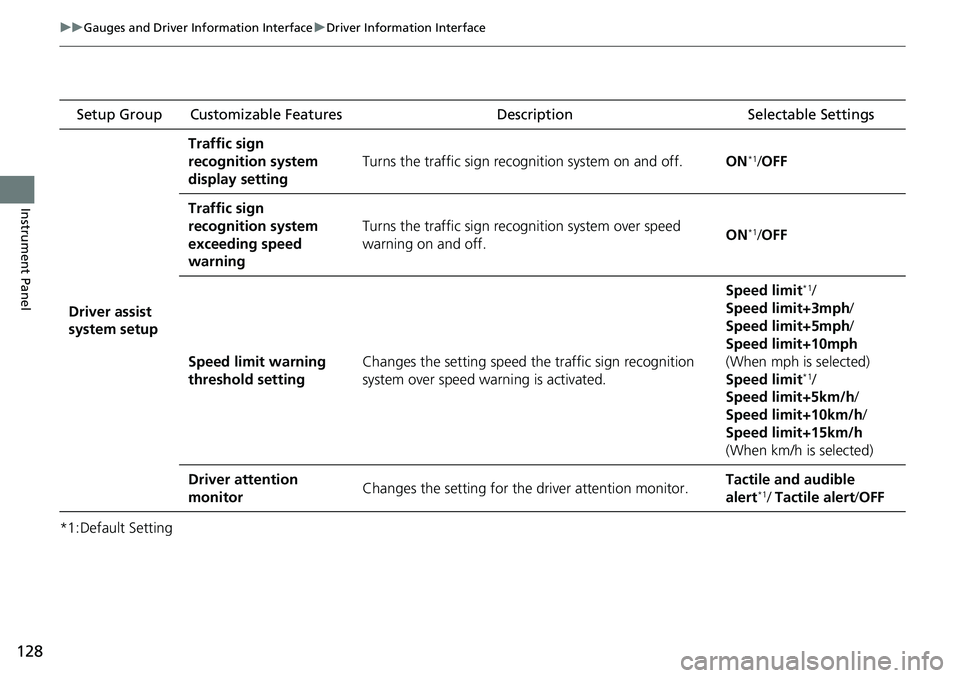
Driver assist
system setup
Traffic sign
recognition system
display setting
Turns the traffic sign recognition system on and off.ON*1/OFF
Traffic sign
recognition system
exceeding speed
warning
Turns the traffic sign recogn ition system over speed
warning on and off.ON*1/ OFF
Speed limit warning
threshold settingChanges the setting speed the traffic sign recognition
system over speed wa rning is activated.
Speed limit*1/
Speed limit+3mph /
Speed limit+5mph /
Speed limit+10mph
(When mph is selected)
Speed limit
*1/
Speed limit+5km/h /
Speed limit+10km/h /
Speed limit+15km/h
(When km/h is selected)
Driver attention
monitorChanges the setting for the driver attention monitor.Tactile and audible
alert*1/ Tactile alert /OFF
Page 130 of 700
129
uuGauges and Driver Information Interface uDriver Information Interface
Continued
Instrument Panel
*1:Default Setting Setup Group Customizable Features
Description Selectable Settings
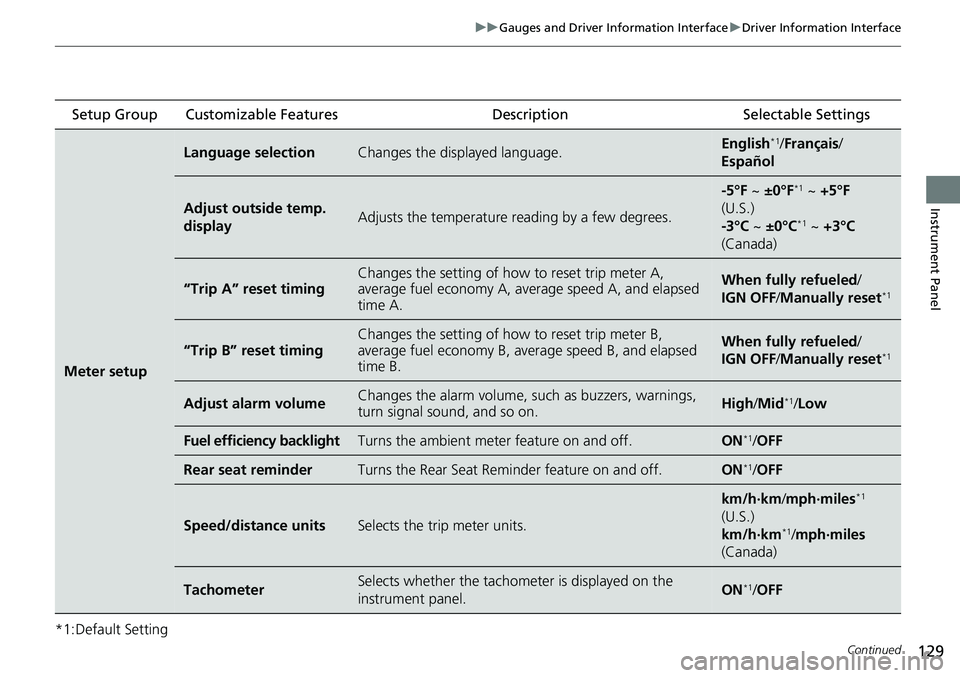
Meter setup
Language selectionChanges the displayed language.English*1/Français /
Español
Adjust outside temp.
displayAdjusts the temperature r eading by a few degrees.
-5°F ~ ±0°F*1 ~ +5°F
(U.S.)
-3°C ~ ±0°C
*1 ~ +3°C
(Canada)
“Trip A” reset timingChanges the setting of how to reset trip meter A,
average fuel economy A, av erage speed A, and elapsed
time A.When fully refueled /
IGN OFF /Manually reset*1
“Trip B” reset timing
Changes the setting of ho w to reset trip meter B,
average fuel economy B, av erage speed B, and elapsed
time B.When fully refueled /
IGN OFF /Manually reset*1
Adjust alarm volumeChanges the alarm volume, su ch as buzzers, warnings,
turn signal sound, and so on.High /Mid*1/Low
Fuel efficiency backlightTurns the ambient meter feature on and off.ON*1/ OFF
Rear seat reminderTurns the Rear Seat Reminder feature on and off.ON*1/OFF
Speed/distance unitsSelects the trip meter units.
km/h∙km /mph∙miles*1
(U.S.)
km/h∙km
*1/ mph∙miles
(Canada)
TachometerSelects whether the tachom eter is displayed on the
instrument panel.ON*1/ OFF
Page 132 of 700
131
uuGauges and Driver Information Interface uDriver Information Interface
Continued
Instrument Panel
*1:Default Setting Setup Group Customizable Features
Description Selectable Settings
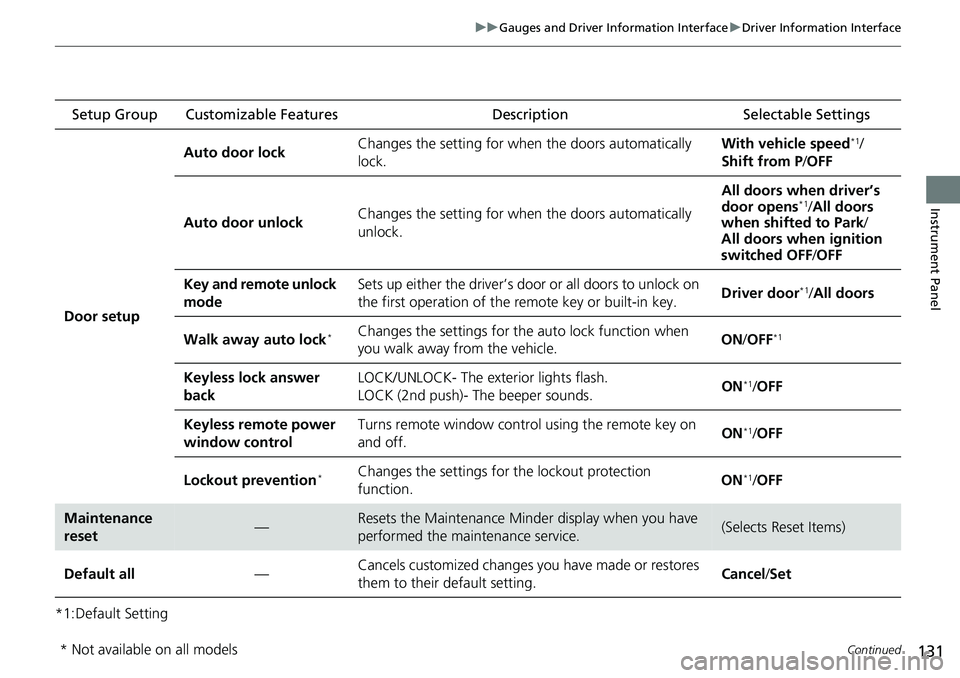
Door setup Auto door lock
Changes the setting for when the doors automatically
lock. With vehicle speed
*1/
Shift from P /OFF
Auto door unlock Changes the setting for when the doors automatically
unlock. All doors when driver’s
door opens
*1/
All doors
when shifted to Park /
All doors when ignition
switched OFF /OFF
Key and remote unlock
mode Sets up either the driver’s door or all doors to unlock on
the first operation of the remote key or built-in key.
Driver door
*1/
All doors
Walk away auto lock
*Changes the settings for the auto lock function when
you walk away from the vehicle. ON
/OFF*1
Keyless lock answer
back LOCK/UNLOCK- The exterior lights flash.
LOCK (2nd push)- The beeper sounds.
ON*1/
OFF
Keyless remote power
window control Turns remote window contro
l using the remote key on
and off. ON
*1/
OFF
Lockout prevention
*Changes the settings for the lockout protection
function. ON*1/
OFF
Maintenance
reset—Resets the Maintenance Minder display when you have
performed the maintenance service.(Selects Reset Items)
Default all —Cancels customized changes you have made or restores
them to their default setting. Cancel
/Set
* Not available on all models
Page 134 of 700
133
uuGauges and Driver Information Interface uDriver Information Interface
Continued
Instrument Panel
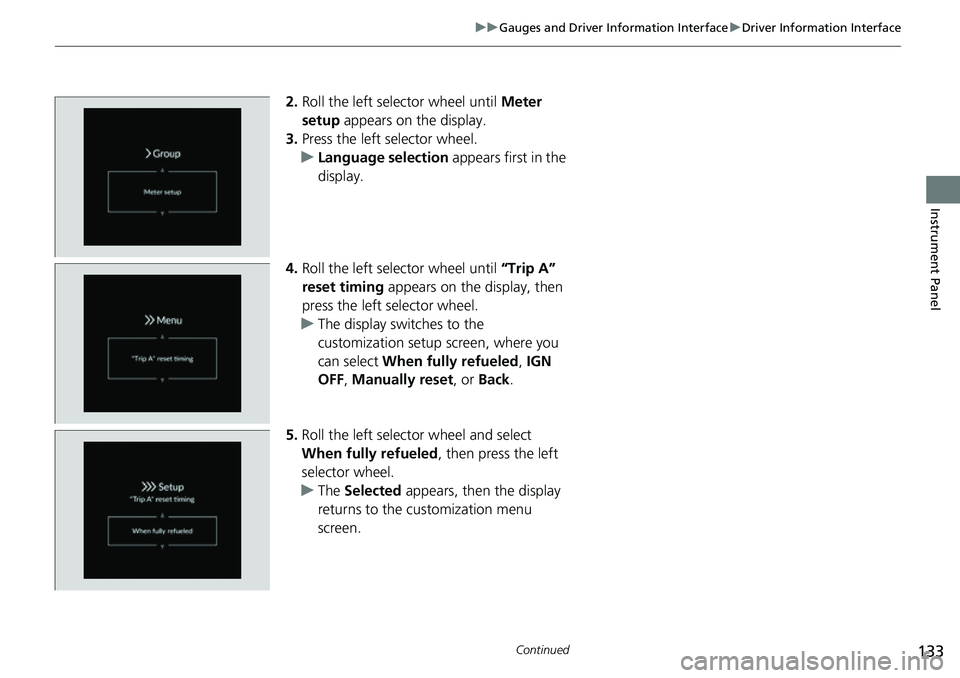
2. Roll the left selector wheel until Meter
setup appears on the display.
3. Press the left selector wheel.
u Language selection appears first in the
display.
4. Roll the left selector wheel until “Trip A”
reset timing appears on the display, then
press the left selector wheel.
u The display swit ches to the
customization setup screen, where you
can select When fully refueled , IGN
OFF , Manually reset , or Back .
5. Roll the left selector wheel and select
When fully refueled , then press the left
selector wheel.
u The Selected appears, then the display
returns to the customization menu
screen.
Page 135 of 700
134
uuGauges and Driver Information Interface uDriver Information Interface
Instrument Panel
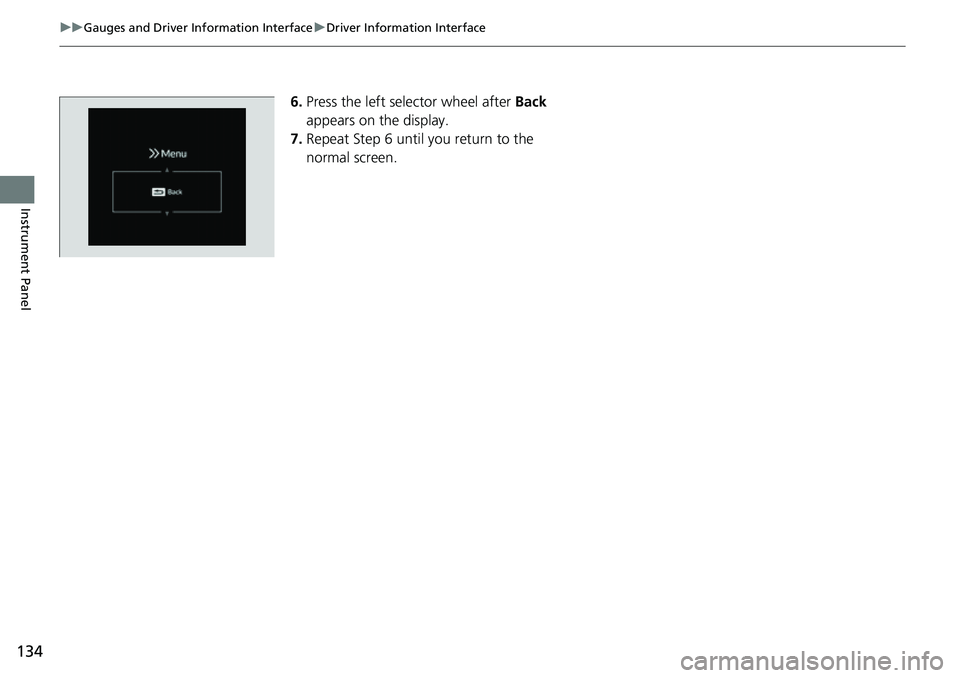
6. Press the left selector wheel after Back
appears on the display.
7. Repeat Step 6 until you return to the
normal screen.
Page 136 of 700
135
uuGauges and Driver Information Interface uDriver Information Interface (Left Side Area)
Continued
Instrument Panel
Driver Information Inte rface (Left Side Area)
Shows the current mode for audio and phone information, etc.
2Audio Remote Controls P. 234
2 Bluetooth ® HandsFreeLink ® P. 409
Shows the clock.
You can adjust the time manually or change the clock display to show the 12 hour
clock or 24 hour clock on the driver information interface by using the audio/
information screen.
2 Clock P. 154
■Clock
Models with B-type meter
1Clock
You can choose whether the clock is displayed on the
driver information interface.
2 Customize Display P. 136
Page 137 of 700
uuGauges and Driver Information Interface uDriver Information Interface (Left Side Area)
136
Instrument Panel
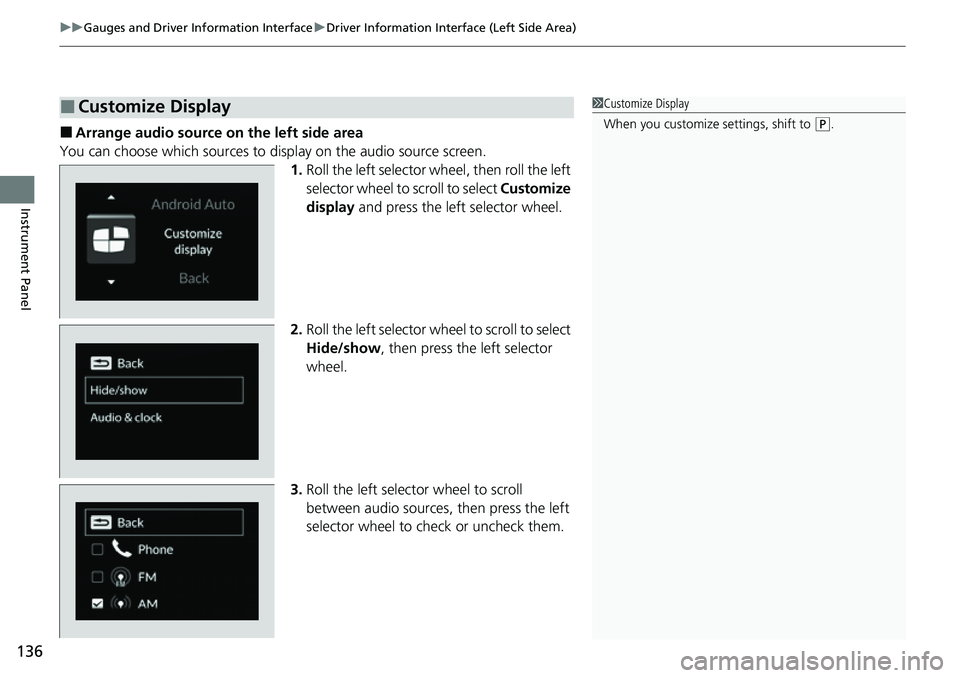
■Arrange audio source on the left side area
You can choose which sources to display on the audio source screen.
1.Roll the left selector wheel, then roll the left
selector wheel to scroll to select Customize
display and press the left selector wheel.
2. Roll the left selector wheel to scroll to select
Hide/show , then press the left selector
wheel.
3. Roll the left selector wheel to scroll
between audio sources, then press the left
selector wheel to check or uncheck them.
■Customize Display1 Customize Display
When you customize settings, shift to
(P.
Page 138 of 700
137
uuGauges and Driver Information Interface uDriver Information Interface (Left Side Area)
Instrument Panel
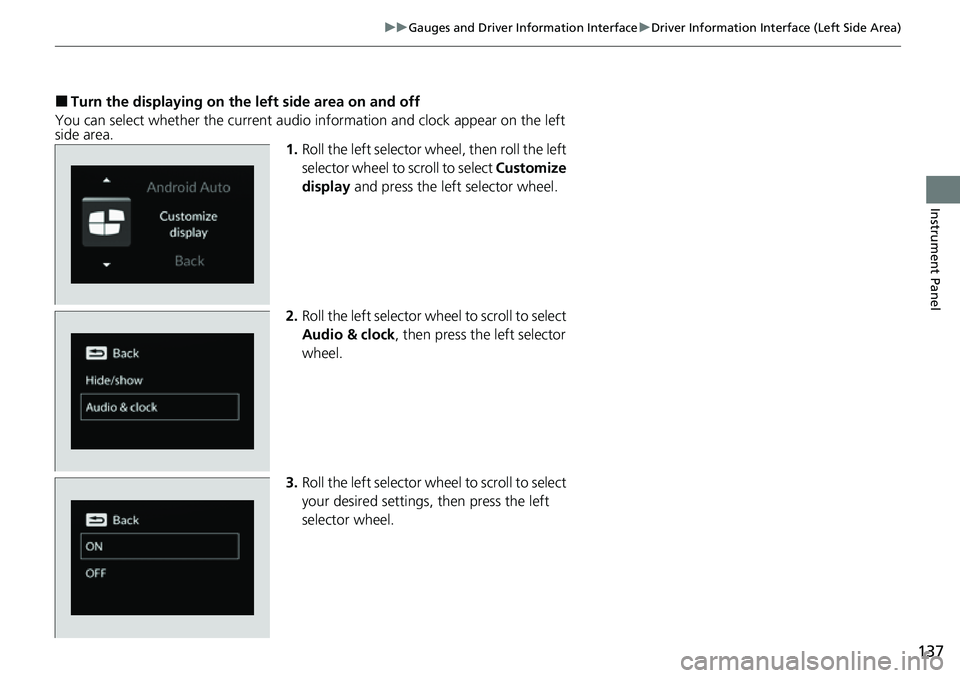
■Turn the displaying on the left side area on and off
You can select whether the current audio information and clock appear on the left
side area. 1.Roll the left selector wheel, then roll the left
selector wheel to scroll to select Customize
display and press the left selector wheel.
2. Roll the left selector wheel to scroll to select
Audio & clock, then press the left selector
wheel.
3. Roll the left selector wheel to scroll to select
your desired settings, then press the left
selector wheel.