HONDA CIVIC 2022 Owner's Manual
CIVIC 2022
HONDA
HONDA
https://www.carmanualsonline.info/img/13/58860/w960_58860-0.png
HONDA CIVIC 2022 Owner's Manual
Page 125 of 700
uuGauges and Driver Information Interface uDriver Information Interface
124
Instrument Panel
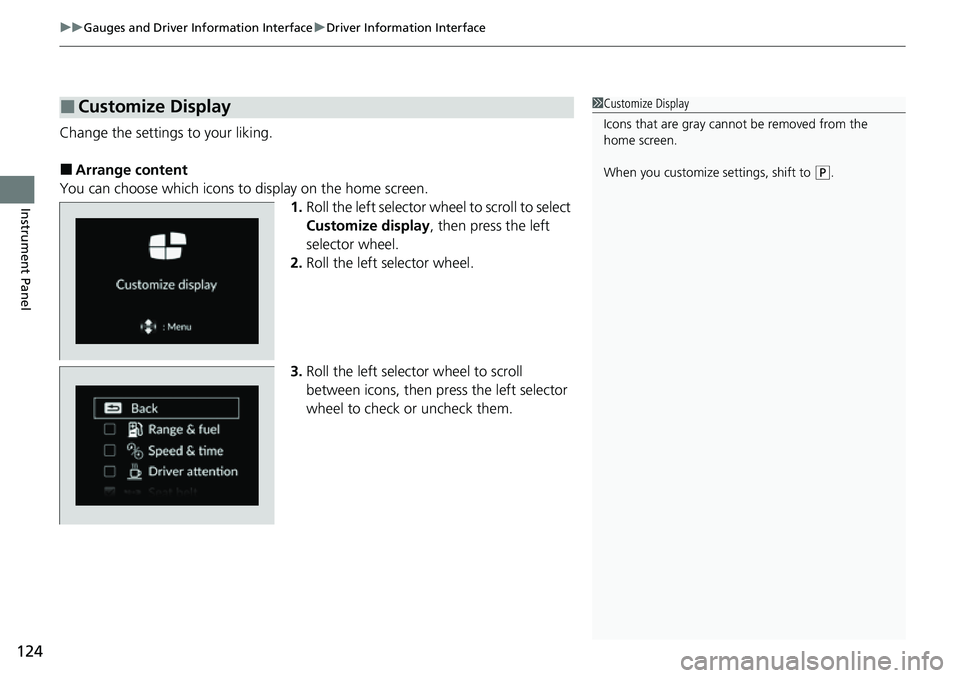
Change the settings to your liking.
■Arrange content
You can choose which icons to display on the home screen. 1.Roll the left selector wheel to scroll to select
Customize display , then press the left
selector wheel.
2. Roll the left selector wheel.
3. Roll the left selector wheel to scroll
between icons, then press the left selector
wheel to check or uncheck them.
■Customize Display1Customize Display
Icons that are gray cannot be removed from the
home screen.
When you customize settings, shift to
(P.
Page 126 of 700
Continued125
uuGauges and Driver Information Interface uDriver Information Interface
Instrument Panel
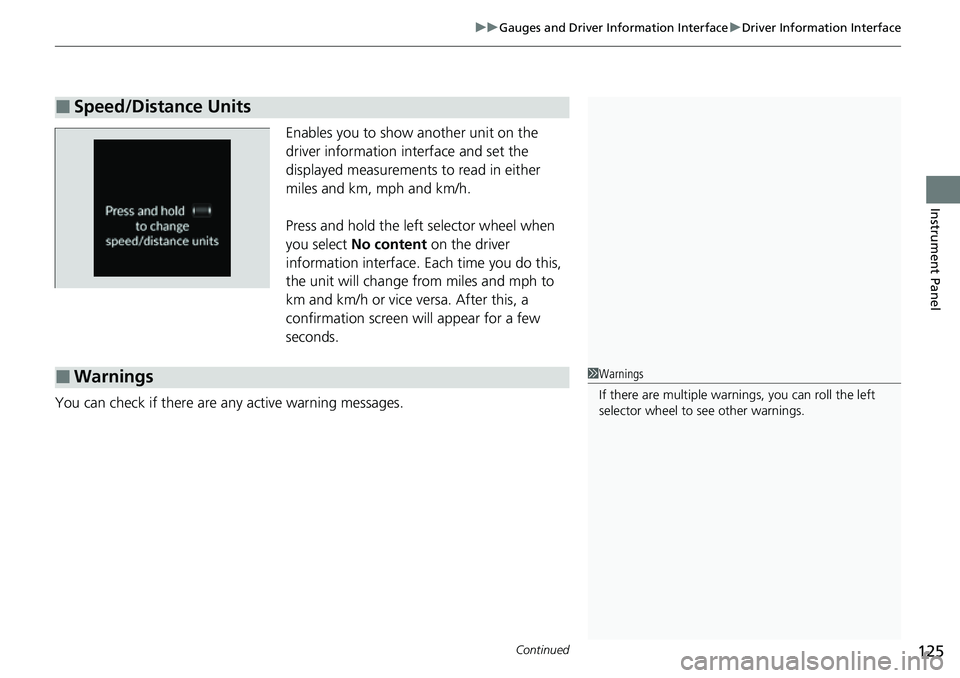
Enables you to show another unit on the
driver information interface and set the
displayed measurements to read in either
miles and km, mph and km/h.
Press and hold the left selector wheel when
you select No content on the driver
information interface. Each time you do this,
the unit will change from miles and mph to
km and km/h or vice versa. After this, a
confirmation screen will appear for a few
seconds.
You can check if there are any active warning messages.
■Speed/Distance Units
■Warnings1 Warnings
If there are multiple warnings, you can roll the left
selector wheel to see other warnings.
Page 127 of 700
uuGauges and Driver Information Interface uDriver Information Interface
126
Instrument Panel
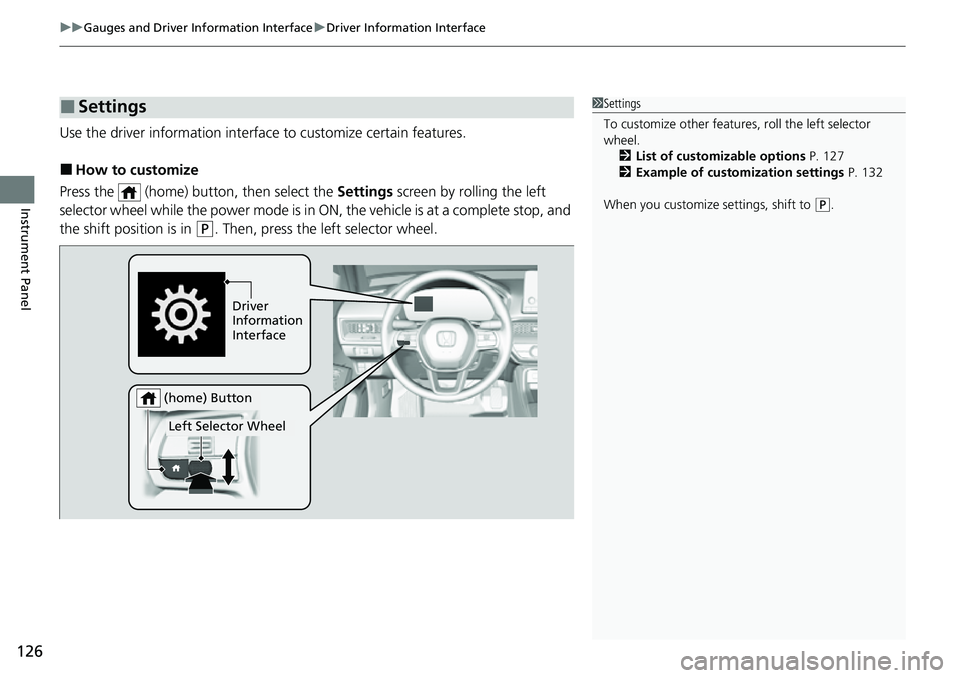
Use the driver information interfac e to customize certain features.
■How to customize
Press the (home) button, then select the Settings screen by rolling the left
selector wheel while the power mode is in ON, the vehicle is at a complete stop, and
the shift position is in
(P. Then, press the left selector wheel.
■Settings1 Settings
To customize other features , roll the left selector
wheel.
2 List of customizable options P. 127
2 Example of customization settings P. 132
When you customize settings, shift to
( P.
Driver
Information
Interface
Left Selector Wheel
(home) Button
Page 133 of 700
132
uuGauges and Driver Information Interface uDriver Information Interface
Instrument Panel
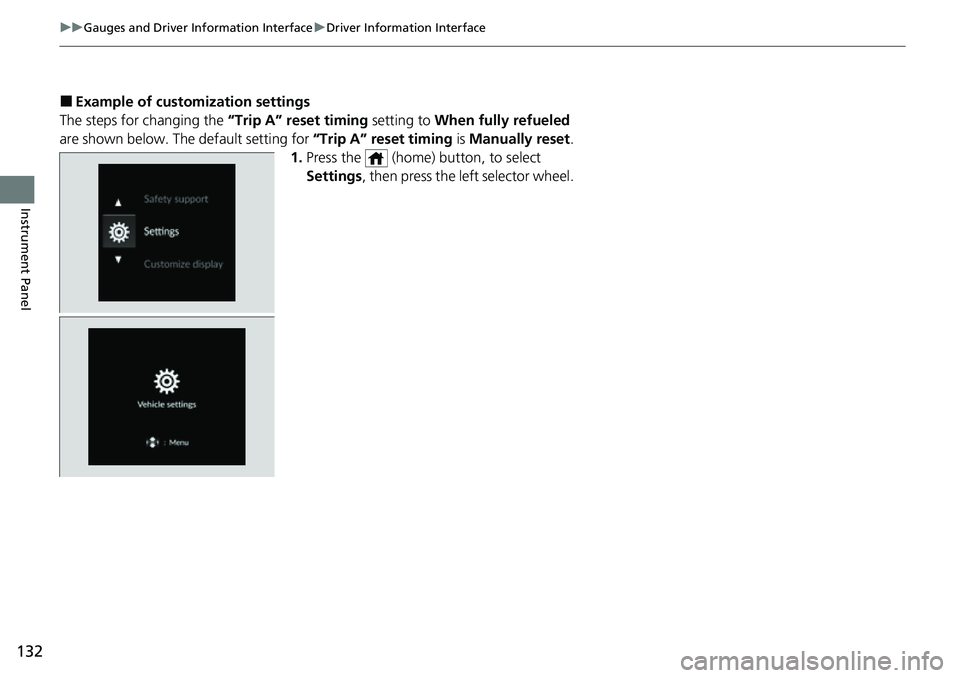
■Example of customization settings
The steps for changing the “Trip A” reset timing setting to When fully refueled
are shown below. The default setting for “Trip A” reset timing is Manually reset.
1. Press the (home) button, to select
Settings , then press the left selector wheel.
Page 134 of 700
133
uuGauges and Driver Information Interface uDriver Information Interface
Continued
Instrument Panel
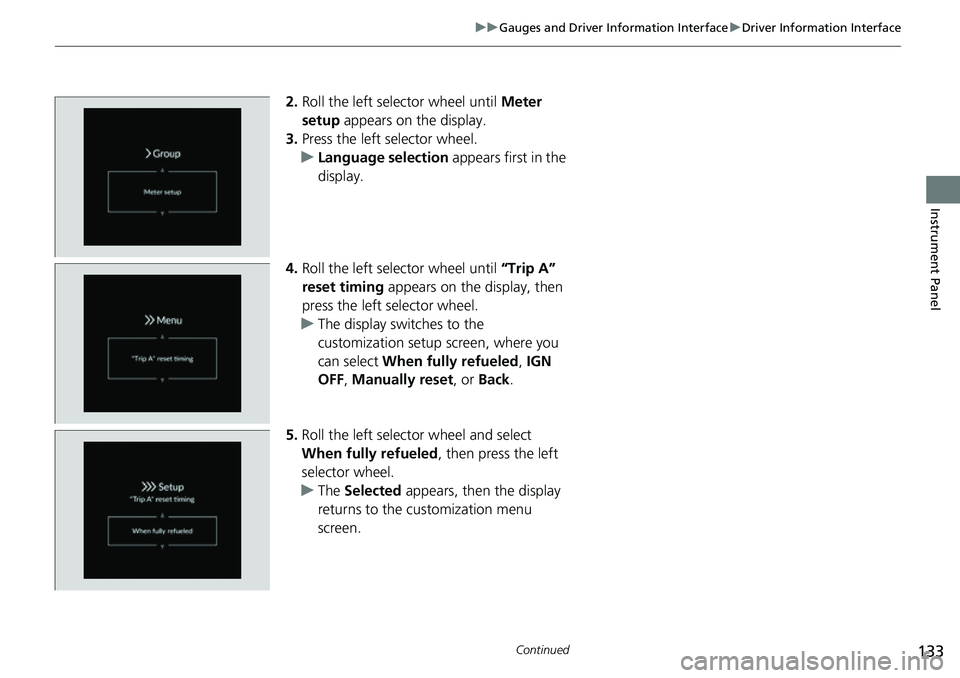
2. Roll the left selector wheel until Meter
setup appears on the display.
3. Press the left selector wheel.
u Language selection appears first in the
display.
4. Roll the left selector wheel until “Trip A”
reset timing appears on the display, then
press the left selector wheel.
u The display swit ches to the
customization setup screen, where you
can select When fully refueled , IGN
OFF , Manually reset , or Back .
5. Roll the left selector wheel and select
When fully refueled , then press the left
selector wheel.
u The Selected appears, then the display
returns to the customization menu
screen.
Page 135 of 700
134
uuGauges and Driver Information Interface uDriver Information Interface
Instrument Panel
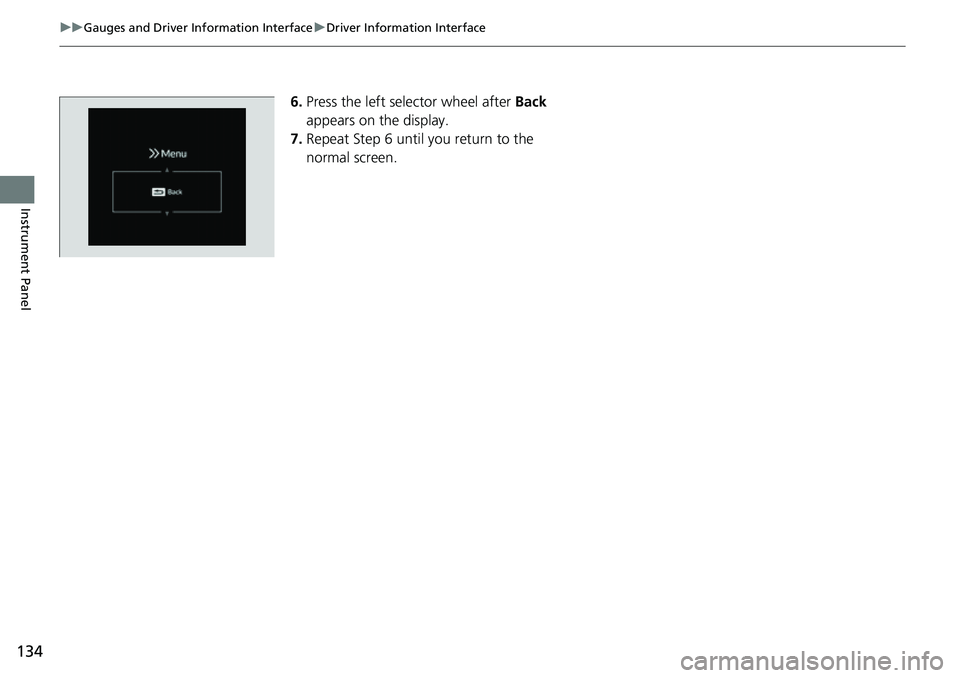
6. Press the left selector wheel after Back
appears on the display.
7. Repeat Step 6 until you return to the
normal screen.
Page 137 of 700
uuGauges and Driver Information Interface uDriver Information Interface (Left Side Area)
136
Instrument Panel
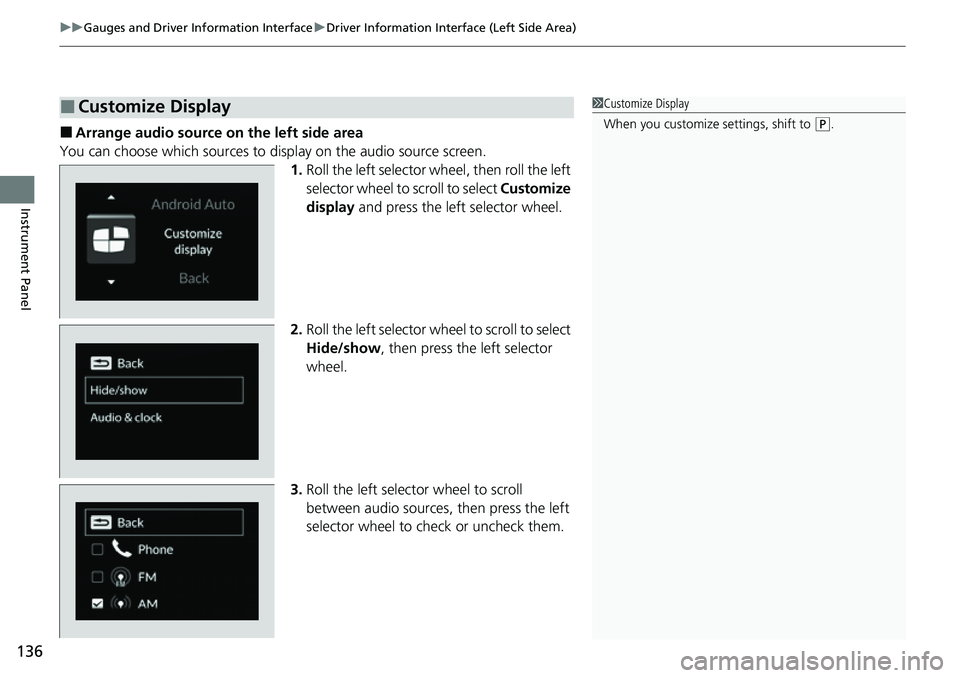
■Arrange audio source on the left side area
You can choose which sources to display on the audio source screen.
1.Roll the left selector wheel, then roll the left
selector wheel to scroll to select Customize
display and press the left selector wheel.
2. Roll the left selector wheel to scroll to select
Hide/show , then press the left selector
wheel.
3. Roll the left selector wheel to scroll
between audio sources, then press the left
selector wheel to check or uncheck them.
■Customize Display1 Customize Display
When you customize settings, shift to
(P.
Page 138 of 700
137
uuGauges and Driver Information Interface uDriver Information Interface (Left Side Area)
Instrument Panel
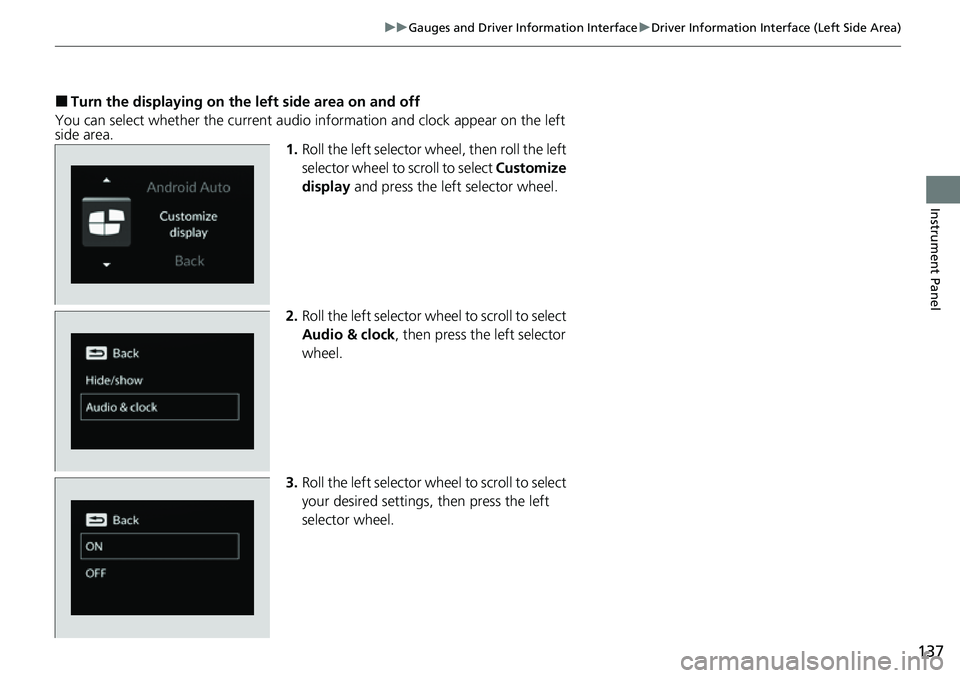
■Turn the displaying on the left side area on and off
You can select whether the current audio information and clock appear on the left
side area. 1.Roll the left selector wheel, then roll the left
selector wheel to scroll to select Customize
display and press the left selector wheel.
2. Roll the left selector wheel to scroll to select
Audio & clock, then press the left selector
wheel.
3. Roll the left selector wheel to scroll to select
your desired settings, then press the left
selector wheel.
Page 140 of 700
139
uuGauges and Driver Information Interface uDriver Information Interface (Right Side Area)
Continued
Instrument Panel
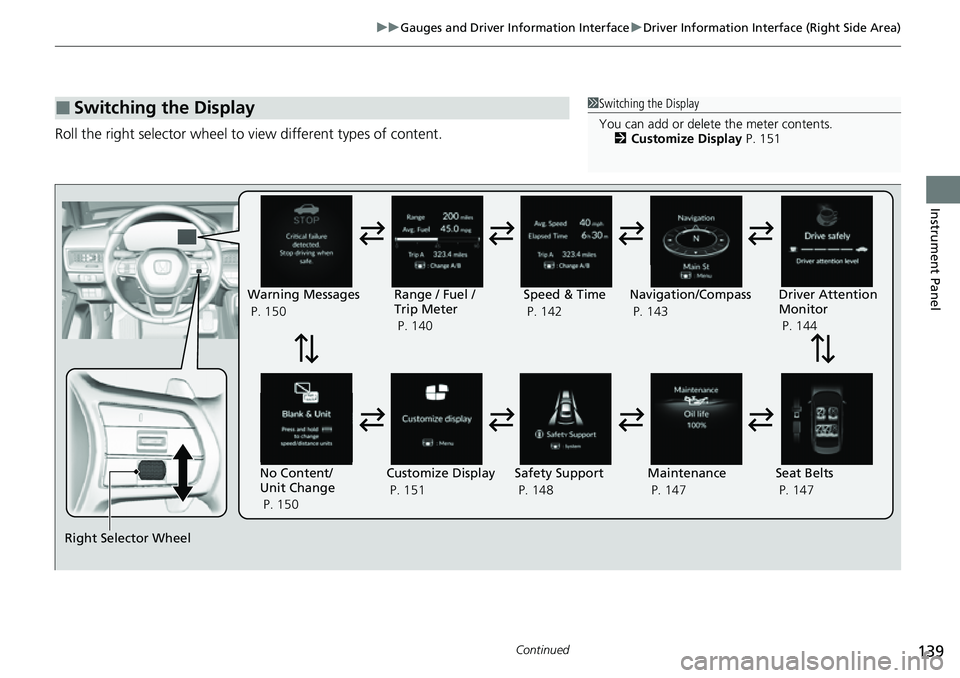
Roll the right selector wheel to view different types of content.
■Switching the Display1Switching the Display
You can add or delete the meter contents.
2 Customize Display P. 151
Right Selector Wheel Warning Messages
P. 150
Range / Fuel /
Trip Meter
P. 140
No Content/
Unit Change
P. 150 Driver Attention
Monitor
P. 144
Navigation/Compass
P. 143
Speed & Time
P. 142
Customize Display
P. 151 Maintenance
P. 147
Safety Support
P. 148 Seat Belts
P. 147
Page 141 of 700
140
uuGauges and Driver Information Interface uDriver Information Interface (Right Side Area)
Instrument Panel
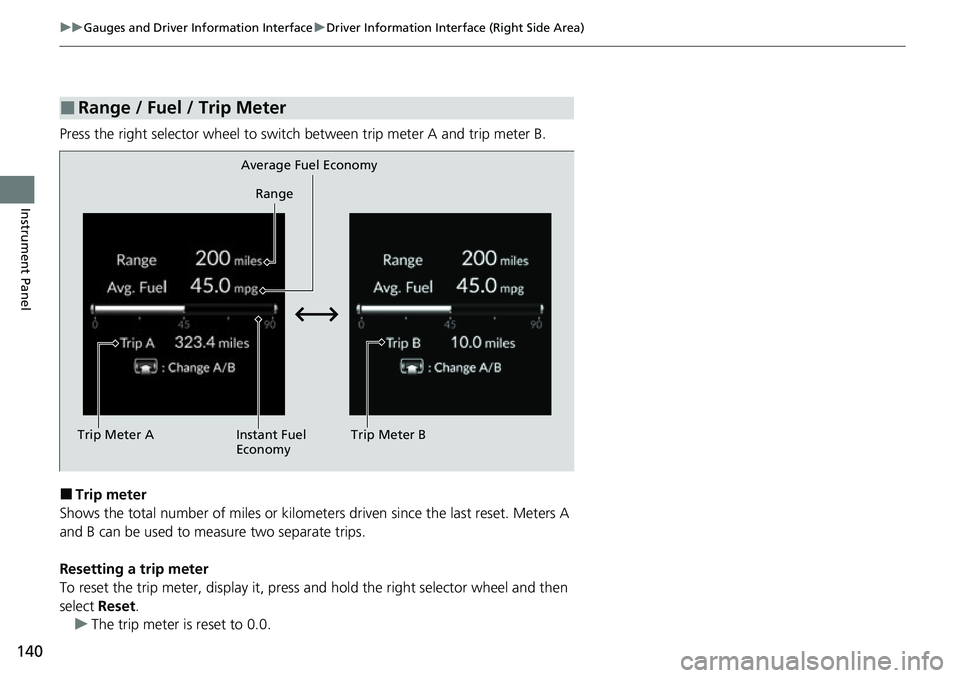
Press the right selector wheel to switch between trip meter A and trip meter B.
■Trip meter
Shows the total number of miles or kilomete rs driven since the last reset. Meters A
and B can be used to measure two separate trips.
Resetting a trip meter
To reset the trip meter, display it, press and hold the right selector wheel and then
select Reset.
u The trip meter is reset to 0.0.
■Range / Fuel / Trip Meter
Trip Meter A Range
Average Fuel Economy
Instant Fuel
Economy Trip Meter B