light HONDA CIVIC 2022 Workshop Manual
[x] Cancel search | Manufacturer: HONDA, Model Year: 2022, Model line: CIVIC, Model: HONDA CIVIC 2022Pages: 700, PDF Size: 13.98 MB
Page 232 of 700
231
uuAudio System uUSB Port(s)
Continued
Features
USB Port(s)
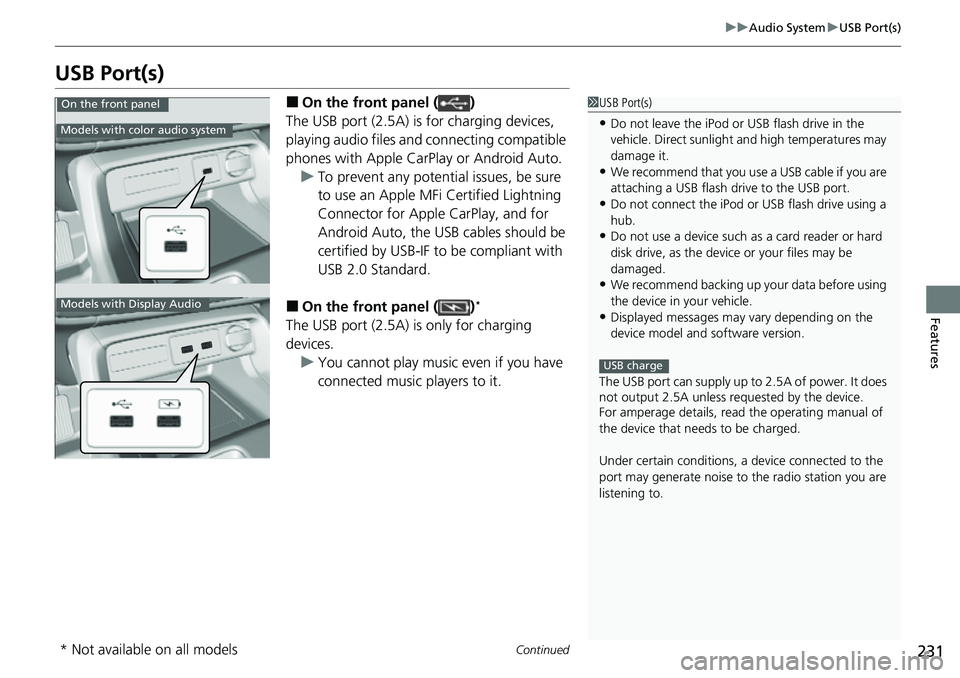
■On the front panel ( )
The USB port (2.5A) is for charging devices,
playing audio files and connecting compatible
phones with Apple CarPlay or Android Auto. u To prevent any potenti al issues, be sure
to use an Apple MFi Certified Lightning
Connector for Apple CarPlay, and for
Android Auto, the USB cables should be
certified by USB-IF to be compliant with
USB 2.0 Standard.
■On the front panel ( )*
The USB port (2.5A) is only for charging
devices. u You cannot play music even if you have
connected music players to it.
1USB Port(s)
•Do not leave the iPod or USB flash drive in the
vehicle. Direct sunlight and high temperatures may
damage it.
•We recommend that you us e a USB cable if you are
attaching a USB flash drive to the USB port.
•Do not connect the iPod or USB flash drive using a
hub.
•Do not use a device such as a card reader or hard
disk drive, as the device or your files may be
damaged.
•We recommend backing up yo ur data before using
the device in your vehicle.
•Displayed messages may vary depending on the
device model and software version.
The USB port can supply up to 2.5A of power. It does
not output 2.5A unless requested by the device.
For amperage details, read the operating manual of
the device that ne eds to be charged.
Under certain condi tions, a device connected to the
port may generate noise to the radio station you are
listening to.
USB charge
On the front panel
Models with color audio system
Models with Display Audio
* Not available on all models
Page 284 of 700
283
uuAudio System Basic Operation uVoice Control Operation
Continued
Features
Voice Control Operation
Your vehicle has a voice control syst em that allows hands-free operation.
The voice control system uses the ( Talk) button on the steering wheel and a
microphone near the map lights on the ceiling.
To achieve optimum voice recognition when using the voice control system:
• Make sure the correct screen is displa yed for the voice command that you are
using.
The system recognizes only certain commands.
Available voice commands:
2 Voice Portal Screen P. 284
•Close the windows and moonroof.
• Adjust the dashboard and side vents so air does not blow onto the microphone
on the ceiling.
• Speak clearly in a natural speaking vo ice without pausing between words.
• Reduce any background noise if possible. The system may misinterpret your
command if more than one person is speaking at the same time.
■Voice Recognition
1Voice Control Operation
When you press the button, a helpful prompt asks
what you would like to do. Press and release the
button again to bypass this prompt and give a
command.
1 Voice Recognition
The voice control system can only be used from the
driver’s seat because the microphone unit removes
noises from the front passenger’s side.
Page 336 of 700
335
uuGeneral Information on the Audio System uCompatible iPod, iPhone, and USB Flash Drives
Features
Compatible iPod, iPhone , and USB Flash Drives
•A USB flash drive of 256 MB or higher is recommended.
• Some digital audio players may not be compatible.
• Some USB flash drives (e.g., a device with security lockout) may not work.
• Some software files may not allow for audio play or text data display.
• Some versions of MP3, WMA, AAC, FLAC, or WAV formats may be unsupported.
*1 : Models with Display Audio
*2 : Models with color audio system
■iPod and iPhone Model Compatibility
Model
Made for iPod touch (6th to 7th generation) released between 2015 and 2019
Made for iPhone 5s/iPhone 6/iPhone 6 Plus/iPhone 6S/iPhone 6S Plus/iPhone SE/
iPhone 7/iPhone 7 Plus/iPhone 8/iPhone 8 Plus/iPhone X/iPhone XS/iPhone XS Max/
iPhone XR/iPhone 11/iPhone 11 Pro/iPhone 11 Pro Max /iPhone SE (2nd generation)
Model
Made for iPod touch (5th to 6th generation) released between 2012 and 2015
Made for iPhone 4s/iPhone 5/ iPhone 5s/iPhone 5c/iPhone 6/iPhone 6 Plus/iPhone 6S/
iPhone 6S Plus/iPhone SE/iPhone 7/iPhone 7 Plus/iPhone 8/iPhone 8 Plus/iPhone X/
iPhone XS/iPhone XS Max/iPhone XR/iPhone 11/iP hone 11 Pro/iPhone 11 Pro Max
1iPod and iPhone Model Compatibility
This system may not work with all software versions
of these devices.
The Lightning connector works with iPhone 5
*1,
iPhone 5s, iPhone 5c*1, iPhone 6, iPhone 6 Plus,
iPhone 6S, iPhone 6S Plus, iPhone SE, iPhone 7,
iPhone 7 Plus, iPhone 8, iPhone 8 Plus, iPhone X,
iPhone XS, iPhone XS Ma x, iPhone XR, iPhone 11,
iPhone 11 Pro, iPhone 11 Pr o Max, iPhone SE (2nd
generation)
*2, iPod touch (5th*1, 6th, 7th*2
generation).
The 30-pin connector works with iPhone 4s
*1.
USB works with iPhone 4s
*1, iPhone 5*1, iPhone 5s,
iPhone 5c*1, iPhone 6, iPhone 6 Plus, iPhone 6S,
iPhone 6S Plus, iPhone SE, iPhone 7, iPhone 7 Plus,
iPhone 8, iPhone 8 Plus, iP hone X, iPhone XS, iPhone
XS Max, iPhone XR, iPhone 11, iPhone 11 Pro, iPhone
11 Pro Max, iPhone SE (2nd generation)
*2, iPod touch
(5th*1, 6th, 7th*2 generation).
Models with color audio system
Models with Display Audio
■USB Flash Drives1 USB Flash Drives
Files on the USB flash drive are played in their stored
order. This order may be different from the order
displayed on your PC or device.
Page 353 of 700
352
uuGeneral Information on the Audio System uLicense Information
Features
“Made for iPod,” and “Made for iPhone,” mean that an electronic accessory has
been designed to connect specifically to iPod, or iPhone, respectively, and has been
certified by the developer to meet Appl e performance standards. Apple is not
responsible for the operation of this devi ce or its compliance with safety and
regulatory standards. Please note that the use of this accessory with iPod, or iPhone,
may affect wireless performance.
Apple, the Apple Logo, iPhone, iPod touch are trademarks of Apple Inc., registered
in the U.S. and other countries. Apple Ca rPlay, and Lightning are trademarks of
Apple Inc. App Store is a service mark of Apple Inc.
■Apple
Page 357 of 700
356
uuCustomized Features u
Features
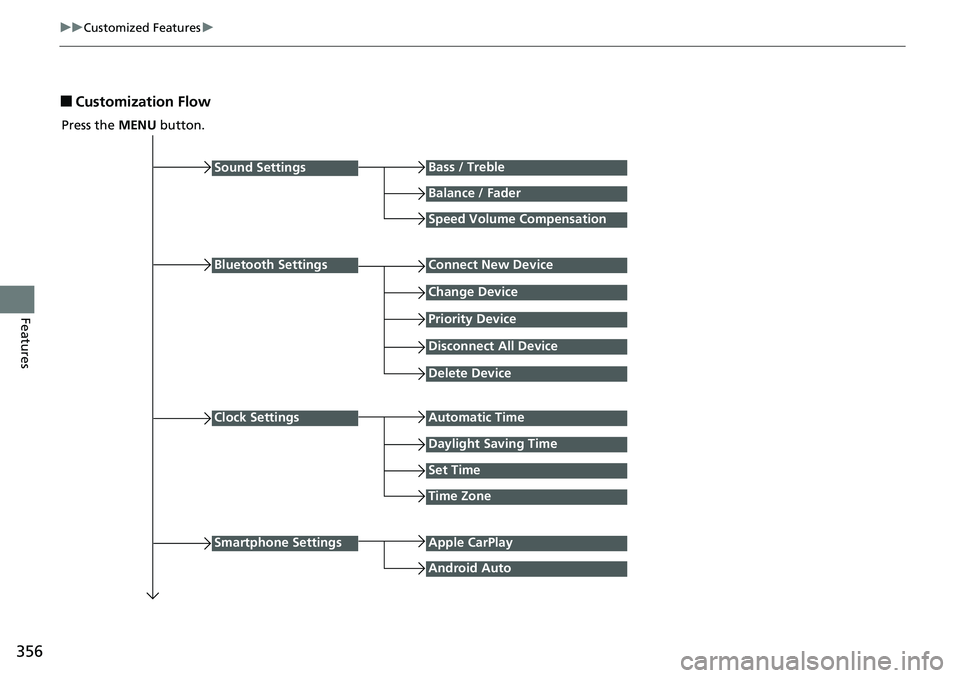
■Customization Flow
Press the MENU button.
Sound Settings
Bluetooth Settings
Bass / Treble
Balance / Fader
Speed Volume Compensation
Connect New Device
Change Device
Priority Device
Clock Settings
Smartphone Settings
Disconnect All Device
Delete Device
Automatic Time
Set Time
Time Zone
Apple CarPlay
Android Auto
Daylight Saving Time
Page 360 of 700
359
uuCustomized Features u
Continued
Features
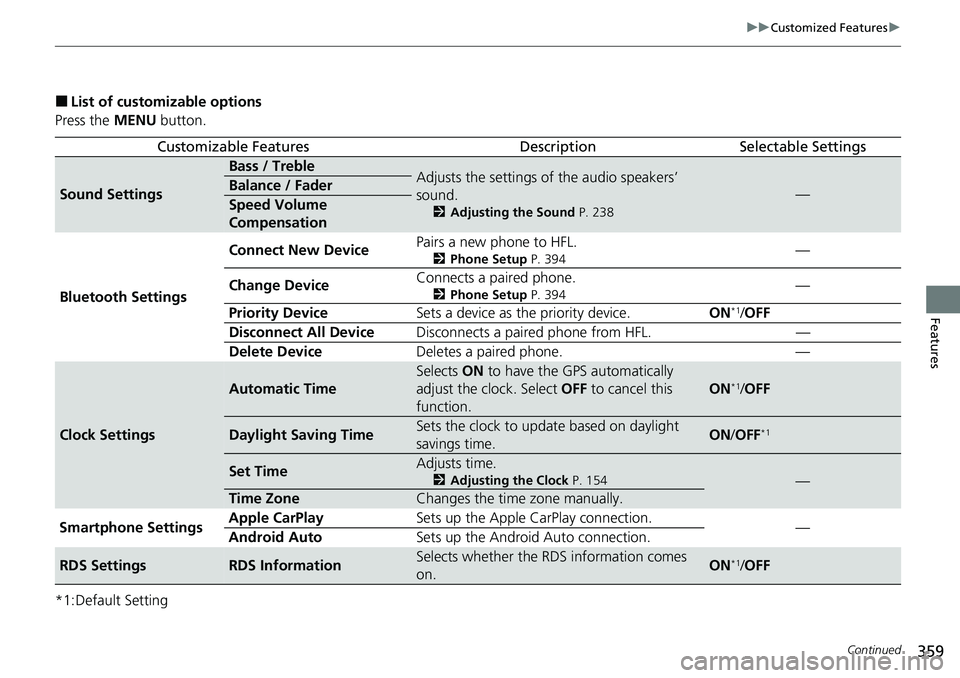
■List of customizable options
Press the MENU button.
*1:Default Setting
Customizable FeaturesDescriptionSelectable Settings
Sound Settings
Bass / TrebleAdjusts the settings of the audio speakers’
sound.
2 Adjusting the Sound P. 238
—Balance / Fader
Speed Volume
Compensation
Bluetooth Settings Connect New Device
Pairs a new phone to HFL.
2
Phone Setup P. 394—
Change Device Connects a paired phone.
2
Phone Setup P. 394—
Priority Device Sets a device as the priority device. ON
*1/OFF
Disconnect All Device Disconnects a paired phone from HFL. —
Delete Device Deletes a paired phone. —
Clock Settings
Automatic Time
Selects ON to have the GPS automatically
adjust the clock. Select OFF to cancel this
function.
ON*1/ OFF
Daylight Saving TimeSets the clock to update based on daylight
savings time.ON /OFF*1
Set TimeAdjusts time.
2 Adjusting the Clock P. 154—
Time ZoneChanges the time zone manually.
Smartphone Settings Apple CarPlay
Sets up the Apple CarPlay connection.
—
Android Auto Sets up the Android Auto connection.
RDS SettingsRDS InformationSelects whether the RDS information comes
on.ON*1/OFF
Page 365 of 700
364
uuCustomized Features u
Features
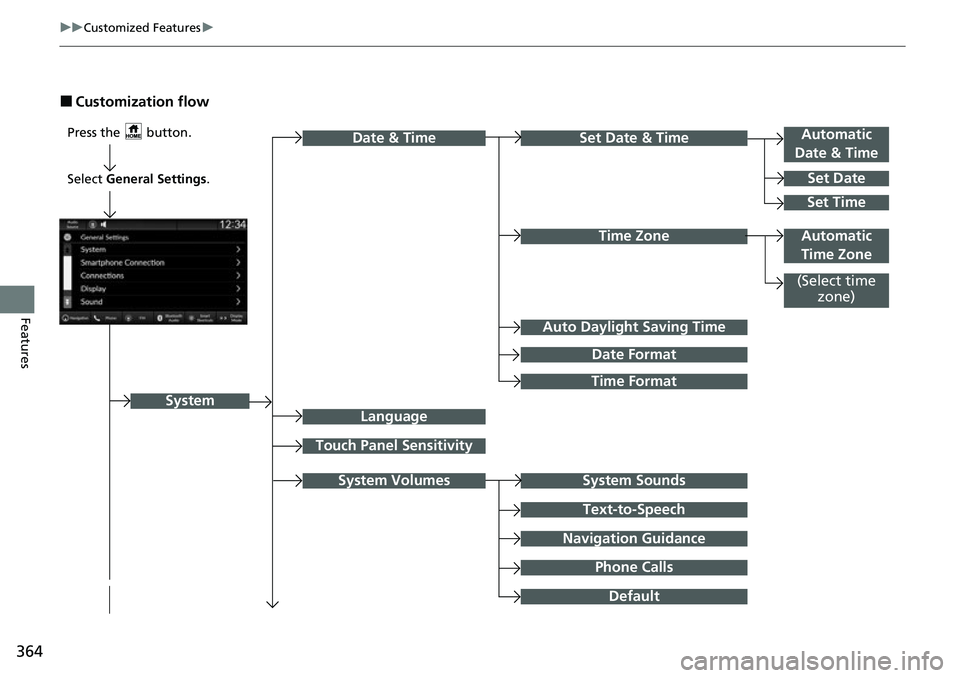
■Customization flow
Press the button.Automatic
Date & Time
Set Date
Touch Panel Sensitivity
Set Date & Time
Time Zone
System Sounds
Date & Time
System
Auto Daylight Saving Time
Date Format
Time Format
Text-to-Speech
Navigation Guidance
Phone Calls
Set Time
(Select time
zone)
System Volumes
Language
Default
Select General Settings .
Automatic
Time Zone
Page 369 of 700
368
uuCustomized Features u
Features
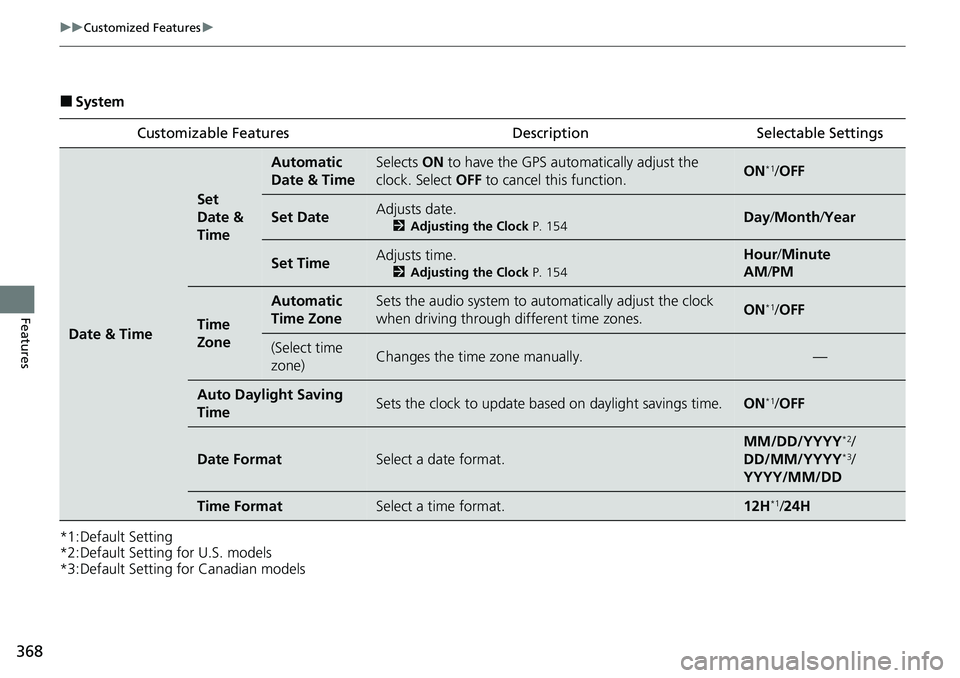
■System
*1:Default Setting
*2:Default Setting for U.S. models
*3:Default Setting for Canadian models Customizable Features Descri
ption Selectable Settings
Date & Time
Set
Date &
Time
Automatic
Date & TimeSelects ON to have the GPS auto matically adjust the
clock. Select OFF to cancel this function.ON*1/OFF
Set DateAdjusts date.
2 Adjusting the Clock P. 154Day/Month/ Year
Set TimeAdjusts time.
2Adjusting the Clock P. 154
Hour/Minute
AM /PM
Time
Zone
Automatic
Time ZoneSets the audio system to automatically adjust the clock
when driving through different time zones.ON*1/OFF
(Select time
zone)Changes the time zone manually.—
Auto Daylight Saving
TimeSets the clock to update based on daylight savings time.ON*1/OFF
Date FormatSelect a date format.
MM/DD/YYYY*2/
DD/MM/YYYY*3/
YYYY/MM/DD
Time FormatSelect a time format.12H*1/ 24H
Page 378 of 700
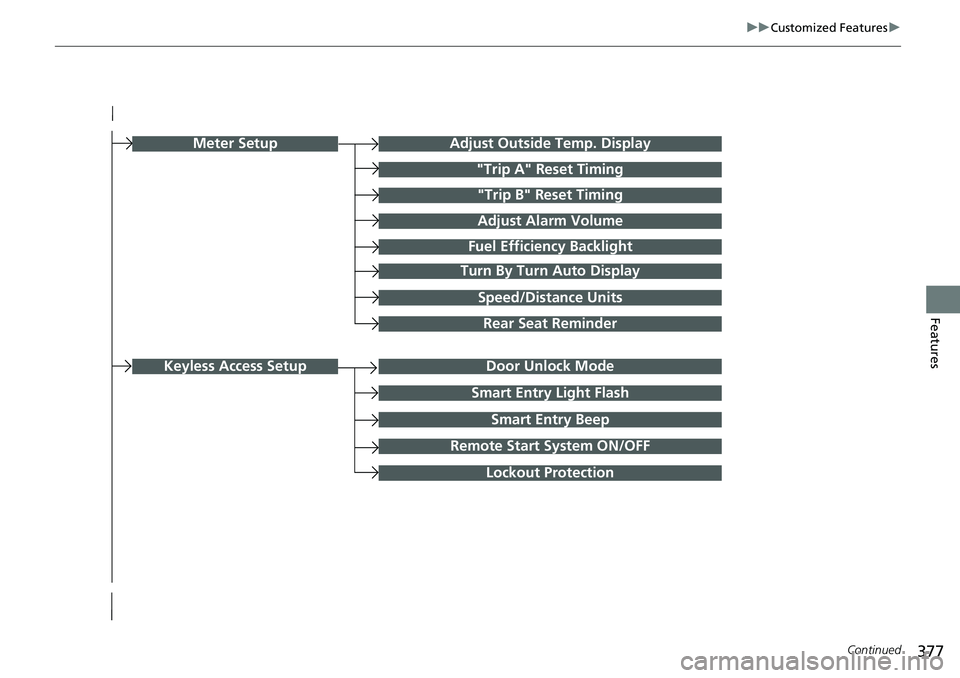
377
uuCustomized Features u
Continued
Features
Turn By Turn Auto Display
Speed/Distance Units
Smart Entry Light Flash
Rear Seat Reminder
Door Unlock Mode
Smart Entry Beep
Remote Start System ON/OFF
Lockout Protection
Keyless Access Setup
Meter SetupAdjust Outside Temp. Display
"Trip A" Reset Timing
"Trip B" Reset Timing
Adjust Alarm Volume
Fuel Efficiency Backlight
Page 379 of 700
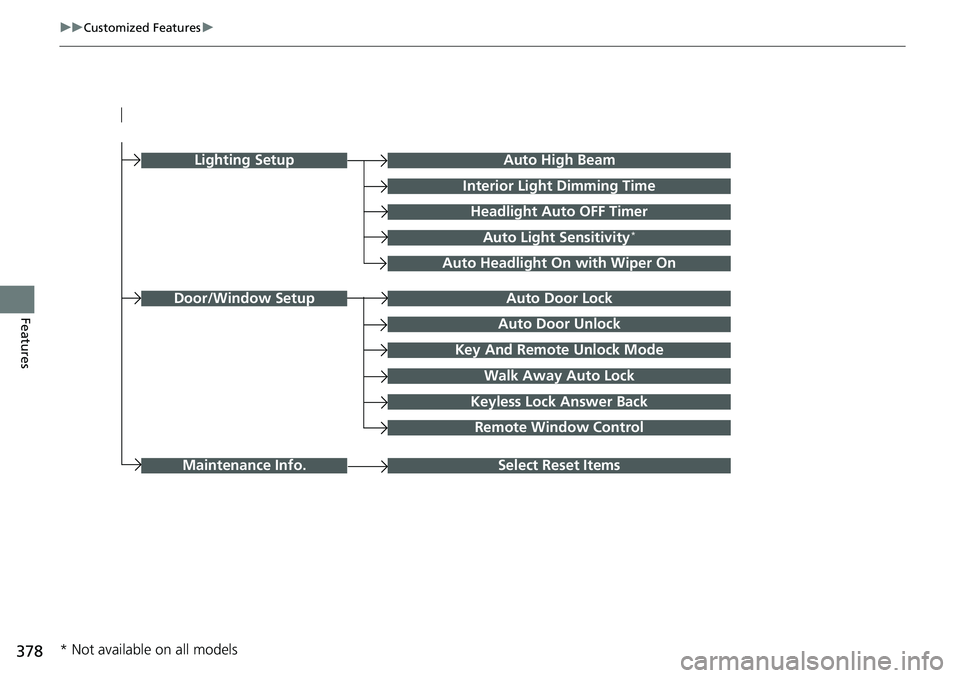
378
uuCustomized Features u
FeaturesAuto Door Unlock
Auto Door Lock
Key And Remote Unlock Mode
Walk Away Auto Lock
Keyless Lock Answer Back
Door/Window Setup
Lighting SetupAuto High Beam
Interior Light Dimming Time
Headlight Auto OFF Timer
Auto Light Sensitivity*
Auto Headlight On with Wiper On
Select Reset ItemsMaintenance Info.
Remote Window Control
* Not available on all models