carplay HONDA CIVIC 2023 User Guide
[x] Cancel search | Manufacturer: HONDA, Model Year: 2023, Model line: CIVIC, Model: HONDA CIVIC 2023Pages: 840, PDF Size: 26.53 MB
Page 285 of 840
Continued283
uuAudio System Basic Operation uApple CarPlay
Features
After you have connected your iPhone to the system via the front USB, use the
following procedure to set up Apple CarPlay. Use of Apple CarPlay will result in the
transmission of certain user and vehicle information (such as vehicle location, speed,
and status) to your iPhone to enhance the Apple CarPlay experience. You will need
to consent to the sharing of this info rmation on the audio/information screen.
1. Connect the iPhone to the USB port using the USB cable.
2 USB Port(s) P. 257
uThe confirmation screen will be displayed.
2. Select Yes.
u If you do not want to connect Apple CarPlay, select No.
You may change the consent settings under the Smartphone Settings menu.
■Setting Up Apple CarPlay1Setting Up Apple CarPlay
Only initialize Apple CarP lay when you are safely
parked.
When Apple CarPlay first detects your iPhone, you
will need to set up your iPhone. Refer to the
instruction manual that came with your iPhone.
You can use the following procedure to disconnect or
delete the devices conn ecting Apple CarPlay:
Press the MENU button
Select Smartphone Settings Apple CarPlay
Select device
Use of user and vehicle information
The use and handling of user and vehicle information
transmitted to/from your iP hone by Apple CarPlay is
governed by the Apple iOS terms and conditions and
Apple's Privacy Policy.
■Connecting Apple CarPlay Using the USB Cable to the USB Port
23 CIVIC HATCHBACK TYPE R-31T406100_03.book 283 ページ 2022年6月23日 木曜日 午後9時28分
Page 286 of 840
uuAudio System Basic Operation uApple CarPlay
284
Features
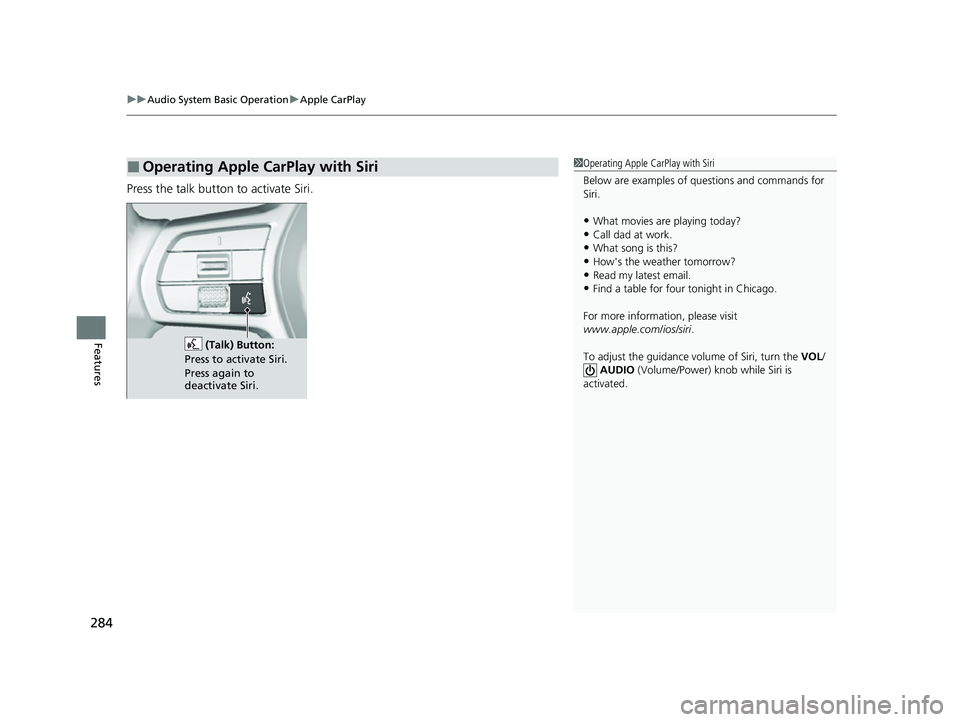
Press the talk button to activate Siri.
■Operating Apple CarPlay with Siri1Operating Apple CarPlay with Siri
Below are examples of questions and commands for
Siri.
•What movies are playing today?•Call dad at work.
•What song is this?
•How's the weather tomorrow?•Read my latest email.
•Find a table for four tonight in Chicago.
For more information, please visit
www.apple.com/ios/siri .
To adjust the guidance volume of Siri, turn the VOL/
AUDIO (Volume/Power) knob while Siri is
activated.
(Talk) Button:
Press to activate Siri.
Press again to
deactivate Siri.
23 CIVIC HATCHBACK TYPE R-31T406100_03.book 284 ページ 2022年6月23日 木曜日 午後9時28分
Page 287 of 840
285
uuAudio System Basic Operation uAndroid AutoTM
Continued
Features
Android AutoTM
When you connect an Android phone to th e audio system via the USB port, Android
Auto is automatically initiated. When connected via Android Auto, you can use the
audio/information screen to access the Phone, Google Maps (Navigation), and
Google Now functions. When you first use Android Auto, a tutorial will appear on
the screen.
We recommend that you comple te this tutorial while safely parked before using
Android Auto.
2 USB Port(s) P. 257
2 Auto Pairing Connection P. 287
1Android AutoTM
We recommend that you upda te Android OS to the
latest version when using Android Auto.
Bluetooth A2DP cannot be used while your phone is
connected to Android Auto.
To use Android Auto on a smartphone with Android
9.0 (Pie) or earl ier, you need to download the
Android Auto app from Google Play to your
smartphone.
Park in a safe place befo re connecting your Android
phone to Android Auto and when launching any
compatible apps.
When your Android phone is connected to Android
Auto, it is not possible to use the Bluetooth® Audio.
However, other previously paired phones can stream
audio via Bluetooth ® while Android Auto is
connected. 2 Phone Setup P. 449
Apple CarPlay and Android Auto cannot run at the
same time.
Android Auto is a trademark of Google LLC.
23 CIVIC HATCHBACK TYPE R-31T406100_03.book 285 ページ 2022年6月23日 木曜日 午後9時28分
Page 294 of 840
292
uuAudio System Basic Operation uAudio/Information Screen
Features
■General Settings
Enters the customiz ing menu screen.
2Customized Features P. 390
■Navigation
Displays the navigation screen.
2 Refer to the Navigation System Manual
■HondaLink ®
Displays the Ho ndaLink screen.
2HondaLink® P. 337
■Apple CarPlay/Android Auto
Displays the Apple CarPlay or Android Auto.
2 Apple CarPlay P. 346
2 Android AutoTM P. 353
■Vehicle Settings
Displays the vehicle settings screen.
2 Customized Features P. 390
23 CIVIC HATCHBACK TYPE R-31T406100_03.book 292 ページ 2022年6月23日 木曜日 午後9時28分
Page 313 of 840
311
uuAudio System Basic Operation uVoice Control Operation
Continued
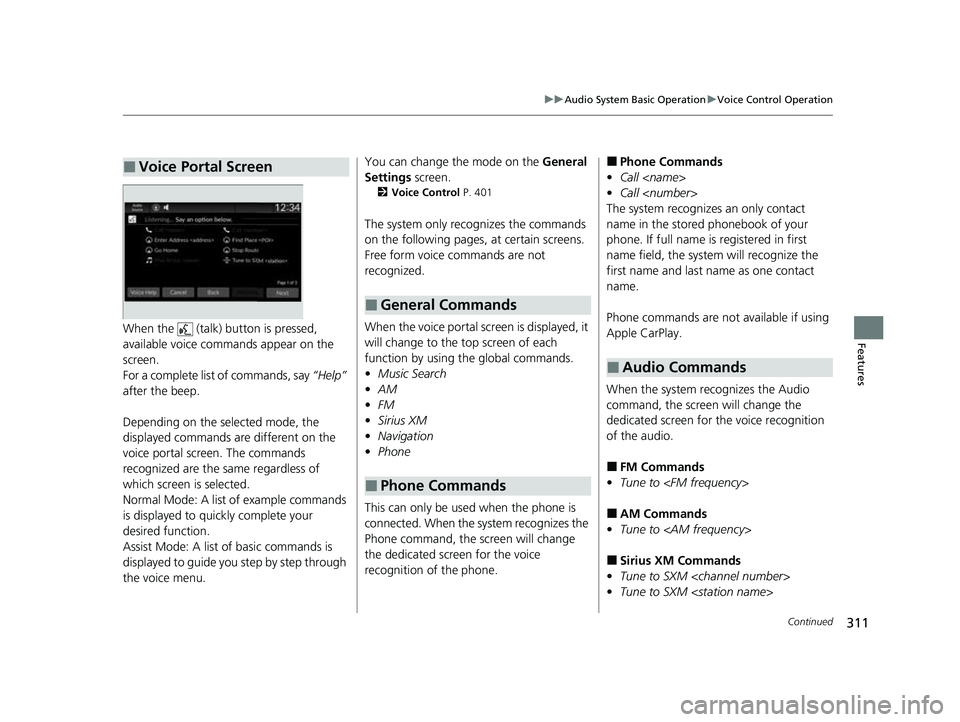
FeaturesWhen the (talk) button is pressed,
available voice comma nds appear on the
screen.
For a complete list of commands, say “Help”
after the beep.
Depending on the selected mode, the
displayed commands are different on the
voice portal screen. The commands
recognized are the same regardless of
which screen is selected.
Normal Mode: A list of example commands
is displayed to quickly complete your
desired function.
Assist Mode: A list of basic commands is
displayed to guide you step by step through
the voice menu.
■Voice Portal ScreenYou can change the mode on the General
Settings screen.
2Voice Control P. 401
The system only re cognizes the commands
on the following pages, at certain screens.
Free form voice commands are not
recognized.
When the voice portal scr een is displayed, it
will change to the top screen of each
function by using the global commands.
• Music Search
• AM
• FM
• Sirius XM
• Navigation
• Phone
This can only be used when the phone is
connected. When the sy stem recognizes the
Phone command, the screen will change
the dedicated screen for the voice
recognition of the phone.
■General Commands
■Phone Commands
■Phone Commands
• Call
• Call
The system recognizes an only contact
name in the stored phonebook of your
phone. If full name is registered in first
name field, the system will recognize the
first name and last name as one contact
name.
Phone commands are not available if using
Apple CarPlay.
When the system recognizes the Audio
command, the screen will change the
dedicated screen for the voice recognition
of the audio.
■FM Commands
• Tune to
■AM Commands
• Tune to
■Sirius XM Commands
• Tune to SXM
• Tune to SXM
■Audio Commands
23 CIVIC HATCHBACK TYPE R-31T406100_03.book 311 ページ 2022年6月23日 木曜日 午後9時28分
Page 331 of 840
Continued329
uuAudio System Basic Operation uPlaying an iPod
Features
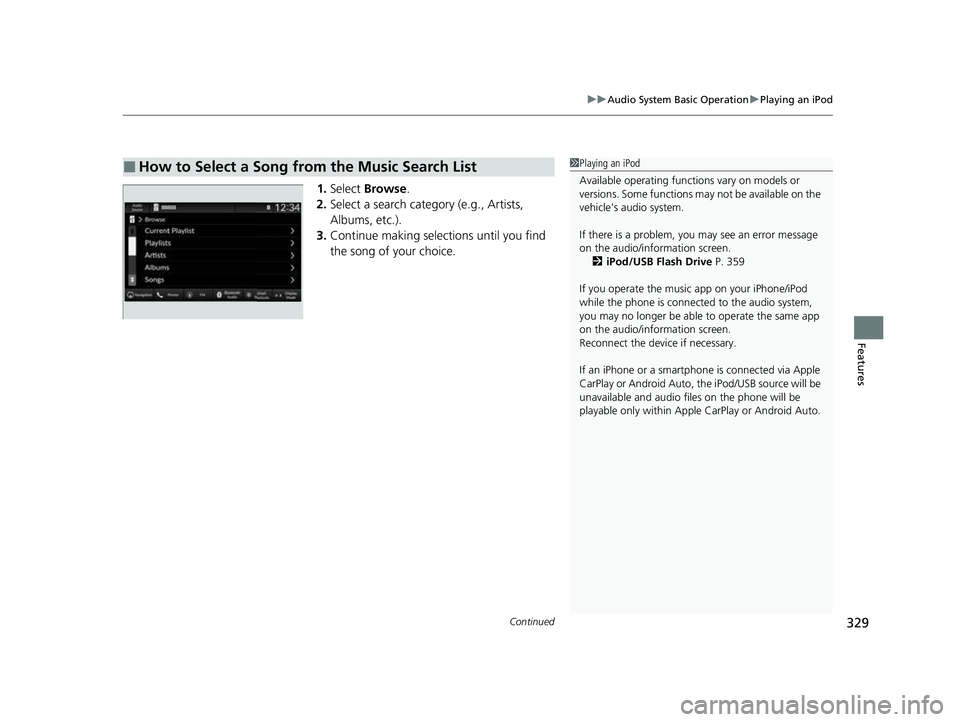
1. Select Browse .
2. Select a search catego ry (e.g., Artists,
Albums, etc.).
3. Continue making selections until you find
the song of your choice.
■How to Select a Song from the Music Search List1Playing an iPod
Available operating functi ons vary on models or
versions. Some functions ma y not be available on the
vehicle's audio system.
If there is a problem, you may see an error message
on the audio/information screen. 2 iPod/USB Flash Drive P. 359
If you operate the musi c app on your iPhone/iPod
while the phone is connected to the audio system,
you may no longer be able to operate the same app
on the audio/information screen.
Reconnect the devi ce if necessary.
If an iPhone or a smartpho ne is connected via Apple
CarPlay or Android Auto, th e iPod/USB source will be
unavailable and audio files on the phone will be
playable only within Appl e CarPlay or Android Auto.
23 CIVIC HATCHBACK TYPE R-31T406100_03.book 329 ページ 2022年6月23日 木曜日 午後9時28分
Page 336 of 840
334
uuAudio System Basic Operation uPlaying Bluetooth ® Audio
Features
Playing Bluetooth ® Audio
Your audio system allows you to listen to music from your Bluetooth-compatible
phone.
This function is available when the phone is paired and connected to the vehicle's
Bluetooth ® HandsFreeLink ® (HFL) system.
2 Phone Setup P. 469
1Playing Bluetooth ® Audio
Not all Bluetooth-enabled phones with streaming
audio capabilities are compatible with the system.
For a list of compatible phones:
•U.S.: Visit automobiles.honda.com /handsfreelink/,
or call 1-888-528-7876.
•Canada: For more info rmation on smartphone
compatibility, call 1-855-490-7351.
It may be illegal to pe rform some data device
functions while driving.
Only one phone can be used with HFL at a time.
When there are more than two paired phones in the
vehicle, the system automatically connects to the
prioritized phone. You can a ssign priority to a phone
in the Bluetooth ® device list.
2 Phone Setup P. 469
The connected phone for Bluetooth® Audio can be
different.
If more than one phone is paired to the HFL system,
there may be a delay before the system begins to play.
In some cases, the name of the artist, album, or track
may not appear correctly.
Some functions may not be available on some devices.
If a phone is currently conne cted via Apple CarPlay or
Android Auto, Bluetooth® Audio from that phone is
unavailable. However, a se cond previously paired
phone can stream Bluetooth® Audio by selecting
from the Bluetooth ® device list.
2 Phone Setup P. 469
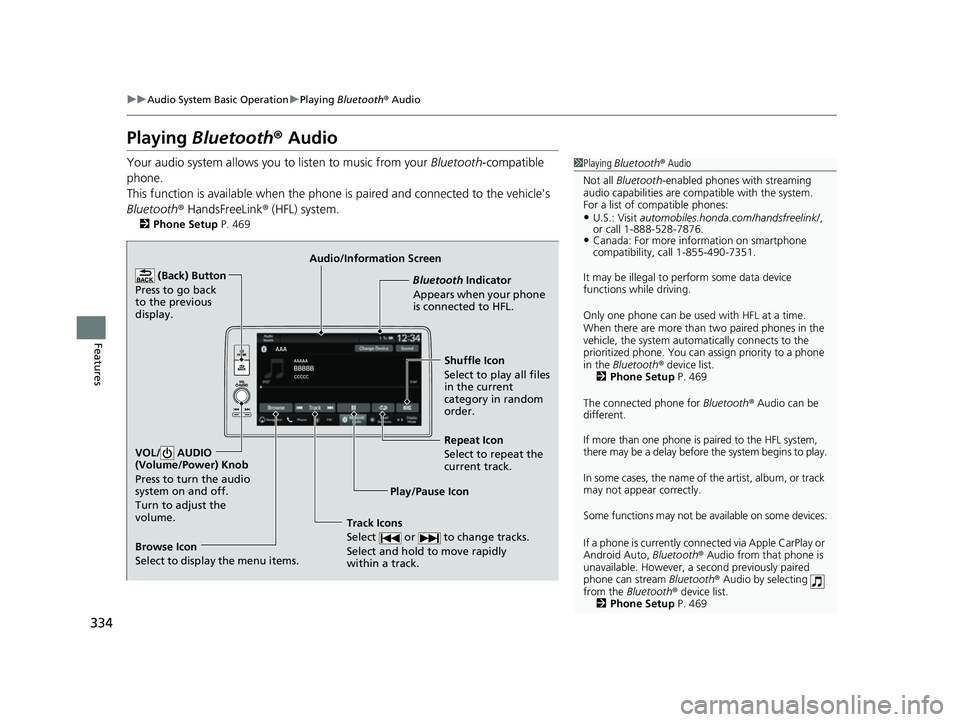
Audio/Information Screen
Browse Icon
Select to display the menu items. Play/Pause IconBluetooth Indic
a
tor
Appears when your phone
is connected to HFL.
Track Icons
Select or to change tracks.
Select and hold to move rapidly
within a track.
Repeat Icon
Select to repeat the
current track.
(Back) Button
Press to go back
to the previous
display.VOL/ AUDIO
(Volume/Power) Knob
Press to turn the audio
system on and off.
Turn to adjust the
volume.
Shuffle Icon
Select to play all files
in the current
category in random
order.
23 CIVIC HATCHBACK TYPE R-31T406100_03.book 334 ページ 2022年6月23日 木曜日 午後9時28分
Page 339 of 840
337
uuAudio System Basic Operation uHondaLink ®
Continued
Features
HondaLink ®
HondaLink® connects you to the latest info rmation from Honda. You can connect
your phone wirelessly through Wi-Fi or Bluetooth®.
2Wi-Fi Connection P. 344
2 Phone Setup P. 469
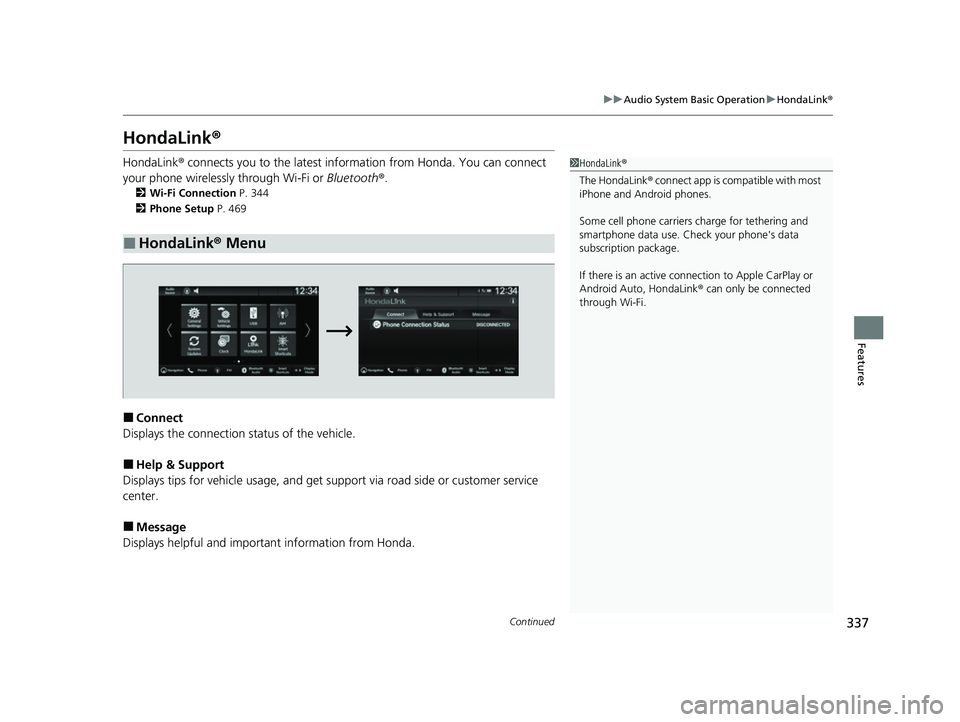
■Connect
Displays the connection status of the vehicle.
■Help & Support
Displays tips for vehicle us age, and get support via road side or customer service
center.
■Message
Displays helpful and important information from Honda.
■HondaLink® Menu
1HondaLink ®
The HondaLink® connect app is compatible with most
iPhone and Android phones.
Some cell phone carriers charge for tethering and
smartphone data use. Check your phone's data
subscription package.
If there is an active connection to Appl e CarPlay or
Android Auto, HondaLink ® can only be connected
through Wi-Fi.
23 CIVIC HATCHBACK TYPE R-31T406100_03.book 337 ページ 2022年6月23日 木曜日 午後9時28分
Page 344 of 840
uuAudio System Basic Operation uSmart Shortcuts
342
Features
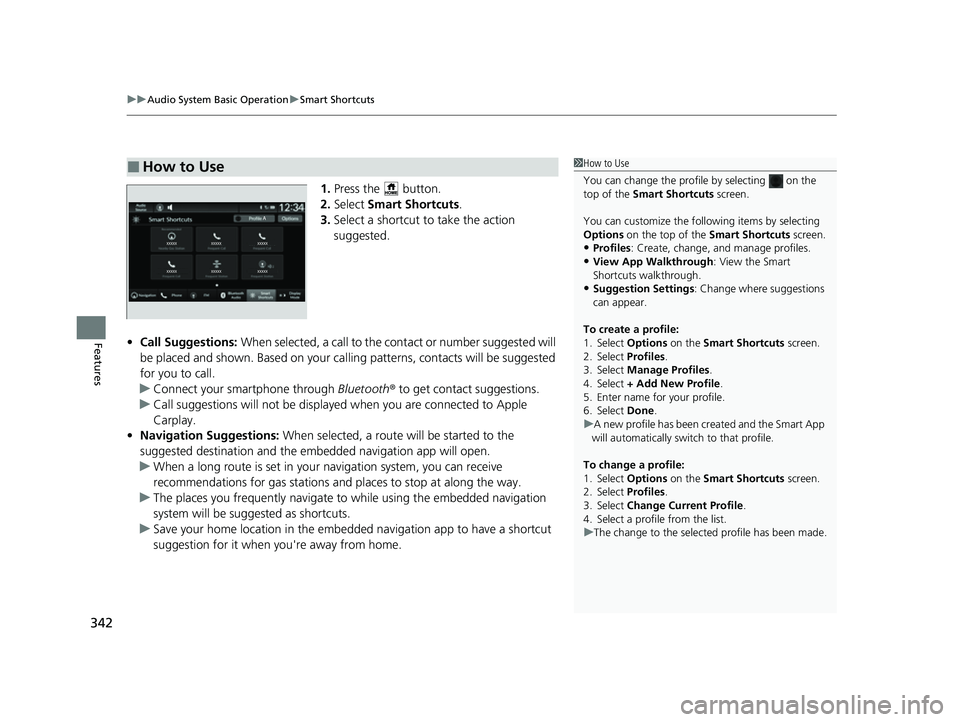
1. Press the button.
2. Select Smart Shortcuts .
3. Select a shortcut to take the action
suggested.
• Call Suggestions: When selected, a call to the c ontact or number suggested will
be placed and shown. Based on your cal ling patterns, contacts will be suggested
for you to call.
u Connect your smartphone through Bluetooth® to get contact suggestions.
u Call suggestions will not be displayed when you are connected to Apple
Carplay.
• Navigation Suggestions: When selected, a route will be started to the
suggested destination and the embedded navigation app will open.
u When a long route is set in your navigation system, you can receive
recommendations for gas stations and places to stop at along the way.
u The places you frequently navigate to while using the embedded navigation
system will be suggested as shortcuts.
u Save your home location in the embedded navigation app to have a shortcut
suggestion for it when you're away from home.
■How to Use1How to Use
You can change the profile by selecting on the
top of the Smart Shortcuts screen.
You can customize the foll owing items by selecting
Options on the top of the Smart Shortcuts screen.
•Profiles: Create, change, a nd manage profiles.
•View App Walkthrough : View the Smart
Shortcuts walkthrough.
•Suggestion Settings : Change where suggestions
can appear.
To create a profile:
1. Select Options on the Smart Shortcuts screen.
2. Select Profiles .
3. Select Manage Profiles .
4. Select + Add New Profile .
5. Enter name for your profile.
6. Select Done .
u A new profile has been cr eated and the Smart App
will automatically switch to that profile.
To change a profile:
1. Select Options on the Smart Shortcuts screen.
2. Select Profiles .
3. Select Change Current Profile .
4. Select a profile from the list.
u The change to the selected profile has been made.
23 CIVIC HATCHBACK TYPE R-31T406100_03.book 342 ページ 2022年6月23日 木曜日 午後9時28分
Page 348 of 840
346
uuAudio System Basic Operation uApple CarPlay
Features
Apple CarPlay
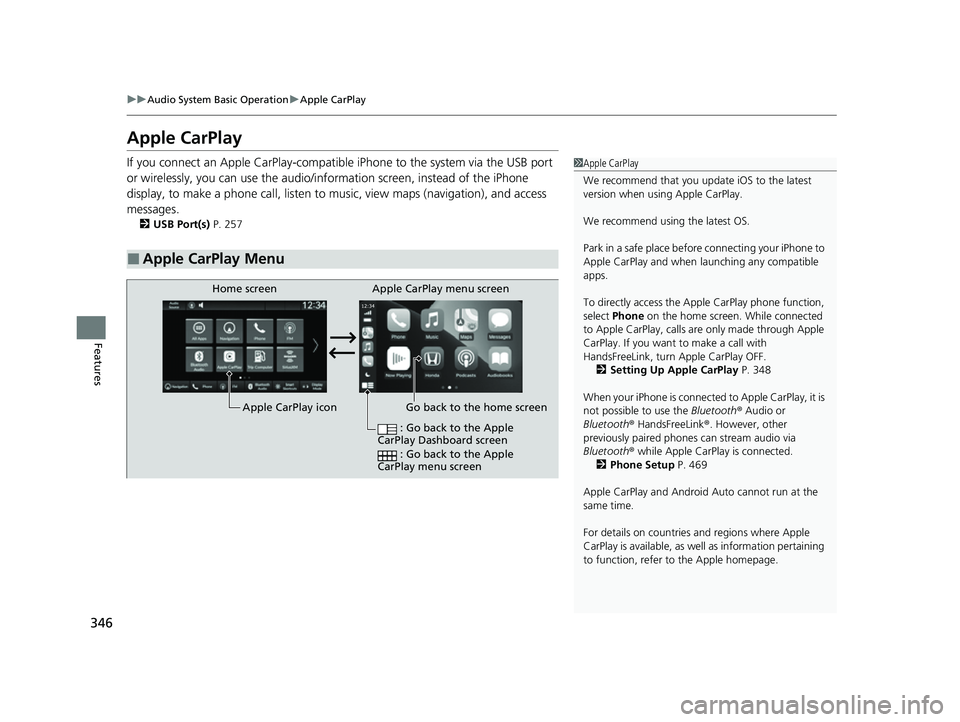
If you connect an Apple CarPlay-compatible iPhone to the system via the USB port
or wirelessly, you can use the audio/info rmation screen, instead of the iPhone
display, to make a phone call, listen to mu sic, view maps (navigation), and access
messages.
2 USB Port(s) P. 257
■Apple CarPlay Menu
1Apple CarPlay
We recommend that you upda te iOS to the latest
version when usi ng Apple CarPlay.
We recommend using the latest OS.
Park in a safe place before connecting your iPhone to
Apple CarPlay and when launching any compatible
apps.
To directly access the Appl e CarPlay phone function,
select Phone on the home screen. While connected
to Apple CarPlay, calls are only made through Apple
CarPlay. If you want to make a call with
HandsFreeLink, turn Apple CarPlay OFF.
2 Setting Up Apple CarPlay P. 348
When your iPhone is connected to Apple CarPlay, it is
not possible to use the Bluetooth® Audio or
Bluetooth ® HandsFreeLink ®. However, other
previously paired phones can stream audio via
Bluetooth ® while Apple CarPlay is connected.
2 Phone Setup P. 469
Apple CarPlay and Android Auto cannot run at the
same time.
For details on c ountries and regions where Apple
CarPlay is available, as well as information pertaining
to function, refer to the Apple homepage.
Go back to the home screen
Home screen
Apple CarPlay icon Apple CarPlay menu screen
: Go back to the Apple
CarPlay Dashboard screen
: Go back to the Apple
CarPlay menu screen
23 CIVIC HATCHBACK TYPE R-31T406100_03.book 346 ページ 2022年6月23日 木曜日 午後9時28分