bluetooth HONDA CIVIC COUPE 2015 9.G Navigation Manual
[x] Cancel search | Manufacturer: HONDA, Model Year: 2015, Model line: CIVIC COUPE, Model: HONDA CIVIC COUPE 2015 9.GPages: 253, PDF Size: 8.81 MB
Page 126 of 253
125
Audio
This section describes how to operate the audio system. You can play music from a widearray of media sources, and control the audio system using the touchscreen, remote
control, or voice control.
Audio System ........................................ 126
About Your Audio System .................... 126
Audio System Theft Protection ............. 127
Audio Remote Control s........................ 128
Steering Wheel Controls ...................... 128
Audio Setting s...................................... 131
Adjusting the Sound ............................ 132
Playing FM/AM Radio ........................... 133
Selecting FM/AM Mode........................ 133
Audio Screen Control ........................... 134
Audio Menu ........................................ 135
Playing Siriu sXM® Radio ...................... 137
Selecting SiriusXM ® Mode .................... 137
Audio Screen Control ........................... 138
Audio Menu ........................................ 139 SiriusXM
® Radio Service ........................140
Playing a Disc .........................................141
Selecting Disc Mode ..............................141
Audio Screen Control............................142
Playing MP3/WMA/AAC Discs ...............143
Audio Menu .........................................144
Recommended Discs .............................145
Playing an iPod ......................................146
Selecting iPod Mode .............................147
Audio Screen Control............................148
Audio Menu .........................................149
Searching for Music ..............................150
Song By Voice
TM (SBV) ...........................151
Playing Pandora®*.................................154
Selecting Pandora ® Mode......................154 Audio Screen Control ........................... 155
Audio Menu......................................... 156
Playing a USB Fla sh Drive..................... 157
Selecting USB Mode ............................. 158
Audio Screen Control ........................... 159
Audio Menu......................................... 160
Playing Bluetooth ® Audio .................... 161
Selecting Bluetooth ® Audio Mode ........ 161
Switching to HFL Mode ........................ 162
Audio Screen Control ........................... 163
Audio Menu......................................... 164
Playing a Video Using the HDMI ®........ 165
Selecting HDMI Mode .......................... 166
* Not available on all models
15 CIVIC NAVI-31TR38300.book 125 ページ 2014年8月7日 木曜日 午前11時49分
Page 127 of 253
126
Audio
Audio System
About Your Audio System
The audio system features FM/AM radio and SiriusXM ® Radio. It can also play audio
discs, WMA/MP3/AAC tracks, iP ods, USB flash drives, and Bluetooth® devices.
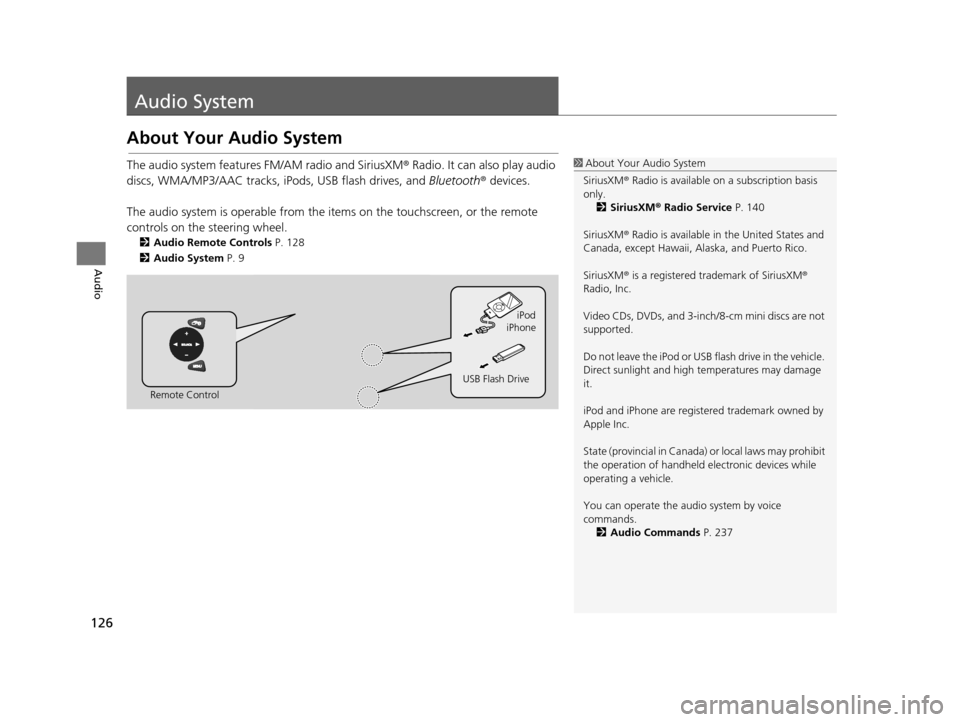
The audio system is operable from the it ems on the touchscreen, or the remote
controls on the steering wheel.
2 Audio Remote Control s P. 128
2 Audio Sy stem P. 9
1About Your Audio System
SiriusXM ® Radio is available on a subscription basis
only. 2 Siriu sXM® Radio Service P. 140
SiriusXM ® Radio is available in the United States and
Canada, except Ha waii, Alaska, and Puerto Rico.
SiriusXM ® is a registered trademark of SiriusXM ®
Radio, Inc.
Video CDs, DVDs, and 3-inch /8-cm mini discs are not
supported.
Do not leave the iPod or USB flash drive in the vehicle.
Direct sunlight and high temperatures may damage
it.
iPod and iPhone are regist ered trademark owned by
Apple Inc.
State (provincial in Canada) or local laws may prohibit
the operation of handheld electronic devices while
operating a vehicle.
You can operate the audio system by voice
commands. 2 Audio Commands P. 237
Remote Control iPod
USB Flash Drive iPhone
15 CIVIC NAVI-31TR38300.book 126 ページ 2014年8月7日 木曜日 午前11時49分
Page 129 of 253
128
Audio
Audio Remote Controls
Steering Wheel Controls
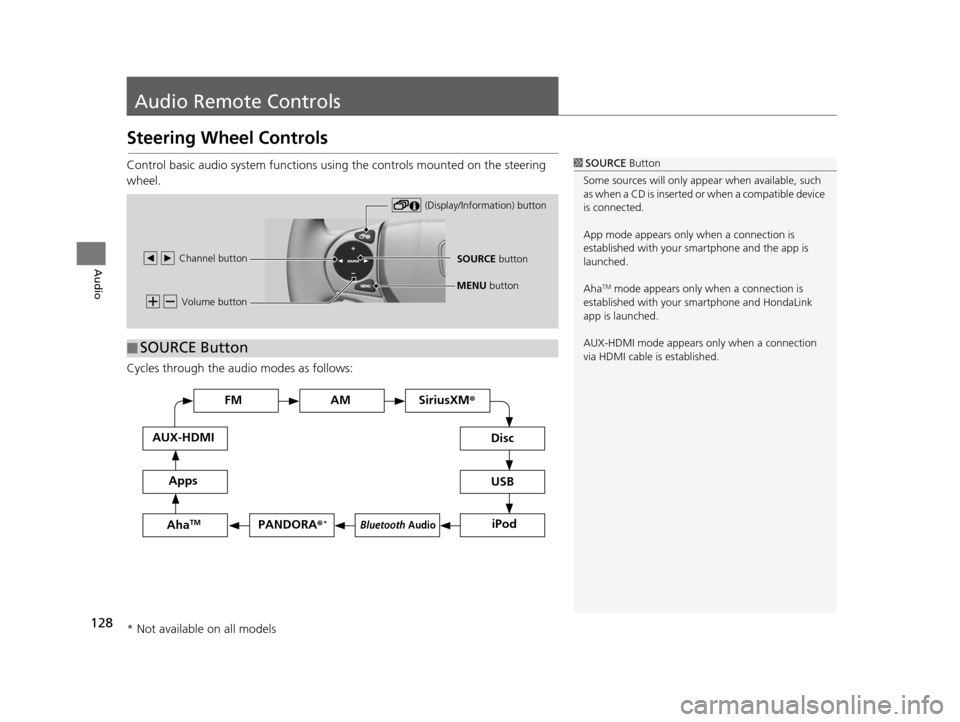
Control basic audio system functions using the controls mounted on the steering
wheel.
Cycles through the audio modes as follows:1SOURCE Button
Some sources will only appe ar when available, such
as when a CD is inserted or when a compatible device
is connected.
App mode appears only when a connection is
established with your smartphone and the app is
launched.
Aha
TM mode appears only when a connection is
established with your smartphone and HondaLink
app is launched.
AUX-HDMI mode appears only when a connection
via HDMI cable is established. Volume button
SOURCE button
Channel button
(Display/Information) button
MENU
button
■SOURCE Button
FM
PANDORA
®*
AM SiriusXM®
iPod
Di
sc
USBBluetooth Audio
App s
AUX-HDMI
Aha
TM
* Not available on all models
15 CIVIC NAVI-31TR38300.book 128 ページ 2014年8月7日 木曜日 午前11時49分
Page 130 of 253
129
uuAudio Remote Controls uSteering Wheel Controls
Continued
Audio
Adjusts the volume.
• Press the (Volume) butto n to increase the volume.
• Press the (Volume) butto n to decrease the volume.
FM/AM, SiriusXM ®
• Press the (Channel) button to select the next preset station (channel).
• Press the (Channel) button to select the previous preset station (channel).
• Press and hold the or button to skip to the next or previous station in the frequency.
DISC, iPod, USB, or Bluetooth® Audio (on some phones)
• Press the button to skip to the next track.
• Press the button to skip to the beginn ing of the current track. Press the
button again to go to the be ginning of the previous track.
• Press and hold the or button to skip up or down a folder (MP3/WMA/AAC Discs and USB devices), and a group (some Bluetooth devices).
Pandora ®
*
• Press the button to skip to the next song.
• Press and hold the or button to select the upper or lower station.
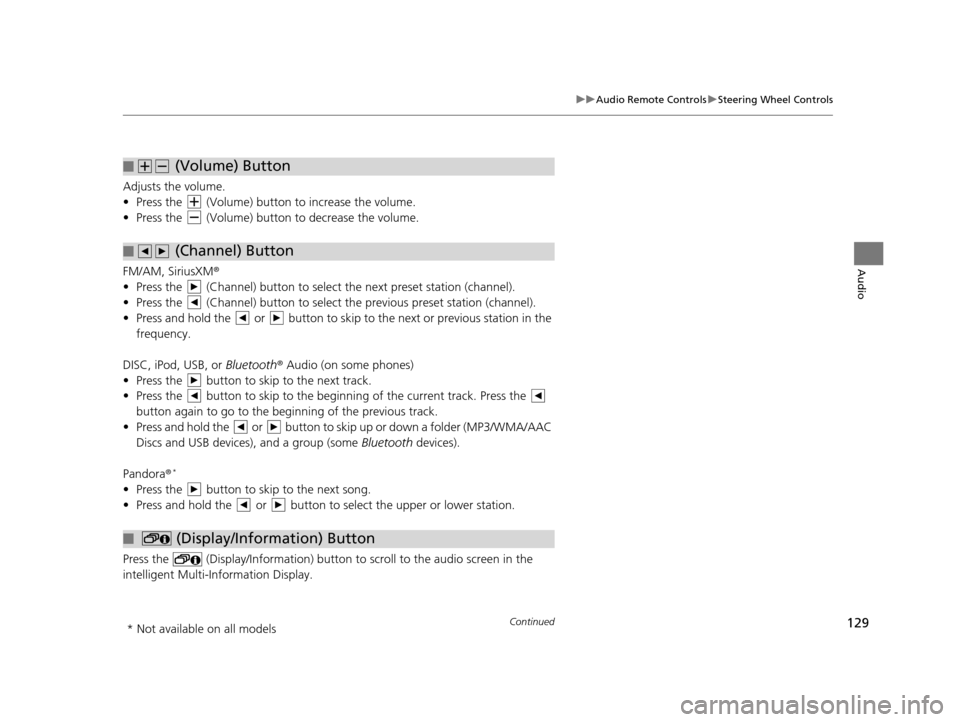
Press the (Display/Information) button to scroll to the audio screen in the
intelligent Multi-Information Display.
■ (Volume) Button
■ (Channel) Button
■ (Display/Information) Button
* Not available on all models
15 CIVIC NAVI-31TR38300.book 129 ページ 2014年8月7日 木曜日 午前11時49分
Page 131 of 253
130
uuAudio Remote Controls uSteering Wheel Controls
Audio
Press and hold the MENU button while on the audio screen to display available
menu items for the current screen.
• Scan (AM/FM/SiriusXM®/Disc/USB flash device)
• Save Preset (AM/FM/SiriusXM ®)
• Seek (AM/FM)
• Cannel (SiriusXM ®)
• Category (SiriusXM ®)
• Tag Song (HD Radio
TM)*
•Repeat (Disc/iPod/USB flash device)
• Random (Disc/USB flash device)
• Shuffle (iPod)
• Play/Pause (Disc /USB flas h device/Pandora®
*/Bluetooth ® Audio)
• Bookmark (Pandora ®)*
■MENU Button
* Not available on all models
15 CIVIC NAVI-31TR38300.book 130 ページ 2014年8月7日 木曜日 午前11時49分
Page 132 of 253
131Continued
Audio
Audio Settings
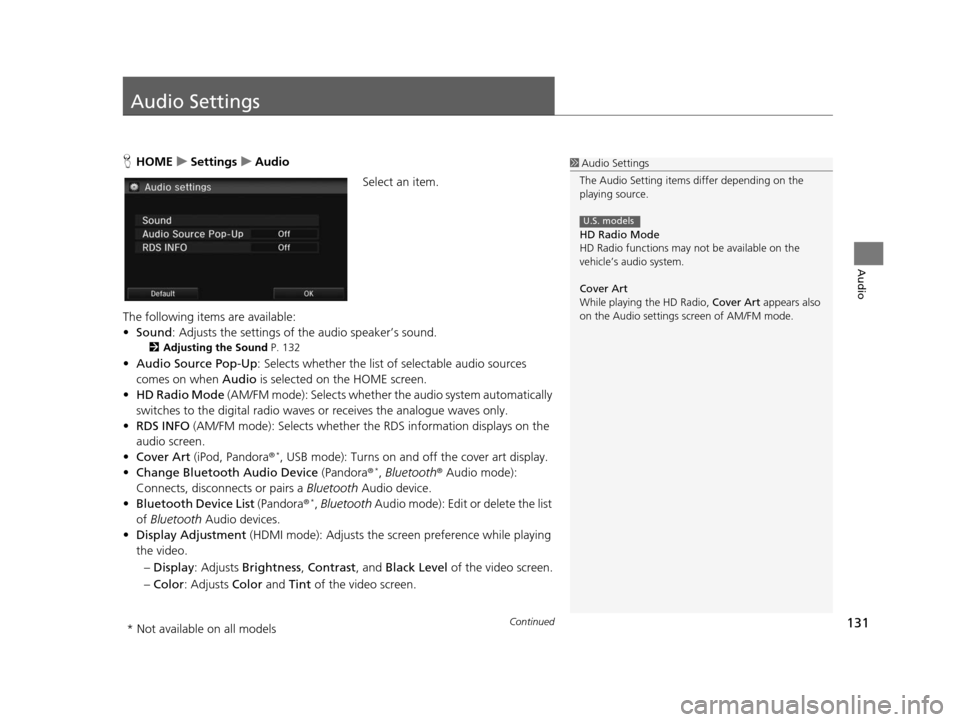
HHOME uSetting su Audio
Select an item.
The following items are available:
• Sound : Adjusts the settings of the audio speaker’s sound.
2Adju sting the Sound P. 132
•Audio Source Pop-Up : Selects whether the list of selectable audio sources
comes on when Audio is selected on the HOME screen.
• HD Radio Mode (AM/FM mode): Selects whether the audio system automatically
switches to the digital radio waves or receives the analogue waves only.
• RDS INFO (AM/FM mode): Selects whether th e RDS information displays on the
audio screen.
• Cover Art (iPod, Pandora ®
*, USB mode): Turns on and off the cover art display.
• Change Bluetooth Audio Device (Pandora®*, Bluetooth ® Audio mode):
Connects, disconnects or pairs a Bluetooth Audio device.
• Bluetooth Device List (Pandora®
*, Bluetooth Audio mode): Edit or delete the list
of Bluetooth Audio devices.
• Display Adjustment (HDMI mode): Adjusts the screen preference while playing
the video.
– Display : Adjusts Brightness , Contrast, and Black Level of the video screen.
– Color : Adjusts Color and Tint of the video screen.
1Audio Settings
The Audio Setting items di ffer depending on the
playing source.
HD Radio Mode
HD Radio functions may not be available on the
vehicle’s audio system.
Cover Art
While playing the HD Radio, Cover Art appears also
on the Audio settings screen of AM/FM mode.
U.S. models
* Not available on all models
15 CIVIC NAVI-31TR38300.book 131 ページ 2014年8月7日 木曜日 午前11時49分
Page 155 of 253
154
Audio
Playing Pandora®*
Pandora is a personalized Internet radio serv ice that selects music based on an artist,
song, or genre a user enters, and stream s what is likely to be of interest.
Selecting Pandora® Mode
1.Connect a compatible phone through Bluetooth®.
u You can also connect the phone using your dock connector to the USB port if
you use the iPhone.
2. Select Audio on the HOME screen.
3. Select SOURCE .
4. Select the PANDORA icon.
u A pop-up message may appear on your phone requesting you to allow access
for the app to launch.
u The current station name, artist name, rating, and track name are displayed.
1Playing Pandora ®*
“Pandora play”
Pandora is available on U.S. models only.
You can control Pandora using voice commands. 2 Pandora ®
* Command s P. 239
A visual guide helps you operate the audio system.
2 System Control s P. 4
2 Basic Operation P. 9
Pandora, the Pandora logo, and the Pandora trade
dress are trademarks or registered trademarks of
Pandora Media, Inc., used with permission. Pandora
is currently available exclusively in the United States.
To use this service in your vehicle, the Pandora app
must first be installed on your smartphone. Visit
www.pandora.com for more information.
If there is a problem, you may see an error message
on the display. 2 Error Me ssages P. 214
* Not available on all models
15 CIVIC NAVI-31TR38300.book 154 ページ 2014年8月7日 木曜日 午前11時49分
Page 156 of 253
155
uuPlaying Pandora®*uAudio Screen Control
Audio
Audio Screen Control
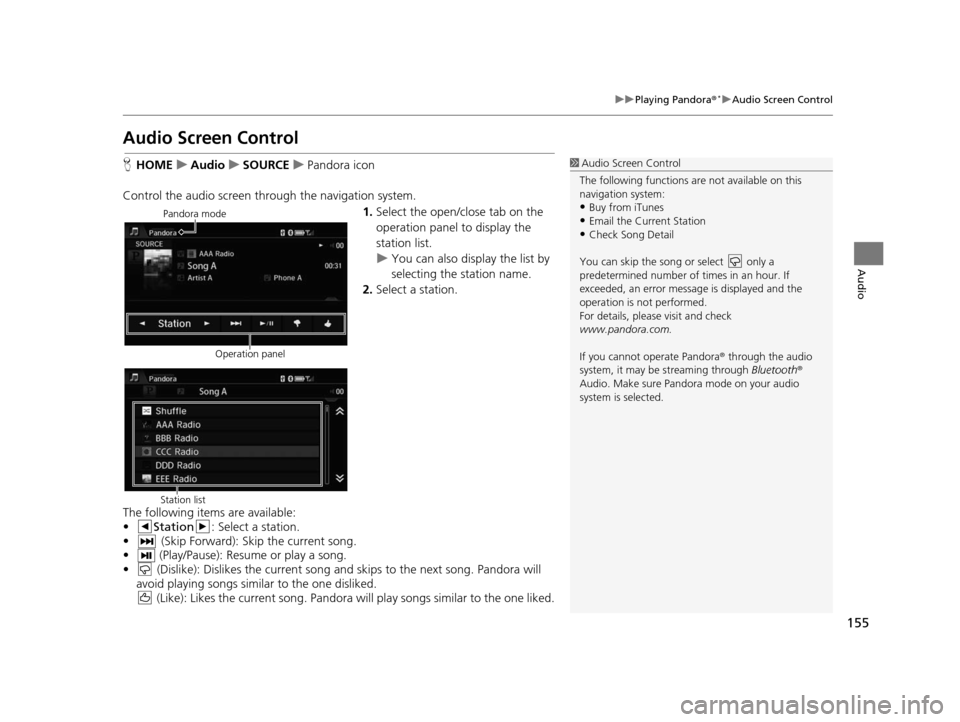
H HOME uAudio uSOURCE uPandora icon
Control the audio screen through the navigation system. 1.Select the open/close tab on the
operation panel to display the
station list.
u You can also display the list by
selecting the station name.
2. Select a station.
The following items are available:
• Station : Select a station.
• (Skip Forward): Skip the current song.
• (Play/Pause): Resume or play a song.
• (Dislike): Dislikes the current song and skips to the next song. Pandora will avoid playing songs similar to the one disliked. (Like): Likes the current song. Pandora will play songs similar to the one liked.1Audio Screen Control
The following functions ar e not available on this
navigation system:
•Buy from iTunes
•Email the Current Station•Check Song Detail
You can skip the song or select only a
predetermined num ber of times in an hour. If
exceeded, an error message is displayed and the
operation is not performed.
For details, please visit and check
www.pandora.com.
If you cannot operate Pandora ® through the audio
system, it may be streaming through Bluetooth®
Audio. Make sure Pand ora mode on your audio
system is selected.
Pandora mode
Operation panel
Station list
15 CIVIC NAVI-31TR38300.book 155 ページ 2014年8月7日 木曜日 午前11時49分
Page 162 of 253
161
Audio
Playing Bluetooth ® Audio
Your audio system allows you to listen to music tracks stored on your Bluetooth-
compatible phone.
This function is available when the phone is linked to the vehicle’s Bluetooth®
HandsFreeLink ® (HFL) system.
2Bluetooth ® Hand sFreeLink ® P. 167
Selecting Bluetooth ® Audio Mode
1. Make sure that your phone is on, paired, and linked to HFL.
2 Pairing a Phone P. 170
2.Select Audio on the HOME screen.
3. Select SOURCE .
4. Select the Bluetooth icon.
5. Select the track with Group or Track , or open the tab and select
from the track list.
u The current track name and artist name are displayed.
Check the following if the phone is not recognized:
• Another HFL-compatible phone, which is not compatible for Bluetooth Audio, is
already connected.
1 Playing Bluetooth ® Audio
“ BTA play ”, “Bluetooth audio play ”
You can control the Bluetooth Audio using voice
commands. 2 Bluetooth® Audio Commands P. 239
Not all Bluetooth -enabled phones with streaming
audio capabilities are compatible. To check if your
phone is compatible:
•U.S.: Visit handsfreelink.honda.com.
•Canada: Visit www.handsfreelink.ca .
In some states, it may be il legal to perform some data
device functions while driving.
In some cases, the name of the artist, album, or track
may not appear correctly.
Only one phone can be used with HFL at a time.
When there are more than two paired phones in the
vehicle, the first paired phone the system finds is
automatically linked.
If more than one phone is paired to the HFL system,
there may be a delay before the system begins to
play.
15 CIVIC NAVI-31TR38300.book 161 ページ 2014年8月7日 木曜日 午前11時49分
Page 163 of 253
162
uuPlaying Bluetooth ® Audio uSwitching to HFL Mode
Audio
Switching to HFL Mode
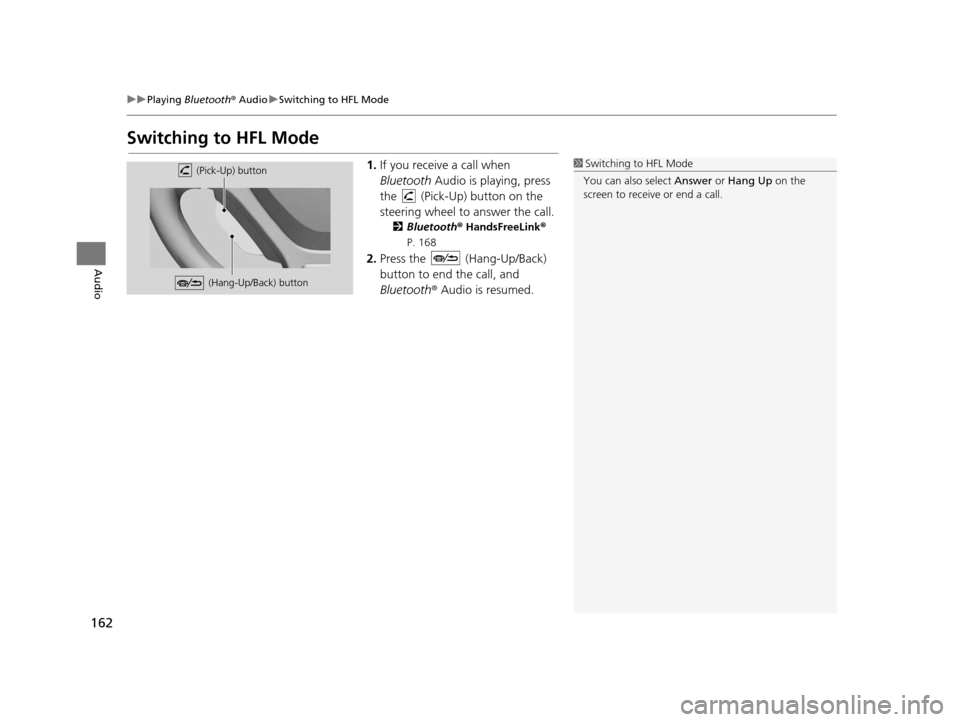
1. If you receive a call when
Bluetooth Audio is playing, press
the (Pick-Up) button on the
steering wheel to answer the call.
2 Bluetooth® HandsFreeLink®
P. 168
2. Press the (Hang-Up/Back)
button to end the call, and
Bluetooth ® Audio is resumed.
1 Switching to HFL Mode
You can also select Answer or Hang Up on the
screen to receive or end a call. (Pick-Up) button
(Hang-Up/Back) button
15 CIVIC NAVI-31TR38300.book 162 ページ 2014年8月7日 木曜日 午前11時49分