navigation system HONDA CIVIC COUPE 2019 Owner's Manual (in English)
[x] Cancel search | Manufacturer: HONDA, Model Year: 2019, Model line: CIVIC COUPE, Model: HONDA CIVIC COUPE 2019Pages: 675, PDF Size: 37.28 MB
Page 6 of 675
4
Quick Reference Guide
Quick Reference Guide
Visual Index
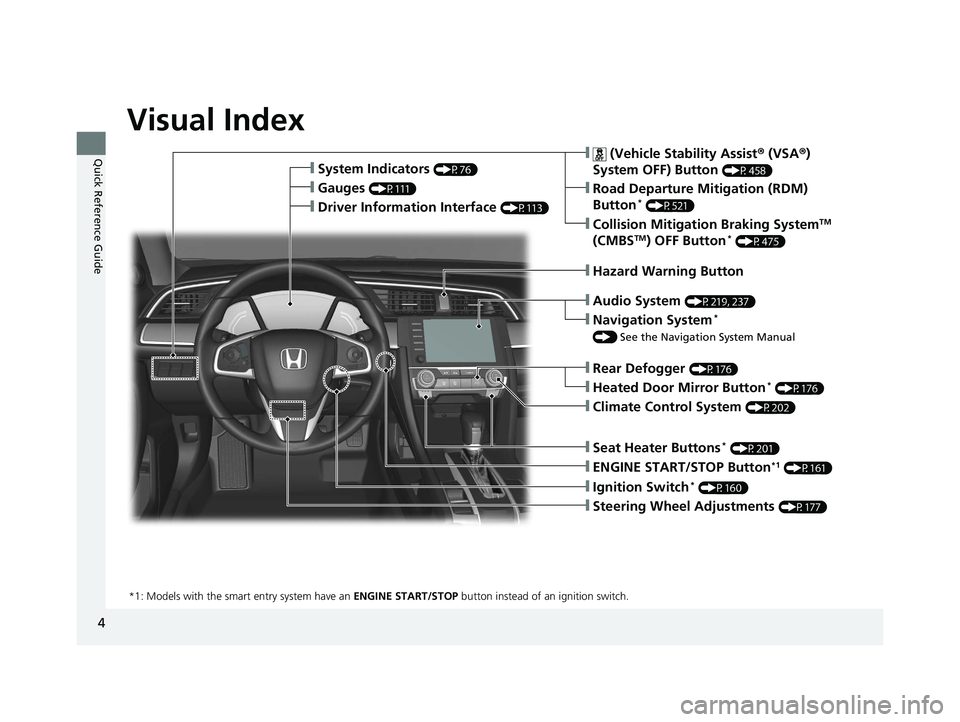
❙Ignition Switch* (P160)
❙ENGINE START/STOP Button*1 (P161)
*1: Models with the smart entry system have an ENGINE START/STOP button instead of an ignition switch.
❙System Indicators (P76)
❙Gauges (P111)
❙Navigation System*
() See the Navigation System Manual
❙Audio System (P219, 237)
❙Hazard Warning Button
❙Rear Defogger (P176)
❙Heated Door Mirror Button* (P176)
❙Climate Control System (P202)
❙Seat Heater Buttons* (P201)
❙Steering Wheel Adjustments (P177)
❙Driver Information Interface (P113)
❙Collision Mitigation Braking SystemTM
(CMBSTM) OFF Button* (P475)
❙ (Vehicle Stability Assist ® (VSA ®)
System OFF) Button
(P458)
❙Road Departure Mitigation (RDM)
Button* (P521)
19 CIVIC 2D HCM (KA KL KC)-31TBG6300.book 4 ページ 2018年9月4日 火曜日 午後1時38分
Page 7 of 675
5
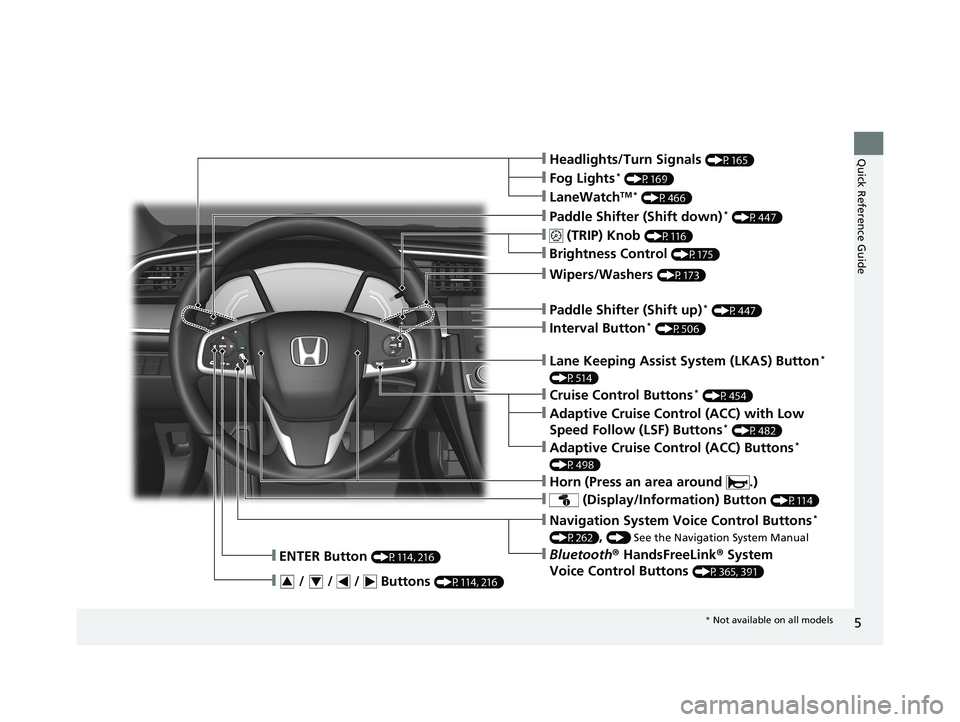
Quick Reference Guide❙Headlights/Turn Signals (P165)
❙ (TRIP) Knob (P116)
❙Brightness Control (P175)
❙LaneWatchTM * (P466)
❙Fog Lights* (P169)
❙Wipers/Washers (P173)
❙ (Display/Information) Button (P114)
❙Navigation System Voice Control Buttons*
(P262), () See the Navigation System Manual
❙Bluetooth® HandsFreeLink ® System
Voice Control Buttons
(P365, 391)
❙ENTER Button (P114, 216)
❙ / / / Buttons (P114, 216)34
❙Paddle Shifter (Shift down)* (P447)
❙Cruise Control Buttons* (P454)
❙Paddle Shifter (Shift up)* (P447)
❙Interval Button* (P506)
❙Adaptive Cruise Control (ACC) Buttons*
(P498)
❙Adaptive Cruise Control (ACC) with Low
Speed Follow (LSF) Buttons* (P482)
❙Lane Keeping Assist System (LKAS) Button*
(P514)
❙Horn (Press an area around .)
* Not available on all models
19 CIVIC 2D HCM (KA KL KC)-31TBG6300.book 5 ページ 2018年9月4日 火曜日 午後1時38分
Page 14 of 675
12
Quick Reference Guide
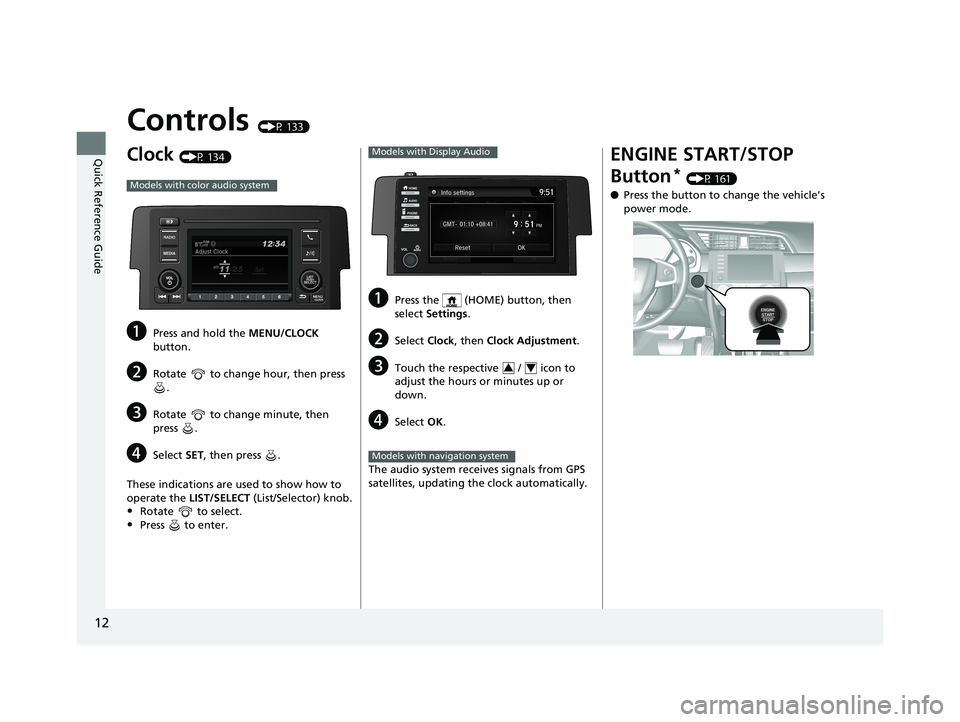
Controls (P 133)
Clock (P 134)
aPress and hold the MENU/CLOCK
button.
bRotate to change hour, then press .
cRotate to change minute, then
press .
dSelect SET, then press .
These indications are used to show how to
operate the LIST/SELECT (List/Selector) knob.
•Rotate to select.
•Press to enter.
Models with color audio system
aPress the (HOME) button, then
select Settings .
bSelect Clock, then Clock Adjustment .
cTouch the respective / icon to
adjust the hours or minutes up or
down.
dSelect OK.
The audio system receives signals from GPS
satellites, updating the clock automatically.
Models with Display Audio
34
Models with navigation system
ENGINE START/STOP
Button
* (P 161)
● Press the button to ch ange the vehicle’s
power mode.
19 CIVIC 2D HCM (KA KL KC)-31TBG6300.book 12 ページ 2018年9月4日 火曜 日 午後1時38分
Page 23 of 675
21
Quick Reference Guide
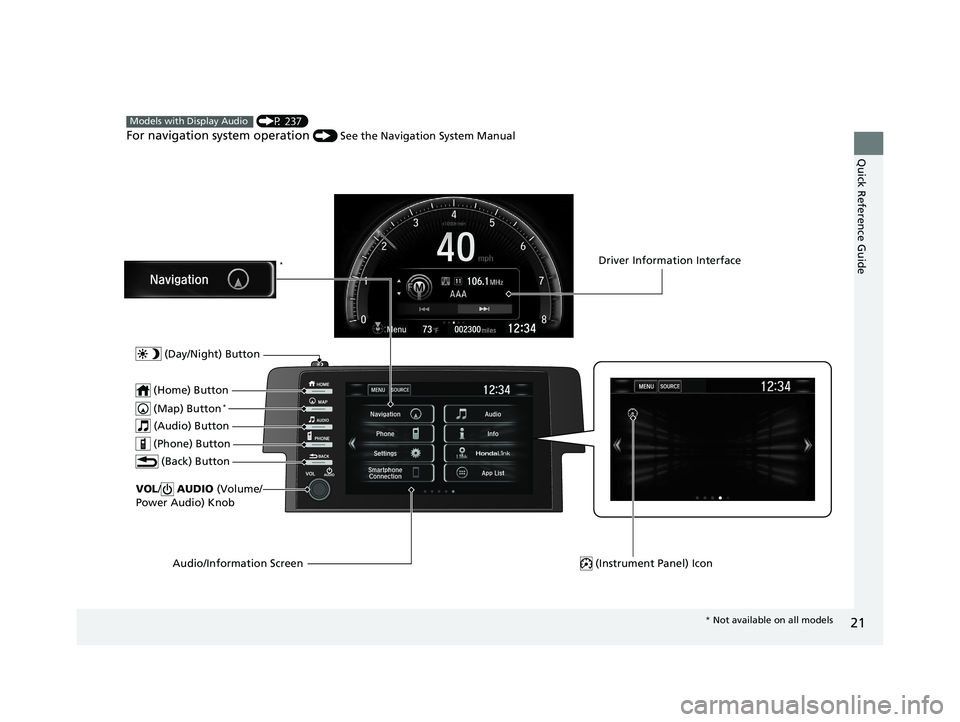
(P 237)
For navigation system operation () See the Navigation System Manual
Models with Display Audio
(Map) Button*
VOL/ AUDIO (Volume/
Power Audio) Knob
(Home) Button
(Back) Button
Audio/Information Screen
(Audio) Button
Driver Information Interface
(Instrument Panel) Icon
(Day/Night) Button
*
(Phone) Button
* Not available on all models
19 CIVIC 2D HCM (KA KL KC)-31TBG6300.book 21 ページ 2018年9月4日 火曜 日 午後1時38分
Page 121 of 675
Continued119
uuGauges and Driver Information Interface uDriver Information Interface
Instrument Panel
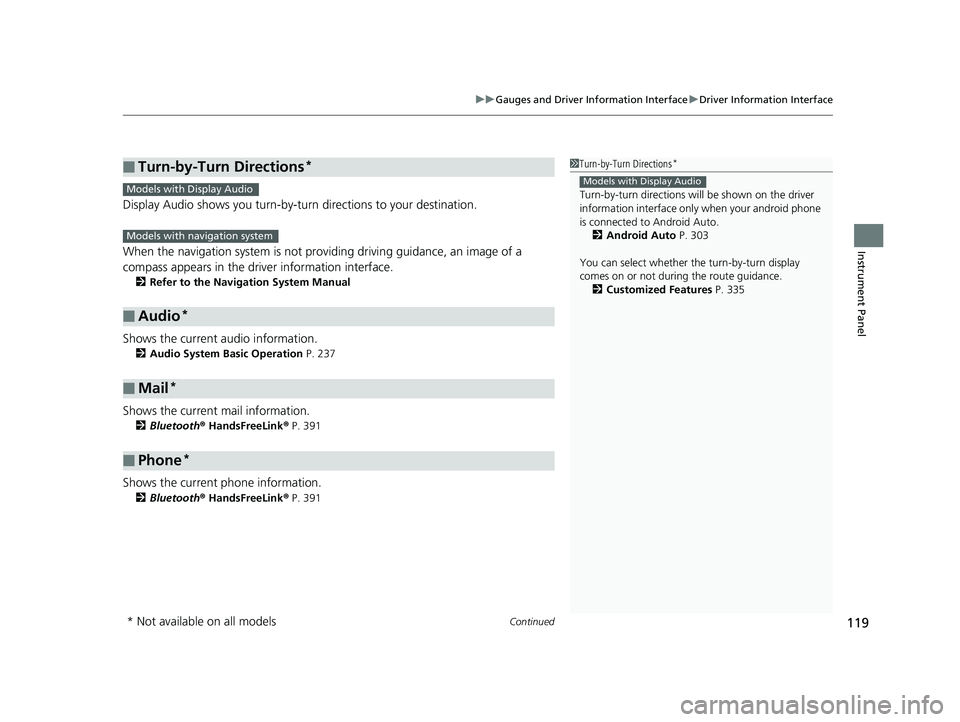
Display Audio shows you turn-by-turn directions to your destination.
When the navigation system is not prov iding driving guidance, an image of a
compass appears in the driver information interface.
2 Refer to the Navigation System Manual
Shows the current audio information.
2Audio System Basic Operation P. 237
Shows the current mail information.
2Bluetooth ® HandsFreeLink ® P. 391
Shows the current phone information.
2 Bluetooth ® HandsFreeLink ® P. 391
■Turn-by-Turn Directions*
■Audio*
■Mail*
■Phone*
1 Turn-by-Turn Directions*
Turn-by-turn directions wi ll be shown on the driver
information interface only when your android phone
is connected to Android Auto. 2 Android Auto P. 303
You can select whether the turn-by-turn display
comes on or not during the route guidance. 2 Customized Features P. 335
Models with Display AudioModels with Display Audio
Models with navigation system
* Not available on all models
19 CIVIC 2D HCM (KA KL KC)-31TBG6300.book 119 ページ 2018年9月4日 火 曜日 午後1時38分
Page 136 of 675
134
Controls
Clock
Adjusting the Clock
You can adjust the time in the clock display with the ignition switch in ON (w*1.
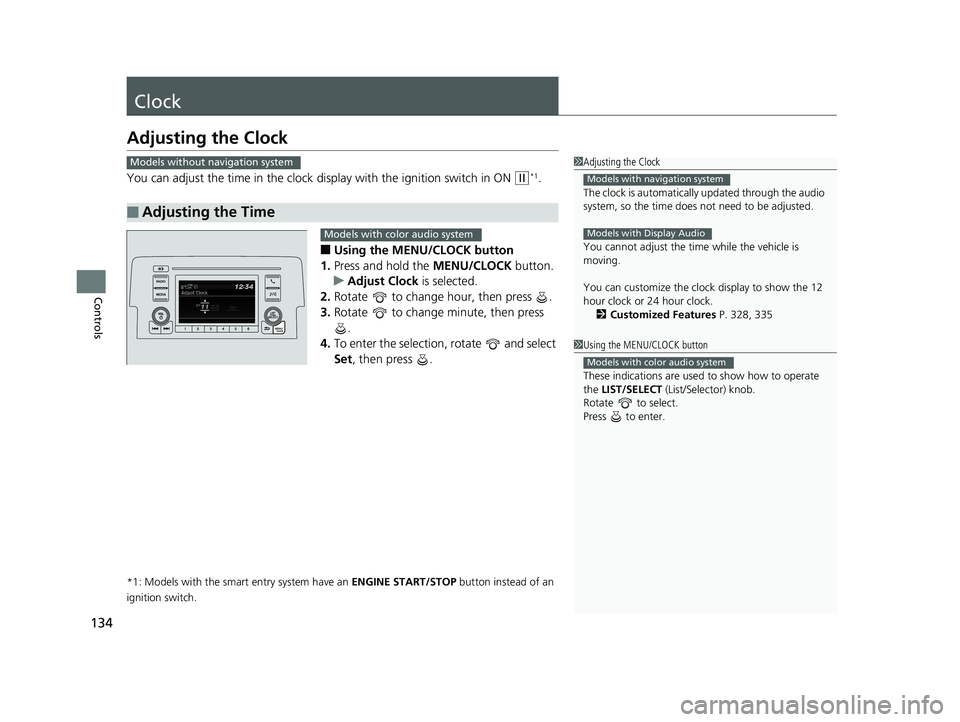
■Using the MENU/CLOCK button
1. Press and hold the MENU/CLOCK button.
u Adjust Clock is selected.
2. Rotate to change hour, then press .
3. Rotate to change minute, then press
.
4. To enter the selection, rotate and select
Set , then press .
*1: Models with the smart entry system have an ENGINE START/STOP button instead of an
ignition switch.
■Adjusting the Time
1 Adjusting the Clock
The clock is automatically updated through the audio
system, so the time does not need to be adjusted.
You cannot adjust the time while the vehicle is
moving.
You can customize the clock display to show the 12
hour clock or 24 hour clock.
2 Customized Features P. 328, 335
Models with navigation system
Models with Display Audio
Models without navigation system
1Using the MENU/CLOCK button
These indications are used to show how to operate
the LIST/SELECT (List/Selector) knob.
Rotate to select.
Press to enter.
Models with color audio system
Models with color audio system
19 CIVIC 2D HCM (KA KL KC)-31TBG6300.book 134 ページ 2018年9月4日 火 曜日 午後1時38分
Page 239 of 675
237
Features
Audio System Basic Operation
To use the audio system function, the ignition swit ch must be in ACCESSORY (q or
ON
(w*1.
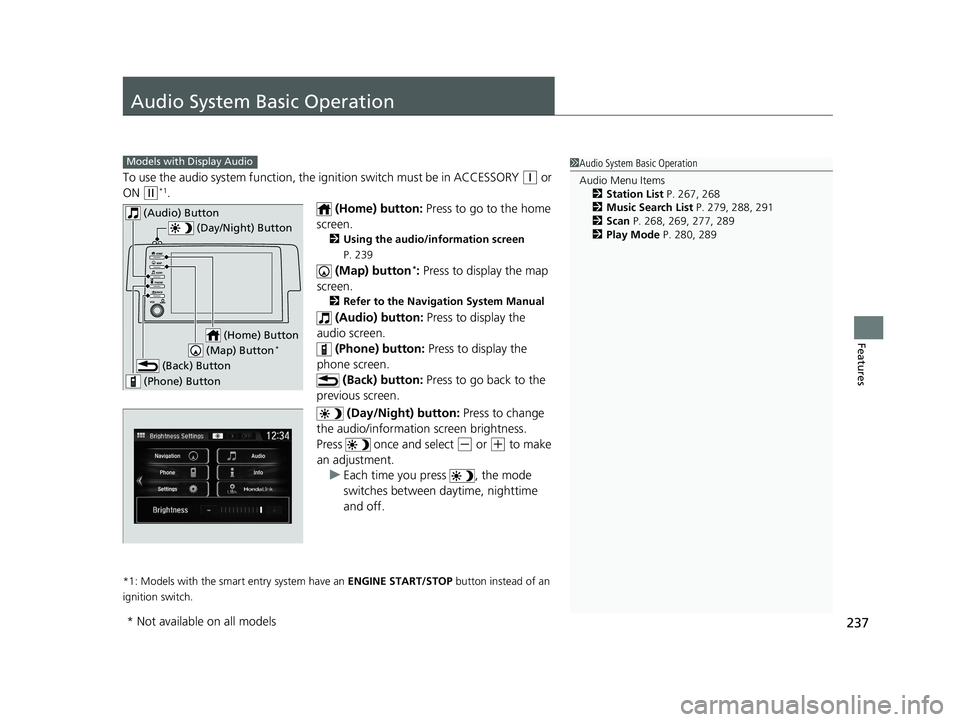
(Home) button: Press to go to the home
screen.
2 Using the audio/information screen
P. 239
(Map) button*: Press to display the map
screen.
2 Refer to the Navigation System Manual
(Audio) button: Press to display the
audio screen.
(Phone) button: Press to display the
phone screen. (Back) button: Press to go back to the
previous screen.
(Day/Night) button: Press to change
the audio/information screen brightness.
Press once and select
(- or (+ to make
an adjustment. u Each time you press , the mode
switches between da ytime, nighttime
and off.
*1: Models with the smart entry system have an ENGINE START/STOP button instead of an
ignition switch.
1 Audio System Basic Operation
Audio Menu Items
2 Station List P. 267, 268
2 Music Search List P. 279, 288, 291
2 Scan P. 268, 269, 277, 289
2 Play Mode P. 280, 289Models with Display Audio
(Day/Night) Button
(Home) Button
(Back) Button
(Phone) Button
(Audio) Button
(Map) Button*
* Not available on all models
19 CIVIC 2D HCM (KA KL KC)-31TBG6300.book 237 ページ 2018年9月4日 火 曜日 午後1時38分
Page 241 of 675
Continued239
uuAudio System Basic Operation uAudio/Information Screen
Features
■Using the audio/in formation screen
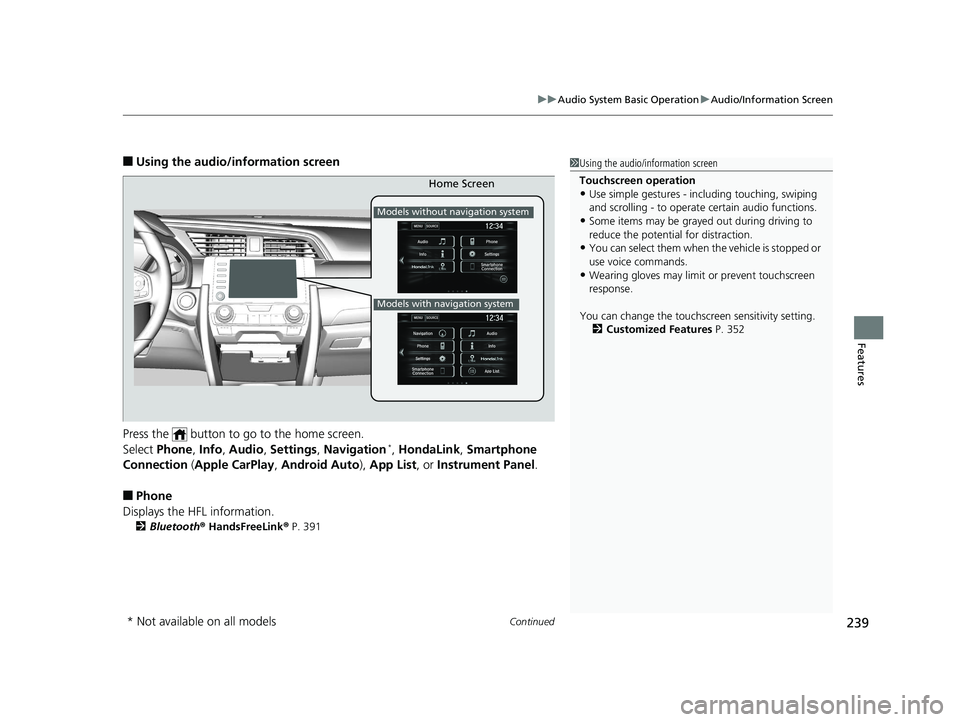
Press the button to go to the home screen.
Select Phone , Info , Audio , Settings , Navigation
*, HondaLink , Smartphone
Connection (Apple CarPlay, Android Auto), App List , or Instrument Panel .
■Phone
Displays the HFL information.
2 Bluetooth ® HandsFreeLink ® P. 391
1 Using the audio/in formation screen
Touchscreen operation
•Use simple gestures - in cluding touching, swiping
and scrolling - to operate certain audio functions.
•Some items may be grayed out during driving to
reduce the potential for distraction.
•You can select them when the vehicle is stopped or
use voice commands.
•Wearing gloves may limit or prevent touchscreen
response.
You can change the touchs creen sensitivity setting.
2 Customized Features P. 352
Home Screen
Models without navigation system
Models with navigation system
* Not available on all models
19 CIVIC 2D HCM (KA KL KC)-31TBG6300.book 239 ページ 2018年9月4日 火 曜日 午後1時38分
Page 242 of 675
240
uuAudio System Basic Operation uAudio/Information Screen
Features
■Info
Displays Trip Computer or Clock/Wallpaper . Select MENU on the Info Menu
screen to see all available options: Trip Computer, Voice Info , Clock/Wallpaper
and System/Device Information .
Trip Computer :
• Current Drive tab: Displays the current trip information.
• History of Trip A tab: Displays information for the three previous drives. The
information is stored every time you reset Trip A.
To delete the history manually, select Delete History on the History of Trip A
tab. The confirmation message app ears on the screen, then select Yes.
Voice Info : Displays the all commands list.
Clock/Wallpaper : Displays the clock and wallpaper.
System/Device Information :
• System Info: Displays the software version of the audio system.
• USB Info : Displays the memory usage of the USB device.
■Audio
Displays the current audio information.
■Settings
Enters the customiz ing menu screen.
2Customized Features P. 335
■Navigation*
Displays the navigation screen.
2Refer to the Navigation System Manual
* Not available on all models
19 CIVIC 2D HCM (KA KL KC)-31TBG6300.book 240 ページ 2018年9月4日 火 曜日 午後1時38分
Page 252 of 675
uuAudio System Basic Operation uAudio/Information Screen
250
Features
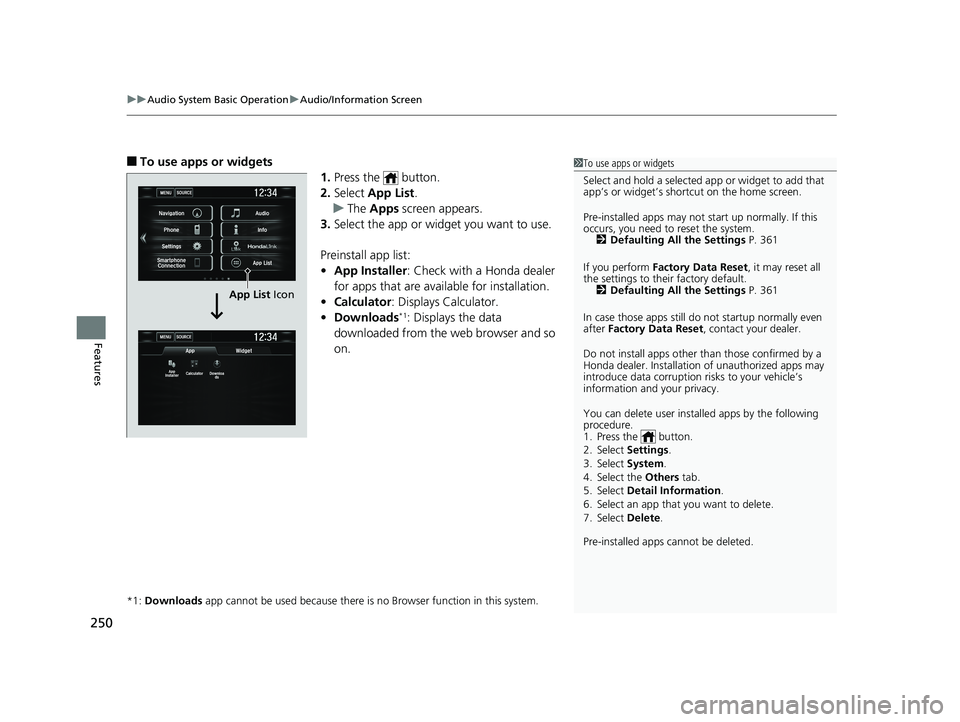
■To use apps or widgets
1.Press the button.
2. Select App List .
u The Apps screen appears.
3. Select the app or widget you want to use.
Preinstall app list:
• App Installer : Check with a Honda dealer
for apps that are available for installation.
• Calculator : Displays Calculator.
• Downloads
*1: Displays the data
downloaded from the web browser and so
on.
*1: Downloads app cannot be used because there is no Browser function in this system.
1To use apps or widgets
Select and hold a selected app or widget to add that
app’s or widget’s shortcut on the home screen.
Pre-installed apps may not start up normally. If this
occurs, you need to reset the system.
2 Defaulting All the Settings P. 361
If you perform Factory Data Reset , it may reset all
the settings to their factory default. 2 Defaulting All the Settings P. 361
In case those apps still do not startup normally even
after Factory Data Reset , contact your dealer.
Do not install apps other than those confirmed by a
Honda dealer. Installation of unauthorized apps may
introduce data corruption risks to your vehicle’s
information and your privacy.
You can delete user installed apps by the following
procedure.
1. Press the button.
2. Select Settings .
3. Select System .
4. Select the Others tab.
5. Select Detail Information .
6. Select an app that you want to delete.
7. Select Delete .
Pre-installed apps cannot be deleted.
MENUSOURCE
MENUSOURCE
App
App
Installer Calculator Downloa
ds
Widget
Navigation Audio
Info
App List
Phone
Settings
Smartphone Connection
App List Icon
19 CIVIC 2D HCM (KA KL KC)-31TBG6300.book 250 ページ 2018年9月4日 火 曜日 午後1時38分