ad blue HONDA CIVIC HATCHBACK 2018 (in English) User Guide
[x] Cancel search | Manufacturer: HONDA, Model Year: 2018, Model line: CIVIC HATCHBACK, Model: HONDA CIVIC HATCHBACK 2018Pages: 703, PDF Size: 24.31 MB
Page 238 of 703
236
uuAudio System uAudio Remote Controls
Features
(+ (- (Volume) Bar
Press
(+: To increase the volume.
Press
(-: To decrease the volume.
Buttons
• When listening to the radio
Press : To select the next preset radio station.
Press : To select the previous preset radio station.
Press and hold : To select the next strong station.
Press and hold : To select the previous strong station.
• When listening to an iPod, USB flash drive, or Bluetooth ® Audio
Press : To skip to the next song.
Press : To go back to the beginning of the current or previous song.
• When listening to a USB flash drive
Press and hold : To skip to the next folder.
Press and hold : To go back to the previous folder.
• When listening to Internet radio
*
Press : To skip to the next track.
Press and hold : To select the next station.
Press and hold : To select the previous station.
* Not available on all models
18 CIVIC 5D (KA KC KL)-31TGG6100.book 236 ページ 2017年12月27日 水曜日 午前11時2分
Page 239 of 703
237
Features
Audio System Basic Operation
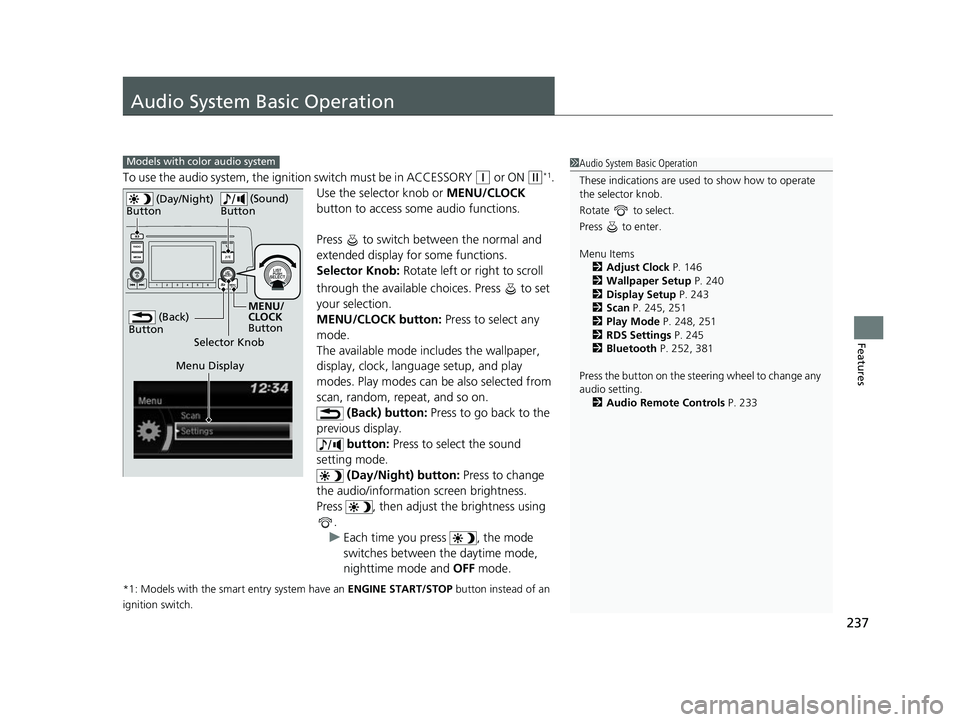
To use the audio system, the ignition switch must be in ACCESSORY (q or ON (w*1.
Use the selector knob or MENU/CLOCK
button to access some audio functions.
Press to switch between the normal and
extended display fo r some functions.
Selector Knob: Rotate left or right to scroll
through the available choices. Press to set
your selection.
MENU/CLOCK button: Press to select any
mode.
The available mode in cludes the wallpaper,
display, clock, language setup, and play
modes. Play modes can be also selected from
scan, random, repeat, and so on. (Back) button: Press to go back to the
previous display. button: Press to select the sound
setting mode.
(Day/Night) button: Press to change
the audio/information screen brightness.
Press , then adjust the brightness using .
u Each time you press , the mode
switches between the daytime mode,
nighttime mode and OFF mode.
*1: Models with the smart entry system have an ENGINE START/STOP button instead of an
ignition switch.
Models with color audio system1 Audio System Basic Operation
These indications are used to show how to operate
the selector knob.
Rotate to select.
Press to enter.
Menu Items 2 Adjust Clock P. 146
2 Wallpaper Setup P. 240
2 Display Setup P. 243
2 Scan P. 245, 251
2 Play Mode P. 248, 251
2 RDS Settings P. 245
2 Bluetooth P. 252, 381
Press the button on the stee ring wheel to change any
audio setting.
2 Audio Remote Controls P. 233
(Back)
Button
Selector Knob MENU/
CLOCK
Button
(Day/Night)
Button
(Sound)
Button
Menu Display
18 CIVIC 5D (KA KC KL)-31TGG6100.book 237 ページ 2017年12月27日 水曜日 午前11時2分
Page 254 of 703
252
uuAudio System Basic Operation uPlaying Bluetooth ® Audio
Features
Playing Bluetooth® Audio
Your audio system allows you to listen to music from your Bluetooth-compatible
phone.
This function is available when the phone is paired and connected to the vehicle’s
Bluetooth ® HandsFreeLink ® (HFL) system.
2 Phone Setup P. 388
1Playing Bluetooth ® Audio
Not all Bluetooth -enabled phones with streaming
audio capabilities are compatible with the system.
For a list of compatible phones, visit
automobiles.honda.com /handsfreelink/, or call 1-
888-528-7876.
In some states, it may be illegal to perform some data
device functions while driving.
Only one phone can be used with HFL at a time.
When there are more than two paired phones in the
vehicle, the first paired phone the system finds is
automatically connected.
If more than one phone is paired to the HFL system,
there will be a delay before the system begins to play.
In some cases, the name of the artist, album, or track
may not appear correctly.
Some functions may not be available on some
devices.
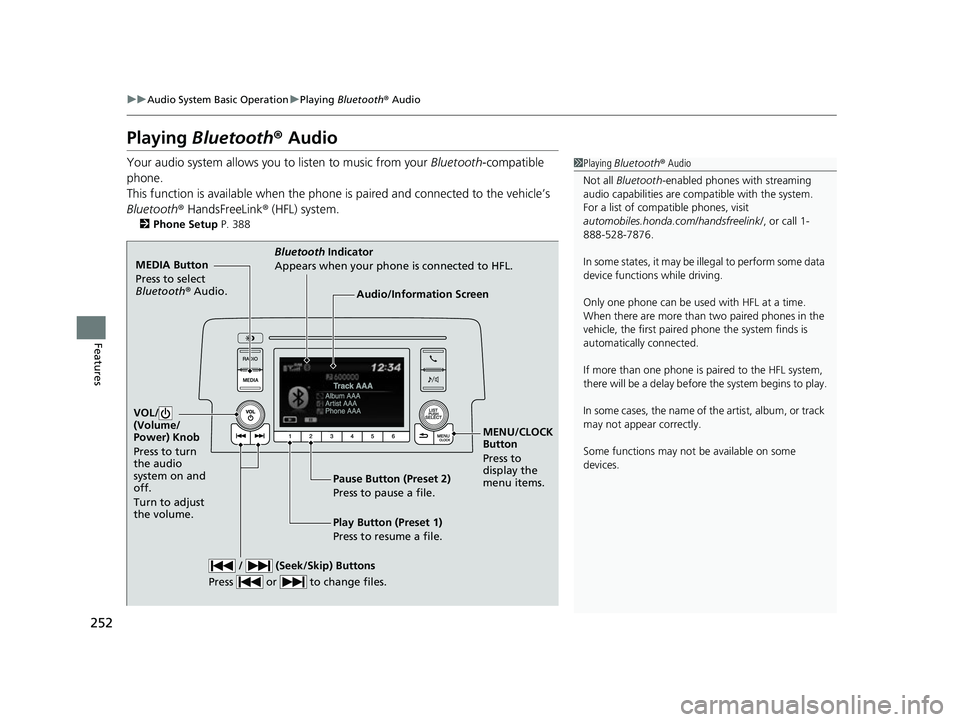
MEDIA Button
Press to select
Bluetooth ® Audio.
VOL/
(Volume/
Power) Knob
Press to turn
the audio
system on and
off.
Turn to adjust
the volume.
MENU/CLOCK
Button
Press to
display the
menu items.
Audio/Information Screen
Bluetooth Indicator
Appears when your phone is connected to HFL.
/ (Seek/Skip) Buttons
Press or to change files.
Play Button (Preset 1)
Press to resume a file. Pause Button (Preset 2)
Press to pause a file.
18 CIVIC 5D (KA KC KL)-31TGG6100.book 252 ページ 2017年12月27日 水曜日 午前11時2分
Page 255 of 703
Continued253
uuAudio System Basic Operation uPlaying Bluetooth ® Audio
Features
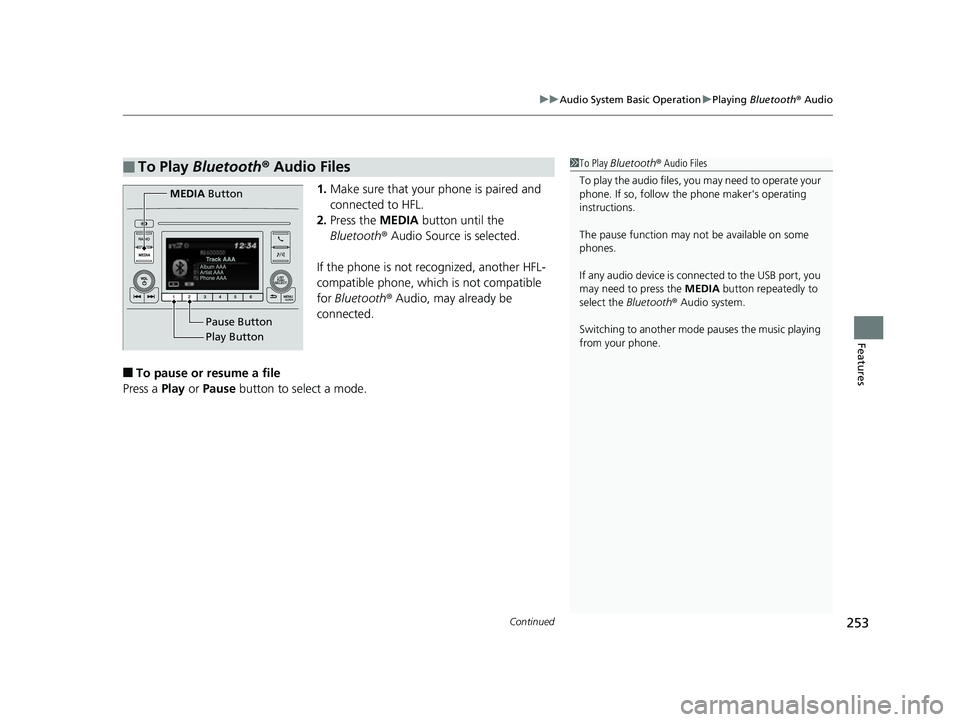
1. Make sure that your phone is paired and
connected to HFL.
2. Press the MEDIA button until the
Bluetooth ® Audio Source is selected.
If the phone is not recognized, another HFL-
compatible phone, which is not compatible
for Bluetooth ® Audio, may already be
connected.
■To pause or resume a file
Press a Play or Pause button to select a mode.
■To Play Bluetooth ® Audio Files1 To Play Bluetooth ® Audio Files
To play the audio files, y ou may need to operate your
phone. If so, follow the phone maker's operating
instructions.
The pause function may no t be available on some
phones.
If any audio device is connected to the USB port, you
may need to press the MEDIA button repeatedly to
select the Bluetooth ® Audio system.
Switching to another mode pauses the music playing
from your phone.
Play Button Pause Button
MEDIA
Button
18 CIVIC 5D (KA KC KL)-31TGG6100.book 253 ページ 2017年12月27日 水曜日 午前11時2分
Page 256 of 703
uuAudio System Basic Operation uPlaying Bluetooth ® Audio
254
Features
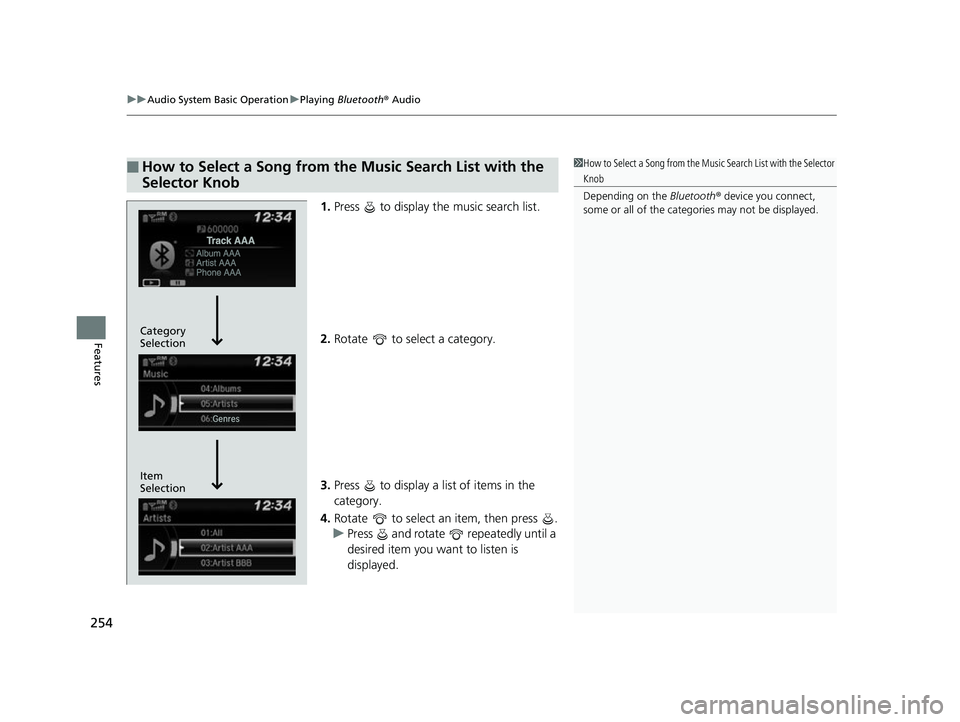
1. Press to display the music search list.
2. Rotate to select a category.
3. Press to display a list of items in the
category.
4. Rotate to select an item, then press .
u Press and rotate repeatedly until a
desired item you want to listen is
displayed.
■How to Select a Song from the Music Search List with the
Selector Knob1How to Select a Song from the Music Search List with the Selector
Knob
Depending on the Bluetooth® device you connect,
some or all of the catego ries may not be displayed.
Item
Selection Category
Selection
18 CIVIC 5D (KA KC KL)-31TGG6100.book 254 ページ 2017年12月27日 水曜日 午前11時2分
Page 259 of 703
Continued257
uuAudio System Basic Operation uAudio/Information Screen
Features
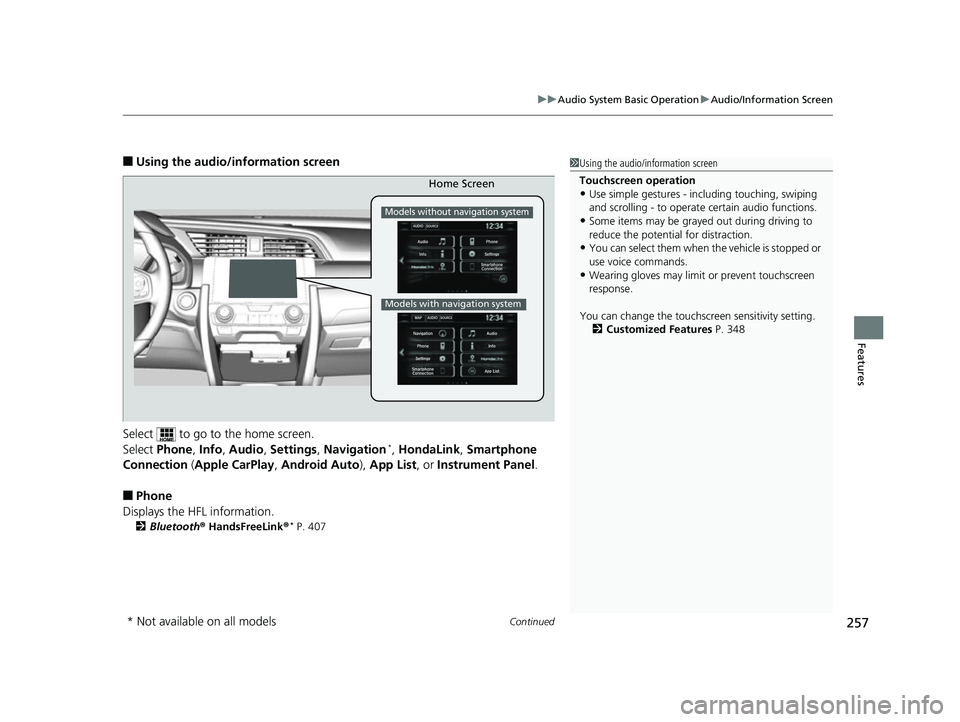
■Using the audio/in formation screen
Select to go to the home screen.
Select Phone , Info , Audio , Settings , Navigation
*, HondaLink , Smartphone
Connection (Apple CarPlay, Android Auto), App List , or Instrument Panel .
■Phone
Displays the HFL information.
2 Bluetooth ® HandsFreeLink ®* P. 407
1Using the audio/in formation screen
Touchscreen operation
•Use simple gestures - in cluding touching, swiping
and scrolling - to operate certain audio functions.
•Some items may be grayed out during driving to
reduce the potential for distraction.
•You can select them when the vehicle is stopped or
use voice commands.
•Wearing gloves may limit or prevent touchscreen
response.
You can change the touchs creen sensitivity setting.
2 Customized Features P. 348
Home Screen
Models without navigation system
Models with navigation system
* Not available on all models
18 CIVIC 5D (KA KC KL)-31TGG6100.book 257 ページ 2017年12月27日 水曜日 午前11時2分
Page 284 of 703
282
uuAudio System Basic Operation uVoice Control Operation
Features
■Voice Setting
The screen changes to the Voice Recog.
tab on the System Settings screen.
■Voice Help
You can see a list of the available
commands on the screen.
• Useful Commands
*1
•Phone Commands
• Audio Commands*1
•On Screen Commands
• Music Search Commands
• General Commands
*1
•Climate Control Commands*1
The system accepts these commands on the
voice portal top screen.
•Call
• Call
• What time is it?
• What is today’s date?
*1: Models with navigation system
■Useful Commands*1
The system accepts these commands on the
dedicated screen for the voice recognition
of the phone.
• Call by number
• Call by name
• Call
• Call
The system accepts these commands on the
dedicated screen for the voice recognition
of the audio.
■Radio FM Commands
• Radio tune to <87.7-107.9> FM
• Radio tune to <87.7 -107.9> HD <1-8>
FM
• Radio FM preset <1-12>
■Radio AM Commands
• Radio tune to <530-1710> AM
• Radio AM preset <1-6>
■Radio SXM Commands*
•SXM channel <1-999>
■Phone Commands
■Audio Commands*1
•SXM channel
sports team name>
• SXM preset <1-12>
■Pandora Commands*
•PANDORA play
■iPod Commands
• iPod play
• iPod play track <1-30>
• Music Search
• What album is this?
• What am I listening to?
■USB Commands
• USB play
• USB play track <1-30>
• Music Search
• What album is this?
• What am I listening to?
■Bluetooth ® audio Commands
• Bluetooth ® audio play
NOTE:
Bluetooth ® Audio commands may not work
on some phones or Bluetooth ® Audio
devices.
* Not available on all models
18 CIVIC 5D (KA KC KL)-31TGG6100.book 282 ページ 2017年12月27日 水曜日 午前11時2分
Page 305 of 703
303
uuAudio System Basic Operation uPlaying Pandora ®
Continued
Features
Playing Pandora ®
Your audio system allows you to listen to music from the Pandora ® app on a
compatible smartphone.
This function is available when the phone is paired and connected to the vehicle’s
Bluetooth ® HandsFreeLink ® (HFL) system, or with an iPhone, you can connect using
your USB cable to the USB port.
2 Phone Setup P. 415
2 USB Port(s) P. 231
U.S. models
1Playing Pandora ®
Pandora ®, the Pandora logo, and the Pandora trade
dress are trademarks or registered trademarks of
Pandora Media, Inc., used with permission. Pandora
is only available in certai n countries. Visit the Pandora
website for more information.
To find out if your phone is compatible with this
feature, visit automobiles.honda.com/handsfreelink/ ,
or call 1-888-528-7876.
To use this service in your vehicle, the Pandora ® app
must first be installed on your phone. Visit
www.pandora.com . for more information.
Pandora ® is free, personalized radio that plays music
and comedy you’ll love. Just start with the name of
one of your favorite arti sts, tracks, comedians or
composers and Pandora ® will create a custom station
that plays similar tracks. Pandora ® also features
hundreds of genre stations ranging from Dubstep to
Smooth Jazz to Power Workout.
If you cannot operate Pandora ® through the audio
system, it may be streaming through Bluetooth®
Audio. Make sure Pandora ® mode on your audio
system is selected.
If your phone is connec ted to Android Auto,
Pandora ® is only available through the Android Auto
interface. Visit the Android Auto website to check
compatibility.
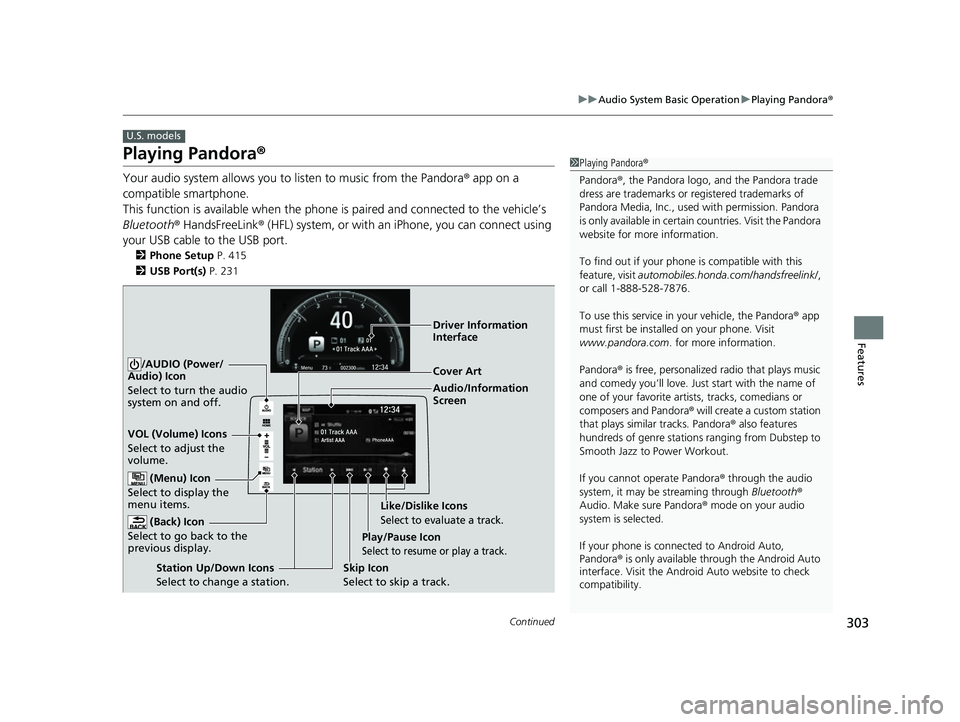
Audio/Information
Screen Cover Art
VOL (Volume) Icons
Select to adjust the
volume. (Back) Icon
Select to go back to the
previous display.
/AUDIO (Power/
Audio) Icon
Select to turn the audio
system on and off.
(Menu) Icon
Select to display the
menu items.
Play/Pause Icon
Select to resume or play a track.
Station Up/Down Icons
Select to change a station. Skip Icon
Select to skip a track.Like/Dislike Icons
Select to evaluate a track.
Driver Information
Interface
18 CIVIC 5D (KA KC KL)-31TGG6100.book 303 ページ 2017年12月27日 水曜日 午前11時2分
Page 310 of 703
308
uuAudio System Basic Operation uPlaying Bluetooth ® Audio
Features
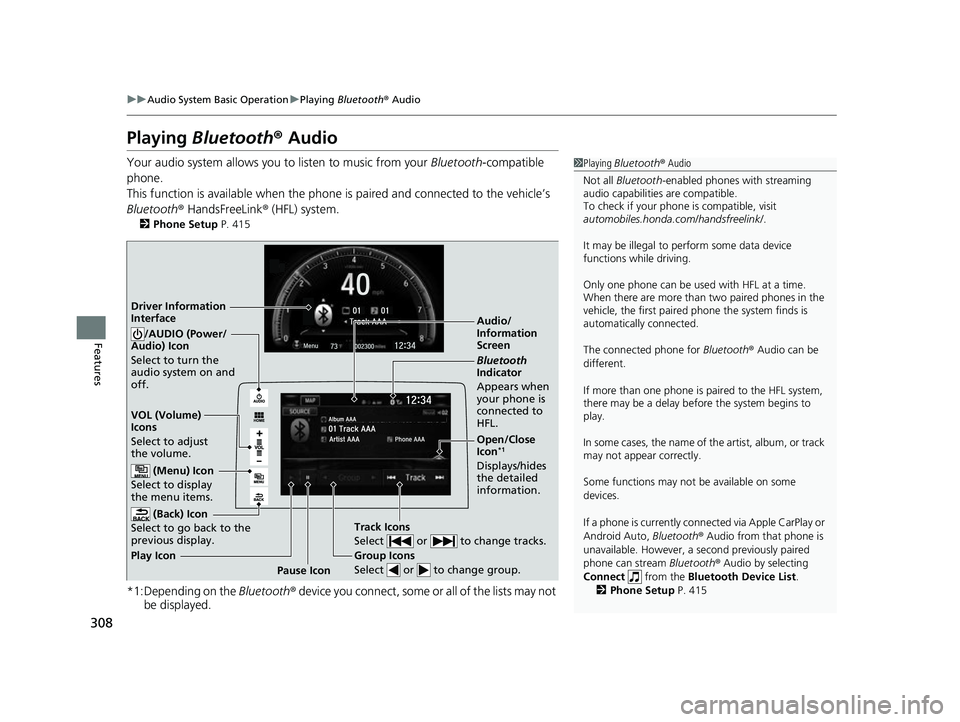
Playing Bluetooth® Audio
Your audio system allows you to listen to music from your Bluetooth-compatible
phone.
This function is available when the phone is paired and connected to the vehicle’s
Bluetooth ® HandsFreeLink ® (HFL) system.
2 Phone Setup P. 415
*1:Depending on the Bluetooth® device you connect, some or all of the lists may not
be displayed.
1 Playing Bluetooth ® Audio
Not all Bluetooth -enabled phones with streaming
audio capabilities are compatible.
To check if your phone is compatible, visit
automobiles.honda.com /handsfreelink/.
It may be illegal to perform some data device
functions while driving.
Only one phone can be used with HFL at a time.
When there are more than two paired phones in the
vehicle, the first paired phone the system finds is
automatically connected.
The connected phone for Bluetooth® Audio can be
different.
If more than one phone is paired to the HFL system,
there may be a delay before the system begins to
play.
In some cases, the name of the artist, album, or track
may not appear correctly.
Some functions may not be available on some
devices.
If a phone is currently conne cted via Apple CarPlay or
Android Auto, Bluetooth® Audio from that phone is
unavailable. However, a se cond previously paired
phone can stream Bluetooth® Audio by selecting
Connect from the Bluetooth Device List .
2 Phone Setup P. 415
Audio/
Information
Screen
VOL (Volume)
Icons
Select to adjust
the volume. (Back) Icon
Select to go back to the
previous display./AUDIO (Power/
Audio) Icon
Select to turn the
audio system on and
off.
(Menu) Icon
Select to display
the menu items.
Group Icons
Select or to change group.
Pause Icon
Play Icon
Bluetooth
Indicator
Appears when
your phone is
connected to
HFL.
Track Icons
Select or to change tracks.
Open/Close
Icon*1
Displays/hides
the detailed
information.
Driver Information
Interface
18 CIVIC 5D (KA KC KL)-31TGG6100.book 308 ページ 2017年12月27日 水曜日 午前11時2分
Page 311 of 703
309
uuAudio System Basic Operation uPlaying Bluetooth ® Audio
Features
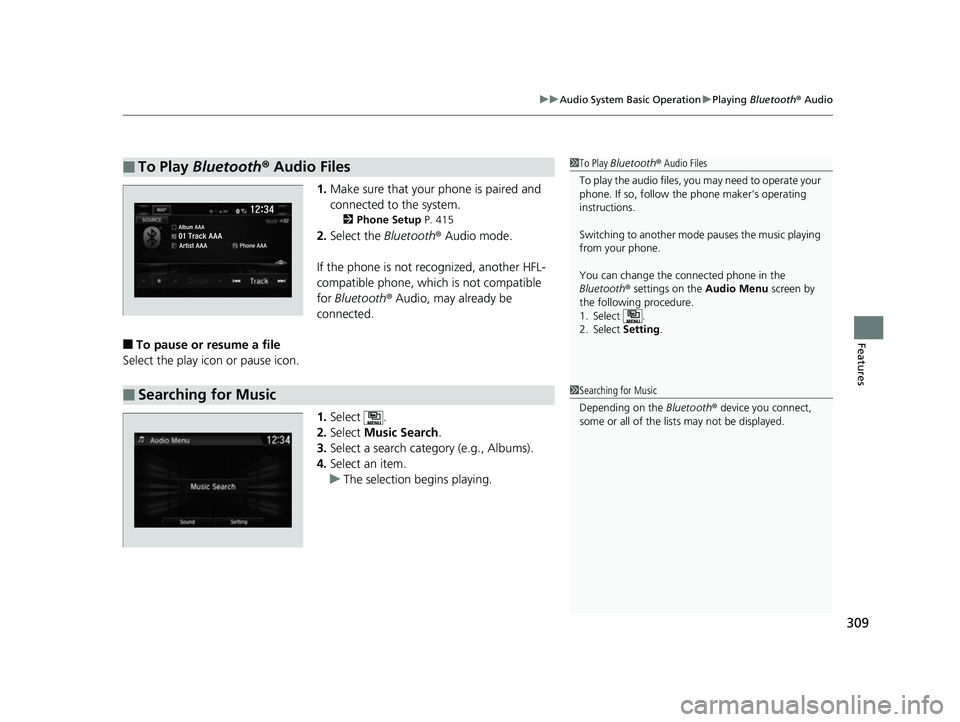
1. Make sure that your phone is paired and
connected to the system.
2 Phone Setup P. 415
2.Select the Bluetooth® Audio mode.
If the phone is not recognized, another HFL-
compatible phone, which is not compatible
for Bluetooth ® Audio, may already be
connected.
■To pause or resume a file
Select the play icon or pause icon.
1.Select .
2. Select Music Search.
3. Select a search catego ry (e.g., Albums).
4. Select an item.
u The selection begins playing.
■To Play Bluetooth ® Audio Files1 To Play Bluetooth ® Audio Files
To play the audio files, y ou may need to operate your
phone. If so, follow the phone maker’s operating
instructions.
Switching to another mode pauses the music playing
from your phone.
You can change the connected phone in the
Bluetooth ® settings on the Audio Menu screen by
the following procedure.
1. Select .
2. Select Setting .
■Searching for Music1Searching for Music
Depending on the Bluetooth® device you connect,
some or all of the list s may not be displayed.
18 CIVIC 5D (KA KC KL)-31TGG6100.book 309 ページ 2017年12月27日 水曜日 午前11時2分