USB port HONDA CIVIC HATCHBACK 2018 Owner's Manual (in English)
[x] Cancel search | Manufacturer: HONDA, Model Year: 2018, Model line: CIVIC HATCHBACK, Model: HONDA CIVIC HATCHBACK 2018Pages: 703, PDF Size: 24.31 MB
Page 8 of 703
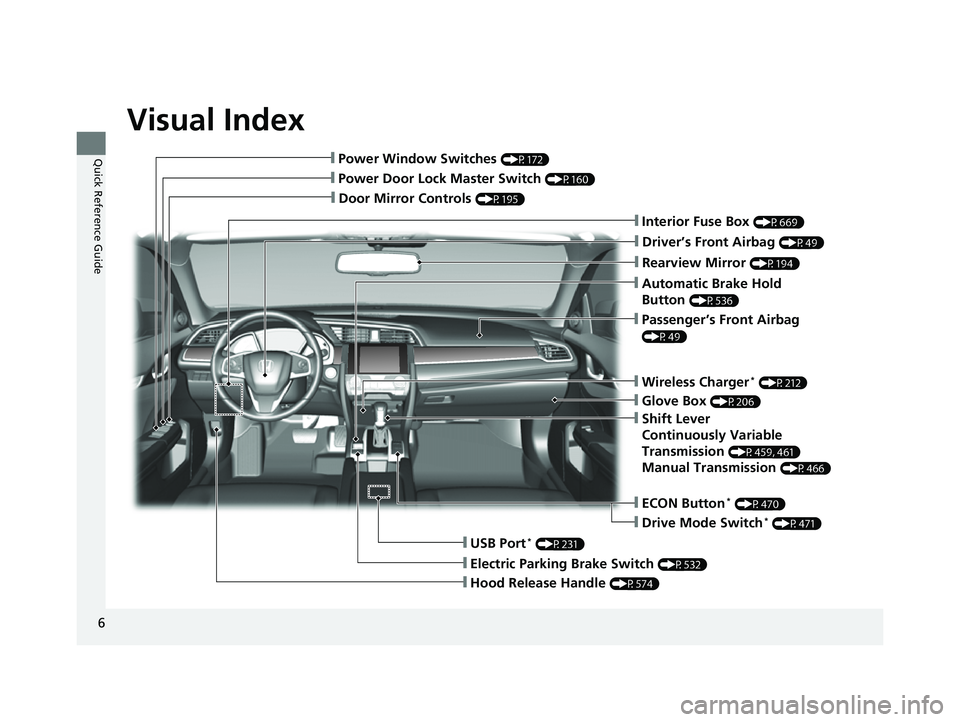
Visual Index
6
Quick Reference Guide
❙Door Mirror Controls (P195)
❙Passenger’s Front Airbag
(P49)
❙Glove Box (P206)
❙Rearview Mirror (P194)
❙Hood Release Handle (P574)
❙Power Door Lock Master Switch (P160)
❙Power Window Switches (P172)
❙Interior Fuse Box (P669)
❙Driver’s Front Airbag (P49)
❙Shift Lever
Continuously Variable
Transmission
(P459, 461)
Manual Transmission (P466)
❙Electric Parking Brake Switch (P532)
❙USB Port* (P231)
❙Wireless Charger* (P212)
❙Automatic Brake Hold
Button
(P536)
❙ECON Button* (P470)
❙Drive Mode Switch* (P471)
18 CIVIC 5D (KA KC KL)-31TGG6100.book 6 ページ 2017年12月27日 水曜日 午前11時2分
Page 9 of 703
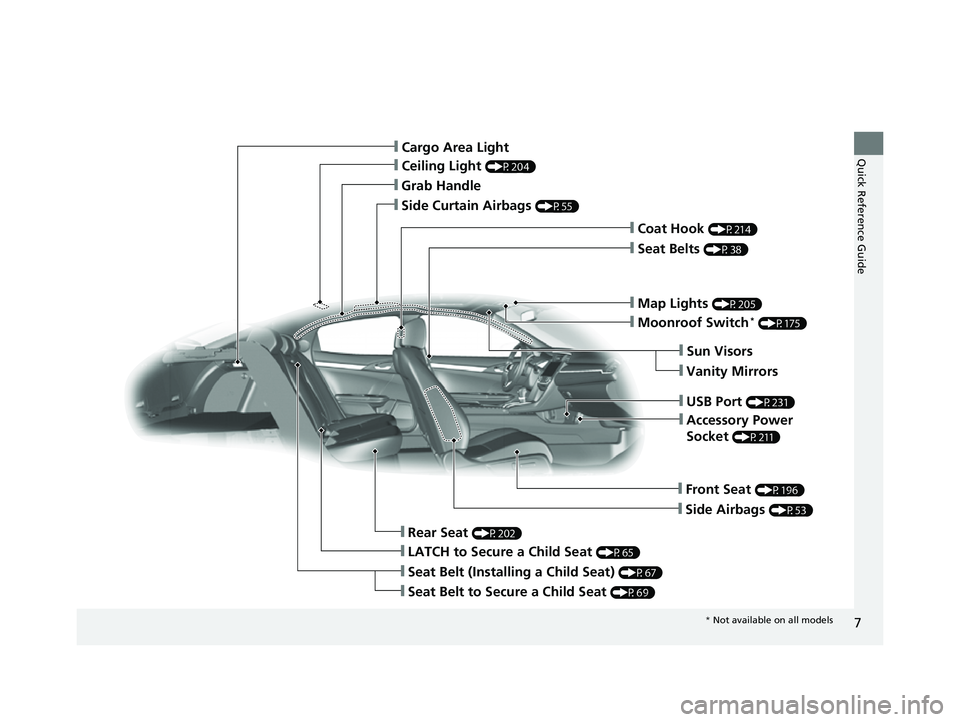
7
Quick Reference Guide
❙Side Curtain Airbags (P55)
❙Ceiling Light (P204)
❙Grab Handle
❙Rear Seat (P202)
❙Seat Belt to Secure a Child Seat (P69)
❙Seat Belt (Installing a Child Seat) (P67)
❙LATCH to Secure a Child Seat (P65)
❙Front Seat (P196)
❙Side Airbags (P53)
❙Accessory Power
Socket
(P211)
❙USB Port (P231)
❙Map Lights (P205)
❙Moonroof Switch* (P175)
❙Seat Belts (P38)
❙Coat Hook (P214)
❙Sun Visors
❙Vanity Mirrors
❙Cargo Area Light
* Not available on all models
18 CIVIC 5D (KA KC KL)-31TGG6100.book 7 ページ 2017年12月27日 水曜日 午前11時2分
Page 231 of 703
229
Features
This chapter describes how to operate technology features.
Audio SystemAbout Your Audio System ................ 230
USB Port(s) ....................................... 231
Audio System Theft Protection ......... 232
Audio Remote Controls .................... 233
Audio System Basic Operation ........ 237
Audio/Information Screen ................ 238
Adjusting the Sound ........................ 242
Display Setup ................................... 243
Playing the AM/FM Radio ................. 244
Playing an iPod ................................ 246
Playing a USB Flash Drive ................. 249
Models with color audio system
Playing Bluetooth ® Audio................. 252
Audio System Basic Operation ........ 255
Audio/Information Screen ................ 256
Adjusting the Sound ........................ 277
Display Setup ................................... 278
Voice Control Operation .................. 280
Playing AM/FM Radio ....................... 284
Playing SiriusXM ® Radio
*................. 288
Playing an iPod ................................ 296
Song By Voice
TM (SBV) ...................... 299
Playing Pandora ®............................. 303
Playing a USB Flash Drive ................. 305
Models with Display AudioPlaying Bluetooth ® Audio ................ 308
HondaLink ®..................................... 310
Wi-Fi Connection ............................. 315
Siri Eyes Free .................................... 317
Apple CarPlay .................................. 318
Android Auto .................................. 321
Audio Error Messages ...................... 325
General Information on the Audio System ............................................. 329
Customized Features ........................ 348
Bluetooth® HandsFreeLink®
*... 381, 407
* Not available on all models
18 CIVIC 5D (KA KC KL)-31TGG6100.book 229 ページ 2017年12月27日 水曜日 午前11時2分
Page 233 of 703
231
uuAudio System uUSB Port(s)
Features
USB Port(s)
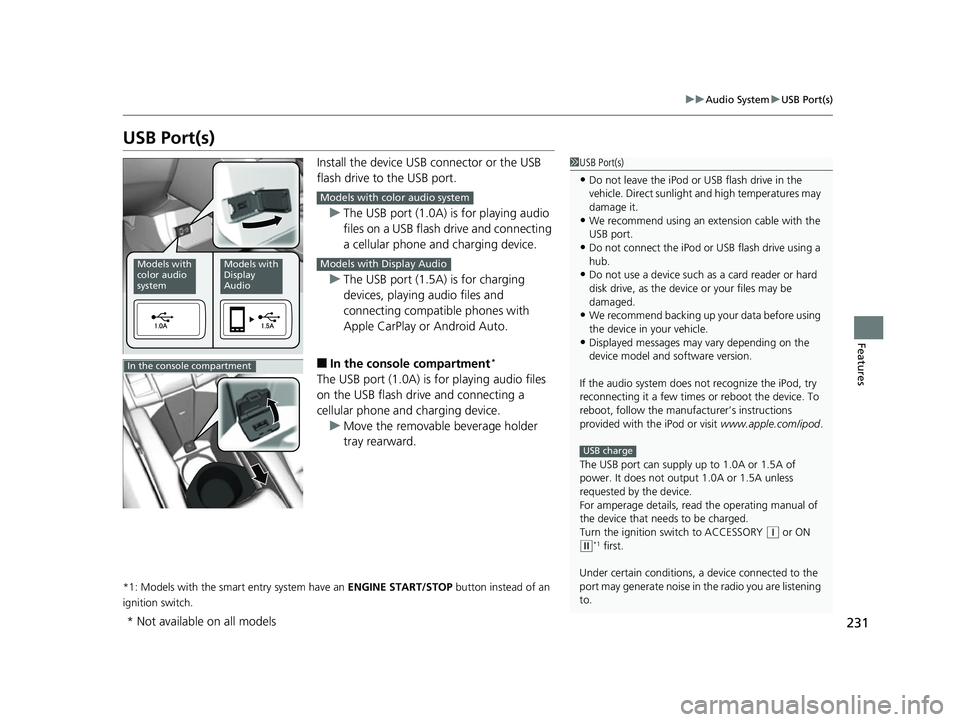
Install the device USB connector or the USB
flash drive to the USB port.
u The USB port (1.0A) is for playing audio
files on a USB flash drive and connecting
a cellular phone and charging device.
u The USB port (1.5A) is for charging
devices, playing audio files and
connecting compatib le phones with
Apple CarPlay or Android Auto.
■In the consol e compartment*
The USB port (1.0A) is for playing audio files
on the USB flash drive and connecting a
cellular phone and charging device.
u Move the removable beverage holder
tray rearward.
*1: Models with the smart entry system have an ENGINE START/STOP button instead of an
ignition switch.
1 USB Port(s)
•Do not leave the iPod or USB flash drive in the
vehicle. Direct sunlight and high temperatures may
damage it.
•We recommend using an ex tension cable with the
USB port.
•Do not connect the iPod or USB flash drive using a
hub.
•Do not use a device such as a card reader or hard
disk drive, as the device or your files may be
damaged.
•We recommend backing up yo ur data before using
the device in your vehicle.
•Displayed messages may vary depending on the
device model and software version.
If the audio system does not recognize the iPod, try
reconnecting it a few times or reboot the device. To
reboot, follow the manufac turer’s instructions
provided with the iPod or visit www.apple.com/ipod.
The USB port can supply up to 1.0A or 1.5A of
power. It does not output 1.0A or 1.5A unless
requested by the device.
For amperage details, read the operating manual of
the device that ne eds to be charged.
Turn the ignition switch to ACCESSORY
( q or ON
(w*1 first.
Under certain condi tions, a device connected to the
port may generate noise in the radio you are listening
to.
USB charge
Models with
color audio
systemModels with
Display
Audio
Models with color audio system
Models with Display Audio
In the console compartment
* Not available on all models
18 CIVIC 5D (KA KC KL)-31TGG6100.book 231 ページ 2017年12月27日 水曜日 午前11時2分
Page 242 of 703
uuAudio System Basic Operation uAudio/Information Screen
240
Features
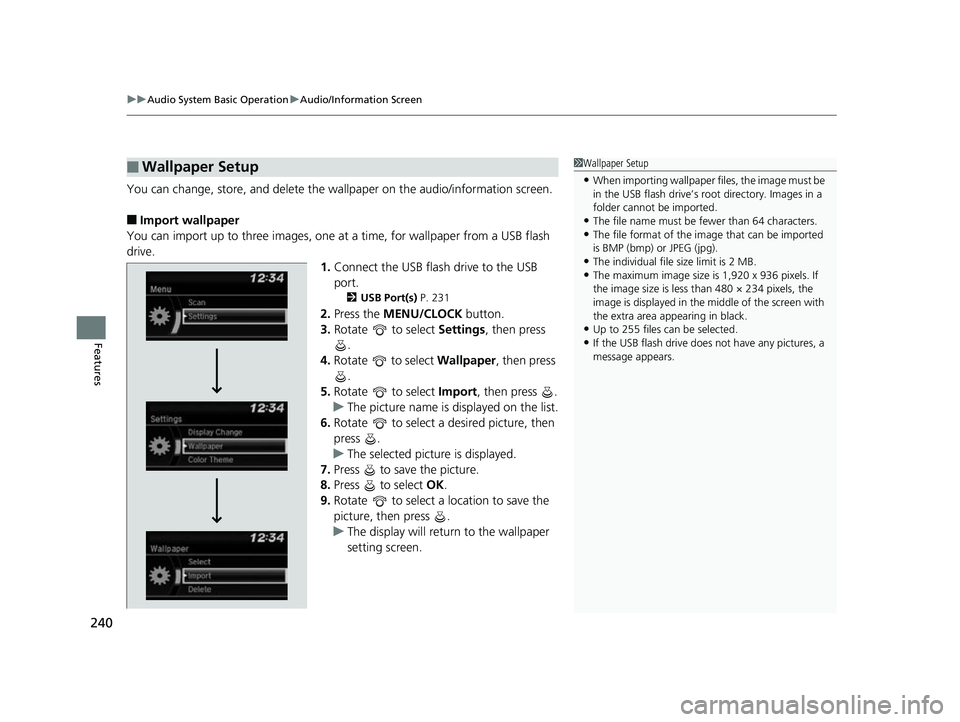
You can change, store, and delete the wallpaper on the audio/information screen.
■Import wallpaper
You can import up to three images, one at a time, for wallpaper from a USB flash
drive.
1.Connect the USB flash drive to the USB
port.
2 USB Port(s) P. 231
2.Press the MENU/CLOCK button.
3. Rotate to select Settings, then press
.
4. Rotate to select Wallpaper , then press
.
5. Rotate to select Import, then press .
u The picture name is displayed on the list.
6. Rotate to select a desired picture, then
press .
u The selected picture is displayed.
7. Press to save the picture.
8. Press to select OK.
9. Rotate to select a location to save the
picture, then press .
u The display will return to the wallpaper
setting screen.
■Wallpaper Setup1Wallpaper Setup
•When importing wallpaper files, the image must be
in the USB flash drive’s root directory. Images in a
folder cannot be imported.
•The file name must be fewer than 64 characters.•The file format of the im age that can be imported
is BMP (bmp) or JPEG (jpg).
•The individual file size limit is 2 MB.•The maximum image size is 1,920 x 936 pixels. If
the image size is less than 480 × 234 pixels, the
image is displayed in the middle of the screen with
the extra area appearing in black.
•Up to 255 files can be selected.
•If the USB flash drive does not have any pictures, a
message appears.
18 CIVIC 5D (KA KC KL)-31TGG6100.book 240 ページ 2017年12月27日 水曜日 午前11時2分
Page 248 of 703
246
uuAudio System Basic Operation uPlaying an iPod
Features
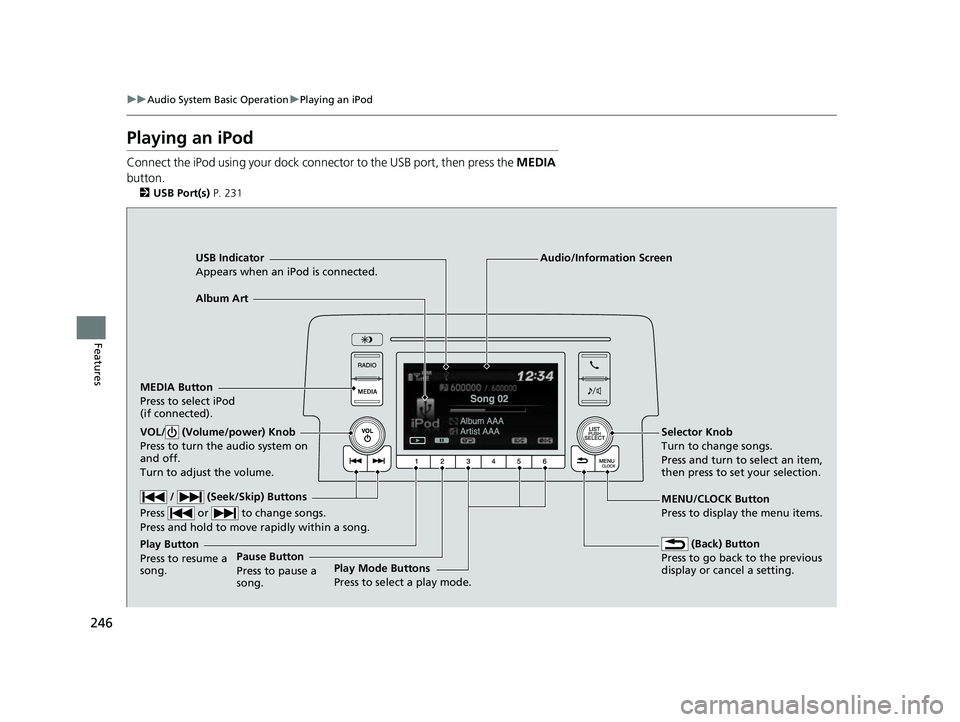
Playing an iPod
Connect the iPod using your dock connector to the USB port, then press the MEDIA
button.
2 USB Port(s) P. 231
USB Indicator
Appears when an iPod is connected.
MEDIA Button
Press to select iPod
(if connected).
(Back) Button
Press to go back to the previous
display or cancel a setting.
/ (Seek/Skip) Buttons
Press or to change songs.
Press and hold to move rapidly within a song.
VOL/ (Volume/power) Knob
Press to turn the audio system on
and off.
Turn to adjust the volume.Selector Knob
Turn to change songs.
Press and turn to select an item,
then press to set your selection.
MENU/CLOCK Button
Press to display the menu items.
Audio/Information Screen
Album Art
Play Mode Buttons
Press to select a play mode.
Play Button
Press to resume a
song.Pause Button
Press to pause a
song.
18 CIVIC 5D (KA KC KL)-31TGG6100.book 246 ページ 2017年12月27日 水曜日 午前11時2分
Page 251 of 703
249
uuAudio System Basic Operation uPlaying a USB Flash Drive
Continued
Features
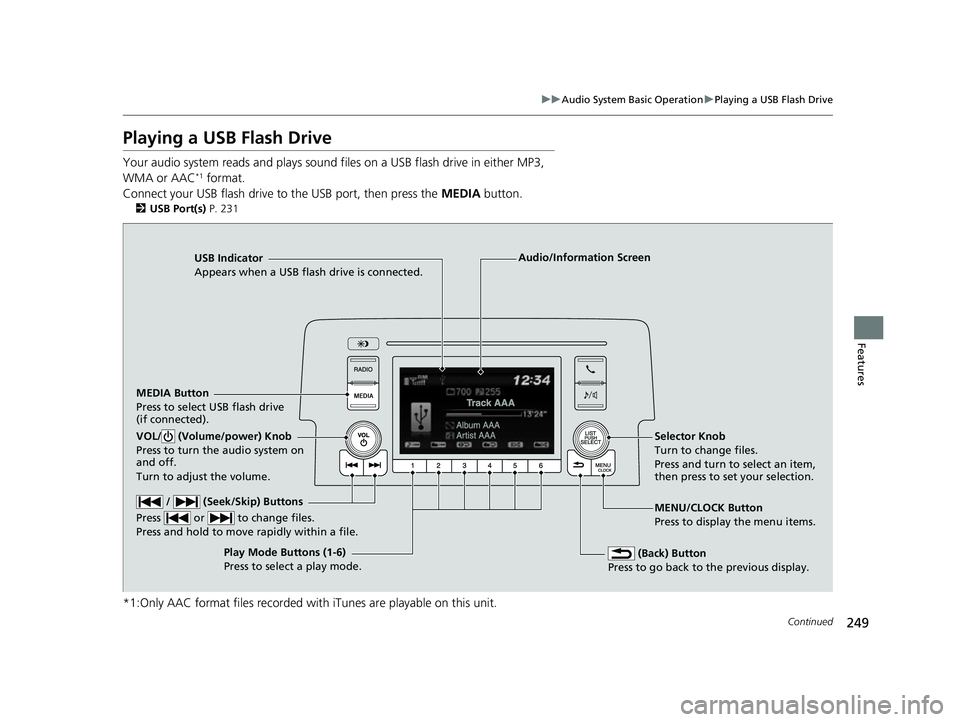
Playing a USB Flash Drive
Your audio system reads and plays sound files on a USB flash drive in either MP3,
WMA or AAC*1 format.
Connect your USB flash drive to the USB port, then press the MEDIA button.
2USB Port(s) P. 231
*1:Only AAC format files recorded with iTunes are playable on this unit.
USB Indicator
Appears when a USB flash drive is connected.
MEDIA Button
Press to select USB flash drive
(if connected).
(Back) Button
Press to go back to the previous display.
/ (Seek/Skip) Buttons
Press or to change files.
Press and hold to move rapidly within a file.
VOL/ (Volume/power) Knob
Press to turn the audio system on
and off.
Turn to adjust the volume.Selector Knob
Turn to change files.
Press and turn to select an item,
then press to set your selection.
MENU/CLOCK Button
Press to display the menu items.
Audio/Information Screen
Play Mode Buttons (1-6)
Press to select a play mode.
18 CIVIC 5D (KA KC KL)-31TGG6100.book 249 ページ 2017年12月27日 水曜日 午前11時2分
Page 255 of 703
Continued253
uuAudio System Basic Operation uPlaying Bluetooth ® Audio
Features
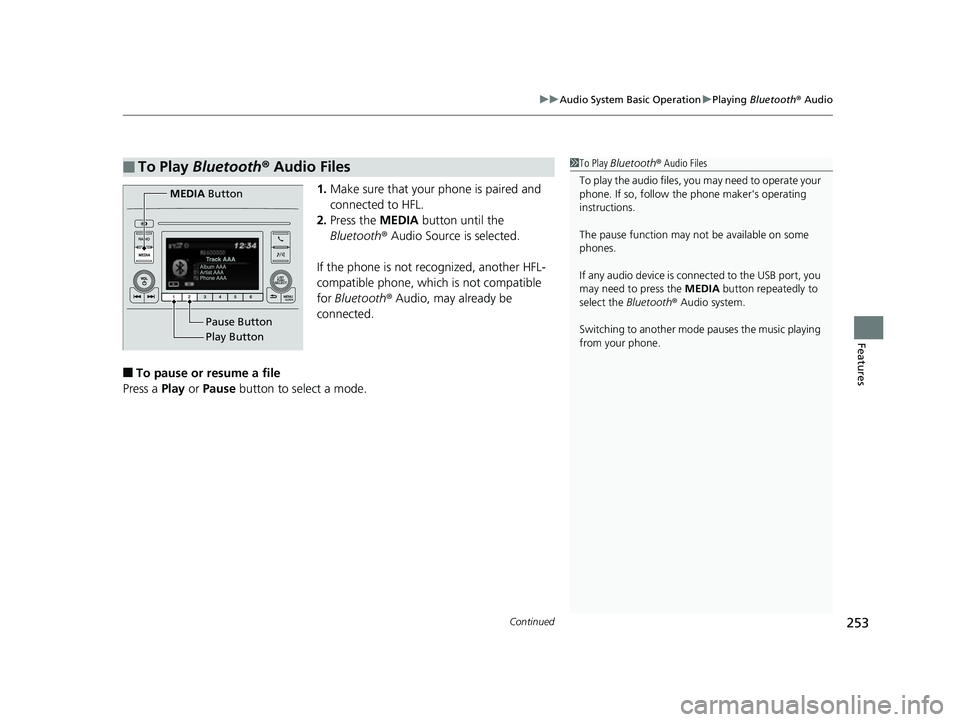
1. Make sure that your phone is paired and
connected to HFL.
2. Press the MEDIA button until the
Bluetooth ® Audio Source is selected.
If the phone is not recognized, another HFL-
compatible phone, which is not compatible
for Bluetooth ® Audio, may already be
connected.
■To pause or resume a file
Press a Play or Pause button to select a mode.
■To Play Bluetooth ® Audio Files1 To Play Bluetooth ® Audio Files
To play the audio files, y ou may need to operate your
phone. If so, follow the phone maker's operating
instructions.
The pause function may no t be available on some
phones.
If any audio device is connected to the USB port, you
may need to press the MEDIA button repeatedly to
select the Bluetooth ® Audio system.
Switching to another mode pauses the music playing
from your phone.
Play Button Pause Button
MEDIA
Button
18 CIVIC 5D (KA KC KL)-31TGG6100.book 253 ページ 2017年12月27日 水曜日 午前11時2分
Page 266 of 703
uuAudio System Basic Operation uAudio/Information Screen
264
Features
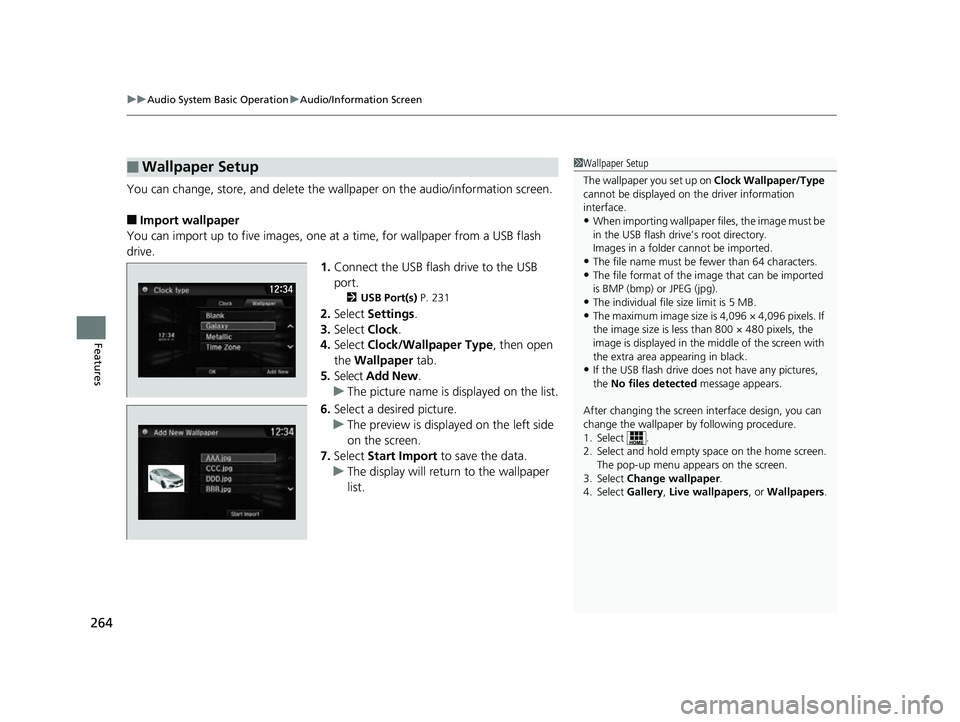
You can change, store, and delete the wallpaper on the audio/information screen.
■Import wallpaper
You can import up to five images, one at a time, for wallpaper from a USB flash
drive.
1.Connect the USB flash drive to the USB
port.
2 USB Port(s) P. 231
2.Select Settings .
3. Select Clock.
4. Select Clock/Wallpaper Type , then open
the Wallpaper tab.
5. Select Add New .
u The picture name is displayed on the list.
6. Select a desired picture.
u The preview is displayed on the left side
on the screen.
7. Select Start Import to save the data.
u The display will return to the wallpaper
list.
■Wallpaper Setup1Wallpaper Setup
The wallpaper you set up on Clock Wallpaper/Type
cannot be displayed on th e driver information
interface.
•When importing wallpaper files, the image must be
in the USB flash driv e’s root directory.
Images in a folder cannot be imported.
•The file name must be fewer than 64 characters.•The file format of the im age that can be imported
is BMP (bmp) or JPEG (jpg).
•The individual file size limit is 5 MB.•The maximum image size is 4,096 × 4,096 pixels. If
the image size is less than 800 × 480 pixels, the
image is displayed in the middle of the screen with
the extra area appearing in black.
•If the USB flash drive doe s not have any pictures,
the No files detected message appears.
After changing the screen interface design, you can
change the wallpaper by following procedure.
1. Select .
2. Select and hold empty space on the home screen. The pop-up menu appears on the screen.
3. Select Change wallpaper .
4. Select Gallery, Live wallpapers , or Wallpapers.
18 CIVIC 5D (KA KC KL)-31TGG6100.book 264 ページ 2017年12月27日 水曜日 午前11時2分
Page 283 of 703
281
uuAudio System Basic Operation uVoice Control Operation
Continued
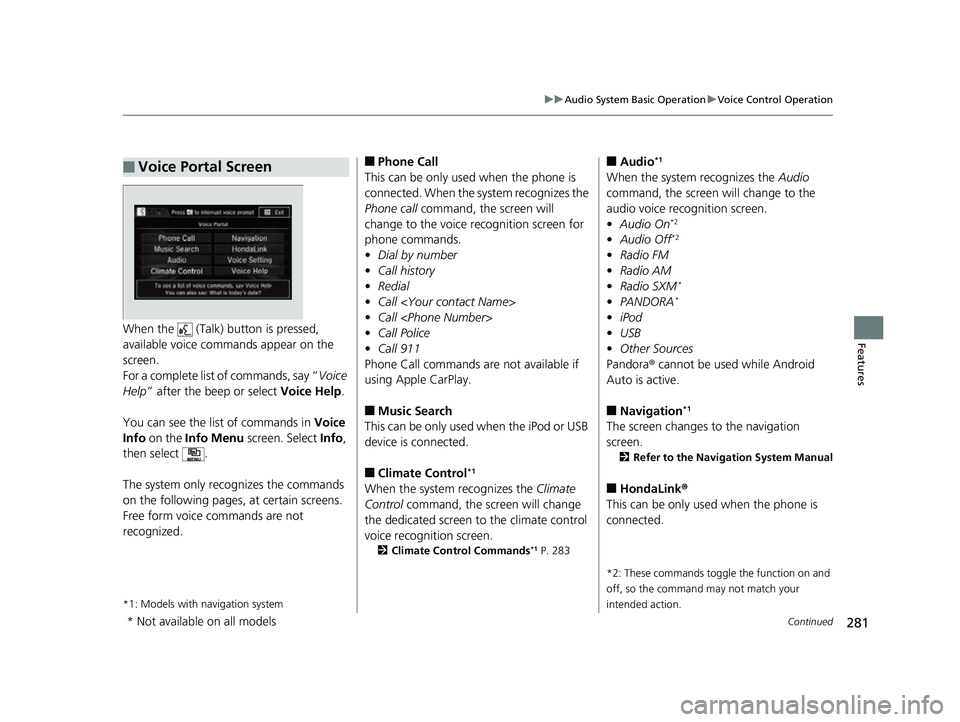
FeaturesWhen the (Talk) button is pressed,
available voice comma nds appear on the
screen.
For a complete list of commands, say “ Voice
Help ” after the beep or select Voice Help.
You can see the list of commands in Voice
Info on the Info Menu screen. Select Info,
then select .
The system only recognizes the commands
on the following pages, at certain screens.
Free form voice commands are not
recognized.
*1: Models with navigation system
■Voice Portal Screen■Phone Call
This can be only used when the phone is
connected. When the sy stem recognizes the
Phone call command, the screen will
change to the voice re cognition screen for
phone commands.
• Dial by number
• Call history
• Redial
• Call
• Call
• Call Police
• Call 911
Phone Call commands are not available if
using Apple CarPlay.
■Music Search
This can be only used when the iPod or USB
device is connected.
■Climate Control*1
When the system recognizes the Climate
Control command, the screen will change
the dedicated screen to the climate control
voice recognition screen.
2 Climate Control Commands*1 P. 283
■Audio*1
When the system recognizes the Audio
command, the screen will change to the
audio voice recognition screen.
• Audio On
*2
•Audio Off*2
•Radio FM
• Radio AM
• Radio SXM
*
•PANDORA*
•iPod
• USB
• Other Sources
Pandora ® cannot be used while Android
Auto is active.
■Navigation*1
The screen changes to the navigation
screen.
2 Refer to the Navigation System Manual
■HondaLink ®
This can be only used when the phone is
connected.
*2: These commands toggle the function on and
off, so the command may not match your
intended action.
* Not available on all models
18 CIVIC 5D (KA KC KL)-31TGG6100.book 281 ページ 2017年12月27日 水曜日 午前11時2分