radio HONDA CIVIC HYBRID 2012 9.G Navigation Manual
[x] Cancel search | Manufacturer: HONDA, Model Year: 2012, Model line: CIVIC HYBRID, Model: HONDA CIVIC HYBRID 2012 9.GPages: 204, PDF Size: 7.5 MB
Page 122 of 204
121
Audio
Playing XM® Radio
Selecting XM Mode
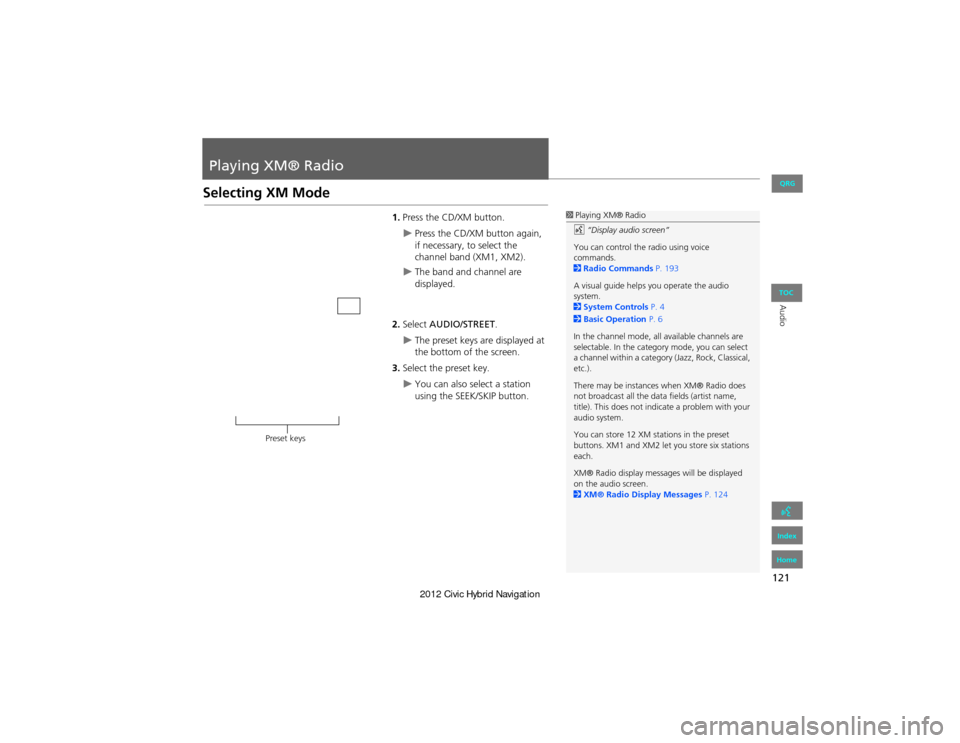
1.Press the CD/XM button.
Press the CD/XM button again,
if necessary, to select the
channel band (XM1, XM2).
The band and channel are
displayed.
2. Select AUDIO/STREET .
The preset keys are displayed at
the bottom of the screen.
3. Select the preset key.
You can also select a station
using the SEEK/SKIP button.
1Playing XM® Radio
d “Display audio screen”
You can control the radio using voice
commands.
2 Radio Commands P. 193
A visual guide helps you operate the audio
system.
2 System Controls P. 4
2 Basic Operation P. 6
In the channel mode, all available channels are
selectable. In the catego ry mode, you can select
a channel within a category (Jazz, Rock, Classical,
etc.).
There may be instances when XM® Radio does
not broadcast all the data fields (artist name,
title). This does not indica te a problem with your
audio system.
You can store 12 XM stations in the preset
buttons. XM1 and XM2 let you store six stations
each.
XM® Radio display messag es will be displayed
on the audio screen.
2 XM® Radio Display Messages P. 124
Preset keys
QRG
Index
Home
TOC
Page 123 of 204
122
Playing XM® RadioAudio Screen Control
Audio
Audio Screen Control
HAUDIO button (in XM mode)
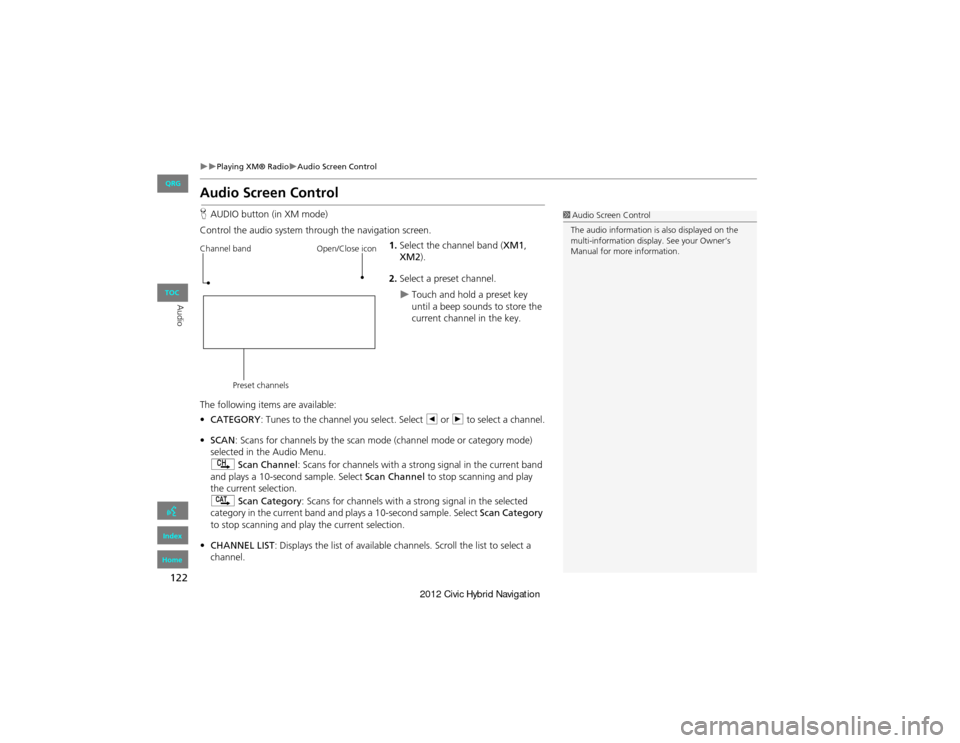
Control the audio system through the navigation screen. 1.Select the channel band ( XM1,
XM2).
2. Select a preset channel.
Touch and hold a preset key
until a beep sounds to store the
current channel in the key.
The following items are available:
• CATEGORY : Tunes to the channel you select. Select b or n to select a channel.
• SCAN: Scans for channels by the scan mode (channel mode or category mode)
selected in the Audio Menu.
) Scan Channel: Scans for channels with a stro ng signal in the current band
and plays a 10-second sample. Select Scan Channel to stop scanning and play
the current selection.
A Scan Category : Scans for channels with a s trong signal in the selected
category in the current band an d plays a 10-second sample. Select Scan Category
to stop scanning and play the current selection.
• CHANNEL LIST : Displays the list of available channels. Scroll the list to select a
channel.
1 Audio Screen Control
The audio information is also displayed on the
multi-information display. See your Owner’s
Manual for more information.
Channel band
Preset channels Open/Close icon
QRG
Index
Home
TOC
Page 124 of 204
123
Playing XM® RadioAudio Menu
Audio
•AUDIO MENU : Sets the receiving mode (channel or category) and sound
preferences.
2 Audio Menu P. 123
• SOURCE : Changes the source mode.
• Open/Close icon: Displays/hides the detailed information.
Audio Menu
HAUDIO button (in XM mode) AUDIO MENU
Select an item.
The following items are available:
• MODE: Sets CH (channel mode) or CAT (category mode) scan mode.
• Sound: Displays the sound preferences screen.
2 Adjusting the Sound P. 140
QRG
Index
Home
TOC
Page 125 of 204
124
Playing XM® RadioXM® Radio Service
Audio
XM® Radio Service
1.Retrieve your radio ID before registering for subscription.
To see the radio ID, press the U (SEEK/SKIP) button to select “000” channel.
You can also select “000” channel from CHANNEL LIST.
2. Have your radio ID and credit card number ready, and either call XM or visit the
XM website to subscribe.
Press the XM button and stay in this mode for about 30 minutes until the service is
activated. Make sure your vehicle is in an open area with good reception.
Loading : XM is loading the audio or program information.
Channel Off Air : The channel is not currently broadcasting.
Channel Not Authorized : The encryption code is being updated. Channels 0 and 1
still work normally.
No Signal : The signal is too weak in the current location.
Channel Not Available : No such channel exists, the channel is not part of your
subscription, or the artist or title information is not available.
Check Antenna : There is a problem with the XM antenna. Contact a dealer.
■Subscribing to XM® Radio
■Receiving XM® Radio
■XM® Radio Display Messages
1 Subscribing to XM® Radio
Contact Information for XM® Radio:
U.S.: XM® Radio at www.xmradio.com, or
(800) 852-9696
Canada : XM Canada at www.xmradio.ca , or
(877) 209-0079
1 Receiving XM® Radio
The XM satellites are in orbit over the equator;
therefore, objects south of the vehicle may cause
satellite reception interru ptions. Satellite signals
are more likely to be blocked by tall buildings
and mountains the farther north you travel from
the equator.
You may experience rece ption problems under
the following circumstances:
•In a location with an obstruction to the south
of your vehicle
•In tunnels
•On the lower level of a multi-tiered road
•Large items are carried on the roof rack
QRG
Index
Home
TOC
Page 181 of 204
180
Reference Information
System Initialization
The navigation system must be initialized if
power to the navigation system is
interrupted for any reason (e.g., the
battery was disconnected).
Entering the Security Code
Find the navigation system’s security code
and serial number label in your Owner’s
Manual kit. Do not store the label in your
vehicle. If you lose the label, you must first
retrieve the serial number, and then obtain
the code. You can find out about your
serial number and security code from a
dealer.
1.Turn the ignition switch to ON (II), and
turn on the audio system.
If you turn the ignition switch to
ACCESSORY (I), and you will
requested to enter the security code.
See step 3.
2. Press and hold the VOL 9 (Volume/
Power) button for more than two
seconds.
The system is reactivated when the
system’s control un it recognizes that
the system is in your vehicle.
If the control unit fails to recognize,
“ENTER CODE” appears on the
navigation screen.
3. Enter the security code.
If you do not enter the security code
correctly after 10 tries, leave the
system for one hour before trying
again, or visit a dealer to have the
system reset.
NOTE:
In the U.S., you can register the security
code on Owner Link (owners.honda.com.) .
To find information on how to retrieve the
serial number and obtain the code, visit
radio-navicode.honda.com .
Acquiring GPS Information
Depending on the length of time the
power was interrupted, your system may
require GPS initialization.
If initialization is not necessary, the system
proceeds directly to the Startup
Confirmation screen.
If the system fails to locate a sufficient
number of satellites to locate your position
within 10 minutes, the following screen is
displayed.
QRG
Index
Home
TOC
Page 187 of 204
186
Customer AssistanceTraffic Information
Reference Information
Traffic Information
•Continuously updated traffic
information is available in major
metropolitan areas across the 48
contiguous states and Hawaii.
• Visit automobiles.honda.com /traffic for
a complete listing of coverage areas and
other information.
Operation in Alaska,
Hawaii, Canada, and
Puerto Rico
Navigation-equipped vehicles delivered to
Alaska, Hawaii, Canada, and Puerto Rico
are equipped with XM hardware, but XM
broadcasting is not available. There are
certain functions that rely on XM satellite
signal coverage which are not available.
Unavailable menu options will appear gray
on the LCD display.
All roads displayed on the map screens are
verified roads. Inform ation in this manual
relating to “unverifie d” roads or areas is
not applicable.
■ XM® Radio
■Map Coverage
Entering a destination address or place/
landmark on another island may result in a
screen caution message. This is because
there are no ferry ro utes between islands
in the database.
Shipping a Vehicle to the
U.S. Mainland
To receive XM audio, you must call XM
and set up an account at (800) 852-9696.
■ Address and Place Entry
Screens
QRG
Index
Home
TOC
Page 194 of 204
193
Voice CommandsAudio Commands
Voice Commands
Passenger temperature # degrees (#: 57
to 87 °F/15 to 29 °C)
Temperature up
Temperature down
Temperature max hot
Temperature max cold
Driver temperature max hot
Driver temperature max cold
Front climate control automatic
Front climate control offAudio Commands
The system accepts these commands on
most screens.
Audio on*
Audio off *
Radio on *
Radio off *
Radio select FM1
Radio select FM2
Radio select AM
Radio tune to # FM (#: frequency,
Radio tune to # AM (#: frequency,
Radio seek up
Radio seek down
Radio next station
Radio preset # (#: 1 to 6)
Radio FM preset # (#: 1 to 6)
Radio FM1 preset # (#: 1 to 6)
Radio FM2 preset # (#: 1 to 6)
Radio AM preset # (#: 1 to 6)
Radio auto select * Radio scan
*
Radio select XM1
■ Radio Commands
Radio select XM2
XM channel # (#: 1 to 255)
XM channel up
XM channel down
XM category up
XM category down
XM preset # (#: 1 to 6)
XM1 preset # (#: 1 to 6)
XM2 preset # (#: 1 to 6)
XM scan *
XM category scan *
XM channel scan *
XM category mode
XM channel mode
NOTE:
Radio volume levels cannot be controlled
using voice control.
so the command may not match your intended action.
These commands toggle the function on and off,
*
e.g., 95.5)
e.g., 1020)
so the command may not match your intended action.
These commands toggle the function on and off,
*
QRG
Index
Home
Page 201 of 204

200
Index
Symbols
bn (Channel) Button ............................142a (Display Mode) Button ......................26! (Display/Information) Button ....5, 142J (Hang-Up/Back) Button .......5, 19, 159h (Pick-Up) Button ......................5, 159, 160d (Talk) Button ...................................... 5, 19NB (Volume) Button .............................142
A
A.SEL (Auto Select) .................................... 117Add to Address Book ..........................77, 112Add to Dest. List ..........77, 106, 110, 111, 112Address
Editing Address Book ................................. 32Editing Avoid Area ...................................... 44Setting Destination .....................................58Address Book
Editing Address Book ................................. 30Setting Destination ..................................... 63Address Book PIN ......................................... 36Adjust Time ................................................... 47Advanced (Place Category) ........................67Audio ........................................................... 113Basic Operation .............................................6Remote Control ........................................141Sound Setup ............................................. 140Voice Commands List ...............................193AUDIO Button ................................................ 4Audio Menu
Bluetooth ® Audio .................................... 139FM/AM Radio ............................................ 118XM® Radio ............................................... 123
Auto Answer .............................................. 155Auto Daylight .............................................. 46Auto Service (Place Category) ...................67Auto Time Zone .......................................... 46Auto Transfer ............................................ 155AUX
Input Jack ................................................. 114Voice Commands List ..............................195Avoid Streets .............................................. 102
B
Banking (Place Category) ...........................67Basic Settings ......................................... 23, 24Black Level .................................................... 21Bluetooth Setup ........................................155Bluetooth Connection ..............................155Bluetooth® Audio
Playing ...................................................... 137Voice Commands List ..............................195Bluetooth® HandsFreeLink® ..................143Editing Phone Info ................................... 154Making a Call ........................................... 155Pairing a Phone ........................................146Phone Setup ............................................. 155Receiving a Call ........................................159Setting Speed Dials ..................................151Brightness ............................................... 21, 26
C
Call
Calculate Route Screen ...................... 77, 112Call History ................................................. 158Cancel Route ..............................................102
Category
Editing Address Book ................................. 32Place Category List ................................... 199Setting Destination ..................................... 67CD/XM Button .......6, 121, 125, 130, 134, 137Change Language ....................................... 18Change Route Preference ..........................78Change State ................................................ 59Channel List ................................................ 122City ................................................................ 60City Vicinity
Setting Destination ..................................... 68Clear All Speed Dial .................................... 53Clock Adjustment ........................................ 46Adjust Time ................................................ 47Auto Daylight .............................................46Auto Time Zone ..........................................46Clock Format .............................................. 46Resetting .................................................... 47Clock Format ................................................ 46Clock Type .................................................... 48Color .............................................................. 24Map Color ..................................................25Menu Color ................................................25Community (Place Category) .....................67Connect (Phone) ........................................ 154Continue Trip ............................................. 112Contrast ........................................................ 21Coordinate ................................................... 73Correct Vehicle Position .............................51Current Location .......................................... 98Current Position
Editing Address Book ................................. 32Setting Destination ..................................... 75
QRG
Index
Home
A B C D E F G H I J K L M N O P Q R S T U V W X Y Z
Page 202 of 204

201
D
Day ModeMap Color .................................................. 25Menu Color ................................................25Switching Display Mode .............................26Delete this Phone ...................................... 149DEST Button
Changing Route ....................................... 101Entering a Destination ................................56DEST Menu 1 ................................................ 56DEST Menu 2 ................................................ 56Destination Map .......................................... 79Detour ......................................................... 102Dial .............................................................. 157Directions ...................................................... 88Disc
Playing ...................................................... 125Voice Commands List ...............................194Display Voice Command Tips .....................23
E
Edit Avoid Area ........................................... 43Edit Speed Dial ........................................... 151Edit Waypoint Search Area ........................ 45Emergency (Place Category) ......................67Error Messages ........................................... 174Disc Player ................................................ 175iPod® ........................................................ 176Navigation System ....................................174USB Flash Drive ......................................... 177Exit Info. ....................................................... 89
F
Favorite Subcategory ..................................69Find Nearest... ............................................ 108FM/AM Button ....................................... 6, 116FM/AM Radio
Playing ...................................................... 116Voice Commands List ...............................193Folder List
Disc ........................................................... 127USB Flash Drive .........................................136
G
Go Home 1 .................................................... 10Go Home 1 PIN ............................................. 36Go Home 2 .................................................... 10Go Home 2 PIN ............................................. 36Guidance Menu ............................................ 87Directions .................................................... 88Exit Info ....................................................... 89Guidance Mode ..........................................90Guidance Mode ............................................ 90Guidance Prompts ....................................... 22
H
Heading-up ................................................... 97Home Address 1 ..................................... 10, 35Home Address 2 ..................................... 10, 35Honda Customer Services .........................184
I
Icon Option .................................................. 93Intersection ..................................................74iPod®
Connecting, Disconnecting ............. 129, 133Playing ...................................................... 129Voice Commands List ..............................194
K
keyboard Layout ......................................... 23
L
Language ..................................................... 28Leisure (Place Category) .............................67Lodging (Place Category) ...........................67
M
Map Color .................................................... 25Map Input
Editing Avoid Area ..................................... 44Setting Destination ....................................75Map Legend ............................................. 7, 94Map Menu ................................................... 85Map Screen ..................................................80Icon ..................................................7, 92, 96Orientation .................................................97Scale ........................................................... 95Map Update
Checking Version ..................................... 165Obtaining Update Data ............................185Viewing Update Status ............................165
QRG
Index
Home
IndexA B C D E F G H I J K L M N O P Q R S T U V W X Y Z
Page 203 of 204

202
MAP/GUIDE Button .................................. 8, 90Menu (DEST Menu 1) ..................................56Menu (DEST Menu 2) ..................................56Menu (Route) ............................................. 101Menu Color ...................................................25Mode ........................................................... 123Music Search
iPod® ........................................................ 132Mute ............................................................ 159My Destination
Adding Waypoint ..................................... 103Editing ....................................................... 107
N
Night Mode
Map Color ................................................... 25Menu Color ................................................25Switching Display Mode .............................26North-up ....................................................... 97
O
Off-road Tracking
Driving ........................................................ 83Setting ........................................................50
P
Pair Phone ................................................... 146Pairing Code ............................................... 148Personal Information ..................................29Phone
Voice Commands List ...............................195PHONE Button ................................................ 4
Phone Setup ............................................... 144Phonebook
Making a Call ........................................... 157PIN Numbers
Personal Info .............................................. 36Phone ....................................................... 154Place Category
Editing Address Book ................................. 32Place Category List ................................... 199Setting Destination .................................... 67Place Name
Editing Address Book ................................. 32Setting Destination ..............................65, 68Place Phone No.
Editing Address Book ................................. 32Setting Destination .................................... 72Previous Destination
Deleting ...................................................... 38Editing Address Book .................................32Setting Destination .................................... 64
R
Radio
FM/AM ..................................................... 116XM® ........................................................ 121Random (Pairing Code) ............................148RDS Search ................................................. 119Read Radio Text ........................................ 120Recalculation ......................................... 40, 83Repeat
iPod® ....................................................... 131USB Flash Drive ........................................136Replace this Phone .................................... 154Rerouting ..................................................... 40
Reset Clock Settings .................................... 47Reset Factory Default ..................................52Restaurant (Place Category) ...................... 67Route (Menu) ............................................. 101Route Pref. ................................................... 78Routing & Guidance .................................... 39
S
Scan
Disc ........................................................... 126FM/AM Radio ...........................................117USB Flash Drive .........................................135Scan Category ............................................ 122Scan Channel .............................................. 122Search by Keyword ...................................... 68Security PIN Code ...................................... 180SEEK/SKIP Button ........................................... 4Shopping (Place Category) .........................67Show Icon on Map ...................................... 92Single Screen ................................................ 90Sort by Distance to Travel ..........................68Sound Setup ............................................... 140SOURCE Button .......................................... 141Speed Dial
Making a Call ........................................... 158Registering ................................................ 151Split Screen ................................................... 91Street ............................................................. 61System/Device Information ......................165
QRG
Index
Home
IndexA B C D E F G H I J K L M N O P Q R S T U V W X Y Z