instrument panel HONDA CIVIC HYBRID 2012 9.G Owner's Manual
[x] Cancel search | Manufacturer: HONDA, Model Year: 2012, Model line: CIVIC HYBRID, Model: HONDA CIVIC HYBRID 2012 9.GPages: 313, PDF Size: 8.65 MB
Page 86 of 313
Continued
85
uuGauges and Multi-Information Display uMulti-Information Display
Instrument Panel
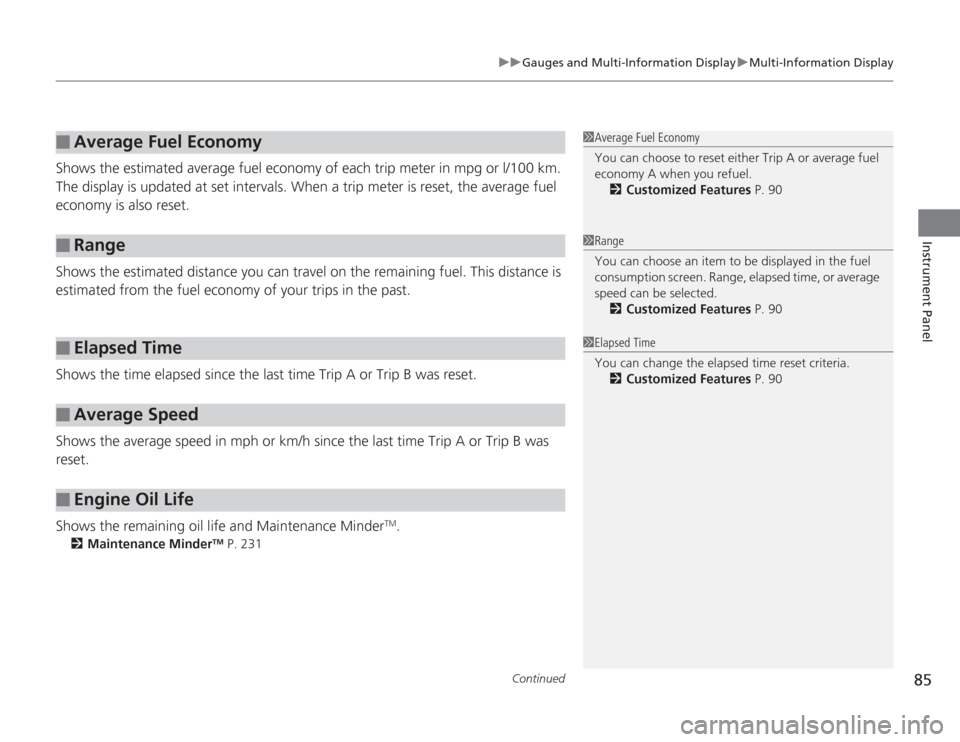
Shows the estimated average fuel economy of each trip meter in mpg or l/100 km.
The display is updated at set intervals. When a trip meter is reset, the average fuel
economy is also reset.
Shows the estimated distance you can travel on the remaining fuel. This distance is
estimated from the fuel economy of your trips in the past.
Shows the time elapsed since the last time Trip A or Trip B was reset.
Shows the average speed in mph or km/h since the last time Trip A or Trip B was
reset.
Shows the remaining oil life and Maintenance Minder
TM.
2 Maintenance Minder
TM P. 231
■
Average Fuel Economy
■
Range
■
Elapsed Time
■
Average Speed
■
Engine Oil Life
1Average Fuel Economy
You can choose to reset either Trip A or average fuel
economy A when you refuel.
2 Customized Features P. 901Range
You can choose an item to be displayed in the fuel
consumption screen. Range, elapsed time, or average
speed can be selected.
2 Customized Features P. 901Elapsed Time
You can change the elapsed time reset criteria.
2 Customized Features P. 90
Page 87 of 313
uuGauges and Multi- Information Display uMulti-Information Display
86Instrument Panel
Shows the outside temperature in Fahrenheit (U.S.) or Celsius (Canada).■
Adjusting the outside temperature display
Adjust the temperature reading up to ±5°F or ±3°C if the temperature reading
seems incorrect.
Shows the instant fuel economy as a bar graph in mpg or l/100 km.
Shows you turn-by-turn driving directions to your destination linked with the
navigation system.2 Refer to the navigation system manual
■
Outside Temperature
■
Instant Fuel Economy
■
Turn-by-Turn Direction
*
1Outside Temperature
The temperature sensor is in the front bumper.
Road heat and exhaust from another vehicle can
affect the temperature reading when your vehicle
speed is less than 19 mph (30 km/h).
It may take several mi nutes for the display to be
updated after the temperature reading has stabilized.
Use the multi-information display's customized
features to corre ct the temperature.
2 Customized Features P. 901Turn-by-Turn Direction
You can select whether the turn-by-turn display
comes on or not during the route guidance.
2 Customized Features P. 90
* Not available on all models
Page 88 of 313
87
uuGauges and Multi-Information Display uMulti-Information Display
Continued
Instrument Panel
■
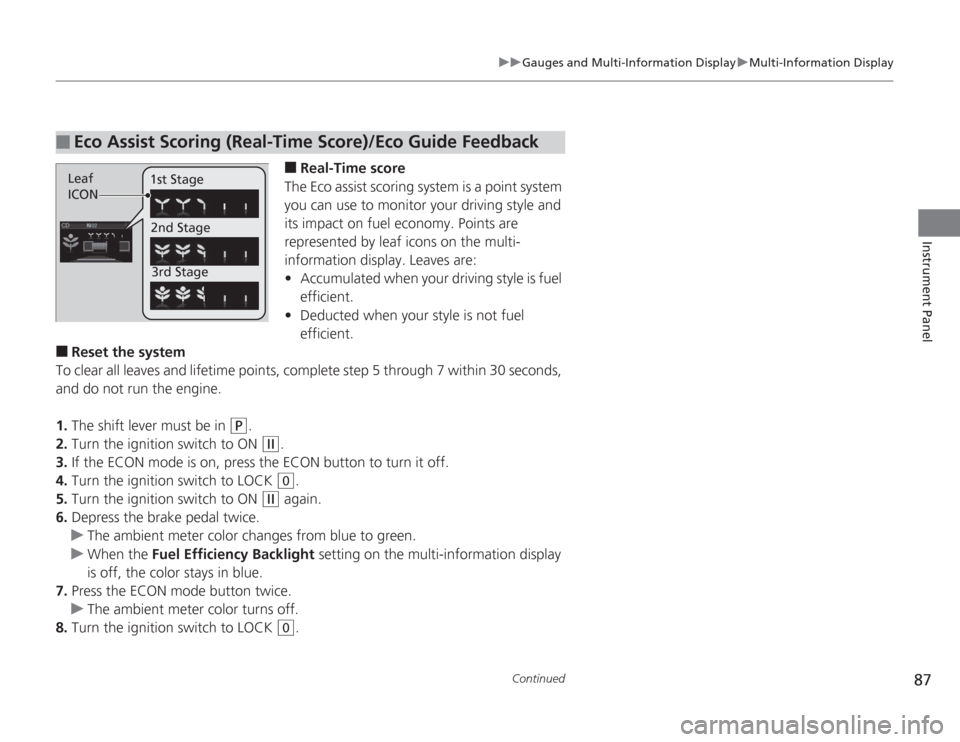
Real-Time score
The Eco assist scoring system is a point system
you can use to monitor your driving style and
its impact on fuel economy. Points are
represented by leaf icons on the multi-
information display. Leaves are:
• Accumulated when your driving style is fuel
efficient.
• Deducted when your style is not fuel
efficient.
■
Reset the system
To clear all leaves and lifetime points, complete step 5 through 7 within 30 seconds,
and do not run the engine.
1. The shift lever must be in
(P
.
2. Turn the ignition switch to ON
(w
.
3. If the ECON mode is on, press the ECON button to turn it off.
4. Turn the ignition switch to LOCK (0
.
5. Turn the ignition switch to ON
(w
again.
6. Depress the brake pedal twice.
u The ambient meter color changes from blue to green.
u When the Fuel Efficiency Backlight setting on the multi-information display
is off, the color stays in blue.
7. Press the ECON mode button twice.
u The ambient meter color turns off.
8. Turn the ignition switch to LOCK (0
.
■
Eco Assist Scoring (Real-Time Score)/Eco Guide FeedbackLeaf
ICON 1st Stage
2nd Stage3rd Stage
Page 89 of 313
uuGauges and Multi- Information Display uMulti-Information Display
88Instrument Panel
■
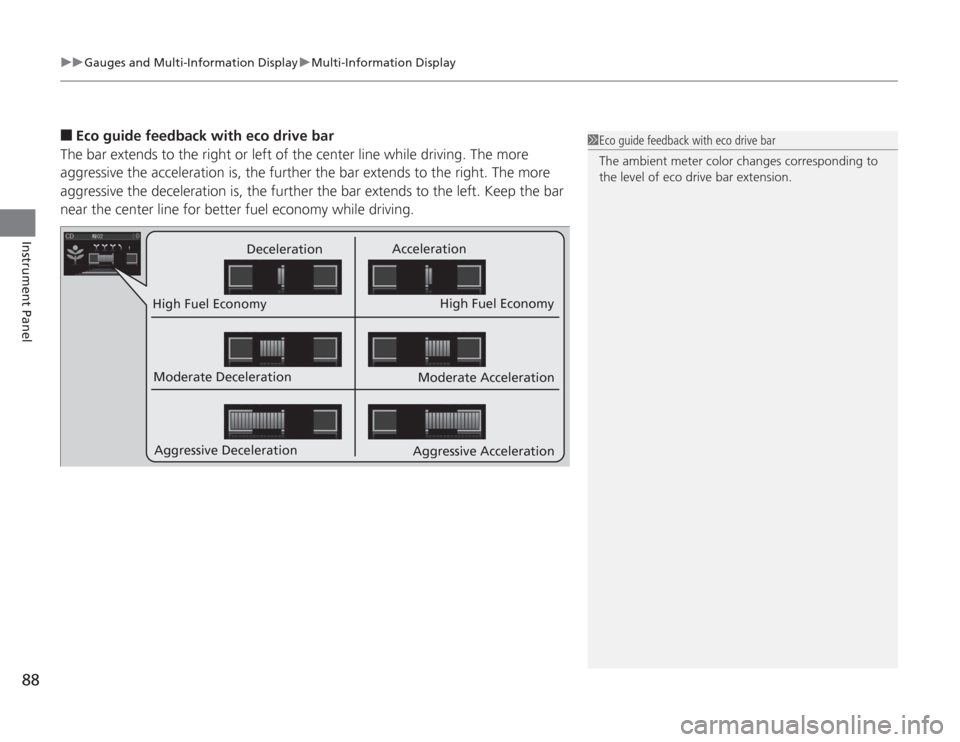
Eco guide feedback with eco drive bar
The bar extends to the right or left of the center line while driving. The more
aggressive the acceleration is, the further the bar extends to the right. The more
aggressive the deceleration is, the further the bar extends to the left. Keep the bar
near the center line for better fuel economy while driving.
Deceleration Acceleration
High Fuel Economy High Fuel Economy
Moderate Deceleration
Aggressive Deceleration Moderate Acceleration
Aggressive Acceleration
1 Eco guide feedback with eco drive bar
The ambient meter color changes corresponding to
the level of eco drive bar extension.
Page 90 of 313
Continued
89
uuGauges and Multi-Information Display uMulti-Information Display
Instrument Panel
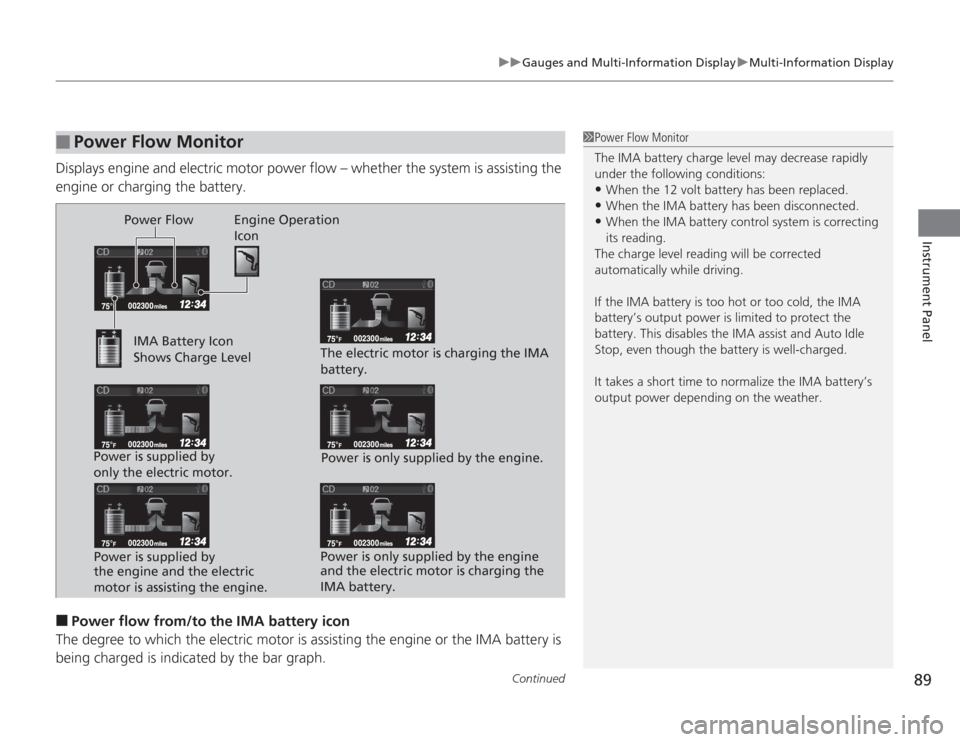
Displays engine and electric motor power flow – whether the system is assisting the
engine or charging the battery.■
Power flow from/to the IMA battery icon
The degree to which the electric motor is assisting the engine or the IMA battery is being charged is indica ted by the bar graph.
■
Power Flow Monitor
1Power Flow Monitor
The IMA battery charge level may decrease rapidly
under the following conditions:•When the 12 volt battery has been replaced.•When the IMA battery has been disconnected.•When the IMA battery control system is correcting
its reading.
The charge level reading will be corrected
automatically while driving.
If the IMA battery is too hot or too cold, the IMA
battery’s output power is limited to protect the
battery. This disables the IMA assist and Auto Idle
Stop, even though the battery is well-charged.
It takes a short time to normalize the IMA battery’s
output power depending on the weather.
Power Flow Engine Operation Icon
IMA Battery Icon
Shows Charge Level
Power is supplied by
only the electric motor. Power is supplied by
the engine and the electric
motor is assisting the engine. The electric motor is charging the IMA
battery.
Power is only supplied by the engine.
Power is only supplied by the engine
and the electric motor is charging the
IMA battery.
Page 91 of 313
uuGauges and Multi- Information Display uMulti-Information Display
90Instrument Panel
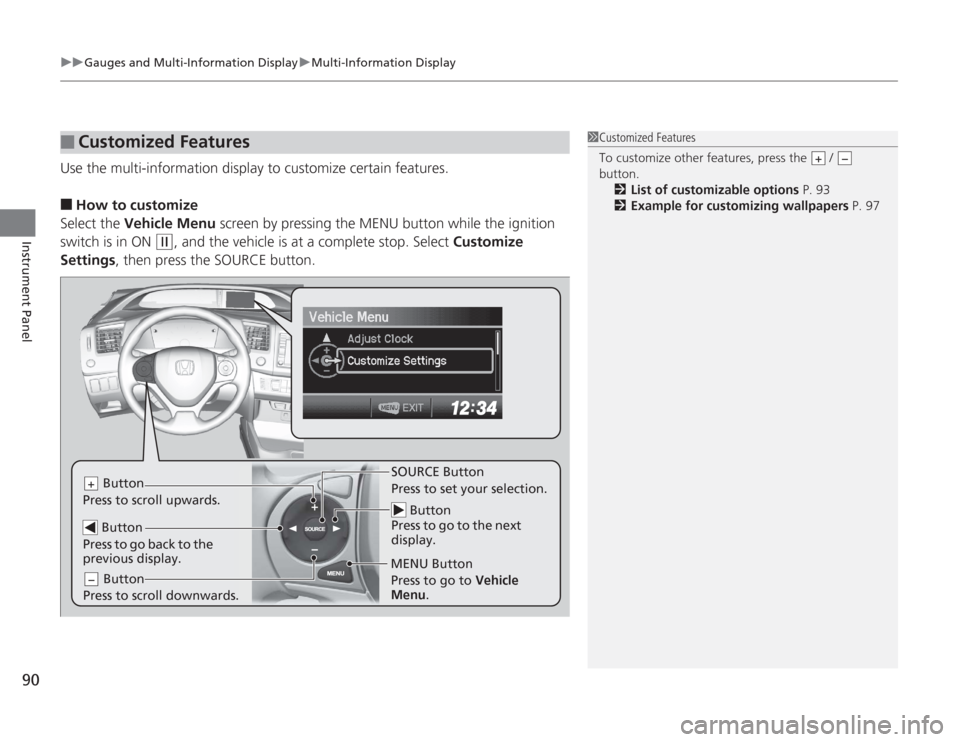
Use the multi-information display to customize certain features.■
How to customize
Select the Vehicle Menu screen by pressing the MENU button while the ignition
switch is in ON
(w
, and the vehicle is at a complete stop. Select Customize
Settings , then press the SOURCE button.
■
Customized Features
1Customized Features
To customize other features, press the /
button.
2 List of customizable options P. 93
2 Example for customizing wallpapers P. 97
+
−
Button
Press to go to the next
display.
SOURCE Button
Press to set your selection.
MENU Button
Button
Press to scroll upwards.
+ Button
Press to go back to the
previous display. Button
Press to scroll downwards.−
Press to go to Vehicle
Menu .
Page 92 of 313
91
uuGauges and Multi-Information Display uMulti-Information Display
Continued
Instrument Panel
■
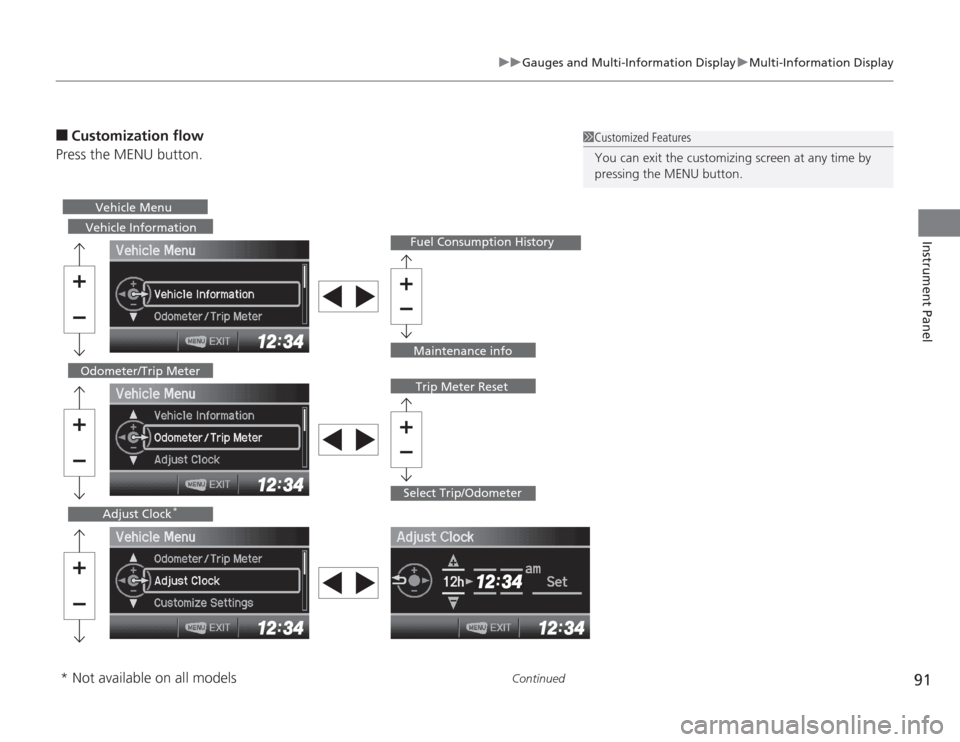
Customization flow
Press the MENU button.
1 Customized Features
You can exit the customizing screen at any time by
pressing the MENU button.
Vehicle Information
Fuel Consumption History
Select Trip/Odometer
Odometer/Trip Meter
Trip Meter Reset
Adjust Clock
*
Vehicle Menu
Maintenance info
* Not available on all models
Page 93 of 313
92
uuGauges and Multi- Information Display uMulti-Information Display
Instrument Panel
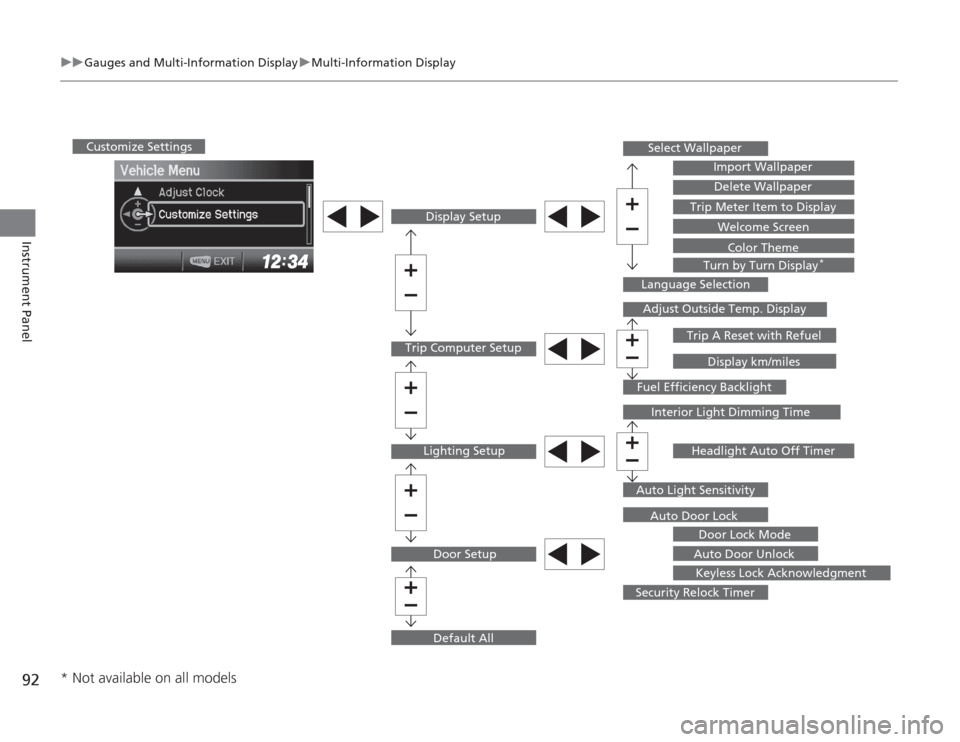
Trip Computer Setup Display Setup
Lighting Setup
Customize Settings
Door SetupSelect Wallpaper
Import Wallpaper
Delete Wallpaper
Trip Meter Item to Display Welcome Screen
Color Theme
Turn by Turn Display
*
Language Selection
Adjust Outside Temp. Display
Trip A Reset with RefuelDisplay km/miles
Fuel Efficiency Backlight
Interior Light Dimming Time
Headlight Auto Off Timer
Auto Light Sensitivity Auto Door Lock Door Lock Mode
Auto Door Unlock Keyless Lock Acknowledgment
Security Relock Timer
Default All
* Not available on all models
Page 94 of 313
93
uuGauges and Multi-Information Display uMulti-Information Display
Continued
Instrument Panel
■
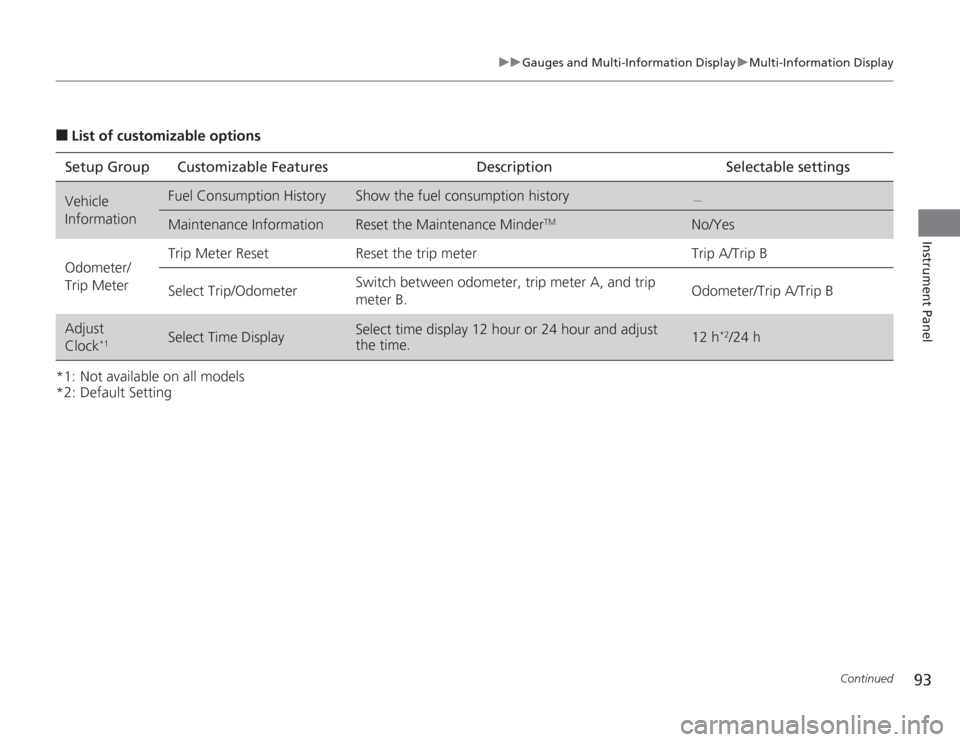
List of customizable options
*1: Not available on all models
*2: Default Setting Setup Group Customizable Features Description Selectable settingsVehicle
Information
Fuel Consumption History
Show the fuel consumption history
.
Maintenance Information
Reset the Maintenance Minder
TM
No/Yes
Odometer/
Trip Meter Trip Meter Reset Reset the trip meter Trip A/Trip B
Select Trip/Odometer
Switch between odometer, trip meter A, and trip
meter B.
Odometer/Trip A/Trip B
Adjust
Clock
*1
Select Time Display
Select time display 12 hour or 24 hour and adjust
the time.
12 h
*2/24 h
Page 95 of 313
94
uuGauges and Multi- Information Display uMulti-Information Display
Instrument Panel
*1: Not available on all models
*2: Default Setting
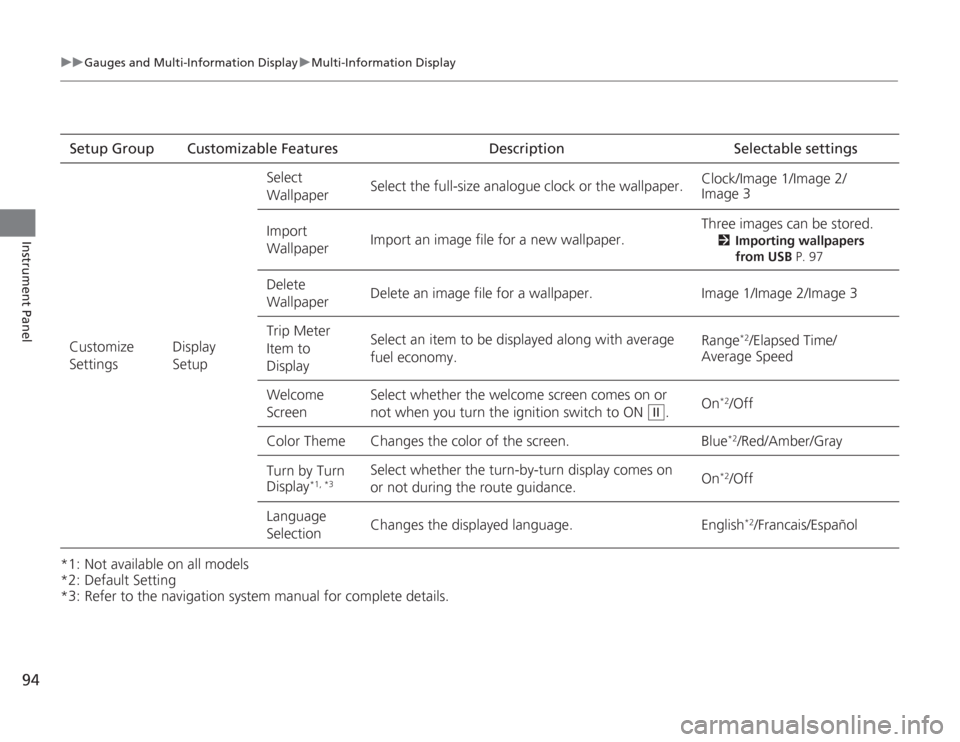
*3: Refer to the navigation system manual for complete details.Setup Group Customizable Features Description Selectable settings
Customize
Settings Display
SetupSelect
Wallpaper
Select the full-size analogue clock or the wallpaper.
Clock/Image 1/Image 2/
Image 3
Import
Wallpaper Import an image file for a new wallpaper. Three images can be stored.
2
Importing wallpapers
from USB P. 97
Delete
Wallpaper Delete an image file for a wallpaper. Image 1/Image 2/Image 3
Trip Meter
Item to
Display Select an item to be displayed along with average
fuel economy.
Range
*2/Elapsed Time/
Average Speed
Welcome
Screen Select whether the welcome screen comes on or
not when you
turn the ignition switch to ON . On
*2/Off
Color Theme Changes the color of the screen. Blue*2/Red/Amber/Gray
Turn by Turn
Display
*1, *3
Select whether the turn-by-turn display comes on
or not during the route guidance. On
*2/Off
Language
Selection Changes the displayed language. English
*2/Francais/Español
II