navigation system HONDA CIVIC HYBRID 2014 9.G User Guide
[x] Cancel search | Manufacturer: HONDA, Model Year: 2014, Model line: CIVIC HYBRID, Model: HONDA CIVIC HYBRID 2014 9.GPages: 377, PDF Size: 17.8 MB
Page 263 of 377
uuWhen Driving uLaneWatchTM
262
Driving
■Customizing the LaneWatch settings
You can customize the following items using the audio/information screen.
• Show with Turn Signal: Selects whether LaneWatch monitor comes on when
you operate the turn signal light lever.
• Display Time after Turn Signal Off: Changes the length of time the
LaneWatch display stays on after you pull the turn signal lever back.
• Reference Lines: Selects whether the reference lines appear on the LaneWatch
monitor.
• Next Maneuver Pop up
*: Selects whether a turn direction screen of the
navigation system interrupts the LaneWatch display.
• Display: Allows for display adjustments of items, such as brightness, and tint.
This setting is part of the Audio setup group.
2Customized Features P. 192
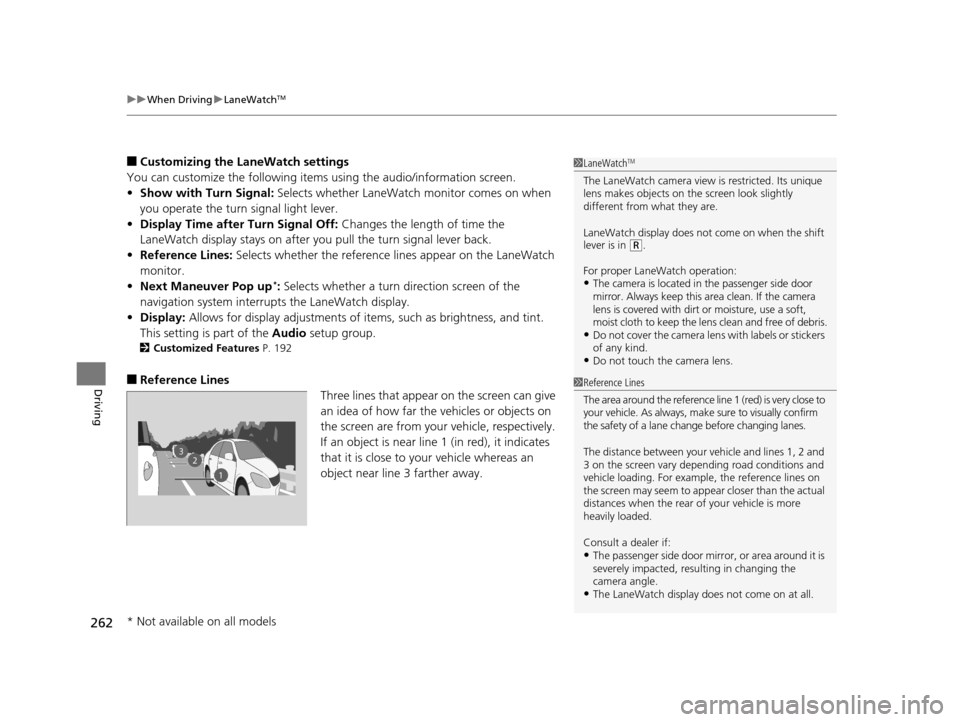
■Reference Lines
Three lines that appear on the screen can give
an idea of how far the vehicles or objects on
the screen are from your vehicle, respectively.
If an object is near line 1 (in red), it indicates
that it is close to your vehicle whereas an
object near line 3 farther away.
1 LaneWatchTM
The LaneWatch camera view is restricted. Its unique
lens makes objects on the screen look slightly
different from what they are.
LaneWatch display does not come on when the shift
lever is in
( R.
For proper LaneWatch operation:
•The camera is located in the passenger side door
mirror. Always keep this area clean. If the camera
lens is covered with dirt or moisture, use a soft,
moist cloth to keep the lens clean and free of debris.
•Do not cover the camera lens with labels or stickers
of any kind.
•Do not touch the camera lens.
23
1
1Reference Lines
The area around the reference line 1 (red) is very close to
your vehicle. As always, m ake sure to visually confirm
the safety of a lane chan ge before changing lanes.
The distance betwee n your vehicle and lines 1, 2 and
3 on the screen vary depending road conditions and
vehicle loading. For example, the reference lines on
the screen may seem to appear closer than the actual
distances when the rear of your vehicle is more
heavily loaded.
Consult a dealer if:
•The passenger side door mirr or, or area around it is
severely impacted, resulting in changing the
camera angle.
•The LaneWatch display doe s not come on at all.
* Not available on all models
14 CIVIC IMA-31TR26200.book 262 ページ 2013年12月23日 月曜日 午後4時9分
Page 273 of 377
272
Driving
Rearview Camera
About Your Rearview Camera
For models with the navigation system, see the Navigation System Manual for the
rearview camera.
The audio/information screen can display your vehicle’s rear view. The display
automatically changes to the rear view when the shift lever is moved to
(R.
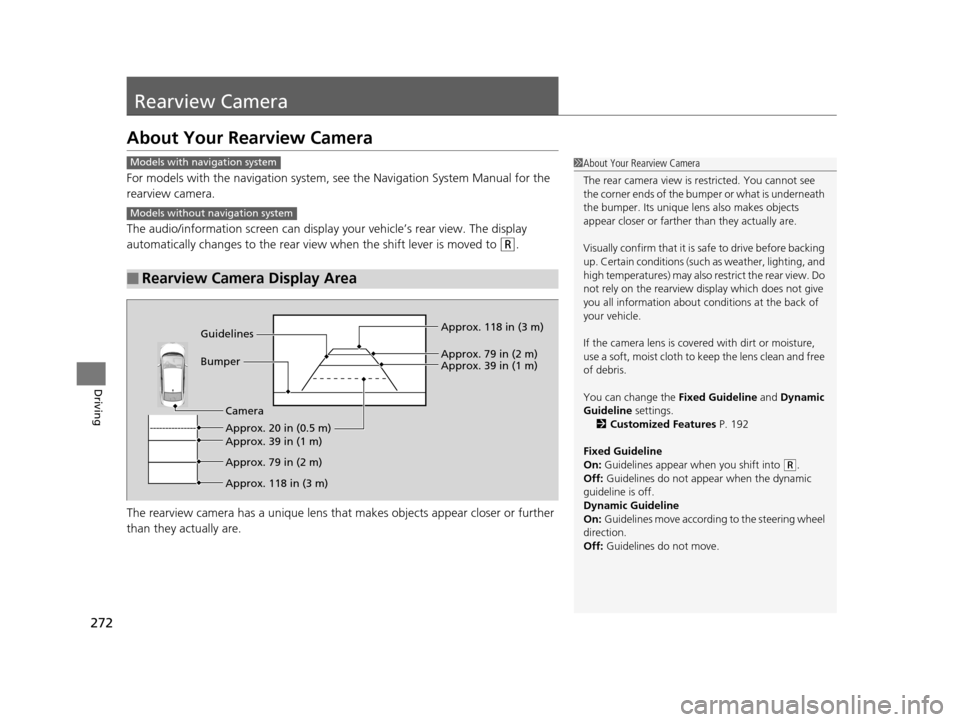
The rearview camera has a unique lens that makes objects appear closer or further
than they actually are.
■Rearview Camera Display Area
1 About Your Rearview Camera
The rear camera view is restricted. You cannot see
the corner ends of the bum per or what is underneath
the bumper. Its unique le ns also makes objects
appear closer or farther than they actually are.
Visually confirm that it is safe to drive before backing
up. Certain conditions (such as weather, lighting, and
high temperatures) may also restrict the rear view. Do
not rely on the rearview display which does not give
you all information about conditions at the back of
your vehicle.
If the camera lens is cove red with dirt or moisture,
use a soft, moist cloth to keep the lens clean and free
of debris.
You can change the Fixed Guideline and Dynamic
Guideline settings.
2 Customized Features P. 192
Fixed Guideline
On: Guidelines appear when you shift into
(R.
Off: Guidelines do not appear when the dynamic
guideline is off.
Dynamic Guideline
On: Guidelines move according to the steering wheel
direction.
Off: Guidelines do not move.
Models with navigation system
Models without navigation system
Guidelines
Bumper
Camera
Approx. 20 in (0.5 m)
Approx. 39 in (1 m)
Approx. 79 in (2 m)
Approx. 118 in (3 m) Approx. 118 in (3 m)
Approx. 39 in (1 m) Approx. 79 in (2 m)
14 CIVIC IMA-31TR26200.book 272 ページ 2013年12月23日 月曜日 午後4時9分
Page 318 of 377
317
Maintenance
12 Volt Battery
Checking the 12 Volt Battery
Check the battery condition monthly and check the terminals for corrosion.
If your vehicle’s battery is disconnected or goes dead:
• The audio system is disabled.
2 Reactivating the audio system P. 151
•The clock resets.
2 Clock P. 102
•The navigation system* is disabled.
2 Refer to the Navigation System Manual
Charging the Battery
Disconnect both battery cables to prevent damaging your vehicle’s electrical system.
Always disconnect the negative (-) cable first, and reconnect it last.
112 Volt Battery
WARNING: Battery post, terminals,
and related accessories contain lead
and lead compounds.
Wash your hands after handling.
When you find corrosion, cl ean the battery terminals
by applying a baking powder and water solution.
Clean the terminals with a damp towel. Cloth/towel
dry the battery. Coat the terminals with grease to
help prevent future corrosion.
When replacing the battery, the replacement must be
of the same specifications.
Please consult a dealer for more information.
3WARNING
The battery gives off explosive hydrogen
gas during normal operation.
A spark or flame can cause the battery to
explode with enough force to kill or
seriously hurt you.
When conducting any battery
maintenance, wear prot ective clothing and
a face shield, or have a skilled technician do
it.
* Not available on all models
14 CIVIC IMA-31TR26200.book 317 ページ 2013年12月23日 月曜日 午後4時9分