ad blue HONDA CIVIC SEDAN 2011 Navigation Manual (in English)
[x] Cancel search | Manufacturer: HONDA, Model Year: 2011, Model line: CIVIC SEDAN, Model: HONDA CIVIC SEDAN 2011Pages: 154, PDF Size: 6.2 MB
Page 128 of 154
Navigation System127
Frequently Asked Questions
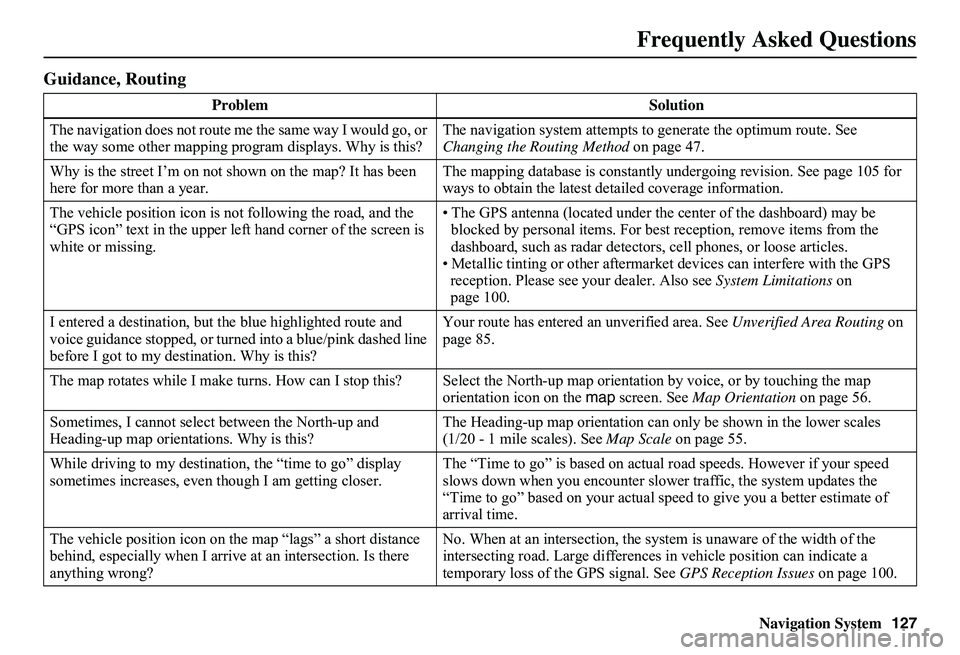
Guidance, Routing
Problem Solution
The navigation does not route me the same way I would go, or the way some other mapping progr am displays. Why is this? The navigation system attempts to generate the optimum route. See Changing the Routing Method on page 47.
Why is the street I’m on not s hown on the map? It has been here for more than a year. The mapping database is constantly undergoing revision. See page 105 for ways to obtain the latest de tailed coverage information.
The vehicle position icon is not following the road, and the “GPS icon” text in the upper left hand corner of the screen is white or missing.
• The GPS antenna (located under th e center of the dashboard) may be blocked by personal items. For best reception, remove items from the dashboard, such as radar detector s, cell phones, or loose articles. • Metallic tinting or other aftermarke t devices can interfere with the GPS reception. Please see your dealer. Also see System Limitations on page 100.
I entered a destination, but th e blue highlighted route and voice guidance stopped, or turned into a blue/pink dashed line before I got to my dest ination. Why is this?
Your route has entered an unverified area. See Unverified Area Routing on page 85.
The map rotates while I make turns. How can I stop this? Select the North-up map orientation by voice, or by touching the map orientation icon on the map screen. See Map Orientation on page 56.
Sometimes, I cannot select between the North-up and Heading-up map orienta tions. Why is this? The Heading-up map orient ation can only be shown in the lower scales (1/20 - 1 mile scales). See Map Scale on page 55.
While driving to my destinati on, the “time to go” display sometimes increases, even though I am getting closer. The “Time to go” is based on actual road speeds. However if your speed slows down when you encounter slower traffic, the system updates the “Time to go” based on your actual spee d to give you a better estimate of arrival time.
The vehicle position icon on the map “lags” a short distance behind, especially when I arrive at an intersection. Is there anything wrong?
No. When at an intersection, the syst em is unaware of the width of the intersecting road. Large differences in vehicle position can indicate a temporary loss of the GPS signal. See GPS Reception Issues on page 100.
Page 130 of 154
Navigation System129
Frequently Asked Questions
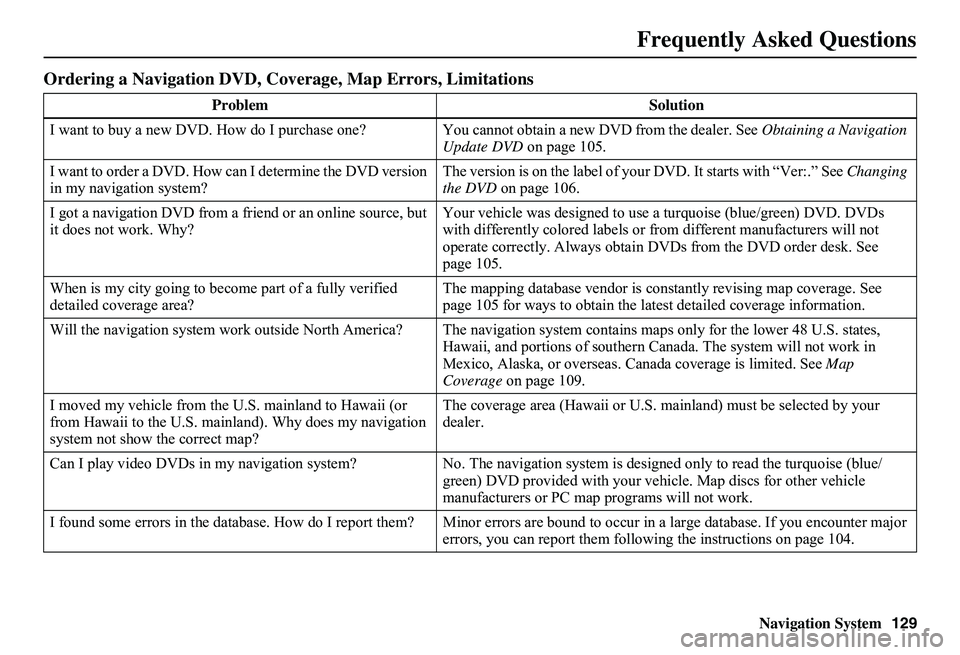
Ordering a Navigation DVD, Coverage, Map Errors, Limitations
Problem Solution
I want to buy a new DVD. How do I purchase one ? You cannot obtain a new DVD from the dealer. See Obtaining a Navigation Update DVD on page 105.
I want to order a DVD. How ca n I determine the DVD version in my navigation system? The version is on the label of your DVD. It starts with “Ver:.” See Changing the DVD on page 106.
I got a navigation DVD from a friend or an online source, but it does not work. Why? Your vehicle was designed to use a turquoise (blue/green) DVD. DVDs with differently colored labels or from different manufacturers will not operate correctly. Always obtain DVD s from the DVD order desk. See page 105.
When is my city going to become part of a fully verified detailed coverage area? The mapping database vendor is cons tantly revising map coverage. See page 105 for ways to obtain the latest detailed coverage information.
Will the navigation system work outside North America? The navi gation system contains maps only for the lower 48 U.S. states, Hawaii, and portions of s outhern Canada. The system will not work in Mexico, Alaska, or ove rseas. Canada coverage is limited. See Map Coverage on page 109.
I moved my vehicle from the U.S. mainland to Hawaii (or from Hawaii to the U.S. mainland). Why does my navigation system not show the correct map?
The coverage area (Hawai i or U.S. mainland) must be selected by your dealer.
Can I play video DVDs in my navigation system? No. The navigation system is designed only to read the turquoise (blue/ green) DVD provided with your vehi cle. Map discs for other vehicle manufacturers or PC map programs will not work.
I found some errors in the database. How do I report them? Mi nor errors are bound to occur in a large database. If you encounter major errors, you can report them follow ing the instructions on page 104.
Page 136 of 154
Navigation System135
Troubleshooting
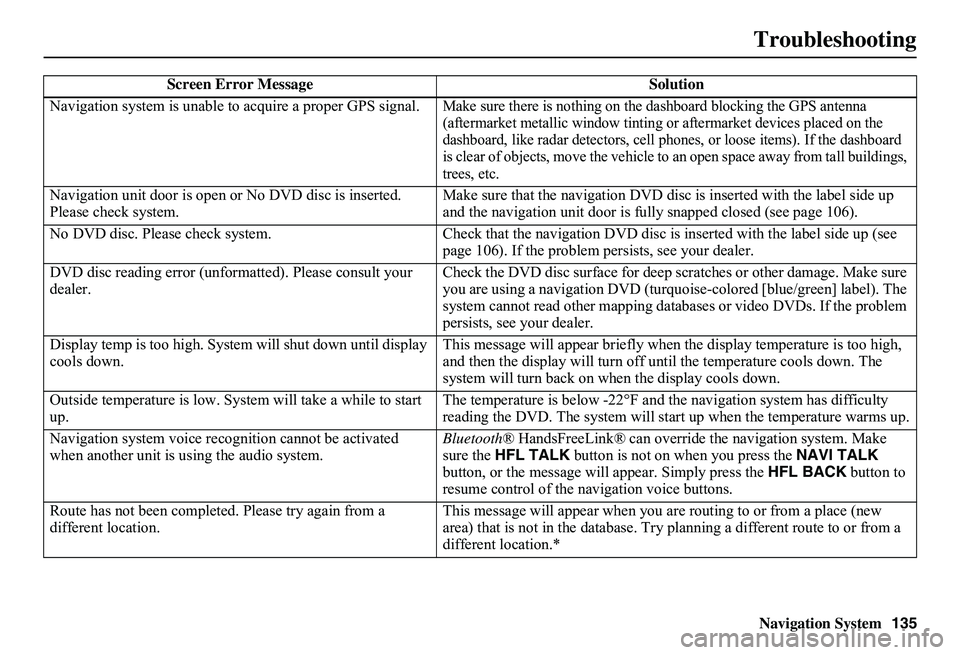
Screen Error Message Solution
Navigation system is unable to acquire a proper GPS signal.Make sure there is nothing on the dashboard blocking the GPS antenna (aftermarket metallic wi ndow tinting or aftermarket devices placed on the dashboard, like radar detectors, cell phones, or loose items). If the dashboard is clear of objects, move the vehicle to an open space away from tall buildings, trees, etc.
Navigation unit door is open or No DVD disc is inserted. Please check system. Make sure that the navigation DVD disc is inserted with the label side up and the navigation unit door is fully snapped closed (see page 106).
No DVD disc. Please check system. Check that the navigation DVD disc is inserted with the label side up (see page 106). If the problem persists, see your dealer.
DVD disc reading error (unfor matted). Please consult your dealer. Check the DVD disc surface for deep scratches or other damage. Make sure you are using a navigation DVD (turquoise -colored [blue/green] label). The system cannot read other mapping data bases or video DVDs. If the problem persists, see your dealer.
Display temp is too high. Syst em will shut down until display cools down. This message will appear briefly when the display temperature is too high, and then the display will turn off until the temperature cools down. The system will turn back on when the display cools down.
Outside temperature is low. System will take a while to start up. The temperature is below -22°F and the navigation system has difficulty reading the DVD. The system will st art up when the temperature warms up.
Navigation system voice recognition cannot be activated when another unit is us ing the audio system. Bluetooth ® HandsFreeLink® can override the navigation system. Make sure the HFL TALK button is not on when you press the NAVI TALK button, or the message will appear. Simply press the HFL BACK button to resume control of the navigation voice buttons.
Route has not been complete d. Please try again from a different location. This message will appear when you are routing to or from a place (new area) that is not in the database. Try planning a different route to or from a different location.*
Page 138 of 154
Navigation System137
Glossary
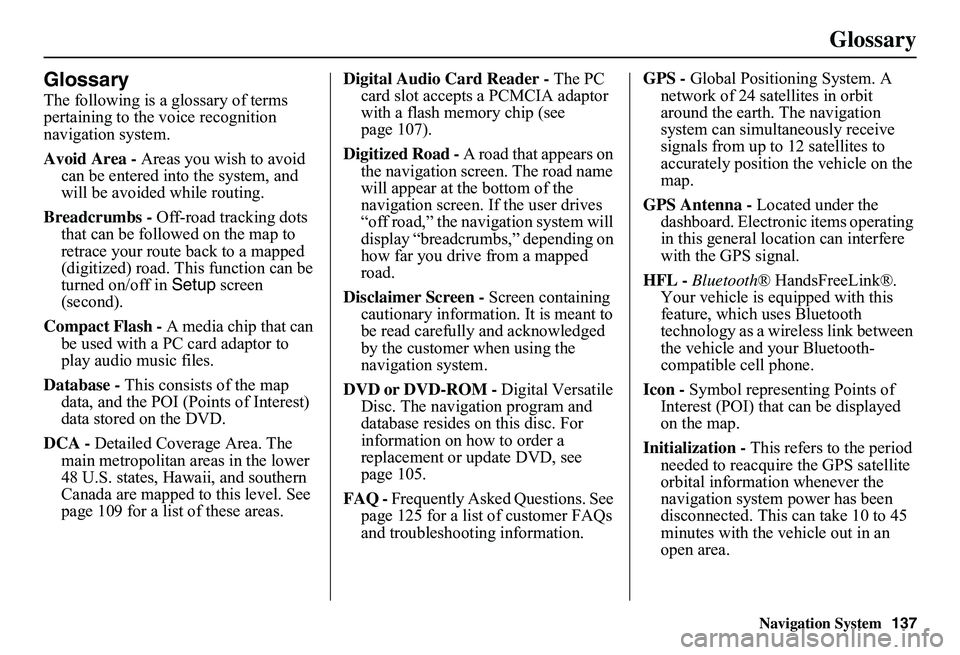
Glossary
The following is a glossary of terms pertaining to the voice recognition navigation system.
Avoid Area - Areas you wish to avoid can be entered into the system, and will be avoided while routing.
Breadcrumbs - Off-road tracking dots that can be followe d on the map to retrace your route back to a mapped (digitized) road. This function can be turned on/off in Setup screen (second).
Compact Flash - A media chip that can be used with a PC card adaptor to play audio music files.
Database - This consists of the map data, and the POI (Points of Interest) data stored on the DVD.
DCA - Detailed Coverage Area. The main metropolitan areas in the lower 48 U.S. states, Hawaii, and southern Canada are mapped to this level. See page 109 for a list of these areas.
Digital Audio Card Reader - The PC card slot accepts a PCMCIA adaptor with a flash memory chip (see page 107).
Digitized Road - A road that appears on the navigation screen. The road name will appear at the bottom of the navigation screen. If the user drives “off road,” the navigation system will display “breadcrumbs,” depending on how far you drive from a mapped road.
Disclaimer Screen - Screen containing cautionary information. It is meant to be read carefully and acknowledged by the customer when using the navigation system.
DVD or DVD-ROM - Digital Versatile Disc. The navigation program and database resides on this disc. For information on how to order a replacement or update DVD, see page 105.
FAQ - Frequently Asked Questions. See page 125 for a list of customer FAQs and troubleshootin g information.
GPS - Global Positioning System. A network of 24 satellites in orbit around the earth. The navigation system can simultaneously receive signals from up to 12 satellites to accurately position the vehicle on the map.
GPS Antenna - Located under the dashboard. Electronic items operating in this general location can interfere with the GPS signal.
HFL - Bluetooth® HandsFreeLink®. Your vehicle is equipped with this feature, which uses Bluetooth technology as a wireless link between the vehicle and your Bluetooth-compatible cell phone.
Icon - Symbol representing Points of Interest (POI) that can be displayed on the map.
Initialization - This refers to the period needed to reacquire the GPS satellite orbital information whenever the navigation system power has been disconnected. This can take 10 to 45 minutes with the vehicle out in an open area.
Page 149 of 154
148Navigation System
Index
A
Accessing the Address Book List.....79
ADD TO Today’s
Destinations...........................42, 46
Adding Destinations to the List........42
Address..............................22, 23, 80
Address Book.....................22, 43, 78
Address Book PIN..........................82
Advanced.......................................34
Alaska (Operation)........................123
Auto Daylight Saving Time.............95
Auto Service.............................34, 35
Auto Time Zone by GPS.................96
AUX Voice Commands.................144
Avoid Streets..................................66
B
Back to Current Route.....................67
Banking..........................................34
Basic Settings.................................94
Bluetooth ® HandsFreeLink®...........18
Breadcrumbs.......................19, 61, 92
Brightness......................................75
By Address.....................................23
By Address Book............................43
By Go Home...................................45
By Intersection................................27
By Map Input................................. 37
By Places....................................... 32
By Previous Destinations................ 41
By Today’s Destinations................. 42
C
Calculator...................................... 73
Calendar.................................. 17, 72
CALL............................................ 18
CANCEL button............................ 11
Cancel Current Route..................... 67
Category...................... 32, 33, 44, 81
CD Voice Commands................... 144
Cellular Phonebook........................ 70
Change Method.............................. 47
Change State............................ 23, 28
Changing the DVD....................... 106
Changing the Route........................ 64
Changing the Routing Method........ 47
Changing Your Destination............. 67
City................................... 23, 28, 39
City Vicinity............................ 33, 36
Clock Adjustment.......................... 95
Clock Screen........................... 17, 77
Clock Settings.......................... 17, 77
Clock Type.............................. 17, 77
CLOSE button....................... 10, 106
Color............................................. 97
Community.................................... 34
Continental USA............................ 40
Contrast......................................... 77
Convert (Unit)................................ 74
Correct Vehicle Position................. 93
Coverage Areas............................ 109
Current Location...................... 20, 62
Current Position....................... 37, 80
Current Street................................... 6
Customer Assistance.................... 104
D
Database Limitations.................... 102
Daylight Saving Time (DST)
Selection..................................... 96
Delete Previous Destination............ 83
Destination........................ 22, 46, 67
Destination Icon............................. 56
Destination Map............................. 49
Detailed Coverage Areas...... 109, 114
Detour........................................... 66
Direct Route.................................. 47
Direction List................................. 53
Display.......................................... 76
Driving to Your Destination............ 46