audio HONDA CIVIC SEDAN 2014 Navigation Manual (in English)
[x] Cancel search | Manufacturer: HONDA, Model Year: 2014, Model line: CIVIC SEDAN, Model: HONDA CIVIC SEDAN 2014Pages: 253, PDF Size: 58.94 MB
Page 2 of 253
Contents
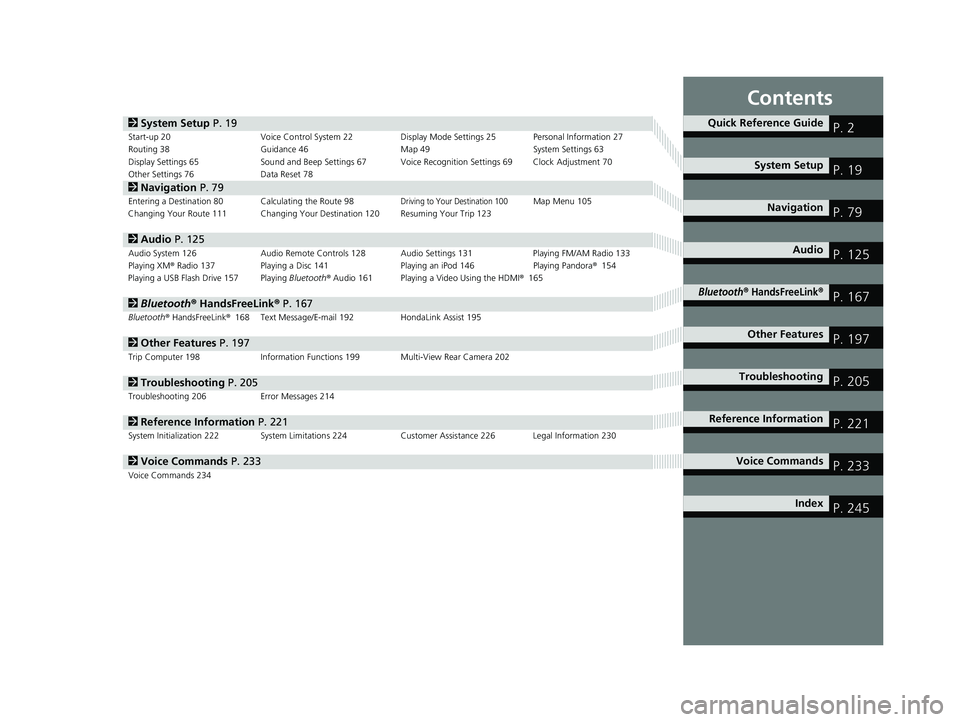
2System Setup P. 19Start-up 20 Voice Control System 22Display Mode Settings 25 Personal Information 27
Routing 38 Guidance 46 Map 49 System Settings 63
Display Settings 65 Sound and Beep Settings 67 Voice Recognition Settings 69Clock Adjustment 70
Other Settings 76 Data Reset 78
2Navigation P. 79Entering a Destination 80Calculating the Route 98Driving to Your Destination 100Map Menu 105
Changing Your Route 111 Changing Your Destination 120 Resuming Your Trip 123
2Audio P. 125Audio System 126 Audio Remote Controls 128 Audio Settings 131 Playing FM/AM Radio 133
Playing XM® Radio 137 Playing a Disc 141 Playing an iPod 146Playing Pandora® 154
Playing a USB Flash Drive 157Playing Bluetooth ® Audio 161 Playing a Video Using the HDMI ® 165
2Bluetooth ® Han dsFreeLink® P. 167Bluetooth® HandsFreeLink® 168 Text Message/E-mail 192HondaLink Assist 195
2Other Features P. 197Trip Computer 198 Information Functions 199 Multi-View Rear Camera 202
2Troubleshooting P. 205Troubleshooting 206 Error Messages 214
2Reference Information P. 221System Initialization 222 System Limitations 224 Customer Assistance 226 Legal Information 230
2Voice Commands P. 233Voice Commands 234
Quick Reference GuideP. 2
System Setup P. 19
Navigation P. 79
Audio P. 125
Bluetooth® HandsFreeLink®P. 167
Other Features P. 197
TroubleshootingP. 205
Reference Information P. 221
Voice Commands P. 233
Index P. 245
14 CIVIC 2D 4D IMA NAVI-31TR38200.book 1 ページ 2014年3月21日 金曜日 午 後3時20分
Page 4 of 253
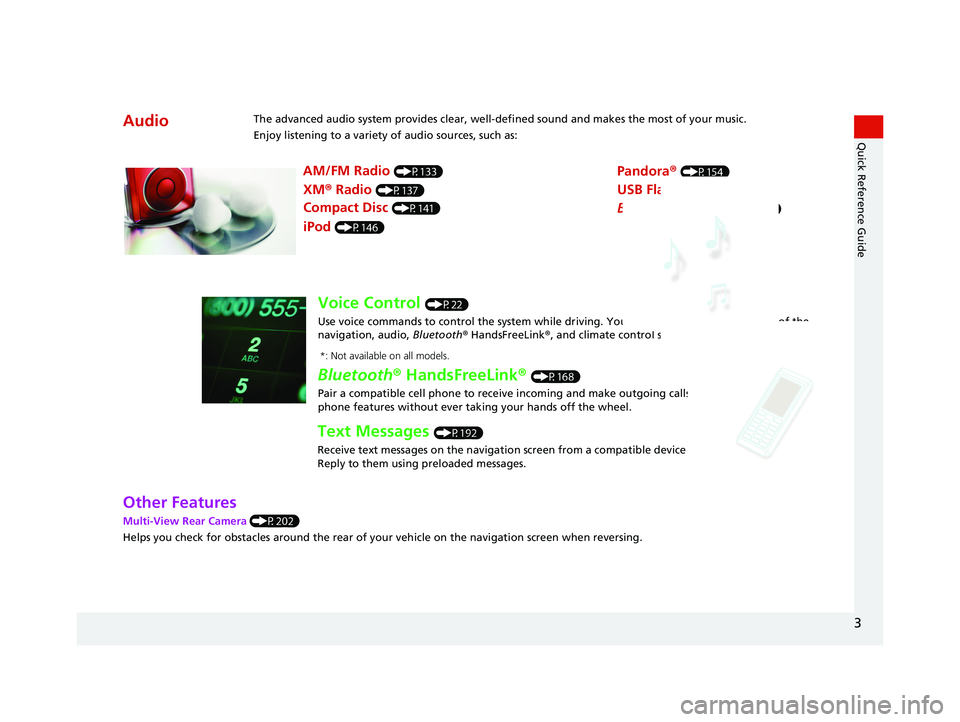
AudioThe advanced audio system provides clear, well-defined sound and makes the most of your music.
Enjoy listening to a variety of audio sources, such as:
AM/FM Radio (P133)
XM® Radio (P137)
Compact Disc (P141)
Pandora® (P154)
iPod (P146)
USB Flash Drive (P157)
Bluetooth® Audio (P161)
Voice Control (P22)
Use voice commands to control the system while dr iving. You can operate all key functions of the
navigation, audio, Bluetooth ® HandsFreeLink ®, and climate control systems*.
Bluetooth ® HandsFreeLink ® (P168)
Pair a compatible cell phone to receive incoming and make outgoing calls. You can operate the
phone features without ever taking your hands off the wheel.
Text Messages (P192)
Receive text messages on the navigation screen from a compatible device and hear them read aloud.
Reply to them using preloaded messages.
*: Not available on all models.
3
Quick Reference Guide
Other Features
Multi-View Rear Camera (P202)
Helps you check for obstacles around the rear of your vehicle on the navigation screen when reversing.
14 CIVIC 2D 4D IMA NAVI-31TR38200.book 3 ページ 2014年3月21日 金曜日 午 後3時20分
Page 5 of 253
4
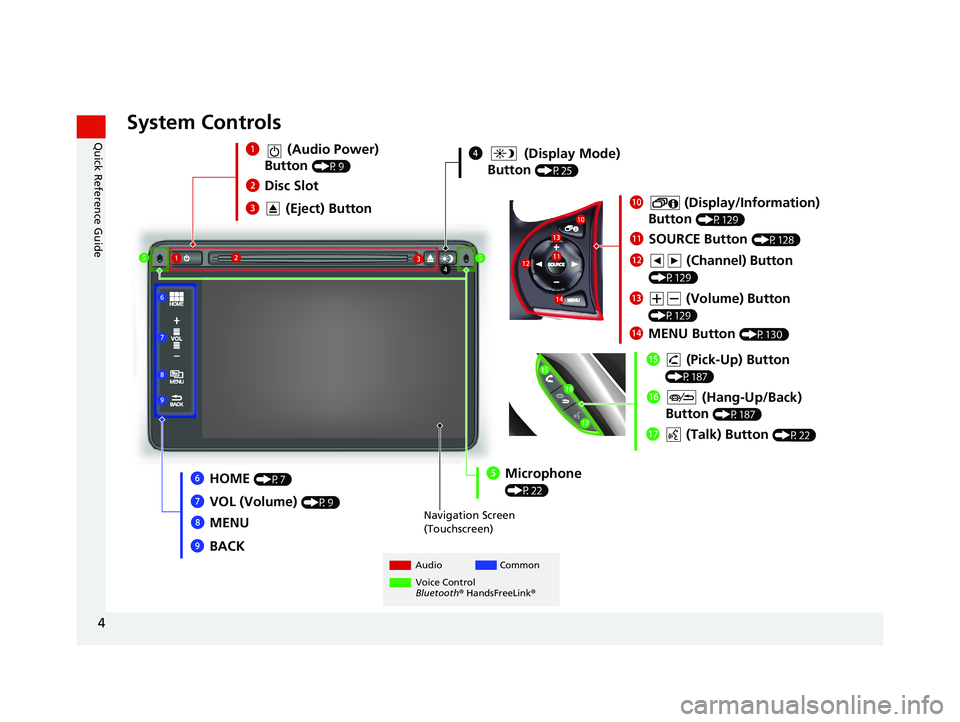
Quick Reference GuideSystem Controls
4 (Display Mode)
Button
(P25)
Navigation Screen
(Touchscreen)
Audio Common
Voice Control
Bluetooth ® HandsFreeLink ®
1 (Audio Power)
Button
(P9)
3 (Eject) Button
2Disc Slot
lh (Talk) Button (P22)
lg (Hang-Up/Back)
Button
(P187)
lf (Pick-Up) Button
(P187)
6HOME (P7)
8MENU
7
VOL (Volume)
(P9)
9BACK
5Microphone
(P22)
2
4
5
1
6
7
8
9 lh
lg
lf
0
(Display/Information)
Button
(P129)
ld (Volume) Button
(P129)
lc (Channel) Button
(P129)
lbSOURCE Button (P128)
3 5 0
lb
lc ld
le
MENU Button (P130)
le
14 CIVIC 2D 4D IMA NAVI-31TR38200.book 4 ページ 2014年3月21日 金曜日 午 後3時20分
Page 6 of 253
5
Quick Reference GuideVoice Control Operation
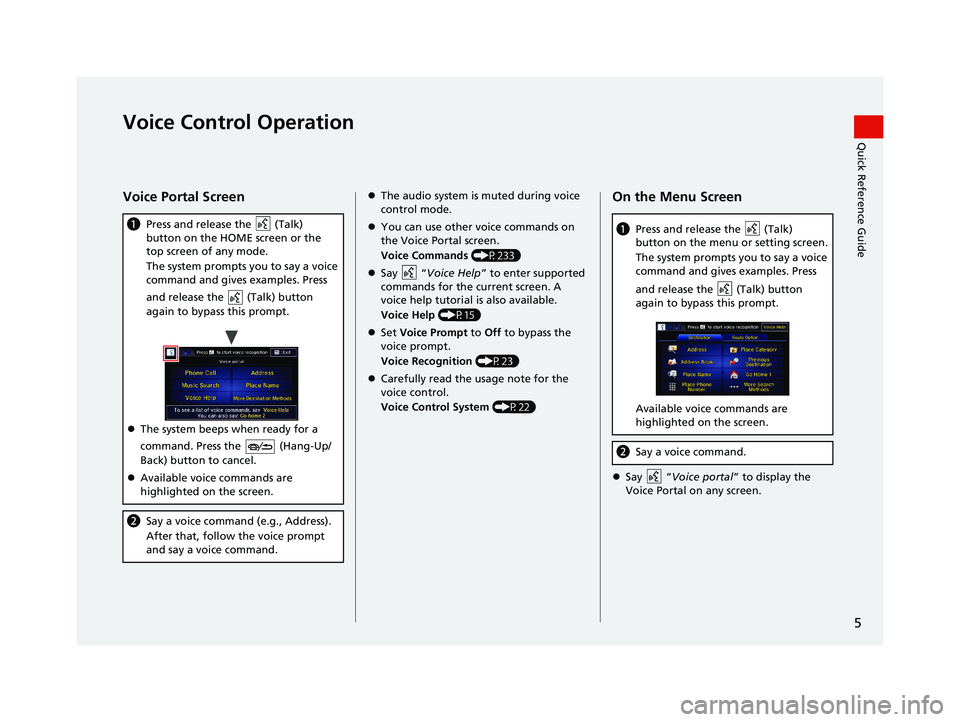
Voice Portal Screen
(Talk)
a Press and release the
button on the HOME screen or the
top screen of any mode.
The system prompts you to say a voice
co
mmand and gives examples. Press
and release the
(Talk) button
again to bypass this prompt.
The system beeps when ready for a
co
mmand. Press the
(Hang-Up/
Back) button to cancel.
Available voice commands are
h
ighlighted on the screen.
b Say a voice command (e.g., Address).
After that, follow the voice prompt
an
d say a voice command.
The audio system is muted during voice
control mode.
You can use other voice commands on
the Vo
ice Portal screen.
Voice Commands (P233)
Say “Voice
Help ” to enter supported
commands for the current screen. A
voice help tutorial is also available.
Voice Help (P15)
Set V
oice Prompt to Off to bypass the
voice prompt.
Voice Recognition (P23)
Carefully read the usage note for the
voice c
ontrol.
Voice Control System (P22)
On the Menu Screen
(Talk)
a Press and release the button on the menu or setting screen.
The system prompts you to say a voice
com
mand and gives examples. Press
and release the
(Talk) button
again to bypass this prompt.
Available voice commands are
highlighted on the screen.
b Say a voice command.
Say “Voic
e portal ” to display the Voice Portal on any screen.
14 CIVIC 2D 4D IMA NAVI-31TR38200.book 5 ページ 2014年3月21日 金曜日 午 後3時20分
Page 8 of 253
7
Quick Reference GuideHOME Screen
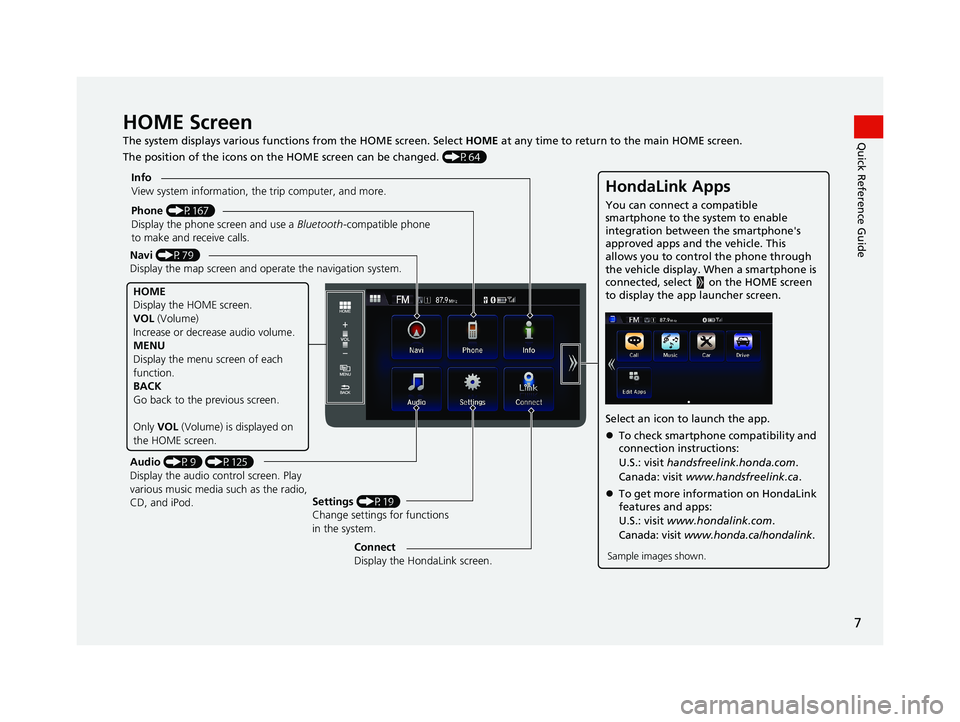
The system displays various functions from the HOME screen. Select HOME at any time to return to the main HOME screen.
The position of the icons on the HOME screen can be changed. (P64)
Phone (P167)
Display the phone screen and use a Bluetooth-compatible phone
to make and receive calls.
Navi (P79)
Display the map screen and ope rate the navigation system.
Audio (P9) (P125)
Display the audio control screen. Play
various music media such as the radio,
CD, and iPod. Settings
(P19)
Change settings for functions
in the system.
Info
View system information, the trip computer, and more.
HOME
Display the HOME screen.
VOL
(Volume)
Increase or decrea se audio volume.
MENU
Display the menu screen of each
function.
BACK
Go back to the previous screen.
Only VOL (Volume) is displayed on
the HOME screen.
HondaLink Apps
You can connect a compatible
smartphone to the system to enable
integration between the smartphone's
approved apps and the vehicle. This
allows you to control the phone through
the vehicle display. When a smartphone is
connected, select on the HOME screen
to display the app launcher screen.
Select an icon to launch the app.
To check smartphone compatibility and
connection instructions:
U.S.: visit handsfreelink.honda.com .
Canada: visit www.handsfreelink.ca .
To get more inform ation on HondaLink
features and apps:
U.S.: visit www.hondalink.com .
Canada: visit www.honda.ca/hondalink .
Sample images shown.Connect
Display the HondaLink screen.
14 CIVIC 2D 4D IMA NAVI-31TR38200.book 7 ページ 2014年3月21日 金曜日 午 後3時20分
Page 10 of 253
9
Quick Reference GuideAudio System
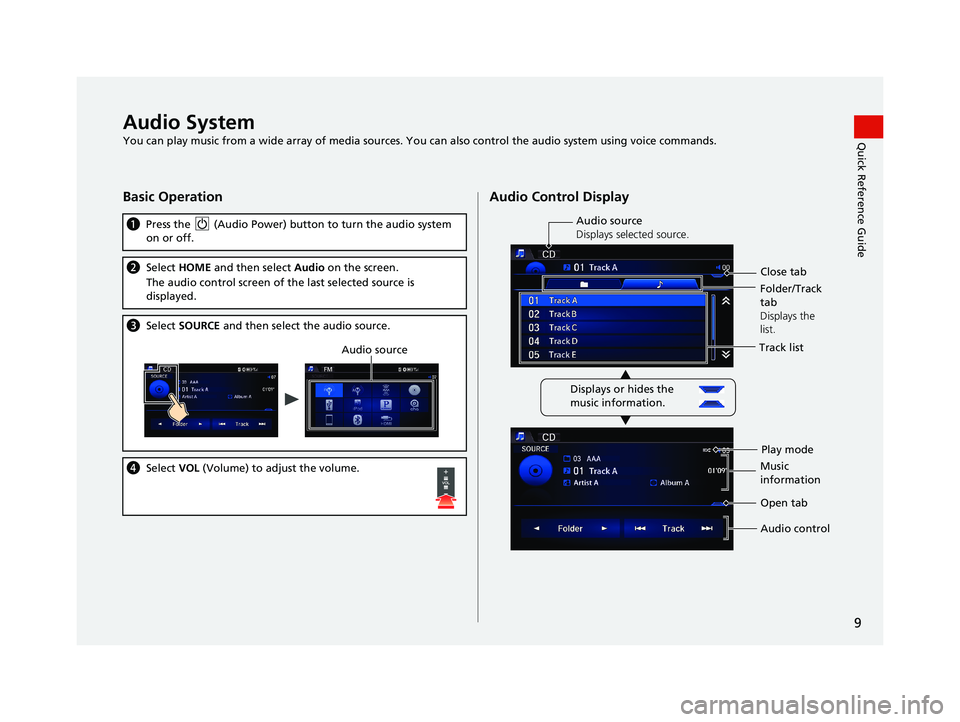
You can play music from a wide array of media sources. You can also control the audio system using voice commands.
Basic Operation
(Audio Power) button to turn the audio system
a Press the
on or off.
bSelect HOME and then select Audio on the screen.
The audio control screen of the last selected sour
ce is
displayed.
c Select SOURCE and then select the audio source.
Audio source
dSelect VOL (Volume) to adjust the volume.
Audio Control Display
Track list
Play mode
Audio source
Displays selected source.
Displays or hides the
music information. Close tab
Music
information Open tab
Audio control
Folder/Track
tab
Displays the
list.
14 CIVIC 2D 4D IMA NAVI-31TR38200.book 9 ページ 2014年3月21日 金曜日 午 後3時20分
Page 17 of 253
16
Quick Reference GuideTroubleshootingFor more Information (P205)
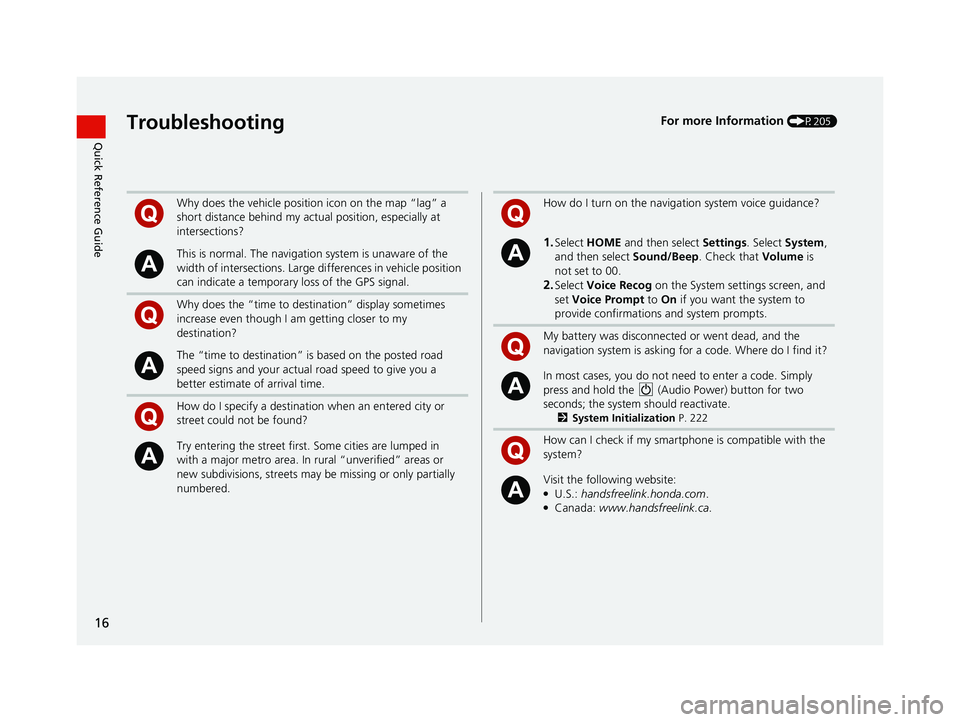
Why does the vehicle position icon on the map “lag” a
short distance behind my actual position, especially at
intersections?
This is normal. The navigation system is unaware of the
width of intersections. Large di fferences in vehicle position
can indicate a temporary loss of the GPS signal.
Why does the “time to destination” display sometimes
increase even though I am getting closer to my
destination?
The “time to destination” is based on the posted road
speed signs and your actual road speed to give you a
better estimate of arrival time.
How do I specify a destination when an entered city or
street could not be found?
Try entering the street first. Some cities are lumped in
with a major metro area. In rural “unverified” areas or
new subdivisions, streets may be missing or only partially
numbered.
How do I turn on the navigation system voice guidance?
1.Select HOME and then select Settings. Select System ,
and then select Sound/Beep. Check that Volume is
not set to 00.
2.Select Voice Recog on the System se ttings screen, and
set Voice Prompt to On if you want the system to
provide confirmations and system prompts.
My battery was disconnected or went dead, and the
navi
gation system is asking for a code. Where do I find it?
In most cases, you do not need to enter a code. Simply
press an
d hold the
(Audio Power) button for two
seconds; the system should reactivate.
2 System Initialization P. 222
How can I check if my smartphone is compatible with the
system?
Visit the following website:●U.S.: handsfreelink.honda.com .●Canada: www.handsfreelink.ca .
14 CIVIC 2D 4D IMA NAVI-31TR38200.book 16 ページ 2014年3月21日 金曜日 午後3時20分
Page 21 of 253
20
System Setup
Start-up
1Start-up
Do not use the smartphone while driving.
Avoid focusing on the scre en and drive safely
following the actual traffic restrictions.
If the navigation system lo ses power at any time, you
may need to press and hold the (Audio Power)
button for more than two seconds, or you may be
prompted for the 5-digit security code. 2 System Initialization P. 222
You can change the system language at any time. 2 Language P. 77
OK on the Confirmation screen cannot be selected
by using a voice command.
If Remember Last Screen is set to On, the top
screen of the last mode is displayed after the HOME
screen. 2 Other Settings P. 76The navigation system starts automatica lly when you set the power mode to
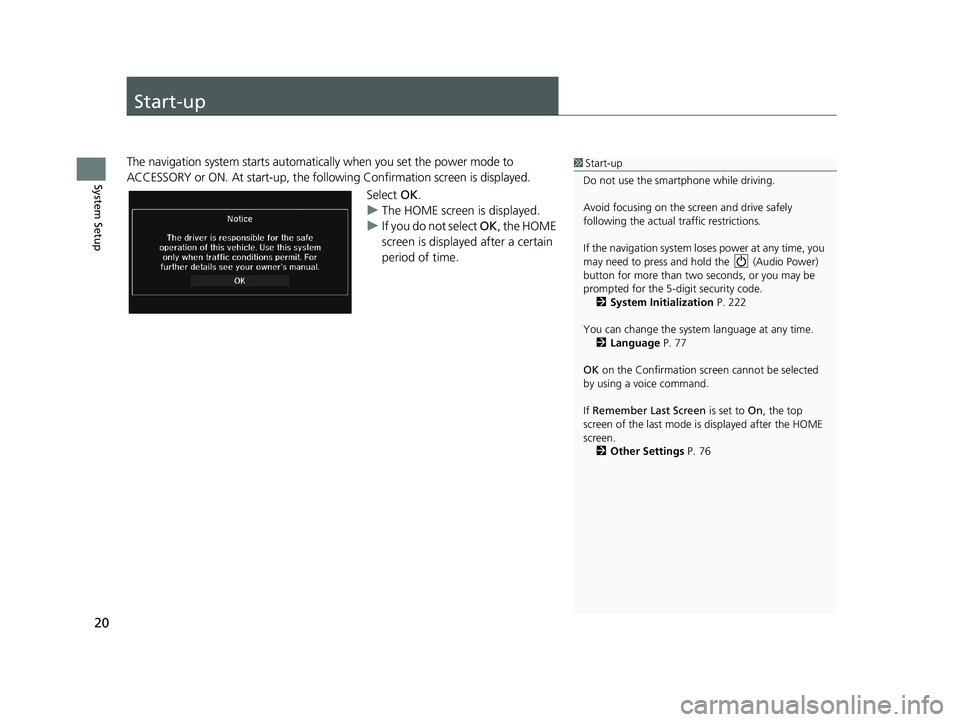
ACCESSORY or ON. At start-up, the follo wing Confirmation screen is displayed.
Select OK.
u The H
OME screen is displayed.
uIf y
ou do not select OK , the HOME
screen is displayed after a certain
period of time.
14 CIVIC 2D 4D IMA NAVI-31TR38200.book 20 ページ 2014年3月21日 金曜日 午後3時20分
Page 23 of 253
22
System Setup
Voice Control System
1Voice Control System
When you press the (Talk) button, a helpful
prompt asks what you would like to do. Press and
release the (Talk) butt on again to bypass this
prompt and give a command.
* Climate control voice commands are not available
on all models.Your vehicle has a voice control system that allows hands-free operation of most of
the navigation system functions. You can also control the audio and climate control
system*, and make and re ceive phone calls using Bluetooth® HandsFreeLink ®.
The voice control system uses the
(Talk) and (Hang-Up/Back) buttons on
the steering wheel and microphones at the
top of the navigation screen.
A “Getting Started” feature provides a tutorial that expla
ins how to use the voice
control system.
2 Voice Help P. 15
Command Input1 Command Input
The audio system is muted while using the voice
control system.
If the system does not understand a command or you wait too long to give a
command, the system asks you to repeat the command.
When you give a command, the system gene rally either repeats the comm
and as a
confirmation or asks you for further information. If you do not wish to hear this
feedback, you can turn it off. However, list ening to the feedback will help familiarize
you with the way the system expects commands to be phrased.
2 Voice Recognition Settings P. 69
On character input screens, a list of possibl e characters is displayed if the system
does not recognize your command.
You can find out which voice commands ar e
available for a particular screen using
the
“ Voice Help ” command. The system will display and read the list of available
commands to you.
2 Voice Help P. 15
14 CIVIC 2D 4D IMA NAVI-31TR38200.book 22 ページ 2014年3月21日 金曜日 午後3時20分
Page 79 of 253
78
System Setup
Data Reset
Reset Factory Default Settings
1Reset Factory Default Settings
The following settings are reset:
•Navigation settings
•Phone settings
•Info settings•Audio settings
•Camera settings
•Bluetooth settings•System settings
When you transfer the vehicle to a third party, reset
all settings to default a nd delete all personal data.
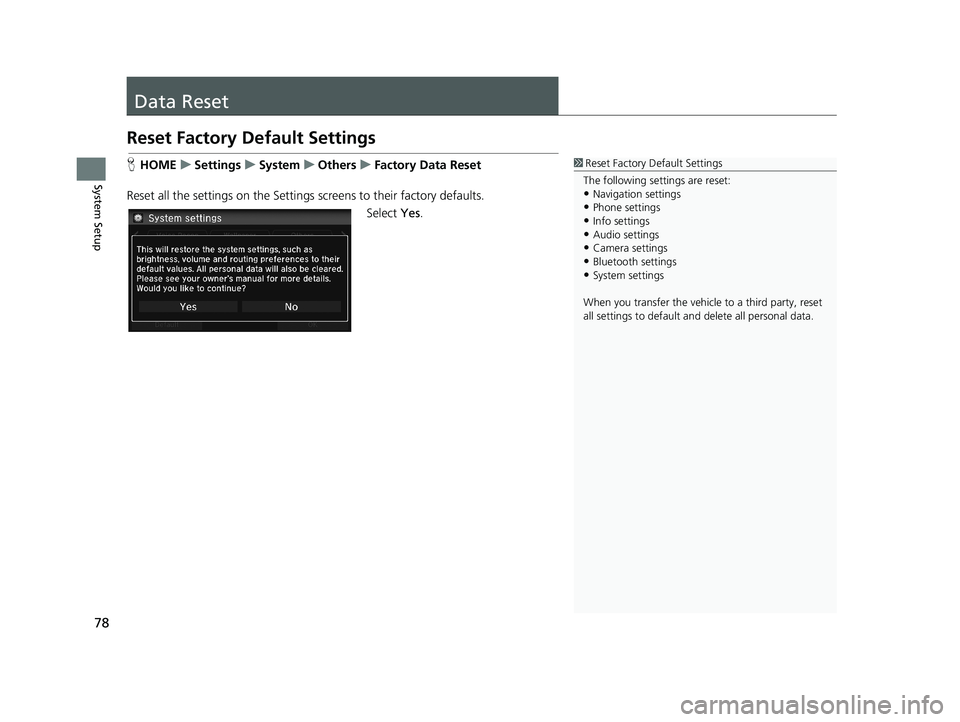
HHOME u Settings u System u Others u Factory Data Reset
Reset all the settings on the Settings screens to
their factory defaults.
Select Yes.
14 CIVIC 2D 4D IMA NAVI-31TR38200.book 78 ページ 2014年3月21日 金曜日 午後3時20分