remote control HONDA CIVIC SEDAN 2014 Navigation Manual (in English)
[x] Cancel search | Manufacturer: HONDA, Model Year: 2014, Model line: CIVIC SEDAN, Model: HONDA CIVIC SEDAN 2014Pages: 253, PDF Size: 58.94 MB
Page 1 of 253
The information and specifications included in this publication were in effect at the time of approval for printing. Honda Motor Co., Ltd., reserves the right,
however, to discontinue or change specif ications or design at any time without notice and without incurring any obligation.
Accessories Precautions
The GPS antenna is located in the dashboard .
Metallic front or side window tinting can seriously degrade or obstruct GPS recept ion.
Signal noise from devices such as radar detectors, vehicle trackin
g devices, remote starters, and additional amplifiers can disrupt the navigation system. If you
install any such item, install it away from the navigation display and antenna.
Important Safety Information
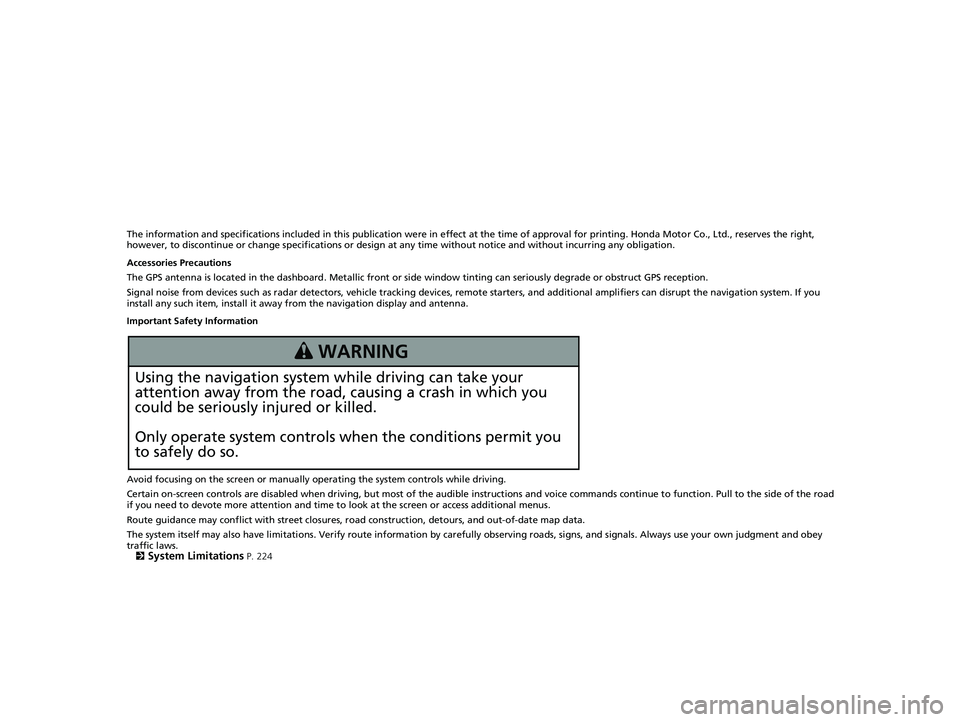
Using the navigation system while driving can take your
attention away from the road, causing a crash in which you
could be seriously injured or killed.
Only operate system controls when the conditions permit you
to safely do so.
Avoid focusing on the screen or manually operating the system controls while driving.
Certain on-screen controls are disabled when driving, but most of
the audible instructions and voice commands continue to function. Pull to the side of the road
if you need to devote more atte ntion and time to look at the screen or access additional menus.
Route guidance may conflict with street closures, road cons
truction, detours, and out-of-date map data.
The system itself may also have limitations. Verify route information by carefully observing roads, signs, and signals. Always use your own judgm
ent and obey
traffic laws.
2
System Limitations P. 224
3 WARNING
14 CIVIC 2D 4D IMA NAVI-31TR38200.book 0 ページ 2014年3月21日 金曜日 午 後3時20分
Page 2 of 253
Contents
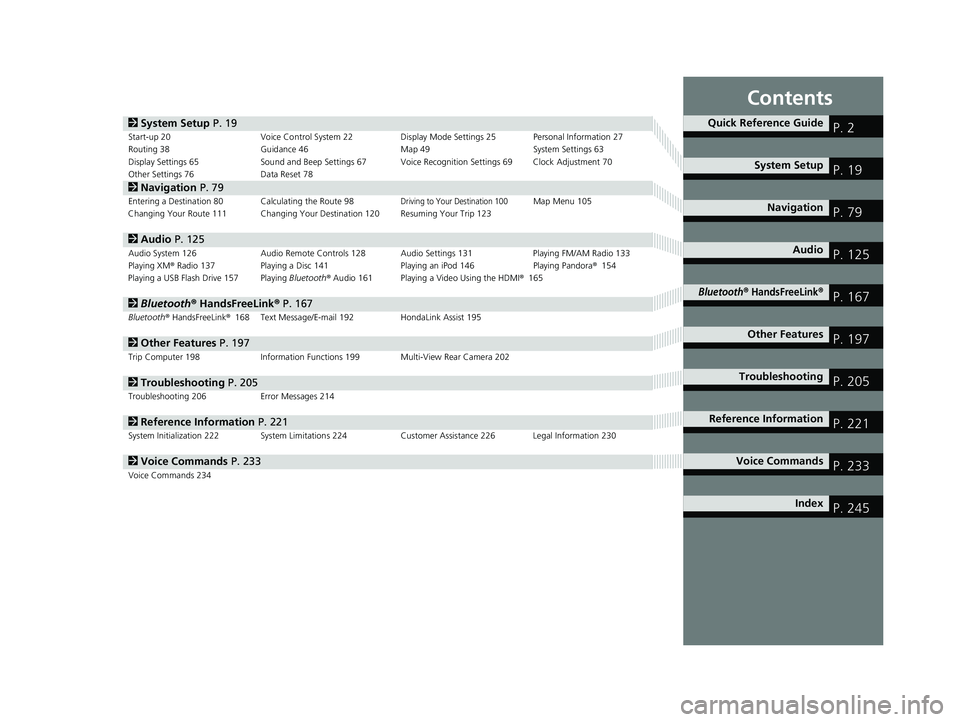
2System Setup P. 19Start-up 20 Voice Control System 22Display Mode Settings 25 Personal Information 27
Routing 38 Guidance 46 Map 49 System Settings 63
Display Settings 65 Sound and Beep Settings 67 Voice Recognition Settings 69Clock Adjustment 70
Other Settings 76 Data Reset 78
2Navigation P. 79Entering a Destination 80Calculating the Route 98Driving to Your Destination 100Map Menu 105
Changing Your Route 111 Changing Your Destination 120 Resuming Your Trip 123
2Audio P. 125Audio System 126 Audio Remote Controls 128 Audio Settings 131 Playing FM/AM Radio 133
Playing XM® Radio 137 Playing a Disc 141 Playing an iPod 146Playing Pandora® 154
Playing a USB Flash Drive 157Playing Bluetooth ® Audio 161 Playing a Video Using the HDMI ® 165
2Bluetooth ® Han dsFreeLink® P. 167Bluetooth® HandsFreeLink® 168 Text Message/E-mail 192HondaLink Assist 195
2Other Features P. 197Trip Computer 198 Information Functions 199 Multi-View Rear Camera 202
2Troubleshooting P. 205Troubleshooting 206 Error Messages 214
2Reference Information P. 221System Initialization 222 System Limitations 224 Customer Assistance 226 Legal Information 230
2Voice Commands P. 233Voice Commands 234
Quick Reference GuideP. 2
System Setup P. 19
Navigation P. 79
Audio P. 125
Bluetooth® HandsFreeLink®P. 167
Other Features P. 197
TroubleshootingP. 205
Reference Information P. 221
Voice Commands P. 233
Index P. 245
14 CIVIC 2D 4D IMA NAVI-31TR38200.book 1 ページ 2014年3月21日 金曜日 午 後3時20分
Page 126 of 253
125
Audio
This section describes how to operate the audio system. You can play music from a wide
array of media sources, and control the audio system using the touchscreen, remote
control, or voice control.
Audio System........................................ 126
About Your Audio System .................... 126Audio System Theft Protection ............. 127Audio Remote Controls........................ 128
Steering Wheel Controls ...................... 128Audio Settings...................................... 131Adjusting the Sound ............................ 132Playing FM/AM Radio........................... 133
Selecting FM/AM Mode........................ 133Audio Screen Control ........................... 134Audio Menu ........................................ 135Playing XM® Radio................................ 137
Selecting XM Mode.............................. 137Audio Screen Control ........................... 138Audio Menu ........................................ 139
XM® Radio Service ................................140Playing a Disc.........................................141
Selecting Disc Mode ..............................141Audio Screen Control............................142Playing MP3/WMA/AAC Discs ...............143Audio Menu .........................................144Recommended Discs .............................145Playing an iPod......................................146
Selecting iPod Mode .............................147Audio Screen Control............................148Audio Menu .........................................149Searching for Music ..............................150Song By VoiceTM (SBV) ...........................151Playing Pandora®...................................154Selecting Pandora® Mode......................154
Audio Screen Control ........................... 155Audio Menu......................................... 156Playing a USB Flash Drive..................... 157
Selecting USB Mode ............................. 158Audio Screen Control ........................... 159Audio Menu......................................... 160Playing Bluetooth® Audio.................... 161
Selecting Bluetooth® Audio Mode ........ 161Switching to HFL Mode ........................ 162Audio Screen Control ........................... 163Audio Menu......................................... 164Playing a Video Using the HDMI®........ 165Selecting HDMI Mode .......................... 166
14 CIVIC 2D 4D IMA NAVI-31TR38200.book 125 ページ 2014年3月21日 金曜日 午後3時20分
Page 127 of 253
126
Audio
Audio System
About Your Audio System
1About Your Audio System
XM ® Radio is available on a subscription basis only.
2 XM ® Radio Service P. 140
XM ® Radio is available in the United States and
Canada, except Ha waii, Alaska, and Puerto Rico.
XM is a registered trademark of Sirius XM ® Radio, Inc.
Video CDs, DVDs, and 3-inch /8-cm mini discs are not
supported.
Do not leave the iPod or USB flash drive in the vehicle.
Direct sunlight and high temperatures may damage
it.
iPod and iPhone are regist ered trademark owned by
Apple Inc.
State (provincial in Canada) or local laws may prohibit
the operation of handheld electronic devices while
operating a vehicle.
You can operate the audio system by voice
commands. 2 Audio Commands P. 237The audio system features FM/AM radio and XM ® Radio. It can also play audio discs,
WMA/MP3/AAC tracks, iPods, USB flash drives, and Bluetooth® devices.
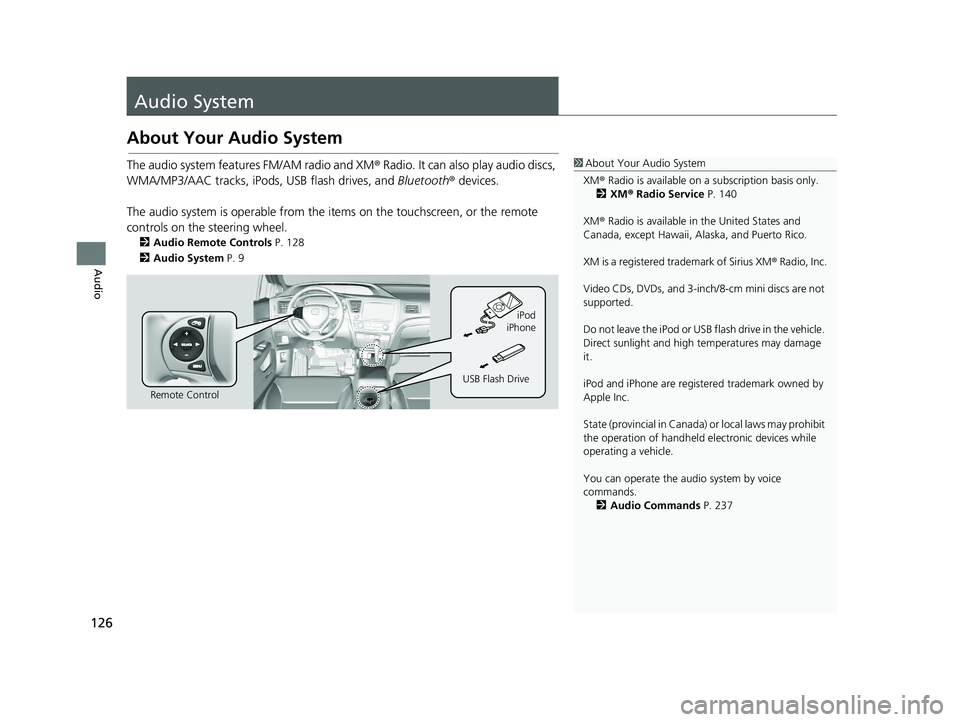
The audio system is operable from the it ems on
the touchscreen, or the remote
controls on the steering wheel.
2 Audio Remote Controls P. 128
2 Audio System P. 9
Remote Control iPod
USB Flash Drive iPhone
14 CIVIC 2D 4D IMA NAVI-31TR38200.book 126 ページ 2014年3月21日 金曜日 午後3時20分
Page 129 of 253
128
Audio
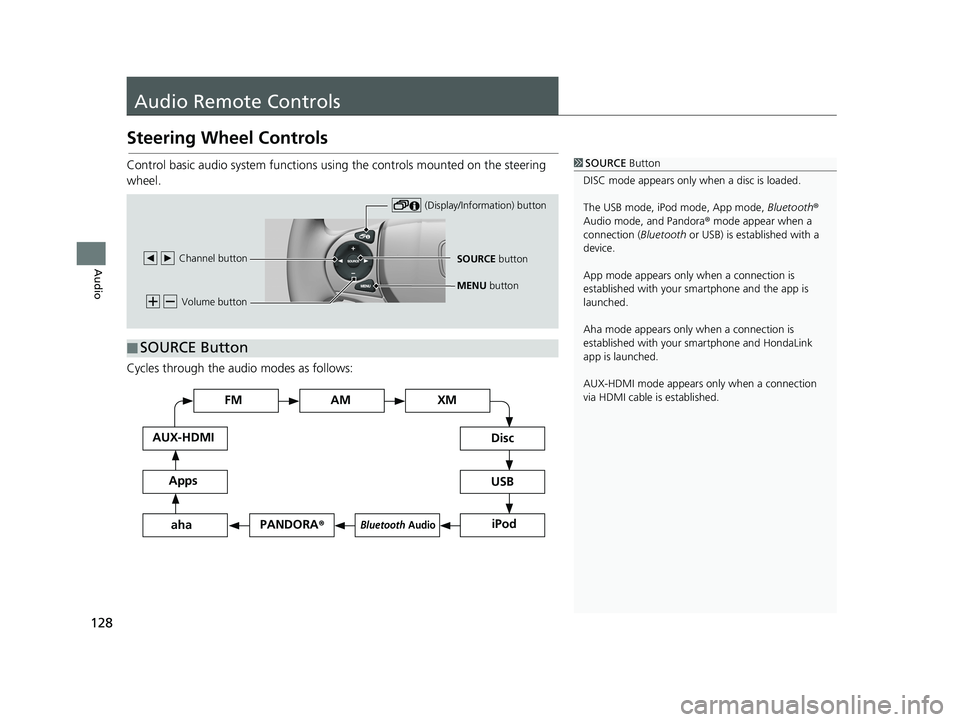
Audio Remote Controls
Steering Wheel Controls
1SOURCE Button
DISC mode appears only when a disc is loaded.
The USB mode, iPod mode, App mode, Bluetooth®
Audio mode, and Pandora ® mode appear when a
connection ( Bluetooth or USB) is established with a
device.
App mode appears only when a connection is
established with your smartphone and the app is
launched.
Aha mode appears only when a connection is
established with your smartphone and HondaLink
app is launched.
AUX-HDMI mode appears only when a connection
via HDMI cable is established.Control basic audio system functions using the controls mounted on the steering
wheel.
Volume button
SOURCE button
Channel button
(Display/Information) button
MENU
button
■SOURCE Button
Cycles through the au
dio modes as follows:
FM
PANDORA
®
AM XM
iPod
Disc
USB
Bluetooth Audio
Apps
AUX-HDMI
aha
14 CIVIC 2D 4D IMA NAVI-31TR38200.book 128 ページ 2014年3月21日 金曜日 午後3時20分
Page 130 of 253
(Volume) Button
■
129
uu Audio Remote Controls u Steering Wheel Controls
Continued
Audio
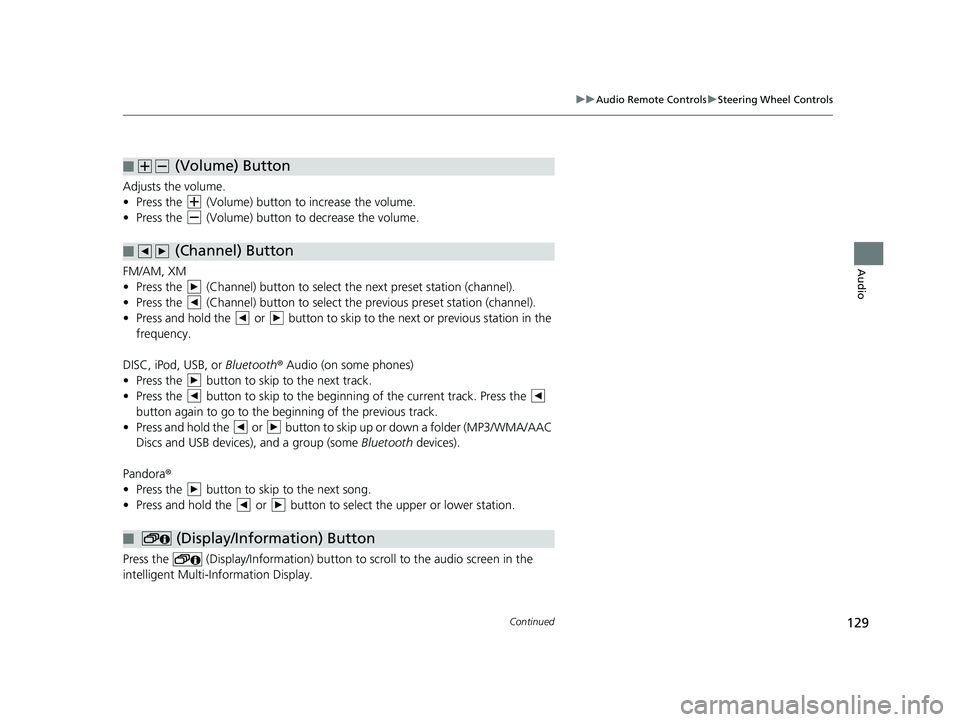
Adjusts the volume.
• Press the (Volume) button to increase the volume.
• Press the (Volume) button to de crease the volume.
(Channel) Button
■
FM/AM, XM
• Press the (Channel) button to select the next preset station (channel).
• Press the (Channel) button to select the pr ev ious preset station (channel).
• Press and hold the or button to skip to the next or previous station in the
frequency.
DISC, iPod, USB, or Bl
uetooth® Audio (on some phones)
• Press the button to skip to the next track.
• Press the button to skip to the beginning of the current track. Press the
button again to go to the beginning of the previous track.
• Press and hold the or
button to skip up or down a folder (MP3/WMA/AAC
Discs and USB devices), and a group (some Bluetooth devices).
Pandora ®
• Press the button to skip to the next song.
• Press and hold the or button to select the upper or lower station.
(Display/Information) Button
■
Press the (Display/Information) button to sc roll to the audio screen in the
intelligent Multi-Information Display.
14 CIVIC 2D 4D IMA NAVI-31TR38200.book 129 ページ 2014年3月21日 金曜日 午後3時20分
Page 131 of 253
■MENU Button1
MENU Button
* Not available on all models.
uu Audio Remote Controls u Steering Wheel Controls
130
Audio
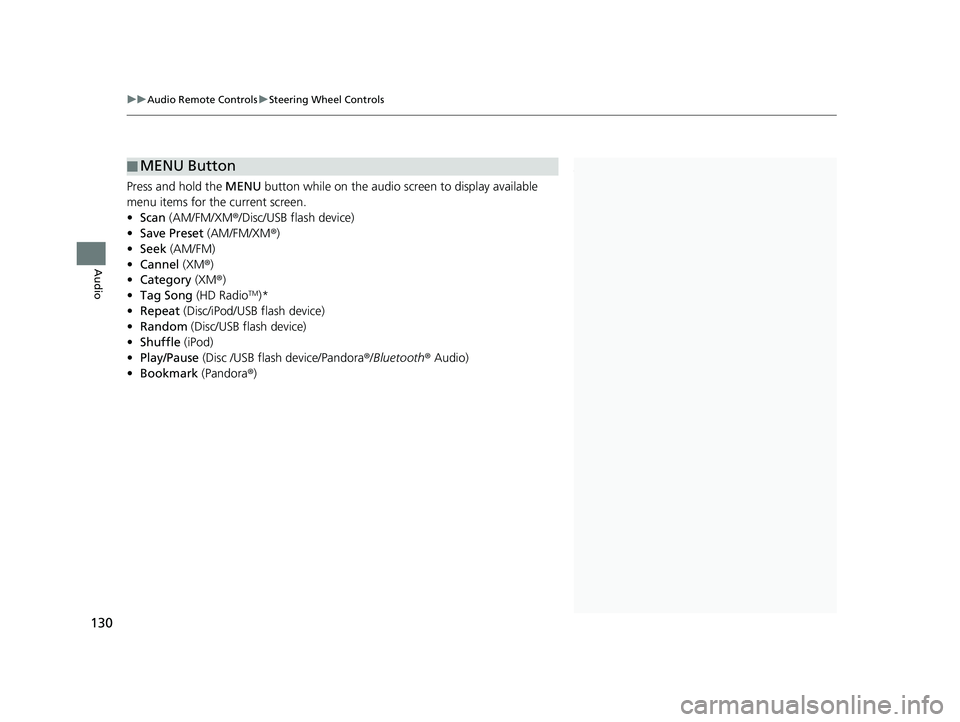
Press and hold the MENU button while on the audio screen to display available
menu items for the current screen.
• Scan (AM/FM/XM ®/Disc/USB flash device)
• Save Preset (AM/
FM/XM®)
• Seek (AM/
FM)
• Ca
nnel (XM ®)
• Cate
gory (XM®)
• Ta
g Song (HD RadioTM)*
• R
epeat (Disc/iPod/USB flash device)
• Rand
om (Disc/USB flash device)
• Shuffle (iPod)
• Pl
ay/Pause (Disc /USB flas h device/Pandora ®/Bluetooth ® Audio)
• Bookma
rk (Pandora ®)
14 CIVIC 2D 4D IMA NAVI-31TR38200.book 130 ページ 2014年3月21日 金曜日 午後3時20分
Page 169 of 253
168
Bluetooth® HandsFreeLink ®
Bluetooth® HandsFreeLink ®
1Bluetooth ® HandsFreeLink ®
You can control the HFL system using voice
commands. 2 HFL Menus P. 188
To use HFL, you need a Bluetooth-compatible cell
phone. For a list of compatible phones, pairing
procedures, and special feature capabilities:
•U.S.: Visit handsfreelink.honda.com.
•Canada: Visit www.handsfreelink.ca .
Voice Control Tips
•Close the windows, as noise coming from them
may interfere with the microphones.
•Press and release the (Talk) button before
giving a command. Speak clearly and naturally
after a beep. 2 Voice Control Operation P. 5
•If the microphones pick up vo ices other than yours,
the command may be misinterpreted.
•When HFL is in use, navigation voice commands
cannot be recognized.
•To change the volume level, use VOL (volume) or
the remote audio controls.
Some phones may send batter y, signal strength, and
roaming status information to the screen.
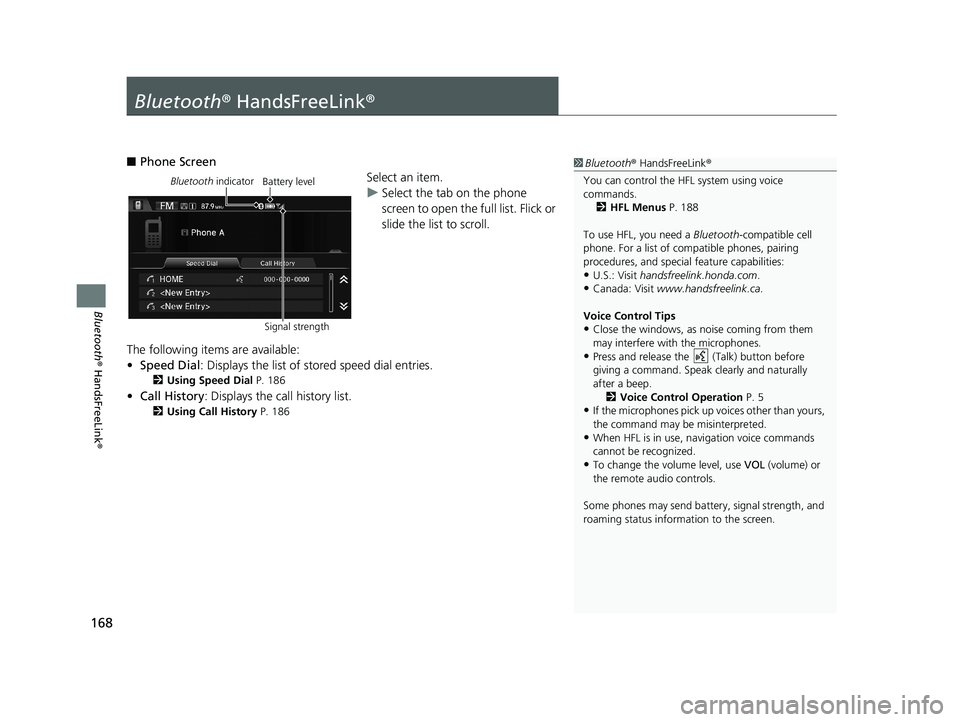
■ Phone Screen
Bluetooth indicator
Signal strengthBattery levelSelect an item.
uSelect
the tab on the phone
screen to open the full list. Flick or
slide the list to scroll.
The following items are available:
• Sp
eed Dial : Displays the list of stored speed dial entries.
2Using Speed Dial P. 186
• Call History: Displays the call history list.
2 Using Call History P. 186
14 CIVIC 2D 4D IMA NAVI-31TR38200.book 168 ページ 2014年3月21日 金曜日 午後3時20分
Page 246 of 253
Index
245
Index
Index
Symbols
9 (Audio Power) Button............................ 4
bn (Channel) Button....................... 4, 129
a (Display Mode) Button................. 4, 25
! (Display/Information) Button.... 4, 129
E (Eject) Button.......................................... 4
J (Hang-Up/Back) Button............... 4, 22
h (Pick-Up) Button............................. 4, 187
d (Talk) Button.................................... 4, 22
NB (Volume) Button........................ 4, 129
Numbers
3D Angle Adjustment................................ 55
3D Map....................................................... 54
A
Address
Editing Address Book ................................ 30
Editing Avoid Area .................................... 45
Setting Destination ................................... 82Address Book
Editing Address Book ................................ 28Saving to Address Book ............................ 98
Setting Destination ................................... 87
Address Book PIN....................................... 34
Adjust Time................................................ 75
Answer...................................................... 187
ATM/Bank (Place Category)....................... 91
Audio..................................................... 7, 125
Basic Operation ........................................... 9
Remote Control ....................................... 128
Settings ................................................... 131Voice Commands List .............................. 237
Audio Menu
Bluetooth® Audio .................................... 164
Disc ......................................................... 144
FM/AM Radio .......................................... 135iPod ......................................................... 149
Pandora®................................................. 156
USB Flash Drive ........................................ 160XM® Radio .............................................. 139
Audio Source Pop-Up............................... 131
Auto Daylight............................................. 70
Auto Time Zone.......................................... 70
Automatic Phone Sync............................. 176
Avoid Streets............................................. 119
Avoided Area.............................................. 44
B
BACK............................................................. 4
Background Color....................................... 66
Beep Volume.............................................. 67
Black Level.................................................. 65
Bluetooth (Settings)................................. 172
Bluetooth On/Off Status .......................... 172
Bluetooth Device List
Audio ...................................................... 131
Phone ...................................................... 174
Bluetooth® Audio
Playing .................................................... 161
Voice Commands List .............................. 239
Bluetooth® HandsFreeLink®..................... 167
Bluetooth Setting .................................... 172
Making a Call .......................................... 183Pairing a Phone ....................................... 170
Phone Setting.......................................... 182
Receiving a Call ....................................... 187Setting Speed Dials.................................. 177
Brightness................................................... 65
C
Call History................................................ 186
Cancel Route............................................. 118
Category
Editing Address Book ................................ 31
Place Category List .................................. 244XM®........................................................ 138
Category History......................................... 37
Change Bluetooth Audio Device............. 131
Change Route Preference........................ 111
Change State.............................................. 83
Channel
XM®........................................................ 138Channel List.............................................. 139
City.............................................................. 84
City Vicinity................................................. 92
Clear Current Route................................. 120
14 CIVIC 2D 4D IMA NAVI-31TR38200.book 245 ページ 2014年3月21日 金曜日 午後3時20分