O change HONDA CIVIC SEDAN 2017 Navigation Manual (in English)
[x] Cancel search | Manufacturer: HONDA, Model Year: 2017, Model line: CIVIC SEDAN, Model: HONDA CIVIC SEDAN 2017Pages: 147, PDF Size: 25.21 MB
Page 2 of 147
The information and specifications included in this publication were in effect at the time of approval for printing. Honda Motor Co., Ltd., reserves the right,
however, to discontinue or change specifications or design at any time without notice and without incurring any obligation.
Accessories Precautions
The GPS antenna is located in the dashboard. Metallic front or side window tinting can seriously degrade or obstruct GPS reception.
Signal noise from devices such as radar detectors, vehicle tracking devices, remote starters, and additional amplifiers can dis rupt the navigation system. If you
install any such item, install it away from the navigation display and antenna.
Important Safety Information
Avoid focusing on the screen or manually operating the system controls while driving.
Certain on-screen controls are disabled when driving, however most of the voice commands continue to function. Pull to the side of the road if you need to devote
more attention and time to look at the screen or access additional menus.
Route guidance may conflict with street closures, road construction, detours, and out-of-date map data.
The system itself may also have limitations. Verify route info rmation by carefully observing roads, signs, and signals. Always use your own judgment and obey
traffic laws.
2
System Limitations P. 132
NOTICEThis vehicle’s navigation display, if so equipped, includes mercury-containing components. Upon removal, please reuse, recycle, or dispose of as hazardous waste.
Clean the screen with a soft, damp cloth. You may use a mild cleaner intended for use on navigation screens.
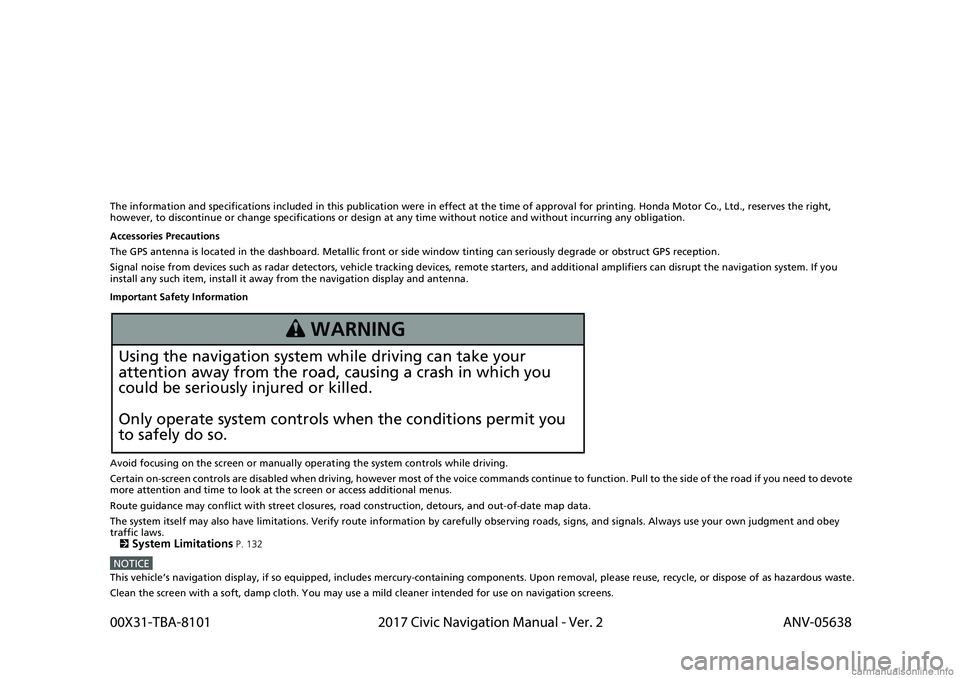
3 WARNING
Using the navigation system while driving can take your
attention away from the road, causing a crash in which you
could be seriously injured or killed.
Only operate system controls when the conditions permit you
to safely do so.
00X31-TBA-8101 2017 Civic Navigation Manual - Ver. 2
ANV-05638
Page 5 of 147
3
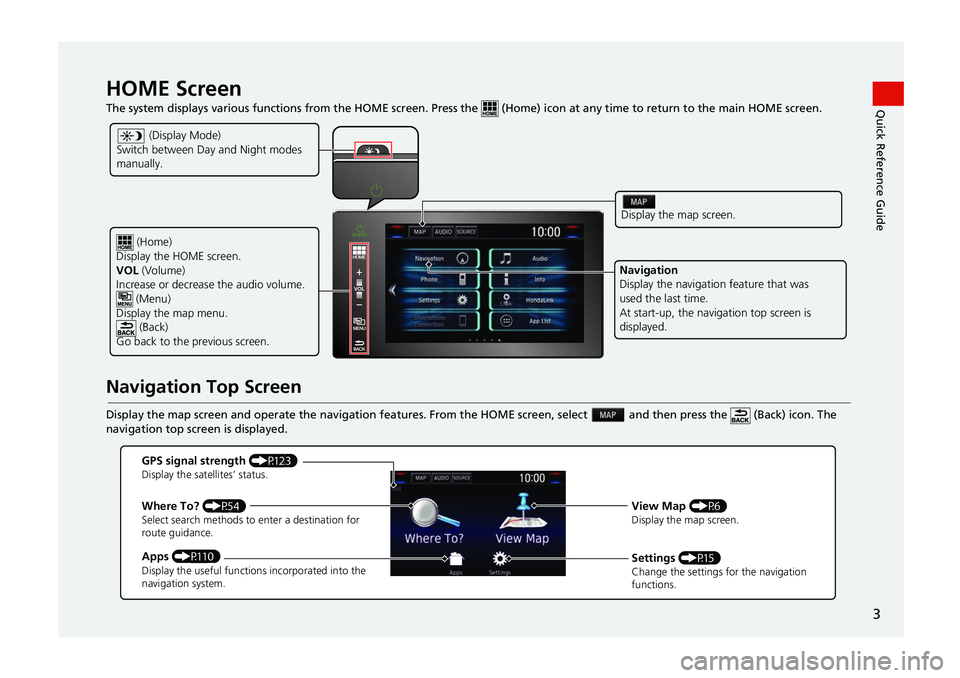
Quick Reference GuideHOME Screen The system displays various functions from the HOME screen. Press the (Home) icon at an y time to return to the main HOME screen.
Navigation Top Screen
Display the map screen and operate the naviga tion features. From the HOME screen, select and then pr ess the (Back) icon. The
navigation top screen is displayed.
(Home)
Display the HOME screen.
VOL (Volume)
Increase or decrease the audio volume. (Menu)
Display the map menu.
(Back)
Go back to the previous screen.
Display the map screen.
Navigation
Display the navigation feature that was
used the last time.
At start-up, the navigation top screen is
displayed.
(Display Mode)
Switch between Day and Night modes
manually.
GPS signal strength (P123)Display the satellites’ status.
Where To? (P54)Select search methods to enter a destination for
route guidance.
Apps (P110)Display the useful functions incorporated into the
navigation system.
View Map (P6)Display the map screen.
Settings (P15)Change the settings for the navigation
functions.
Page 6 of 147
4
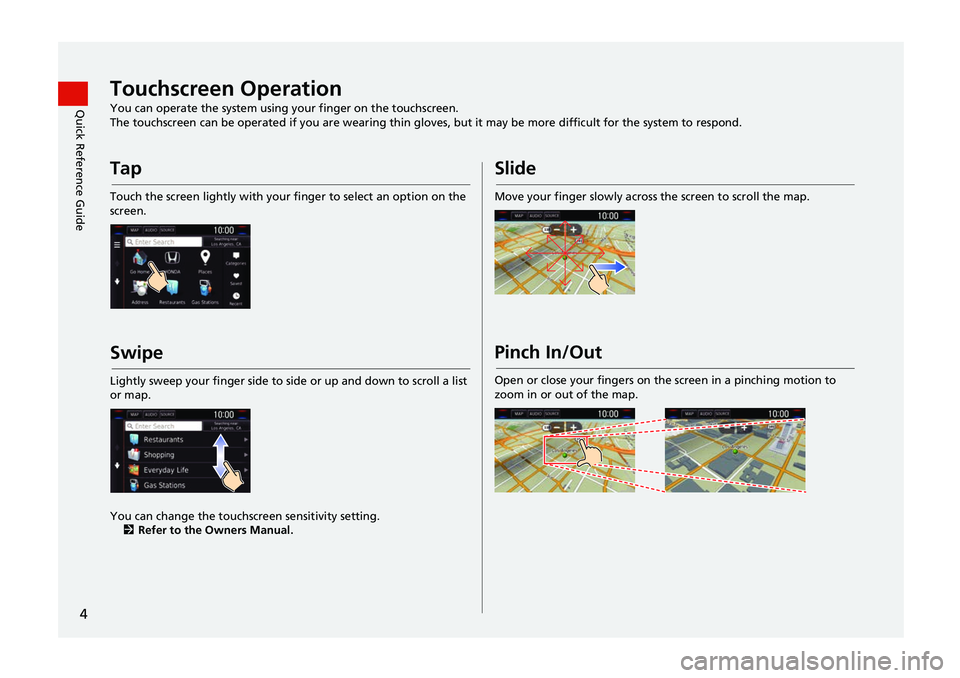
Quick Reference GuideTouchscreen OperationYou can operate the system using your finger on the touchscreen.
The touchscreen can be operated if you are wearing thin gloves, but it may be more difficult for the system to respond.
Tap
Touch the screen lightly with your finger to select an option on the
screen.
Swipe
Lightly sweep your finger side to side or up and down to scroll a list
or map.
You can change the touchscreen sensitivity setting. 2 Refer to the Owners Manual.
Slide
Move your finger slowly across the screen to scroll the map.
Pinch In/Out
Open or close your fingers on the screen in a pinching motion to
zoom in or out of the map.
Page 7 of 147
5
Quick Reference GuideHow to Enter InformationYou can enter information (e.g., city names, street names, numbers, and symbols) when prompted on input screens.
Using Voice CommandsWhen you see in this manual, voice commands are available for
that feature.
The system recognizes only certain commands.
Available navigation voice commands (P140)
Press the (Talk) button, and say the letter, number, or symbol
(e.g., say “ 1”).
If a voice command is not recognized, a list is displayed with
possible options.
On list screens:
Say the number of the list item (e.g., say “ Three” to select
item 3).
Say “ Main menu ” to return to the voice command menu
screen.
Say “ Back” to return to the previous screen.
Say “ Page Up” to scroll up one page.
Say “ Page Down ” to scroll down one page.
Say “ Exit” to end the voice command function.
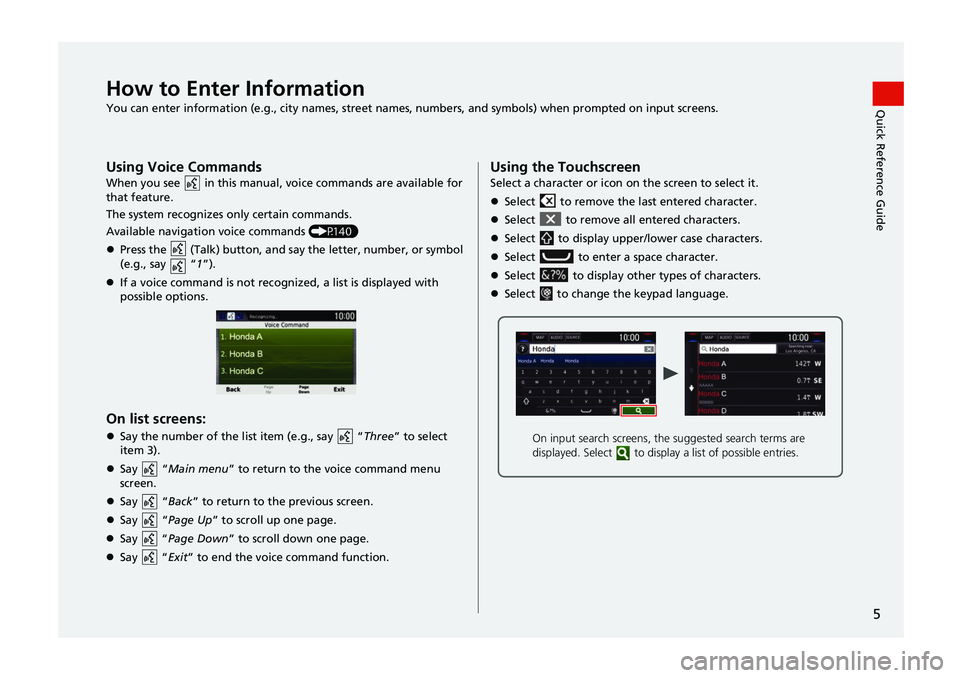
Using the TouchscreenSelect a character or icon on the screen to select it.
Select to remove the last entered character.
Select to remove all entered characters.
Select to display upper/lower case characters.
Select to enter a space character.
Select to display other types of characters.
Select to change the keypad language.
On input search screens, th e suggested search terms are
displayed. Select to disp lay a list of possible entries.
Page 11 of 147
9
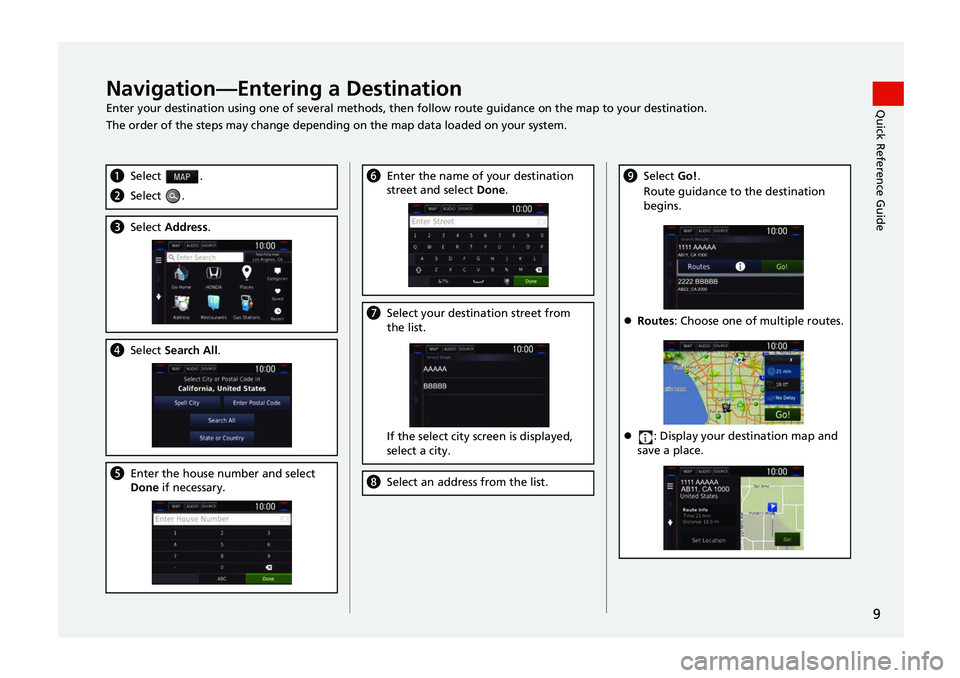
Quick Reference GuideNavigation—Entering a DestinationEnter your destination using one of several methods, th en follow route guidance on the map to your destination.
The order of the steps may change depending on the map data loaded on your system.
a Select .
bSelect .
cSelect Address .
dSelect Search All .
eEnter the house number and select
Done if necessary.
fEnter the name of your destination
street and select Done.
gSelect your destination street from
the list.
If the select city screen is displayed,
select a city.
hSelect an addres s from the list.
iSelect Go!.
Route guidance to the destination
begins.
Routes : Choose one of multiple routes.
: Display your destination map and
save a place.
Page 14 of 147

12
Quick Reference GuideTroubleshootingFor more Information (P125)
Why does the vehicle position icon on the map appear
slightly off my actual position, especially at intersections?
This is normal. The navigation system is unaware of the
width of intersections. Large differences in vehicle position
can indicate a temporary loss of the GPS signal.
Why does the “Arrival time” display sometimes increase
even though I am getting closer to my destination?
The “Arrival time” is based on the speed limit on each
road. Depending on the traffic conditions, the “Arrival
time” may be calculated to be earlier or later.
Why does my clock frequently change the time forward
and backward by one hour?
The clock setting is automatically updated based on your
GPS location. If you are driving near a time zone border,
the automatic update likely is the reason.
How do I turn on the navigation system voice guidance?
1.Press the (Home) icon.
Select Settings > System > Sound/Beep tab.
Turn up Guidance Volume , if guidance volume is low.
2.Select and then press the (Back) icon. Select
Settings > Navigation and enable Voice Prompt .
For more details, see the Owner’s Manual.
How do I specify a destination when an entered city or
street could not be found?
Try selecting the destinatio n directly from the map.
Page 25 of 147
23
uuPersonal Information uSaved Locations
Continued
System Setup
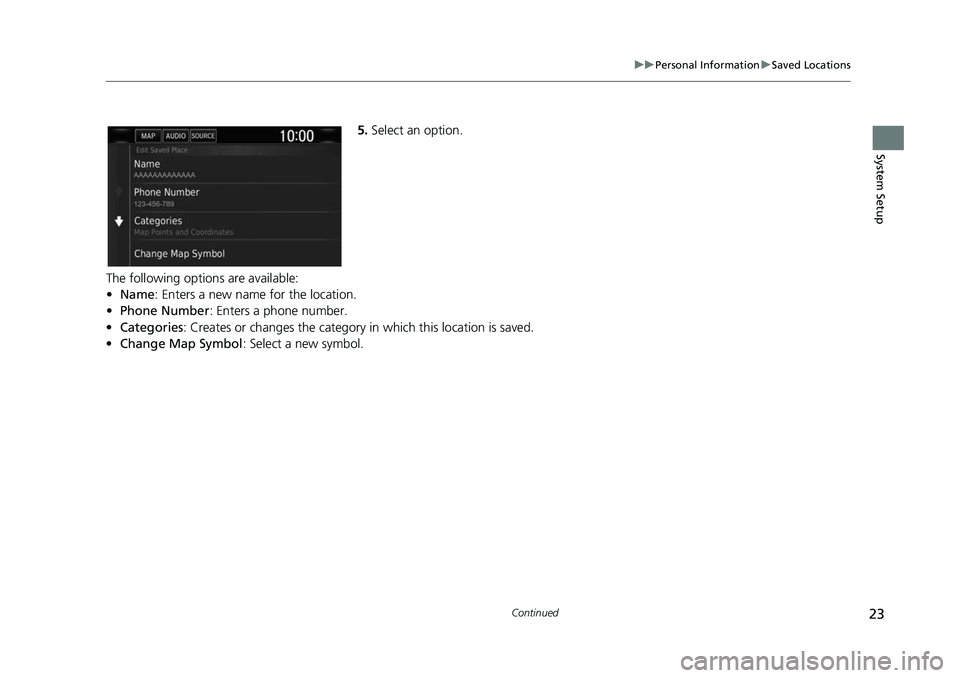
5. Select an option.
The following options are available:
• Name: Enters a new name for the location.
• Phone Number: Enters a phone number.
• Categories : Creates or changes the category in which this location is saved.
• Change Map Symbol: Select a new symbol.
Page 28 of 147
26
System Setup
Display Mode Settings
Switching Display Mode Manually
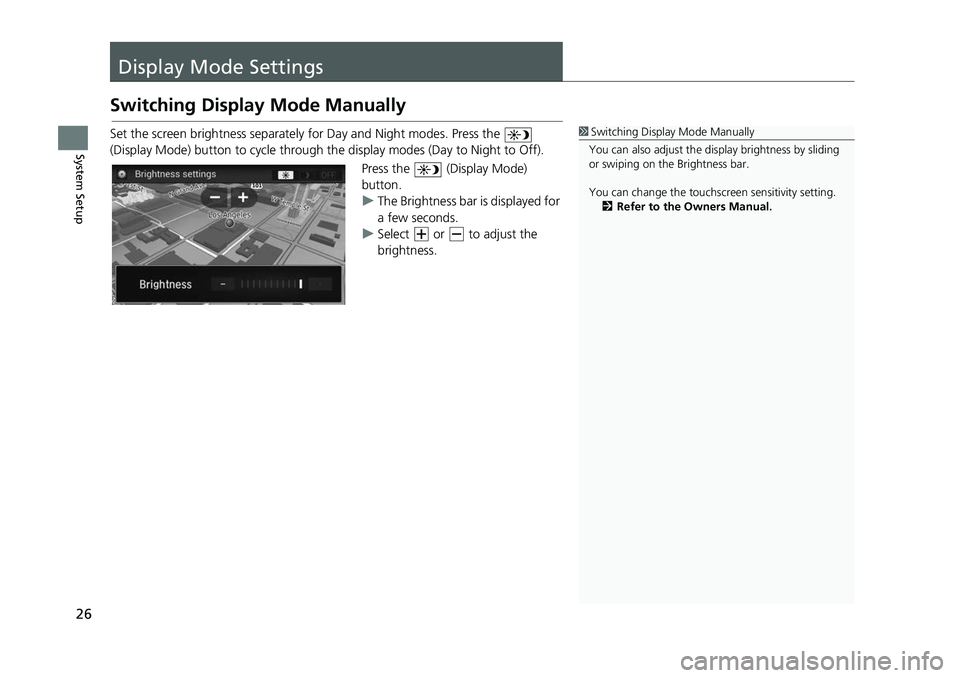
Set the screen brightness separately for Day and Night modes. Press the
(Display Mode) button to cy cle through the display mode s (Day to Night to Off).
Press the (Display Mode)
button.
u The Brightness bar is displayed for
a few seconds.
u Select or to adjust the
brightness.1Switching Display Mode Manually
You can also adjust the display brightness by sliding
or swiping on the Brightness bar.
You can change the touchs creen sensitivity setting.
2 Refer to the Owners Manual.
Page 29 of 147
27
uuDisplay Mode Settings uSwitching Display Mode Manually
System SetupIllumination
control Priority Operation
(Display
Mode) button1Selects Day or Night disp lay mode when the user
wants to change the brightness of the display
temporarily.
Remember: This button overrides all other display
brightness adjustments either set automatically by
the sunlight sensor or manually from the System
settings screen.
Sunlight sensor
*
(see your Owner’s
Manual for
location) 2 If the sunlight sensor detects daylight and the
headlights are turned on, the system automatically
overrides the Night display and displays the Day
display mode.
Remember: If desired, use the (Display Mode)
button to override th is automatic choice.
Dash illumination
adjustment knob
(see your Owner’s
Manual for
location)3When the headlights are turned on, and you wish to
have the Day display mode, adjust the illumination
to the full brightness (beeps).
Remember: Adjust the dash brightness back to
midrange to allow auto switching by sensing the
headlights are on or off.
Headlights
(Auto
*/On/Off) 4 When turned on, the display changes to Night
display mode.
The previous three controls listed above can
“cancel” this function.
Remember: Use the (Display Mode) button,
or adjust the dash illumination to full brightness, to
set the display to your desired choice.
* Not available on all models
Page 30 of 147
28
System Setup
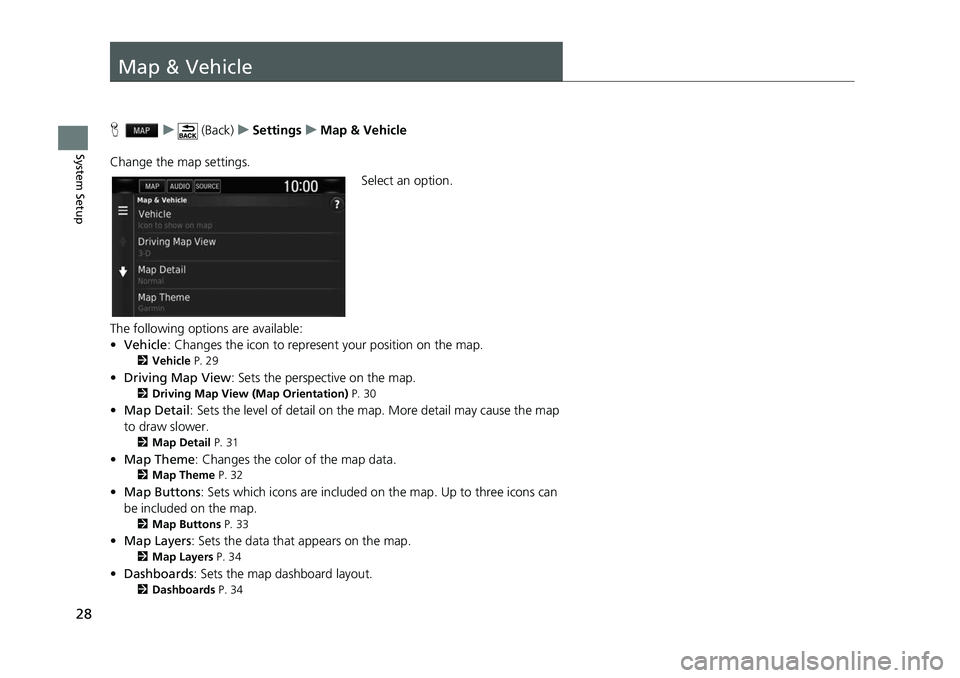
Map & Vehicle
Hu (Back) uSettings uMap & Vehicle
Change the map settings. Select an option.
The following options are available:
• Vehicle : Changes the icon to represent your position on the map.
2Vehicle P. 29
•Driving Map View : Sets the perspective on the map.2Driving Map View (Map Orientation) P. 30
•Map Detail : Sets the level of detail on the map. More detail may cause the map
to draw slower.
2 Map Detail P. 31
•Map Theme : Changes the color of the map data.2Map Theme P. 32
•Map Buttons : Sets which icons are included on the map. Up to three icons can
be included on the map.
2 Map Buttons P. 33
•Map Layers : Sets the data that appears on the map.2Map Layers P. 34
•Dashboards : Sets the map dashboard layout.2Dashboards P. 34