phone HONDA CIVIC SEDAN 2019 (in English) Owner's Guide
[x] Cancel search | Manufacturer: HONDA, Model Year: 2019, Model line: CIVIC SEDAN, Model: HONDA CIVIC SEDAN 2019Pages: 679, PDF Size: 40.24 MB
Page 261 of 679
Continued259
uuAudio System Basic Operation uAudio/Information Screen
Features
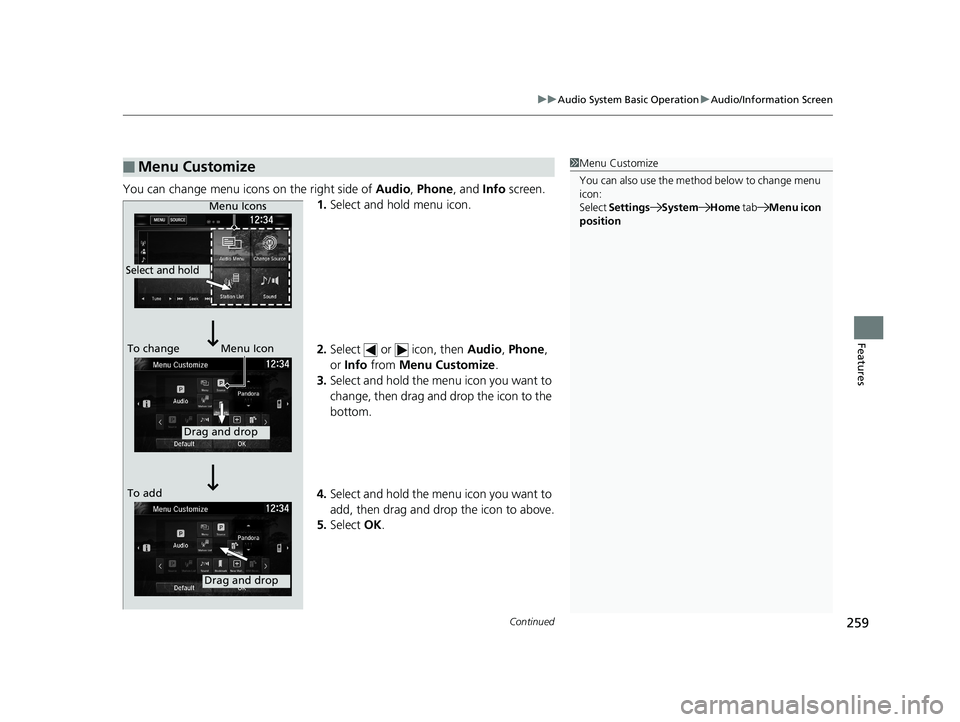
You can change menu icons on the right side of Audio, Phone , and Info screen.
1. Select and hold menu icon.
2. Select or icon, then Audio, Phone ,
or Info from Menu Customize .
3. Select and hold the menu icon you want to
change, then drag and drop the icon to the
bottom.
4. Select and hold the menu icon you want to
add, then drag and drop the icon to above.
5. Select OK.
■Menu Customize1Menu Customize
You can also use the method below to change menu
icon:
Select Settings System Home tabMenu icon
position
Select and hold
Menu Icons
To change Menu Icon
To add
Drag and drop
Drag and drop
19 CIVIC 4D HCM_HMIN_J (KA KL KC)-31TBA6301.book 259 ページ 2018年10月26日 金曜日 午前7時42分
Page 266 of 679
264
uuAudio System Basic Operation uVoice Control Operation
Features
Voice Control Operation
Your vehicle has a voice control system that allows hands-free operation.
The voice control system uses the (T alk) and (hang-up/back) buttons on
the steering wheel and a microphone near the map lights on the ceiling.
To achieve optimum voice recognition when using the voice control system:
• Make sure the correct screen is displa yed for the voice command that you are
using.
The system recognizes only certain commands.
Available voice commands.
2 Voice Portal Screen P. 265
•Close the windows and moonroof*.
• Adjust the dashboard and side vents so air does not blow onto the microphone
on the ceiling.
• Speak clearly in a natural speaking vo ice without pausing between words.
• Reduce any background noise if possible. The system may misinterpret your
command if more than one person is speaking at the same time.
■Voice Recognition
1Voice Control Operation
When you press the button, a helpful prompt asks
what you would like to do. Press and release the
button again to bypass th is prompt and give a
command.
1 Voice Recognition
The voice control system can only be used from the
driver’s seat because the microphone unit removes
noises from the front passenger’s side.
* Not available on all models
19 CIVIC 4D HCM_HMIN_J (KA KL KC)-31TBA6301.book 264 ページ 2018年10月26日 金曜日 午前7時42分
Page 267 of 679
265
uuAudio System Basic Operation uVoice Control Operation
Continued
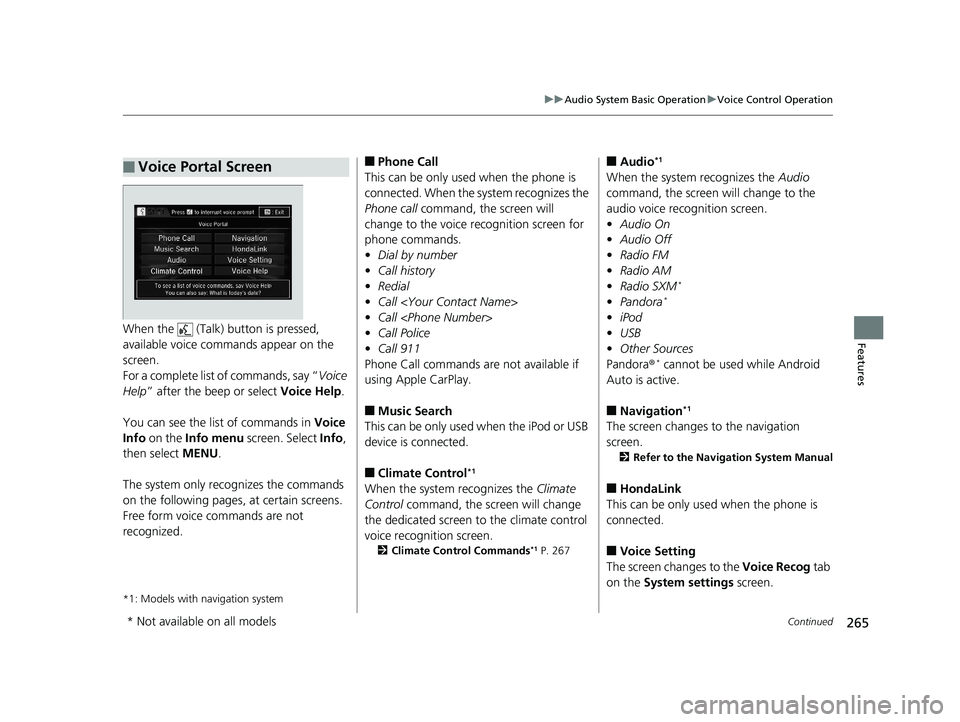
FeaturesWhen the (Talk) button is pressed,
available voice comma nds appear on the
screen.
For a complete list of commands, say “ Voice
Help ” after the beep or select Voice Help.
You can see the list of commands in Voice
Info on the Info menu screen. Select Info,
then select MENU.
The system only recognizes the commands
on the following pages, at certain screens.
Free form voice commands are not
recognized.
*1: Models with navigation system
■Voice Portal Screen■Phone Call
This can be only used when the phone is
connected. When the sy stem recognizes the
Phone call command, the screen will
change to the voice re cognition screen for
phone commands.
• Dial by number
• Call history
• Redial
• Call
• Call
• Call Police
• Call 911
Phone Call commands are not available if
using Apple CarPlay.
■Music Search
This can be only used when the iPod or USB
device is connected.
■Climate Control*1
When the system recognizes the Climate
Control command, the screen will change
the dedicated screen to the climate control
voice recognition screen.
2 Climate Control Commands*1 P. 267
■Audio*1
When the system recognizes the Audio
command, the screen will change to the
audio voice recognition screen.
• Audio On
• Audio Off
• Radio FM
• Radio AM
• Radio SXM
*
•Pandora*
•iPod
• USB
• Other Sources
Pandora®
* cannot be used while Android
Auto is active.
■Navigation*1
The screen changes to the navigation
screen.
2 Refer to the Navigation System Manual
■HondaLink
This can be only used when the phone is
connected.
■Voice Setting
The screen changes to the Voice Recog tab
on the System settings screen.
* Not available on all models
19 CIVIC 4D HCM_HMIN_J (KA KL KC)-31TBA6301.book 265 ページ 2018年10月26日 金曜日 午前7時42分
Page 268 of 679
266
uuAudio System Basic Operation uVoice Control Operation
Features
■Voice Help
You can see a list of the available
commands on the screen.
• Useful Commands
• Phone Commands
• Audio Commands
*1
•On Screen Commands
• Music Search Commands
• General Commands
• Climate Control Commands
*1
The system accepts these commands on the
voice portal top screen.
•Call
• Call
• What time is it?
• What is today’s date?
*1: Models with navigation system
■Useful Commands
The system accepts these commands on the
dedicated screen for the voice recognition
of the phone.
• Call by Number
• Call by Name
• Call
• Call
The system accepts these commands on the
dedicated screen for the voice recognition
of the audio.
■Radio FM Commands
• Radio tune to <87.7-107.9> FM
• Radio tune to <87.7 -107.9> HD <1-8>
FM
• Radio FM preset <1-12>
■Radio AM Commands
• Radio tune to <530-1710> AM
• Radio AM preset <1-6>
■Radio SXM Commands*
•SXM channel <1-255>
■Phone Commands
■Audio Commands*1
•SXM channel
sports team name>
• Radio SXM preset <1-12>
■Pandora Commands*
•Pandora play
■iPod Commands
• iPod play
• iPod play track <1-30>
• Music Search
• What album is this?
• What am I listening to?
■USB Commands
• USB play
• USB play track <1-30>
• Music Search
• What album is this?
• What am I listening to?
■Bluetooth ® Audio Commands
• Bluetooth ® Audio play
NOTE:
Bluetooth ® Audio commands may not work
on some phones or Bluetooth ® Audio
devices.
* Not available on all models
19 CIVIC 4D HCM_HMIN_J (KA KL KC)-31TBA6301.book 266 ページ 2018年10月26日 金曜日 午前7時42分
Page 283 of 679
Continued281
uuAudio System Basic Operation uPlaying an iPod
Features
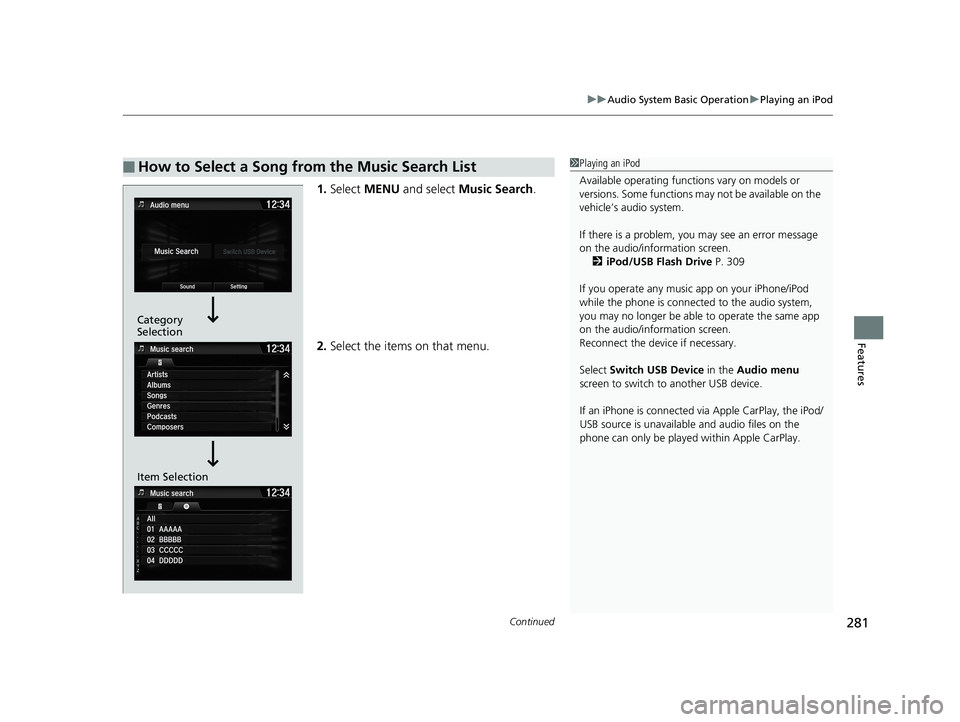
1. Select MENU and select Music Search .
2. Select the items on that menu.
■How to Select a Song from the Music Search List1Playing an iPod
Available operating functi ons vary on models or
versions. Some functions ma y not be available on the
vehicle’s audio system.
If there is a problem, you may see an error message
on the audio/information screen. 2 iPod/USB Flash Drive P. 309
If you operate any musi c app on your iPhone/iPod
while the phone is connected to the audio system,
you may no longer be able to operate the same app
on the audio/information screen.
Reconnect the devi ce if necessary.
Select Switch USB Device in the Audio menu
screen to switch to another USB device.
If an iPhone is connected via Apple CarPlay, the iPod/
USB source is unavailable and audio files on the
phone can only be played within Apple CarPlay.
Category
Selection
Item Selection
19 CIVIC 4D HCM_HMIN_J (KA KL KC)-31TBA6301.book 281 ページ 2018年10月26日 金曜日 午前7時42分
Page 286 of 679
uuAudio System Basic Operation uSong By VoiceTM (SBV)
284
Features
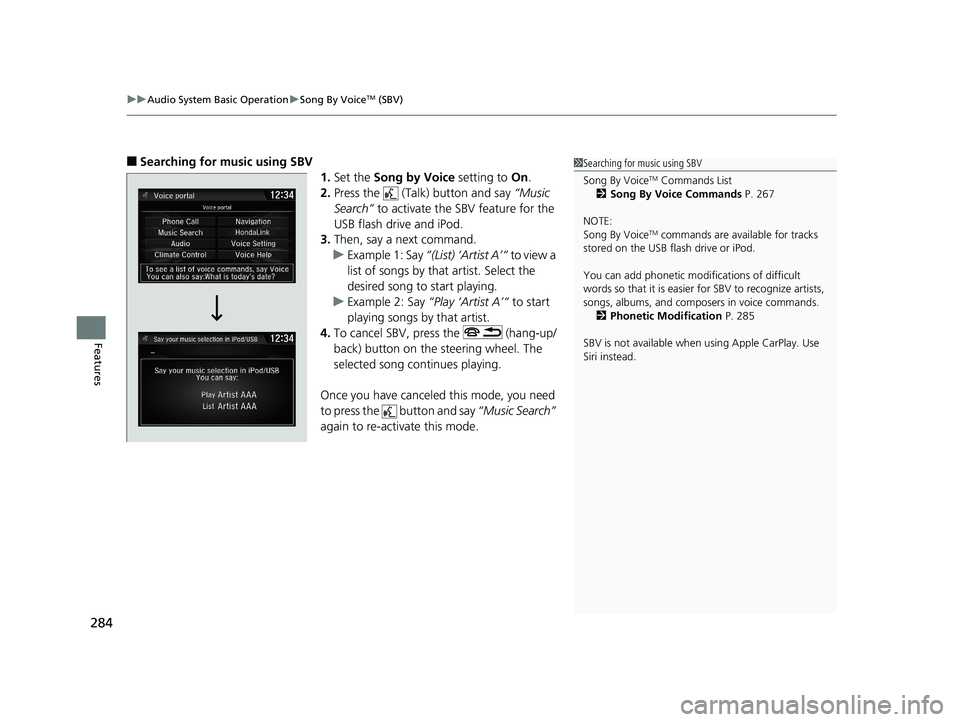
■Searching for music using SBV
1.Set the Song by Voice setting to On.
2. Press the (Talk) button and say “Music
Search” to activate the SBV feature for the
USB flash drive and iPod.
3. Then, say a next command.
u Example 1: Say “(List) ‘Artist A’“ to view a
list of songs by that artist. Select the
desired song to start playing.
u Example 2: Say “Play ‘Artist A’“ to start
playing songs by that artist.
4. To cancel SBV, press the (hang-up/
back) button on the steering wheel. The
selected song continues playing.
Once you have canceled this mode, you need
to press the button and say “Music Search”
again to re-activate this mode.1 Searching for music using SBV
Song By Voice
TM Commands List
2 Song By Voice Commands P. 267
NOTE:
Song By Voice
TM commands are available for tracks
stored on the USB flash drive or iPod.
You can add phonetic modi fications of difficult
words so that it is easier for SBV to recognize artists,
songs, albums, and composers in voice commands. 2 Phonetic Modification P. 285
SBV is not available when using Apple CarPlay. Use
Siri instead.
19 CIVIC 4D HCM_HMIN_J (KA KL KC)-31TBA6301.book 284 ページ 2018年10月26日 金曜日 午前7時42分
Page 287 of 679
Continued285
uuAudio System Basic Operation uSong By VoiceTM (SBV)
Features
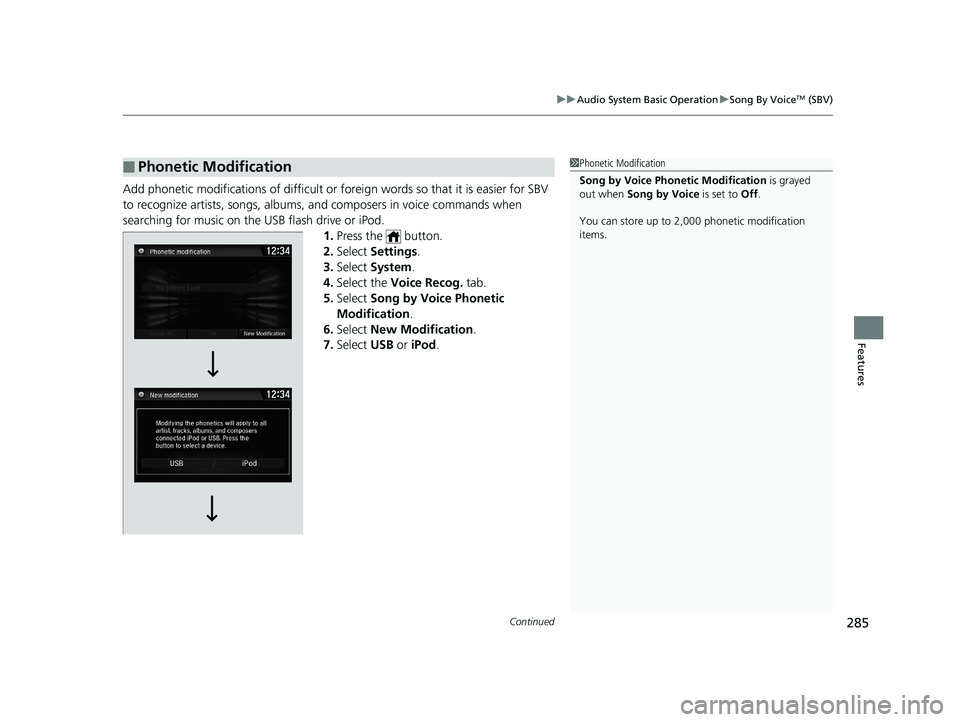
Add phonetic modifications of difficult or fo reign words so that it is easier for SBV
to recognize artists, songs, albums, and composers in voice commands when
searching for music on the USB flash drive or iPod. 1.Press the button.
2. Select Settings .
3. Select System .
4. Select the Voice Recog. tab.
5. Select Song by Voice Phonetic
Modification .
6. Select New Modification .
7. Select USB or iPod .
■Phonetic Modification1Phonetic Modification
Song by Voice Phonetic Modification is grayed
out when Song by Voice is set to Off.
You can store up to 2, 000 phonetic modification
items.
19 CIVIC 4D HCM_HMIN_J (KA KL KC)-31TBA6301.book 285 ページ 2018年10月26日 金曜日 午前7時42分
Page 288 of 679
286
uuAudio System Basic Operation uSong By VoiceTM (SBV)
Features
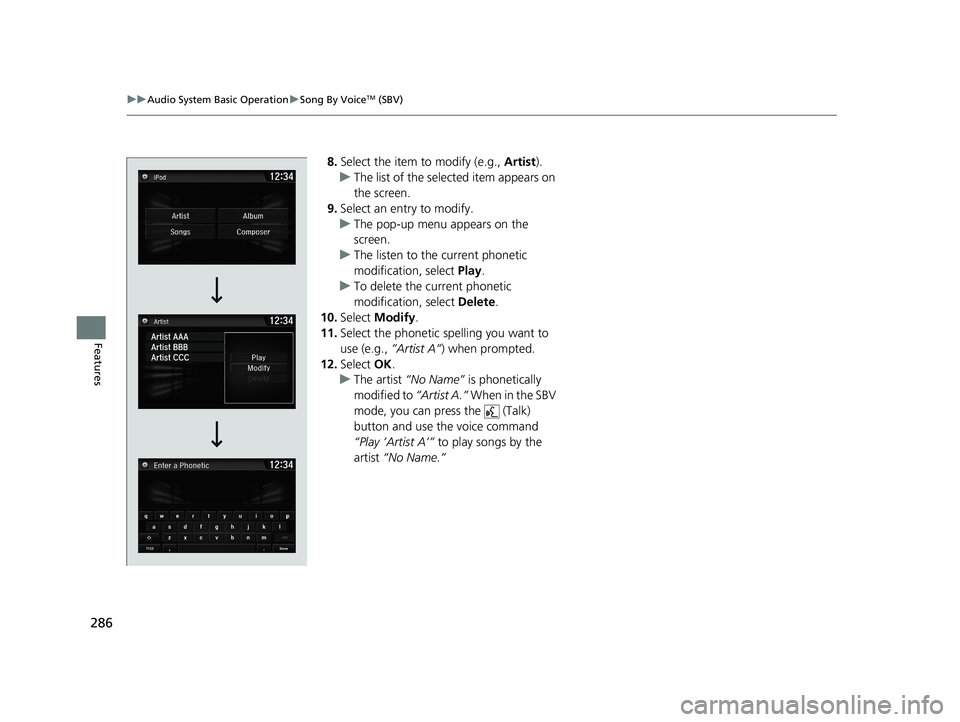
8. Select the item to modify (e.g., Artist).
u The list of the selected item appears on
the screen.
9. Select an entry to modify.
u The pop-up menu appears on the
screen.
u The listen to the current phonetic
modification, select Play.
u To delete the current phonetic
modification, select Delete.
10. Select Modify .
11. Select the phonetic spelling you want to
use (e.g., ”Artist A”) when prompted.
12. Select OK.
u The artist “No Name” is phonetically
modified to “Artist A.” When in the SBV
mode, you can press the (Talk)
button and use the voice command
“Play ‘Artist A’” to play songs by the
artist “No Name.”
19 CIVIC 4D HCM_HMIN_J (KA KL KC)-31TBA6301.book 286 ページ 2018年10月26日 金曜日 午前7時42分
Page 289 of 679
287
uuAudio System Basic Operation uPlaying Pandora ®*
Continued
Features
Playing Pandora ®*
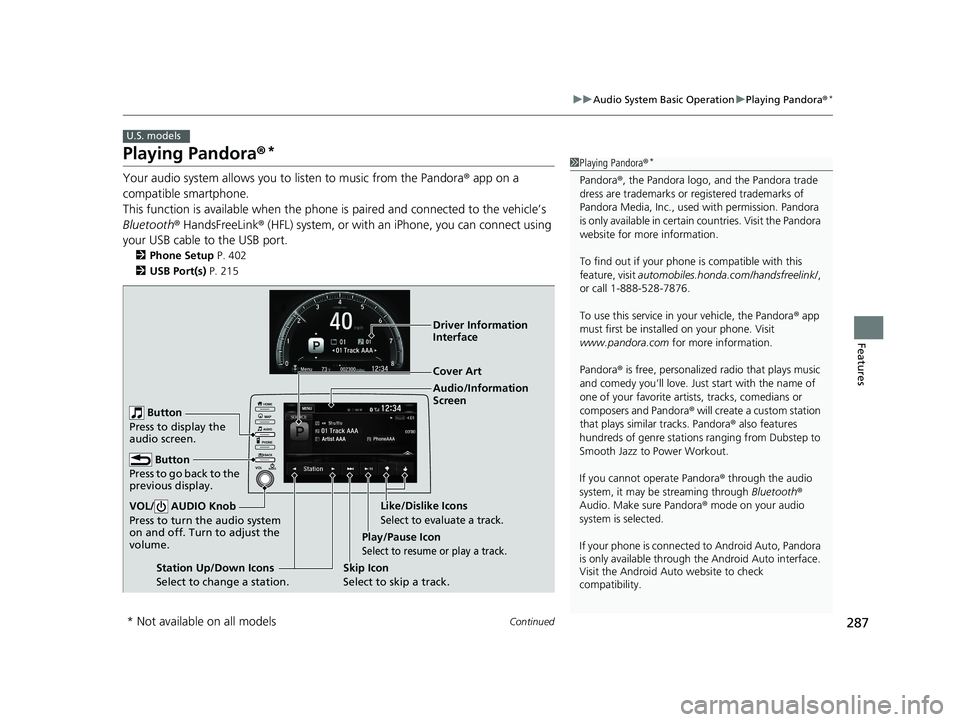
Your audio system allows you to listen to music from the Pandora ® app on a
compatible smartphone.
This function is available when the phone is paired an d connected to the vehicle’s
Bluetooth ® HandsFreeLink ® (HFL) system, or with an iPhone, you can connect using
your USB cable to the USB port.
2 Phone Setup P. 402
2 USB Port(s) P. 215
U.S. models
1Playing Pandora ®*
Pandora®, the Pandora logo, and the Pandora trade
dress are trademarks or registered trademarks of
Pandora Media, Inc., used with permission. Pandora
is only available in certai n countries. Visit the Pandora
website for more information.
To find out if your phone is compatible with this
feature, visit automobiles.honda.com /handsfreelink/,
or call 1-888-528-7876.
To use this service in your vehicle, the Pandora ® app
must first be installed on your phone. Visit
www.pandora.com for more information.
Pandora ® is free, personalized radio that plays music
and comedy you’ll love. Just start with the name of
one of your favorite arti sts, tracks, comedians or
composers and Pandora ® will create a custom station
that plays similar tracks. Pandora ® also features
hundreds of genre stations ranging from Dubstep to
Smooth Jazz to Power Workout.
If you cannot operate Pandora ® through the audio
system, it may be streaming through Bluetooth®
Audio. Make sure Pandora ® mode on your audio
system is selected.
If your phone is connecte d to Android Auto, Pandora
is only available through the Android Auto interface.
Visit the Android Auto website to check
compatibility.
Audio/Information
Screen Cover Art
Play/Pause Icon
Select to resume or play a track.
Station Up/Down Icons
Select to change a station. Skip Icon
Select to skip a track.Like/Dislike Icons
Select to evaluate a track.
Driver Information
Interface
Button
Press to go back to the
previous display.
VOL/ AUDIO Knob
Press to turn the audio system
on and off. Turn to adjust the
volume.
Button
Press to display the
audio screen.
* Not available on all models
19 CIVIC 4D HCM_HMIN_J (KA KL KC)-31TBA6301.book 287 ページ 2018年10月26日 金曜日 午前7時42分
Page 294 of 679
292
uuAudio System Basic Operation uPlaying Bluetooth ® Audio
Features
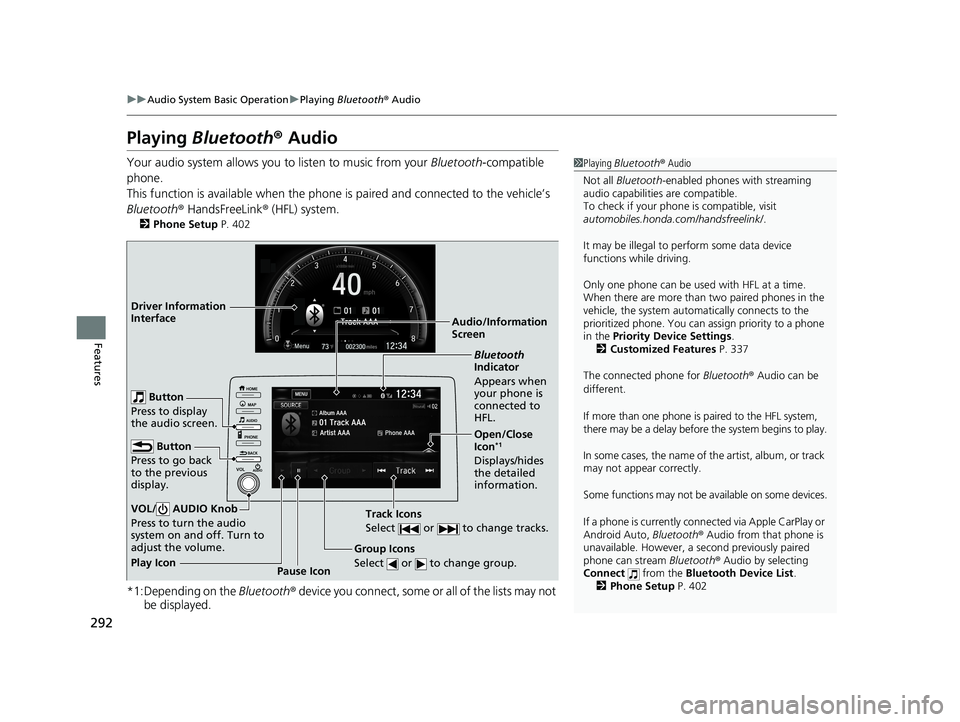
Playing Bluetooth ® Audio
Your audio system allows you to listen to music from your Bluetooth-compatible
phone.
This function is available when the phone is paired and connected to the vehicle’s
Bluetooth ® HandsFreeLink ® (HFL) system.
2 Phone Setup P. 402
*1:Depending on the Bluetooth® device you connect, some or all of the lists may not
be displayed.
1 Playing Bluetooth ® Audio
Not all Bluetooth -enabled phones with streaming
audio capabilities are compatible.
To check if your phone is compatible, visit
automobiles.honda.com /handsfreelink/.
It may be illegal to pe rform some data device
functions while driving.
Only one phone can be used with HFL at a time.
When there are more than two paired phones in the
vehicle, the system automatically connects to the
prioritized phone. You can a ssign priority to a phone
in the Priority Device Settings .
2 Customized Features P. 337
The connected phone for Bluetooth® Audio can be
different.
If more than one phone is paired to the HFL system,
there may be a delay before the system begins to play.
In some cases, the name of the artist, album, or track
may not appear correctly.
Some functions may not be available on some devices.
If a phone is currently conne cted via Apple CarPlay or
Android Auto, Bluetooth® Audio from that phone is
unavailable. However, a se cond previously paired
phone can stream Bluetooth® Audio by selecting
Connect from the Bluetooth Device List .
2 Phone Setup P. 402
Audio/Information
Screen
Group Icons
Select or to change group.
Pause Icon
Play Icon
Bluetooth
Indicator
Appears when
your phone is
connected to
HFL.
Track Icons
Select or to change tracks.
Open/Close
Icon*1
Displays/hides
the detailed
information.
Driver Information
Interface
Button
Press to go back
to the previous
display.
VOL/ AUDIO Knob
Press to turn the audio
system on and off. Turn to
adjust the volume.
Button
Press to display
the audio screen.
19 CIVIC 4D HCM_HMIN_J (KA KL KC)-31TBA6301.book 292 ページ 2018年10月26日 金曜日 午前7時42分