display HONDA CROSSTOUR 2014 1.G Owners Manual
[x] Cancel search | Manufacturer: HONDA, Model Year: 2014, Model line: CROSSTOUR, Model: HONDA CROSSTOUR 2014 1.GPages: 573, PDF Size: 21.2 MB
Page 400 of 573
Continued
399
uuBluetooth® HandsFreeLink®uHFL Menus
Features
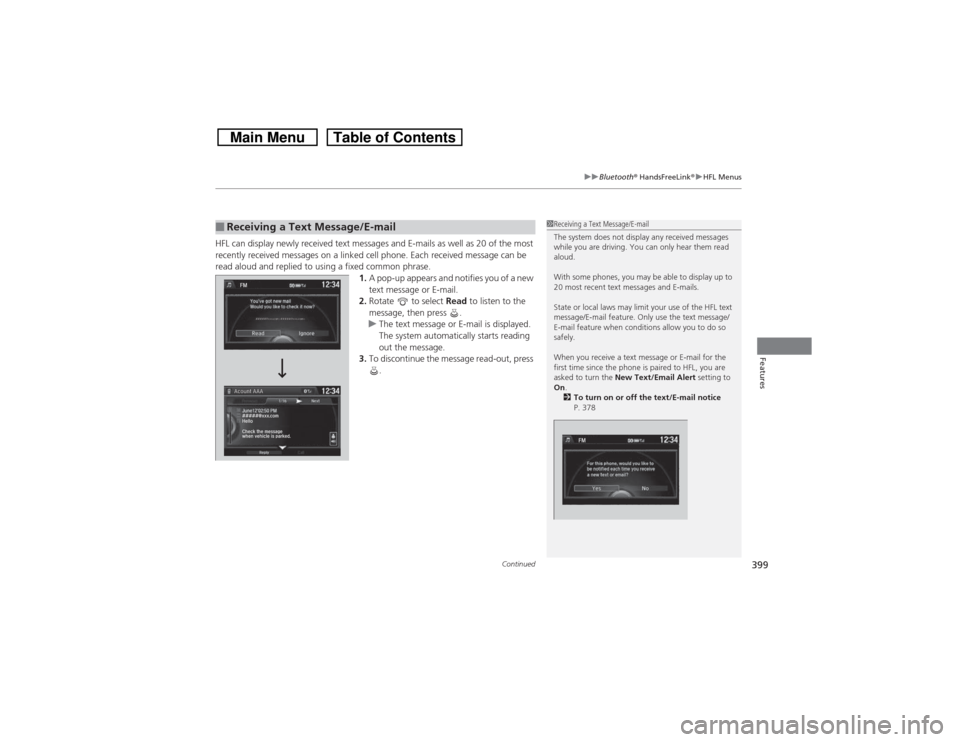
HFL can display newly received text messages and E-mails as well as 20 of the most
recently received messages on a linked cell phone. Each received message can be
read aloud and replied to using a fixed common phrase.
1.A pop-up appears and notifies you of a new
text message or E-mail.
2.Rotate to select Read to listen to the
message, then press .
uThe text message or E-mail is displayed.
The system automatically starts reading
out the message.
3.To discontinue the message read-out, press
.■Receiving a Text Message/E-mail
1Receiving a Text Message/E-mail
The system does not display any received messages
while you are driving. You can only hear them read
aloud.
With some phones, you may be able to display up to
20 most recent text messages and E-mails.
State or local laws may limit your use of the HFL text
message/E-mail feature. Only use the text message/
E-mail feature when conditions allow you to do so
safely.
When you receive a text message or E-mail for the
first time since the phone is paired to HFL, you are
asked to turn the New Text/Email Alert setting to
On.
2To turn on or off the text/E-mail notice
P. 378
Page 402 of 573
Continued
401
uuBluetooth® HandsFreeLink®uHFL Menus
Features
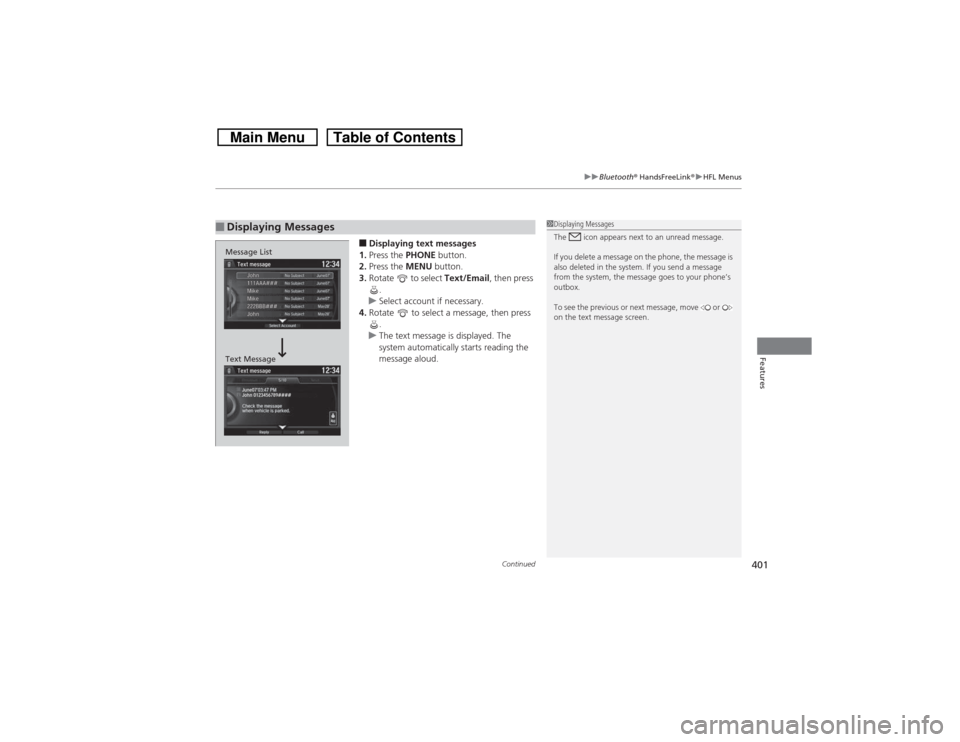
■Displaying text messages
1.Press the PHONE button.
2.Press the MENU button.
3.Rotate to select Text/Email, then press
.
uSelect account if necessary.
4.Rotate to select a message, then press
.
uThe text message is displayed. The
system automatically starts reading the
message aloud.
■Displaying Messages
1Displaying Messages
The icon appears next to an unread message.
If you delete a message on the phone, the message is
also deleted in the system. If you send a message
from the system, the message goes to your phone’s
outbox.
To see the previous or next message, move or
on the text message screen.
Message List
Text Message
Page 403 of 573
uuBluetooth® HandsFreeLink®uHFL Menus
402Features
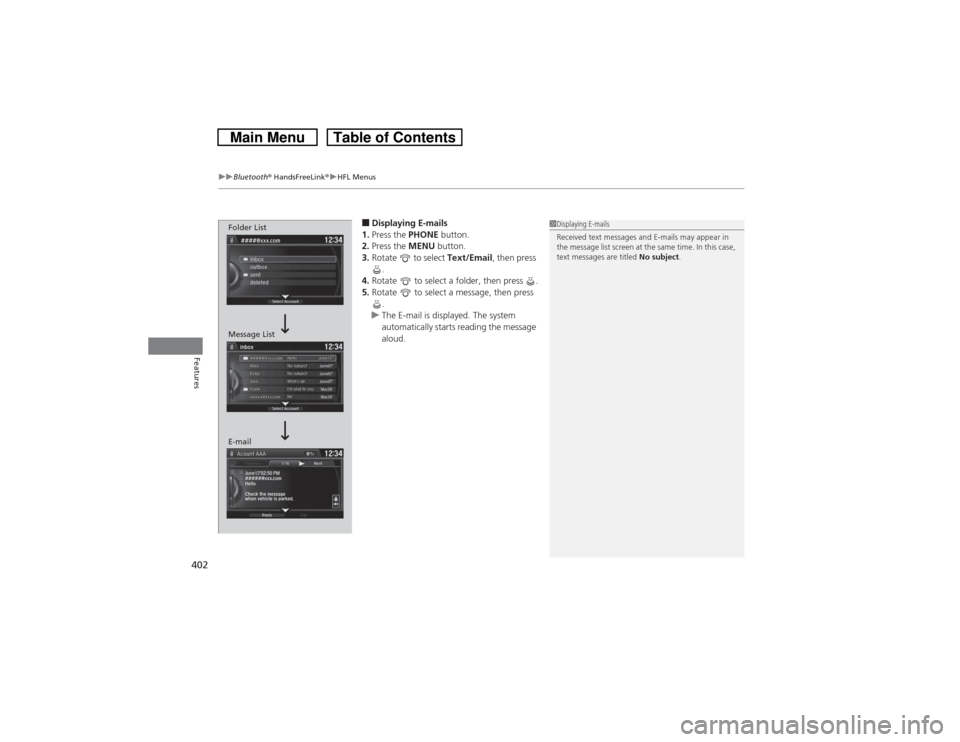
■Displaying E-mails
1.Press the PHONE button.
2.Press the MENU button.
3.Rotate to select Text/Email, then press
.
4.Rotate to select a folder, then press .
5.Rotate to select a message, then press
.
uThe E-mail is displayed. The system
automatically starts reading the message
aloud.
1Displaying E-mails
Received text messages and E-mails may appear in
the message list screen at the same time. In this case,
text messages are titled No subject.
Folder List
Message List
E-mail
Page 404 of 573
Continued
403
uuBluetooth® HandsFreeLink®uHFL Menus
Features
■Read or stop reading a message
1.Go to the text message or E-mail screen.
uThe system automatically starts reading
the message aloud.
2Displaying Messages P. 401
2.Press to stop reading.
Press again to start reading the message
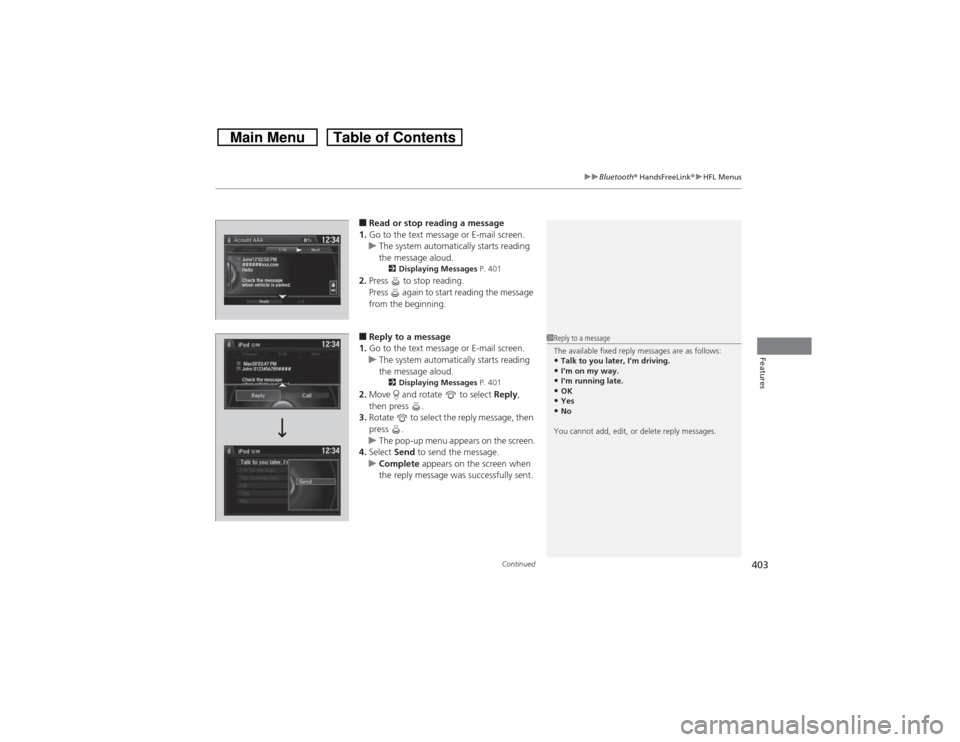
from the beginning.■Reply to a message
1.Go to the text message or E-mail screen.
uThe system automatically starts reading
the message aloud.
2Displaying Messages P. 401
2.Move and rotate to select Reply,
then press .
3.Rotate to select the reply message, then
press .
uThe pop-up menu appears on the screen.
4.Select Send to send the message.
uComplete appears on the screen when
the reply message was successfully sent.
1Reply to a message
The available fixed reply messages are as follows:•Talk to you later, I’m driving.•I’m on my way.•I’m running late.•OK•Yes•No
You cannot add, edit, or delete reply messages.
Page 405 of 573
404
uuBluetooth® HandsFreeLink®uHFL Menus
Features
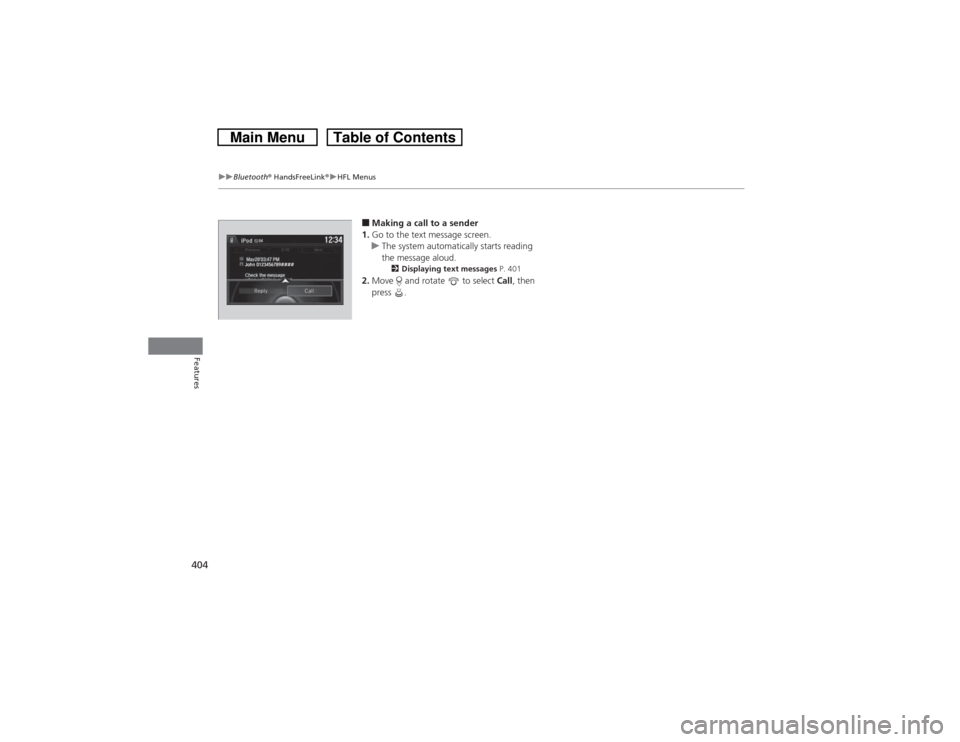
■Making a call to a sender
1.Go to the text message screen.
uThe system automatically starts reading
the message aloud.
2Displaying text messages P. 401
2.Move and rotate to select Call, then
press .
John 0123456789####Reply Call
Page 406 of 573
405Features
Compass
*
When you turn the ignition switch to ON
(w, the compass self-calibrates, and the
compass display appears.
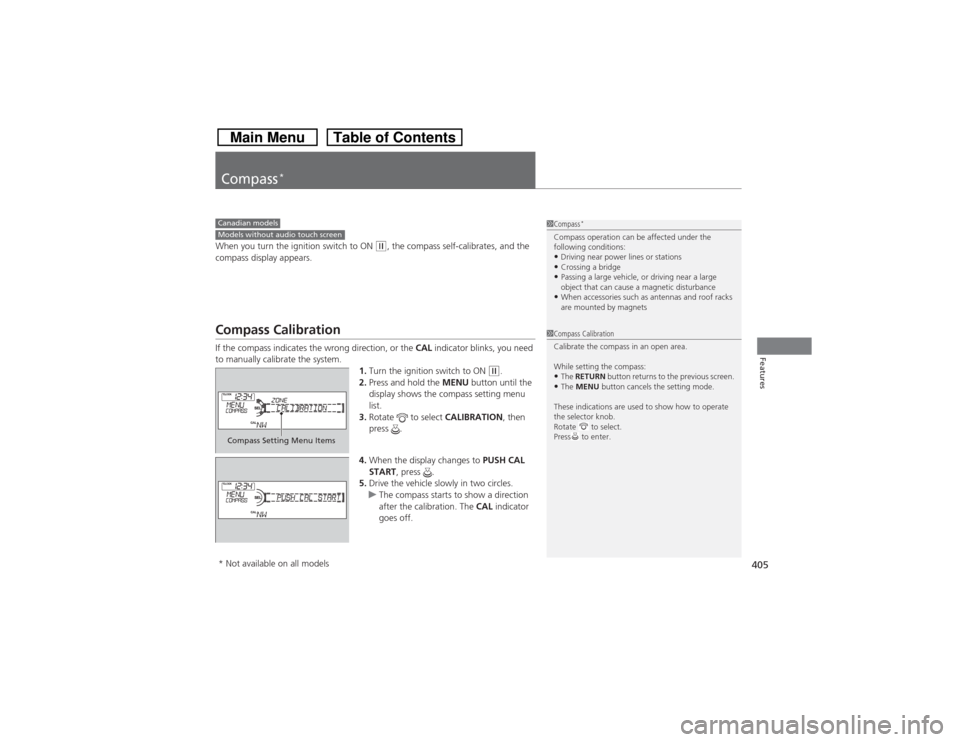
Compass CalibrationIf the compass indicates the wrong direction, or the CAL indicator blinks, you need
to manually calibrate the system.
1.Turn the ignition switch to ON
(w.
2.Press and hold the MENU button until the
display shows the compass setting menu
list.
3.Rotate to select CALIBRATION, then
press .
4.When the display changes to PUSH CAL
START, press .
5.Drive the vehicle slowly in two circles.
uThe compass starts to show a direction
after the calibration. The CAL indicator
goes off.
1Compass
*
Compass operation can be affected under the
following conditions:•Driving near power lines or stations•Crossing a bridge•Passing a large vehicle, or driving near a large
object that can cause a magnetic disturbance•When accessories such as antennas and roof racks
are mounted by magnets
Canadian modelsModels without audio touch screen
1Compass Calibration
Calibrate the compass in an open area.
While setting the compass:•The RETURN button returns to the previous screen.•The MENU button cancels the setting mode.
These indications are used to show how to operate
the selector knob.
Rotate to select.
Press to enter.
Compass Setting Menu Items* Not available on all models
Page 407 of 573
406
uuCompass
*uCompass Zone Selection
Features
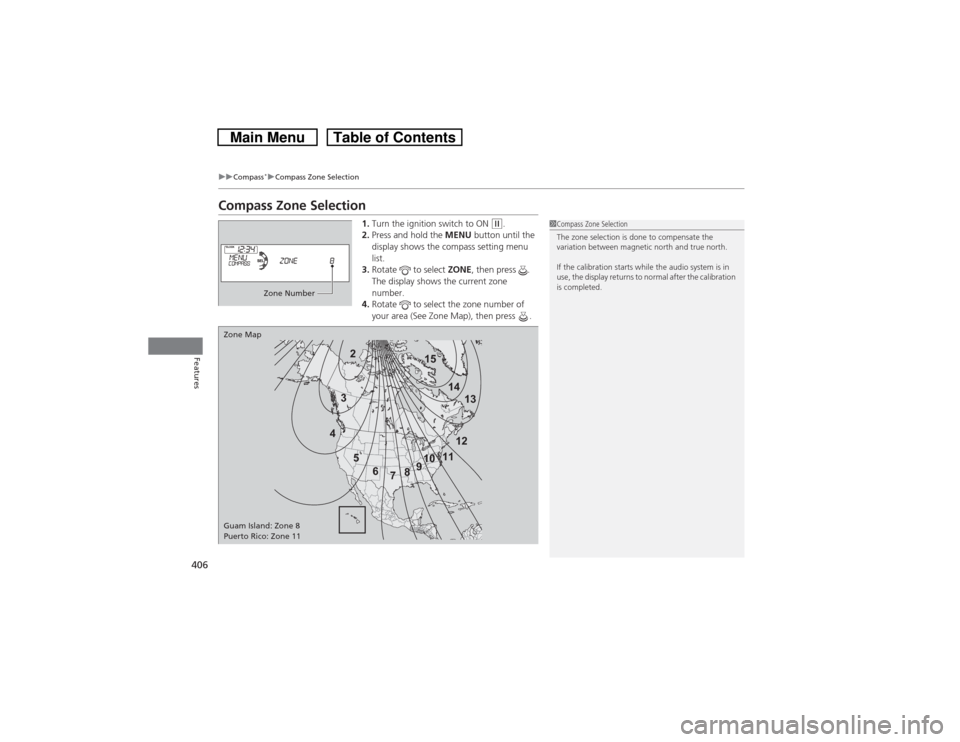
Compass Zone Selection
1.Turn the ignition switch to ON
(w.
2.Press and hold the MENU button until the
display shows the compass setting menu
list.
3.Rotate to select ZONE, then press .
The display shows the current zone
number.
4.Rotate to select the zone number of
your area (See Zone Map), then press .
1Compass Zone Selection
The zone selection is done to compensate the
variation between magnetic north and true north.
If the calibration starts while the audio system is in
use, the display returns to normal after the calibration
is completed.
Zone Number
2
3
4
5
6
78910111213 14 15
Zone Map
Guam Island: Zone 8
Puerto Rico: Zone 11
Page 408 of 573
407Features
Compass
*
When you turn the ignition switch to ON
(w*1, the compass self-calibrates, and the
compass display appears.
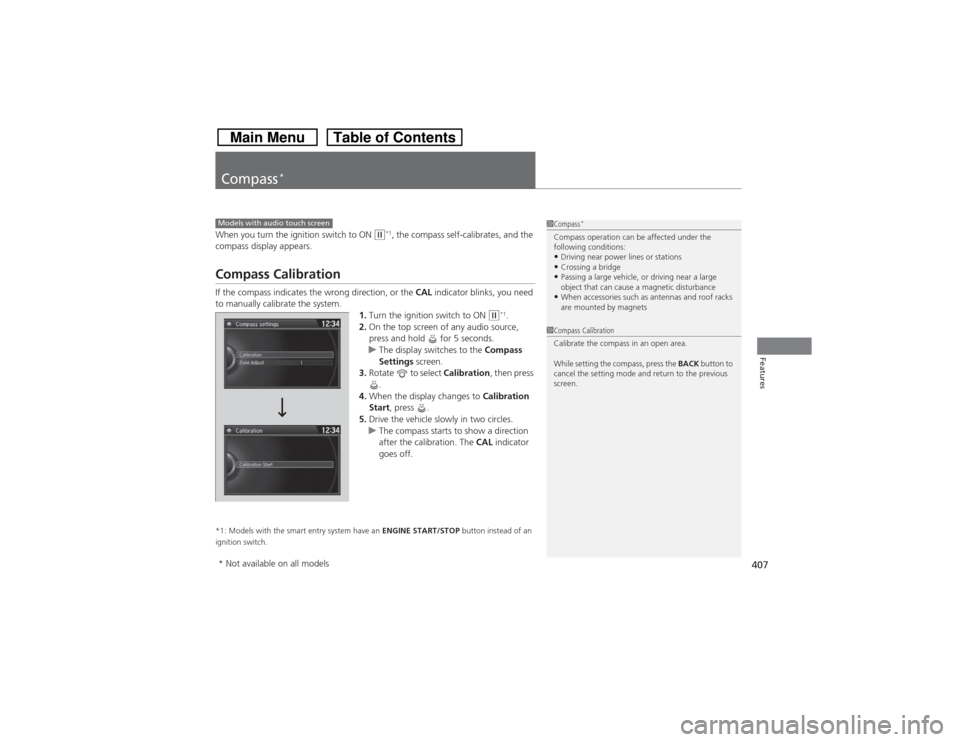
Compass CalibrationIf the compass indicates the wrong direction, or the CAL indicator blinks, you need
to manually calibrate the system.
1.Turn the ignition switch to ON
(w*1.
2.On the top screen of any audio source,
press and hold for 5 seconds.
uThe display switches to the Compass
Settings screen.
3.Rotate to select Calibration, then press
.
4.When the display changes to Calibration
Start, press .
5.Drive the vehicle slowly in two circles.
uThe compass starts to show a direction
after the calibration. The CAL indicator
goes off.
*1: Models with the smart entry system have an ENGINE START/STOP button instead of an
ignition switch.Models with audio touch screen
1Compass
*
Compass operation can be affected under the
following conditions:•Driving near power lines or stations•Crossing a bridge•Passing a large vehicle, or driving near a large
object that can cause a magnetic disturbance•When accessories such as antennas and roof racks
are mounted by magnets
1Compass Calibration
Calibrate the compass in an open area.
While setting the compass, press the BACK button to
cancel the setting mode and return to the previous
screen.
* Not available on all models
Page 409 of 573
408
uuCompass
*uCompass Zone Selection
Features
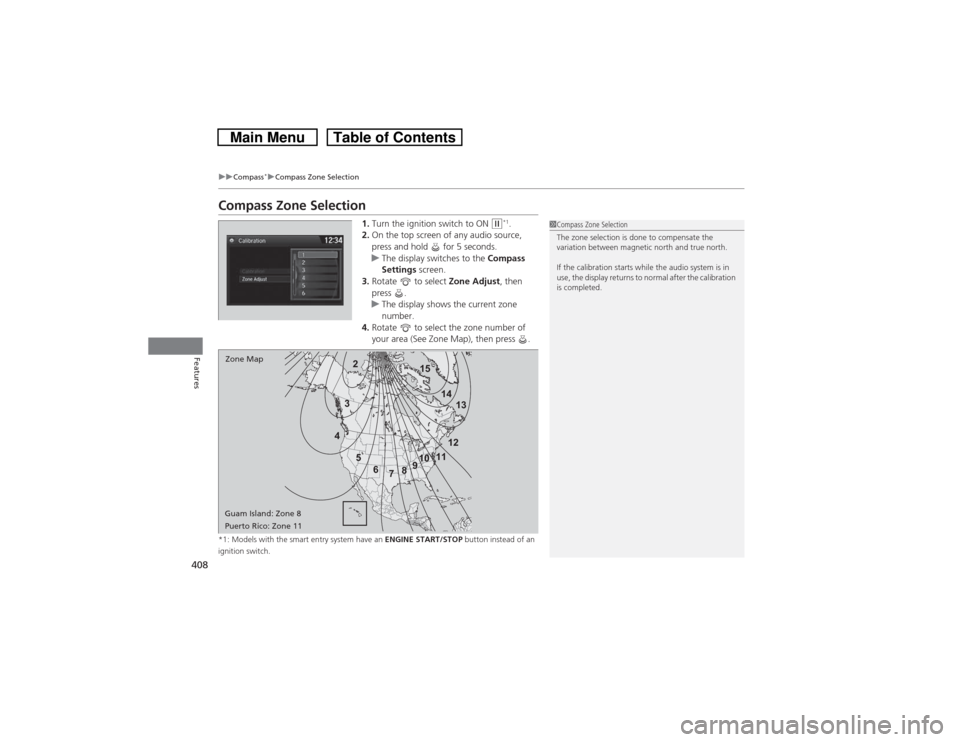
Compass Zone Selection
1.Turn the ignition switch to ON
(w*1.
2.On the top screen of any audio source,
press and hold for 5 seconds.
uThe display switches to the Compass
Settings screen.
3.Rotate to select Zone Adjust, then
press .
uThe display shows the current zone
number.
4.Rotate to select the zone number of
your area (See Zone Map), then press .
*1: Models with the smart entry system have an ENGINE START/STOP button instead of an
ignition switch.
2
3
4
5
6
78910111213 14 15
Zone Map
Guam Island: Zone 8
Puerto Rico: Zone 11
1Compass Zone Selection
The zone selection is done to compensate the
variation between magnetic north and true north.
If the calibration starts while the audio system is in
use, the display returns to normal after the calibration
is completed.
Page 445 of 573
444
uuWhen DrivinguLaneWatch
TM*
Driving
LaneWatch
TM
*
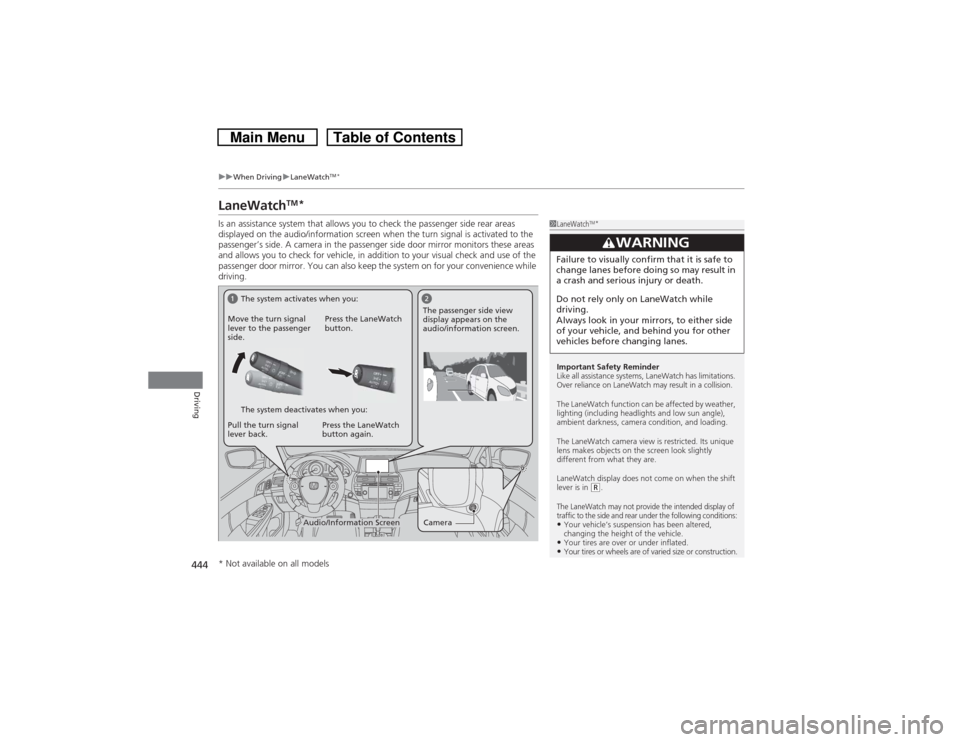
Is an assistance system that allows you to check the passenger side rear areas
displayed on the audio/information screen when the turn signal is activated to the
passenger’s side. A camera in the passenger side door mirror monitors these areas
and allows you to check for vehicle, in addition to your visual check and use of the
passenger door mirror. You can also keep the system on for your convenience while
driving.
1LaneWatch
TM*
Important Safety Reminder
Like all assistance systems, LaneWatch has limitations.
Over reliance on LaneWatch may result in a collision.
The LaneWatch function can be affected by weather,
lighting (including headlights and low sun angle),
ambient darkness, camera condition, and loading.
The LaneWatch camera view is restricted. Its unique
lens makes objects on the screen look slightly
different from what they are.
LaneWatch display does not come on when the shift
lever is in
(R.
The LaneWatch may not provide the intended display of
traffic to the side and rear under the following conditions:•Your vehicle’s suspension has been altered,
changing the height of the vehicle.•Your tires are over or under inflated.•Your tires or wheels are of varied size or construction.
3
WARNING
Failure to visually confirm that it is safe to
change lanes before doing so may result in
a crash and serious injury or death.
Do not rely only on LaneWatch while
driving.
Always look in your mirrors, to either side
of your vehicle, and behind you for other
vehicles before changing lanes.
Camera
Audio/Information Screen Move the turn signal
lever to the passenger
side.Press the LaneWatch
button.
Pull the turn signal
lever back.Press the LaneWatch
button again.The passenger side view
display appears on the
audio/information screen.
The system activates when you:
The system deactivates when you:
* Not available on all models