set clock HONDA CROSSTOUR 2014 1.G User Guide
[x] Cancel search | Manufacturer: HONDA, Model Year: 2014, Model line: CROSSTOUR, Model: HONDA CROSSTOUR 2014 1.GPages: 573, PDF Size: 21.2 MB
Page 187 of 573
186
uuAudio System Basic OperationuAudio/Information Screen
Features
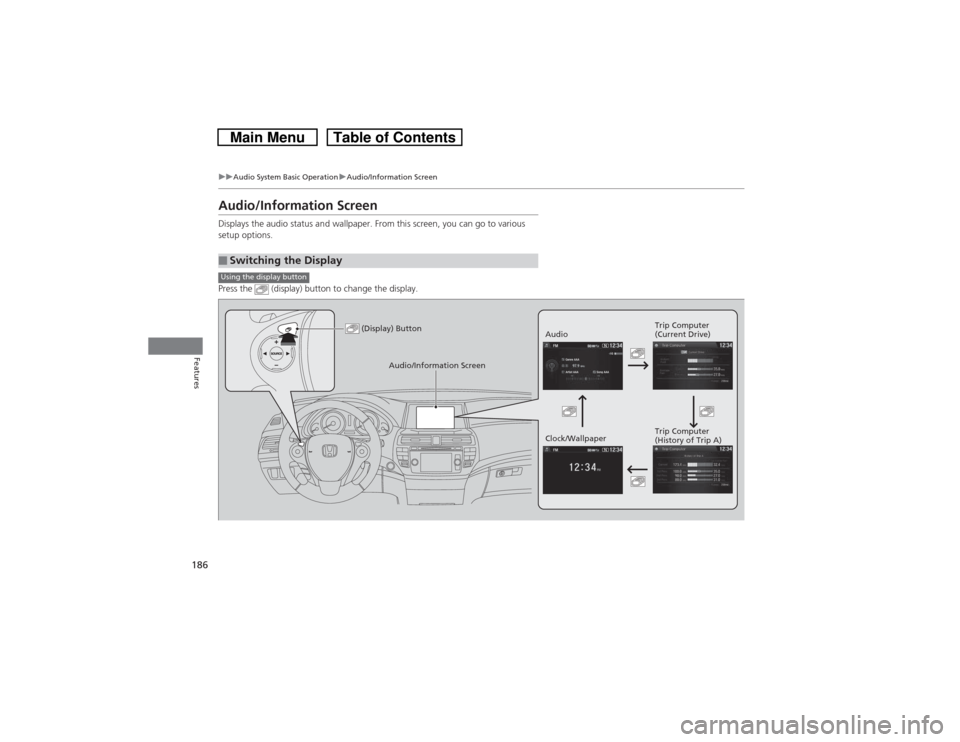
Audio/Information ScreenDisplays the audio status and wallpaper. From this screen, you can go to various
setup options.
Press the (display) button to change the display.■Switching the DisplayUsing the display button
(Display) Button
AudioTrip Computer
(Current Drive)
Clock/WallpaperTrip Computer
(History of Trip A)
Audio/Information Screen
Page 189 of 573
188
uuAudio System Basic OperationuAudio/Information Screen
Features
■Info
Shows the Trip Computer or Clock/Wallpaper information.
Press , rotate to select an item, then press .
Info menu items
Current Drive (Trip computer)
Shows the range, and instant and average fuel economy of the current trip, as well
as the average fuel economy from your last trip.
History of Trip A (Trip computer)
Shows the range, average fuel economy and distance traveled for the current trip,
as well as the average fuel economy and distances traveled during the last three
driving cycles.
Each time you reset the trip meter A, the information on the display updates. The
history of the previous three driving cycles is kept.
Delete History
1.Rotate to select Delete History, then press .
2.You will receive a confirmation message on the screen. Rotate to select Yes,
then press .
Clock/Wallpaper
Shows the current clock type and wallpaper
Clock/Wallpaper Change
Enters the clock and wallpaper setting menu screen.
Page 190 of 573
Continued
189
uuAudio System Basic OperationuAudio/Information Screen
Features
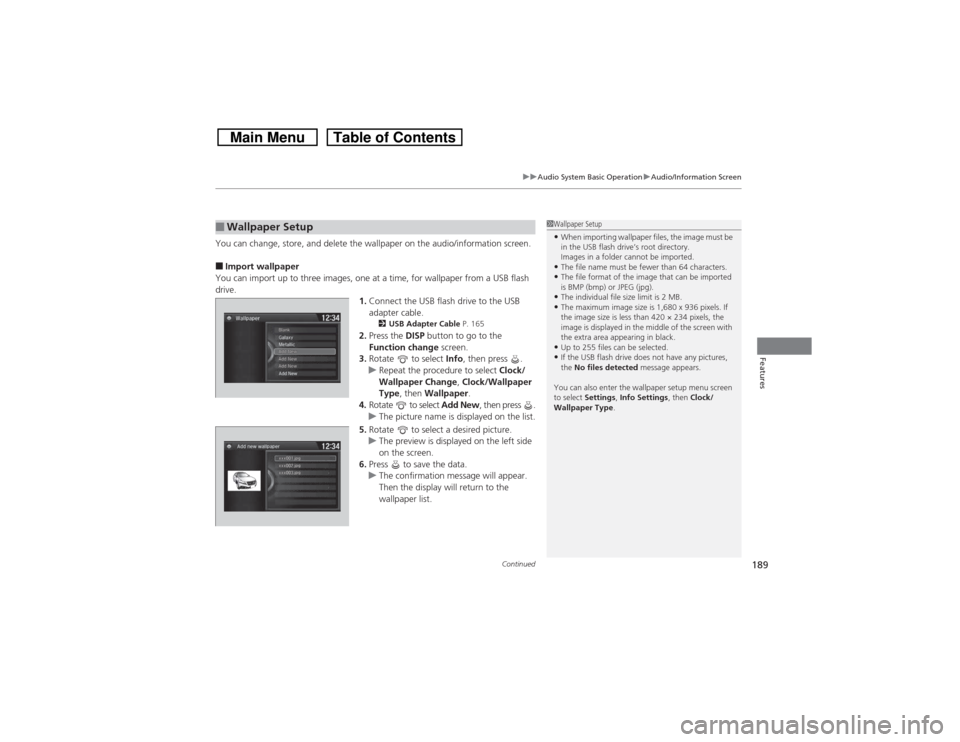
You can change, store, and delete the wallpaper on the audio/information screen.■Import wallpaper
You can import up to three images, one at a time, for wallpaper from a USB flash
drive.
1.Connect the USB flash drive to the USB
adapter cable.
2USB Adapter Cable P. 165
2.Press the DISP button to go to the
Function change screen.
3.Rotate to select Info, then press .
uRepeat the procedure to select Clock/
Wallpaper Change, Clock/Wallpaper
Type, then Wallpaper.
4.Rotate to select Add New, then press .
uThe picture name is displayed on the list.
5.Rotate to select a desired picture.
uThe preview is displayed on the left side
on the screen.
6.Press to save the data.
uThe confirmation message will appear.
Then the display will return to the
wallpaper list.
■Wallpaper Setup
1Wallpaper Setup•When importing wallpaper files, the image must be
in the USB flash drive’s root directory.
Images in a folder cannot be imported.•The file name must be fewer than 64 characters.•The file format of the image that can be imported
is BMP (bmp) or JPEG (jpg).•The individual file size limit is 2 MB.•The maximum image size is 1,680 x 936 pixels. If
the image size is less than 420 × 234 pixels, the
image is displayed in the middle of the screen with
the extra area appearing in black.•Up to 255 files can be selected.•If the USB flash drive does not have any pictures,
the No files detected message appears.
You can also enter the wallpaper setup menu screen
to select Settings, Info Settings, then Clock/
Wallpaper Type.
Page 191 of 573
uuAudio System Basic OperationuAudio/Information Screen
190Features
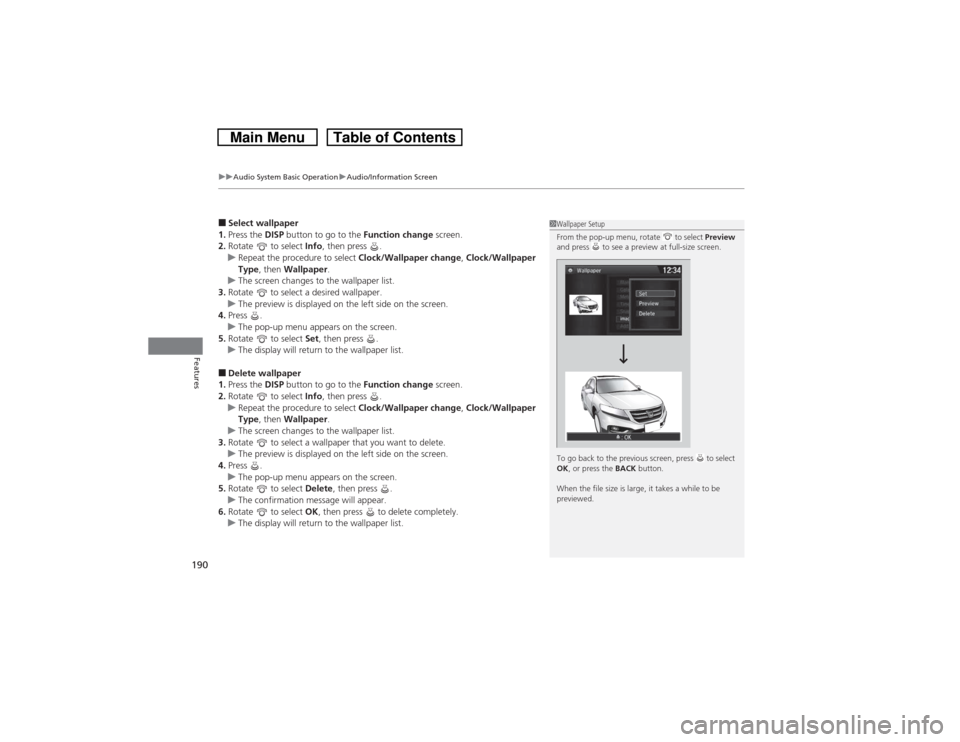
■Select wallpaper
1.Press the DISP button to go to the Function change screen.
2.Rotate to select Info, then press .
uRepeat the procedure to select Clock/Wallpaper change, Clock/Wallpaper
Type, then Wallpaper.
uThe screen changes to the wallpaper list.
3.Rotate to select a desired wallpaper.
uThe preview is displayed on the left side on the screen.
4.Press .
uThe pop-up menu appears on the screen.
5.Rotate to select Set, then press .
uThe display will return to the wallpaper list.■Delete wallpaper
1.Press the DISP button to go to the Function change screen.
2.Rotate to select Info, then press .
uRepeat the procedure to select Clock/Wallpaper change, Clock/Wallpaper
Type, then Wallpaper.
uThe screen changes to the wallpaper list.
3.Rotate to select a wallpaper that you want to delete.
uThe preview is displayed on the left side on the screen.
4.Press .
uThe pop-up menu appears on the screen.
5.Rotate to select Delete, then press .
uThe confirmation message will appear.
6.Rotate to select OK, then press to delete completely.
uThe display will return to the wallpaper list.
1Wallpaper Setup
From the pop-up menu, rotate to select Preview
and press to see a preview at full-size screen.
To go back to the previous screen, press to select
OK, or press the BACK button.
When the file size is large, it takes a while to be
previewed.
Page 220 of 573
219
uuAudio System Basic OperationuAudio/Information Screen
Continued
Features
■Audio
Shows the current audio information.■Navigation
Shows the navigation screen.
2 Refer to the Navigation System Manual
■Phone
Shows the HFL information.
2 Bluetooth® HandsFreeLink® P. 367
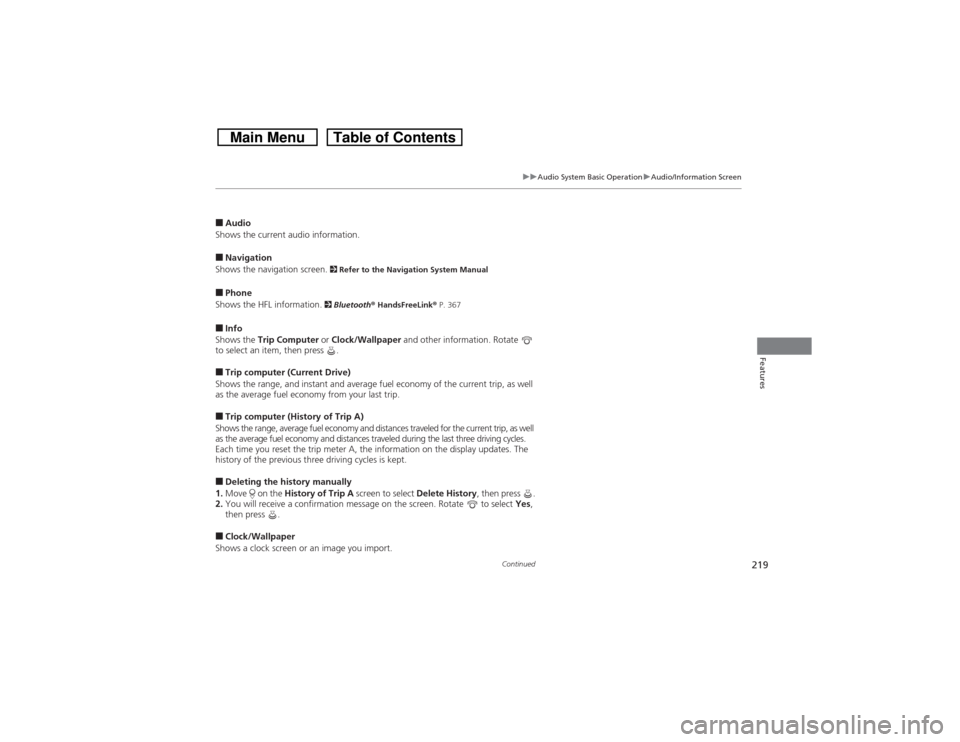
■Info
Shows the Trip Computer or Clock/Wallpaper and other information. Rotate
to select an item, then press .■Trip computer (Current Drive)
Shows the range, and instant and average fuel economy of the current trip, as well
as the average fuel economy from your last trip.■Trip computer (History of Trip A)
Shows the range, average fuel economy and distances traveled for the current trip, as well
as the average fuel economy and distances traveled during the last three driving cycles.
Each time you reset the trip meter A, the information on the display updates. The
history of the previous three driving cycles is kept.■Deleting the history manually
1.Move on the History of Trip A screen to select Delete History, then press .
2.You will receive a confirmation message on the screen. Rotate to select Yes,
then press .■Clock/Wallpaper
Shows a clock screen or an image you import.
Page 221 of 573
uuAudio System Basic OperationuAudio/Information Screen
220Features
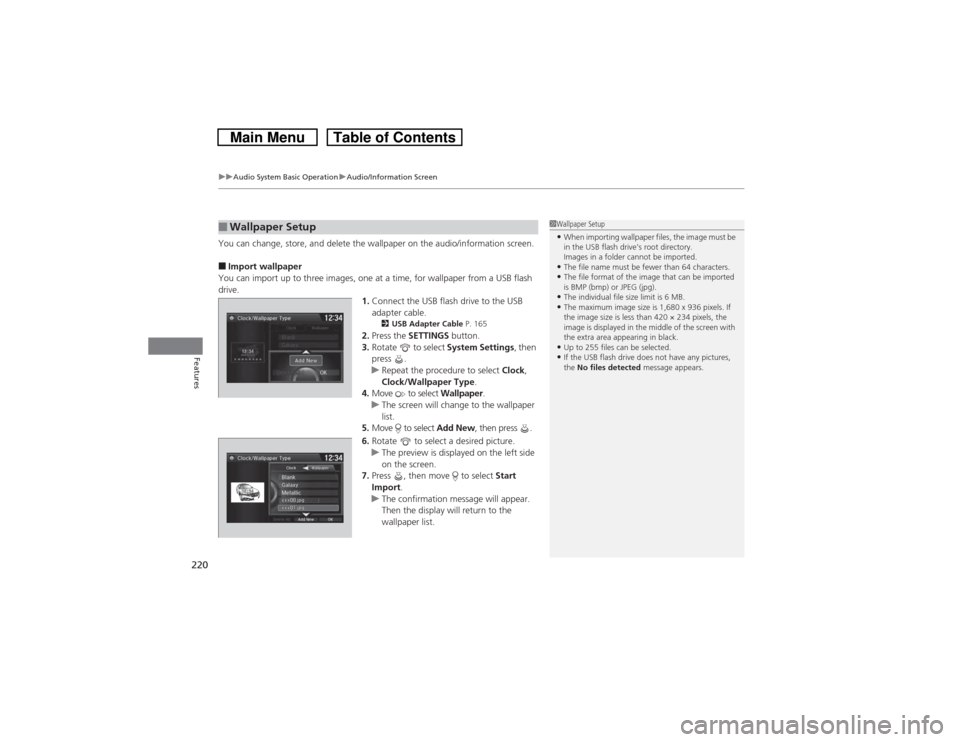
You can change, store, and delete the wallpaper on the audio/information screen.■Import wallpaper
You can import up to three images, one at a time, for wallpaper from a USB flash
drive.
1.Connect the USB flash drive to the USB
adapter cable.
2USB Adapter Cable P. 165
2.Press the SETTINGS button.
3.Rotate to select System Settings, then
press .
uRepeat the procedure to select Clock,
Clock/Wallpaper Type.
4.Move to select Wallpaper.
uThe screen will change to the wallpaper
list.
5.Move to select Add New, then press .
6.Rotate to select a desired picture.
uThe preview is displayed on the left side
on the screen.
7.Press , then move to select Start
Import.
uThe confirmation message will appear.
Then the display will return to the
wallpaper list.
■Wallpaper Setup
1Wallpaper Setup•When importing wallpaper files, the image must be
in the USB flash drive’s root directory.
Images in a folder cannot be imported.•The file name must be fewer than 64 characters.•The file format of the image that can be imported
is BMP (bmp) or JPEG (jpg).•The individual file size limit is 6 MB.•The maximum image size is 1,680 x 936 pixels. If
the image size is less than 420 × 234 pixels, the
image is displayed in the middle of the screen with
the extra area appearing in black.•Up to 255 files can be selected.•If the USB flash drive does not have any pictures,
the No files detected message appears.
Page 222 of 573
221
uuAudio System Basic OperationuAudio/Information Screen
Features
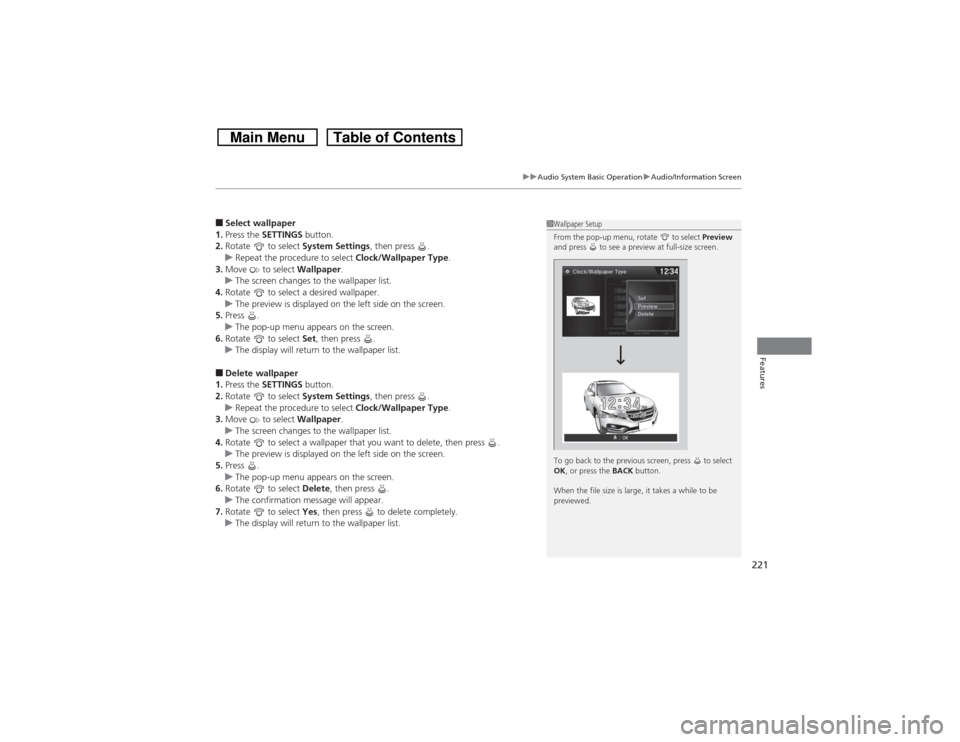
■Select wallpaper
1.Press the SETTINGS button.
2.Rotate to select System Settings, then press .
uRepeat the procedure to select Clock/Wallpaper Type.
3.Move to select Wallpaper.
uThe screen changes to the wallpaper list.
4.Rotate to select a desired wallpaper.
uThe preview is displayed on the left side on the screen.
5.Press .
uThe pop-up menu appears on the screen.
6.Rotate to select Set, then press .
uThe display will return to the wallpaper list.■Delete wallpaper
1.Press the SETTINGS button.
2.Rotate to select System Settings, then press .
uRepeat the procedure to select Clock/Wallpaper Type.
3.Move to select Wallpaper.
uThe screen changes to the wallpaper list.
4.Rotate to select a wallpaper that you want to delete, then press .
uThe preview is displayed on the left side on the screen.
5.Press .
uThe pop-up menu appears on the screen.
6.Rotate to select Delete, then press .
uThe confirmation message will appear.
7.Rotate to select Yes, then press to delete completely.
uThe display will return to the wallpaper list.
1Wallpaper Setup
From the pop-up menu, rotate to select Preview
and press to see a preview at full-size screen.
To go back to the previous screen, press to select
OK, or press the BACK button.
When the file size is large, it takes a while to be
previewed.
Page 284 of 573
283
uuCustomized Features
*u
Continued
Features
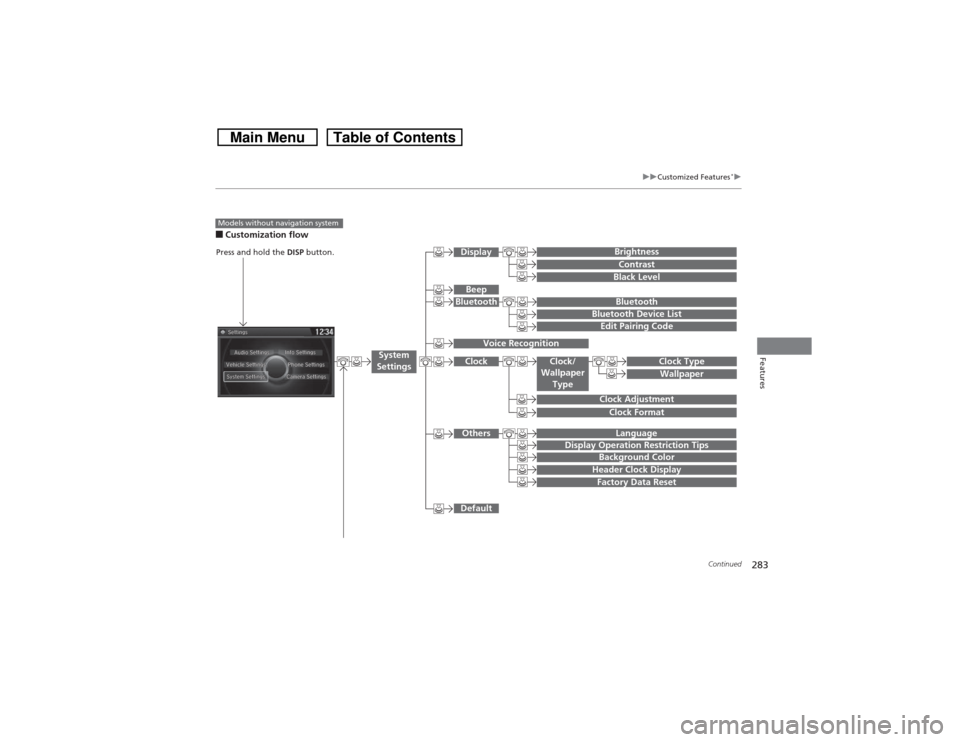
■Customization flowModels without navigation system
Clock FormatBackground ColorHeader Clock DisplayFactory Data ResetClock Adjustment
Press and hold the DISP button.
Language
Default
Edit Pairing Code
Bluetooth
Bluetooth Device List
BrightnessContrastBlack Level
Beep
Clock/
Wallpaper
Type
Clock TypeWallpaper
System
Settings
BluetoothDisplayClockOthers
Display Operation Restriction Tips
Voice Recognition
Page 286 of 573
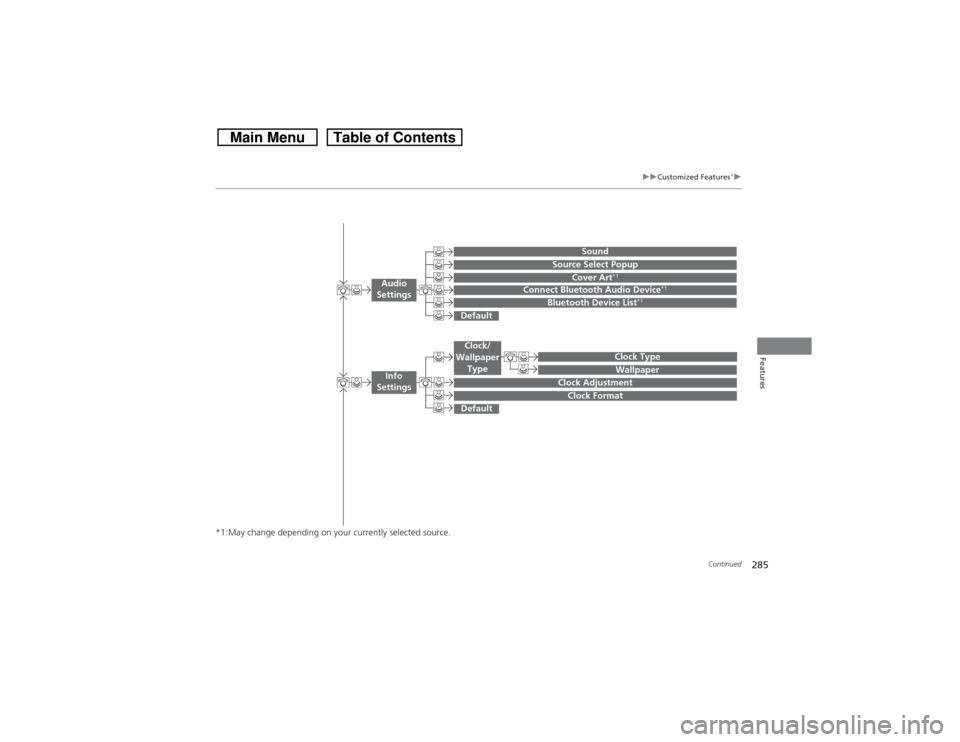
285
uuCustomized Features
*u
Continued
Features
*1:May change depending on your currently selected source.
Wallpaper
Source Select Popup
Clock Type
Sound
Default
Cover Art
*1
Connect Bluetooth Audio Device
*1
Bluetooth Device List
*1
Default
Clock AdjustmentClock Format
Audio
Settings
Clock/
Wallpaper
Type
Info
Settings
Page 290 of 573
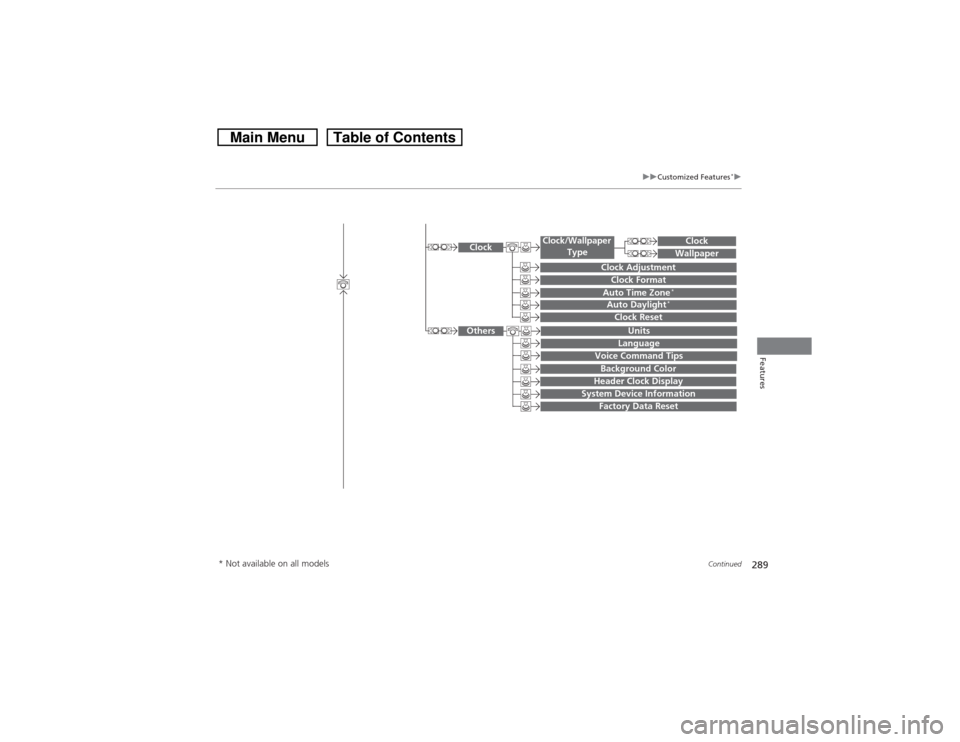
289
uuCustomized Features
*u
Continued
Features
System Device Information
Factory Data Reset
Background ColorHeader Clock Display
Clock ResetAuto Time Zone
*
Auto Daylight
*
Clock
Clock AdjustmentClock Format
Clock
UnitsLanguage
Voice Command Tips
Others
Wallpaper
Clock/Wallpaper
Type
* Not available on all models