clock HONDA CROSSTOUR 2014 1.G Owner's Manual
[x] Cancel search | Manufacturer: HONDA, Model Year: 2014, Model line: CROSSTOUR, Model: HONDA CROSSTOUR 2014 1.GPages: 573, PDF Size: 21.2 MB
Page 290 of 573
289
uuCustomized Features
*u
Continued
Features
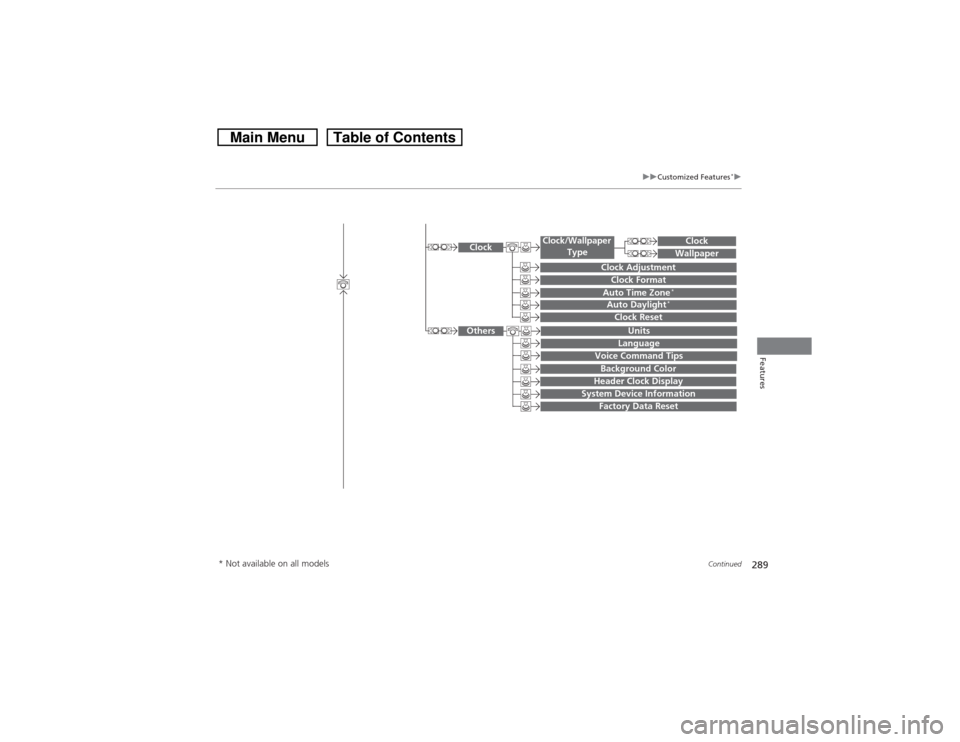
System Device Information
Factory Data Reset
Background ColorHeader Clock Display
Clock ResetAuto Time Zone
*
Auto Daylight
*
Clock
Clock AdjustmentClock Format
Clock
UnitsLanguage
Voice Command Tips
Others
Wallpaper
Clock/Wallpaper
Type
* Not available on all models
Page 294 of 573
293
uuCustomized Features
*u
Continued
Features
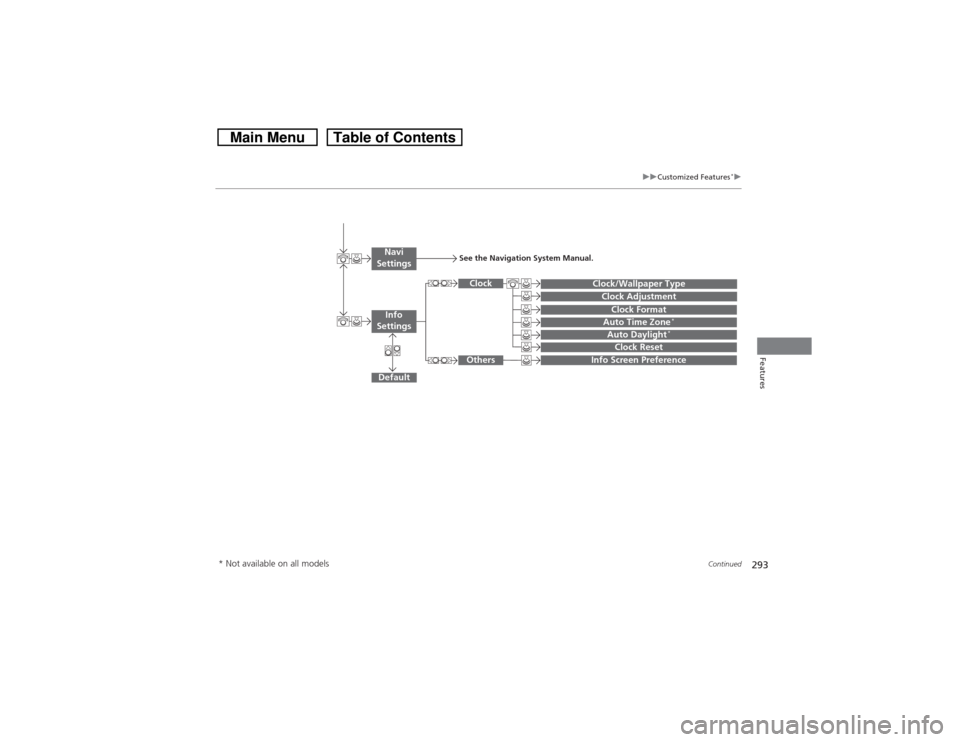
Auto Daylight
*
Clock Reset
Info Screen Preference
Clock FormatAuto Time Zone
*
Clock/Wallpaper TypeClock Adjustment
Clock
Default
Others
Info
SettingsNavi
Settings
See the Navigation System Manual.
* Not available on all models
Page 296 of 573
295
uuCustomized Features
*u
Continued
Features
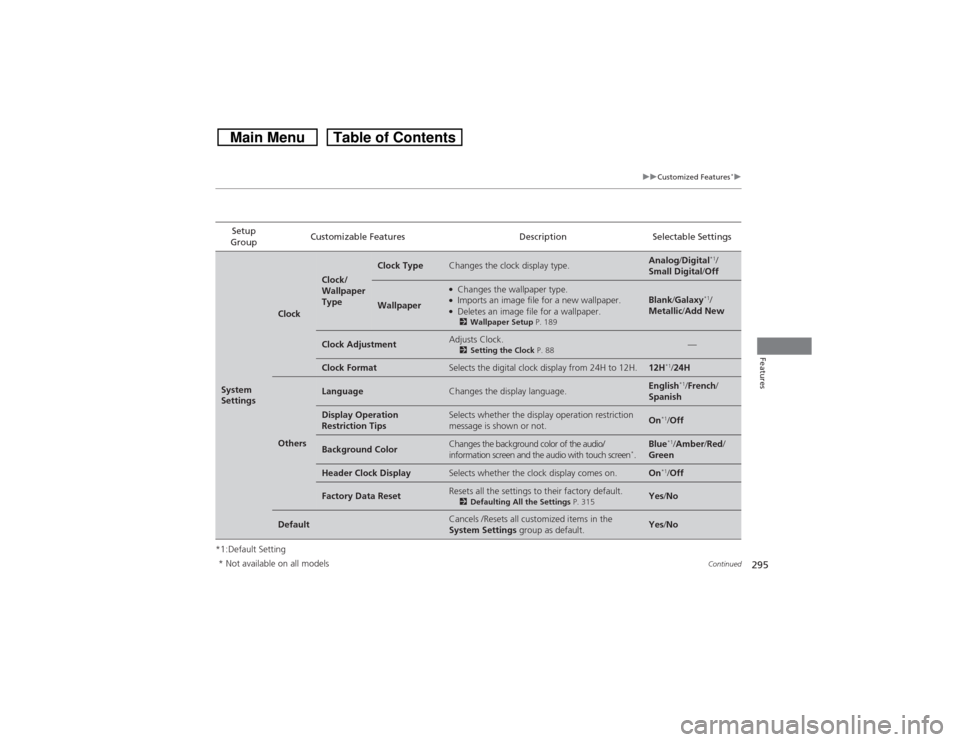
*1:Default SettingSetup
GroupCustomizable Features Description Selectable SettingsSystem
Settings
Clock
Clock/
Wallpaper
Type
Clock Type
Changes the clock display type.
Analog/Digital
*1/
Small Digital/Off
Wallpaper
●Changes the wallpaper type.●Imports an image file for a new wallpaper.●Deletes an image file for a wallpaper.2Wallpaper Setup P. 189
Blank/Galaxy
*1/
Metallic/Add New
Clock Adjustment
Adjusts Clock.2Setting the Clock P. 88
—
Clock Format
Selects the digital clock display from 24H to 12H.
12H
*1/24H
Others
Language
Changes the display language.
English
*1/French/
Spanish
Display Operation
Restriction Tips
Selects whether the display operation restriction
message is shown or not.
On
*1/Off
Background Color
Changes the background color of the audio/
information screen and the audio with touch screen
*.
Blue
*1/Amber/Red/
Green
Header Clock Display
Selects whether the clock display comes on.
On
*1/Off
Factory Data Reset
Resets all the settings to their factory default.2Defaulting All the Settings P. 315
Yes/No
Default
Cancels /Resets all customized items in the
System Settings group as default.
Yes/No
* Not available on all models
Page 301 of 573
300
uuCustomized Features
*u
Features
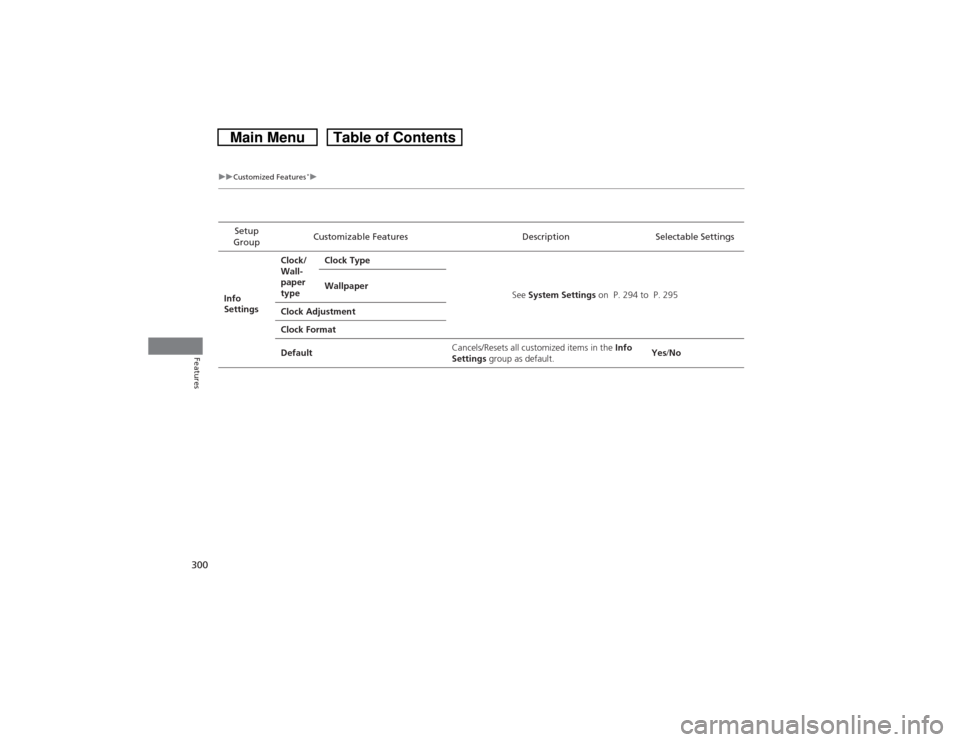
Setup
GroupCustomizable Features Description Selectable Settings
Info
SettingsClock/
Wall-
paper
typeClock Type
See System Settings on P. 294 to P. 295 Wallpaper
Clock Adjustment
Clock Format
DefaultCancels/Resets all customized items in the Info
Settings group as default.Yes/No
Page 306 of 573
305
uuCustomized Features
*u
Continued
Features
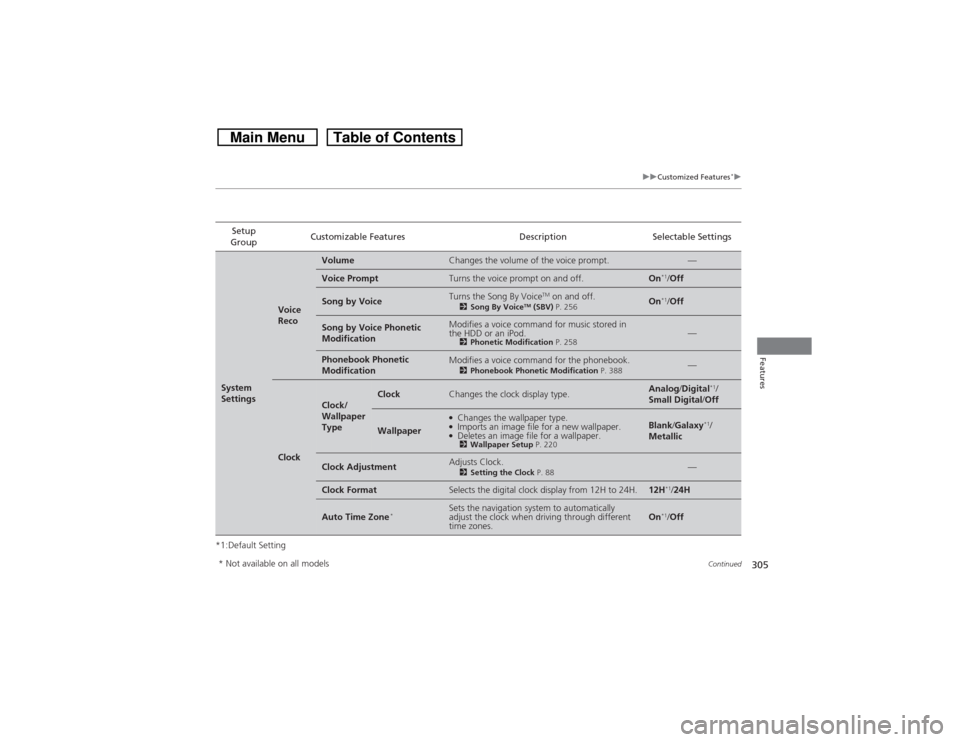
*1:Default SettingSetup
GroupCustomizable Features Description Selectable SettingsSystem
Settings
Voice
Reco
Volume
Changes the volume of the voice prompt.
—
Voice Prompt
Turns the voice prompt on and off.
On
*1/Off
Song by Voice
Turns the Song By Voice
TM on and off.
2Song By Voice
TM (SBV) P. 256
On
*1/Off
Song by Voice Phonetic
Modification
Modifies a voice command for music stored in
the HDD or an iPod.2Phonetic Modification P. 258
—
Phonebook Phonetic
Modification
Modifies a voice command for the phonebook.2Phonebook Phonetic Modification P. 388
—
Clock
Clock/
Wallpaper
Type
Clock
Changes the clock display type.
Analog/Digital
*1/
Small Digital/Off
Wallpaper
●Changes the wallpaper type.●Imports an image file for a new wallpaper.●Deletes an image file for a wallpaper.2Wallpaper Setup P. 220
Blank/Galaxy
*1/
Metallic
Clock Adjustment
Adjusts Clock.2Setting the Clock P. 88
—
Clock Format
Selects the digital clock display from 12H to 24H.
12H
*1/24H
Auto Time Zone
*
Sets the navigation system to automatically
adjust the clock when driving through different
time zones.
On
*1/Off
* Not available on all models
Page 307 of 573
306
uuCustomized Features
*u
Features
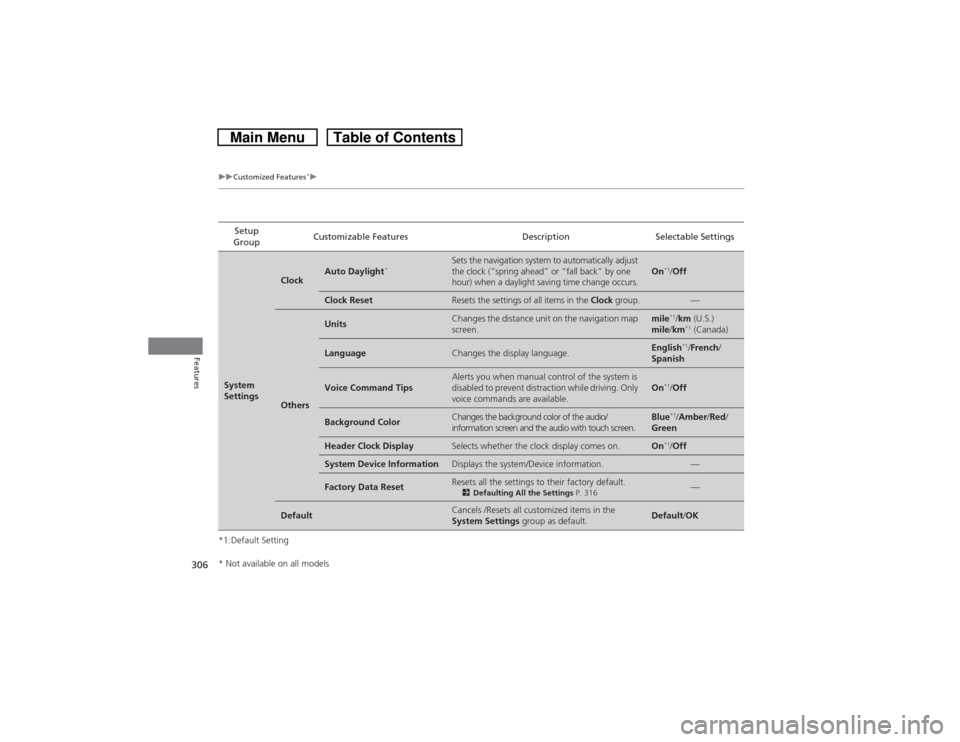
*1:Default SettingSetup
GroupCustomizable Features Description Selectable SettingsSystem
Settings
Clock
Auto Daylight
*
Sets the navigation system to automatically adjust
the clock (“spring ahead” or “fall back” by one
hour) when a daylight saving time change occurs.
On
*1/Off
Clock Reset
Resets the settings of all items in the Clock group.
—
Others
Units
Changes the distance unit on the navigation map
screen.
mile
*1/km (U.S.)
mile/km*1 (Canada)
Language
Changes the display language.
English
*1/French/
Spanish
Voice Command Tips
Alerts you when manual control of the system is
disabled to prevent distraction while driving. Only
voice commands are available.
On
*1/Off
Background Color
Changes the background color of the audio/
information screen and the audio with touch screen.
Blue
*1/Amber/Red/
Green
Header Clock Display
Selects whether the clock display comes on.
On
*1/Off
System Device Information
Displays the system/Device information.
—
Factory Data Reset
Resets all the settings to their factory default.2Defaulting All the Settings P. 316
—
Default
Cancels /Resets all customized items in the
System Settings group as default.
Default/OK
* Not available on all models
Page 315 of 573
314
uuCustomized Features
*u
Features
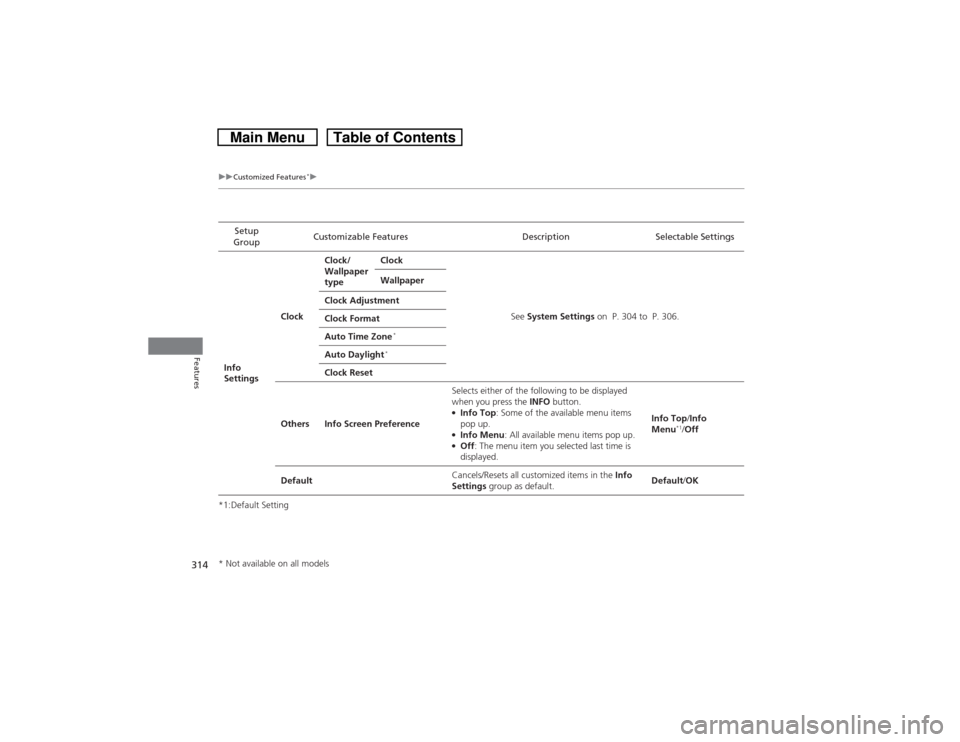
*1:Default SettingSetup
GroupCustomizable Features Description Selectable Settings
Info
SettingsClockClock/
Wallpaper
typeClock
See System Settings on P. 304 to P. 306. Wallpaper
Clock Adjustment
Clock Format
Auto Time Zone
*
Auto Daylight
*
Clock Reset
Others Info Screen PreferenceSelects either of the following to be displayed
when you press the INFO button.
●Info Top: Some of the available menu items
pop up.●Info Menu: All available menu items pop up.●Off: The menu item you selected last time is
displayed.Info Top/Info
Menu
*1/Off
DefaultCancels/Resets all customized items in the Info
Settings group as default.Default/OK
* Not available on all models
Page 480 of 573
479
uuMaintenance Under the HooduEngine Coolant
Maintenance
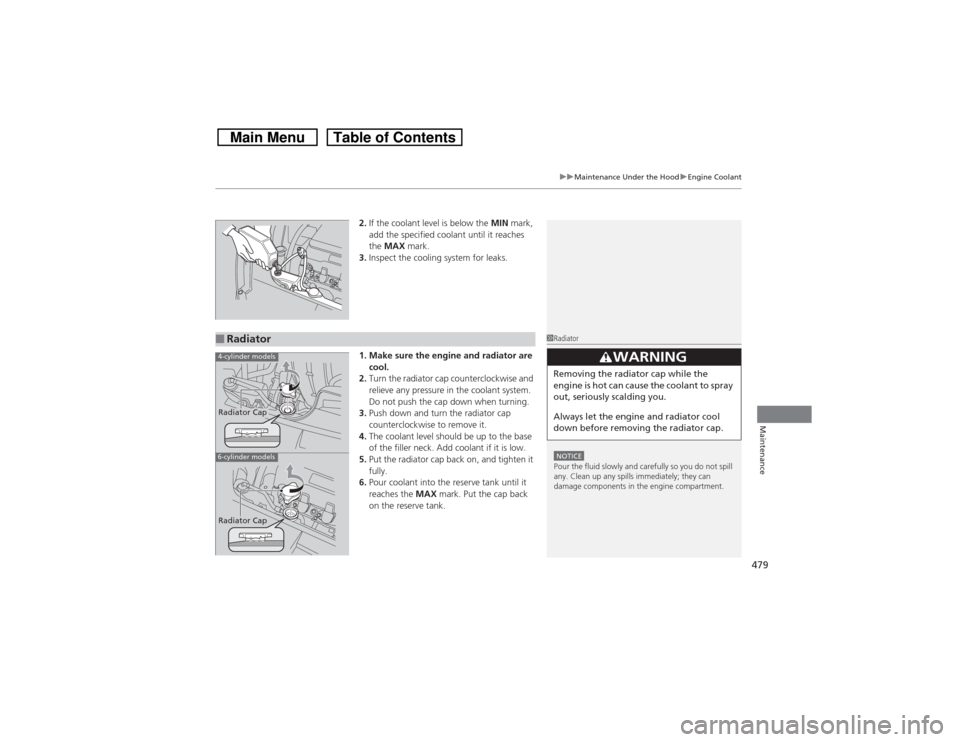
2.If the coolant level is below the MIN mark,
add the specified coolant until it reaches
the MAX mark.
3.Inspect the cooling system for leaks.
1. Make sure the engine and radiator are
cool.
2.Turn the radiator cap counterclockwise and
relieve any pressure in the coolant system.
Do not push the cap down when turning.
3.Push down and turn the radiator cap
counterclockwise to remove it.
4.The coolant level should be up to the base
of the filler neck. Add coolant if it is low.
5.Put the radiator cap back on, and tighten it
fully.
6.Pour coolant into the reserve tank until it
reaches the MAX mark. Put the cap back
on the reserve tank.
■Radiator
1RadiatorNOTICEPour the fluid slowly and carefully so you do not spill
any. Clean up any spills immediately; they can
damage components in the engine compartment.
33
WARNING
Removing the radiator cap while the
engine is hot can cause the coolant to spray
out, seriously scalding you.
Always let the engine and radiator cool
down before removing the radiator cap.
4-cylinder models6-cylinder modelsRadiator Cap
Radiator Cap
Page 507 of 573
506Maintenance
BatteryChecking the BatteryCheck the battery condition monthly by inspecting the terminals and cable ends for
corrosion.
If your vehicle’s battery is disconnected or goes dead:
•The audio system is disabled.
2Reactivating the audio system P. 166
•The clock resets.
2Setting the Clock P. 88
•The navigation system
* is disabled.
2Refer to the navigation system manual
Charging the BatteryDisconnect both battery cables to prevent damaging your vehicle’s electrical system.
Always disconnect the negative (–) cable first, and reconnect it last.
1BatteryWARNING: Battery post, terminals,
and related accessories contain lead
and lead compounds.
Wash your hands after handling.When you find corrosion, clean the battery terminals
by applying a baking powder and water solution.
Clean the terminals with a damp towel. Cloth/towel
dry the battery. Coat the terminals with grease to
help prevent future corrosion.
When replacing the battery, the replacement must be
of the same specifications.
Please consult a dealer for more information.
3
WARNING
The battery gives off explosive hydrogen
gas during normal operation.
A spark or flame can cause the battery to
explode with enough force to kill or
seriously hurt you.
When conducting any battery
maintenance, wear protective clothing and
a face shield, or have a skilled technician do
it.
* Not available on all models
Page 522 of 573
Continued
521
uuIf a Tire Goes FlatuChanging a Flat Tire
Handling the Unexpected
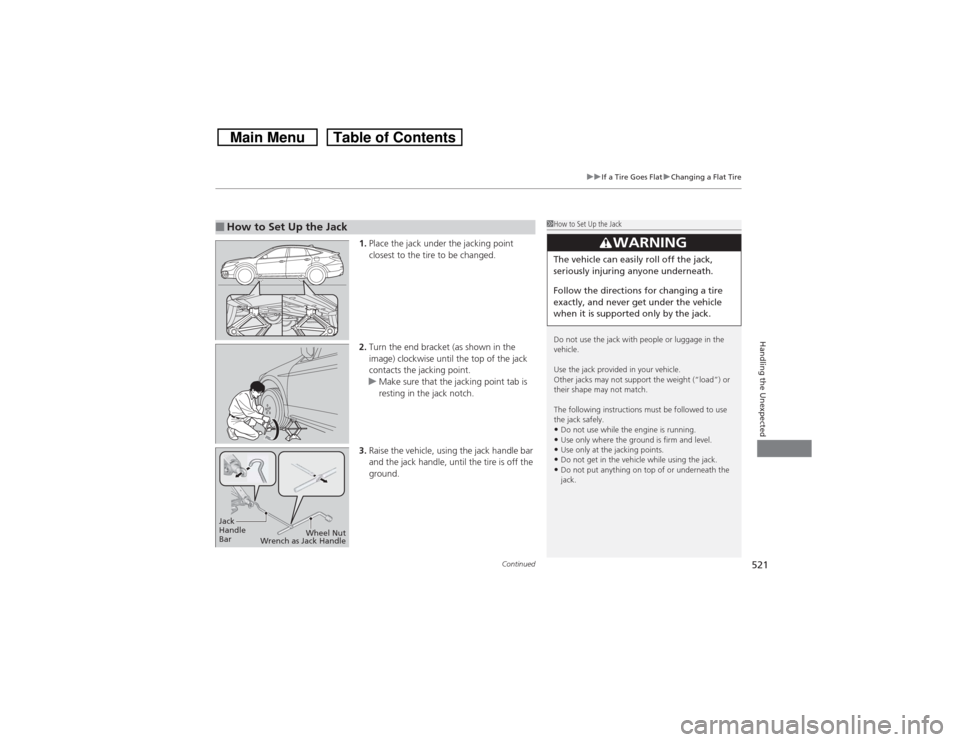
1.Place the jack under the jacking point
closest to the tire to be changed.
2.Turn the end bracket (as shown in the
image) clockwise until the top of the jack
contacts the jacking point.
uMake sure that the jacking point tab is
resting in the jack notch.
3.Raise the vehicle, using the jack handle bar
and the jack handle, until the tire is off the
ground.
■How to Set Up the Jack
1How to Set Up the Jack
Do not use the jack with people or luggage in the
vehicle.
Use the jack provided in your vehicle.
Other jacks may not support the weight (“load”) or
their shape may not match.
The following instructions must be followed to use
the jack safely.•Do not use while the engine is running.•Use only where the ground is firm and level.•Use only at the jacking points.•Do not get in the vehicle while using the jack.•Do not put anything on top of or underneath the
jack.
3
WARNING
The vehicle can easily roll off the jack,
seriously injuring anyone underneath.
Follow the directions for changing a tire
exactly, and never get under the vehicle
when it is supported only by the jack.
Jack
Handle
BarWheel Nut
Wrench as Jack Handle