turn signal HONDA CROSSTOUR 2015 1.G User Guide
[x] Cancel search | Manufacturer: HONDA, Model Year: 2015, Model line: CROSSTOUR, Model: HONDA CROSSTOUR 2015 1.GPages: 573
Page 196 of 573
Continued195
uuAudio System Basic Operation uPlaying AM/FM Radio
Features
Provides text data information related to your selected RDS-capable FM station.
■To find an RDS station from Station List
1. Press to switch to the Audio menu screen while listening to an FM station.
2. Rotate to select Station List, then press .
3. Rotate to select the station, then press .
■Manual update
Updates your available st ation list at any time.
1. Press to switch to the Audio menu screen while listening to an FM station.
2. Rotate to select Station List, then press .
3. Rotate to select Refresh, then press .
■Radio Data System (RDS)1Radio Data System (RDS)
When you select an RDS-capable FM station, the RDS
automatically turns on, and the frequency display
changes to the station name. However, when the
signals of that station become weak, the display
changes from the statio n name to the frequency.
15 CROSSTOUR-31TP66500.book 195 ページ 2014年7月31日 木曜日 午後3時23分
Page 233 of 573
232
uuAudio System Basic Operation uPlaying AM/FM Radio
Features
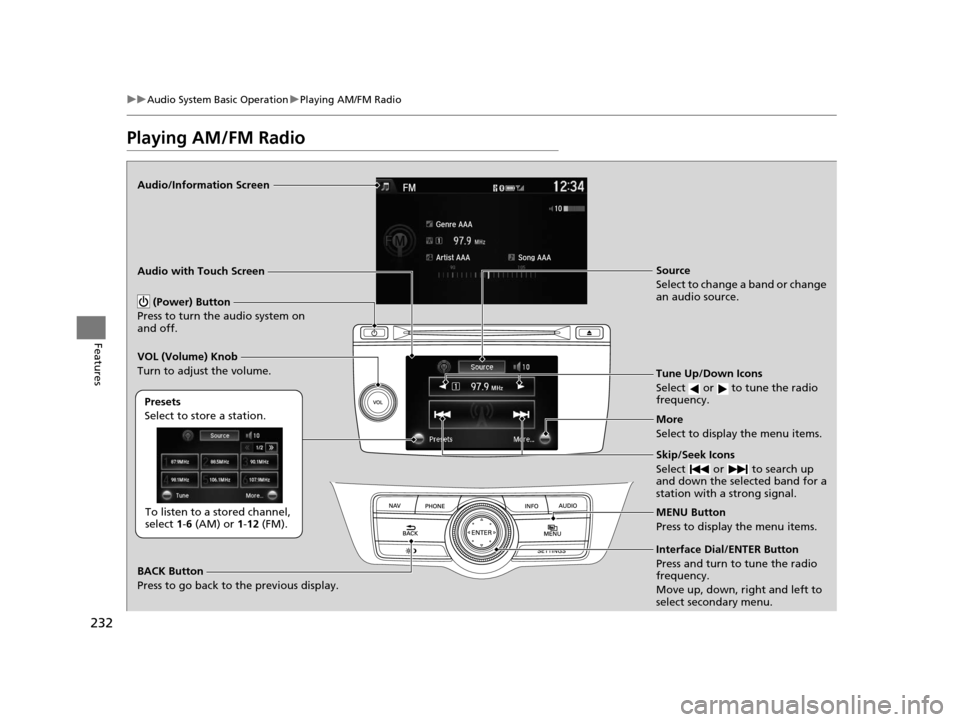
Playing AM/FM Radio
Audio/Information Screen
Audio with Touch Screen
Tune Up/Down Icons
Select or to tune the radio
frequency.
MENU Button
Press to display the menu items.
(Power) Button
Press to turn the audio system on
and off.
Source
Select to change a band or change
an audio source.
To listen to a stored channel,
select 1-6 (AM) or 1-12 (FM).
Presets
Select to store a station.
Skip/Seek Icons
Select or to search up
and down the selected band for a
station with a strong signal.
More
Select to display the menu items.
BACK Button
Press to go back to the previous display. VOL (Volume) Knob
Turn to adjust the volume.
Interface Dial/ENTER Button
Press and turn to tune the radio
frequency.
Move up, down, right and left to
select secondary menu.
15 CROSSTOUR-31TP66500.book 232 ページ 2014年7月31日 木曜日 午後3時23分
Page 235 of 573
uuAudio System Basic Operation uPlaying AM/FM Radio
234
Features
Provides text data information related to your selected RDS-capable FM station.
■To find an RDS station from Station List
1. Press the MENU button while listening to an FM station.
2. Rotate to select Station List, then press .
3. Rotate to select the station, then press .
■Manual update
Updates your available station list at any time.
1. Press the MENU button while listening to an FM station.
2. Rotate to select Station List, then press .
3. Rotate to select Refresh, then press .
■Radio Data System (RDS)1Radio Data System (RDS)
When you select an RDS-capable FM station, the RDS
automatically turns on, and the frequency display
changes to the station name. However, when the
signals of that station become weak, the display
changes from the statio n name to the frequency.
15 CROSSTOUR-31TP66500.book 234 ページ 2014年7月31日 木曜日 午後3時23分
Page 277 of 573
276
Features
General Information on the Audio System
SiriusXM® Radio Service*
1. You need your radio ID ready before regist ering for subscription. To see the ID in
the display: Turn the MENU/SEL (Selector) knob or the interface dial until 0
appears.
2. Have your radio ID and credit card num ber ready, and either call or visit the
SiriusXM ® website to subscribe.
Switch to the SiriusXM ® mode by using the SOURCE button, or through the audio
with touch screen, and stay in this mode for about 30 minutes until the service is
activated. Make sure your vehicle is in an open area with good reception.
Loading:
SiriusXM ® is loading the audio or program information.
Ch off air:
The channel is not currently broadcasting.
Ch unauthorized:
SiriusXM ® radio is receiving information update from the network.
No signal:
The signal is too weak in the current location.
Ch unavailable:
No such channel exists, the channel is not pa rt of your subscription, or the artist or
title information is unavailable.
Check antenna:
There is a problem with the SiriusXM ® antenna. Contact a dealer.
■Subscribing to SiriusXM® Radio
■Receiving SiriusXM® Radio
■SiriusXM® Radio Display Messages
1 Subscribing to SiriusXM ® Radio
Contact Information for SiriusXM ® Radio:
US: SiriusXM ® Radio at www.siriusxm.com or 1-800-
852-9696
Canada: SiriusXM ® Canada at www.xmradio.ca , or
1-877-209-0079
1 Receiving SiriusXM ® Radio
The SiriusXM ® satellites are in orbit over the equator;
therefore, objects south of the vehicle may cause
satellite rece ption interruptions. Sa tellite signals are
more likely to be blocked by tall buildings and
mountains the farther north you travel from the
equator.
You may experience rece ption problems under the
following circumstances:
•In a location with an obstruction to the south of
your vehicle.
•In tunnels
•On the lower level of a multi-tiered road
•Large items carried on the roof rack
* Not available on all models
15 CROSSTOUR-31TP66500.book 276 ページ 2014年7月31日 木曜日 午後3時23分
Page 287 of 573
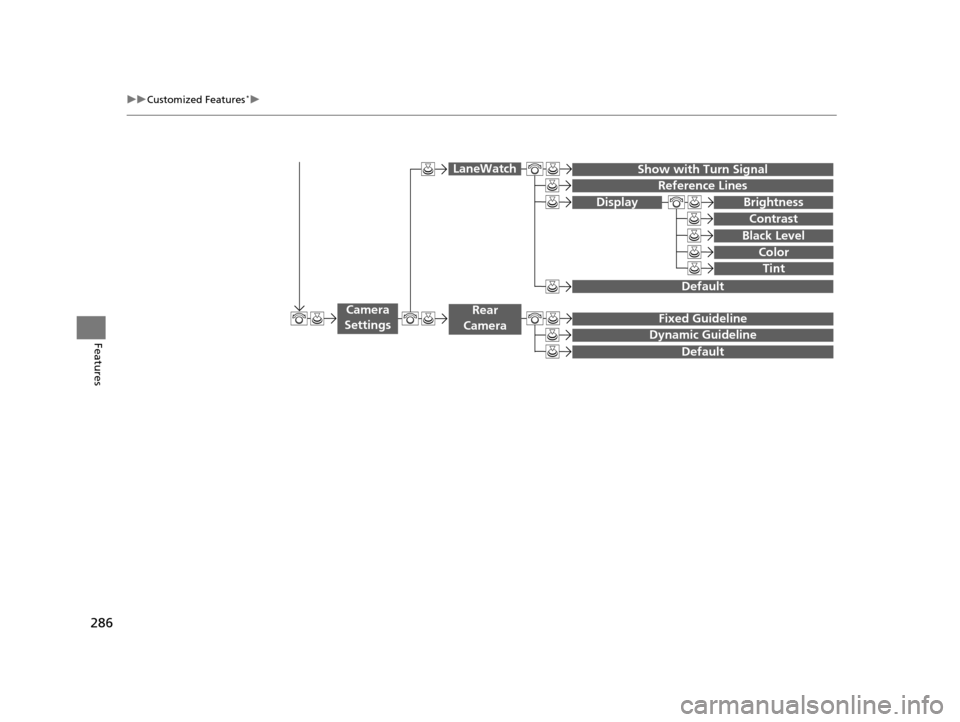
286
uuCustomized Features*u
Features
Display
Show with Turn Signal
Reference Lines
Default
Default
Fixed Guideline
Dynamic Guideline
Camera
Settings
LaneWatch
Rear
Camera
Brightness
Contrast
Black Level
Color
Tint
15 CROSSTOUR-31TP66500.book 286 ページ 2014年7月31日 木曜日 午後3時23分
Page 291 of 573
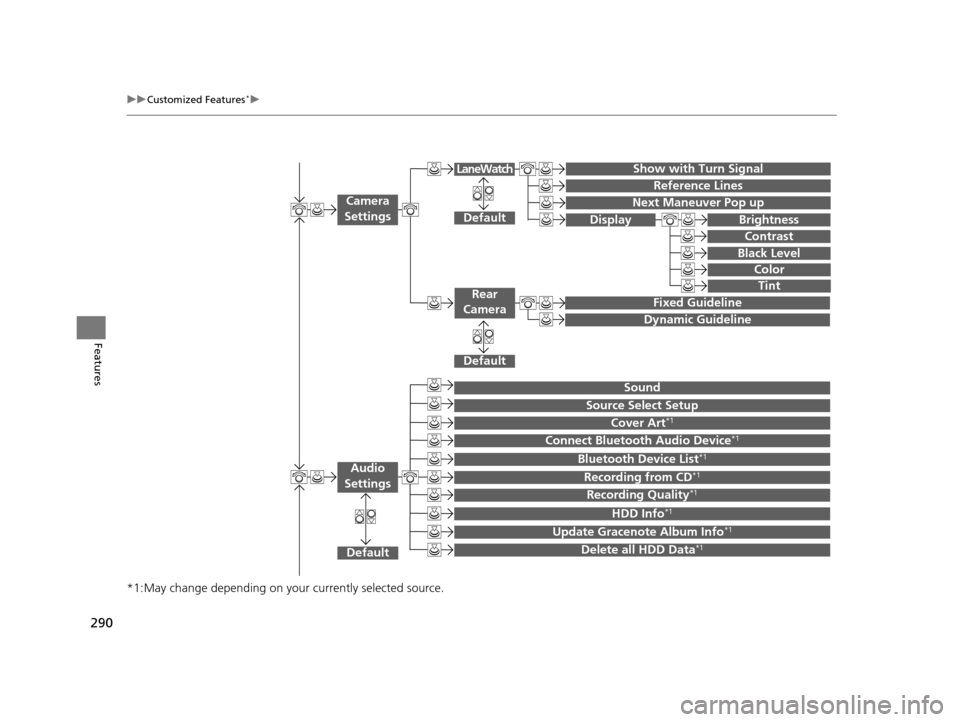
290
uuCustomized Features*u
Features
*1:May change depending on your currently selected source.
Show with Turn Signal
Reference Lines
Next Maneuver Pop up
Default
Fixed Guideline
Dynamic Guideline
Default
Default
Sound
Source Select Setup
Cover Art*1
Connect Bluetooth Audio Device*1
Bluetooth Device List*1
Recording from CD*1
Recording Quality*1
HDD Info*1
Update Gracenote Album Info*1
Delete all HDD Data*1
Camera
Settings
Rear
Camera
LaneWatch
Audio
Settings
Display Brightness
Contrast
Black Level
Color
Tint
15 CROSSTOUR-31TP66500.book 290 ページ 2014年7月31日 木曜日 午後3時23分
Page 303 of 573
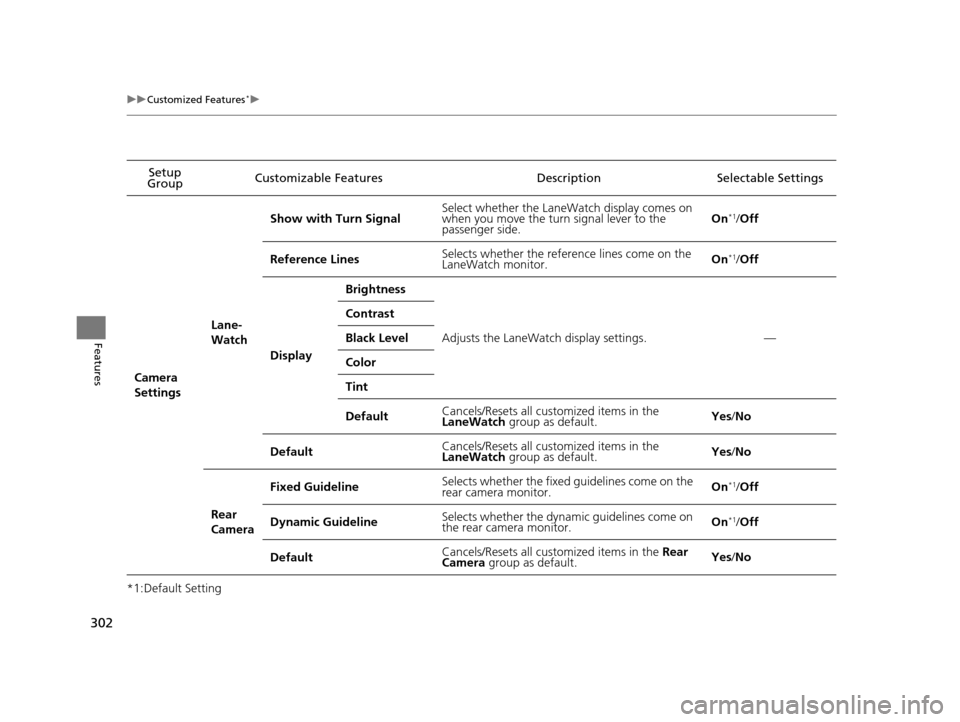
302
uuCustomized Features*u
Features
*1:Default SettingSetup
Group Customizable Features Descri
ption Selectable Settings
Camera
Settings Lane-
WatchShow with Turn Signal
Select whether the LaneWatch display comes on
when you move the turn signal lever to the
passenger side. On
*1/
Off
Reference Lines Selects whether the reference lines come on the
LaneWatch monitor. On
*1/
Off
Display Brightness
Adjusts the LaneWatch display settings. —
Contrast
Black Level
Color
Tint
Default
Cancels/Resets all cust
omized items in the
LaneWatch group as default. Yes
/No
Default Cancels/Resets all cust
omized items in the
LaneWatch group as default. Yes
/No
Rear
Camera Fixed Guideline
Selects whether the fixed guidelines come on the
rear camera monitor. On
*1/
Off
Dynamic Guideline Selects whether the dynamic guidelines come on
the rear camera monitor. On
*1/
Off
Default Cancels/Resets all cust
omized items in the Rear
Camera group as default. Yes
/No
15 CROSSTOUR-31TP66500.book 302 ページ 2014年7月31日 木曜日 午後3時23分
Page 310 of 573
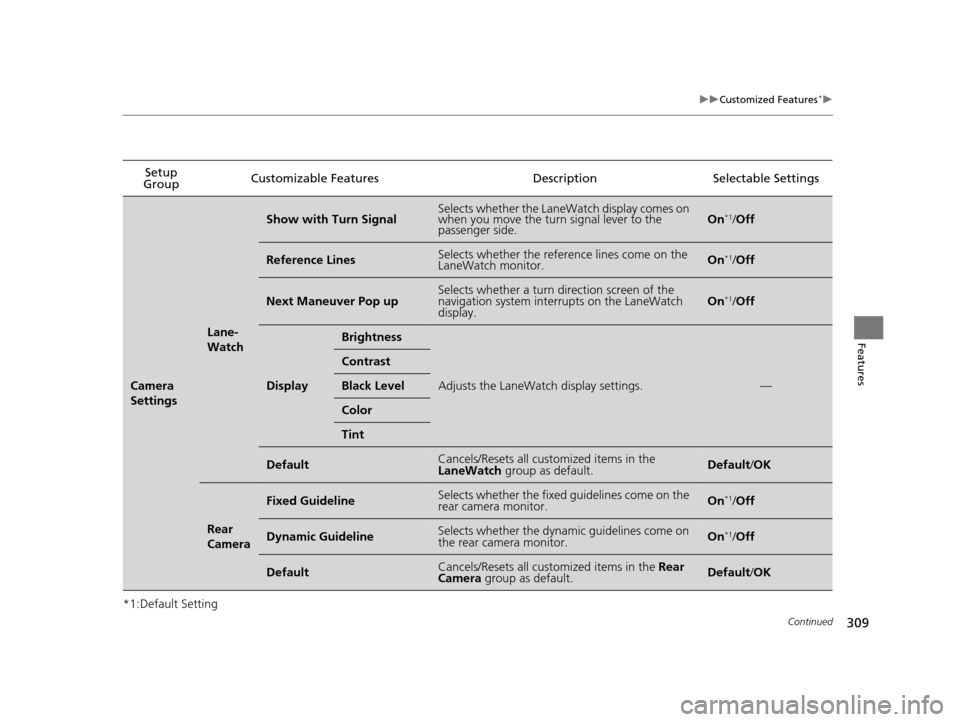
309
uuCustomized Features*u
Continued
Features
*1:Default SettingSetup
Group Customizable Features
DescriptionSelectable Settings
Camera
Settings
Lane-
Watch
Show with Turn SignalSelects whether the LaneWatch display comes on
when you move the turn signal lever to the
passenger side.On*1/Off
Reference LinesSelects whether the reference lines come on the
LaneWatch monitor.On*1/Off
Next Maneuver Pop upSelects whether a turn direction screen of the
navigation system interrupts on the LaneWatch
display.On*1/Off
Display
Brightness
Adjusts the LaneWatch display settings.—
Contrast
Black Level
Color
Tint
DefaultCancels/Resets all customized items in the
LaneWatch group as default.Default/OK
Rear
Camera
Fixed GuidelineSelects whether the fixed guidelines come on the
rear camera monitor.On*1/ Off
Dynamic GuidelineSelects whether the dynamic guidelines come on
the rear camera monitor.On*1/Off
DefaultCancels/Resets all customized items in the Rear
Camera group as default.Default/ OK
15 CROSSTOUR-31TP66500.book 309 ページ 2014年7月31日 木曜日 午後3時23分
Page 418 of 573
417
uuTowing a Trailer uTowing Preparation
Driving
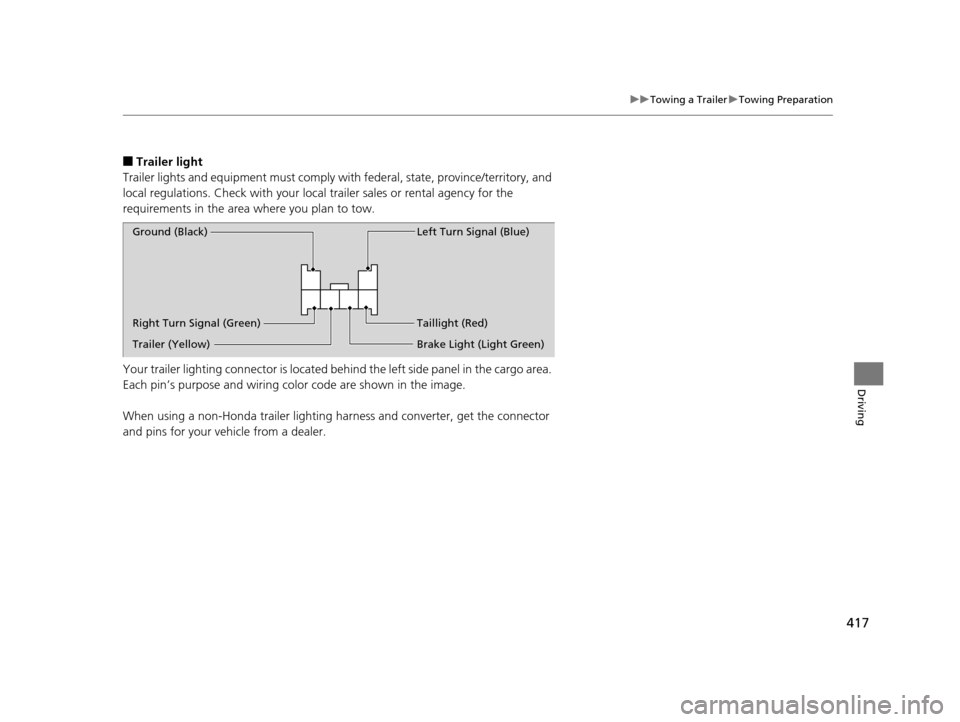
■Trailer light
Trailer lights and equipment must comply with federal, state, province/territory, and
local regulations. Check with your local trailer sales or rental agency for the
requirements in the area where you plan to tow.
Your trailer lighting connector is located behind the left side panel in the cargo area.
Each pin’s purpose and wiring co lor code are shown in the image.
When using a non-Honda trailer lighting ha rness and converter, get the connector
and pins for your vehicle from a dealer.
Right Turn Signal (Green) Ground (Black) Left Turn Signal (Blue)
Taillight (Red)
Brake Light (Light Green)
Trailer (Yellow)
15 CROSSTOUR-31TP66500.book 417 ページ 2014年7月31日 木曜日 午後3時23分
Page 440 of 573
439
uuWhen Driving uLane Departure Warning (LDW)*
Continued
Driving
Lane Departure Warning (LDW)*
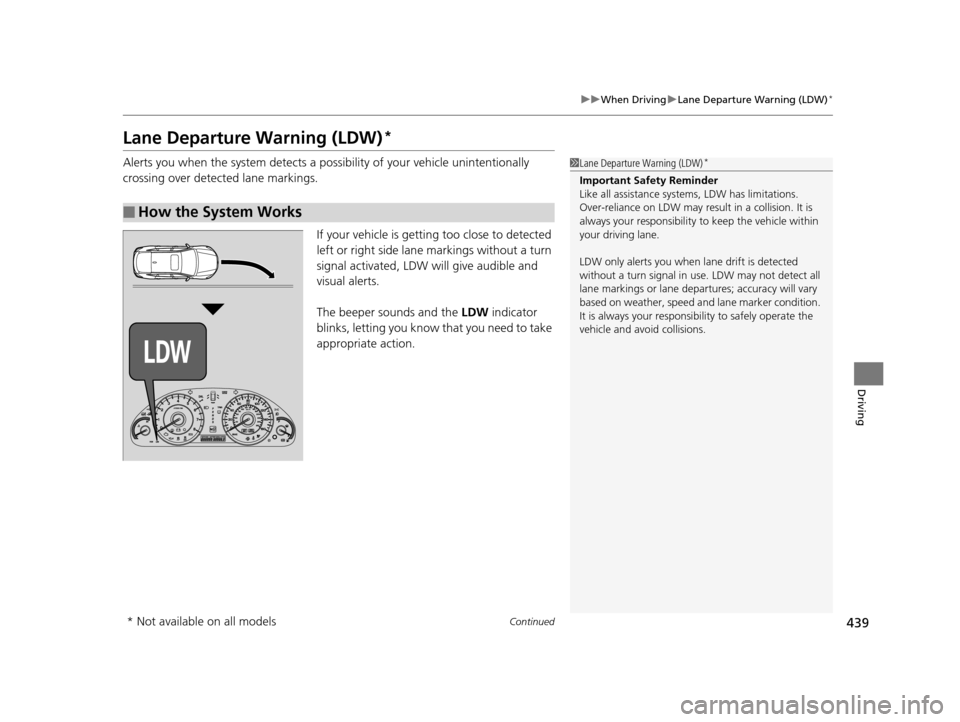
Alerts you when the system detects a possibility of your vehicle unintentionally
crossing over detected lane markings.
If your vehicle is getting too close to detected
left or right side lane markings without a turn
signal activated, LDW will give audible and
visual alerts.
The beeper sounds and the LDW indicator
blinks, letting you know that you need to take
appropriate action.
■How the System Works
1 Lane Departure Warning (LDW)*
Important Safety Reminder
Like all assistance systems, LDW has limitations.
Over-reliance on LDW may result in a collision. It is
always your respons ibility to keep the vehicle within
your driving lane.
LDW only alerts you when lane drift is detected
without a turn signal in us e. LDW may not detect all
lane markings or lane departures; a ccuracy will vary
based on weather, speed and lane marker condition.
It is always your responsibility to safely operate the
vehicle and avoid collisions.
* Not available on all models
15 CROSSTOUR-31TP66500.book 439 ページ 2014年7月31日 木曜日 午後3時23分