remote control HONDA CROSSTOUR 2015 1.G Owner's Manual
[x] Cancel search | Manufacturer: HONDA, Model Year: 2015, Model line: CROSSTOUR, Model: HONDA CROSSTOUR 2015 1.GPages: 573
Page 164 of 573
163
Features
This chapter describes how to operate technology features.
Audio SystemAbout Your Audio System................ 164
USB Adapter Cable .......................... 165
Auxiliary Input Jack .......................... 165
Audio System Theft Protection ......... 166
Region Setting
*............................... 167
Audio Remote Controls.................... 168
Audio System Basic Operation ........ 169
Audio System Basic Operation ........ 182
Models without navigation system
Audio system without touch screen
Audio system with touch screen
Audio System Basic Operation........ 215
Audio Error Messages ...................... 268
General Information on the Audio System ............................................. 276
Customized Features
*...................... 280
HomeLink ® Universal Transceiver*.. 317
Bluetooth® HandsFreeLink®.... 319, 331, 366
Compass*.................................. 404 , 406
Models with navigation system
* Not available on all models
15 CROSSTOUR-31TP66500.book 163 ページ 2014年7月31日 木曜日 午後3時23分
Page 165 of 573
164
Features
Audio System
About Your Audio System
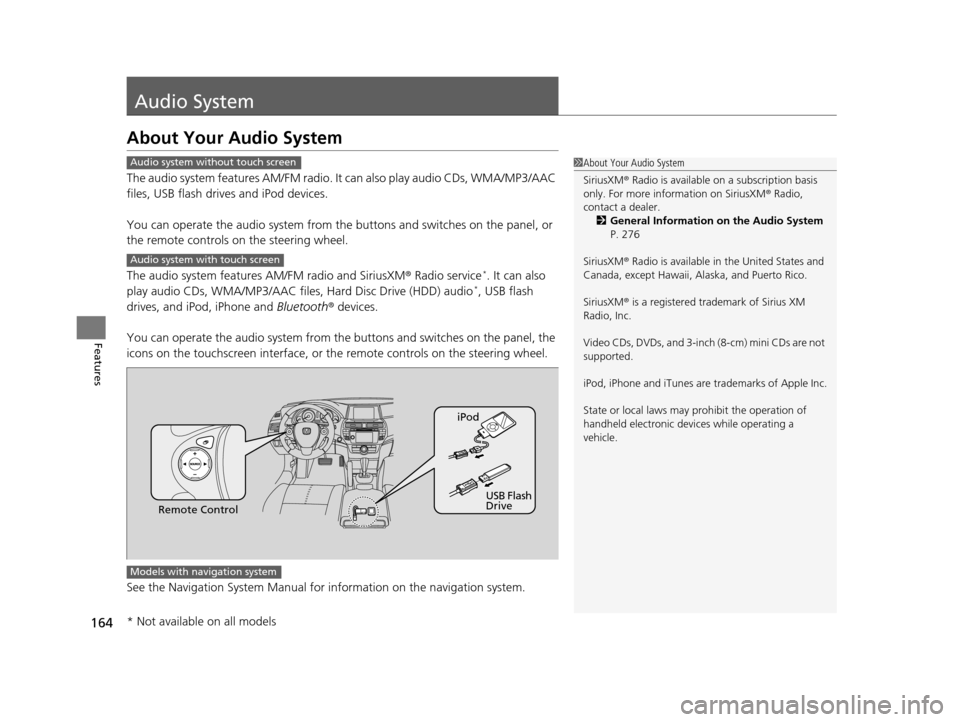
The audio system features AM/FM radio. It can also play audio CDs, WMA/MP3/AAC
files, USB flash drives and iPod devices.
You can operate the audio system from the buttons and switches on the panel, or
the remote controls on the steering wheel.
The audio system features AM/FM radio and SiriusXM ® Radio service
*. It can also
play audio CDs, WMA/MP3/AAC files, Hard Disc Drive (HDD) audio*, USB flash
drives, and iPod, iPhone and Bluetooth® devices.
You can operate the audio system from the buttons and switches on the panel, the
icons on the touchscreen in terface, or the remote controls on the steering wheel.
See the Navigation System Manual for in formation on the navigation system.
1About Your Audio System
SiriusXM ® Radio is available on a subscription basis
only. For more information on SiriusXM ® Radio,
contact a dealer.
2 General Information on the Audio System
P. 276
SiriusXM ® Radio is available in the United States and
Canada, except Ha waii, Alaska, and Puerto Rico.
SiriusXM ® is a registered trademark of Sirius XM
Radio, Inc.
Video CDs, DVDs, and 3-inch (8-cm) mini CDs are not
supported.
iPod, iPhone and iTunes are trademarks of Apple Inc.
State or local laws may pr ohibit the operation of
handheld electronic devi ces while operating a
vehicle.Audio system without touch screen
Audio system with touch screen
Remote Control iPod
USB Flash
Drive
Models with navigation system
* Not available on all models
15 CROSSTOUR-31TP66500.book 164 ページ 2014年7月31日 木曜日 午後3時23分
Page 169 of 573
168
uuAudio System uAudio Remote Controls
Features
Audio Remote Controls
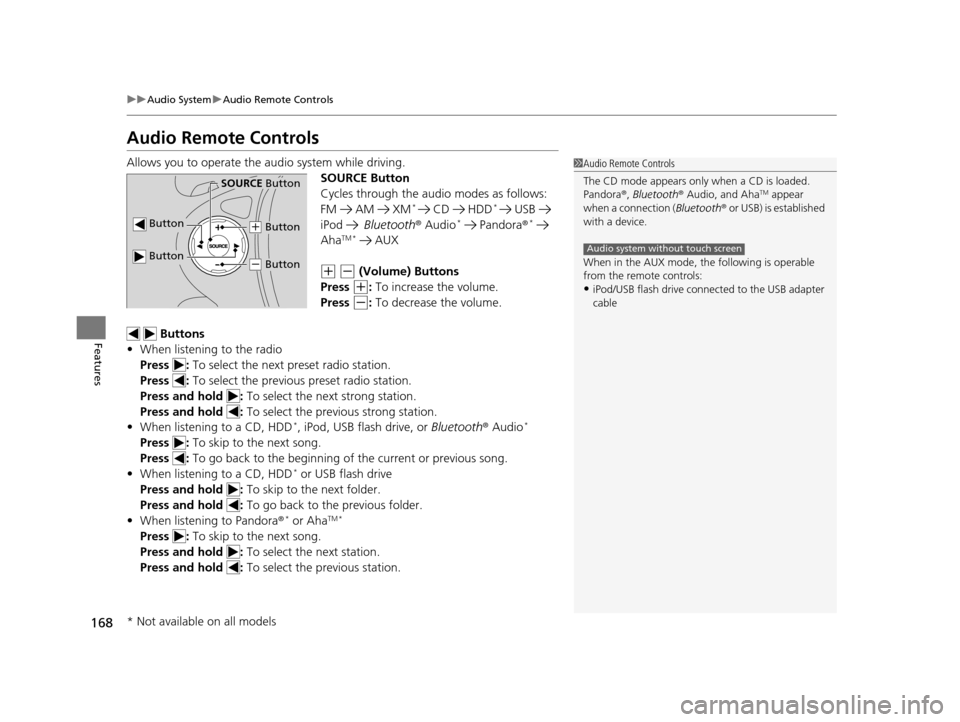
Allows you to operate the audio system while driving.
SOURCE Button
Cycles through the audio modes as follows:
FM AM XM
* CD HDD* USB
iPod Bluetooth ® Audio* Pandora ®*
AhaTM * AUX
(+ (- (Volume) Buttons
Press
(+: To increase the volume.
Press
(-: To decrease the volume.
Buttons
• When listening to the radio
Press : To select the next preset radio station.
Press : To select the previous preset radio station.
Press and hold : To select the next strong station.
Press and hold : To select the previous strong station.
• When listening to a CD, HDD
*, iPod, USB flash drive, or Bluetooth® Audio*
Press : To skip to the next song.
Press : To go back to the beginning of the current or previous song.
• When listening to a CD, HDD
* or USB flash drive
Press and hold : To skip to the next folder.
Press and hold : To go back to the previous folder.
• When listening to Pandora ®
* or AhaTM *
Press : To skip to the next song.
Press and hold : To select the next station.
Press and hold : To select the previous station.
1Audio Remote Controls
The CD mode appears only when a CD is loaded.
Pandora ®, Bluetooth ® Audio, and Aha
TM appear
when a connection ( Bluetooth® or USB) is established
with a device.
When in the AUX mode, the following is operable
from the remote controls:
•iPod/USB flash drive connect ed to the USB adapter
cable
Audio system without touch screen
Button
SOURCE Button
Button
(+ Button
(- Button
* Not available on all models
15 CROSSTOUR-31TP66500.book 168 ページ 2014年7月31日 木曜日 午後3時23分
Page 170 of 573
169
Features
Audio System Basic Operation
To use the audio system function, the ignition swit ch must be in ACCESSORY (q or
ON
(w.
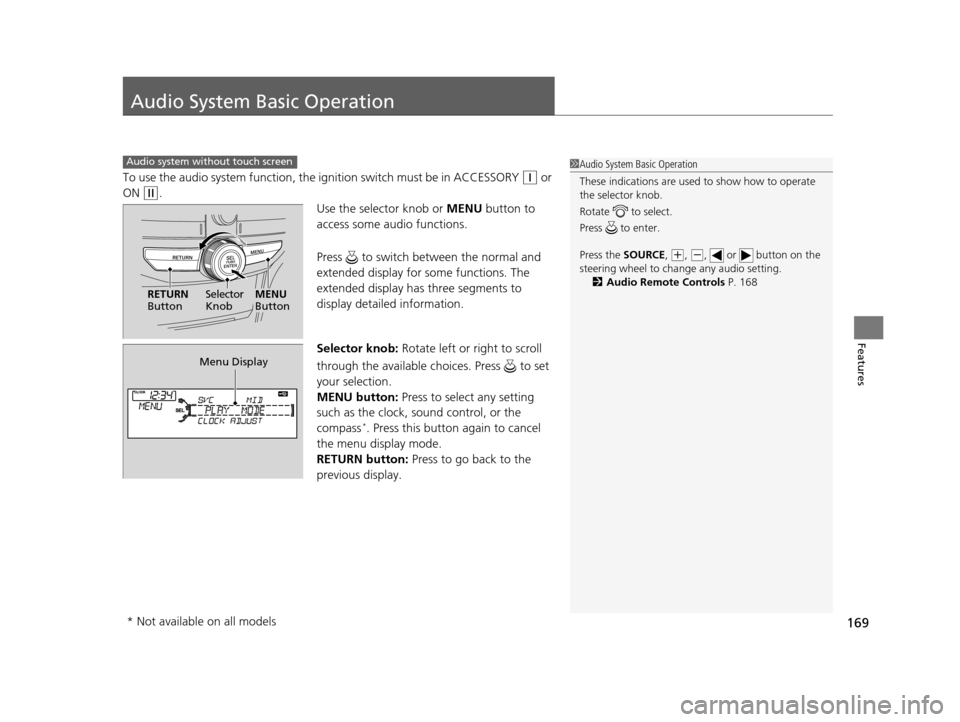
Use the selector knob or MENU button to
access some audio functions.
Press to switch between the normal and
extended display for so me functions. The
extended display has three segments to
display detailed information.
Selector knob: Rotate left or right to scroll
through the available ch oices. Press to set
your selection.
MENU button: Press to select any setting
such as the clock, sound control, or the
compass
*. Press this button again to cancel
the menu display mode.
RETURN button: Press to go back to the
previous display.
Audio system without touch screen1 Audio System Basic Operation
These indications are used to show how to operate
the selector knob.
Rotate to select.
Press to enter.
Press the SOURCE,
( +, ( -, or button on the
steering wheel to cha nge any audio setting.
2 Audio Remote Controls P. 168
RETURN
Button Selector
KnobMENU
Button
Menu Display
* Not available on all models
15 CROSSTOUR-31TP66500.book 169 ページ 2014年7月31日 木曜日 午後3時23分
Page 173 of 573
uuAudio System Basic Operation uPlaying AM/FM Radio
172
Features
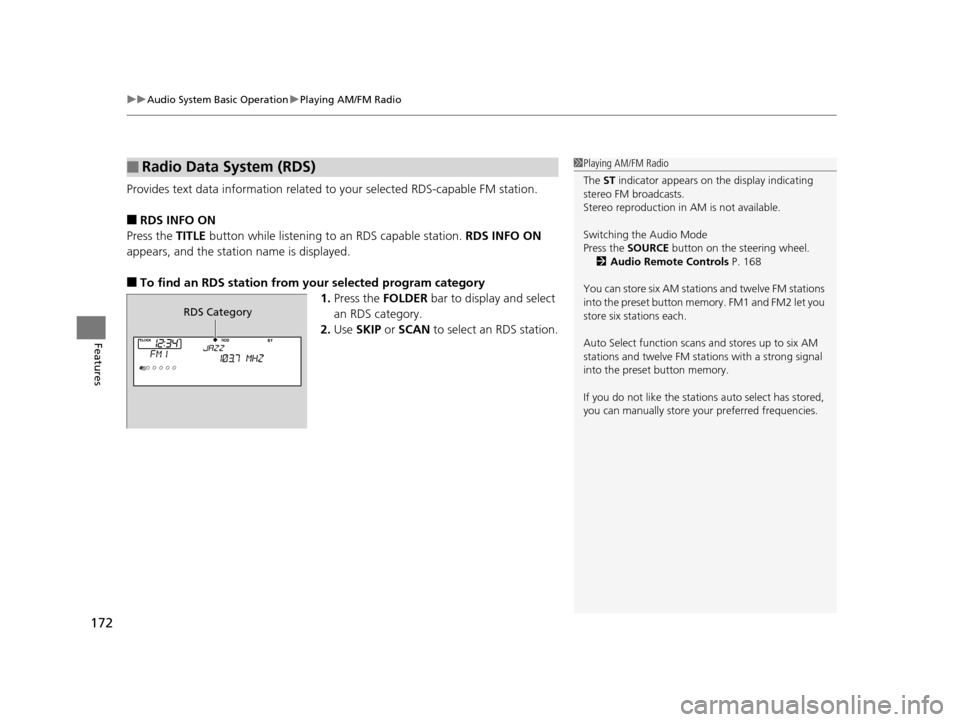
Provides text data information related to your selected RDS-capable FM station.
■RDS INFO ON
Press the TITLE button while listening to an RDS capable station. RDS INFO ON
appears, and the station name is displayed.
■To find an RDS station from your selected program category 1.Press the FOLDER bar to display and select
an RDS category.
2. Use SKIP or SCAN to select an RDS station.
■Radio Data System (RDS)1Playing AM/FM Radio
The ST indicator appears on the display indicating
stereo FM broadcasts.
Stereo reproduction in AM is not available.
Switching the Audio Mode
Press the SOURCE button on the steering wheel.
2 Audio Remote Controls P. 168
You can store six AM stations and twelve FM stations
into the preset button memory. FM1 and FM2 let you
store six stations each.
Auto Select function scans and stores up to six AM
stations and twelve FM stat ions with a strong signal
into the preset button memory.
If you do not like the stati ons auto select has stored,
you can manually store your preferred frequencies.
RDS Category
15 CROSSTOUR-31TP66500.book 172 ページ 2014年7月31日 木曜日 午後3時23分
Page 195 of 573
uuAudio System Basic Operation uPlaying AM/FM Radio
194
Features
To store a station:
1. Tune to the selected station.
2. Press to switch to the Audio menu screen.
3. Rotate to select Save Preset, then press .
4. Rotate to select the preset number you want to store that station, then press
.
2. Select More.
3. Select Save Preset .
4. Select the preset number you wa nt to store that station.
■Preset Memory1Playing AM/FM Radio
The ST indicator appears on the display indicating
stereo FM broadcasts.
Stereo reproduction in AM is not available.
Switching the Audio Mode
Press the SOURCE button on the steering wheel.
2 Audio Remote Controls P. 168
You can also switch the mode by pressing and
selecting Change Source on the Audio menu
screen.
You can store 6 AM stations and 12 FM stations into
the preset memory.
MENU/SEL (Selector) Knob
Audio with Touch Screen
15 CROSSTOUR-31TP66500.book 194 ページ 2014年7月31日 木曜日 午後3時23分
Page 199 of 573
uuAudio System Basic Operation uPlaying SiriusXM ® Radio*
198
Features
1. Select the SiriusXM® mode.
2 Audio Remote Controls P. 168
2 Audio with Touch Screen P. 183
2.Press to switch to the Audio menu screen.
3. Rotate to select XM Tune Mode, then press .
4. Rotate to select Channel Mode or Category Mode , then press .
5. Rotate to select Channel List, then press .
6. Rotate to select a channel from a list, then press .
2. Select More.
3. Select XM Tune Mode .
4. Select Channel Mode or Category Mode .
5. Select a channel using the , , , icons on the tune mode screen or the
preset numbers ( 1-12 ) on the preset mode screen.
■To Play the SiriusXM ® Radio1 Playing SiriusXM ® Radio*
In the channel mode, all available channels are
selectable. In the categor y mode, you can select a
channel within a ca tegory (Jazz, Rock, Classical, etc.).
There may be instances when SiriusXM ® Radio does
not broadcast all the data fi elds (artist name, title).
This does not indicate a problem with your audio
system.
MENU/SEL (Selector) Knob
Audio with Touch Screen
* Not available on all models
15 CROSSTOUR-31TP66500.book 198 ページ 2014年7月31日 木曜日 午後3時23分
Page 234 of 573
Continued233
uuAudio System Basic Operation uPlaying AM/FM Radio
Features
To store a station:
1. Tune to the selected station.
2. Press the MENU button.
3. Rotate to select Save Preset, then press .
4. Rotate to select the preset number you want to store that station, then press
and hold .
2. Select More.
3. Select Save Preset .
4. Select the preset number you want to store that station.
■Preset Memory1Playing AM/FM Radio
You can control the AM/FM radio using voice
commands.
2 Voice Control Operation P. 224
The ST indicator appears on the display indicating
stereo FM broadcasts.
Stereo reproduction in AM is not available.
Switching the Audio Mode
Press the SOURCE button on the steering wheel.
2 Audio Remote Controls P. 168
You can also switch the mode by pressing the MENU
button and selecting Change Source on the Audio
menu screen.
You can store 6 AM stations and 12 FM stations into
the preset memory.
Interface Dial
Audio with Touch Screen
15 CROSSTOUR-31TP66500.book 233 ページ 2014年7月31日 木曜日 午後3時23分
Page 238 of 573
Continued237
uuAudio System Basic Operation uPlaying SiriusXM ® Radio
Features
1. Select the SiriusXM ® mode.
2Audio Remote Controls P. 168
2 Audio with Touch Screen P. 216
2.Press the MENU button.
3. Rotate to select XM Tune Mode, then press .
4. Rotate to select Channel Mode or Category Mode , then press .
5. Rotate to select Channel List, then press .
6. Rotate to select a channel from a list, then press .
2. Select More.
3. Select XM Tune Mode .
4. Select Channel Mode or Category Mode .
5. Select a channel using the , , , ic ons on the tune mode screen or
the preset numbers ( 1-12) on the preset mode screen.
■To Play the SiriusXM ® Radio1 Playing SiriusXM ® Radio
You can control the SiriusXM ® radio using voice
commands.
2 Voice Control Operation P. 224
In the channel mode, all available channels are
selectable. In the categor y mode, you can select a
channel within a ca tegory (Jazz, Rock, Classical, etc.).
There may be instances when SiriusXM ® Radio does
not broadcast all the data fi elds (artist name, title).
This does not indicate a problem with your audio
system.
Interface Dial
Audio with Touch Screen
15 CROSSTOUR-31TP66500.book 237 ページ 2014年7月31日 木曜日 午後3時23分
Page 318 of 573
317Continued
Features
HomeLink® Universal Transceiver*
The HomeLink ® Universal Transceiver can be programmed to operate up to three
remote controlled devices around your home, such as garage doors, lighting, or
home security systems.
Refer to the safety information that came wi th your garage door opener to test that
the safety features are functioning prope rly. If you do not have the safety
information, contact the manufacturer.
Before programming HomeLink, make sure that people and objects are out of the
way of the garage or gate to prevent potential injury or damage.
When programming a garage door opener, park just outside the garage door’s
path.
Training HomeLink
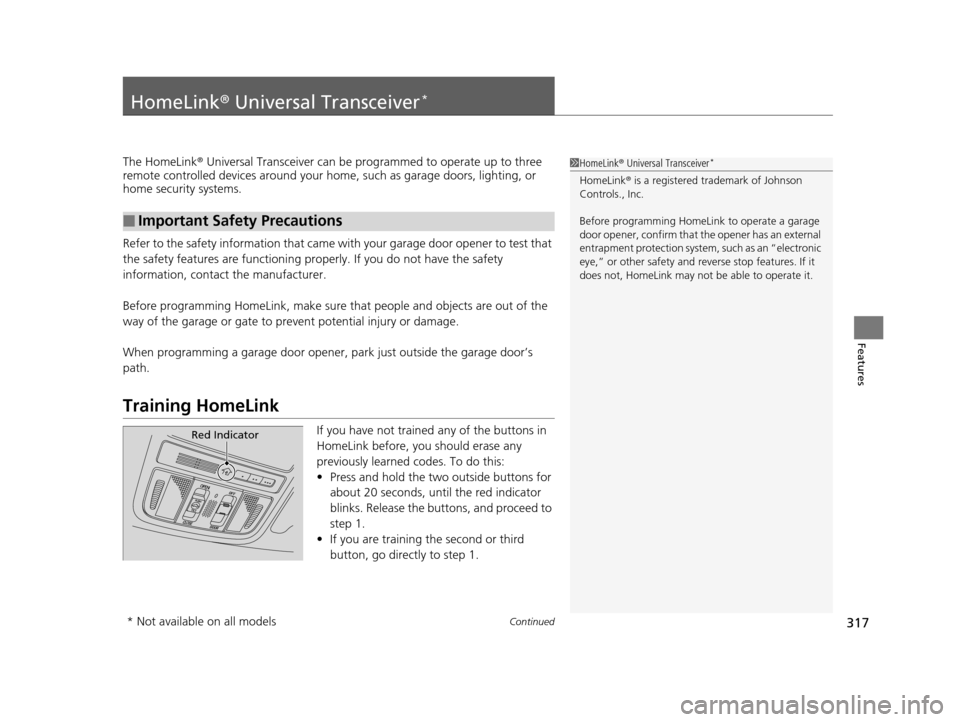
If you have not trained any of the buttons in
HomeLink before, you should erase any
previously learned codes. To do this:
• Press and hold the two outside buttons for
about 20 seconds, until the red indicator
blinks. Release the bu ttons, and proceed to
step 1.
• If you are training the second or third
button, go directly to step 1.
■Important Safety Precautions
1HomeLink ® Universal Transceiver*
HomeLink® is a registered tra demark of Johnson
Controls., Inc.
Before programming HomeLi nk to operate a garage
door opener, confirm that the opener has an external
entrapment protection system, such as an “electronic
eye,” or other safety and re verse stop features. If it
does not, HomeLink may not be able to operate it.
Red Indicator
* Not available on all models
15 CROSSTOUR-31TP66500.book 317 ページ 2014年7月31日 木曜日 午後3時23分