clock HONDA CRV 2023 Owners Manual
[x] Cancel search | Manufacturer: HONDA, Model Year: 2023, Model line: CRV, Model: HONDA CRV 2023Pages: 719, PDF Size: 13.43 MB
Page 7 of 719
Contents
This owner’s manual should be considered a permanent part of the
vehicle and should remain with the vehicle when it is sold.
The Navigation Manual is available online at owners.honda.com
(U.S.) or honda.ca (Canada). If you are the first registered owner
of your vehicle, you may request a complimentary printed
copy of the Navigation Manual within the first six months of
vehicle purchase. To request a copy, visit owners.honda.com. In
Canada, please request a copy from your Honda dealer.
This owner’s manual covers all models of your vehicle. You may find
descriptions of equipment and features that are not on your
particular model.
Images throughout this owner’s ma nual (including the front cover)
represent features and equipment that are available on some, but
not all, models. Your particular mo del may not have some of these
features.
This owner’s manual is for vehicles sold in the United States and
Canada.
The information and specifications in cluded in this publication were
in effect at the time of approval for printing. Honda Motor Co., Ltd.
reserves the right, however, to discontinue or change specifications
or design at any time without notice and without incurring any
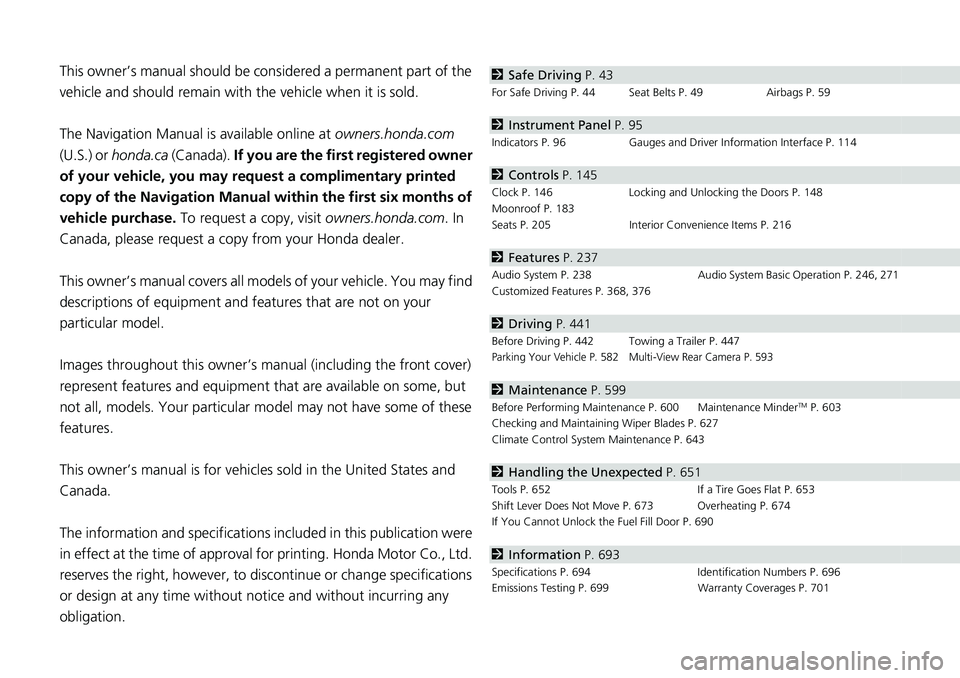
obligation.2 Safe Driving P. 43
For Safe Driving P. 44 Seat Belts P. 49 Airbags P. 59
2Instrument Panel P. 95
Indicators P. 96 Gauges and Driver Information Interface P. 114
2Controls P. 145
Clock P. 146 Locking and Unlocking the Doors P. 148
Moonroof P. 183
Seats P. 205 Interior Convenience Items P. 216
2Features P. 237
Audio System P. 238 Audio System Basic Operation P. 246, 271
Customized Features P. 368, 376
2 Driving P. 441
Before Driving P. 442 Towing a Trailer P. 447Parking Your Vehicle P. 582 Multi-View Rear Camera P. 593
2Maintenance P. 599
Before Performing Maintenance P. 600 Maintenance MinderTM P. 603
Checking and Maintaining Wiper Blades P. 627
Climate Control System Maintenance P. 643
2Handling the Unexpected P. 651
Tools P. 652 If a Tire Goes Flat P. 653
Shift Lever Does Not Move P. 673 Overheating P. 674
If You Cannot Unlock the Fuel Fill Door P. 690
2 Information P. 693
Specifications P. 694 Identification Numbers P. 696
Emissions Testing P. 699 Warranty Coverages P. 701
Page 24 of 719
23
Quick Reference Guide
Controls (P 145)
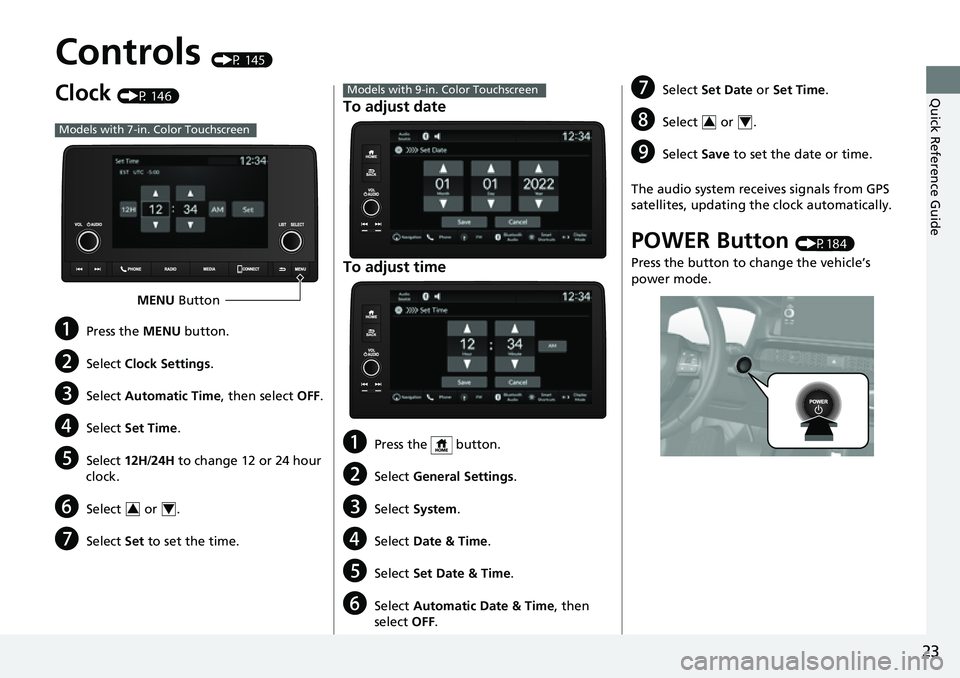
Clock (P 146)
aPress the MENU button.
bSelect Clock Settings .
cSelect Automatic Time , then select OFF.
dSelect Set Time .
eSelect 12H/24H to change 12 or 24 hour
clock.
fSelect or .
gSelect Set to set the time.
Models with 7-in. Color Touchscreen
MENU Button
34
To adjust date
To adjust time
aPress the button.
bSelect General Settings .
cSelect System .
dSelect Date & Time .
eSelect Set Date & Time .
fSelect Automatic Date & Time , then
select OFF.
Models with 9-in. Color TouchscreengSelect Set Date or Set Time.
hSelect or .
iSelect Save to set the date or time.
The audio system receives signals from GPS
satellites, updating the clock automatically.
POWER Button (P184)
Press the button to change the vehicle’s
power mode.
34
Page 117 of 719
uuGauges and Driver Information Interface uGauges
116
Instrument Panel
Shows the current mode for ACC with Low Speed Follow, LKAS, and Traffic Jam
Assist.
2 Adaptive Cruise Control (ACC) with Low Speed Follow P. 513
2 Lane Keeping Assist System (LKAS) P. 533
2 Traffic Jam Assist P. 545
Shows the clock.
■Current Mode for ACC with Low Speed Follow, the LKAS, and
Traffic Jam Assist
■Clock1Clock
You can adjust the time manually and change the
clock display to show the 12 hour clock or 24 hour
clock. 2 Clock P. 146
Page 146 of 719
145
Controls
This chapter explains how to operate the various controls necessary for driving.
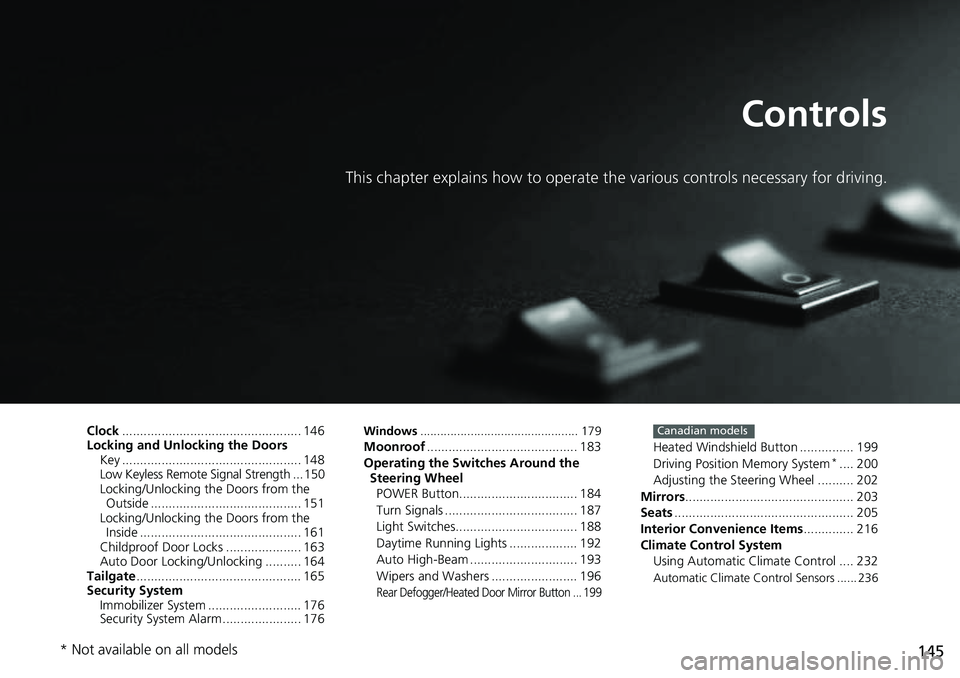
Clock.................................................. 146
Locking and Unlocking the Doors Key .................................................. 148
Low Keyless Remote Signal Strength ... 150
Locking/Unlocking the Doors from the Outside .......................................... 151
Locking/Unlocking the Doors from the Inside ............................................. 161
Childproof Door Locks ..................... 163
Auto Door Locking/Unlocking .......... 164
Tailgate .............................................. 165
Security System Immobilizer System .......................... 176
Security System Alarm ...................... 176Windows ............................................... 179Moonroof .......................................... 183
Operating the Switches Around the Steering Wheel
POWER Button................................. 184
Turn Signals ..................................... 187
Light Switches.................................. 188
Daytime Running Lights ................... 192
Auto High-Beam .............................. 193
Wipers and Washers ........................ 196
Rear Defogger/Heated Door Mirror Button ... 199
Heated Windshield Button ............... 199
Driving Position Memory System*.... 200
Adjusting the Steering Wheel .......... 202
Mirrors ............................................... 203
Seats .................................................. 205
Interior Convenience Items .............. 216
Climate Control System Using Automatic Climate Control .... 232
Automatic Climate Control Sensors ...... 236
Canadian models
* Not available on all models
Page 147 of 719
146
Controls
Clock
Adjusting the Clock
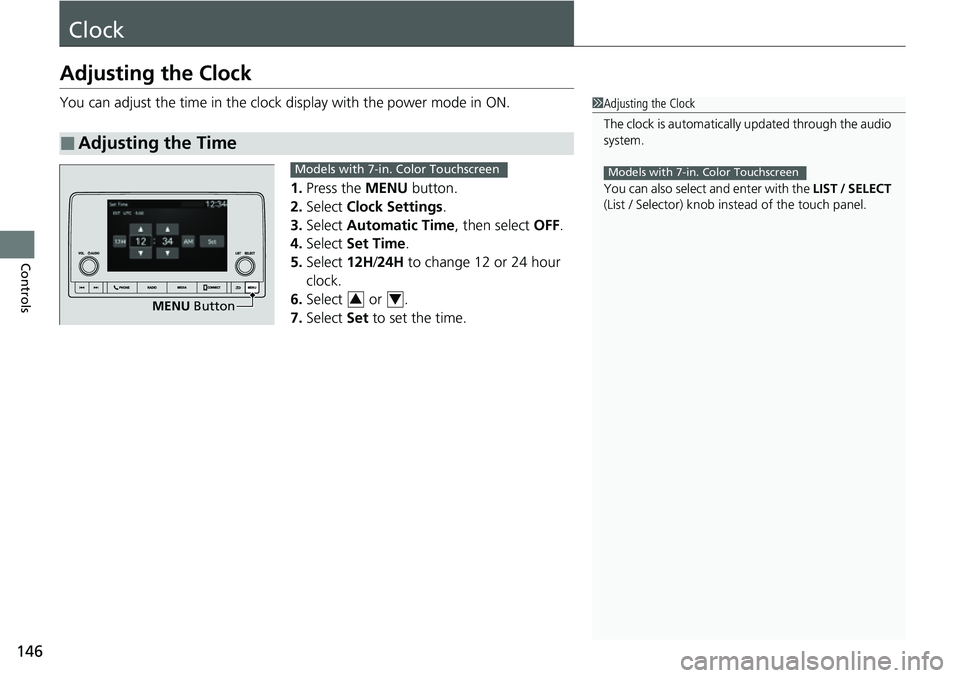
You can adjust the time in the clock display with the power mode in ON.
1. Press the MENU button.
2. Select Clock Settings .
3. Select Automatic Time , then select OFF.
4. Select Set Time.
5. Select 12H/24H to change 12 or 24 hour
clock.
6. Select or .
7. Select Set to set the time.
■Adjusting the Time
1Adjusting the Clock
The clock is automatically updated through the audio
system.
You can also select and enter with the LIST / SELECT
(List / Selector) knob in stead of the touch panel.
Models with 7-in. Color Touchscreen
MENU Button
Models with 7-in. Color Touchscreen
34
Page 148 of 719
147
uuClock uAdjusting the Clock
Controls
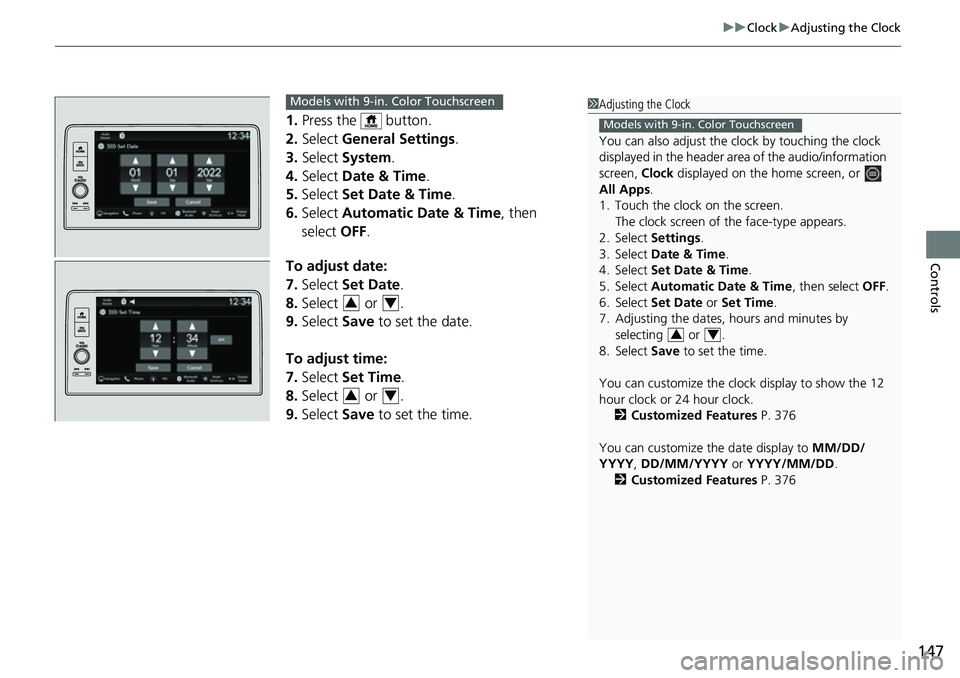
1. Press the button.
2. Select General Settings .
3. Select System.
4. Select Date & Time .
5. Select Set Date & Time .
6. Select Automatic Date & Time , then
select OFF.
To adjust date:
7. Select Set Date.
8. Select or .
9. Select Save to set the date.
To adjust time:
7. Select Set Time.
8. Select or .
9. Select Save to set the time.
1Adjusting the Clock
You can also adjust the clock by touching the clock
displayed in the header ar ea of the audio/information
screen, Clock displayed on the home screen, or
All Apps.
1. Touch the clock on the screen.
The clock screen of the face-type appears.
2. Select Settings .
3. Select Date & Time .
4. Select Set Date & Time .
5. Select Automatic Date & Time , then select OFF.
6. Select Set Date or Set Time.
7. Adjusting the dates, hours and minutes by selecting or .
8. Select Save to set the time.
You can customize the clock display to show the 12
hour clock or 24 hour clock. 2 Customized Features P. 376
You can customize the date display to MM/DD/
YYYY , DD/MM/YYYY or YYYY/MM/DD .
2 Customized Features P. 376
Models with 9-in. Color Touchscreen
34
Models with 9-in. Color Touchscreen
34
34
Page 247 of 719
246
Features
Audio System Basic Operation
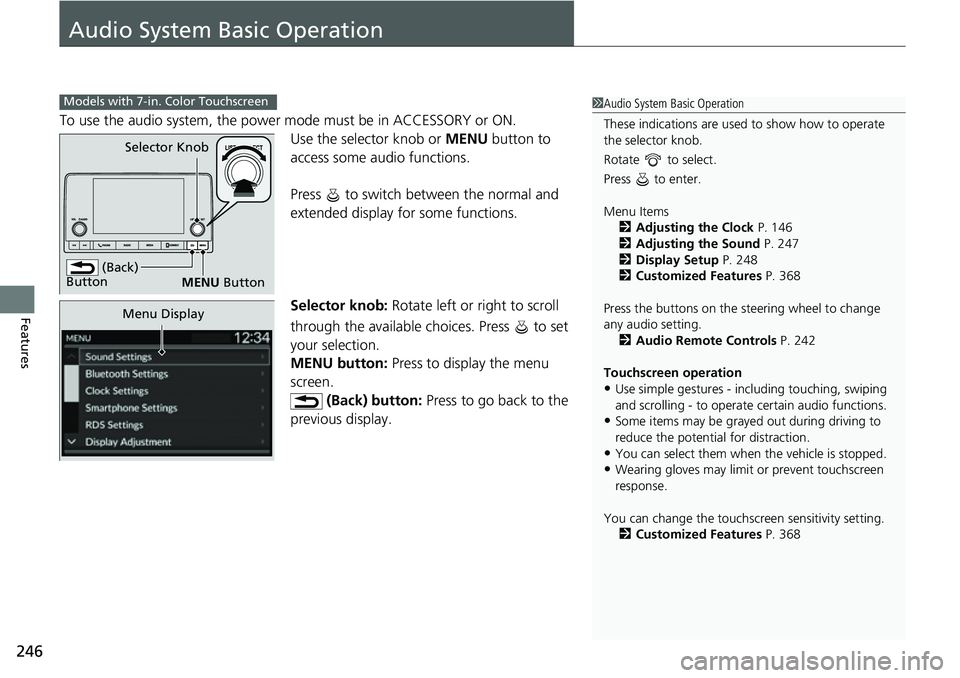
To use the audio system, the power mode must be in ACCESSORY or ON.Use the selector knob or MENU button to
access some audio functions.
Press to switch between the normal and
extended display fo r some functions.
Selector knob: Rotate left or right to scroll
through the available choices. Press to set
your selection.
MENU button: Press to display the menu
screen. (Back) button: Press to go back to the
previous display.
Models with 7-in. Color Touchscreen1 Audio System Basic Operation
These indications are used to show how to operate
the selector knob.
Rotate to select.
Press to enter.
Menu Items 2 Adjusting the Clock P. 146
2 Adjusting the Sound P. 247
2 Display Setup P. 248
2 Customized Features P. 368
Press the buttons on the steering wheel to change
any audio setting. 2 Audio Remote Controls P. 242
Touchscreen operation
•Use simple gestures - in cluding touching, swiping
and scrolling - to operate certain audio functions.
•Some items may be grayed out during driving to
reduce the potential for distraction.
•You can select them when the vehicle is stopped.•Wearing gloves may limit or prevent touchscreen
response.
You can change the touchs creen sensitivity setting.
2 Customized Features P. 368
(Back)
Button
Selector Knob
MENU Button
Menu Display
Page 276 of 719
275
uuAudio System Basic Operation uAudio/Information Screen
Continued
Features
■Trip Computer
Displays the trip computer information.
• Current Drive tab: Displays the current trip information.
• Trip A /Trip B tab: Displays information for the current and three previous drives.
The information is stored ever y time you reset Trip A/B.
To reset the Trip A/B, select Settings, then select Delete Trip History .
To change the setting of how to reset Trip A/B, select Settings, then select “Trip A”
Reset Timing or “Trip B” Reset Timing .
■System Updates
Updates the software version of the audio system.
2 System Updates P. 284
■Wi-Fi Hotspot*
Displays the AT&T Hotspot screen.
2AT&T Hotspot* P. 328
■Clock
Displays the clock.
■Smart Shortcuts
Displays the Smart Shortcuts screen.
2Smart Shortcuts P. 324
■Display Mode
Displays the brightness bar.
■Compass*
Displays the compass screen.
* Not available on all models
Page 277 of 719
uuAudio System Basic Operation uAudio/Information Screen
276
Features
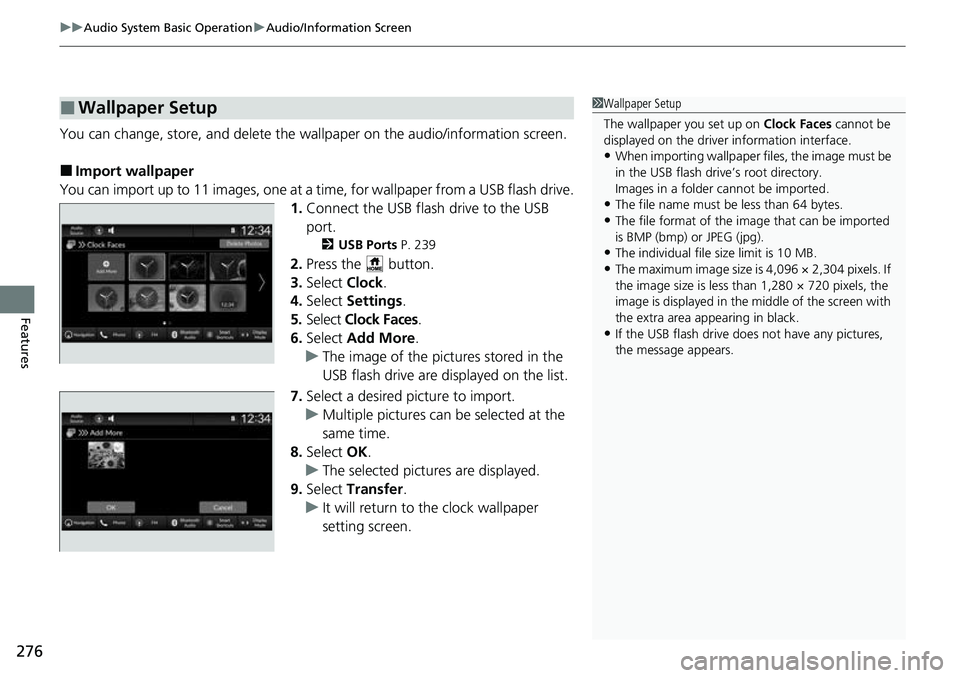
You can change, store, and delete the wallpaper on the audio/information screen.
■Import wallpaper
You can import up to 11 images, one at a time, for wallpaper from a USB flash drive.
1.Connect the USB flash drive to the USB
port.
2 USB Ports P. 239
2.Press the button.
3. Select Clock.
4. Select Settings .
5. Select Clock Faces.
6. Select Add More .
u The image of the pictures stored in the
USB flash drive are displayed on the list.
7. Select a desired picture to import.
u Multiple pictures can be selected at the
same time.
8. Select OK.
u The selected pictures are displayed.
9. Select Transfer.
u It will return to the clock wallpaper
setting screen.
■Wallpaper Setup1Wallpaper Setup
The wallpaper you set up on Clock Faces cannot be
displayed on the driver information interface.
•When importing wallpaper f iles, the image must be
in the USB flash drive’s root directory.
Images in a folder cannot be imported.
•The file name must be less than 64 bytes.
•The file format of the im age that can be imported
is BMP (bmp) or JPEG (jpg).
•The individual file size limit is 10 MB.
•The maximum image size is 4,096 × 2,304 pixels. If
the image size is less than 1,280 × 720 pixels, the
image is displayed in the middle of the screen with
the extra area appearing in black.
•If the USB flash drive doe s not have any pictures,
the message appears.
Page 278 of 719
Continued277
uuAudio System Basic Operation uAudio/Information Screen
Features
■Select wallpaper
1. Press the button.
2. Select Clock.
3. Select Settings .
4. Select Clock Faces .
5. Select a desired picture to set.
u The preview is displayed on the screen.
6. Select Save.
u The clock screen which the wallpa per has been set is displayed.
■To view wallpaper once it is set
1. Press the button.
2. Select Clock.
■Delete wallpaper
1. Press the button.
2. Select Clock.
3. Select Settings .
4. Select Clock Faces .
5. Select Delete Photos .
6. Select a desired picture to delete.
u Multiple pictures can be selected at the same time.
7. Select OK.
u The selected pictures are displayed.
8. Select Delete .
u It will return to the cloc k wallpaper setting screen.
1Wallpaper Setup
You cannot delete the initial imported wallpapers.