AUX HONDA ELEMENT 2009 1.G User Guide
[x] Cancel search | Manufacturer: HONDA, Model Year: 2009, Model line: ELEMENT, Model: HONDA ELEMENT 2009 1.GPages: 345, PDF Size: 18.9 MB
Page 178 of 345

To Play a USB Flash Memory
Device
This audio system can select and
play the audio files from a USB flash
memory device with the same
controls used for the in-dash disc
player. To play a USB flash memory
device, connect it to the USB adapter
cable in the glove box. The ignition
switch must be in the ACCESSORY
(I) or ON (II) position. Press the
AUDIO button beside the screen to
show the audio display and touch the
AUX icon.
You can also select an icon by
moving the joystick. Move it to left,
right, up, or down to change the
highlighting and scroll through lists,
then press ENT on the top of the
joystick to set your selection.To select the USB mode without
using the icon, press the CD/XM
button repeatedly. The status bar
appears on the bottom of the screen.
The audio system reads and plays
the audio files on the USB flash
memory device in MP3, WMA or
AAC
ꭧformats. Depending on the
format, the display shows MP3,
WMA or AAC when a USB flash
memory device is playing. The USB
flash memory device limit is up to
700 folders or up to 65535 files.
ꭧ : Only AAC format files recorded
with iTunes are playable on this
audio unit. The recommended USB flash
memory devices are 256 Mbyte or
higher. Some digital audio players
may be compatible as well.
Some USB flash memory device
(such as devices with security lock-
out features, etc.) will not work in
this audio unit.
Playing a USB Flash Memory Device (Models with navigation system)174
2009 Element
Page 179 of 345

NOTE:●Do not use a device such as a card
reader or hard drive as the device
or your files may be damaged.●Do not connect your USB flash
memory device using a HUB.●Do not use an extension cable to
the USB adapter cable equipped
with your vehicle.●Do not keep the USB flash
memory device in the vehicle.
Direct sunlight and high heat will
damage it.●We recommend backing up your
data before playing a USB flash
memory device.
●Depending on the type and
number of files, it may take some
time before they begin to play.●Depending on the software the
files were made with, it may not be
possible to play some files, or
display some text data.Voice Control SystemYou can select the AUX mode by
using the navigation system voice
control buttons, but cannot operate
the play mode functions.The specifications for compatible
MP3 files are:
– Sampling frequency:
32/44.1/48 kHz (MPEG1)
16/22.05/24 kHz (MPEG2)
– Bitrate:
32/40/48/56/64/80/96/112/128/
160/192/224/256/320/VBR kbps
(MPEG1)
– Supported standards:
MPEG1 Audio Layer3
MPEG2 Audio Layer3
– Partition: Top partition only
– Maximum layers: 8
CONTINUED
Playing a USB Flash Memory Device (Models with navigation system)
175
Features
2009 Element
Page 181 of 345
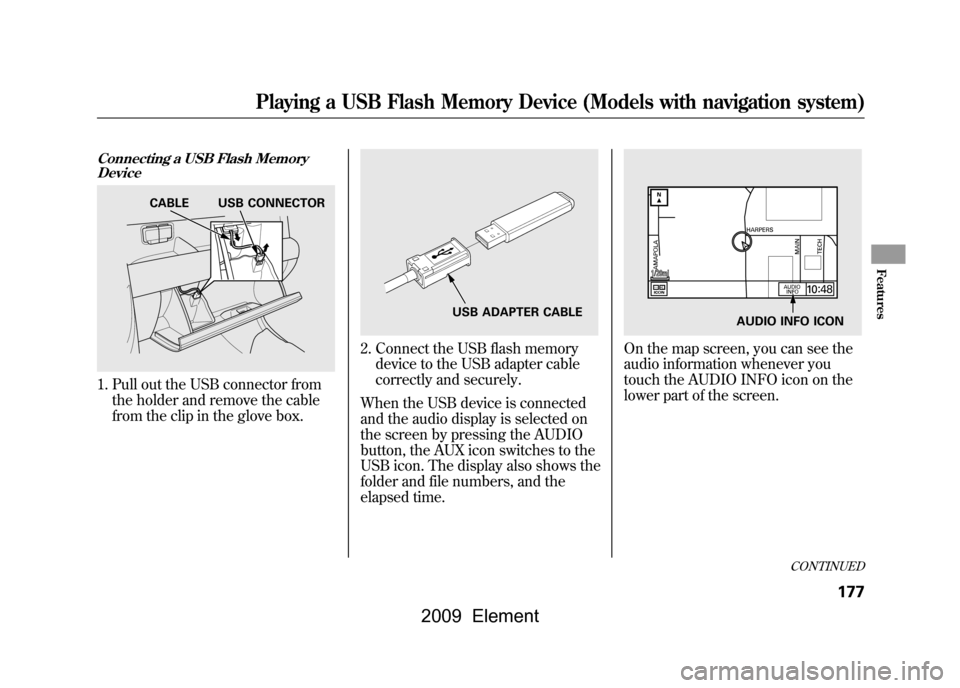
Connecting a USB Flash MemoryDevice1. Pull out the USB connector from
the holder and remove the cable
from the clip in the glove box.
2. Connect the USB flash memorydevice to the USB adapter cable
correctly and securely.
When the USB device is connected
and the audio display is selected on
the screen by pressing the AUDIO
button, the AUX icon switches to the
USB icon. The display also shows the
folder and file numbers, and the
elapsed time.
On the map screen, you can see the
audio information whenever you
touch the AUDIO INFO icon on the
lower part of the screen.
CABLE USB CONNECTOR
USB ADAPTER CABLE
AUDIO INFO ICON
CONTINUED
Playing a USB Flash Memory Device (Models with navigation system)
177
Features
2009 Element
Page 185 of 345

TRACK SCAN-This feature
samples all tracks/files in the
selected folder in the order they are
stored. To activate track scan, press
and release the SCAN button. You
will see TRACK SCAN in the display.
You will get a 10 second sampling of
each track/file in the folder.
FOLDER-SCAN -This feature
samples the first track/file in each
folder in the order they are stored.
To activate folder scan, press and
hold the SCAN button. You will see
FOLDER SCAN in the display. You
will get a 10 second sampling of each
first track/file in the folder(s).
Press and release the button to turn
off either scan mode. Pressing either
SKIP button also turns off this
feature. To Stop Playing a USB Flash
Memory Device
To play the radio when an USB flash
memory device is playing, press the
AM/FM button or touch the FM1,
FM2, AM, XM1, or XM2 icon. If a
disc is in the audio unit, press the
CD/XM button or touch the CD icon
to play the disc. If a PC card is in the
audio unit, Press the CD/XM button
or touch the CARD icon to play a PC
card.
Press the CD/XM button again or
touch the AUX icon to switch back to
the USB flash memory device.
Disconnecting a USB Flash Memory
DeviceYou can disconnect the USB flash
memory device at any time even if
the USB mode is selected on the
audio system. Make sure to follow
the USB flash memory device's
instructions when you remove it.
When you disconnect the USB flash
memory device while it is playing,
the audio display (if selected) shows
NO DATA.
If you reconnect the same USB flash
memory device, the system will
begin playing where it left off.
USB Flash Memory Device Error
Messages
If you see an error message in the
screen, see page182.
Playing a USB Flash Memory Device (Models with navigation system)
181
Features
2009 Element
Page 196 of 345
In MP3 or WMA mode, you can use
the seek function to select folders.
Press and hold the CH button until
you hear a beep, to skip forward to
the first file of the next folder.On vehicles with navigation systemIf you are playing a PC card, press
the CH button to advance to the next
file.
If you are playing a USB flash
memory device or iPod with the USB
adapter cable (if equipped), press
and release the CH button to skip
forward to the beginning of the next
file.Auxiliary Input Jack
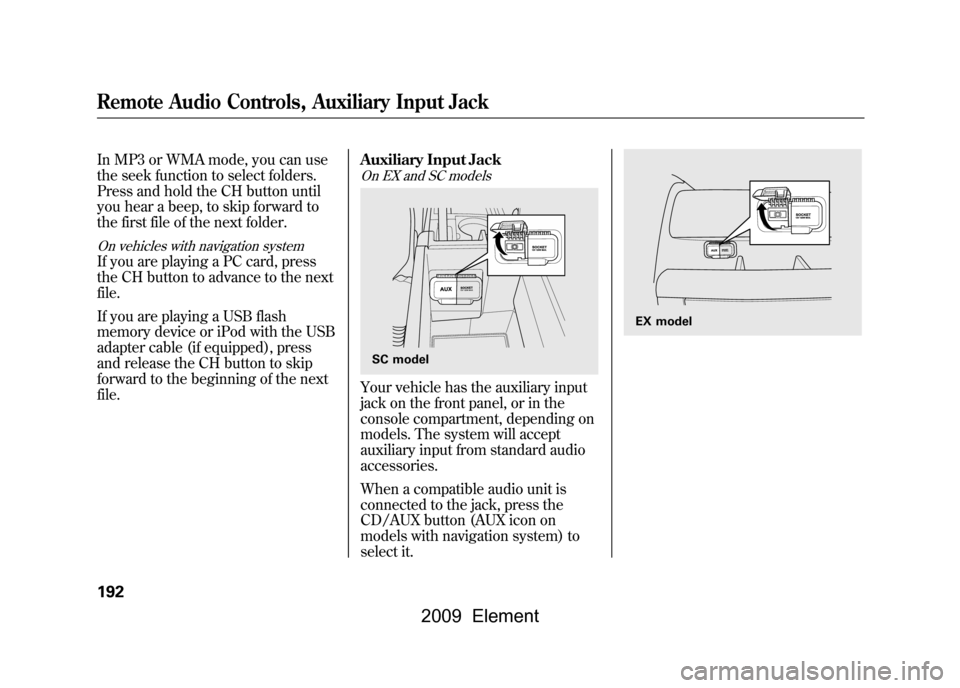
On EX and SC modelsYour vehicle has the auxiliary input
jack on the front panel, or in the
console compartment, depending on
models. The system will accept
auxiliary input from standard audio
accessories.
When a compatible audio unit is
connected to the jack, press the
CD/AUX button (AUX icon on
models with navigation system) to
select it.SC model
EX model
Remote Audio Controls, Auxiliary Input Jack192
2009 Element
Page 331 of 345
A
Accessories andModifications
..........................
205
ACCESSORY (Ignition Key Position)
...................................
79
Accessory Power Sockets
..........
100
Additives, Engine Oil
.................
252
Adjusting the Steering Wheel
......
74
Advanced Airbags
........................
27
Airbag (SRS)
............................
9,22
Air Conditioning System
............
104
Air Pressure, Tires
..............
271,272
Alcohol in Gasoline
....................
198
Antifreeze
...................................
254
Anti-lock Brakes (ABS) Indicator Light
..................
59,225
Operation
................................
225
Anti-theft, Audio System
.............
188
Anti-theft Steering Column Lock
.........................................
79
Audio System
.............................
109
Automatic Seat Belt Tensioners...
20
Automatic Speed Control
...........
193 Automatic Transmission
............
219
Capacity, Fluid
........................
309
Checking Fluid Level
..............
256
Shifting
...................................
219
Shift Lever Position Indicators
............................
219
Shift Lock Release
...................
221
Automatic Transmission Fluid
...
256
Auxiliary Input Jack
...................
192
B
Battery Charging System
Indicator
........................
58,295
Jump Starting
..........................
291
Maintenance
...........................
277
Specifications
..........................
310
Before Driving
...........................
197
Belts, Seat
................................
8,18
Beverage Holders
........................
99
Booster Seats
...............................
50
Brakes
Anti-lock Brakes (ABS)
...........
225
Break-in, New Linings
.............
198 Bulb Replacement
...................
266
Fluid
.......................................
258
Parking
....................................
94
System Design
........................
224
System Indicator
...............
58,297
Wear Indicators
.......................
225
Braking System
..........................
224
Break-in, New Vehicle
................
198
Brightness Control, Instruments
..............................
72
Bulb Replacement Back-up Lights
........................
266
Brake Lights
...........................
266
Daytime Running Lights
.........
262
Front Parking/Turn Signal Lights
..................................
263
Front Side Marker Lights
........
265
Headlights
..............................
261
High-mount Brake Lights
........
267
Rear Bulbs
..............................
266
Rear License Plate Lights
........
267
Side Turn Signal Lights
...........
264
Specifications
..........................
310
Taillights
.................................
266
Turn Signal Lights
..................
266
CONTINUED
Index
I
INDEX
2009 Element