radio HONDA ELEMENT 2009 1.G User Guide
[x] Cancel search | Manufacturer: HONDA, Model Year: 2009, Model line: ELEMENT, Model: HONDA ELEMENT 2009 1.GPages: 345, PDF Size: 18.9 MB
Page 124 of 345
To Play a Disc
To load or play discs, the ignition
switch must be in the ACCESSORY
(I) or ON (II) position.Do not use discs with adhesive labels.
The label can curl up and cause the
disc to jam in the unit.
You operate the disc player with the
same controls used for the radio. To
select the disc player, press the CD/
TAPE or the CD/AUX button. You
will see‘‘CD ’’in the display. The
number of the track playing is shown
in the display. The system will
continuously play a disc until you
change modes.
Video CDs and DVDs do not work in
this unit.
On EX and SC modelsThe disc player can also play CD-Rs
and CD-RWs compressed in MP3 or
WMA formats.
When playing a disc in MP3, you will
see ‘‘MP3 ’’in the display. The folder
and track numbers are displayed.
Each disc can hold up to 400 playable
files within 8 folder layers. A disc can
support a maximum number of 100
folders, and each folder can hold 255
playable files.
The specifications for compatible
MP3 file are:
– Sampling frequency:
32/44.1/48 kHz (MPEG1)
16/22.05/24 kHz (MPEG2)
– Bitrate:
8/16/24/32/40/48/56/64/80/96/
112/128/160/192/224/256/320
kbps
– Compatible with variable bitrate
and multi-session When playing a disc in WMA, you
will see
‘‘WMA ’’in the display. The
folder and track numbers are
displayed. Each disc can hold up to
200 files within 16 subdirectories, 8
folder layers. A disc can support a
maximum number of 100 folders, and
each folder can hold 255 playable
files.
The specifications for compatible
WMA file are:
– Sampling frequency:
32/44.1/48 kHz
– Bitrate:
48/64/80/96/128/160/192 kbps
– Compatible with variable bitrate
and multi-session
NOTE: If a file on an MP3 or WMA
disc is protected by digital rights
management (DRM), the audio unit
displays FORMAT, and then skips to
the next file.
Playing a Disc (Models without navigation system)120
2009 Element
Page 125 of 345

Insert the disc about halfway into the
disc slot. The drive will pull the disc
in the rest of the way and begin to
play it. When the system reaches the
end of the disc, it will return to the
beginning and play the disc again.
To play the radio when a disc is
playing, press the AM/FM button.
Press the CD/TAPE or CD/AUX
button again to switch back to the
CD player.If you turn the system off while a disc
is playing, either with the VOL/PWR
knob or by turning off the ignition
switch, the disc will stay in the drive.
When you turn the system back on,
the disc will begin playing where it
left off.
On EX and SC modelsIf you press the DISP/MODE button
while playing a disc, additional
information (track, album, artist, etc.)
may be displayed.To Change or Select Tracks/Files
On EX and SC modelsUse the SEEK/SKIP button while a
disc is playing to select passages and
change tracks (files in MP3/WMA
mode).
In MP3/WMA mode, use the
FOLDER knob to select folders in
the disc, and use the SEEK/SKIP
button to change files. SEEK/SKIP
-Each time you press
and release the
, the player skips
forward to the beginning of the next
track (files in MP3/WMA mode).
Press and release the
to skip
backward to the beginning of the
current track. Press it again to skip to
the beginning of the previous track.
To move rapidly within a track, press
and hold
or
.
On LX modelsYou will see CUE or REW in the
display while moving within a track.
CONTINUED
Playing a Disc (Models without navigation system)
121
Features
2009 Element
Page 127 of 345

On EX and SC modelsSCAN-The scan function samples
all tracks/files on the disc in the
order they are recorded. To activate
scan, press and hold the SCAN
button until you hear a beep. You will
see SCAN in the display. You will get
a 10 second sampling of each track/
file on the disc. Press the SCAN
button again to exit scan and play the
last track/file sampled.
Pressing either side of the SEEK/
SKIP button also turns off scan.
On EX and SC models
In MP3/WMA modeFOLDER SCAN -This feature,
when activated, samples all files on
the selected folder in order. To
activate folder scan, press and hold
the SCAN button until you hear a
beep. You will see
SCAN in the
display. The system will then play
the first file for about 10 seconds. If
you do nothing, the system will then
play the first file in each folder for 10
seconds. When it plays a file you
want to continue listening to, press
the SCAN button again.
Pressing either side of the SEEK/
SKIP button or selecting a different
folder with the FOLDER knob also
turns off folder scan. To Stop Playing a Disc
Press the eject button (
)to
remove the disc. If you eject the disc,
but do not remove it from the slot,
the system will automatically reload
the disc after 10 seconds (EX and SC
models) or 15 seconds (LX model)
and put it in pause mode. To begin
playing, press the CD/TAPE or CD/
AUX button.
Press the AM/FM button to switch
to the radio while a disc is playing.
To play the disc, press the CD/TAPE
or CD/AUX button.
If you turn the system off while a disc
is playing, either with the VOL/PWR
knob or by turning off the ignition
switch, the disc will stay in the drive.
When you turn the system back on,
the disc will begin playing where it
left off.CONTINUED
Playing a Disc (Models without navigation system)
123
Features
2009 Element
Page 128 of 345
Audio System Malfunction
See pages125and126for
information on error messages.
Protecting Discs
For information on how to handle
and protect discs, see page183.Operating the Optional Disc
Changer
On LX modelAn optional six disc changer is
available for your vehicle. This disc
changer uses the same controls used
for the in-dash disc player or the
radio.
Load the desired discs in the
magazine, and load the magazine in
the changer according to the
instructions that came with the unit.
To select the disc changer, press the
CD/TAPE button. The disc and track
numbers will be displayed. To select
a different disc, use the preset 5
(DISC
-) or the preset 6 (DISC +)
button. To select the previous disc,
press the preset 5 (DISC -), or the
preset 6 (DISC +) to select the next
disc in sequence. If you select an empty slot in the
magazine, the changer will search for
the next available disc to load and
play.
Playing a Disc (Models without navigation system)124
2009 Element
Page 131 of 345
Voice Control System
In addition to the standard audio
controls, the audio system in your
vehicle can be operated using the
voice control system. See the
navigation section in your Quick
Start Guide for an overview of this
system, and the Navigation System
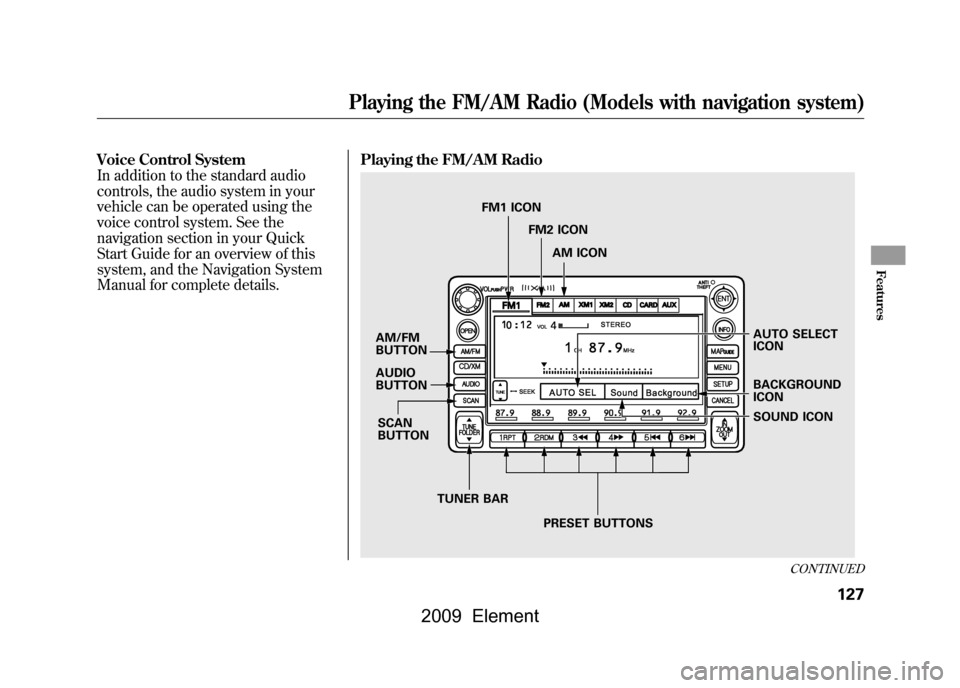
Manual for complete details.Playing the FM/AM Radio
AUTO SELECT
ICON
AM/FM
BUTTON
AUDIO
BUTTON
SCAN
BUTTON
TUNER BAR PRESET BUTTONS SOUND ICON
BACKGROUND
ICON
FM1 ICON
FM2 ICON
AM ICON
CONTINUED
Playing the FM/AM Radio (Models with navigation system)
127
Features
2009 Element
Page 132 of 345
To Play the FM/AM Radio
The ignition switch must be in the
ACCESSORY (I) or ON (II) position.
Turn the system on by pushing the
power/volume knob or the AM/FM
button. Adjust the volume by turning
the power/volume knob.
Pushing the AUDIO button will also
turn on the system.
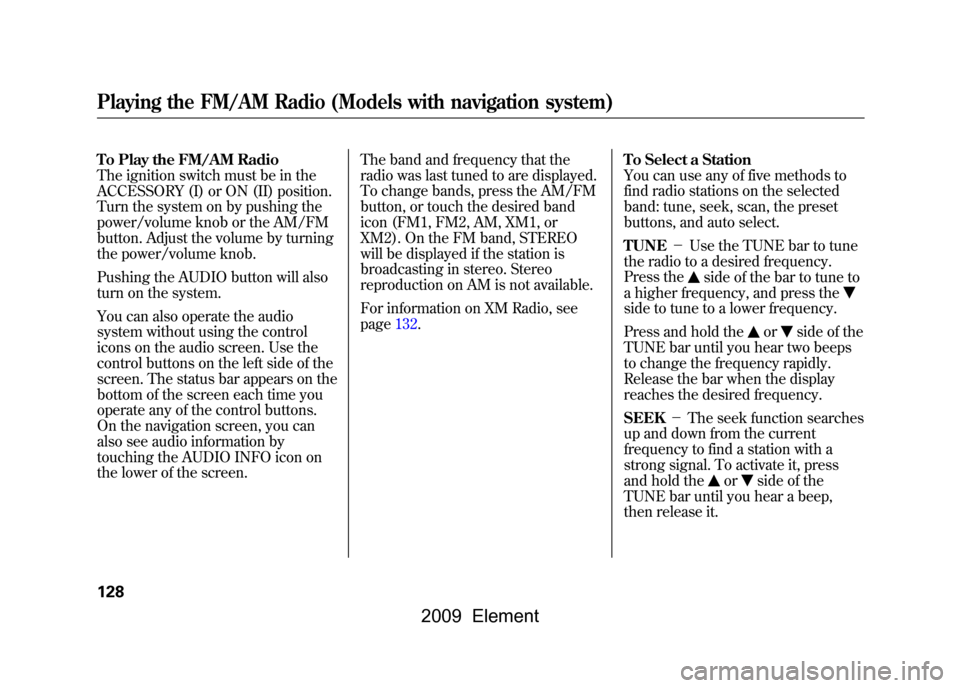
You can also operate the audio
system without using the control
icons on the audio screen. Use the
control buttons on the left side of the
screen. The status bar appears on the
bottom of the screen each time you
operate any of the control buttons.
On the navigation screen, you can
also see audio information by
touching the AUDIO INFO icon on
the lower of the screen.The band and frequency that the
radio was last tuned to are displayed.
To change bands, press the AM/FM
button, or touch the desired band
icon (FM1, FM2, AM, XM1, or
XM2). On the FM band, STEREO
will be displayed if the station is
broadcasting in stereo. Stereo
reproduction on AM is not available.
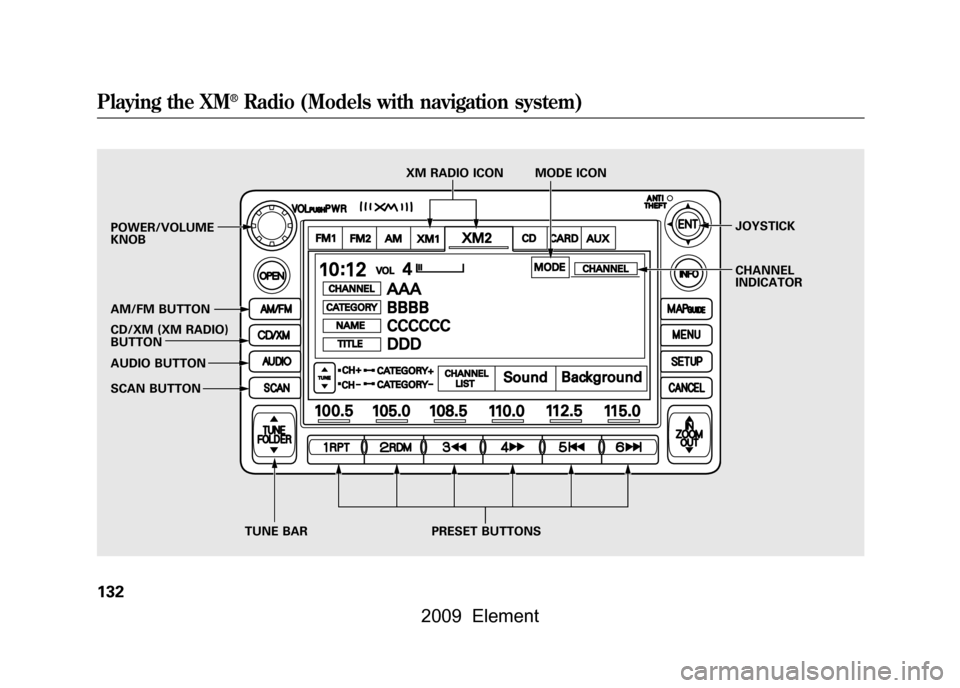
For information on XM Radio, see
page132.
To Select a Station
You can use any of five methods to
find radio stations on the selected
band: tune, seek, scan, the preset
buttons, and auto select.
TUNE
-Use the TUNE bar to tune
the radio to a desired frequency.
Press the
side of the bar to tune to
a higher frequency, and press the
side to tune to a lower frequency.
Press and hold the
or
side of the
TUNE bar until you hear two beeps
to change the frequency rapidly.
Release the bar when the display
reaches the desired frequency.
SEEK -The seek function searches
up and down from the current
frequency to find a station with a
strong signal. To activate it, press
and hold the
or
side of the
TUNE bar until you hear a beep,
then release it.
Playing the FM/AM Radio (Models with navigation system)128
2009 Element
Page 133 of 345

SCAN-The scan function samples
all stations with strong signals on the
selected band. To activate it, press
the SCAN button, then release it.
You will see SCAN in the display.
The system will scan for a station
with a strong signal. When it finds
one, it will stop and play that station
for about 10 seconds.
If you do nothing, the system will
then scan for the next strong station
and play it for 10 seconds. When it
plays a station you want to listen to,
press the SCAN button again. Preset
-Each preset button can
store one frequency on AM and two
frequencies on FM.
1. Select the desired band, AM or FM. FM1 and FM2 let you store
six stations each.
2. Use the tune, seek, or scan function to tune the radio to a
desired station.
3. Pick a preset button, and hold it until you hear a beep.
4. Repeat steps 1 through 3 to store a total of six stations on AM and
twelve stations on FM.
Each preset button's frequency is
shown on the bottom of the audio
display. AUTO SELECT
-If you are
traveling far from home and can no
longer receive your preset stations,
you can use the auto select feature to
find stations in the local area.
Press the AUDIO button to view the
audio control icons, then press the
AUTO SEL icon. You will see AUTO
SEL flashing in the display, and the
system goes into scan mode for
several seconds. It stores the
frequencies of six AM, and twelve
FM stations in the preset buttons.
CONTINUED
Playing the FM/AM Radio (Models with navigation system)
129
Features
2009 Element
Page 134 of 345
You will see a‘‘0’’ displayed after
pressing a preset button if auto select
cannot find a strong station for every
preset button.
If you do not like the stations auto
select has stored, you can store other
frequencies on the preset buttons as
previously described.To turn off auto select,
press the AUTO
SEL icon. This restores the presets
you originally set.
For information on FM/AM radio
frequencies and reception, see page
186. Adjusting the Sound
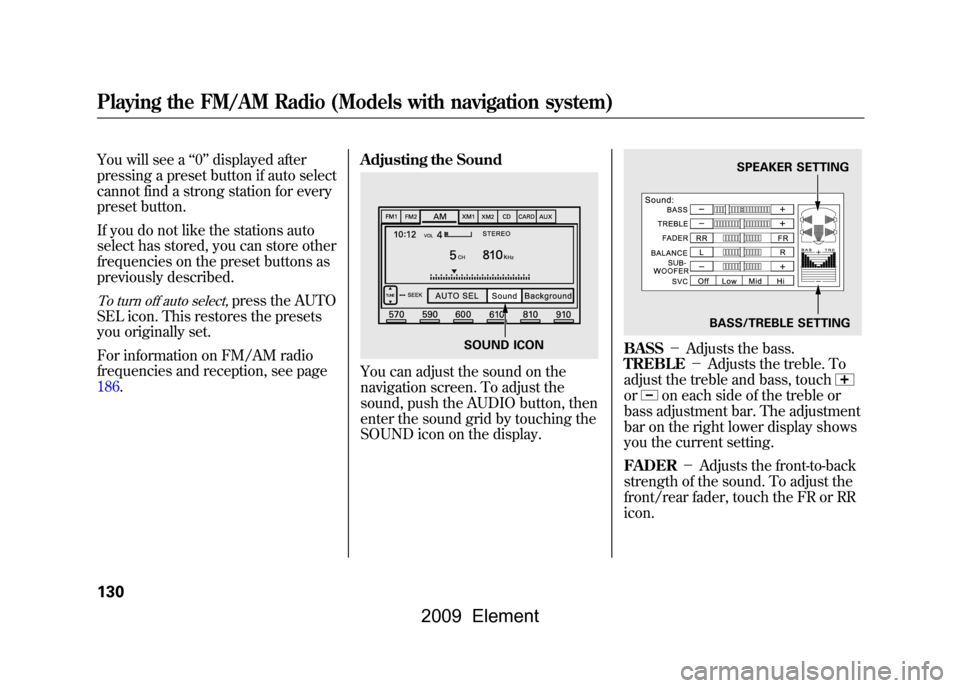
You can adjust the sound on the
navigation screen. To adjust the
sound, push the AUDIO button, then
enter the sound grid by touching the
SOUND icon on the display.
BASS
-Adjusts the bass.
TREBLE -Adjusts the treble. To
adjust the treble and bass, touchor
on each side of the treble or
bass adjustment bar. The adjustment
bar on the right lower display shows
you the current setting.
FADER -Adjusts the front-to-back
strength of the sound. To adjust the
front/rear fader, touch the FR or RR
icon.
SOUND ICON
SPEAKER SETTING
BASS/TREBLE SETTING
Playing the FM/AM Radio (Models with navigation system)130
2009 Element
Page 135 of 345
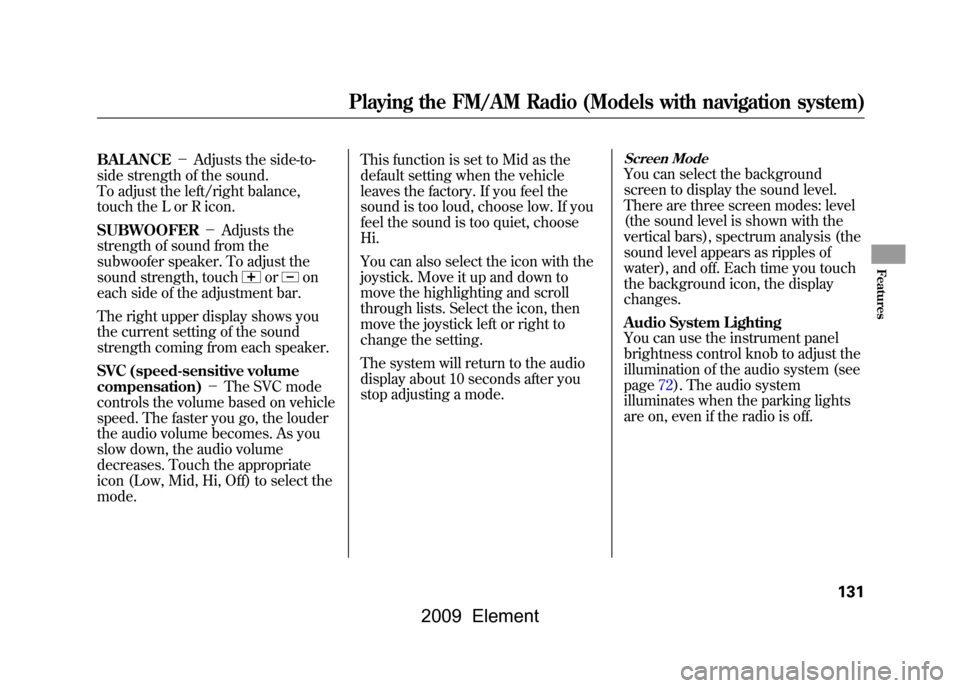
BALANCE-Adjusts the side-to-
side strength of the sound.
To adjust the left/right balance,
touch the L or R icon.
SUBWOOFER -Adjusts the
strength of sound from the
subwoofer speaker. To adjust the
sound strength, touch
or
on
each side of the adjustment bar.
The right upper display shows you
the current setting of the sound
strength coming from each speaker.
SVC (speed-sensitive volume
compensation) -The SVC mode
controls the volume based on vehicle
speed. The faster you go, the louder
the audio volume becomes. As you
slow down, the audio volume
decreases. Touch the appropriate
icon (Low, Mid, Hi, Off) to select the
mode. This function is set to Mid as the
default setting when the vehicle
leaves the factory. If you feel the
sound is too loud, choose low. If you
feel the sound is too quiet, choose
Hi.
You can also select the icon with the
joystick. Move it up and down to
move the highlighting and scroll
through lists. Select the icon, then
move the joystick left or right to
change the setting.
The system will return to the audio
display about 10 seconds after you
stop adjusting a mode.
Screen ModeYou can select the background
screen to display the sound level.
There are three screen modes: level
(the sound level is shown with the
vertical bars), spectrum analysis (the
sound level appears as ripples of
water), and off. Each time you touch
the background icon, the display
changes.
Audio System Lighting
You can use the instrument panel
brightness control knob to adjust the
illumination of the audio system (see
page72).The audio system
illuminates when the parking lights
are on, even if the radio is off.
Playing the FM/AM Radio (Models with navigation system)
131
Features
2009 Element
Page 136 of 345
POWER/VOLUME
KNOB
AM/FM BUTTON
CD/XM (XM RADIO)
BUTTON
AUDIO BUTTON
SCAN BUTTONJOYSTICK
CHANNEL
INDICATOR
TUNE BAR PRESET BUTTONS
XM RADIO ICON MODE ICONPlaying the XM
®Radio (Models with navigation system)
132
2009 Element