CD player HONDA FIT 2009 2.G User Guide
[x] Cancel search | Manufacturer: HONDA, Model Year: 2009, Model line: FIT, Model: HONDA FIT 2009 2.GPages: 352, PDF Size: 17.67 MB
Page 158 of 352

When playing a CD recorded with
text data, each track name is shown
on the audio display. With a disc
recorded in MP3 or WMA, the folder
number and the location are also
displayed.
If the disc was not recorded with text
data, only the track number is
shown.
To scroll through the display, touch
the
or
icon on the side of the
screen. To go back to the previous
display, touch the Return icon on the
screen. Select the desired track/file by
touching the icon on the display. The
selected icon will be highlighted in
blue. The system begins to play the
selected track/file. With a disc in
MP3 or WMA, touch the folder icon
on the upper left of the screen to
move to the root folder. The current
folder is highlighted in blue.
To Stop Playing a Disc
To play the radio when a disc is
playing, press the AM/FM button or
touch the FM1, FM2, or AM icon. If
a PC card is in the audio unit, touch
the CARD icon to play the PC card.
Press the CD/AUX button again or
touch the CD icon to switch back to
the in-dash disc player.
If you turn the system off while a disc
is playing, either with the power/
volume knob or by turning off the
ignition switch, the disc will stay in
the drive. When you turn the system
back on, the disc will begin playing
where it left off.
CONTINUED
Playing a Disc (Models with navigation system)
155
Features
2009 Fit
Page 160 of 352

If you see an error message in the
display while playing a disc, find the
cause in the chart to the right. If you
cannot clear the error message, take
your vehicle to your dealer.
The chart on the right explains the
error messages you may see in the
display while playing a disc.
If you see an error message in the
display while playing a disc, press
the eject button. After ejecting the
disc, check it for damage or
deformation. If there is no damage,
insert the disc again.
The audio system will try to play the
disc. If there is still a problem, the
error message will reappear. Press
the eject button, and pull out the
disc.
Insert a different disc. If the new disc
plays, there is a problem with the
first disc. If the error message cycle
repeats and you cannot clear it, take
your vehicle to a dealer.Error
Message Cause
Solution
CHECK DISCFOCUS Error Press the eject button, and pull out the disc.
Check if it is inserted correctly in the disc player.
Make sure the disc is not scratched or damaged.
MECH ERROR Mechanical Error Press the eject button, and pull out the disc.
Check the disc for damage or deformation.
If the disc cannot be pulled out, or the error
message does not disappear after the disc is
ejected, see your dealer.
CHECK DISC Disc Format Error Press the eject button, and pull out the disc.
Check the disc for damage or deformation.
HEAT ERROR High Temperature Will disappear when the temperature returns to
normal.
Disc Player Error Messages (Models with navigation system)
157
Features
2009 Fit
Page 162 of 352

To Play a PC card
You operate the PC card player with
the same controls used for the radio
and the in-dash disc player. To load
or play a card, the ignition switch
must be in the ACCESSORY (I) or
ON (II) position.
The PC card player reads and plays
cards in MP3 or WMA formats.
Depending on the format, the screen
will indicate‘‘MP3 ’’or ‘‘WMA ’’
when a card is playing. The card limit
of the player is 255 folders and 999
tracks. If the card has a complex
structure, it takes some time for the
system to begin playing it.
Based on PCMCIA 2.1/JEIDA 4.2,
the recommended PC cards for the
PC card reader are:
CompactFlash
Flash ATA
SD memory card Always use the recommended
memory card with the appropriate
adapter (if an adapter is needed).
Some memory cards will not work in
this unit.
NOTE:
●When you insert a PC card into the
slot, make sure you put it in
straight. If you cannot insert it,
remove it, and insert again.●Do not keep PC cards in the
vehicle. Direct sunlight and high
heat will damage them.●To avoid damaging the card
reader, do not insert hard disc
drive cards into the PC card slot.●You cannot close the screen (move
it to the upright position) until the
PC card is inserted all the way into
its slot or removed.
●Never insert foreign objects into
the PC card slot.
The specifications for compatible
MP3 files are: – Sampling frequency:
32/44.1/48 kHz (MPEG1)
24/22.05/16 kHz (MPEG2)
– Bit rate:
32/40/48/56/64/80/96/112/128/
160/192/224/256/320 kbps
(MPEG1)
8/16/24/32/40/48/56/64/80/96/
112/128/160 kbps (MPEG2)
– Compatible with variable bit rate
and multi-session
– Maximum layers
(including ROOT): 8 layers
CONTINUED
Playing a PC card (Models with navigation system)
159
Features
2009 Fit
Page 163 of 352
The specifications for compatible
WMA files are:– Sampling frequency:
32/44.1/48 kHz
– Bit rate:
48/64/80/96/128/160/192 kbps
– Compatible with variable bit rate
and multi-session
– Maximum layers
(including ROOT): 8 layers
In WMA format, DRM (digital rights
management) files cannot be played.
If the system finds a DRM file, it
skips that file and plays the next
available folder or file.
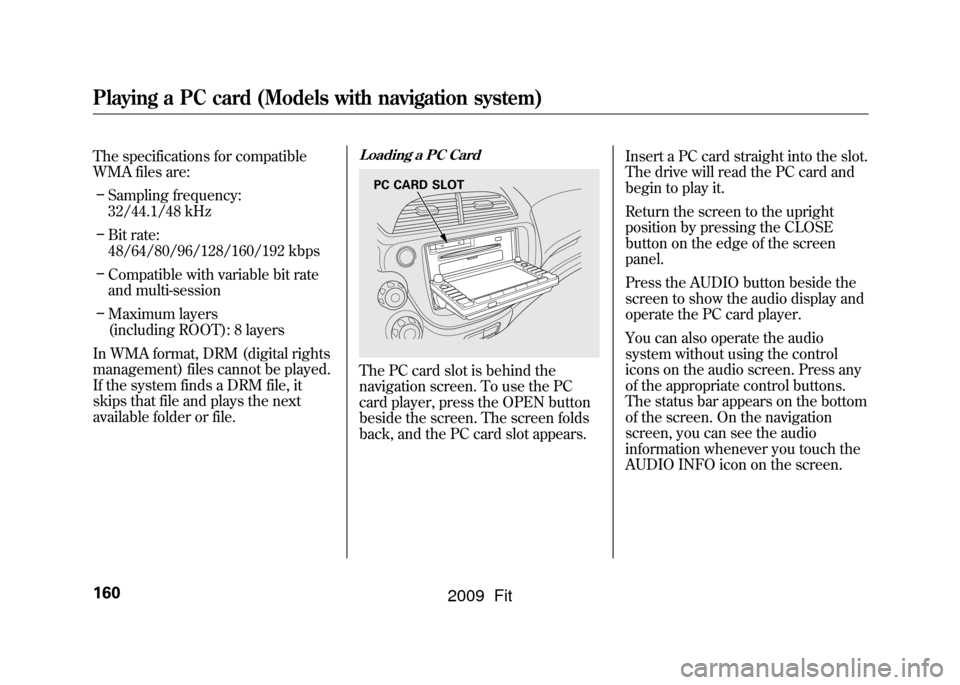
Loading a PC CardThe PC card slot is behind the
navigation screen. To use the PC
card player, press the OPEN button
beside the screen. The screen folds
back, and the PC card slot appears. Insert a PC card straight into the slot.
The drive will read the PC card and
begin to play it.
Return the screen to the upright
position by pressing the CLOSE
button on the edge of the screen
panel.
Press the AUDIO button beside the
screen to show the audio display and
operate the PC card player.
You can also operate the audio
system without using the control
icons on the audio screen. Press any
of the appropriate control buttons.
The status bar appears on the bottom
of the screen. On the navigation
screen, you can see the audio
information whenever you touch the
AUDIO INFO icon on the screen.
PC CARD SLOT
Playing a PC card (Models with navigation system)160
2009 Fit
Page 167 of 352

SKIP-Each time you press(preset 6), the player skips forward
to the beginning of the next file.
Press
(preset 5), to skip
backward to the beginning of the
current file. Press it again to skip to
the beginning of the previous file.
FF/REW -To move rapidly within
a file, press and hold
(preset 4)
or
(preset 3).
FOLDER SELECTION -To select
a different folder, press either side of
the TUNE bar to move the beginning
of the next folder. Press the
side
of the TUNE bar to skip the next
folder, and to the
side to move the
beginning of the current folder.
Press it again to skip to the
beginning of the previous folder. TRACK REPEAT (FILE REPEAT)
-
To continuously replay a file,
press the RPT button (preset 1). You
will see ‘‘TRACK REPEAT ’’in the
display. Press the RPT button again
to turn it off.
FOLDER/ARTIST/ALBUM
REPEAT -This feature, when
activated, replays all the files on the
selected folder/artist/album in the
order they are recorded or listed. To
activate each repeat mode, press and
hold the RPT button (preset 1) for 2
seconds. You will see ‘‘FOLDER
REPEAT, ARTIST REPEAT or
ALBUM REPEAT ’’in the display.
The system continuously replays the
current folder/artist/album. Press
and hold the RPT button again to
turn it off. Pressing the RDM button,
or selecting a different folder/artist/
album with the TUNE bar also turns
off the repeat feature. TRACK RANDOM (Random
within a folder)
-This feature
plays the files within a folder in
random order. To activate random
play, press the RDM button (preset
2). You will see ‘‘TRACK
RANDOM ’’in the display. Press the
RDM button again to return to
normal play.
FOLDER/ARTIST/ALBUM
RANDOM -This feature, when
activated, plays all files in each
folder/artist/album in random order,
rather than in the order they are
recorded or listed. To activate each
random play, push and hold the
RDM button (preset 2) for 2 seconds.
You will see ‘‘FOLDER RANDOM,
ARTIST RANDOM or ALBUM
RANDOM ’’in the display.
Playing a PC card (Models with navigation system)164
2009 Fit
Page 172 of 352
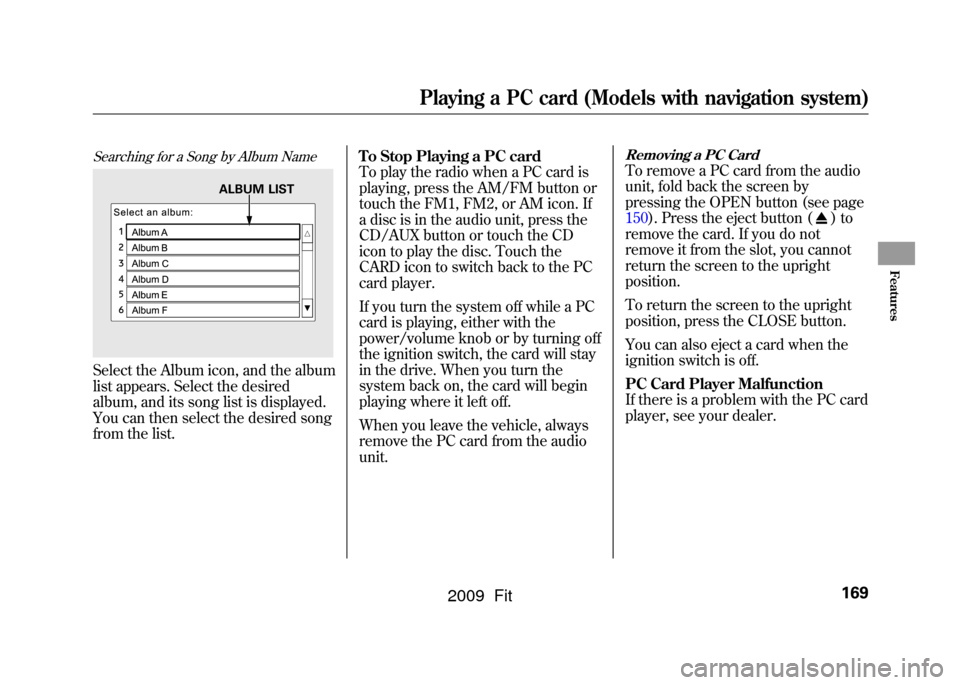
Searching for a Song by Album NameSelect the Album icon, and the album
list appears. Select the desired
album, and its song list is displayed.
You can then select the desired song
from the list.To Stop Playing a PC card
To play the radio when a PC card is
playing, press the AM/FM button or
touch the FM1, FM2, or AM icon. If
a disc is in the audio unit, press the
CD/AUX button or touch the CD
icon to play the disc. Touch the
CARD icon to switch back to the PC
card player.
If you turn the system off while a PC
card is playing, either with the
power/volume knob or by turning off
the ignition switch, the card will stay
in the drive. When you turn the
system back on, the card will begin
playing where it left off.
When you leave the vehicle, always
remove the PC card from the audio
unit.
Removing a PC CardTo remove a PC card from the audio
unit, fold back the screen by
pressing the OPEN button (see page
150).Press the eject button (
)to
remove the card. If you do not
remove it from the slot, you cannot
return the screen to the upright
position.
To return the screen to the upright
position, press the CLOSE button.
You can also eject a card when the
ignition switch is off.
PC Card Player Malfunction
If there is a problem with the PC card
player, see your dealer.
ALBUM LIST
Playing a PC card (Models with navigation system)
169
Features
2009 Fit
Page 174 of 352

To Play an iPod
ꭂ
This audio system can operate the
audio files on the iPod
ꭂwith the
same controls used for the in-dash
disc player. To play an iPod, connect
it to the USB adapter cable in the
upper glove box by using your dock
connector, then press the CD/AUX
button. The ignition switch must be
in the ACCESSORY (I) or ON (II)
position. The iPod will also be
recharged with the ignition switch in
these positions.
The audio system reads and plays
sound files to be playable on the
iPod. The system cannot operate an
iPod as a mass storage device. The
system will only play songs stored on
the iPod with iTunes.
iPod and iTunes are registered
trademarks owned by Apple Inc.
Voice Control SystemYou can select the AUX mode by
using the navigation system voice
control buttons, but cannot operate
the play mode functions.
iPods that are compatible with your
audio system are listed below.
Model Firmware
ꭧ
iPod 5G Ver. 1.2 or more
iPod classic Ver. 1.0 or more
iPod nano Ver. 1.2 or more
iPod nano 2nd
generation Ver. 1.1.2 or more
iPod nano 3rd
generation Ver. 1.0 or more
iPod touch Ver. 1.1.1 or more
iPhone Ver. 1.1.1 or moreꭧ: Use the latest firmware.
Use only compatible iPods with the
latest firmware. iPods that are not
compatible will not work in this audio
unit. NOTE:
●Do not connect your iPod using a
HUB.●Do not keep the iPod in the
vehicle. Direct sunlight and high
heat will damage it.●Do not use an extension cable
between the USB adapter cable
equipped with your vehicle and
your dock connector.●We recommend backing up your
data before playing it.
In AAC format, DRM (digital rights
management) files cannot be played.
If the system finds a DRM file, the
audio unit displays UNPLAYABLE,
and then skips to the next file.
CONTINUED
Playing an iPod
®
(Models with navigation system)
171
Features
2009 Fit
Page 181 of 352

To Play a USB Flash Memory
Device
This audio system can operate the
audio files on a USB flash memory
device with the same controls used
for the in-dash disc player. To play a
USB flash memory device, connect it
to the USB adapter cable in the
upper glove box, then press the CD/
AUX button. The ignition switch
must be in the ACCESSORY (I) or
ON (II) position.
The audio system reads and plays
the audio files on the USB flash
memory device in MP3, WMA or
AAC
ꭧformats. Depending on the
format, the display shows MP3,
WMA or AAC when a USB flash
memory device is playing. The USB
flash memory device limit is up to
700 folders or up to 65535 files.
ꭧ : Only AAC format files recorded
with iTunes are playable on this
audio unit. The recommended USB flash
memory devices are 256 Mbyte or
higher. Some digital audio players
may be compatible as well.
Some USB flash memory device
(such as devices with security
lockout features, etc.) will not work
in this audio unit.
NOTE:
●Do not use a device such as a card
reader or hard drive as the device
or your files may be damaged.●Do not connect your USB flash
memory device using a HUB.●Do not use an extension cable to
the USB adapter cable equipped
with your vehicle.●Do not keep the USB flash
memory device in the vehicle.
Direct sunlight and high heat will
damage it.
●We recommend backing up your
data before playing a USB flash
memory device.●Depending on the type and
number of files, it may take some
time before they begin to play.●Depending on the software the
files were made with, it may not be
possible to play some files, or
display some text data.
Voice Control SystemYou can select the AUX mode by
using the navigation system voice
control buttons, but cannot operate
the play mode functions.
The specifications for compatible
MP3 files are:
– Sampling frequency:
32/44.1/48 kHz (MPEG1)
16/22.05/24 kHz (MPEG2)
Playing a USB Flash Memory Device (Models with navigation system)178
2009 Fit
Page 189 of 352
General Information●When using CD-R or CD-RW
discs, use only high quality discs
labeled for audio use.●When recording a CD-R or
CD-RW, the recording must be
closed for it to be used by the
system.●Play only standard round discs.
Odd-shaped discs may jam in the
drive or cause other problems.●Handle your discs properly to
prevent damage and skipping.
Do not use discs with adhesive labels.
The label can curl up and cause the
disc to jam in the unit.Protecting Discs
When a disc is not being played,
store it in its case to protect it from
dust and other contamination. To
prevent warpage, keep discs out of
direct sunlight and extreme heat.
To clean a disc, use a clean soft cloth.
Wipe across the disc from the center
to the outside edge.
A new disc may be rough on the
inner and outer edges. The small
plastic pieces causing this roughness
can flake off and fall on the recording
surface of the disc, causing skipping
or other problems. Remove these
pieces by rubbing the inner and
outer edges with the side of a pencil
or pen.
Never try to insert foreign objects in
the disc player.
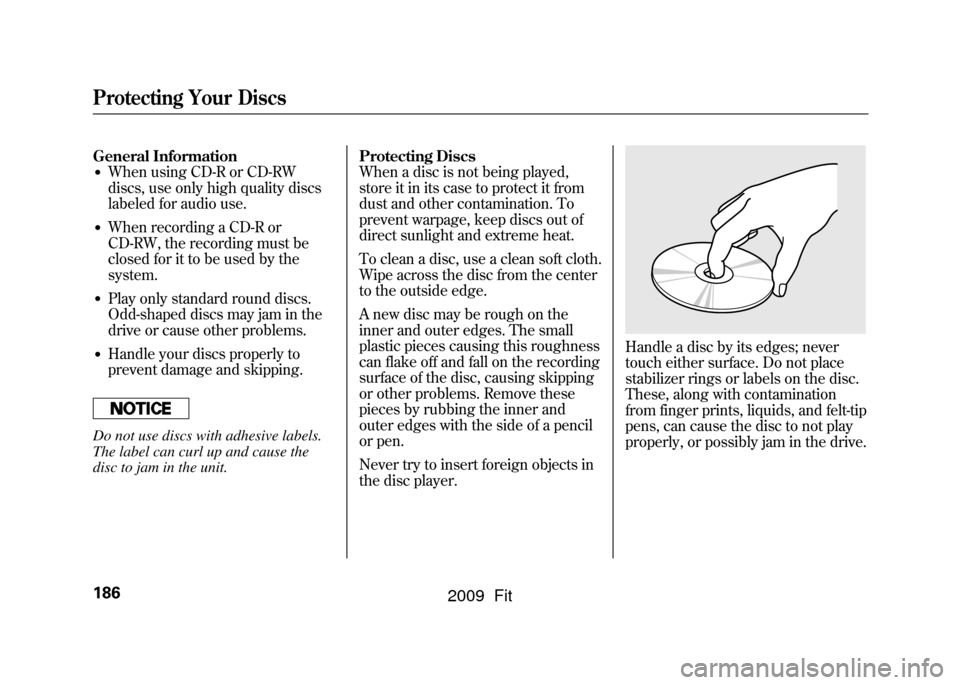
Handle a disc by its edges; never
touch either surface. Do not place
stabilizer rings or labels on the disc.
These, along with contamination
from finger prints, liquids, and felt-tip
pens, can cause the disc to not play
properly, or possibly jam in the drive.
Protecting Your Discs186
2009 Fit
Page 190 of 352
Additional Information of
Recommended Discs
The in-dash disc player has a
sophisticated and delicate
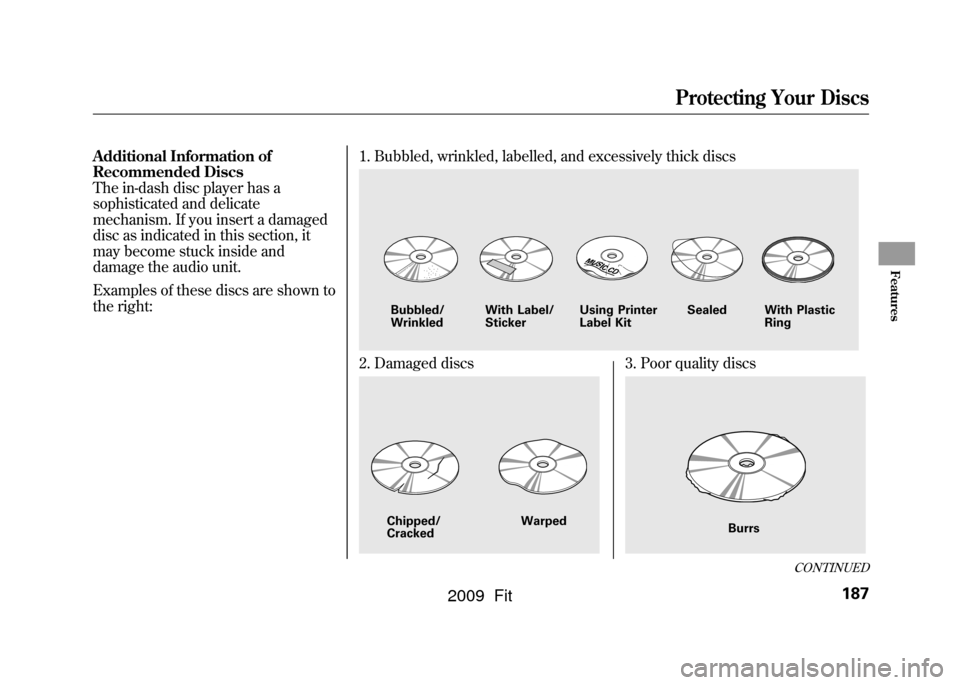
mechanism. If you insert a damaged
disc as indicated in this section, it
may become stuck inside and
damage the audio unit.
Examples of these discs are shown to
the right:1. Bubbled, wrinkled, labelled, and excessively thick discs
2. Damaged discs
3. Poor quality discs
Bubbled/
Wrinkled
With Label/
StickerUsing Printer
Label Kit Sealed With Plastic
RingChipped/
Cracked Warped
Burrs
CONTINUED
Protecting Your Discs
187
Features
2009 Fit