audio HONDA FIT 2014 3.G Owner's Manual
[x] Cancel search | Manufacturer: HONDA, Model Year: 2014, Model line: FIT, Model: HONDA FIT 2014 3.GPages: 289, PDF Size: 6.97 MB
Page 135 of 289
uuAudio System Basic OperationuPlaying a USB Flash Drive
*
134Features
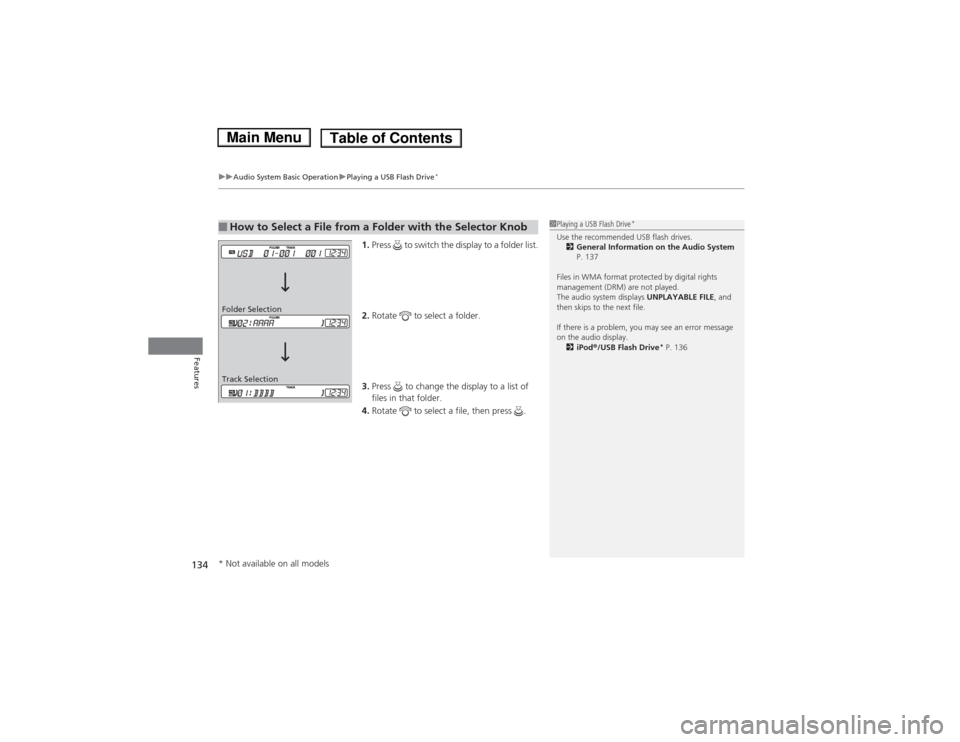
1.Press to switch the display to a folder list.
2.Rotate to select a folder.
3.Press to change the display to a list of
files in that folder.
4.Rotate to select a file, then press .
■How to Select a File from a Folder with the Selector Knob
1Playing a USB Flash Drive
*
Use the recommended USB flash drives.
2General Information on the Audio System
P. 137
Files in WMA format protected by digital rights
management (DRM) are not played.
The audio system displays UNPLAYABLE FILE, and
then skips to the next file.
If there is a problem, you may see an error message
on the audio display.
2iPod®/USB Flash Drive
* P. 136
Track Selection Folder Selection* Not available on all models
Page 136 of 289
135Features
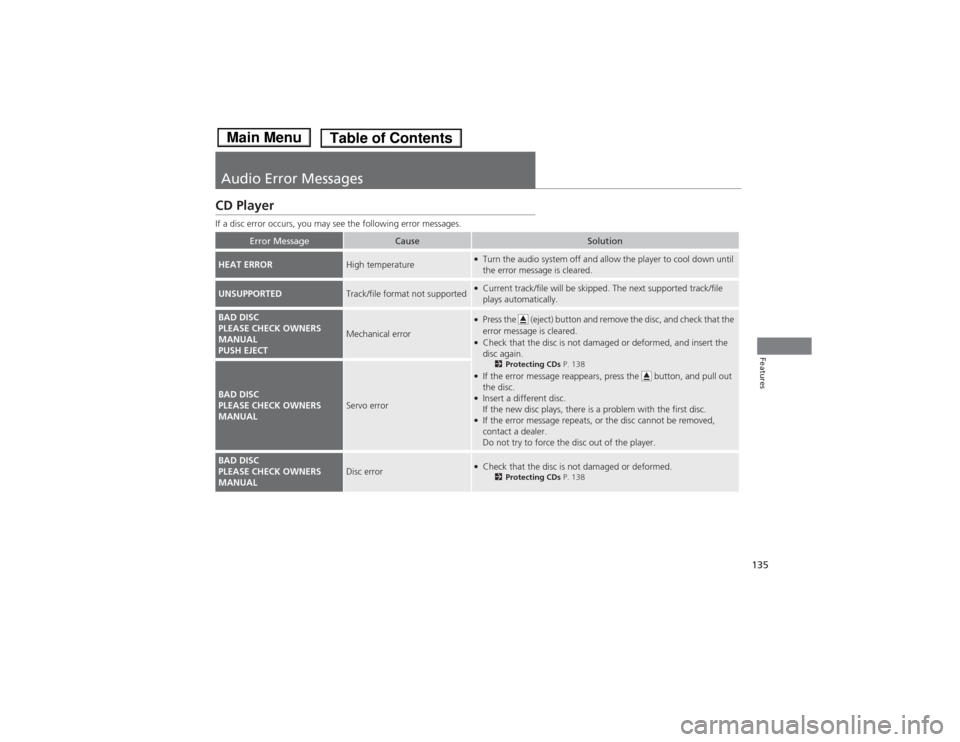
Audio Error MessagesCD PlayerIf a disc error occurs, you may see the following error messages.
Error Message
Cause
Solution
HEAT ERROR
High temperature
●Turn the audio system off and allow the player to cool down until
the error message is cleared.
UNSUPPORTED
Track/file format not supported
●Current track/file will be skipped. The next supported track/file
plays automatically.
BAD DISC
PLEASE CHECK OWNERS
MANUAL
PUSH EJECT
Mechanical error
●Press the (eject) button and remove the disc, and check that the
error message is cleared.●Check that the disc is not damaged or deformed, and insert the
disc again.
2Protecting CDs P. 138
●If the error message reappears, press the button, and pull out
the disc.●Insert a different disc.
If the new disc plays, there is a problem with the first disc.●If the error message repeats, or the disc cannot be removed,
contact a dealer.
Do not try to force the disc out of the player.
BAD DISC
PLEASE CHECK OWNERS
MANUAL
Servo error
BAD DISC
PLEASE CHECK OWNERS
MANUAL
Disc error
●Check that the disc is not damaged or deformed.
2Protecting CDs P. 138
Page 137 of 289
136
uuAudio Error MessagesuiPod®/USB Flash Drive
*
Features
iPod®/USB Flash Drive
*
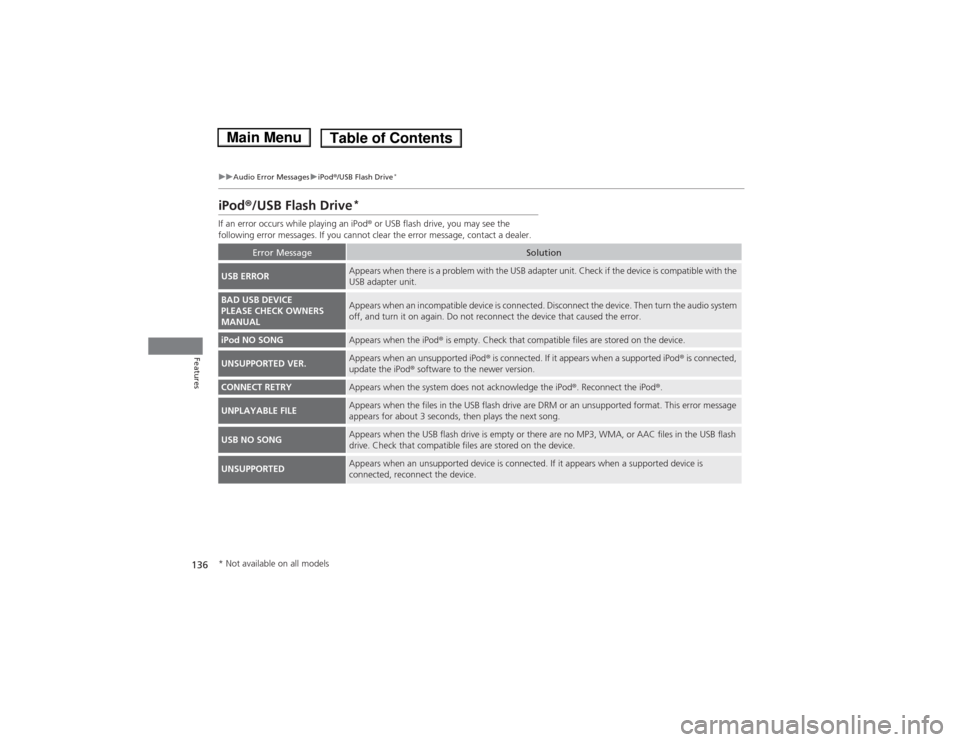
If an error occurs while playing an iPod® or USB flash drive, you may see the
following error messages. If you cannot clear the error message, contact a dealer.
Error Message
Solution
USB ERROR
Appears when there is a problem with the USB adapter unit. Check if the device is compatible with the
USB adapter unit.
BAD USB DEVICE
PLEASE CHECK OWNERS
MANUAL
Appears when an incompatible device is connected. Disconnect the device. Then turn the audio system
off, and turn it on again. Do not reconnect the device that caused the error.
iPod NO SONG
Appears when the iPod® is empty. Check that compatible files are stored on the device.
UNSUPPORTED VER.
Appears when an unsupported iPod® is connected. If it appears when a supported iPod® is connected,
update the iPod® software to the newer version.
CONNECT RETRY
Appears when the system does not acknowledge the iPod®. Reconnect the iPod®.
UNPLAYABLE FILE
Appears when the files in the USB flash drive are DRM or an unsupported format. This error message
appears for about 3 seconds, then plays the next song.
USB NO SONG
Appears when the USB flash drive is empty or there are no MP3, WMA, or AAC files in the USB flash
drive. Check that compatible files are stored on the device.
UNSUPPORTED
Appears when an unsupported device is connected. If it appears when a supported device is
connected, reconnect the device.
* Not available on all models
Page 138 of 289
137
Continued
Features
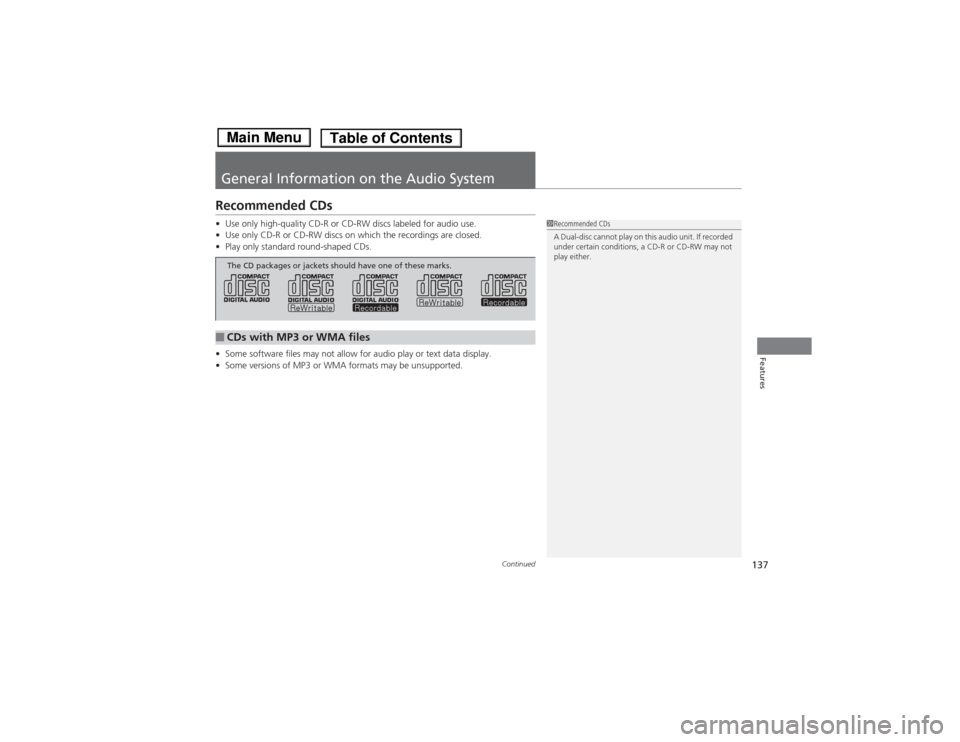
General Information on the Audio SystemRecommended CDs•Use only high-quality CD-R or CD-RW discs labeled for audio use.
•Use only CD-R or CD-RW discs on which the recordings are closed.
•Play only standard round-shaped CDs.
•Some software files may not allow for audio play or text data display.
•Some versions of MP3 or WMA formats may be unsupported.
1Recommended CDs
A Dual-disc cannot play on this audio unit. If recorded
under certain conditions, a CD-R or CD-RW may not
play either.
■CDs with MP3 or WMA filesThe CD packages or jackets should have one of these marks.
Page 139 of 289
uuGeneral Information on the Audio SystemuRecommended CDs
138Features
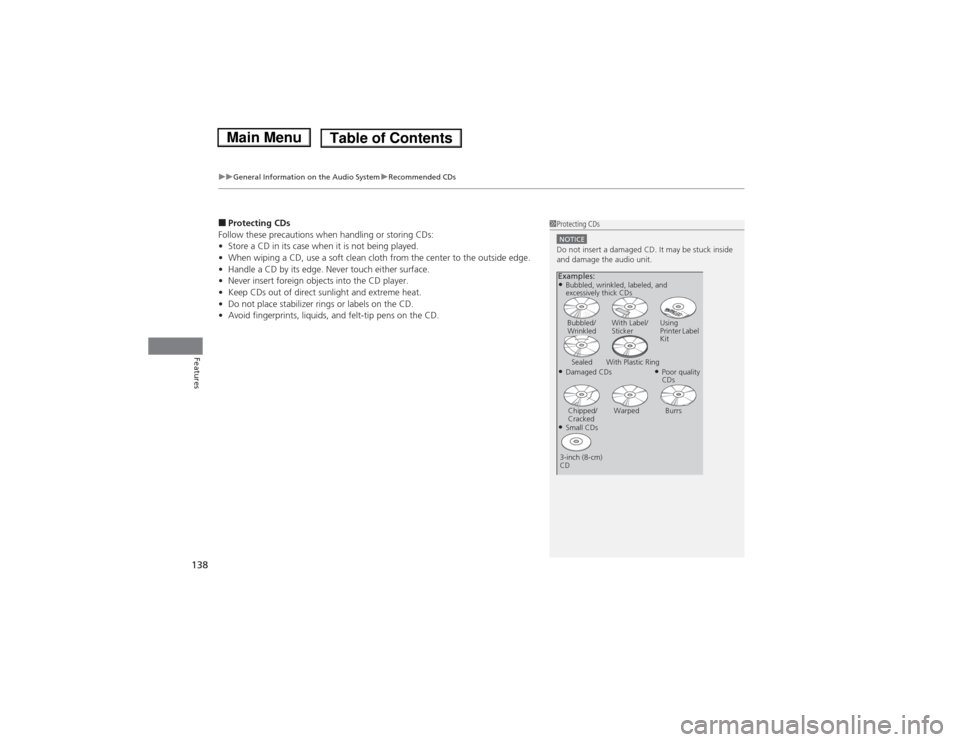
■Protecting CDs
Follow these precautions when handling or storing CDs:
•Store a CD in its case when it is not being played.
•When wiping a CD, use a soft clean cloth from the center to the outside edge.
•Handle a CD by its edge. Never touch either surface.
•Never insert foreign objects into the CD player.
•Keep CDs out of direct sunlight and extreme heat.
•Do not place stabilizer rings or labels on the CD.
•Avoid fingerprints, liquids, and felt-tip pens on the CD.
1Protecting CDsNOTICEDo not insert a damaged CD. It may be stuck inside
and damage the audio unit.Examples:●Damaged CDsBubbled/
WrinkledWith Label/
StickerUsing
Printer Label
Kit
Sealed With Plastic Ring
●Poor quality
CDs
Chipped/
CrackedWarped Burrs
●Small CDs
3-inch (8-cm)
CD●Bubbled, wrinkled, labeled, and
excessively thick CDs
Page 140 of 289
139
uuGeneral Information on the Audio SystemuCompatible iPod® and USB Flash Drives
*
Features
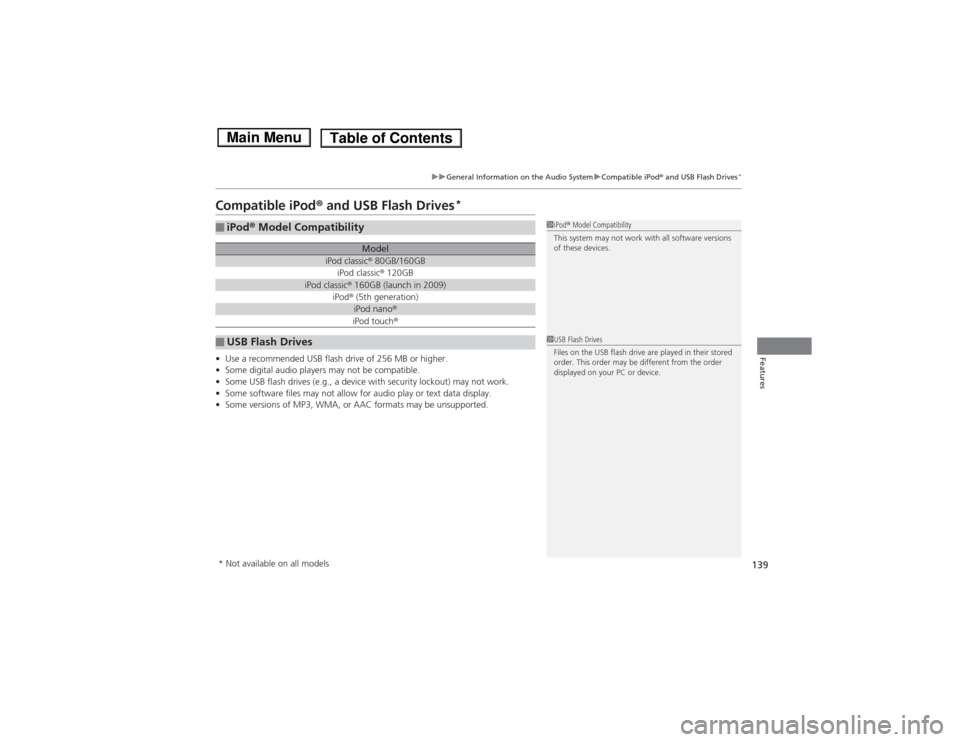
Compatible iPod® and USB Flash Drives
*
•Use a recommended USB flash drive of 256 MB or higher.
•Some digital audio players may not be compatible.
•Some USB flash drives (e.g., a device with security lockout) may not work.
•Some software files may not allow for audio play or text data display.
•Some versions of MP3, WMA, or AAC formats may be unsupported.■iPod® Model Compatibility
Model
iPod classic® 80GB/160GBiPod classic® 120GB
iPod classic® 160GB (launch in 2009)
iPod® (5th generation)
iPod nano®iPod touch®
■USB Flash Drives
1iPod® Model Compatibility
This system may not work with all software versions
of these devices.1USB Flash Drives
Files on the USB flash drive are played in their stored
order. This order may be different from the order
displayed on your PC or device.
* Not available on all models
Page 141 of 289
140Features
Bluetooth® HandsFreeLink®
*
For models with the navigation system, see Navigation System Manual for how to
operate the Bluetooth® HandsFreeLink®.
Bluetooth® HandsFreeLink® (HFL) allows you to place and receive phone calls using
your vehicle’s audio system, without handling your cell phone.Using HFL
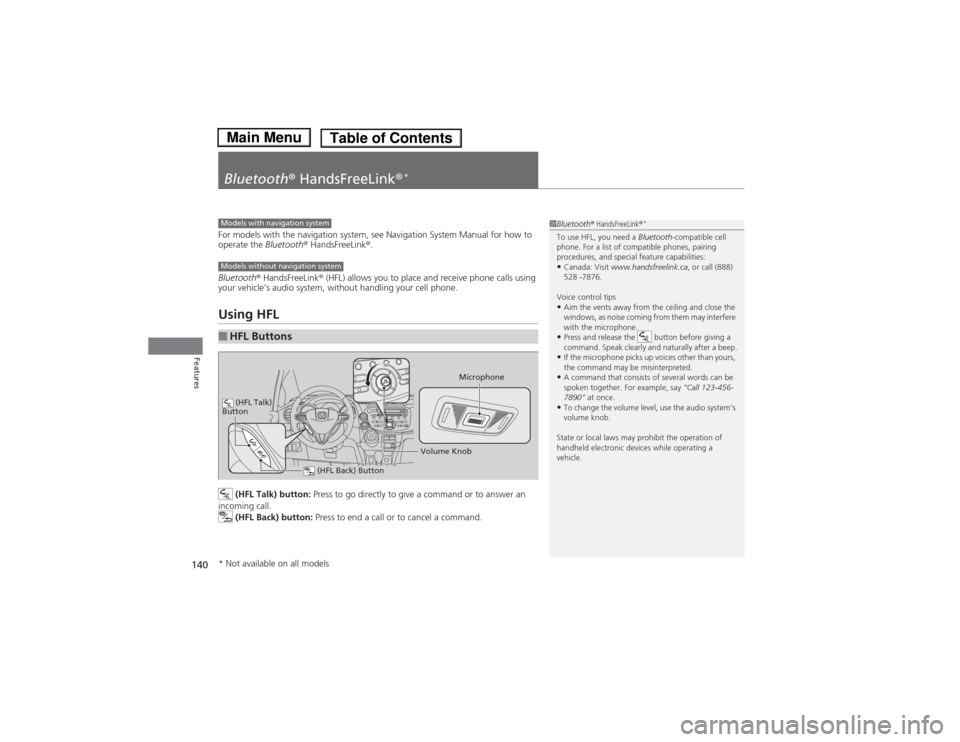
(HFL Talk) button: Press to go directly to give a command or to answer an
incoming call.
(HFL Back) button: Press to end a call or to cancel a command.
■HFL Buttons
1Bluetooth® HandsFreeLink®
*
To use HFL, you need a Bluetooth-compatible cell
phone. For a list of compatible phones, pairing
procedures, and special feature capabilities:•Canada: Visit www.handsfreelink.ca, or call (888)
528 -7876.
Voice control tips•Aim the vents away from the ceiling and close the
windows, as noise coming from them may interfere
with the microphone.•Press and release the button before giving a
command. Speak clearly and naturally after a beep.•If the microphone picks up voices other than yours,
the command may be misinterpreted.•A command that consists of several words can be
spoken together. For example, say “Call 123-456-
7890” at once.•To change the volume level, use the audio system’s
volume knob.
State or local laws may prohibit the operation of
handheld electronic devices while operating a
vehicle.
Models with navigation systemModels without navigation system
Microphone
(HFL Back) Button
(HFL Talk)
Button
Volume Knob
* Not available on all models
Page 142 of 289
141
uuBluetooth® HandsFreeLink®
*uUsing HFL
Features
•To hear general HFL information and help, say “Tutorial.”
•Say “Hands free help” or “Help” any time to get help or hear a list of commands.
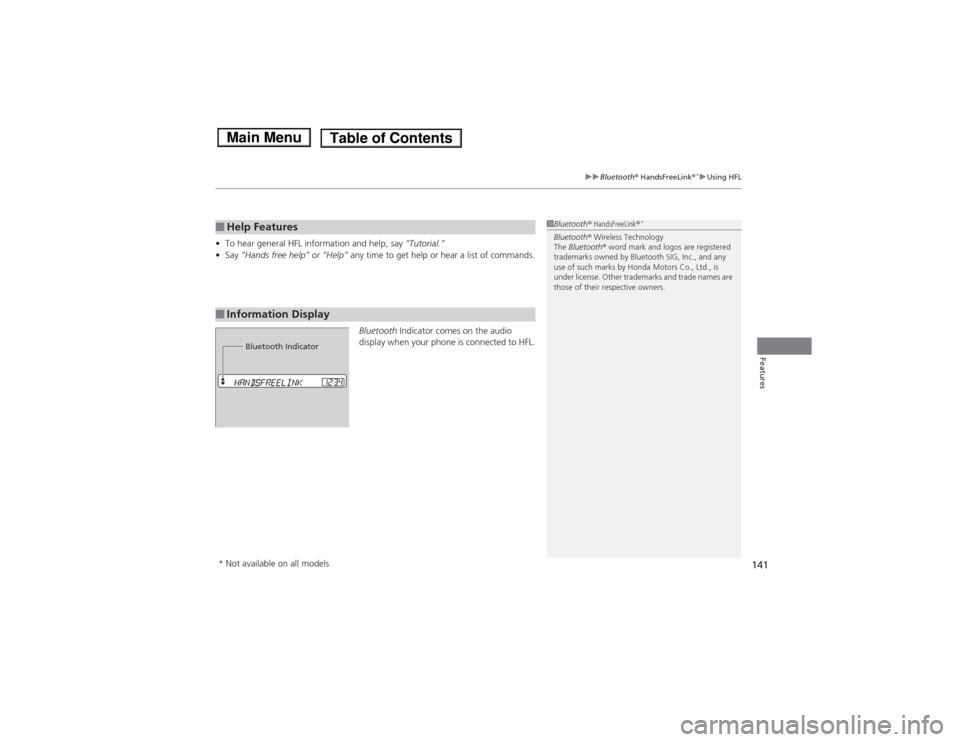
Bluetooth Indicator comes on the audio
display when your phone is connected to HFL.■Help Features■Information Display
1Bluetooth® HandsFreeLink®
*
Bluetooth® Wireless Technology
The Bluetooth® word mark and logos are registered
trademarks owned by Bluetooth SIG, Inc., and any
use of such marks by Honda Motors Co., Ltd., is
under license. Other trademarks and trade names are
those of their respective owners.
Bluetooth Indicator
* Not available on all models
Page 232 of 289
231Maintenance
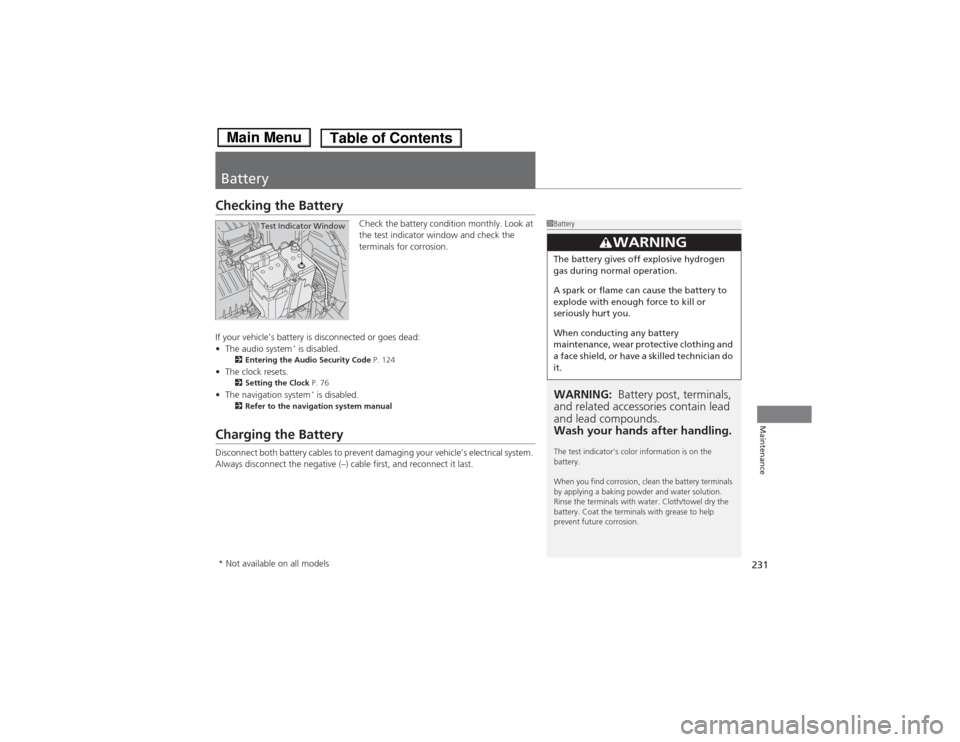
BatteryChecking the Battery
Check the battery condition monthly. Look at
the test indicator window and check the
terminals for corrosion.
If your vehicle’s battery is disconnected or goes dead:
•The audio system
* is disabled.
2Entering the Audio Security Code P. 124
•The clock resets.
2Setting the Clock P. 76
•The navigation system
* is disabled.
2Refer to the navigation system manual
Charging the BatteryDisconnect both battery cables to prevent damaging your vehicle’s electrical system.
Always disconnect the negative (–) cable first, and reconnect it last.
1BatteryWARNING: Battery post, terminals,
and related accessories contain lead
and lead compounds.
Wash your hands after handling.The test indicator’s color information is on the
battery.
When you find corrosion, clean the battery terminals
by applying a baking powder and water solution.
Rinse the terminals with water. Cloth/towel dry the
battery. Coat the terminals with grease to help
prevent future corrosion.
3
WARNING
The battery gives off explosive hydrogen
gas during normal operation.
A spark or flame can cause the battery to
explode with enough force to kill or
seriously hurt you.
When conducting any battery
maintenance, wear protective clothing and
a face shield, or have a skilled technician do
it.
Test Indicator Window
* Not available on all models
Page 235 of 289
234Maintenance
CleaningInterior CareUse a damp cloth with a mixture of mild detergent and warm water to remove dirt.
Use a clean cloth to remove detergent residue.
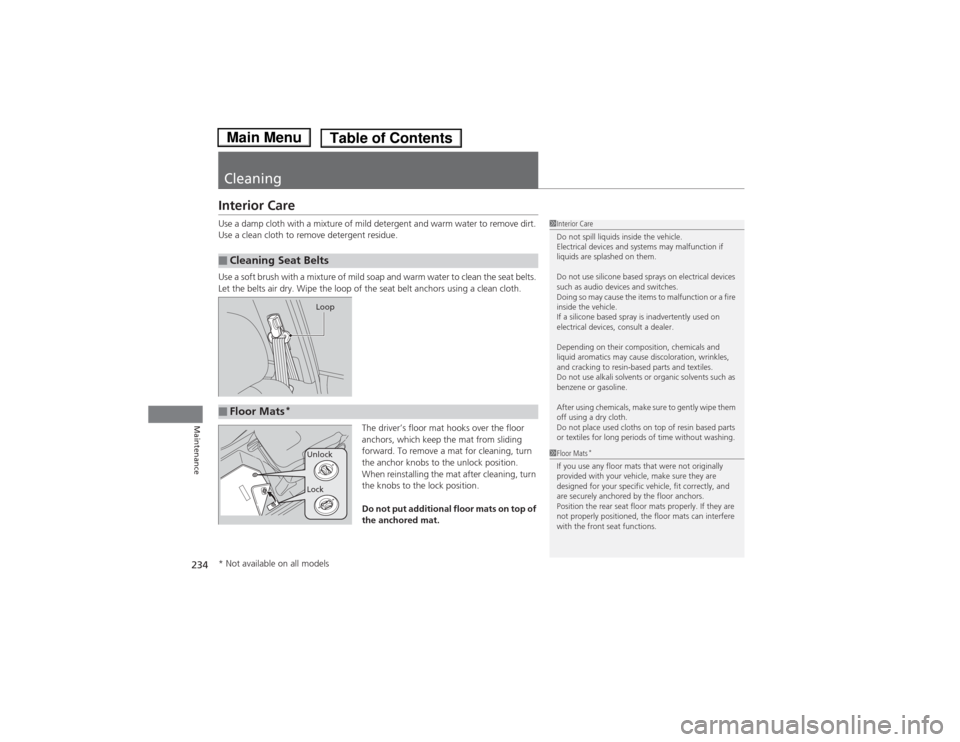
Use a soft brush with a mixture of mild soap and warm water to clean the seat belts.
Let the belts air dry. Wipe the loop of the seat belt anchors using a clean cloth.
The driver’s floor mat hooks over the floor
anchors, which keep the mat from sliding
forward. To remove a mat for cleaning, turn
the anchor knobs to the unlock position.
When reinstalling the mat after cleaning, turn
the knobs to the lock position.
Do not put additional floor mats on top of
the anchored mat.■Cleaning Seat Belts
1Interior Care
Do not spill liquids inside the vehicle.
Electrical devices and systems may malfunction if
liquids are splashed on them.
Do not use silicone based sprays on electrical devices
such as audio devices and switches.
Doing so may cause the items to malfunction or a fire
inside the vehicle.
If a silicone based spray is inadvertently used on
electrical devices, consult a dealer.
Depending on their composition, chemicals and
liquid aromatics may cause discoloration, wrinkles,
and cracking to resin-based parts and textiles.
Do not use alkali solvents or organic solvents such as
benzene or gasoline.
After using chemicals, make sure to gently wipe them
off using a dry cloth.
Do not place used cloths on top of resin based parts
or textiles for long periods of time without washing.
Loop
■Floor Mats
*
1Floor Mats
*
If you use any floor mats that were not originally
provided with your vehicle, make sure they are
designed for your specific vehicle, fit correctly, and
are securely anchored by the floor anchors.
Position the rear seat floor mats properly. If they are
not properly positioned, the floor mats can interfere
with the front seat functions.
Lock Unlock
* Not available on all models