USB HONDA FIT 2015 3.G User Guide
[x] Cancel search | Manufacturer: HONDA, Model Year: 2015, Model line: FIT, Model: HONDA FIT 2015 3.GPages: 453, PDF Size: 21.19 MB
Page 184 of 453
Continued183
uuAudio System Basic Operation uPlaying an iPod
Features
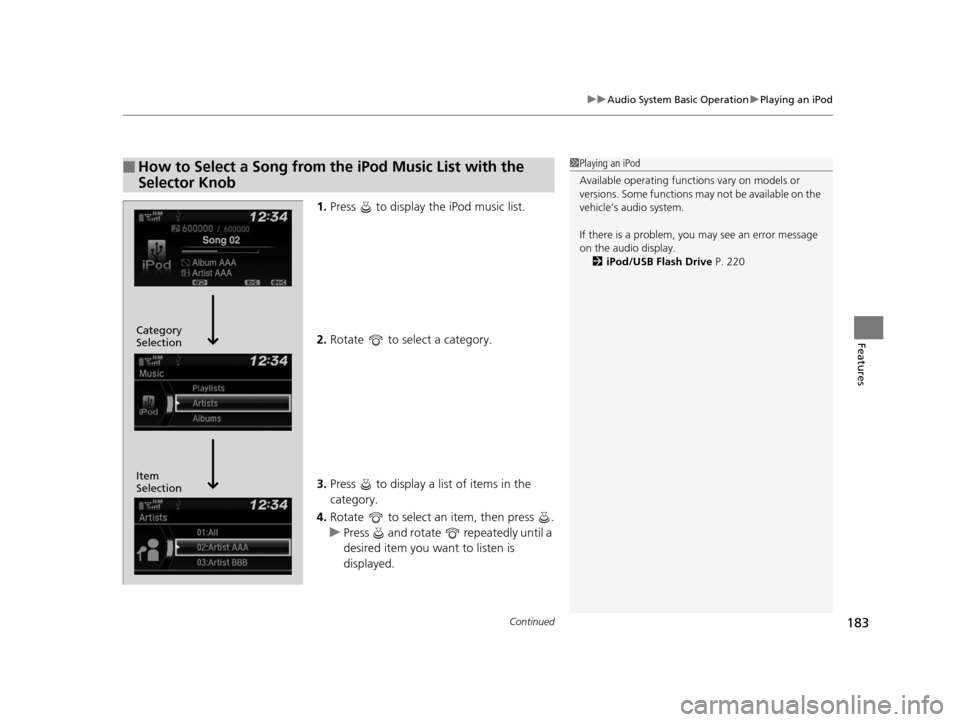
1. Press to display the iPod music list.
2. Rotate to select a category.
3. Press to display a list of items in the
category.
4. Rotate to select an item, then press .
u Press and rotate repeatedly until a
desired item you want to listen is
displayed.
■How to Select a Song from the iPod Music List with the
Selector Knob1Playing an iPod
Available operating functi ons vary on models or
versions. Some functions ma y not be available on the
vehicle’s audio system.
If there is a problem, you may see an error message
on the audio display. 2 iPod/USB Flash Drive P. 220
Item
Selection Category
Selection
15 US FIT-31T5A6000.book 183 ページ 2014年3月6日 木曜日 午後7時5分
Page 186 of 453
185
uuAudio System Basic Operation uPlaying a USB Flash Drive
Continued
Features
Playing a USB Flash Drive
Your audio system reads and plays sound files on a USB flash drive in either MP3,
WMA or AAC*1 format.
Connect your USB flash drive to the USB port, then press the CD/AUX button.
2USB Port(s) P. 163
*1 : Only AAC format files recorded with iTunes are playable on this unit.
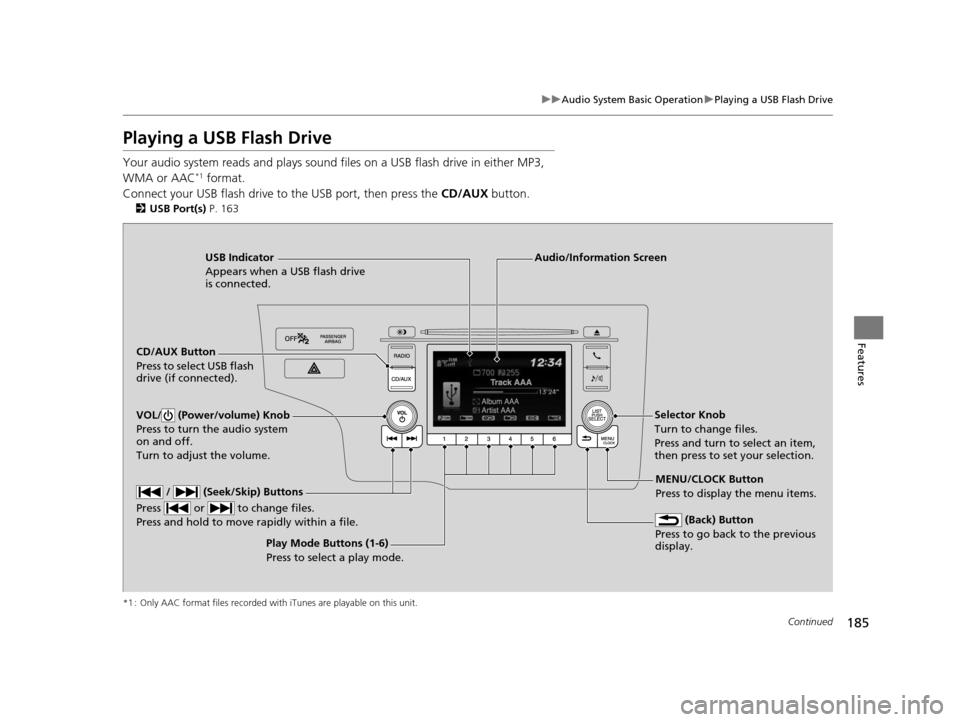
USB Indicator
Appears when a USB flash drive
is connected.
CD/AUX Button
Press to select USB flash
drive (if connected).
(Back) Button
Press to go back to the previous
display.
/ (Seek/Skip) Buttons
Press or to change files.
Press and hold to move rapidly within a file.
VOL/ (Power/volume) Knob
Press to turn the audio system
on and off.
Turn to adjust the volume.Selector Knob
Turn to change files.
Press and turn to select an item,
then press to set your selection.
MENU/CLOCK Button
Press to display the menu items.
Audio/Information Screen
Play Mode Buttons (1-6)
Press to select a play mode.
15 US FIT-31T5A6000.book 185 ページ 2014年3月6日 木曜日 午後7時5分
Page 187 of 453
uuAudio System Basic Operation uPlaying a USB Flash Drive
186
Features
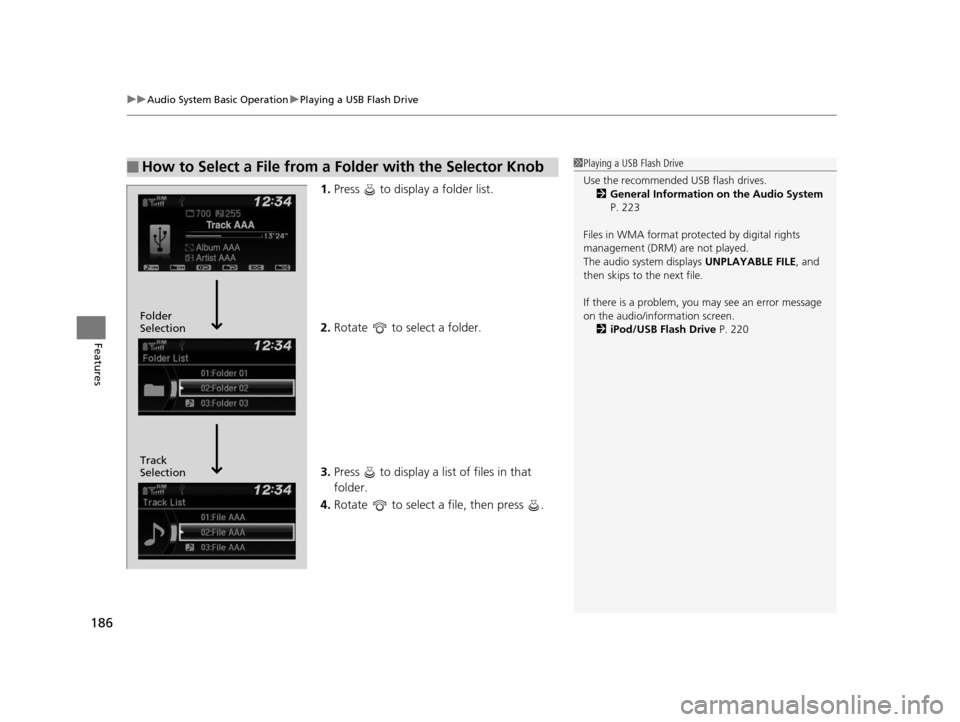
1. Press to display a folder list.
2. Rotate to select a folder.
3. Press to display a list of files in that
folder.
4. Rotate to select a file, then press .
■How to Select a File from a Folder with the Selector Knob1Playing a USB Flash Drive
Use the recommended USB flash drives.
2 General Information on the Audio System
P. 223
Files in WMA format prot ected by digital rights
management (DRM) are not played.
The audio system displays UNPLAYABLE FILE, and
then skips to the next file.
If there is a problem, you may see an error message
on the audio/information screen.
2 iPod/USB Flash Drive P. 220
Track
Selection Folder
Selection
15 US FIT-31T5A6000.book 186 ページ 2014年3月6日 木曜日 午後7時5分
Page 188 of 453
187
uuAudio System Basic Operation uPlaying a USB Flash Drive
Features
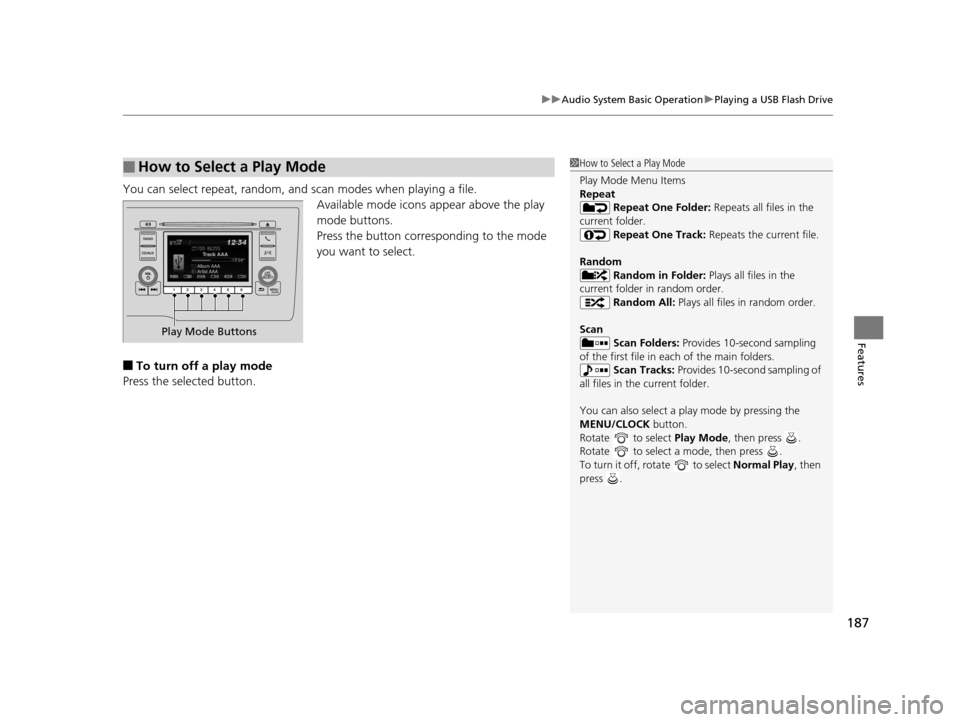
You can select repeat, random, and scan modes when playing a file.
Available mode icons appear above the play
mode buttons.
Press the button corresponding to the mode
you want to select.
■To turn off a play mode
Press the selected button.
■How to Select a Play Mode1 How to Select a Play Mode
Play Mode Menu Items
Repeat
Repeat One Folder: Repeats all files in the
current folder. Repeat One Track: Repeats the current file.
Random Random in Folder: Plays all files in the
current folder in random order. Random All: Plays all files in random order.
Scan Scan Folders: Provides 10-second sampling
of the first file in each of the main folders.
Scan Tracks: Provides 10-second sampling of
all files in the current folder.
You can also select a pl ay mode by pressing the
MENU/CLOCK button.
Rotate to select Play Mode, then press .
Rotate to select a mode, then press .
To turn it off, rotate to select Normal Play, then
press .
Play Mode Buttons
15 US FIT-31T5A6000.book 187 ページ 2014年3月6日 木曜日 午後7時5分
Page 190 of 453
Continued189
uuAudio System Basic Operation uPlaying Bluetooth ® Audio
Features
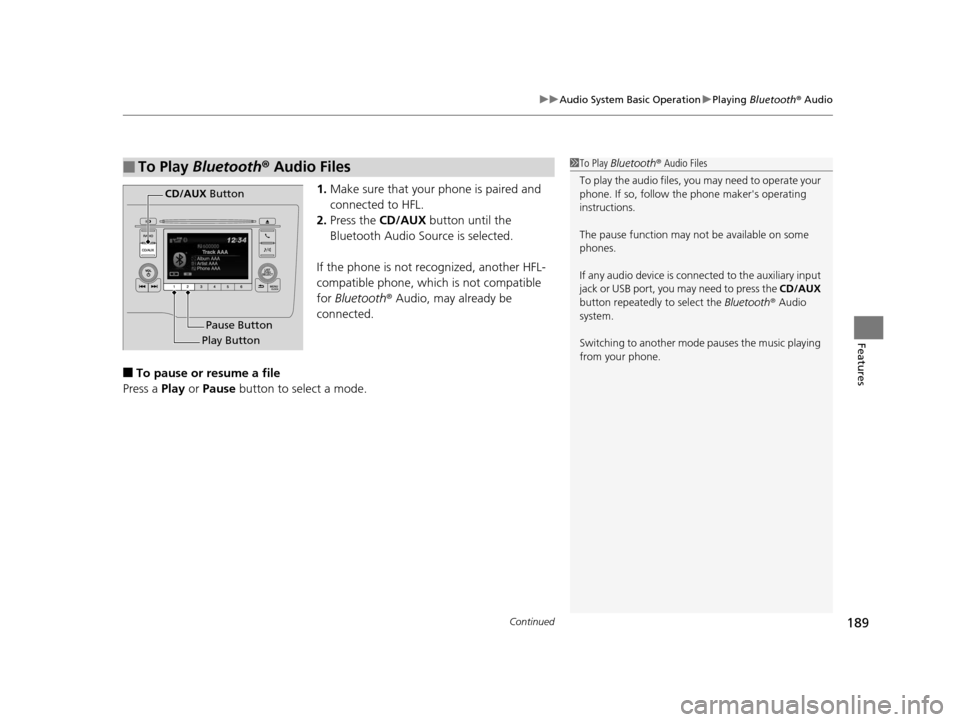
1. Make sure that your phone is paired and
connected to HFL.
2. Press the CD/AUX button until the
Bluetooth Audio Source is selected.
If the phone is not recognized, another HFL-
compatible phone, which is not compatible
for Bluetooth ® Audio, may already be
connected.
■To pause or resume a file
Press a Play or Pause button to select a mode.
■To Play Bluetooth ® Audio Files1 To Play Bluetooth ® Audio Files
To play the audio files, y ou may need to operate your
phone. If so, follow the phone maker's operating
instructions.
The pause function may no t be available on some
phones.
If any audio device is conne cted to the auxiliary input
jack or USB port, you may need to press the CD/AUX
button repeatedly to select the Bluetooth ® Audio
system.
Switching to another mode pauses the music playing
from your phone.
Play Button Pause Button
CD/AUX
Button
15 US FIT-31T5A6000.book 189 ページ 2014年3月6日 木曜日 午後7時5分
Page 196 of 453
Continued195
uuAudio System Basic Operation uAudio/Information Screen
Features
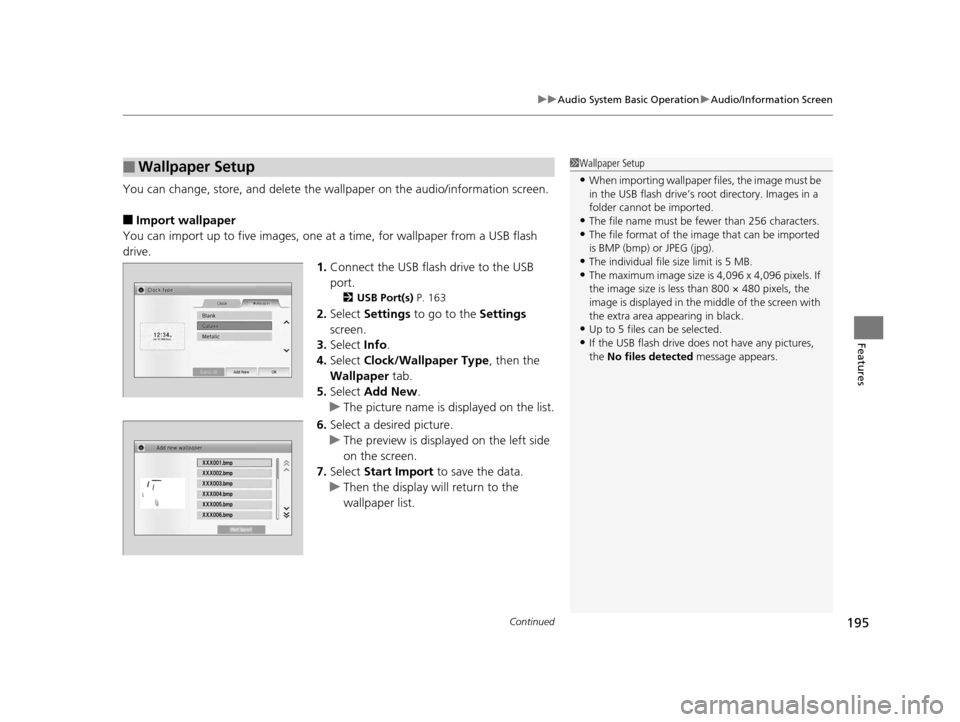
You can change, store, and delete the wa llpaper on the audio/information screen.
■Import wallpaper
You can import up to five images, one at a time, for wallpaper from a USB flash
drive.
1.Connect the USB flash drive to the USB
port.
2 USB Port(s) P. 163
2.Select Settings to go to the Settings
screen.
3. Select Info.
4. Select Clock/Wallpaper Type , then the
Wallpaper tab.
5. Select Add New .
u The picture name is displayed on the list.
6. Select a desired picture.
u The preview is displayed on the left side
on the screen.
7. Select Start Import to save the data.
u Then the display will return to the
wallpaper list.
■Wallpaper Setup1Wallpaper Setup
•When importing wallpaper files, the image must be
in the USB flash drive’s root directory. Images in a
folder cannot be imported.
•The file name must be fewer than 256 characters.•The file format of the im age that can be imported
is BMP (bmp) or JPEG (jpg).
•The individual file size limit is 5 MB.•The maximum image size is 4,096 x 4,096 pixels. If
the image size is less than 800 × 480 pixels, the
image is displayed in the middle of the screen with
the extra area appearing in black.
•Up to 5 files can be selected.
•If the USB flash drive doe s not have any pictures,
the No files detected message appears.
15 US FIT-31T5A6000.book 195 ページ 2014年3月6日 木曜日 午後7時5分
Page 206 of 453
205
uuAudio System Basic Operation uPlaying an iPod
Continued
Features
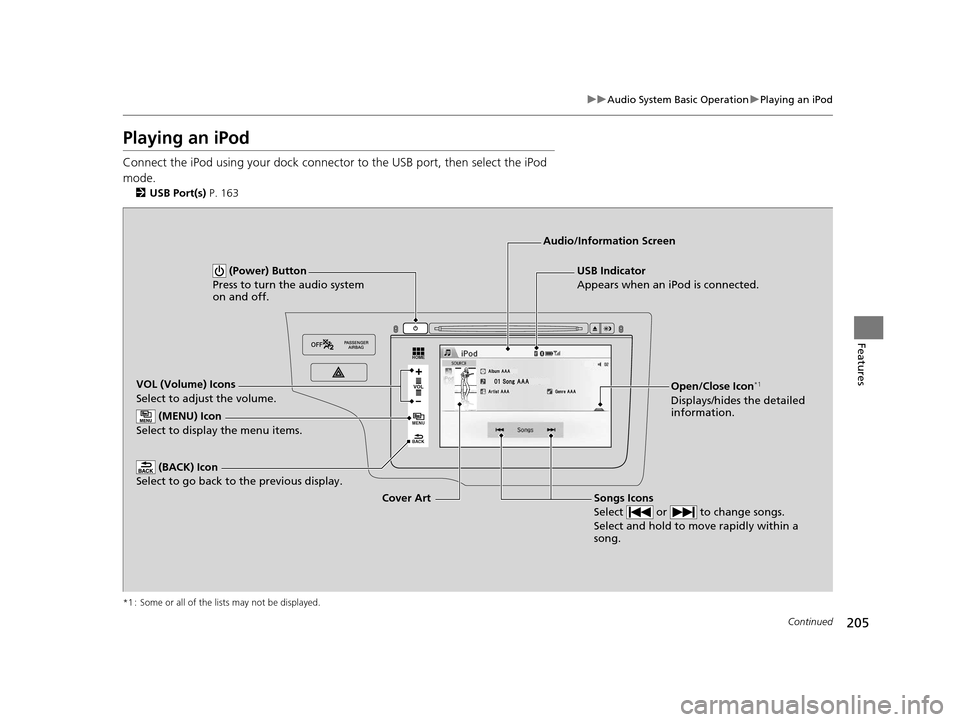
Playing an iPod
Connect the iPod using your dock connector to the USB port, then select the iPod
mode.
2 USB Port(s) P. 163
*1 : Some or all of the lists may not be displayed.
VOL
HOME
MENU
BACK
USB Indicator
Appears when an iPod is connected.
Songs Icons
Select or to change songs.
Select and hold to move rapidly within a
song.
Audio/Information Screen
Cover Art
VOL (Volume) Icons
Select to adjust the volume.
(BACK) Icon
Select to go back to the previous display.
(Power) Button
Press to turn the audio system
on and off.
(MENU) Icon
Select to display the menu items.
Open/Close Icon*1
Displays/hides the detailed
information.
15 US FIT-31T5A6000.book 205 ページ 2014年3月6日 木曜日 午後7時5分
Page 207 of 453
uuAudio System Basic Operation uPlaying an iPod
206
Features
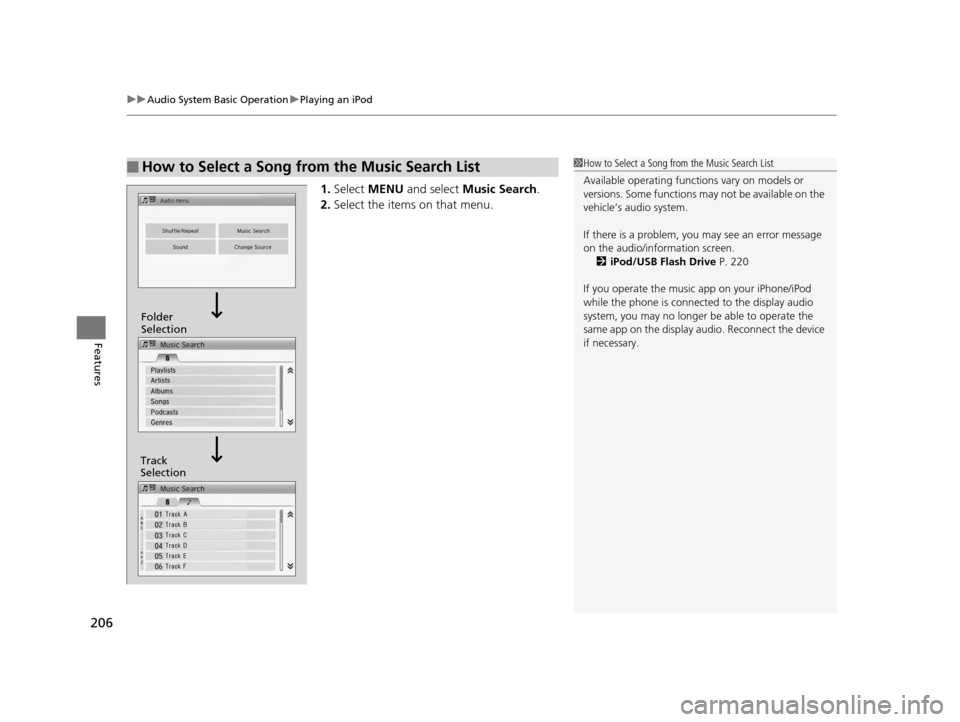
1. Select MENU and select Music Search .
2. Select the items on that menu.
■How to Select a Song from the Music Search List1How to Select a Song from the Music Search List
Available operating functi ons vary on models or
versions. Some functions ma y not be available on the
vehicle’s audio system.
If there is a problem, you may see an error message
on the audio/information screen. 2 iPod/USB Flash Drive P. 220
If you operate the musi c app on your iPhone/iPod
while the phone is connecte d to the display audio
system, you may no longer be able to operate the
same app on the display audi o. Reconnect the device
if necessary.
Track
Selection Folder
Selection
15 US FIT-31T5A6000.book 206 ページ 2014年3月6日 木曜日 午後7時5分
Page 209 of 453
208
uuAudio System Basic Operation uPlaying Internet Radio
Features
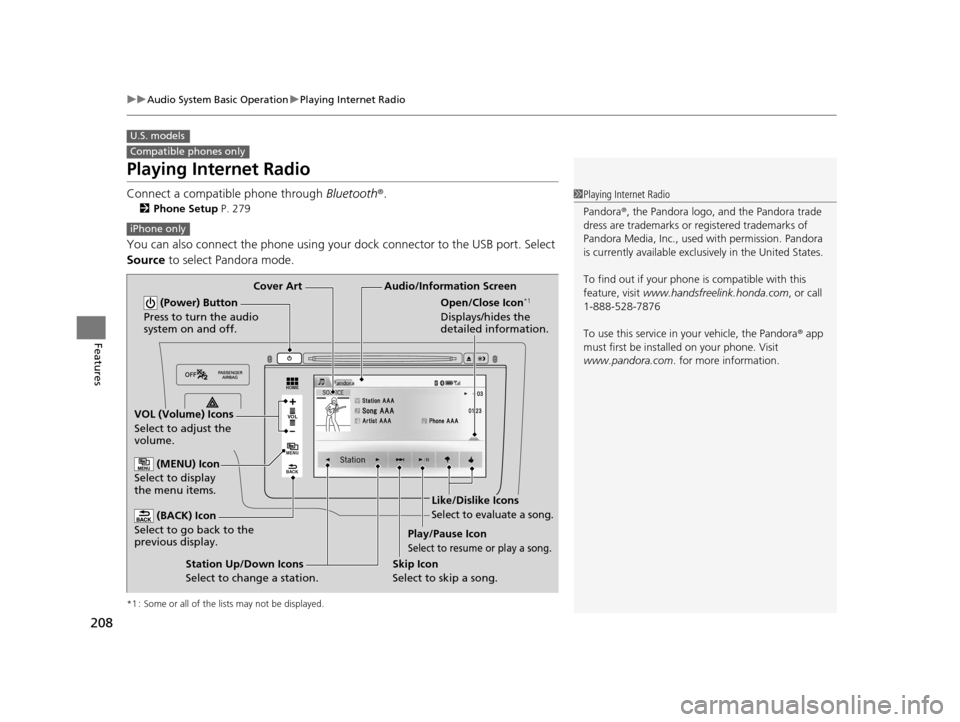
Playing Internet Radio
Connect a compatible phone through Bluetooth®.
2Phone Setup P. 279
You can also connect the phone using your dock connector to the USB port. Select
Source to select Pandora mode.
*1 : Some or all of the lists may not be displayed.
U.S. models
Compatible phones only
1Playing Internet Radio
Pandora ®, the Pandora logo, and the Pandora trade
dress are trademarks or registered trademarks of
Pandora Media, Inc., used with permission. Pandora
is currently available exclusively in the United States.
To find out if your phone is compatible with this
feature, visit www.handsfreelink.honda.com , or call
1-888-528-7876
To use this service in your vehicle, the Pandora ® app
must first be installed on your phone. Visit
www.pandora.com . for more information.
iPhone only
VOL
HOME
MENU
BACK
Audio/Information Screen
Cover Art
VOL (Volume) Icons
Select to adjust the
volume.
(BACK) Icon
Select to go back to the
previous display.
(Power) Button
Press to turn the audio
system on and off.
(MENU) Icon
Select to display
the menu items.
Play/Pause Icon
Select to resume or play a song.
Open/Close Icon*1
Displays/hides the
detailed information.
Station Up/Down Icons
Select to change a station. Skip Icon
Select to skip a song.
Like/Dislike Icons
Select to evaluate a song.
15 US FIT-31T5A6000.book 208 ページ 2014年3月6日 木曜日 午後7時5分
Page 211 of 453
210
uuAudio System Basic Operation uPlaying a USB Flash Drive
Features
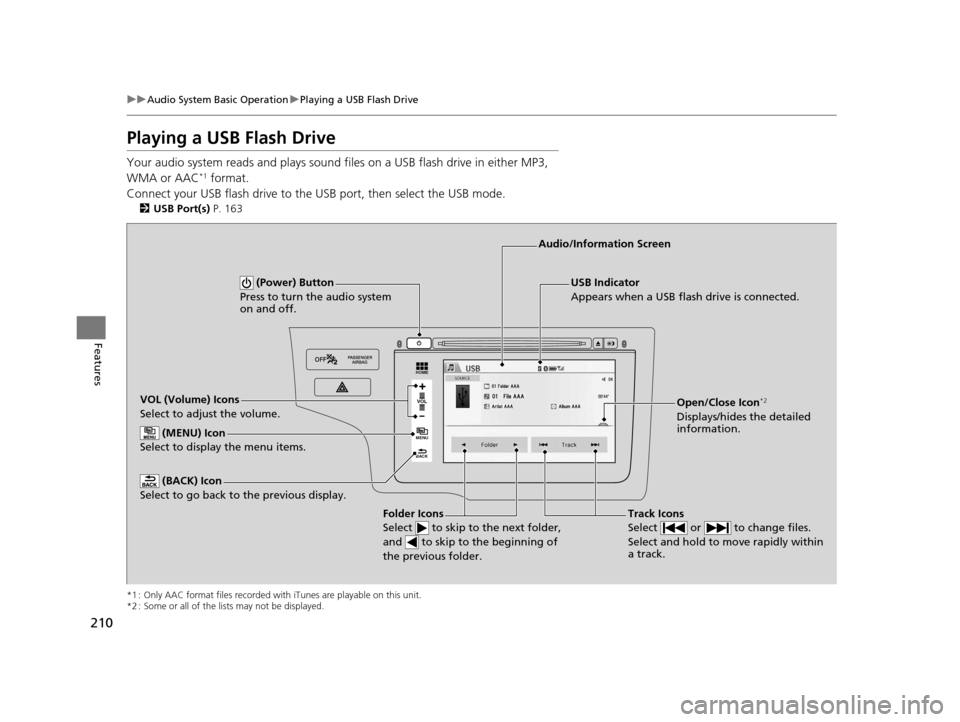
Playing a USB Flash Drive
Your audio system reads and plays sound fi les on a USB flash drive in either MP3,
WMA or AAC*1 format.
Connect your USB flash drive to the USB port, then select the USB mode.
2USB Port(s) P. 163
*1 : Only AAC format files recorded with iTunes are playable on this unit.
*2 : Some or all of the lists may not be displayed.
VOL
HOME
MENU
BACK
USB Indicator
Appears when a USB flash drive is connected.
Track Icons
Select or to change files.
Select and hold to move rapidly within
a track.
Audio/Information Screen
VOL (Volume) Icons
Select to adjust the volume. (BACK) Icon
Select to go back to the previous display.
(Power) Button
Press to turn the audio system
on and off.
Open/Close Icon*2
Displays/hides the detailed
information.
(MENU) Icon
Select to display the menu items.
Folder Icons
Select to skip to the next folder,
and to skip to the beginning of
the previous folder.
15 US FIT-31T5A6000.book 210 ページ 2014年3月6日 木曜日 午後7時5分